How to Turn On Two-Factor Authentication on Telegram: Step-by-Step Guide
Learn how to turn on two-factor authentication on Telegram to add an extra layer of security beyond passwords and SMS codes.

This guide explains how to turn on two-factor authentication on Telegram to secure accounts beyond just a password or SMS code. Two-factor authentication (2FA) adds an additional password layer, known as a password hint and recovery email, which prevents unauthorized access even if a phone number is compromised.
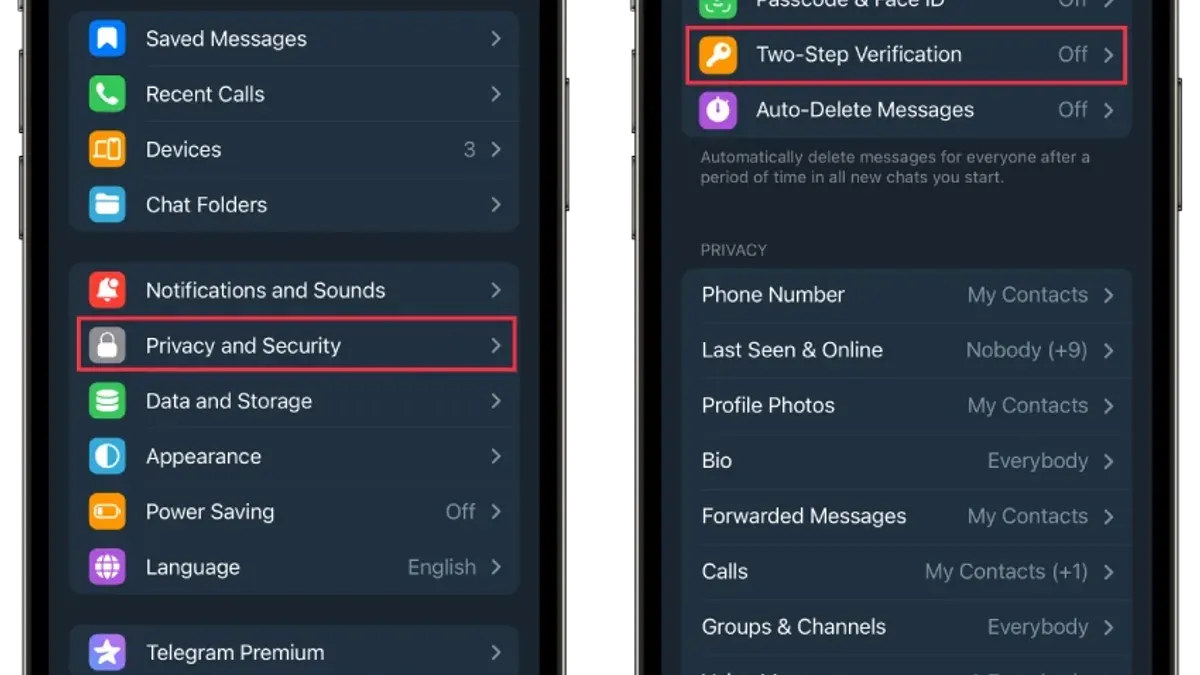
Enabling 2FA on Telegram involves navigating to Settings > Privacy and Security > Two-Step Verification, where a password is created and a recovery email is set. This article also covers managing or disabling 2FA, handling verification codes during login, and troubleshooting common issues specific to Telegram’s authentication system.
Understanding these steps ensures Telegram users maintain strong security with clear control over their authentication process and recovery options.
Before you start: What is needed to enable two-factor authentication on Telegram
Two-factor authentication (2FA) on Telegram adds a critical layer of security by requiring a password in addition to the verification code sent via SMS. To enable this feature, an active Telegram account linked to a valid phone number is essential. Access to the Telegram app on a smartphone or desktop must be available, as 2FA setup is managed within the app’s settings.
A stable internet connection is necessary throughout the process to receive verification codes and update security settings promptly. Users must be prepared to create and remember a strong password that meets common security standards—typically at least eight characters with a mix of uppercase and lowercase letters, numbers, and symbols. This password protects the account beyond the SMS code and should not be reused from other services.
Optionally, Telegram allows adding a recovery email address. This step is recommended to regain access if the 2FA password is forgotten. While not mandatory, a backup email enhances account recovery options. Enabling 2FA significantly reduces the risk of unauthorized access, as messaging apps with this protection report fewer account breaches.
- Ensure the Telegram app is installed and logged in on a device. The main chat interface should be visible.
- Confirm the phone number linked to the account is current and accessible for receiving SMS codes.
- Verify the device has a reliable internet connection by opening any webpage or refreshing chats.
- Prepare a strong password in advance that meets complexity requirements.
- Optionally, have access to an email account for setting up password recovery during the 2FA process.
How do I turn on two-factor authentication on Telegram?
- Open the Telegram app and tap the three horizontal lines in the top-left corner to access the main menu. Select Settings from the list. A new screen with account options will appear.
- In Settings, scroll down and tap Privacy and Security. This section contains all security-related features.
- Under Privacy and Security, find and tap Two-Step Verification. This opens the setup for two-factor authentication.
- Tap Set Password. Enter a strong password that combines letters, numbers, and symbols. Confirm the password by typing it again in the next field. A strong password significantly increases account security.
- Optionally, add a Recovery Email Address. Telegram will send a confirmation code to this email to help recover the password if forgotten. Enter the code received to verify the email.
- After completing these steps, tap Done or Save to activate two-factor authentication. The app will show a confirmation screen indicating two-step verification is enabled.
Before enabling, Telegram accounts rely mainly on SMS or email verification, which can be vulnerable. Enabling two-factor authentication adds a password layer, preventing unauthorized access even if the phone number is compromised.
Tip: Use a unique password for Telegram’s two-step verification that differs from other accounts to maximize security.
How to set two-step verification in Telegram?
Telegram uses the term two-step verification to describe its two-factor authentication process. This feature adds a second layer of security by requiring a password in addition to the SMS verification code when logging in on a new device. Setting up two-step verification involves creating a strong password and optionally adding a recovery email to regain access if the password is forgotten.
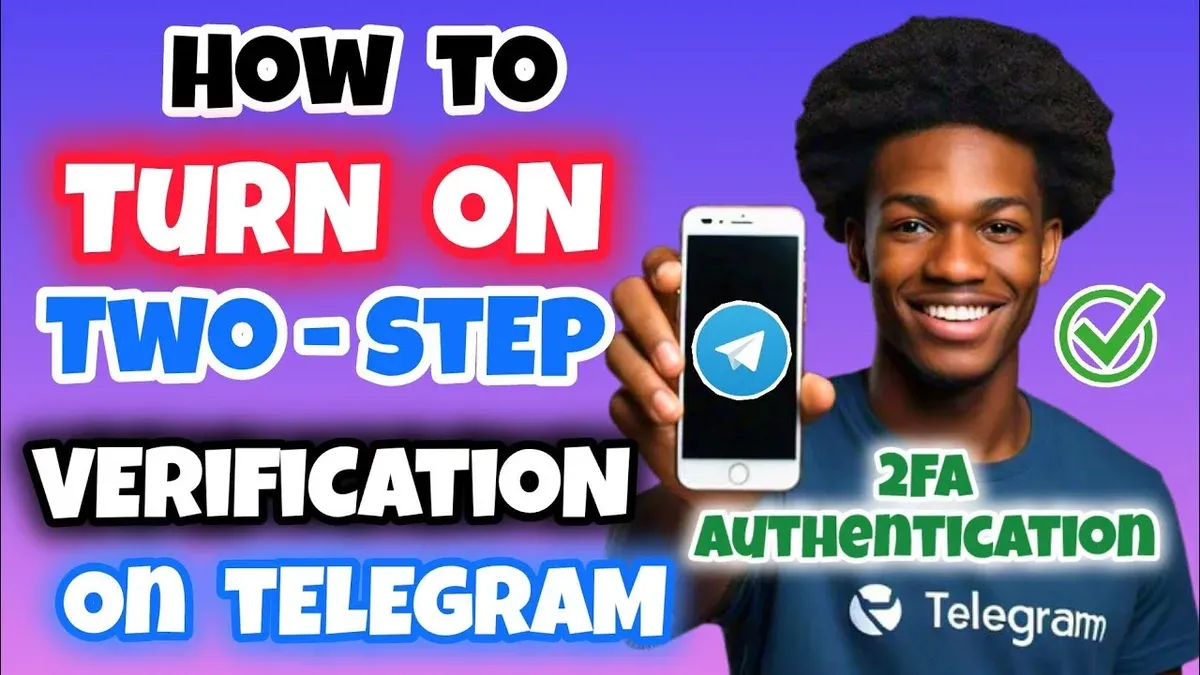
- Open Telegram and go to Settings.
- Select Privacy and Security.
- Tap on Two-Step Verification.
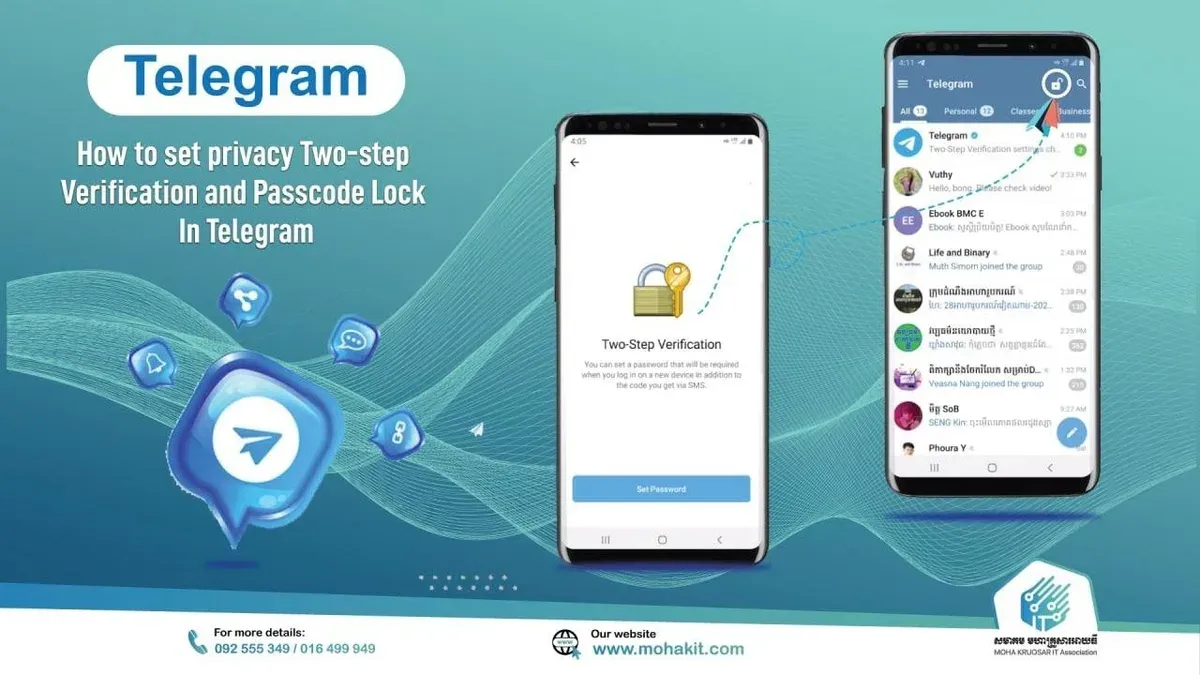
- Press Set Password and enter a strong password; after confirmation, Telegram will prompt for a password hint to help recall it.
- Next, add a recovery email address; Telegram will send a confirmation code to this email.
- Enter the confirmation code received via email to verify and complete the setup.
Once configured, the password is required alongside the SMS code when logging in from a new device, greatly reducing the risk of unauthorized access. If the password is forgotten, the recovery email enables resetting it, preventing account lockout.
Tip: Choose a password that is unique and not used on other services to maintain optimal security.
How to turn off two-factor authentication in Telegram?
Disabling two-factor authentication (2FA) in Telegram removes the additional password layer that protects the account beyond the SMS verification code. Turning off 2FA increases account vulnerability, making it easier for unauthorized users to gain access if they intercept the SMS or compromise the phone number. It is advisable to disable 2FA only if there is a compelling reason, such as losing access to the password or switching to a different security method.
- Open the Telegram app and go to Settings.
- Tap Privacy and Security, then select Two-Step Verification. The current status of 2FA will be visible here.
- Choose the option to Turn Off Password or Disable Two-Step Verification—this wording may vary by app version.
- Enter the current 2FA password when prompted. Without the correct password, disabling 2FA is not possible.
- Confirm the disabling action. Telegram will notify that 2FA is now turned off and the account protection level is reduced.
Tip: Keep in mind that disabling 2FA means only the SMS verification code protects the account, which is less secure against SIM swapping and interception attacks.
How to get Telegram verification code when enabling or logging in?
Telegram sends verification codes via SMS to the phone number registered or through Telegram messages to any logged-in devices. The code is typically a 5-digit number in a message stating "Your Telegram code is 12345." It must be entered exactly as received to proceed.
- Check your SMS inbox for a message from a Telegram number or unknown sender containing the verification code. When received, the app will prompt for input of this code.
- If the user is logged in on another device, open Telegram there and look for a message from Telegram with the verification code. Enter that code in the login screen.
- Enter the 5-digit code carefully into the Telegram app exactly as provided. After successful entry, access will be granted.
- If the code is delayed or not received within a few minutes, use the "Resend code" option. Ensure mobile network coverage or internet connectivity is stable.
- If SMS delivery repeatedly fails, try receiving the code on a different registered device or check with the mobile carrier for any SMS filtering issues.
Tip: Avoid sharing the verification code with anyone, as Telegram will never request it outside the app login process.
Beware of phishing attempts: fraudulent messages may mimic Telegram codes but include links or requests for personal data. Genuine Telegram codes only contain the numerical code and no additional links or instructions.
Troubleshooting common issues with Telegram two-factor authentication
Users frequently encounter problems such as forgotten two-factor authentication (2FA) passwords, not receiving verification codes, or losing access to recovery emails. Telegram support often receives queries about password recovery and code delivery failures. If the 2FA password is forgotten, the recovery email set during setup is the primary solution to reset it. Without access to the recovery email, account recovery becomes difficult, and Telegram recommends keeping that email updated to avoid lockout.
Verification codes might not arrive due to network issues or incorrect device settings. Ensure the device has a stable internet connection or cellular signal. Also, check that Telegram notifications are enabled in the device settings to avoid missing codes. If codes are delayed, use the “Resend code” option cautiously and avoid multiple rapid requests that can trigger temporary blocks.
Suspicious login attempts despite 2FA require immediate action: review active sessions via Settings > Devices, terminate unfamiliar sessions, and change the 2FA password if necessary. Telegram may display error messages like “Incorrect password” or “Code expired,” indicating either mistyped credentials or delays in code entry. Following these steps maintains account security and minimizes downtime.
How does Telegram’s two-factor authentication compare to other platforms?
Telegram’s two-factor authentication (2FA) combines a user-set password with verification codes sent via SMS or generated within the app. This method contrasts with many platforms that rely heavily on authenticator apps or hardware tokens for the second factor. Telegram’s approach offers simplicity and accessibility since it does not require installing a separate app, but it depends on the security of the phone number and SMS delivery.
Other popular platforms like Facebook support various 2FA methods including SMS codes, authenticator apps (Google Authenticator, Duo Mobile), and physical security keys. Signal, focused on secure messaging, encourages use of app-generated codes and biometric unlocking, avoiding SMS due to its potential vulnerabilities.
Telegram’s reliance on SMS can be less secure than app-based codes because SMS interception is a known risk. However, the addition of a strong password and optional recovery email increases security beyond basic SMS verification. Authenticator apps generally provide higher security by generating time-based one-time passwords (TOTPs) that are not transmitted over potentially vulnerable channels.
| Platform | 2FA Method | Security Level | User Convenience |
|---|---|---|---|
| Telegram | Password + SMS/app codes | Moderate | High |
| SMS, Authenticator Apps, Security Keys | High | Moderate | |
| Signal | App Codes, Biometrics | High | Moderate |
Tip: Consider using an authenticator app for platforms that support it to reduce risks associated with SMS interception.
How to activate two-factor authentication on other platforms like Facebook?
Many users interested in securing their Telegram accounts with two-factor authentication (2FA) naturally look to protect other social platforms such as Facebook. While the concept is similar, Facebook’s 2FA setup involves distinct steps and terminology, often referred to as two-step verification. It is advisable to enable 2FA on all accounts that support it to maintain comprehensive security.
Facebook offers various methods for 2FA, including authentication apps, text messages, and security keys. The setup process is accessible through the Security and Login settings, but the exact options and naming conventions differ from Telegram’s approach.
- Open the Facebook app or website and go to Settings & Privacy > Settings.
- Select Security and Login from the menu.
- Scroll to Two-Factor Authentication and click Edit.
- Choose a security method: Authentication App, Text Message (SMS), or Security Key.
- Follow the prompts to complete the setup, such as scanning a QR code for an authenticator app or entering a phone number for SMS.
- Once set, Facebook will require this second verification step when logging in from new devices or browsers.
Tip: Using an authentication app rather than SMS often provides stronger security against SIM swapping attacks.
For detailed guidance, Facebook’s official help page offers step-by-step instructions tailored to frequent updates in their interface.
Frequently asked questions
How to turn on two factor authentication on telegram?
Open Telegram and go to Settings > Privacy and Security > Two-Step Verification. Tap on "Set Password" and create a strong password. Optionally, add a recovery email to reset the password if forgotten, then confirm to enable two-factor authentication.
How to turn off two factor authentication on telegram?
Navigate to Settings > Privacy and Security > Two-Step Verification. Enter the current password and tap "Turn off Two-Step Verification". Confirm the action to disable two-factor authentication completely.
How to set two step verification in telegram?
Go to Settings, select Privacy and Security, then Two-Step Verification. Choose "Set Password", enter a secure password, add a recovery email if desired, and confirm all details to activate two-step verification for the account.
How to turn on two factor authentication?
Access the app’s security settings and locate the two-factor or two-step verification option. Follow prompts to create a password or link an authenticator app, then verify using a code sent via SMS or email to complete activation.
How do i set up two-factor authentication?
Open the target app’s security settings. Select two-factor authentication or two-step verification, set up a password or enable an authenticator app, and add a backup recovery method if available. Confirm by entering the verification code received.
What this guide does not cover and who should seek other help
This guide does not cover Telegram’s default SMS verification as a standalone security measure; two-factor authentication adds a crucial password layer but cannot prevent all forms of account compromise such as SIM swapping. Users who do not remember their 2FA password and lose access to their recovery email may lose access to their Telegram account permanently. For advanced security concerns like device-level encryption or managing Telegram sessions across multiple devices, users should consult Telegram’s official security resources or seek expert assistance.
The most useful next step is to immediately enable two-step verification via Telegram’s Settings > Privacy and Security > Two-Step Verification, setting a strong password and adding a recovery email. This action greatly strengthens account protection and reduces the risk of unauthorized access beyond relying on SMS codes alone.
See also: How to Turn On Two-Factor Authentication on Reddit: A Step-by-Step Guide · How to Turn On Two-Factor Authentication on Quora: A Clear Step-by-Step Guide · How to See Where You're Logged Into Telegram: Step-by-Step Guide