
How to Turn On Two-Factor Authentication on Snapchat: A Clear Step-by-Step Guide
Learn how to turn on two-factor authentication on Snapchat with easy steps to enhance your account security and manage verification methods.

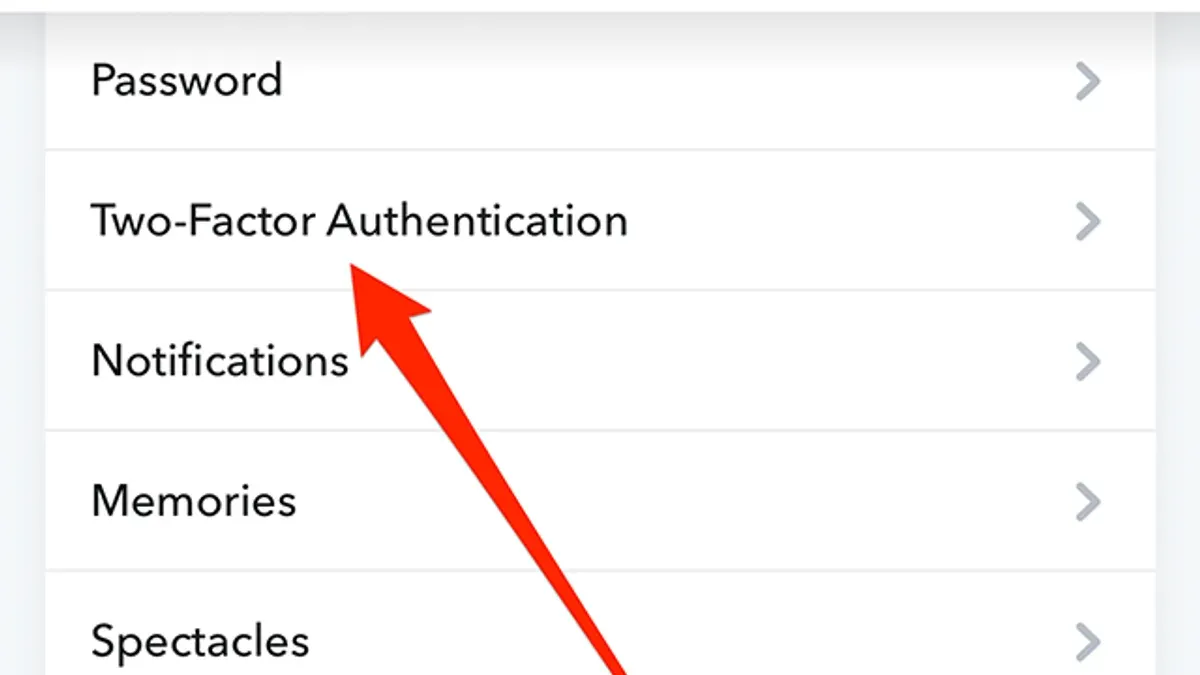
This article explains how to turn on two-factor authentication on Snapchat with clear, direct steps and practical tips. Two-factor authentication (2FA) adds a vital layer of security by requiring a verification code in addition to the password when logging in.
Enabling 2FA on Snapchat involves navigating to the Settings menu, selecting "Two-Factor Authentication," and choosing a verification method—either SMS or an authentication app. This guide covers both options, highlights common pitfalls such as incorrect phone numbers or app synchronization issues, and shows how to manage recovery codes.
Understanding Snapchat’s specific 2FA process helps avoid frustration and ensures the account stays protected without locking users out. Later sections address disabling 2FA and troubleshooting common problems.
Before you start: What is needed to enable two-factor authentication on Snapchat?
Two-factor authentication (2FA) on Snapchat requires a logged-in account on a mobile device (Android or iOS) or desktop app. The 2FA setup cannot be fully completed through the Snapchat web interface. Access to either the phone number linked to the account or an authentication app (such as Google Authenticator or Authy) is essential for receiving verification codes.
Snapchat offers two main 2FA methods: SMS-based and authenticator app-based. SMS-based 2FA sends a code via text message to the registered phone number, while authenticator apps generate time-sensitive codes independently. Authenticator apps generally provide stronger security because they are less vulnerable to SIM swapping or interception compared to SMS.
Confirm that the phone number in the account settings is current and accessible before proceeding. If opting for an authenticator app, ensure it is installed and configured on the mobile device. Snapchat’s 2FA settings are found under Profile > Settings > Two-Factor Authentication, and the process will guide through either method once started.
- Open Snapchat and log in on a mobile device or desktop; the profile screen should appear.
- Navigate to Settings (gear icon) and locate Two-Factor Authentication; this confirms 2FA setup access.
- Verify that the linked phone number is correct and accessible under Mobile Number.
- Decide on SMS or authenticator app method and have the chosen option ready for code reception.
Tip: Using an authenticator app is recommended for better protection against common phone number vulnerabilities.
How to enable two factor authentication on Snapchat
- Open the Snapchat app and tap the profile icon at the top left corner; the profile screen will appear with user details and settings options.
- Tap the gear icon at the top right to access Settings; scroll down and select "Two-Factor Authentication" under the "Account Security" section.
- Tap "Continue" on the intro screen, then choose the preferred verification method: "Text Message" or "Authentication App." Selecting "Text Message" prompts for the phone number associated with the account, while "Authentication App" directs to set up an app like Google Authenticator.
- If "Text Message" is chosen, Snapchat sends a verification code via SMS; enter this code in the app to verify the phone number. If "Authentication App" is chosen, scan the provided QR code or enter the setup key into the authenticator app, then input the generated code back into Snapchat.
- Upon successful verification, a confirmation screen will display that two-factor authentication is enabled. Future logins will require the password plus a code from the selected verification method.
Tip: Using an authentication app is more secure than SMS and avoids issues if the phone number changes.
How to turn on two factor authentication on Snap
"Snap" is a common shorthand for Snapchat used in user searches and informal discussions. The process to enable two-factor authentication (2FA) on Snap is exactly the same as on Snapchat. There is no separate app called Snap; all security settings, including 2FA, are managed through the Snapchat mobile app.
Confusion often arises from the interchangeable use of "Snap" and "Snapchat" in searches. Users searching for "how to turn on two factor authentication on Snap" receive the same instructions applicable to the Snapchat app. This guide clarifies that despite naming variations, the steps and settings remain consistent.
- Open the Snapchat app on the mobile device. The home screen or camera view should appear.
- Tap the profile icon in the top-left corner to open the user profile.
- Tap the gear icon in the top-right corner to access Settings.
- Scroll down and select "Two-Factor Authentication" under the "Account Actions" section.
- Follow prompts to choose either SMS verification or an authenticator app. Enter the verification code received.
- Upon successful verification, a confirmation message will display, indicating 2FA is enabled.
Tip: Remember that enabling 2FA on Snap is just enabling it on Snapchat; there is no difference in the app or method.
How to turn off two factor authentication on Snapchat
- Open the Snapchat app on the Android or iOS device and tap the profile icon in the top-left corner to access the profile screen.
- Tap the gear icon in the top-right corner to open Settings.Settings screen appears with various options.
- Scroll down and select Two-Factor Authentication under the "Login Verification" section.
- Enter the current verification code sent via SMS or generated by the authenticator app to confirm identity.Successful code entry brings up the Two-Factor Authentication settings page.
- Toggle off the switch next to Login Verification to disable two-factor authentication.A confirmation screen appears explaining the security risks of disabling 2FA.
- Confirm the disable action by tapping Turn Off or similar confirmation button.Two-factor authentication is now disabled, and login will no longer require a verification code.
The disabling process is largely the same on Android and iOS devices with only minor interface differences such as icon placement or wording. Both platforms require entering the current verification code before toggling off 2FA to ensure account security. Disabling two-factor authentication removes an important layer of protection, making the account more vulnerable to unauthorized access.
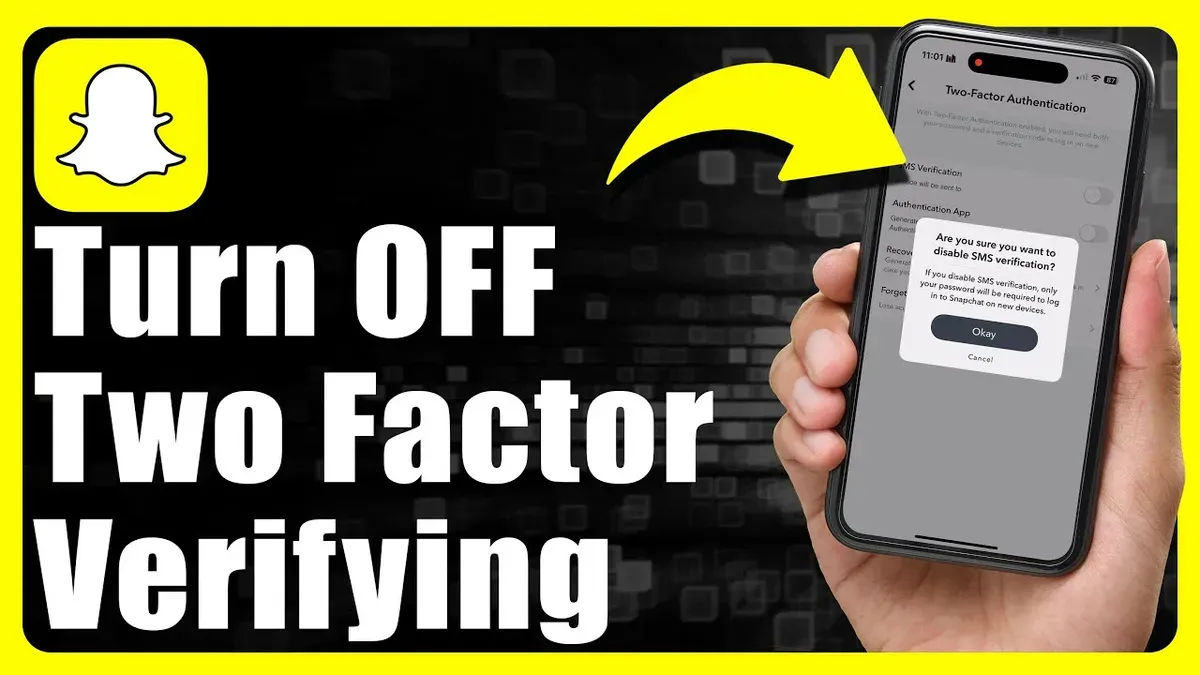
Tip: Keep a backup of recovery codes or update account recovery options before disabling two-factor authentication.
How to turn off two factor authentication on Snapchat without logging in
Snapchat's security policy does not allow disabling two-factor authentication (2FA) without logging into the account. This restriction protects users by preventing unauthorized access even if someone tries to bypass 2FA. Officially, 2FA can only be managed from within the logged-in account settings.
If access to the account is lost, the recommended approach is to recover the account first. Snapchat provides options such as resetting the password via the "Forgot Password?" link on the login page, which sends a reset link to the registered email or phone number. Successful password reset restores login capability, allowing 2FA settings to be changed.
Alternatively, users can contact Snapchat Support through their help site or app. Support may assist with account recovery by verifying identity, but disabling 2FA without login remains unlikely. Snapchat's policy emphasizes that 2FA is a critical security layer and cannot be bypassed without proper authentication.
Tip: Keep recovery information up to date to avoid being locked out of account management features.
- Go to the Snapchat login screen and select the "Forgot Password?" option. A prompt should appear to choose recovery via email or phone.
- Follow the instructions to receive a password reset code or link. Upon success, the user should be able to set a new password.
- Log into Snapchat with the new password. Access the profile icon and navigate to Settings > Two-Factor Authentication.
- Toggle off login verification by entering the current 2FA code. This disables two-factor authentication.
- If password reset fails or recovery options are inaccessible, submit a request to Snapchat Support with proof of account ownership. Await response for further steps.
Attempting to disable 2FA without account login or recovery is not supported and poses significant security risks. Following official recovery channels is the only viable path to regain control and modify 2FA settings.
How to turn off two factor authentication on Snapchat android and web
Disabling two-factor authentication (2FA) on Snapchat differs notably between the Android app and the web interface. The Android app provides full control over 2FA settings, allowing users to disable login verification directly. In contrast, Snapchat web has limited security management features and typically does not support turning off 2FA through its interface.
- Open the Snapchat app on the Android device and tap the profile icon in the top-left corner to access the profile screen.
- Tap the gear icon in the top-right corner to open Settings.
- Scroll down and select "Two-Factor Authentication" under the "Account Actions" section.
- Enter the current verification code from the authenticator app or SMS when prompted. This confirms the user’s identity.
- Toggle off the "Login Verification" option. A confirmation message should appear indicating 2FA is disabled.
On Snapchat web, the user can view account settings but will not find an option to disable 2FA. If the web interface does not allow disabling, users must use the mobile app or contact Snapchat support for assistance.
Tip: Use the Android app for any 2FA management tasks to avoid limitations of the web version.
| Feature | Android App | Snapchat Web |
|---|---|---|
| Enable 2FA | Yes | No |
| Disable 2FA | Yes | No |
| View 2FA status | Yes | Limited |
How to turn off two factor authentication on Snapchat without phone
Disabling two-factor authentication (2FA) on Snapchat without access to the original phone requires preparation. Backup codes generated when enabling 2FA are the primary recovery method. These codes allow login or 2FA disabling from a different device. Without backup codes or access to the linked phone number or authenticator app, disabling 2FA is challenging and may require contacting Snapchat support.
Tip: Always save backup codes in a secure location immediately after setting up 2FA to avoid lockout risks.
To disable 2FA without the original phone, follow these steps:
- Locate the backup codes saved during 2FA setup. These are typically a set of 8 one-time-use codes.
- Log in to Snapchat from a new device or browser. When prompted for the 2FA code, select the option to enter a backup code.
- Enter one of the backup codes. Successful entry grants access and allows navigating to Settings > Two-Factor Authentication.
- In the Two-Factor Authentication menu, toggle off login verification. Snapchat will confirm 2FA is disabled.
- If backup codes are unavailable, initiate account recovery by selecting "Forgot password?" on the login screen and follow prompts to reset credentials via email. After regaining access, disable 2FA as above.
Users without backup codes or access to recovery options risk permanent account lockout. Reports indicate a significant portion of Snapchat users face 2FA lockouts due to lost phones or unprepared recovery methods.
Proactively setting up multiple verification methods and securely storing backup codes mitigates these risks and ensures continued account access if the primary device is lost.
Troubleshooting common issues when enabling or disabling two-factor authentication on Snapchat
Not receiving SMS verification codes is a frequent problem. First, confirm the phone number entered is correct and active. Check for network issues or SMS blocking by carriers or third-party apps. If codes still don’t arrive, switch to an authenticator app method or request a new code after waiting at least two minutes.
If the authenticator app does not sync or generate codes correctly, ensure the device’s time and date settings are set to automatic. Manually syncing the app or reinstalling it can also resolve code mismatches. Common errors include “Invalid code” or “Code expired,” which usually indicate a time sync issue.
Account lockouts from repeated failed verification attempts require waiting up to 24 hours before retrying. During this time, avoid multiple rapid attempts to prevent extended lockout. If locked out indefinitely, contacting Snapchat support is necessary.
To update the phone number or authenticator app settings linked to two-factor authentication, navigate to Settings > Two-Factor Authentication > Manage Phone Number or Authentication App. Follow prompts to replace or update the current details.
Contact Snapchat support when persistent issues remain after troubleshooting steps, especially for account lockouts or failure to receive any verification method. Official guidance often addresses rare or account-specific problems.
Frequently asked questions
How to set up two factor authentication on snapchat?
Open Snapchat and tap the profile icon in the top-left corner. Access Settings by tapping the gear icon in the top-right. Scroll to ‘Two-Factor Authentication’ under the ‘Account Actions’ section and select it. Choose either ‘Text Message’ or ‘Authentication App’ as the verification method, then follow the prompts to complete setup.
How to turn on 2 factor authentication on snapchat?
Navigate to Snapchat Settings and find ‘Two-Factor Authentication’. Tap ‘Continue’ and select the preferred method: text message or authentication app. Enter the required code from your phone or app to activate two-factor authentication immediately.
how to turn on two factor authentication on snapchat
From the Snapchat profile screen, enter Settings and select ‘Two-Factor Authentication’. Tap ‘Start’ and pick either SMS or an authentication app for verification codes. Finish by verifying the code sent or generated to enable protection.
how to turn off two factor authentication on snapchat without logging in
Disabling two-factor authentication without logging in is not possible through Snapchat’s standard interface. If access is lost, use account recovery options like resetting the password via email or contact Snapchat Support for assistance.
how to turn off two factor authentication on snapchat android
On an Android device, open Snapchat and go to your profile, then tap the gear icon for Settings. Select ‘Two-Factor Authentication’, enter your Snapchat password if prompted, then tap ‘Turn Off’. Confirm the choice by entering a verification code sent via your chosen method.
What this advice does not cover and who should do something else
This guide does not cover Snapchat account recovery for permanently lost credentials or hacked accounts beyond two-factor authentication management. Users who have completely lost access to their login information or whose accounts have been compromised should contact Snapchat Support directly or follow Snapchat’s official account recovery procedures.
Users relying solely on SMS-based two-factor authentication should be aware of the risks associated with SIM swap attacks. For stronger security, consider switching to an authenticator app like Google Authenticator or Authy, which Snapchat supports and which reduces dependence on phone numbers.
The single most useful next step is to verify that two-factor authentication is working correctly immediately after setup. Send a test login request to confirm that the verification code or authentication prompt is received and accepted. This ensures the 2FA setup is functional and avoids lockouts later.
See also: How to Turn On Two-Factor Authentication on Messenger: A Clear Step-by-Step Guide · How to Turn On and Off Two-Factor Authentication on Instagram



