
How to Turn On Two-Factor Authentication on Signal: A Clear Step-by-Step Guide
Learn how to enable two-factor authentication on Signal using its unique PIN system to add an extra layer of security to your account.

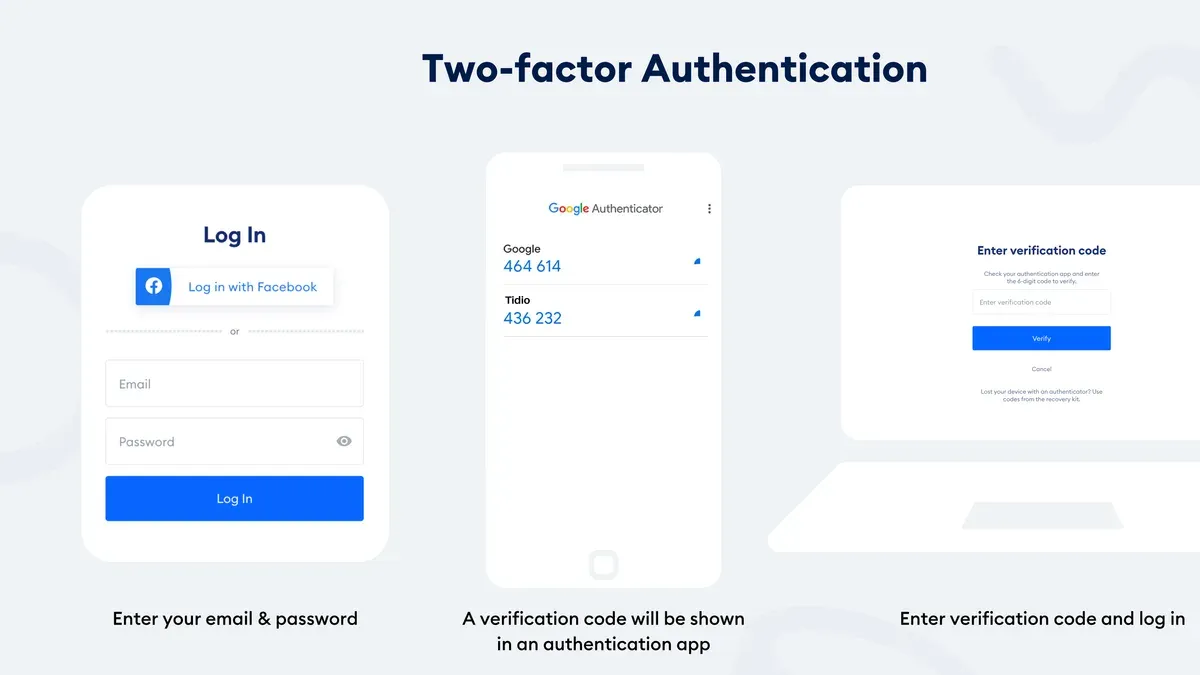
This article explains how to turn on two-factor authentication on Signal, focusing on the app’s unique PIN-based system. Two-factor authentication (2FA) adds a critical layer of security by requiring a second verification step beyond the password. Signal uses a PIN instead of typical one-time passwords (OTP), making its setup and management different from other apps.
Before enabling 2FA, ensure the Signal app is updated to the latest version to access all security features. The process involves setting a PIN that protects account registration and prevents unauthorized access. The following sections break down the setup steps, explain why Signal uses a PIN, and cover recovery and troubleshooting tips.
What is needed before turning on two-factor authentication on Signal?
Before enabling two-factor authentication (2FA) on Signal, ensure the app is updated to a version that supports this feature. The minimum required versions are Signal 5.0 or later on Android, Signal 5.32 or later on iOS, and Signal Desktop 5.40 or later. Using an outdated version will prevent access to the 2FA settings.
Access to the registered phone number tied to the Signal account is necessary, along with the device where Signal is installed. This access is crucial as the PIN setup is device-specific and linked to the phone number. Without the device, completing the setup is impossible.
Signal employs a PIN system for its two-factor authentication rather than a traditional one-time password (OTP) app. This PIN is a critical security component used to verify identity and protect account recovery. Because Signal’s recovery options are limited, it is essential to securely remember or store the PIN in a safe place to avoid permanent account lockout.
- Update Signal to the latest version available for the device. After updating, opening the app should display the latest interface and settings options.
- Confirm the phone number registered with Signal is accessible and the device is unlocked. The Signal interface will show the linked number under settings.
- Prepare a secure method to record or memorize the PIN before beginning the 2FA setup. This step ensures the PIN can be recalled as Signal’s recovery options are minimal.
How to enable two-factor authentication (PIN) on Signal?
- Open the Signal app and tap the profile icon in the top-left corner to access Settings. The Settings menu will appear.
- Navigate to Privacy within Settings. This section contains security-related options.
- Select Registration Lock. The Registration Lock screen will display information about the PIN and its use.
- Toggle on Registration Lock. A prompt to create a PIN will appear.
- Enter a strong and memorable PIN. An example of a strong PIN is a combination of digits that is easy to remember but difficult to guess, such as a mix of birth year and a favorite number (e.g., 198472). Avoid simple sequences like 1234 or repeated numbers.
- Confirm the PIN by entering it again when prompted. A confirmation message will appear, explaining that the PIN is required for identity verification when re-registering Signal on a new device.
- Optionally, enable PIN reminders to receive periodic prompts to enter the PIN, helping to keep it fresh in memory. This option appears after setting the PIN.
- To change the PIN later, return to the Registration Lock screen and select Change PIN. Follow the prompts to enter the current PIN and set a new one.
Tip: Write down the PIN and store it securely to avoid being locked out of the account.
Why Signal uses a PIN for two-factor authentication instead of traditional OTP?
Signal’s two-factor authentication centers on a Registration Lock PIN, a security measure designed to prevent unauthorized re-registration of the phone number on a new device. Unlike traditional OTP (one-time password) methods that rely on external servers to deliver codes via SMS or apps, Signal stores the PIN securely on its servers, requiring it when re-registering the phone number. This approach counters SIM swapping attacks, where an attacker hijacks a phone number to gain access to accounts.
The PIN system enhances privacy by eliminating dependence on third-party OTP services, reducing exposure to interception or tracking risks. Additionally, the PIN protects access not only to the account registration but also to message history and settings, creating a comprehensive layer of protection within Signal’s ecosystem.
According to Signal's official security blog, the Registration Lock "adds a critical step for authentication that is independent of the phone number itself, strengthening account security against hijacking."
| Feature | Signal PIN | Traditional OTP 2FA |
|---|---|---|
| Storage | Securely stored on Signal servers | Transient codes generated per login attempt |
| Delivery | Entered manually by user on re-registration | Sent via SMS or authentication apps |
| Attack resistance | Blocks SIM swapping and unauthorized re-registration | Vulnerable to SIM swap and phishing attacks |
| Privacy | No reliance on external services | Dependent on third-party code delivery |
| Scope | Protects registration, message history, and settings | Protects login session only |
What to do if the Signal PIN is forgotten?
When the Signal PIN is forgotten, the only recovery option is to reset it after a timeout period, typically seven days. This reset deletes all message history and other local data, requiring a fresh start. Signal warns users about this consequence to emphasize the importance of securely storing the PIN.
To reset the PIN, follow these steps:
- Open Signal and go to Settings.
- Select Privacy and then tap Registration Lock.
- Choose Reset PIN. A warning message will appear explaining that message history will be deleted.
- Confirm the reset and set a new PIN when prompted.
Enabling PIN reminders in Settings > Privacy > Registration Lock helps reduce the risk of forgetting the PIN by prompting periodic entry. Without the PIN, messages cannot be recovered, so secure PIN storage is critical. Many users who forget their PIN opt for the reset despite the data loss, highlighting the need for careful PIN management.
How to troubleshoot common problems enabling two-factor authentication on Signal?
When the Registration Lock option is missing, first verify that Signal is updated to the latest version via the app store. Outdated versions often lack this feature. For PIN creation errors, avoid using simple sequences like "1234" or repeated numbers such as "1111"; Signal enforces PIN strength rules requiring a mix of digits and length, and it will prompt if the PIN is too weak.
If PIN reminders are not appearing, confirm that Signal notifications are enabled in device settings and that Signal is allowed to run in the background. Without these permissions, reminders won’t trigger. When resetting a forgotten PIN, ensure the mandatory waiting period has fully elapsed and that the device has stable internet connectivity to sync the reset.
Common error messages include "Registration Lock not available," often fixed by updating the app; "PIN too weak," resolved by choosing a longer or less predictable PIN; and "Cannot reset PIN yet," indicating the waiting period is incomplete. These steps address frequent community-reported issues with Signal’s two-factor authentication.
How does enabling two-factor authentication enhance Signal account security?
Enabling two-factor authentication (2FA) on Signal significantly strengthens account protection by preventing unauthorized re-registration of the phone number on a different device. This measure blocks attackers from hijacking accounts through SIM swap or phone number takeover attacks, which commonly exploit mobile network vulnerabilities. By requiring the unique PIN in addition to possession of the phone number, Signal adds a critical security layer beyond standard SMS verification or device ownership.
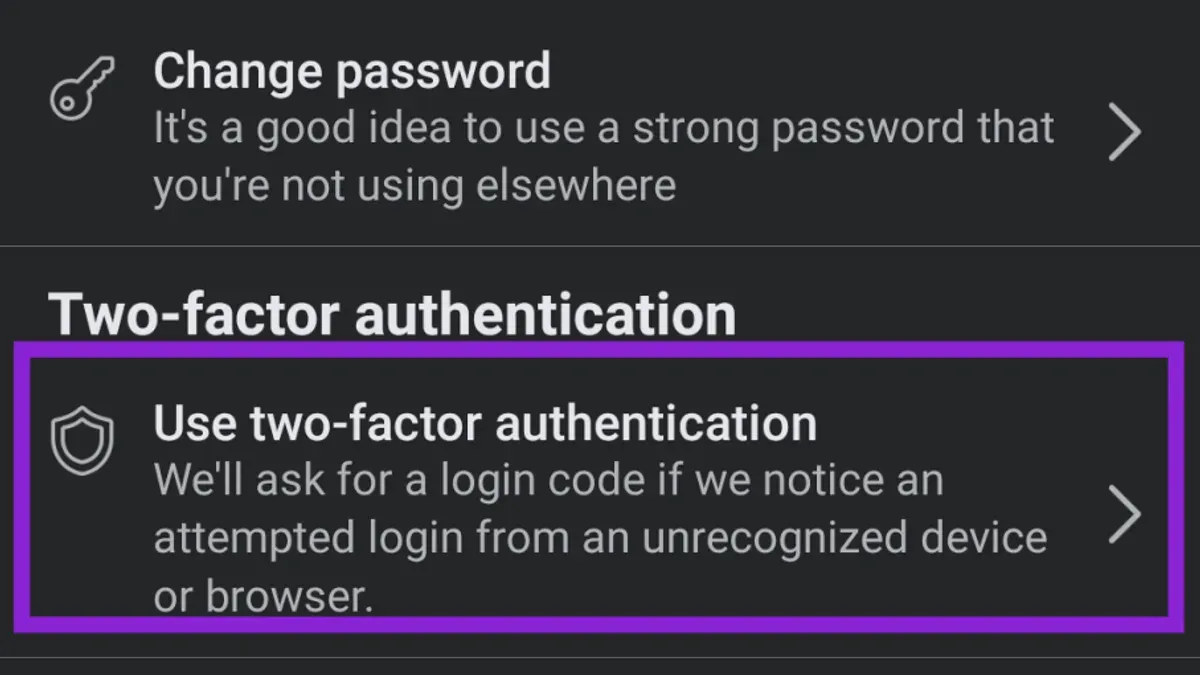
This approach maintains the privacy and integrity of Signal messages and contacts by ensuring that even if an attacker controls the phone number, they cannot access the account without the PIN. Security experts recognize Signal’s PIN-based registration lock as a robust defense against common interception methods used in account takeovers.
In practice, users who enable 2FA experience fewer security incidents related to unauthorized access, preserving the confidentiality of their communications and preventing identity theft linked to their Signal profiles.
Frequently asked questions
Can two-factor authentication be enabled on Signal desktop app?
No. Two-factor authentication on Signal is tied to the mobile app and its PIN system. The desktop app relies on the linked mobile device for authentication and does not support enabling 2FA independently.
What happens if the phone is lost with 2FA enabled on Signal?
If the phone with Signal and 2FA enabled is lost, reactivating the account on a new device requires the PIN. Without the PIN, account recovery options are limited, potentially leading to loss of access. Always keep the PIN memorable or stored securely.
Is the Signal PIN the same as the device lock PIN or password?
No. The Signal PIN is a separate code used specifically for protecting Signal data and enabling two-factor authentication. It is independent of the device's lock screen PIN, password, or biometrics.
Can the Signal 2FA PIN be changed after setup?
Yes. The Signal PIN can be changed within the app by going to Settings > Privacy > Registration Lock > Change PIN. The current PIN is required to set a new one.
What this advice does not cover and who should seek other help
This article does not cover Signal’s PIN reset timeout durations in detail, which can vary and influence the ability to recover access if the PIN is forgotten. Users who require advanced recovery options or face extended lockouts should consult Signal’s official support resources or community forums for the latest information. Additionally, this guide focuses solely on Signal’s built-in two-factor authentication via PIN and does not address third-party authentication apps or device-level security measures.
For users wanting to secure their Signal accounts beyond the PIN system, combining it with strong device security such as biometric locks and regular app updates is advisable. The single most useful next step is to enable the PIN-based two-factor authentication under Signal’s Settings > Privacy > Registration Lock and set a memorable, secure PIN. This ensures an extra layer of protection against unauthorized account access and SIM swap attacks.
See also: How to See Where You're Logged Into Signal: Step-by-Step Guide · How to Turn On Two-Factor Authentication on Discord: A Step-by-Step Guide



