How to Change Your Box Password: Step-by-Step Clear Guide
This guide offers clear steps to change your Box password across devices, ensuring your accounts stay secure and easy to access.

This article provides clear, step-by-step instructions on how to change Box password across different devices and services. Whether managing a cloud storage account, a gaming console, a physical safe, or a home router, the process can vary significantly. Understanding the exact steps avoids confusion and security risks.
How to change Box password depends on the specific 'box' type. For cloud accounts, it typically involves navigating account settings and verifying identity. Physical safes or lock boxes require manual code changes following manufacturer instructions. This guide consolidates all these procedures in one place for quick reference.
Follow the sections below to reset or update passwords efficiently, ensuring access remains secure without unnecessary complications.
Before you start: What is needed to change a Box password
Changing a password for a Box service or device requires certain prerequisites to ensure the process goes smoothly. Access to the device or account is essential—this means having the current Box account login credentials for cloud services or physical access to devices like safes and routers. Without this, verification steps cannot be completed.
For online accounts such as Box cloud storage or Xbox Live, either the current password or recovery options like a registered email address or phone number must be available to verify identity. For example, Box cloud accounts often require an email verification link or code sent by SMS. Xbox Live similarly sends a recovery code to a linked email or phone number.
A stable internet connection is mandatory when changing passwords on online services. This ensures communication with servers is uninterrupted, preventing errors during the password update. Router password changes also require access to the router’s setup interface, typically reachable via a web browser at an IP address like 192.168.1.1 or 192.168.0.1.
Backing up important data or settings before changing passwords on devices like routers or safes is recommended. This prevents loss of access or configuration in case the new password is forgotten or the device resets. Saving current settings to a file or noting combinations is a practical safeguard.
- Verify physical or digital access to the Box device or account; successful access means the device interface or login page is reachable.
- Confirm possession of current password or valid recovery options such as linked email or phone; expect a verification prompt or recovery code delivery.
- Ensure a stable internet connection for online services; confirm by browsing a website or pinging a server.
- Backup critical data or settings on the device, such as exporting router settings or noting safe combinations; completion is confirmed by saved files or written records.
How to reset Box password
- Go to the Box login page at https://account.box.com/login. Find and click the Forgot password? link below the password field. This opens the password reset form.
- Enter the email address registered with the Box account. Click Send Email. A confirmation message appears stating that password reset instructions have been sent to the provided email.
- Open the inbox for that email address. Look for an email from Box with the subject Reset your Box password. The email usually arrives within a few minutes but may take longer depending on the email provider.
- Click the password reset link inside the email. It directs to a secure Box page where a new password can be created. Enter a strong new password and confirm it by retyping.
- Submit the new password. A success message confirms the password change. Return to the Box login page and sign in using the new password to verify the reset worked.
Tip: Check the spam or junk folder if the reset email does not appear within 10 minutes.
How to change mailbox password
Changing the mailbox password is essential for maintaining account security, especially if linked to box services. The process varies slightly depending on the email provider but generally involves accessing account settings through webmail or the email client. Gmail and Outlook are two common providers, each with a straightforward password update flow.
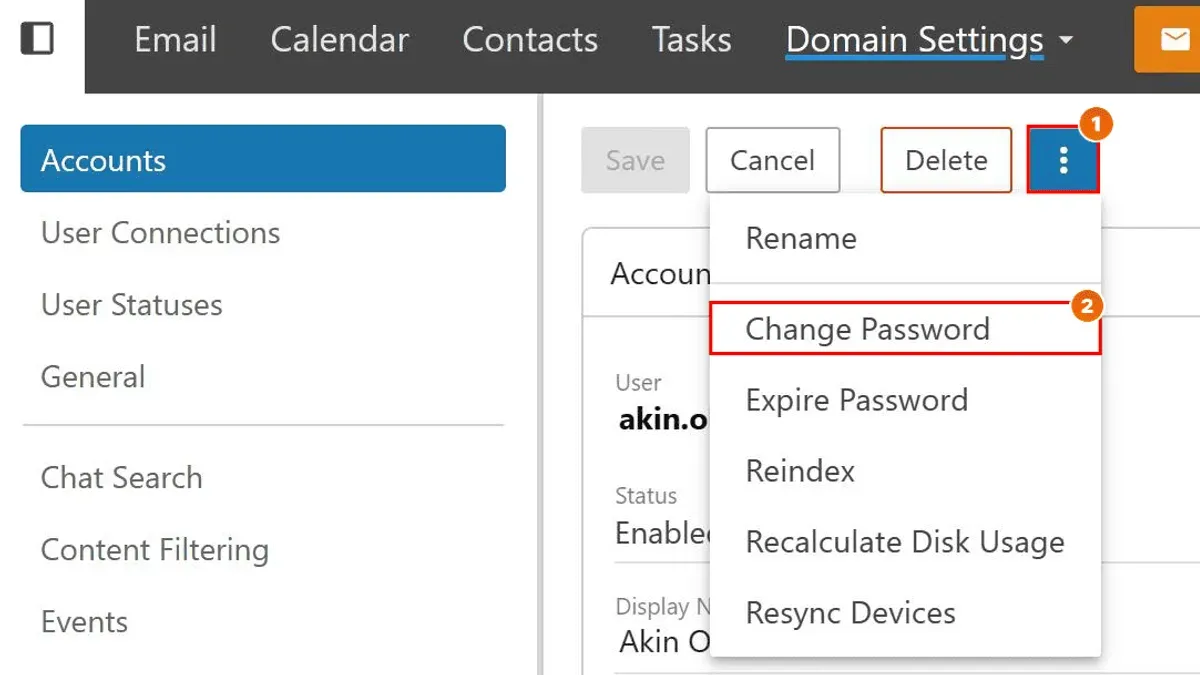
- Log in to the email account on the provider's official webmail site (e.g., mail.google.com for Gmail, outlook.live.com for Outlook). After successful login, the account dashboard or inbox appears.
- Navigate to the account or security settings. In Gmail, click the profile icon, select "Manage your Google Account," then go to "Security" and find "Password." In Outlook, click the profile picture, select "My Microsoft Account," then go to "Security" → "Password Security." You should see a prompt to verify identity.
- Enter the current password when prompted. This confirms account ownership and unlocks the password change fields.
- Set a new password following the provider's security guidelines, typically requiring a mix of upper and lowercase letters, numbers, and special characters. Re-enter the new password to confirm.
- Save or confirm the change. The system usually displays a confirmation message, such as "Password changed successfully." Log out and then log back in using the new password to verify it works correctly.
Tip: Update saved passwords in connected email clients or devices after changing the mailbox password to avoid sync errors.
How to change Xbox password and Xbox Live password
Changing the password for an Xbox account requires updating the Microsoft account linked to the console. The Xbox console PIN is separate and controls local console access, while the Microsoft account password governs Xbox Live and online services. Updating the Microsoft password ensures security across all Microsoft platforms, including Xbox Live.
- Go to the Microsoft account sign-in page at account.microsoft.com and sign in with the Xbox-associated credentials. Success shows the account dashboard.
- Select Security from the top menu, then click Password security. The password change options will appear.
- Verify identity through two-factor authentication if enabled—this usually involves entering a code sent via email, text, or authenticator app. Successful verification leads to the password update form.
- Enter the current password, then the new password twice. The new password must meet Microsoft's complexity requirements. Submit the change and wait for confirmation.
- After updating, sign in to the Xbox console with the new password to sync changes. If the console does not prompt for the new password, manually sign out and back in on the console.
Tip: Users commonly confuse the console PIN with the Microsoft account password; the PIN must be changed separately in console settings if needed.
How to change Fritz Box password
Changing the Fritz Box router password secures access to network settings and protects the home network. The process requires logging into the router’s web interface using its local IP address, typically 192.168.178.1. The default password is often printed on the device’s label but should be replaced promptly with a strong password to prevent unauthorized access.
- Open a web browser and enter http://192.168.178.1 in the address bar. The Fritz Box login page appears.
- Log in with the current administrator username and password. Successful login directs to the router’s dashboard.
- Navigate to the menu option System, then select FRITZ!Box Users or Access Profiles depending on the firmware version.
- Locate the administrator account and choose the option to change the password. A password input field appears.
- Enter a new strong password. A secure password combines at least 12 characters including uppercase, lowercase, numbers, and symbols. Avoid common words or simple sequences.
- Confirm the new password and save the settings. The router confirms the update by refreshing the page or displaying a success message.
- Some models require a reboot for changes to take effect; if prompted, reboot the Fritz Box. After reboot, logging in requires the new password.
Tip: Change the Fritz Box password regularly and record it securely to maintain network security and avoid lockouts.
How to change safe box and lock box password
Changing the password on a physical safe or lock box depends on the lock type: mechanical dial, electronic keypad, or biometric. Each requires following the manufacturer’s specific procedure to enter programming mode before setting a new combination or code. Common models include SentrySafe mechanical safes, Master Lock digital lock boxes, and biometric safes from brands like Barska.
- Identify the lock type and locate the user manual or online guide for the exact model. This ensures the correct sequence for password change.
- For mechanical dial safes (e.g., SentrySafe), open the safe with the current combination, then locate the change keyhole inside the door. Insert the change tool or key, turn it as directed (usually 90 degrees), then dial the new combination slowly and precisely. Remove the tool and test the new code by locking and unlocking the safe.
- For electronic keypad safes (e.g., Master Lock 5400D), enter the existing code, press the reset button (often inside the door), then enter a new code followed by the confirmation button. The keypad should signal success with a beep or light. Test the new code before closing.
- For biometric safes, access the programming mode by pressing the reset button or holding a designated finger on the scanner. Follow prompts to add or change fingerprint profiles or PIN codes. Confirm the new credentials by reopening the safe.
- Always test the new password multiple times with the safe door open to avoid lockouts.
- Record the new password or combination securely in a separate location, such as a password manager or a physical backup stored separately from the safe.
Tip: If the manual is unavailable, check the manufacturer’s website for digital copies or customer support to avoid incorrect resets that could lock the safe permanently.
How to change WiFi box password
Changing the WiFi password on a wireless router, often called a WiFi box, involves accessing the router's administrative interface and updating the security settings. Different router brands like Netgear, TP-Link, or Linksys have similar procedures but may label menus slightly differently. Typically, the password is found under wireless security settings and is known as the WPA2 or WPA3 key.
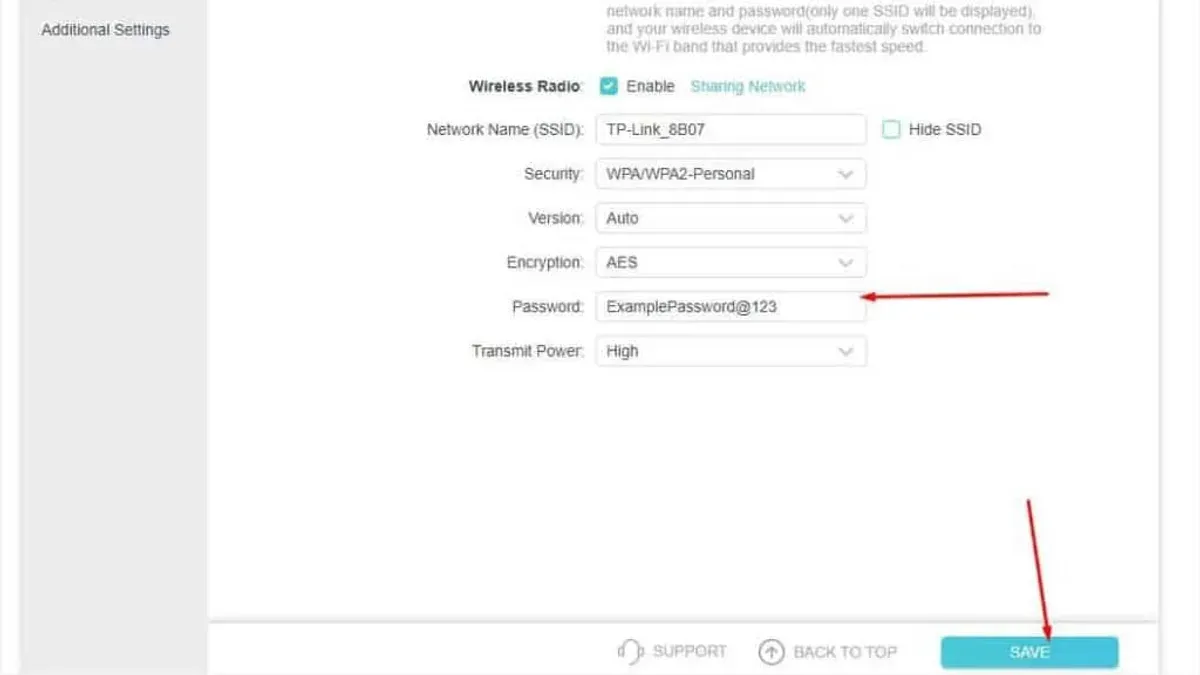
- Open a web browser and enter the router’s local IP address, commonly 192.168.0.1 or 192.168.1.1, in the address bar. The router’s login page should appear.
- Log in using the admin username and password. If these credentials were never changed, check the router label or manual for defaults like admin/admin or admin/password.
- Navigate to the wireless settings or wireless security section. This is often found under “Wireless,” “WiFi Settings,” or “Security.”
- Locate the field labeled “WiFi Password,” “Passphrase,” “WPA2 Key,” or “Security Key.” Replace the existing password with a new, strong password that combines letters, numbers, and symbols.
- Save or apply the changes. The router may reboot or briefly disconnect the network.
- Reconnect all wireless devices using the new WiFi password to restore internet access.
Tip: Use WPA3 encryption if available, as it provides stronger security than WPA2.
Troubleshooting common issues with box password reset and change
When a box password reset email does not arrive, first check the spam or junk folder to ensure the message was not misdirected. Confirm that the registered email address is entered correctly on the service’s password reset page. Some users miss typos or outdated emails, causing reset attempts to fail silently. If no email is received within 10-15 minutes, server delays or temporary outages might be the cause. Account lockouts due to multiple failed attempts can also block password reset emails.
Password change failures often result from weak passwords or confirmation mismatches. Password rules vary by device and service; common requirements include minimum length, use of numbers, uppercase letters, and special characters. Entering a new password twice incorrectly triggers rejection. Carefully retype the new password and verify it meets all stated criteria to avoid errors.
Access issues with router or safe box interfaces commonly arise when the current password is forgotten. Without it, many devices restrict password changes to prevent unauthorized access. In such cases, refer to the device manual for reset procedures, which often involve physical reset buttons or master codes. If locked out permanently, contacting the device manufacturer or support service is the recommended next step.
- Verify the registered email address for password reset and check spam/junk folders; receiving the reset email confirms this step worked.
- If no email arrives, wait 15 minutes and retry, accounting for server delays; successful receipt indicates server is responsive.
- When changing passwords, ensure the new password meets all complexity requirements; acceptance without error confirms compliance.
- Retype the new password carefully to avoid mismatch errors; matching entries allow the system to accept the change.
- If the current password is forgotten, locate the device’s physical reset method or master code; successful reset returns access to the interface.
- Contact customer support or the manufacturer if locked out; receiving guidance or service confirms external help is available.
Frequently asked questions
How to change canal box password?
Access the canal box settings menu using the remote control. Navigate to the "System" or "Security" section, then select "Change Password" or "Password Settings." Enter the current password, followed by the new password twice to confirm. Save changes before exiting the menu.
How to change xbox live password?
Go to the Microsoft account password change page via a web browser. Sign in with the current Xbox Live account credentials, then follow the prompts to verify identity. Enter the new password twice, ensuring it meets Microsoft’s security requirements, and save the update. The change will apply to Xbox Live and associated Microsoft services.
How to change password on lock box?
Locate the reset lever or button inside the lock box door, often requiring the current code to open. Hold or slide the reset mechanism while setting the new combination by turning dials or pressing buttons. Release the reset lever to lock in the new password. Test the new code several times before closing the box.
How to change safe box password?
Open the safe using the existing code or key. Consult the manufacturer’s manual for the specific reset procedure, which usually involves pressing a reset button inside the door. Enter the new password according to the safe’s keypad instructions, then confirm it. Close the door and verify the new code works to secure the safe.
How to change money box password?
If the money box has a digital or combination lock, open it with the current code first. Follow the device’s reset instructions, typically involving a reset button or dial sequence. Set the new password carefully and confirm it by locking and unlocking the box multiple times. Mechanical models may require manual dial adjustment, while electronic ones may need battery power during the change.
What This Guide Does Not Cover and When to Seek Professional Help
This guide does not cover password recovery for lost physical keys to safes or lock boxes, nor does it include instructions for hardware resets that could void device warranties. For devices that do not respond to password resets or cases involving forgotten master passwords, users should consult the manufacturer’s official support channels or certified locksmiths. Attempting unauthorized resets or forced entry may cause permanent damage or data loss.
For complex network devices or enterprise-level cloud accounts, professional IT support is recommended to avoid security risks. Home users should avoid third-party software promising password recovery, as these can compromise device security.
The single most useful next step is to create a secure, memorable password using a password manager or a well-structured phrase, then update it regularly. Combining this with enabling two-factor authentication on cloud and router accounts significantly increases security without complicating access.
See also: How to Change Your Binance Password: Clear Step-by-Step Guide · How to Change Your Amazon Password: Clear Step-by-Step Guide · How to Change Your Airbnb Password: Clear Step-by-Step Guide · How to Change Your AliExpress Password: Clear Step-by-Step Guide