
How to Secure Your Signal Account: A Complete Step-by-Step Guide
This guide provides clear steps to secure your Signal account, covering setup, PINs, registration lock, and managing linked devices.

This guide explains how to secure your Signal account with clear, step-by-step instructions and a critical look at Signal’s security strengths and limitations.
Signal offers end-to-end encryption for messages and calls, but securing the account itself requires careful setup beyond installation. This includes enabling registration lock, setting a strong PIN, and managing linked devices to prevent unauthorized access.
Understanding what Signal protects and where vulnerabilities remain helps users make informed decisions. This article covers account creation, secure configuration, recovery options, and supporting network security to maintain privacy.
Before you start: What is needed to set up and secure a Signal account
Setting up a Signal account requires a compatible device and a valid phone number. Supported devices include smartphones running recent versions of Android or iOS, as well as desktop computers with Windows, macOS, or Linux. Signal links accounts directly to phone numbers; no email address or additional personal information is necessary for registration or use.
A Signal account represents a phone-number-based identity used for end-to-end encrypted messaging and calling within the Signal network. This identity allows others to verify contacts and ensures messages are accessible only by the intended recipients. Securing the account protects not just access to the app but also safeguards the integrity of encrypted communications and contact trust relationships.
Before beginning installation and setup, confirm possession of the device intended for use and a phone number capable of receiving SMS or calls for verification. This phone number cannot be changed once the account is created without registering a new account. Having these prerequisites in place ensures a smooth setup process and foundation for applying further security measures.
How to create a Signal account
- Download Signal from the official source: use the Google Play Store for Android devices or the Apple App Store for iOS devices. After installation, open the app to begin setup. A clean, blue Signal welcome screen confirms successful launch.
- Enter the phone number to register. The app requests a phone number with country code; input the number that will be linked to the account. After submission, Signal sends a verification code via SMS or automated call. The app automatically detects the code if on the same device; otherwise, manually enter the received code. Successful verification leads to the next screen.
- Set up the profile basics: the app prompts for a profile name and optionally a profile picture. These details appear to contacts but can be changed later. After entering this information, tap "Next" to proceed.
- Respond to initial privacy and security prompts. Signal asks to allow notifications and access contacts to improve usability. It also prompts to enable or disable sealed sender and read receipts—these settings impact message privacy and visibility. Choosing defaults or customizing can be done here or later in settings.
- After completing these steps, the main Signal interface opens, showing contacts who use Signal and options to start messaging. The account is now active and ready for further security setup.
Tip: Only download Signal from official app stores to avoid counterfeit versions that can compromise security.
How to set up a Signal account securely
- Open Signal and navigate to Settings > Privacy. Enable Screen Security to prevent screenshots and screen recordings within Signal. Once activated, attempts to capture the screen will be blocked, enhancing message confidentiality.
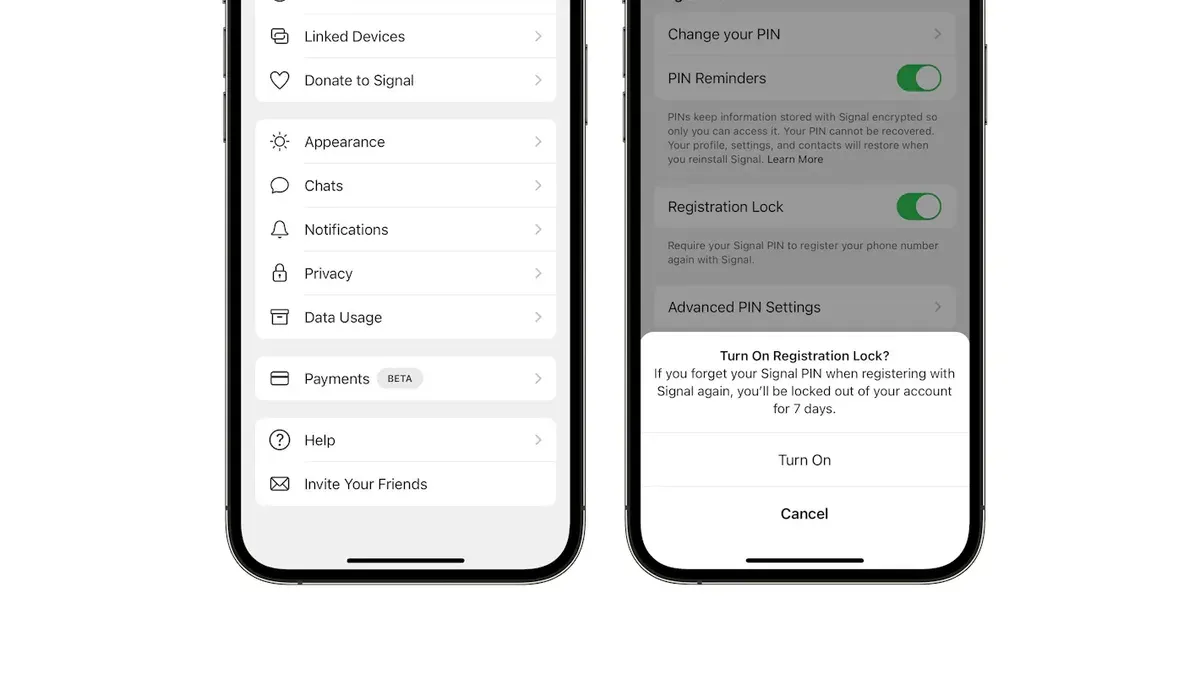
- Go to Settings > Privacy > Registration Lock. Set a Registration Lock PIN to prevent unauthorized re-registration of the phone number on another device. After setup, Signal will prompt for this PIN during re-registration attempts, adding a crucial layer of account protection.
- Enable Disappearing Messages by default for new conversations under Settings > Privacy > Default Disappearing Messages. Choose a duration such as 24 hours or 7 days. This limits message retention, reducing exposure if devices are compromised. Disappearing messages are widely adopted and represent a key privacy feature.
- Review app permissions under the device’s system settings. Restrict Signal’s access to location, contacts, or microphone if not necessary for intended use. Minimizing permissions limits potential data exposure and attack vectors.
- Understand that Signal uses end-to-end encryption by default, meaning messages and calls are encrypted on the sender’s device and decrypted only on the recipient’s device. This encryption is automatic and does not require additional user configuration but is essential to trust in Signal’s security.
Tip: Enabling registration lock significantly reduces risk of account hijacking, a vulnerability present if the PIN is not set.
How secure is Signal? Understanding the security model
Signal uses end-to-end encryption (E2EE) by default, meaning messages are encrypted on the sender's device and decrypted only on the recipient's device. This prevents intermediaries, including Signal itself, from accessing message content. The encryption protocol Signal employs is open source and has been widely scrutinized and praised for its robustness in cryptographic communities.
Signal’s codebase is fully open source, allowing independent experts to audit and verify its security claims. Notable audits by organizations such as Cure53 have found the app to be largely free of critical vulnerabilities, with regular updates addressing discovered issues. Signal also publishes transparency reports that detail government requests and Signal’s responses, demonstrating a commitment to user privacy.
However, Signal is not without limitations. While message content is protected, metadata such as the time a message was sent and users’ phone numbers can be exposed. Device-level vulnerabilities, like compromised smartphones or malware, can also undermine security. Compared to other messaging apps, Signal offers stronger privacy guarantees by default but requires users to maintain good device hygiene.
Overall, Signal’s security model combines strong cryptography, open-source transparency, and minimal data retention to provide a high level of protection for private communications, making it one of the most secure mainstream messaging platforms available.
How to recover a Signal account
Recovering a Signal account involves reinstalling the app and restoring access on a new or reset device using the original phone number. Signal ties accounts strictly to phone numbers, so the same number must be active to regain access. Without it, account recovery is not possible.
For Android users, Signal offers an encrypted backup feature that must be enabled before losing access. This backup contains message history and settings and is stored locally on the device. To restore, copy the backup file to the new device before installing Signal and enter the backup passphrase when prompted. Successful restoration shows old chats and settings intact.
iOS users rely on iCloud backups, which can restore Signal data if included in device backups. Restoring from an iCloud backup requires setting up the new device with the same Apple ID and phone number. Note that Signal data restoration from iCloud backups depends on the user's iCloud backup setup rather than a dedicated Signal feature.
If the registration lock PIN is forgotten, Signal prevents re-registration on a new device for seven days to protect against unauthorized access. After this cooldown, re-registration is possible without the PIN, but message history and linked devices cannot be restored without backups.
Signal does not support password resets or account recovery without the original phone number. Official documentation confirms that losing the phone number or registration lock PIN without backups results in permanent loss of message history and linked identities. Users should proactively enable backups and remember registration lock PINs to avoid data loss.
- Insert the SIM card with the original phone number into the new device and install Signal. Signal should prompt for the phone number verification code; successful verification grants access.
- For Android, transfer the encrypted backup file to the device and open Signal. When prompted, enter the backup passphrase; the app restores messages and settings if the backup is valid.
- For iOS, restore the entire device from an iCloud backup that includes Signal data. After setup, open Signal to find restored messages.
- If registration lock is enabled and PIN is forgotten, wait seven days before re-registering the phone number on Signal. After this, Signal allows re-registration but without any previous data restoration.
How to secure your home wireless signal to support Signal’s security
Securing the home Wi-Fi network is critical to protecting Signal communications from interception or man-in-the-middle attacks. Unsecured or weakly protected wireless networks create vulnerabilities that can undermine Signal’s encryption by exposing metadata or allowing attackers to infiltrate devices.
- Set the router’s security mode to WPA3 or WPA2. Access the router settings, usually via its IP address (e.g., 192.168.1.1), and navigate to the wireless security section. Select WPA3-Personal if available; otherwise, choose WPA2-PSK (AES). This ensures strong encryption for wireless traffic.
- Use a strong, unique Wi-Fi password. Create a passphrase of at least 12 characters combining letters, numbers, and symbols. After saving, verify that connected devices prompt for the updated password, confirming the change took effect.
- Disable Wi-Fi Protected Setup (WPS). In the router’s advanced wireless settings, locate the WPS option and turn it off. This prevents attackers from exploiting WPS vulnerabilities to gain unauthorized network access.
- Turn off guest networks if not needed. Guest networks can provide an attack vector; disable them via the router interface unless isolating devices is required. Confirm guest SSIDs no longer broadcast.
- Regularly update router firmware. Check the router manufacturer’s website or the router’s update section for firmware patches. Apply updates promptly to fix security vulnerabilities and improve stability.
- Avoid using public Wi-Fi for Signal communications. If access to untrusted networks is necessary, use a reliable VPN service to encrypt traffic and reduce exposure to network-based attacks.
Home networks remain a common attack vector due to default or weak router settings. Strengthening Wi-Fi security complements Signal’s encryption by limiting opportunities for attackers to intercept or manipulate data before it reaches the device.
Tip: Periodically review connected devices in the router dashboard to detect unauthorized access early.
Troubleshooting common issues securing Signal accounts
Signal app not secure warnings typically indicate an issue with encryption keys or app integrity. When encountering a "Signal is not secure" alert, confirm the app is updated to the latest version via the official app store. Reinstalling the app can resolve corrupted files causing encryption errors.
Registration lock PIN problems arise if the PIN is forgotten or entered incorrectly. To reset, go to Signal Settings > Privacy > Registration Lock and follow the "Forgot PIN?" prompts, which use the linked phone number for verification. Persisting issues may require contacting Signal support.
Disappearing messages may fail to send or delete due to incorrect timer settings or app version mismatches on devices. Verify the timer is set under chat settings and that all devices run compatible Signal versions. Clearing cache and restarting the app often fixes syncing errors.
Backup and restore issues often stem from missing or corrupted backup files. Signal backups are encrypted and stored locally; ensure backups are created regularly under Signal Settings > Chats > Chat backups. To restore, transfer the backup file to the new device before reinstalling Signal and enter the backup passphrase accurately.
Lost devices or phone number changes complicate account access. Without the original phone number, account recovery is impossible. For phone number changes, Signal allows transferring the account by verifying the new number within the app’s settings promptly. Always enable registration lock to protect the account if the device is lost.
Benefits of using Signal and safest ways to secure passwords alongside Signal
Signal offers strong privacy advantages by minimizing data collection, operating without ads, and avoiding user tracking. Its open-source encryption model enhances protection against surveillance and message interception, contributing to high user trust scores compared to many other messaging platforms. Privacy policies from independent evaluations consistently rank Signal favorably for data minimization and user confidentiality.
To complement Signal’s security, it is essential to manage passwords and PINs securely. Password-related breaches remain a common attack vector, often due to reuse or weak credentials. Using a reputable password manager helps generate and store complex registration lock PINs and device passcodes safely, reducing the risk of compromise.
- Install a trusted password manager from a reliable vendor. When successful, the app will prompt to create a master password.
- Use the password manager to generate a unique, strong registration lock PIN for Signal. Confirm the PIN by entering it in Signal's Settings > Privacy > Registration Lock.
- Set a separate strong passcode for the device, avoiding reuse of the Signal PIN or other common passwords. Verify this in the device’s security settings.
- Regularly update passwords and PINs, noting any changes in the password manager. The manager should notify when a password is updated or needs review.
Tip: Avoid writing down PINs or passcodes on paper; rely instead on encrypted digital storage to prevent physical theft or loss risks.
Frequently asked questions
How secure is the signal app?
Signal uses end-to-end encryption for all messages and calls, meaning only the sender and receiver can read the content. The app employs the Signal Protocol, a well-regarded cryptographic standard. However, security depends on device protection and user practices, such as enabling screen security and locking the app.
How to recover signal account?
Signal accounts are tied to phone numbers, so recovering access typically requires having the same number active on a new device. If a linked device is lost, re-register with the existing number. Note that message history does not transfer unless a manual encrypted backup was made on Android; iOS users must rely on device-to-device migration.
Is signal actually secure?
Signal is considered one of the most secure messaging apps due to its open-source code and robust encryption. Its minimal data retention policy limits metadata exposure. Users should still secure their devices and use PINs or biometric locks within Signal to maximize security.
What is a signal account?
A Signal account is linked to a mobile phone number and enables sending encrypted messages and calls via the Signal app. It does not require a username or password but relies on number verification through SMS or a phone call during setup.
How to sign up for signal?
Download Signal from an official app store, open it, and enter the mobile phone number. Verify the number using the received SMS or call code. Set a PIN to secure the account, then configure privacy settings such as disappearing messages and screen security.
What this advice does not cover and who should do something else
This guide focuses on securing a Signal account and supporting infrastructure but does not address device-level compromises such as malware, spyware, or unauthorized physical access. If a device is infected or physically accessible to attackers, Signal’s security measures can be bypassed regardless of account settings. Users requiring protection against advanced persistent threats or targeted attacks should consider comprehensive device security solutions, including regular malware scans, hardware security modules, or dedicated secure devices.
Signal’s security depends on user vigilance outside the app, including safe device handling and secure network environments. This advice does not cover securing other communication apps or operating systems, which may require separate approaches.
The single most useful next step is to enable Screen Lock and Registration Lock within Signal’s Privacy settings immediately after account creation. These settings prevent unauthorized access to messages and stop others from registering the phone number on another device without the PIN. Enabling these features provides a strong baseline security layer that many users overlook but is crucial for maintaining control over the Signal account.
See also: How to Secure Your Discord Account: A Step-by-Step Guide · How to Secure Your Messenger Account: Step-by-Step Guide · How to Secure Your LinkedIn Account: Step-by-Step Guide · How to Report Impersonation on Snapchat: A Clear Step-by-Step Guide



