
How to Secure Your Discord Account: A Step-by-Step Guide
This guide shows how to secure your Discord account with layered security measures beyond just two-factor authentication.

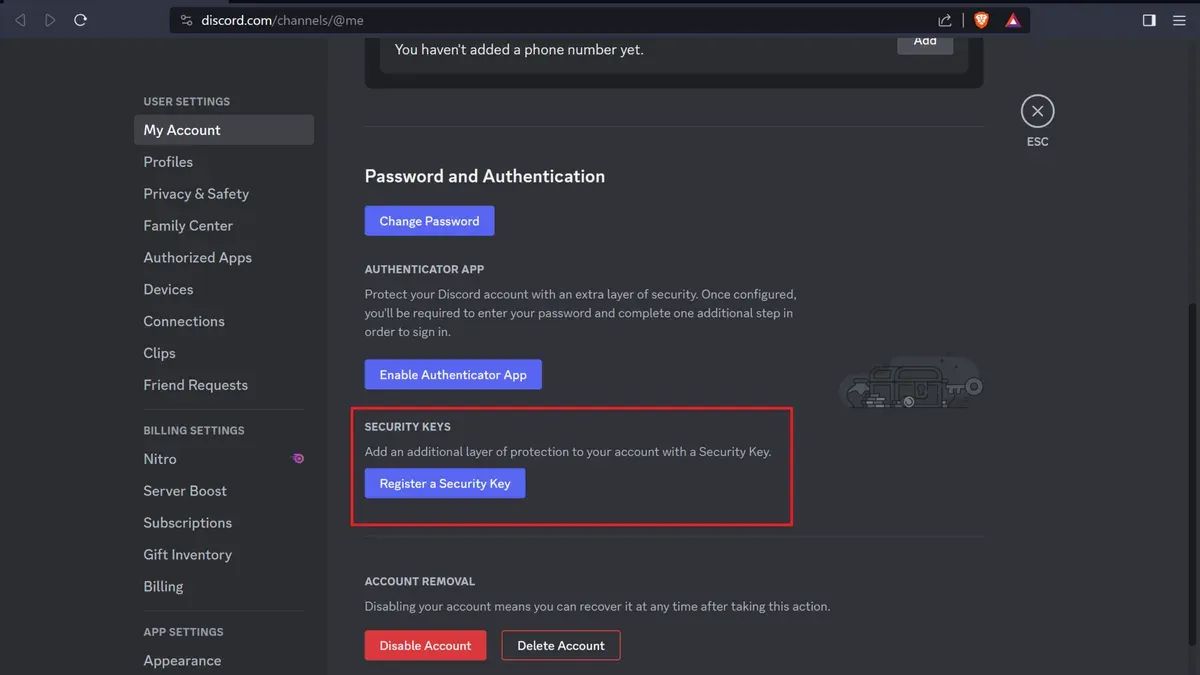
This guide explains how to secure your Discord account with practical, layered security measures. It covers crucial steps beyond just enabling two-factor authentication (2FA), including managing account settings and reviewing connected apps to prevent unauthorized access. Discord users concerned about protecting their data will find clear instructions to confidently strengthen their account defenses.
Start by verifying the email address linked to the Discord account under User Settings > My Account. Next, enable 2FA via User Settings > My Account > Enable Two-Factor Auth using an authenticator app rather than SMS for stronger protection. After that, audit all authorized applications in User Settings > Authorized Apps and revoke access for any unfamiliar or unused apps.
Following these steps systematically ensures a solid foundation for securing the account against hacking attempts and data breaches.
Before you start: What is needed to secure a Discord account
Securing a Discord account requires preparation and the right tools. First, ensure the Discord account has a verified email address; this is essential for communication and account recovery. Access to the device where Discord is primarily used—whether desktop or mobile—is necessary to adjust settings and enable security features. A secure phone number or an authenticator app such as Google Authenticator or Authy is required to set up two-factor authentication (2FA), which significantly increases account protection.
Basic knowledge of Discord's account settings and privacy controls is also crucial. Users should be familiar with navigating the User Settings menu, especially sections like "My Account," "Privacy & Safety," and "Authorized Apps." Understanding these areas helps in applying layered security measures effectively.
Accounts are often compromised due to weak passwords, unverified emails, or lack of 2FA. While exact statistics on Discord-specific breaches are not publicly available, cybersecurity trends show that accounts without 2FA are far more vulnerable to unauthorized access.
- Verify the email address on the Discord account: navigate to User Settings > My Account and confirm the email shows as verified. A verified email displays a green checkmark and disables the resend verification option.
- Confirm access to the device where Discord is used regularly. Open the Discord app or website and log in to ensure there are no login issues. Having immediate access is necessary to complete security steps.
- Prepare a secure phone number or install a trusted authenticator app on the device. This will be needed for setting up two-factor authentication later.
- Familiarize with basic settings by exploring User Settings > My Account and Privacy & Safety tabs to understand where key security controls reside.
Tip: Before starting, update the Discord app to the latest version to ensure access to the newest security features and patches.
How to get a Discord account
- Go to the official Discord website at discord.com or download the official Discord app from a trusted source such as the Apple App Store or Google Play Store. A clean interface prompting sign-up or login appears.
- Click on the “Register” or “Sign Up” button to start creating a new account. A form requesting an email address, username, password, and date of birth will appear.
- Enter a valid, accessible email address to receive verification messages. Use a unique username that is not easily guessable and complies with Discord’s guidelines.
- Create a strong, unique password that combines uppercase and lowercase letters, numbers, and symbols. Avoid recycled passwords or simple patterns like “password123” to prevent easy compromise.
- Complete the date of birth field to confirm eligibility. Submit the registration form. A confirmation message should appear indicating the next step is email verification.
- Open the email inbox for the address provided and locate the Discord verification message. Click the verification link to activate the account fully. This step is required to access all Discord features.
- Upon first login, access “User Settings” (gear icon) and navigate to the “Privacy & Safety” tab. Adjust settings such as direct message filtering and who can add the account as a friend to enhance initial privacy.
Tip: Avoid using social media or shared emails during sign-up to keep the Discord account isolated from other platforms.
How to enable your Discord account
Activating a Discord account fully requires verifying the registered email address and optionally adding phone number verification. These steps remove restrictions like limited server joins and messaging delays, providing full access to Discord’s features.
- Open the email inbox linked to the Discord account. Locate the verification email from Discord, which should arrive shortly after signup or after changing the email address. It contains a verification link.
- Click the verification link in the email. A confirmation page will appear stating the email is verified. This step is mandatory; accounts without verified emails face restrictions such as inability to join more than 10 servers or send friend requests.
- Log into Discord and go to User Settings by clicking the gear icon near the username. Navigate to the “My Account” tab.
- Scroll to the Phone section and select “Add Phone.” Enter a valid phone number and submit the verification code sent via SMS. Upon successful verification, the phone number will appear confirmed in account settings.
- Confirm that the account status no longer shows any verification warnings. The account now has full activation, reducing the risk of being flagged or limited by Discord’s automated security systems.
Tip: Phone number verification is optional but enhances account trustworthiness and ease of recovery.
How to secure Discord account
- Enable two-factor authentication (2FA) by navigating to User Settings > My Account > Enable Two-Factor Auth. Choose an authenticator app like Google Authenticator or Authy for stronger security, or opt for SMS 2FA if necessary. Successful setup shows a confirmation message and recovery codes.
- Set a strong password that combines uppercase and lowercase letters, numbers, and symbols. Access User Settings > My Account > Change Password to update it regularly. A secure password update is confirmed via email and a success notification.
- Review authorized apps and connected accounts under User Settings > Authorized Apps and Connections. Revoke access for any unrecognized or unused integrations by clicking “Revoke Access.” The app or connection disappears from the list once removed.
- Configure privacy settings at User Settings > Privacy & Safety. Limit friend requests to “Friends of Friends” or “No One,” and adjust who can send direct messages. Changes save automatically and take effect immediately.
- Use Discord’s security alerts and login history found in User Settings > My Account. Monitor unauthorized logins and receive alerts for suspicious activity. Any unfamiliar login attempts should prompt a password change and 2FA review.
Tip: Enabling 2FA reduces the risk of account breaches drastically; many hacking attempts fail outright against 2FA-protected accounts.
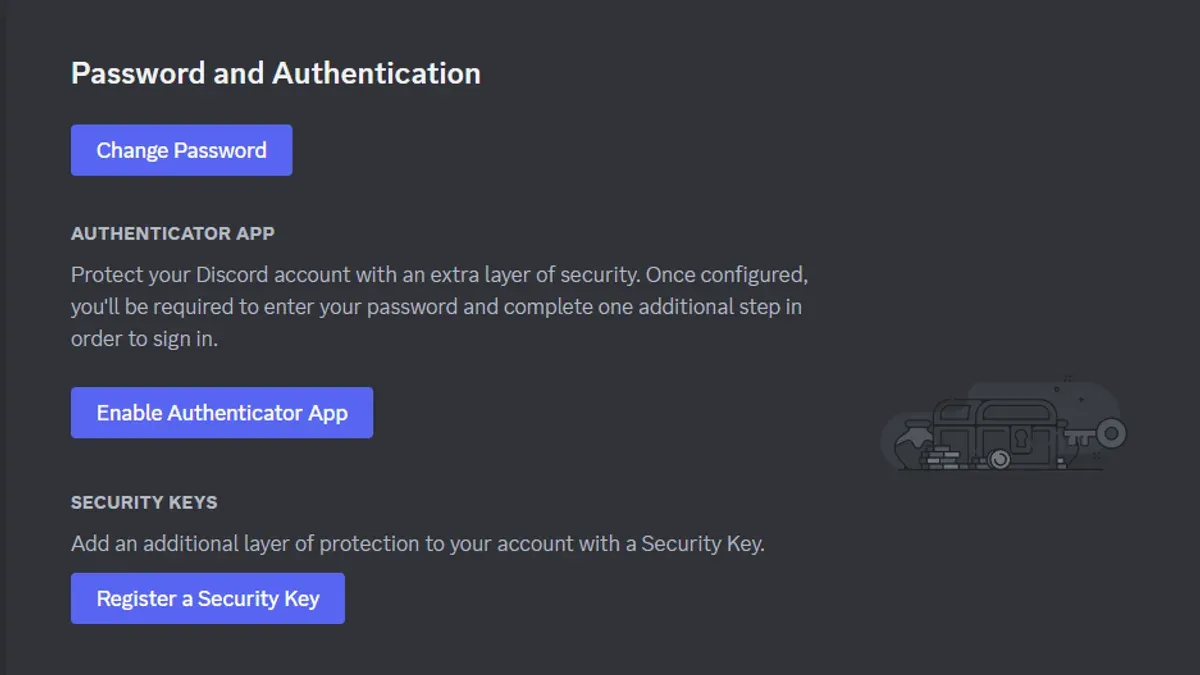
For example, accounts without 2FA are significantly more vulnerable to unauthorized access, while those with 2FA enabled often block hacking attempts at the login stage. This layered approach ensures practical, effective protection beyond just a password.
How to protect Discord account from hackers
Hackers often target Discord users through phishing links and malware disguised as legitimate messages. Recognizing suspicious URLs and avoiding clicking on unknown links prevents credential theft. Public Wi-Fi networks expose accounts to interception; using a VPN or secure private network when logging in reduces this risk.
- Regularly review active sessions by navigating to User Settings > Devices & Sessions. Confirm all sessions are recognized; log out remotely from any unfamiliar devices. Successful logout removes unauthorized access immediately.
- Use unique, strong passwords different from those on other sites. Password reuse amplifies risk if one breach exposes multiple accounts. A password manager helps generate and store complex passwords securely.
- Enable login alerts in User Settings > Security & Privacy to receive notifications of new device logins. Promptly investigate alerts for unauthorized access to act before damage occurs.
- Be cautious with OAuth authorizations when linking third-party apps. Only permit trusted applications and periodically revoke access to apps no longer in use via User Settings > Authorized Apps. This limits exposure from compromised services.
Tip: Suspicious messages claiming urgent account issues often aim to steal credentials—verify by contacting Discord support directly instead of following provided links.
How to manage your Discord account
Ongoing management of a Discord account is essential for maintaining security and privacy. Regularly updating the password and reviewing two-factor authentication (2FA) settings help reduce vulnerability to unauthorized access. Users should change passwords every few months and ensure 2FA remains active and linked to current devices.
- Access User Settings by clicking the gear icon near the username; verify the current password is strong and update it under Password and Authentication. A successful change prompts a confirmation message.
- Review 2FA settings in the same section; disable and re-enable 2FA if switching authentication apps or devices. The interface will confirm when 2FA is properly synchronized.
- Manage connected apps and accounts by navigating to Connections from User Settings; remove any apps or accounts no longer in use or trusted. The list updates to reflect removals immediately.
- Adjust privacy and safety settings under Privacy & Safety to match evolving preferences—such as who can add as a friend, message, or view activity. Changes save automatically and take effect instantly.
- Backup recovery codes for 2FA by accessing the 2FA section; store these codes securely offline. Successful backup is confirmed when codes are displayed and saved.
Users who actively manage these settings experience fewer security incidents compared to those who leave default configurations unchanged. Regular monitoring and adjustment of account parameters significantly lower breach risks.
How to log in your Discord account securely
Always use the official Discord website or the verified Discord app from trusted sources such as the Apple App Store or Google Play. Avoid third-party apps or unofficial websites to prevent credential theft. Never save passwords on shared or public devices; use private devices or incognito modes instead.
Enable biometric login if the device supports it, such as fingerprint or facial recognition, to add an extra layer of security beyond passwords. After logging in, verify device recognition in User Settings > Devices to confirm the device is authorized. Remove any unfamiliar devices immediately.
Here is a secure login flow example:
- Open the official Discord app or navigate to https://discord.com. The login page appears.
- Enter the email and password. Avoid autofill on shared devices. The home screen loads upon success.
- If prompted, complete two-factor authentication using the chosen 2FA method. Access to the dashboard confirms success.
- Go to User Settings > Devices to confirm the current device is listed and recognized.
In contrast, logging in on public computers with saved passwords or using unofficial apps risks credential compromise and unauthorized access.
How to connect accounts to Discord safely
Linking external accounts like Twitch or Spotify to Discord can enhance functionality but requires careful permission management to avoid security risks. Each connected service requests specific access scopes; for example, Twitch may request to view channel subscriptions and manage broadcasts, while Spotify typically requests access to playback status and playlists. Grant only permissions necessary for desired features to limit data exposure.

To connect an account, open Discord settings, select "Connections," then click the desired service icon. Follow the authentication prompts and authorize the requested permissions. A successful connection appears under "Connections" with account details visible.
Disconnect unused or suspicious accounts by clicking the "X" next to the connection in the same menu. This immediately revokes third-party access and reduces potential attack surfaces.
Regularly review connected accounts to ensure only trusted apps have access. Note that data shared with Discord from these accounts may include profile information, activity status, and friend lists, depending on the service. Be cautious about over-sharing and understand each app's privacy policy before connecting.
- Go to User Settings > Connections in Discord. The Connections page will open, listing current connections and available services.
- Click the icon of the service to connect (e.g., Twitch, Spotify). A new authentication window will appear.
- Log into the external account and review requested permissions carefully. Approve only if the permissions align with intended use.
- Once connected, confirm the account appears under Connections with a green dot indicating active status.
- To disconnect, return to Connections, find the linked account, and click the "X". Confirm disconnection when prompted.
How to access account information for Discord
To view and manage personal data stored by Discord, start by opening the Discord app or website and navigating to User Settings via the gear icon next to the username. Within User Settings, locate the Privacy & Safety tab for general data management options, and the My Account section to update personal details such as email, phone number, and password.
Downloading a copy of all account data is done through the Request Data feature. This can be found under Privacy & Safety by scrolling to the bottom and clicking Request Data. After submitting the request, Discord prepares a downloadable archive containing message history, connections, and other stored information. This process may take several days, and an email notification will confirm when the data is ready.
Users can update personal information directly in My Account. Changing security questions is not applicable as Discord uses email and 2FA as primary verification methods. Understanding that Discord retains data according to its Privacy Policy helps in managing expectations about data deletion and retention timelines.
- Open Discord and click the gear icon next to the username to access User Settings. The User Settings page should appear.
- Click on My Account to view and edit email, phone number, or password. Changes save automatically or prompt confirmation.
- Navigate to Privacy & Safety to find the Request Data button at the bottom. Clicking it submits a data download request.
- Check the registered email inbox for a notification from Discord when the data archive is ready to download.
- Follow the email link to download and review the full account data archive securely.
Frequently asked questions
How secure is discord?
Discord uses standard security measures including encryption for data in transit and at rest. Accounts are protected by optional two-factor authentication (2FA) and password security. However, ultimate security depends on user practices like strong passwords and cautious app connections.
How secure is discord messaging?
Discord messages are encrypted during transmission but are not end-to-end encrypted, meaning Discord servers can access message contents. This setup balances security with features like message search and moderation. Users should avoid sharing highly sensitive information over Discord messages.
How secure is Discord messaging?
This is a repeat of the previous question. Discord messaging security involves encryption in transit but not end-to-end encryption. Users should apply caution and avoid sharing confidential data through Discord chats.
How to recover a Discord account if hacked?
Immediately use the password reset option via the login screen by entering the registered email. If the email is compromised, contact Discord Support with proof of account ownership. After recovery, enable 2FA and review connected apps and authorized devices to remove suspicious access.
Can Discord accounts be hacked through connected apps?
Yes, connected third-party apps can pose security risks if they have excessive permissions or are compromised themselves. Regularly review and revoke app permissions via User Settings > Authorized Apps. Only connect trusted apps and avoid granting unnecessary access to account data.
What this advice does not cover
This guide focuses on securing the Discord account itself and does not protect against social engineering attacks that occur outside of Discord, such as phishing attempts via email or phone calls. Users with compromised email accounts should first secure their email by changing passwords and enabling two-factor authentication there, as email access is critical to Discord account recovery. Some security features on Discord require a smartphone or an authenticator app like Google Authenticator or Authy; users without access to these devices will have fewer options for strong account protection.
The single most effective next step is to enable two-factor authentication (2FA) using an authenticator app in the Discord settings under User Settings > My Account > Enable Two-Factor Auth. This adds a crucial layer beyond just a password to prevent unauthorized access even if credentials are leaked or guessed.
See also: How to Download Your Discord Data: A Clear Step-by-Step Guide · How to Secure Your Bluesky Account: Step-by-Step Guide



