How to Log Out of Discord on All Devices: Clear Step-by-Step Guide
This guide shows how to log out of Discord on all devices, helping you secure your account with clear, simple steps.

This guide explains how to log out of Discord on all devices, providing clear, step-by-step instructions for desktop, mobile, and remote sessions. Understanding how to log out of Discord on all devices is essential for maintaining account security and privacy, especially if a device is lost or accessed by others. The process varies slightly depending on the platform, but all methods involve navigating to the user settings or security section.
Before starting, ensure the account login credentials are accessible, as signing out everywhere requires re-entry to regain access. This article also addresses common issues like unexpected automatic logouts and how to troubleshoot persistent session problems. Following these steps helps users control where their Discord account is active and safeguard against unauthorized access.
Before you start: What is needed to log out of Discord on all devices
Logging out of Discord on all devices requires having access to the account credentials or being logged in on at least one device. Without this, it is impossible to remotely terminate active sessions. Discord does not offer a direct "log out of all devices" button; instead, users must change their password or use specific security features to force sign-outs.
Understand the difference between logging out on a single device and logging out everywhere. Logging out locally only affects the current device session and leaves other sessions active. To log out everywhere, account credentials must be updated, which often triggers a remote logout for all devices except the current one.
If two-factor authentication (2FA) is enabled, prepare to complete verification steps during password changes or security adjustments. Discord’s official documentation highlights that 2FA can add steps but improves account protection during sign-out procedures.
User feedback notes common pitfalls such as not realizing that changing the password is required to log out remotely, or being locked out if 2FA codes are unavailable. Proper preparation avoids these issues.
- Ensure access to Discord account credentials or be logged in on at least one device. Successful access will allow navigation to user settings.
- Confirm whether two-factor authentication is enabled. If so, have the authentication method ready to complete verification.
- Prepare to change the account password or use the "Log Out of All Sessions" option under Security Settings if available. This action will trigger logout on all other devices.
- Verify successful logout by checking active sessions in Discord’s Security Settings or by attempting login on other devices.
How to log out of Discord account on PC and laptop
Logging out of Discord on a desktop or laptop can be done through the Discord desktop app on Windows and macOS or via a web browser. The process ensures the current session ends, preventing further access without signing back in.
Logging out from the Discord desktop app
- Open the Discord app and locate the gear icon labeled User Settings near the bottom left corner next to the username. Clicking it opens the settings menu.
- Scroll down the left sidebar to find and click Log Out, typically the last option. A confirmation prompt will appear.
- Confirm the log out by clicking the Log Out button in the prompt. The app will close the current session and return to the login screen.
Logging out this way terminates the session on the device, unlike simply closing the app, which keeps the session active in the background for quicker reopening.
Logging out from Discord in a web browser
- With Discord open in the browser, click the gear icon User Settings near the bottom left, just as in the app.
- In the settings menu, scroll down and select Log Out. A confirmation dialog appears.
- Click Log Out to end the browser session, redirecting to the login page.
Browser logouts end the session immediately, though cached data may temporarily persist until the browser cache clears or the tab closes.
Checking session status: After logging out, revisiting Discord on the same device should prompt for login credentials. If it does not, the session remains active and requires re-logging out or clearing browser data.
How to log out of Discord on all devices mobile
Logging out from the Discord mobile app on iOS or Android only signs out the current device. To ensure the account is signed out on all devices, remote session termination is necessary. The Discord app allows terminating all active sessions, including phones, tablets, and web logins.
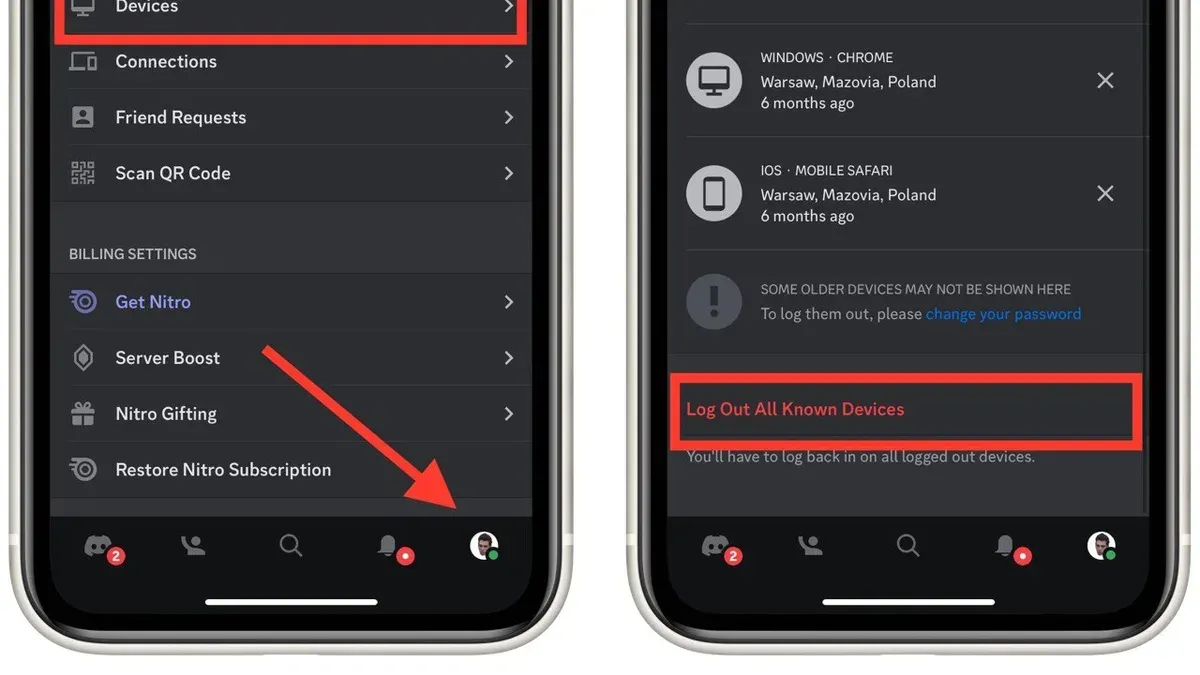
- Open the Discord app and tap your profile icon in the bottom right corner to access User Settings.
- Scroll down and select Security & Privacy.
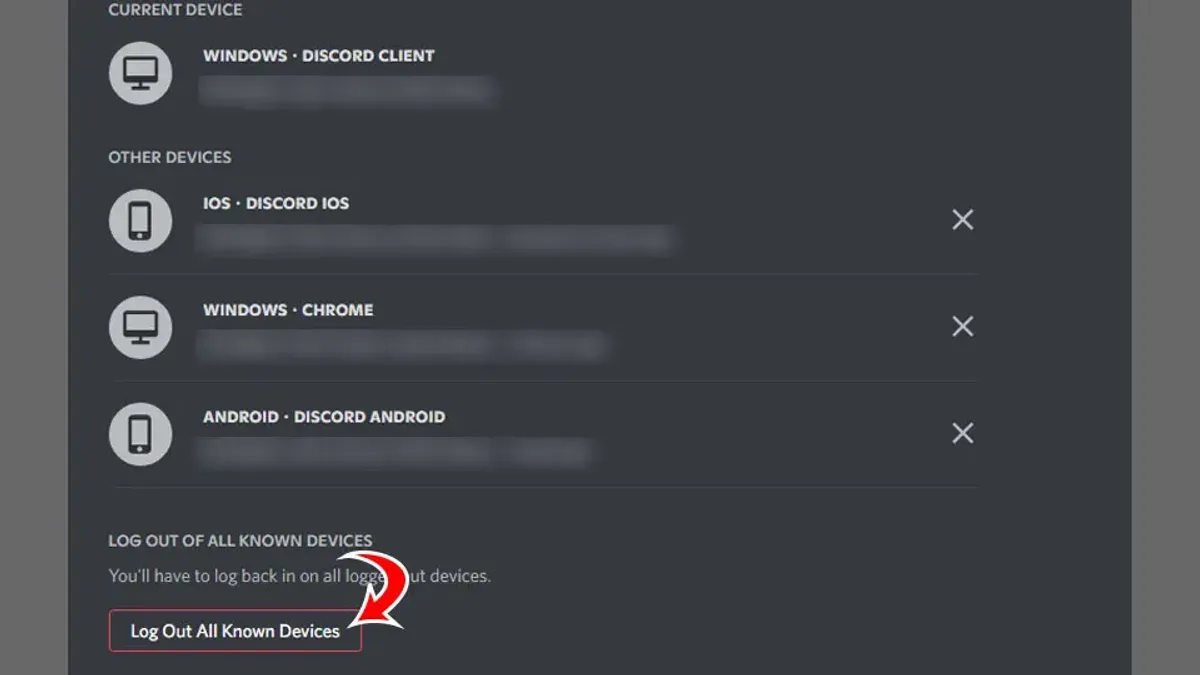
- Tap Devices to view all active sessions linked to the account.
- Choose Log out of all sessions. This will sign out the account remotely from every device except the one being used.
- Confirm the action when prompted; a message will indicate that all sessions have been terminated.
- To log out the current device as well, return to User Settings, scroll down, and tap Log Out. Confirm the logout.
After completing these steps, verify the logout on other devices by attempting to access Discord there; the account should require re-authentication. Common mistakes include only logging out locally without terminating sessions remotely, leaving the account active on other devices. Also, users sometimes overlook confirming logout in the Devices list, which prevents full session clearance.
Tip: When managing multiple phones or tablets, always use the Log out of all sessions feature to avoid lingering active logins that could compromise account security.
How to log out of Discord on all other devices remotely
Logging out of Discord on devices without physical access requires using account security features. The most effective method is changing the account password, which forces Discord to sign out the account from all active sessions except the device where the change was made. This action invalidates existing authentication tokens, ensuring no device remains logged in without re-entering credentials.
To check and manage active sessions, navigate to User Settings > Security & Privacy > Devices on the Discord app or web version. This section lists all logged-in devices with session start times and approximate locations. Though Discord does not allow direct remote logout of individual sessions, viewing this list helps identify unauthorized access.
Logging out on one device only terminates the session on that device, leaving others active. To log out of devices no longer owned or accessible, changing the password is necessary. Two-factor authentication (2FA) enhances this protection by requiring a code after password reset, preventing unauthorized re-login.
- Open Discord on a logged-in device, then go to User Settings > My Account > Change Password.
- Enter the current password, then the new password, and confirm the change. Upon success, all other sessions will be logged out automatically.
- Return to User Settings > Security & Privacy > Devices to review active sessions. Confirm that only the current device remains logged in.
Tip: If 2FA is not enabled, set it up immediately after changing the password to add a layer of security against unauthorized access.
Why does Discord randomly log out on all devices?
Unexpected logouts across all devices typically occur due to Discord's account security protocols. When suspicious activity is detected, such as unusual login locations or multiple failed login attempts, Discord enforces a forced logout to protect the account. Users have reported this behavior following password changes or enabling two-factor authentication, which aligns with Discord's official security measures.
Server-side updates or maintenance can also trigger session invalidation. Discord occasionally performs backend updates that require active sessions to reset, causing temporary logouts. Official Discord support channels acknowledge this as a normal part of maintaining platform stability.
App bugs or conflicts with third-party software can cause session errors leading to unexpected logouts. Some users experience issues with corrupted cache data or interference from VPNs and antivirus software, which disrupt session tokens. Clearing the cache or adjusting security software settings often mitigates these problems.
Network or device-specific issues may invalidate sessions unexpectedly. Frequent IP address changes, unstable internet connections, or device time settings that are out of sync can cause session tokens to expire prematurely. Ensuring stable connectivity and correct device time settings helps maintain persistent login sessions.
How to handle Discord constantly logging me out
Persistent logout issues on Discord often stem from corrupted app cache, outdated software, or security conflicts. Begin by clearing the app cache and cookies to remove any corrupted data that may cause session drops. On desktop, navigate to User Settings > Appearance > Advanced and click "Clear Cache." On mobile, clear the Discord app cache via device settings under Apps > Discord > Storage > Clear Cache. Successful cache clearing usually results in smoother app performance without forced logouts.
If problems persist, check for updates in the app store or Discord’s official website. Running the latest app version addresses bugs that may cause repeated logouts. If an update isn’t available or doesn’t help, uninstall and reinstall the app to reset all settings. After reinstalling, the app should maintain sessions more reliably.
Verify account security by reviewing login activity in Discord's Security & Login settings. Look for unfamiliar devices or locations and immediately change the password if suspicious activity appears. Running a malware scan on the device can also prevent unauthorized access that triggers session resets.
Lastly, adjust device settings that interfere with session persistence. Disable aggressive battery optimization or background app restrictions for Discord, as these can close the app or revoke tokens unexpectedly. On Android, check Settings > Apps > Discord > Battery > Battery Optimization and select "Don't optimize." On iOS, ensure Background App Refresh is enabled for Discord.
How to access the Discord login page on different devices after logout
Regaining access to Discord after logging out requires navigating to the login page on each device. On desktop, open the Discord app or visit discord.com/login in a web browser to reach the login screen. On mobile, launch the Discord app; it will prompt for login if signed out.
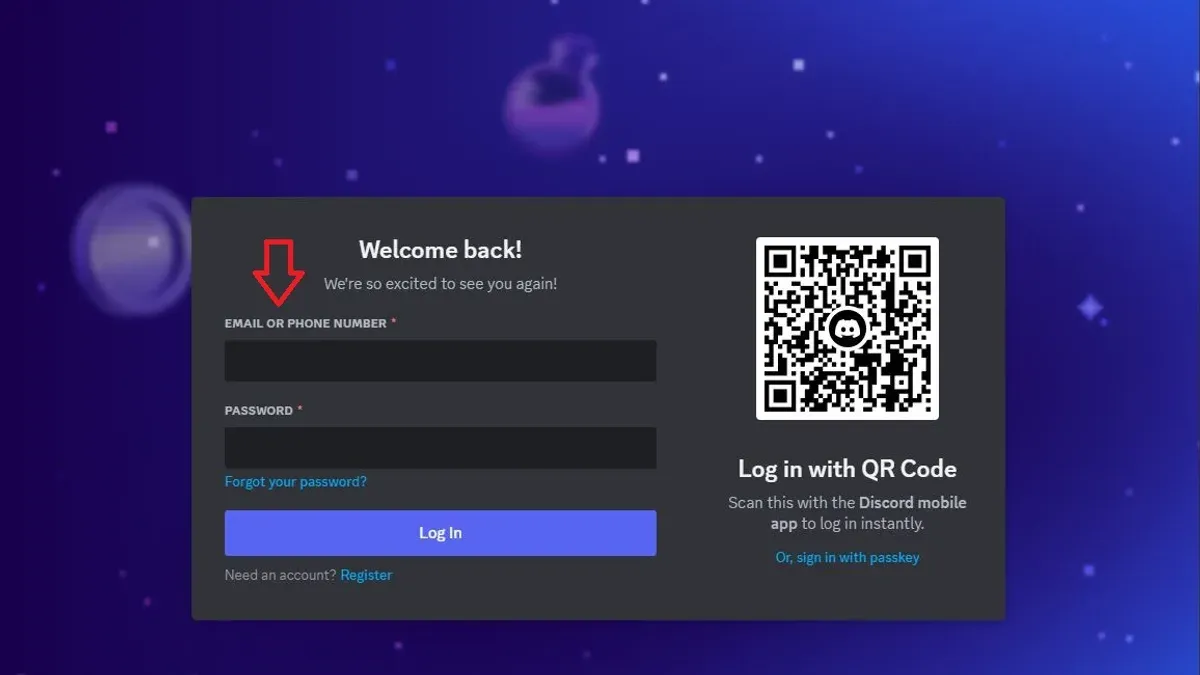
Using saved credentials or password managers can speed up login but ensure the stored password is current and secure. Password managers help avoid manual errors and support complex passwords. Enabling two-factor authentication (2FA) adds a critical security layer during login. A notable portion of users enable 2FA to protect accounts from unauthorized access.
If login fails after logging out on all devices, verify the username and password accuracy first. Resetting the password via the "Forgot your password?" link is effective if credentials are forgotten. Also, ensure that the app or browser is updated and clear cache or cookies if troubles persist.
- Open the Discord app or go to discord.com/login on a desktop browser; the login form should appear.
- Enter the registered email/phone and password; a successful login directs to the home screen.
- If using mobile, open the app; if logged out, the login page appears immediately.
- Activate 2FA by entering the code from an authenticator app when prompted after password entry.
- If the login fails, click "Forgot your password?" and follow the email instructions to reset it.
Tip: Keep 2FA backup codes in a safe place to regain access if the authenticator device is unavailable.
Security tips for managing Discord sessions and account access
Maintaining account security requires constant vigilance over active sessions. Discord’s settings include a “Devices” or “Sessions” section under User Settings > Security & Privacy, where all logged-in devices are listed with details like location and last active time. Regularly reviewing and terminating unfamiliar sessions prevents unauthorized access.
Changing passwords periodically is a key security measure, especially after suspicious activity such as unexpected logouts or login alerts. Use a strong, unique password combining letters, numbers, and symbols. Avoid reusing passwords from other platforms to reduce vulnerability to credential stuffing attacks.
Two-factor authentication (2FA) significantly strengthens account protection. Enabling 2FA through User Settings > My Account adds an extra verification step, requiring a code from an authenticator app or SMS. Discord recommends 2FA for all users, as it effectively blocks unauthorized logins even if the password is compromised.
When logging in on public or shared devices, caution is essential. Avoid selecting “Remember me” or saving passwords, and always log out completely afterward. Public networks can be insecure, increasing the risk of session hijacking. If using a public device, clear browser cache and cookies after logout.
Tip: Compromised accounts often result from neglecting to log out on shared devices or failing to use 2FA. Consistent session management and layered security settings are crucial defenses endorsed by Discord’s official security guidelines.
Frequently asked questions
How to logout discord from all devices?
To log out of Discord from all devices simultaneously, use the "Change Password" method. Changing the account password forces all active sessions to log out except the one where the password was changed. This is the only direct way to remotely end sessions on all other devices at once.
How to log out on discord pc?
On Discord for PC, click the gear icon at the bottom left to open User Settings. Scroll down and select "Log Out" at the bottom of the settings menu. Confirm the action to fully sign out on that PC.
How to log out discord in laptop?
Logging out of Discord on a laptop follows the same process as on a PC: open User Settings by clicking the gear icon, then scroll down and click "Log Out." Confirming will sign out the account on that laptop.
How to log out of discord on other devices?
Discord does not provide a built-in feature to log out remotely on individual other devices. To sign out of all other devices, change the account password under User Settings > My Account. This action forces a logout from all sessions except the current one.
How to log out of discord on every device?
To log out of Discord on every device, change the password in the "My Account" section of User Settings. After updating the password, all sessions on other devices will be logged out automatically for security.
What This Guide Does Not Cover
This guide focuses solely on logging out of Discord across devices and managing session security. It does not address recovering a hacked Discord account or situations where account access is lost. Users facing those issues should contact Discord support directly for specialized assistance.
For users unable to log back in after logout due to forgotten passwords or two-factor authentication problems, account recovery steps must be followed through Discord’s official channels.
Tip: Always keep recovery codes and backup methods updated to avoid losing account access.
To maintain account security after logging out on all devices, regularly review authorized apps and revoke suspicious sessions in Discord’s settings under "Authorized Apps" and "Devices". This ongoing maintenance helps prevent unauthorized access.
See also: How to Download Your Discord Data: A Clear Step-by-Step Guide · How to Block Someone on Discord: Step-by-Step Guide