How to Block Someone on Discord: Step-by-Step Guide
This guide explains how to block someone on Discord with practical steps for mobile and desktop users to manage unwanted contacts.

This article explains how to block someone on Discord with clear, practical steps for both mobile and desktop users. Blocking a user restricts their ability to send direct messages and hides their messages in shared servers, but it does not remove them from the server or prevent all interactions.
Understanding the nuances of blocking on Discord is essential for managing unwanted contacts without affecting server dynamics or privacy. This guide also clarifies common misconceptions, such as whether blocking requires friendship or access to a user’s profile.
Following these instructions helps users control their Discord experience effectively, whether blocking known contacts or strangers, and covers methods to block without alerting the other party or needing their user ID.
Before you start: What is needed to block someone on Discord
Blocking someone on Discord requires access to a Discord account through either the desktop application or the mobile app. It is necessary to have some form of user identification or recent interaction with the person to block them effectively. This can be their username with discriminator (e.g., UserName#1234), their user ID, or a recent message or direct message exchange.
Without this information or interaction, locating and blocking the user is challenging because Discord’s blocking function operates based on identifiable user profiles. For example, if a user recently sent a message in a server or direct message, it is easier to find and block them. Alternatively, knowing the exact username and tag or user ID allows direct blocking even without being friends or having recent contact.
Blocking on Discord is reversible; unblocking restores communication capabilities. When a user is blocked, they cannot send direct messages or see when the blocker is online, but they can still see messages in shared servers unless further moderation actions are taken. Understanding these prerequisites and effects helps users decide when and how to use the block function.
- Sign in to the Discord desktop or mobile app. The main interface should be visible.
- Identify the user through a recent message, server member list, or by searching their exact username and discriminator. The user’s profile or message should be accessible.
- Confirm the user’s identity by clicking on their profile to ensure it is the correct person. The profile pop-up or page should appear.
- Prepare to use the block option available on the profile or message context menu. This option will be visible once the profile is accessed.
How to block someone on Discord mobile
Blocking a user on Discord mobile can be done through either a direct message conversation or the server member list. This process prevents the blocked user from sending direct messages and hides their messages in shared servers.
- Open the Discord app on the mobile device and navigate to the direct message conversation with the user to block, or locate the user in the server member list by tapping the server name and then the member icon.
- Tap the user's profile picture or name to open their profile view. This screen displays options like sending a message or viewing mutual servers.
- In the profile view, tap the three vertical dots in the upper right corner to open the user options menu.
- Select Block from the menu. A confirmation prompt appears to verify the action.
- Confirm the block by tapping Block again. The app returns to the previous screen, and the user’s messages will now show as blocked in shared servers and direct messages will be prevented.
- To confirm the block succeeded, revisit the profile via the member list or direct messages; the option will now display Unblock, indicating the user is blocked.
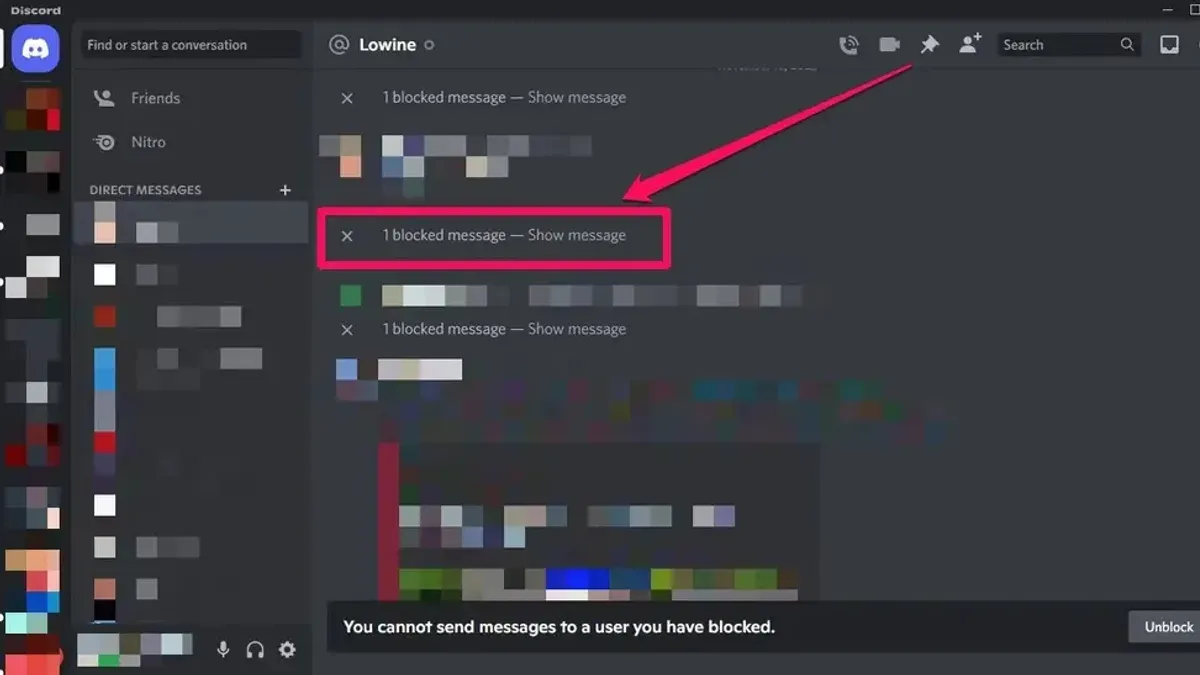
What happens immediately: After blocking, direct messages from the user are disabled and their messages in shared servers become hidden behind a "Blocked Message" placeholder unless manually revealed.
How to block someone on Discord PC
Blocking a user on Discord's desktop application involves locating the person through various sections such as the friends list, direct messages, or the server member list. The desktop interface offers multiple access points and context menus that differ from the mobile app’s streamlined controls.
- Open the Discord desktop app and navigate to the user's location: either the Friends tab, a Direct Message conversation, or the member list of a server by clicking the server and viewing the right sidebar.
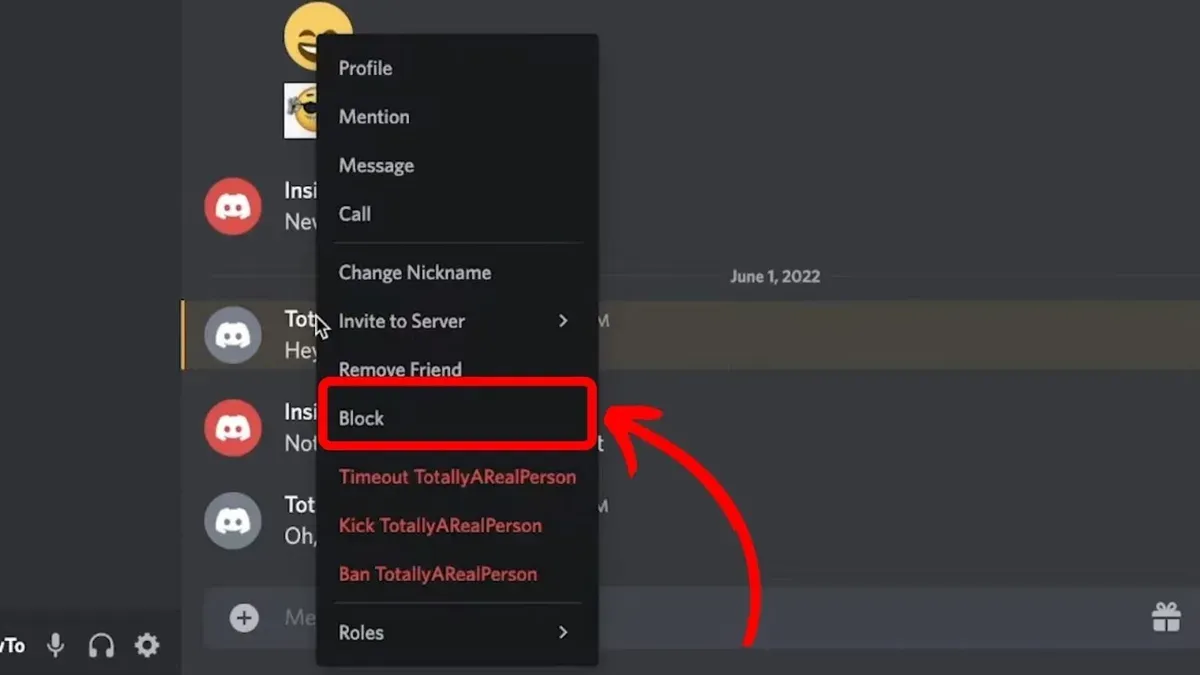
- Right-click the user’s name or avatar. This opens a context menu with several options.
- Select Block from the context menu. A confirmation prompt usually appears; confirm the action.
- Alternatively, click the user’s name to open their profile pop-up, then click the three-dot menu in the top right corner of the pop-up and choose Block.
- Once blocked, the user's messages will be hidden or replaced with a notice, and their profile will show a blocked status if revisited.
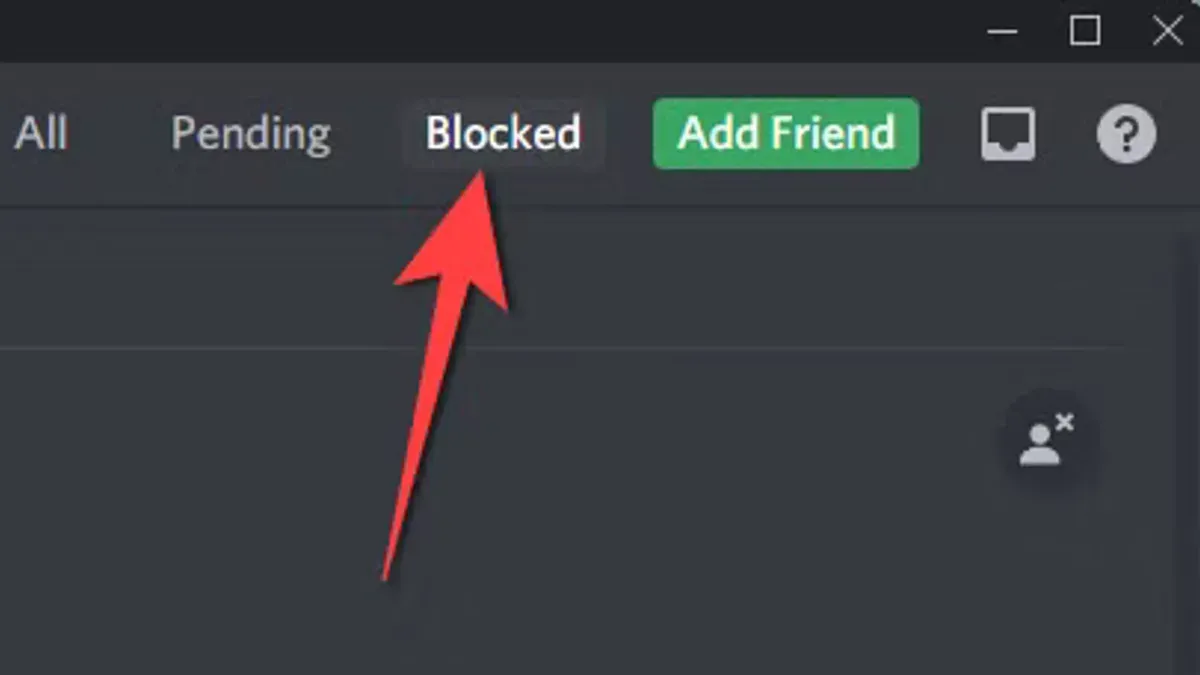
- To verify the block, check the Blocked list under User Settings > Privacy & Safety or attempt to view the user’s messages, which should be obscured.
Compared to mobile, the desktop UI provides more visible context menus and multiple ways to access the block feature, offering flexibility but requiring familiarity with right-click options. The desktop also clearly displays blocked users in settings, unlike mobile where this list is less prominent.
Tip: Using right-click on desktop is often quicker than navigating to the user’s profile pop-up for blocking.
How to block someone on Discord without adding them as a friend
Blocking a Discord user does not require being friends with them. It is possible to block someone directly from recent messages or through the server member list without sending or accepting a friend request.
- Locate the user in the recent direct messages or the server member list. This can be done by opening a channel or direct message where the user has interacted.
- Right-click (on PC) or tap and hold (on mobile) the user’s name to open the options menu.
- Select the Block option. A confirmation prompt will appear to ensure the action is intentional.
- Confirm the block. Once confirmed, the user will be blocked without any friend request being sent or accepted.
When blocking users who are not friends, Discord immediately hides their messages in direct message conversations and limits notifications from them. The blocked user will not be notified of the block, and their messages in shared servers will be minimized or hidden depending on user settings.
Tip: Blocking from the server member list is useful for managing interactions with unfamiliar users without altering friend lists.
How to block someone on Discord without them knowing
Discord does not send any notification when a user is blocked, maintaining privacy for the blocker. The blocked individual is not alerted through messages, pop-ups, or any system notifications.
After blocking, the blocked user can still see the blocker's username and profile picture in servers and direct messages, but they cannot send private messages or see the blocker's online status and activity. Messages from the blocked user will be hidden behind a notice that can be expanded, subtly indicating the block without explicit confirmation.
While Discord does not reveal the block directly, indirect clues may arise. For example, the blocked user might notice that messages appear hidden or that the blocker no longer responds, which could suggest a block.
Steps to block someone without them knowing:
- Open Discord and locate the user via direct messages or server member list.
- Right-click the user’s name to open the context menu.
- Select Block from the options.
- Confirm the block if prompted; the user will not receive any notification.
- Verify the block by checking that the user’s messages show a "Blocked Message" placeholder.
Tip: Blocking quietly restricts interactions but does not erase visible presence in shared spaces, so consider server moderation options if complete invisibility is needed.
How to block someone on Discord without their profile or user ID
Blocking a user on Discord without direct access to their profile or knowing their user ID is still possible through message interactions and server member lists. This approach is useful when limited information is available but some interaction exists.
- Locate a message from the user in any direct message thread or server channel.
Once found, right-click (PC) or tap and hold (mobile) on the user’s message to open the context menu. - Select the "Block" option from the menu.
A confirmation prompt appears; confirm to block the user. - After confirmation, the user’s messages will be hidden or minimized, indicating the block was successful.
- If no messages are available, open the server member list.
Scroll or search to find the user’s name, then right-click or tap their name to access the context menu. - Choose "Block" from the menu and confirm.
The user is then blocked, restricting future interactions.
Limitations: Without prior interactions or the user ID, locating the user to block can be challenging. Discord does not provide a direct search function for blocking by username alone without profile access. Therefore, blocking relies heavily on visible interactions or member lists within shared servers.
Tip: Keeping track of recent interactions can simplify blocking users without needing to visit their profile.
How to block someone from a Discord server
Blocking a user on Discord primarily affects direct interactions and visibility of their messages but does not remove them from a server or prevent them from seeing your messages in that shared space. This differs significantly from moderation actions such as bans or mutes, which are server-level controls enforced by administrators or moderators.
When blocking someone in a server, their messages remain visible to others, but the blocker will not see their messages or receive direct messages from them. Mentions from the blocked user will appear as plain text without notification. In contrast, a ban removes the user entirely from the server, and a mute restricts their ability to send messages temporarily.
Below is a comparison table outlining the differences:
| Action | Visibility of User's Messages | Ability to Send Messages | Effect on Mentions | Impact on Server Membership |
|---|---|---|---|---|
| Block | Visible to others; hidden from blocker | Unaffected | Mentions appear as plain text to blocker | None |
| Ban | Not visible (user removed) | Cannot send (removed) | None (user absent) | User removed from server |
| Mute | Visible | Restricted from sending messages | Mentions notify as usual | None |
Steps to block someone from a Discord server:
- Locate the user in the server member list or in a message from them; right-click their username.
- Select Block from the context menu; the option should confirm the block immediately.
- Verify the block by checking that messages from this user no longer appear in your chat view.
Blocking is a personal filter that affects only the blocker’s experience without altering the user’s server membership or permissions. For server-wide restrictions, moderators must use bans or mutes.
Troubleshooting common problems when blocking on Discord
Sometimes blocking on Discord does not seem to work as expected. One common issue is that a blocked user can still send direct messages or see status updates. This happens because blocking only prevents the blocked user’s messages from appearing in shared servers and hides their messages from the blocker’s view. However, if the blocked user and blocker share a server and the blocked user has permission to send DMs, messages may still arrive unless server settings restrict this.
Another frequent problem is not finding the block option on mobile or PC. On mobile, the block option is available by tapping the user’s profile picture in direct messages or server member lists, then selecting the three-dot menu. On PC, right-clicking the user’s name in friends, DMs, or server member lists reveals the block option. If it is missing, ensure the user is visible in these lists and the Discord app is updated.
Confusion about whether one has been blocked or has blocked someone is common. To confirm blocked users, navigate to User Settings > Privacy & Safety > Blocked Users. Here, the list shows all blocked accounts, allowing management or removal of blocks.
- Open Discord and go to User Settings by clicking the gear icon near the username; the Blocked Users list appears under Privacy & Safety.
- Review the list to verify the blocked accounts; if the user is missing, blocking was unsuccessful or done on another device.
- To unblock, click the three dots next to the username and select Unblock; the user can then interact normally.
- If messages from a blocked user still appear, check server permissions and notification settings to ensure no overrides occur.
- Update the Discord app to the latest version to avoid interface or feature glitches affecting blocking functionality.
Tip: Regularly reviewing the blocked users list helps maintain control over interactions and ensures blocks are active across devices.
Further reading
Frequently asked questions
Can you block someone on discord?
Yes, Discord allows users to block others to prevent direct messages and hide their messages in shared servers. Blocking restricts communication without notifying the blocked user, maintaining privacy.
How to block a user on discord?
To block a user, open their profile by clicking their username, then select the three-dot menu and choose "Block." This can be done from direct messages, server member lists, or chat windows on both desktop and mobile.
How to block someone from discord server?
Blocking someone on Discord affects interactions across all servers and direct messages but does not remove them from the server. To stop seeing their messages in a specific server, consider muting the user or adjusting notification settings, or ask a server moderator to take action if appropriate.
can you block someone on discord
Yes, blocking is a built-in feature on Discord. It prevents the blocked user from sending direct messages and hides their messages from the blocker in shared servers, supporting user control over interactions.
how to block someone on discord without adding them
It is possible to block someone without friending them by accessing their profile through a direct message, server member list, or chat history, then selecting the "Block" option from the profile menu. This method requires locating the user without sending a friend request first.
What blocking on Discord does not cover and when to seek other solutions
Blocking on Discord restricts direct messages and hides messages from the blocked user in one-on-one conversations. However, it does not prevent the blocked user from seeing messages in shared public servers or group chats where both parties participate. Mutual friends can still relay information, and the blocked user may be able to interact indirectly. For harassment or serious abuse, reporting the user to Discord Trust & Safety or server moderators is necessary, as blocking alone will not stop all contact.
Tip: Use server-level moderation tools like muting or banning for stricter control over unwanted interactions within a community.
The most practical next step is to familiarize oneself with Discord’s reporting and moderation features alongside blocking, ensuring a safer and more controlled communication environment. Understanding when to escalate beyond blocking can significantly improve user experience and personal safety on the platform.