How to Block Someone on Kik: A Clear Step-by-Step Guide
This guide explains how to block someone on Kik with easy steps to stop unwanted messages and manage privacy settings effectively.

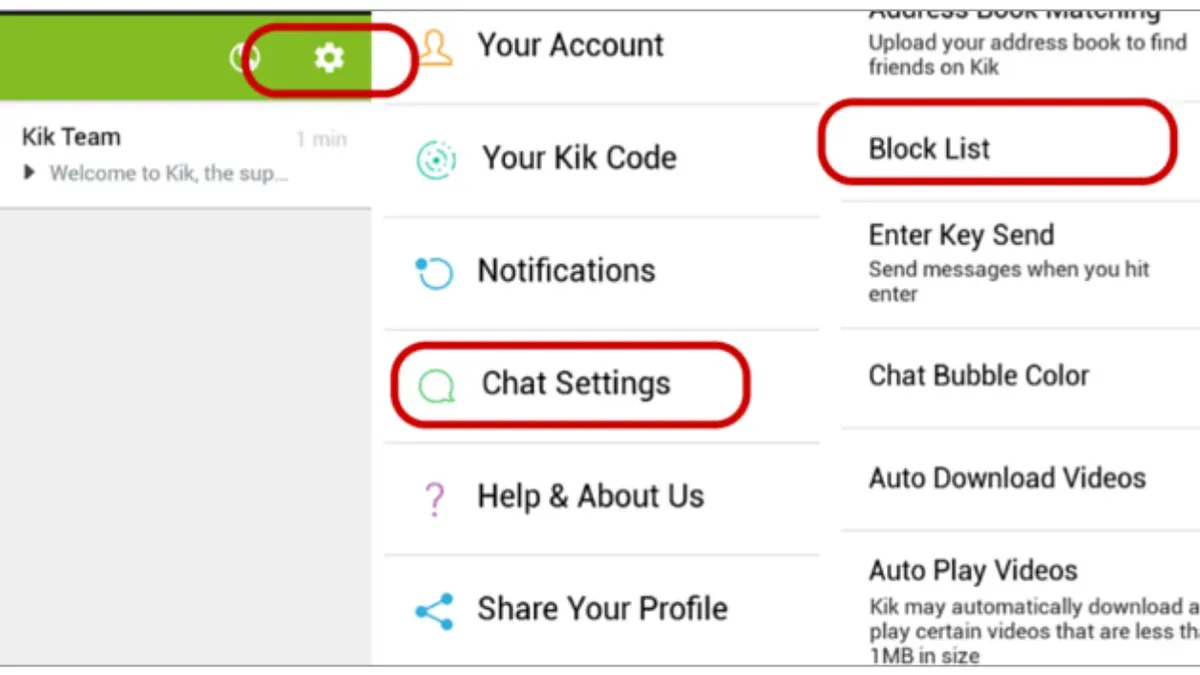
This article explains how to block someone on Kik with clear, practical steps and covers managing Kik features for a safer experience, including live streaming and desktop use.
Kik users often need to block contacts to stop unwanted messages or harassment. The process involves accessing the chat or profile settings, selecting the block option, and confirming it. Beyond blocking, managing privacy settings during live streams and using Kik on a PC require distinct steps that help maintain control over interactions.
Following this guide will help Kik users handle blocking effectively while navigating additional safety features. It also addresses common issues and alternatives if blocking does not resolve the problem.
Before you start: What is needed to block someone on Kik
Blocking someone on Kik requires an active account and access to the app’s main interface. Ensure the Kik app is updated to the latest version, typically from the app store, to guarantee consistent menus and blocking options. Versions from the past year or so generally share the same blocking procedure, but older versions may differ.
A basic understanding of the Kik chat interface is necessary to locate the person to block. This includes knowing how to access recent chats or the contact list where usernames appear. The block option is usually found within the chat settings or contact details.
- Open the Kik app and confirm that the account is logged in successfully—the home screen should display recent chats.
- Check the app version via Settings > About > Version; update if it is significantly outdated.
- Navigate to the chat or contact list to find the user intended for blocking; their username should be visible.
- Ensure the chat window or contact details screen is accessible, as the block option is located there.
How to block someone on Kik messenger
Blocking a contact on Kik messenger stops them from sending messages, hides the blocker’s online status from that person, and prevents any further contact through the app. Follow these steps to block a user effectively.
- Open the Kik app and locate the chat with the person to block. If no recent chat exists, find the contact in the contact list or search by username. Once found, open the chat window.
- Tap the profile icon or the three-dot menu in the top right corner of the chat screen to access chat settings. This opens options related to the contact.
- Select Block from the menu. A confirmation prompt will appear asking to confirm the blocking action.
- Confirm by tapping Block again. The chat will update to show that the user is blocked, and no new messages from them will be received.
Blocking on Kik differs from some messaging apps by automatically hiding the blocker’s online status and presence without requiring additional settings. Unlike apps that allow partial blocking or muting, Kik’s block fully stops unwanted contact.
Tip: Blocking a user does not delete previous messages; to remove those, delete the chat separately.
How to block someone on Kick streaming
Blocking users during a Kik live stream helps maintain a safe and enjoyable environment by stopping unwanted interactions in real time. Unlike messaging, blocking on Kick streaming targets disruptive viewers or chat participants without affecting previous private chats.
- Open the live stream where the unwanted user is present. The viewer list and chat window should be visible.
- Locate the user’s name in the chat or viewer list. Tap on the username to reveal options.
- Select the “Block” option from the menu. A confirmation prompt will appear.
- Confirm the block. The blocked user will immediately be removed from the chat and prevented from sending further messages or participating in the stream’s chat.
- If the user’s behavior violates community guidelines, use the “Report” option alongside blocking to notify Kik moderators.
Blocking during live streams does not affect the user’s ability to message outside of streaming sessions unless also blocked in the messenger app. Common disruptions that require blocking include spam messages, offensive language, and repeated unwanted contact during the stream.
Tip: Regularly review the viewer list during streams to identify potential disruptions early and block problematic users promptly.
How to use Kik on PC
Kik does not offer a dedicated desktop app or full-featured web client. Instead, users access Kik on PC primarily through Android emulators like BlueStacks or NoxPlayer. These emulators simulate a mobile environment, allowing the Kik mobile app to run on a computer. This setup maintains most features, including messaging and blocking, but requires installation and configuration of third-party software.
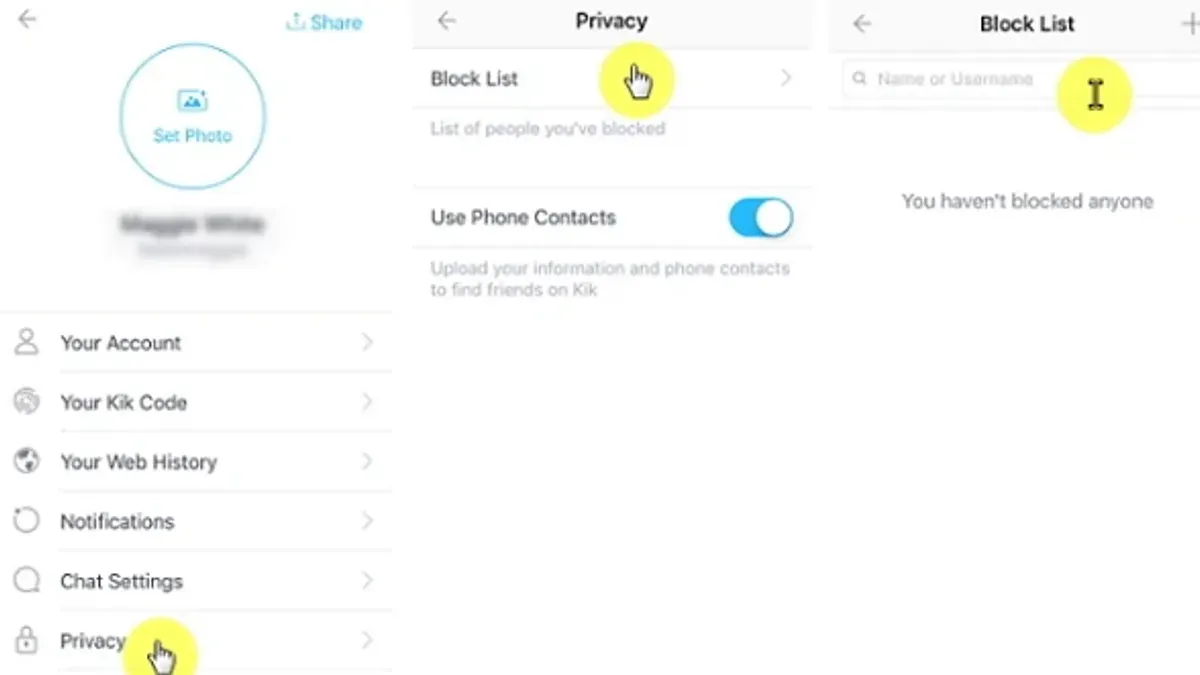
- Download and install a trusted Android emulator such as BlueStacks from its official website. After installation, launch the emulator and wait for it to initialize.
- Open the Google Play Store within the emulator, sign in with a Google account, and download the Kik app as on a mobile device.
- Launch Kik inside the emulator and log in with the existing Kik account credentials. The interface will mirror the mobile app.
- Navigate to the chat or contact list. To block a contact, tap and hold the user's name or open their chat, then select the “Block” option from the menu. A confirmation prompt will appear; accept to block the user.
Blocking on PC via emulators functions similarly to mobile, but users may experience lag or interface quirks. Some users report occasional issues with menu responsiveness, requiring emulator restarts. Unlike mobile, there is no official PC app or web version, limiting seamless desktop use.
| Feature | Mobile App | PC (via Emulator) |
|---|---|---|
| Access | Native app on iOS/Android | Android emulator required |
| Blocking Contacts | Direct, responsive | Available but sometimes laggy |
| Live Streaming | Integrated | Accessible via emulator, potential performance lag |
| Notifications | Push notifications | Dependent on emulator settings |
Tip: Use the emulator's keyboard shortcuts to speed up navigation and blocking actions on PC.
How to get help from Kik if blocking doesn’t work
If blocking a user on Kik does not stop unwanted contact or abuse continues, reporting the problem through the app is the first step. Navigate to the chat with the offending user, tap the menu icon (three dots), and select "Report". This submits the issue to Kik’s moderation team, who typically respond within a few days, though response times can vary depending on volume.
Kik’s official help center at help.kik.com offers resources on managing abuse and escalating serious issues. If the abuse persists or involves threats, harassment, or illegal activity, escalating the matter to platform moderators through the report function is essential. In some cases, contacting local law enforcement may be necessary, especially if safety is at risk.
Alongside reporting, users should consider additional preventive measures such as adjusting privacy settings to restrict who can contact them. Combining blocking, reporting, and privacy controls enhances protection against persistent abuse. Success stories from users show that timely reporting often leads to account suspension of offenders.
- Open the chat with the user causing issues and tap the menu icon (three dots). Expectation: A menu with options including "Report" appears.
- Select "Report" and choose the reason for reporting (e.g., harassment, spam). Expectation: Confirmation that the report was sent appears.
- Visit help.kik.com for additional guidance or to submit a help ticket if necessary. Expectation: Access to support articles or a contact form.
- If abuse persists, consider contacting local authorities if threats or illegal behavior are involved. Expectation: Law enforcement can take appropriate action.
Tip: Keep records of abusive messages and report promptly to improve chances of a swift response.
How to delete Kik safely
Deleting a Kik account is a final step that removes access to the account and erases most personal data. Official Kik policy states that account deletion removes the profile, messages, and contacts from Kik’s servers, but some data may remain for a limited time due to backup processes.
Previously blocked contacts and chat histories vanish from the user's view but may persist on recipients’ devices or in Kik’s backups temporarily. Deletion does not notify contacts, so blocking someone beforehand is advisable if privacy is a concern.
Alternatives include uninstalling the app or simply logging out, which keep the account intact. Deactivating Kik is not an option; full deletion is the only permanent removal.
- Open the Kik app or visit the Kik account deletion page online. The app’s settings menu does not provide direct deletion.
- Navigate to the account deletion page by entering the username and email associated with the account.
- Follow the prompts to confirm account deletion. A confirmation message appears once the process completes.
- Uninstall the Kik app to remove it from the device.
Tip: Back up any important chats or media before deletion, as recovery is impossible afterward.
How to use a picture on Kik
Adding or changing a profile picture on Kik is straightforward and helps personalize the account while managing privacy. To upload or change the profile image, open Kik and tap the gear icon to access settings. Select "Your Account," then tap "Edit Profile" followed by the profile picture area. Choose an existing photo from the device or take a new one. Once selected, the new image replaces the previous picture and is visible to contacts according to privacy settings.
- Open Kik and tap the gear icon in the top right corner to go to Settings. The Settings menu should appear.
- Tap "Your Account" to view profile options. The account details screen will load.
- Tap on the profile picture circle. A prompt to select an image source appears.
- Choose to take a new photo or select one from the gallery. The selected image uploads and displays as the profile picture.
- Confirm any cropping or adjustments, then save changes. The updated picture shows on the profile.
Privacy settings for profile pictures are limited but important. Kik allows users to control who can see profile details by adjusting the "Who Can Kik Me" settings under Privacy. Blocking a user removes their ability to view profile pictures, chats, and status updates, ensuring blocked contacts cannot see any profile images. Some users ask if blocked contacts can still view old pictures; the answer is no—blocking fully restricts access to profile media.
Tip: Regularly review privacy settings under Settings > Privacy to control who sees your profile picture and updates.
How to go live on Kik and stream safely
Starting a live stream on Kik requires opening the app and tapping the camera icon, then selecting the live stream option. Once live, the broadcast is visible to followers and nearby users. Monitoring the viewer list continuously helps identify and block disruptive participants promptly.
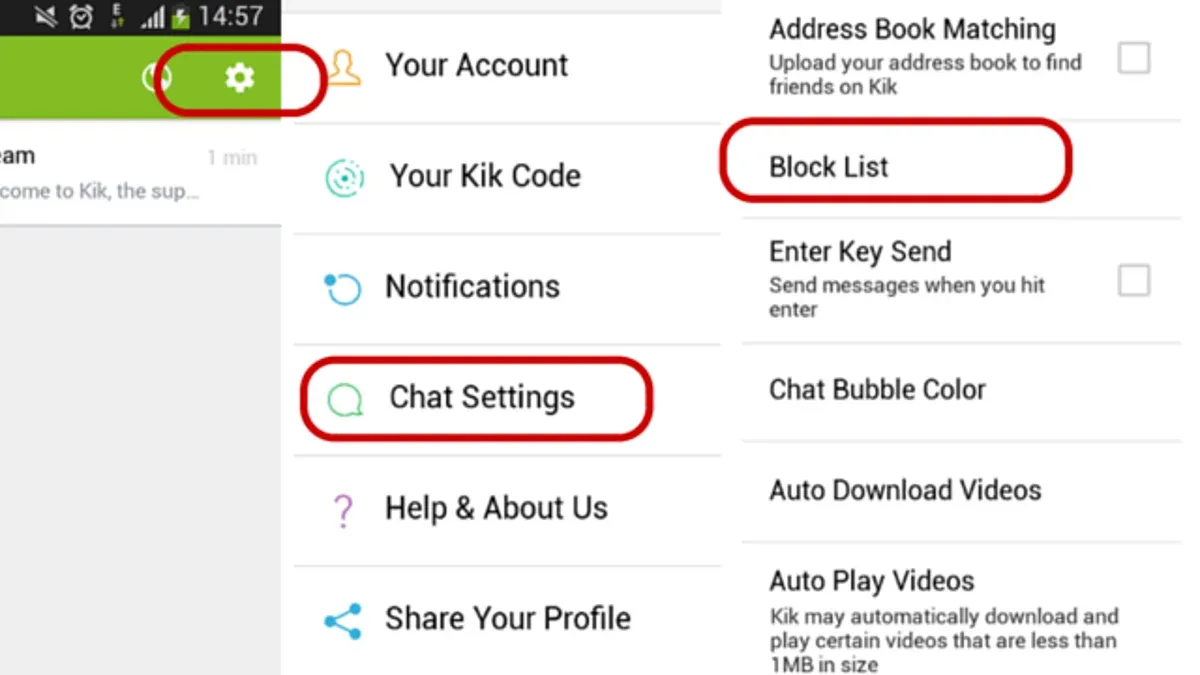
To block or report users during a stream, access the viewer list, tap the problematic user’s name, and select the block or report option. This removes their ability to chat or interact in the stream. Kik’s community guidelines warn against "live blocking exploiting," where users repeatedly unblock and rejoin streams to bypass blocks. Avoid this by promptly reporting such behavior and limiting stream visibility to trusted contacts if possible.
Protecting personal information is crucial when streaming. Avoid sharing location, full names, or identifiable details in the broadcast or chat. Use Kik’s privacy settings to restrict who can view and comment on streams. Regularly update the app to access the latest security features and follow community best practices to maintain a safe streaming environment.
Troubleshooting common issues when blocking on Kik
Sometimes blocking on Kik may not work as expected due to app glitches or misunderstandings about how blocking functions. A common issue is that blocked users still appear able to send messages. This can happen if the app is outdated or has cached old data, causing delays in applying the block. Clearing the app cache or updating to the latest version often resolves this.
Another frequent problem is not finding the block option in certain chats or group conversations. Blocking works only for individual contacts; users cannot block someone directly within a group chat. To manage disruptive group members, reporting them or leaving the group is necessary.
When blocked users continue to appear in chats or send messages, verify the block status in the contact’s profile under Settings > Blocked Contacts. If the issue persists, restarting the app or reinstalling it may help.
Steps to fix common blocking issues:
- Update Kik via the app store; successful update shows the latest version in app settings.
- Clear the app cache in phone settings; after clearing, the app should run smoother without old data conflicts.
- Check the Blocked Contacts list in Kik settings to confirm the user is blocked; the blocked user should appear there.
- Restart the app and test by attempting to receive a message from the blocked user; no new messages should come through.
- If problems continue, reinstall the app and log in again; this resets app data and fixes persistent bugs.
If none of these steps resolve the issue, contact Kik support through Settings > Help & Feedback for technical assistance. Persistent blocking failures may be related to account-specific bugs or server-side problems.
Frequently asked questions
What is a kik live blocking exploiting?
Kik live blocking exploiting refers to techniques or methods used to bypass or manipulate Kik's live stream blocking features. These exploits may allow users to avoid restrictions or continue streaming despite being blocked. Kik actively updates its security to prevent such exploits and maintain a safe environment for users.
How do you stream on kik safely?
To stream safely on Kik, use privacy settings to control who can view your live streams. Avoid sharing personal information and report any suspicious behavior immediately. Regularly update the app to benefit from the latest security features and use moderation tools during streams.
How do you stream on Kik safely?
Streaming safely on Kik involves enabling audience restrictions and using the block or report features against disruptive viewers. Keep streams in well-moderated groups or with trusted contacts only. Monitoring chat interactions helps prevent harassment or unwanted content during live sessions.
What is a Kik live blocking exploiting?
Kik live blocking exploiting involves attempts to circumvent the platform’s blocking mechanisms during live streams. These exploits undermine Kik’s efforts to protect users from harassment or unwanted content. Kik continuously patches vulnerabilities to reduce the risk of such exploits.
How to block someone on Kick?
To block someone on Kick, open the chat with the user, tap their profile icon, then select the 'Block' option. Confirm the block to prevent that person from contacting or viewing your content. Blocking can also be managed through settings under Privacy & Safety.
What this guide does not cover and who should do something else
Blocking on Kik prevents direct messages and some interactions but does not guarantee complete invisibility if the blocked user creates new accounts or uses alternative methods to contact. This guide focuses on using Kik's built-in tools but does not address situations requiring legal action or intervention for harassment or stalking beyond platform options. Users experiencing persistent threats or abuse should contact local authorities or seek professional legal advice.
The most effective next step after blocking is to regularly review privacy settings and update the block list as needed. Staying proactive with Kik’s security features and reporting suspicious behavior helps maintain control over interactions and improves overall safety on the platform.
See also: How to Block Someone on Hinge: A Step-by-Step Guide · How to Block Someone on Grindr: A Clear Step-by-Step Guide · How to Block Someone on Bumble: A Clear Step-by-Step Guide · How to Block Someone on BeReal: A Clear Step-by-Step Guide