How to Download Your Discord Data: A Clear Step-by-Step Guide
This guide provides clear, step-by-step instructions to help you download your Discord data securely and efficiently.

This article explains how to download your Discord data with clear, step-by-step instructions covering every stage from installation to data retrieval. It begins with what is necessary before starting, proceeds through installing Discord on computers and laptops, and then details how to request and download a personal data archive. The guide clarifies what information the data request includes and how long it usually takes to receive the files. Practical troubleshooting advice addresses common issues encountered during the process. Following these steps ensures users can securely obtain their Discord data for backup, review, or analysis.
Before you start: What is needed to download Discord data
Downloading personal data from Discord requires preparation to ensure the process completes smoothly. An active Discord account with a verified email address is essential; without email verification, data requests cannot be processed. Access to a reliable internet connection on a computer or laptop is necessary since the data download operation is not supported on mobile devices for full functionality.
The Discord app should be installed on the device, or users can access Discord via a web browser. The app supports Windows 10 or later, macOS 10.11 or later, and most mainstream Linux distributions. Minimum system requirements include a dual-core processor, 2GB of RAM, and at least 250MB of free storage space. If the app is not installed, a web version accessible through modern browsers like Chrome or Firefox can be used, but the desktop app provides a more stable environment for data handling.
Users should understand that requesting Discord data is not instantaneous. Reported wait times vary, typically ranging from a few hours to a couple of days depending on the volume of data and Discord’s current processing load. Familiarity with navigating Discord’s settings menu, specifically the "Privacy & Safety" tab, will streamline the request process. Basic knowledge of downloading files from web browsers or apps will also help in managing the exported data files once available.
- Ensure the Discord account is active and the email address is verified. Confirmation appears as a green checkmark next to the email in User Settings under "My Account." (Step verified)
- Confirm that the computer or laptop meets Discord’s system requirements for installation or that a modern web browser is installed. Running Discord without errors indicates compatibility. (Step verified)
- Open Discord and sign in using the verified account. Access to the full settings menu confirms successful login. (Step verified)
- Familiarize with the "Privacy & Safety" section within User Settings to locate data request options. Visibility of the "Request Data" button confirms readiness. (Step verified)
Tip: Verify the email address well in advance to avoid delays when submitting the data request.
How to download Discord on computer, laptop, and Windows PC
Downloading Discord on a computer, whether Windows, Mac, or laptop, involves accessing the official Discord website and installing the appropriate application. This process ensures full access to all Discord features, including data requests and downloads.
- Open a web browser and navigate to https://discord.com/download. The page displays download options for Windows, Mac, and Linux.
- Select the download button matching your operating system. For Windows, click “Download for Windows.” For Mac, select “Download for Mac.” The installer file downloads to your device.
- Locate the downloaded installer file in your device’s downloads folder. On Windows, this will be an.exe file; on Mac, a.dmg file.
- Run the installer by double-clicking it. On Windows, a setup window opens; click “Install.” On Mac, drag the Discord icon into the Applications folder when prompted.
- Wait for the installation to complete. When finished, Discord launches automatically or can be opened from the Start menu (Windows) or Launchpad (Mac).
- At launch, sign up for a new account or log in with existing credentials using the login screen. Successful login grants full access to the Discord app and its features.
Tip: If installation is not possible, Discord’s web app can be accessed at https://discord.com/app without downloading, though some advanced features might be limited.
Using the installed app offers smoother performance and access to notifications and system integration. The web version provides quick access but may lack some background functions.
Overall, downloading the Discord app on the computer is straightforward and essential for managing data requests effectively.
How to download and use the Discord app effectively
After installing the Discord app, the interface presents a left sidebar with servers and direct messages, a main chat window, and a top bar with user information. To manage data settings, focus on the bottom-left corner where the user avatar and username appear. Clicking this area opens the User Settings menu, the starting point for accessing privacy and data-related options.
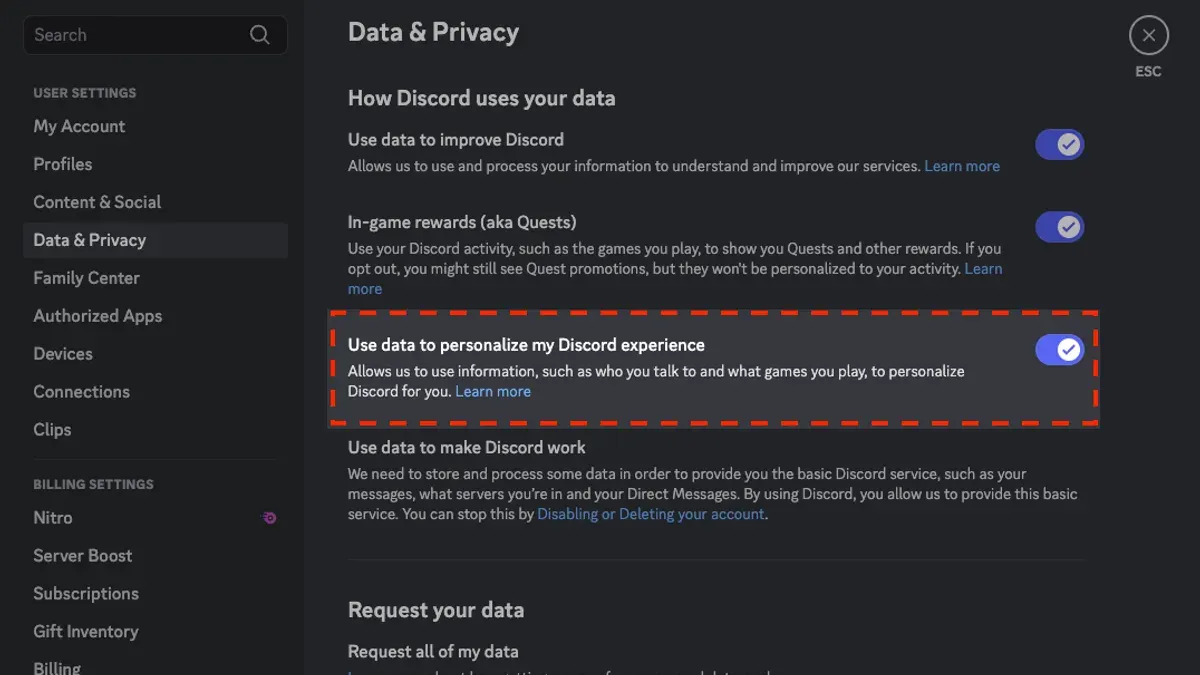
- Click the user avatar in the bottom-left corner to open User Settings. A new window with various categories appears.
- Scroll down the left sidebar within User Settings and select Privacy & Safety. This section allows management of data visibility and controls related to message scanning and friend requests.
- Explore the Privacy & Safety page to locate the Request all my Data button. This triggers a data export request, initiating the process to download personal Discord data.
- Return to User Settings and review My Account for general account details and security options, which indirectly affect data accessibility and protection.
- Familiarize with Authorized Apps under User Settings to see which third-party apps have access to account data, useful for comprehensive data management.
Tip: Use the search bar at the top of User Settings to quickly find “Privacy & Safety” or “Data” options instead of scrolling.
Annotated UI screenshots typically highlight the user avatar location, the User Settings menu layout, and the exact position of the Request all my Data button, clarifying navigation steps. Understanding these interface elements simplifies the process of requesting and managing Discord data within the app.
How to request and download Discord data
- Open the Discord app or navigate to Discord’s web client and log in with the verified account. Access the User Settings by clicking the gear icon near the username at the bottom left. The User Settings menu should appear.
- In User Settings, select the Privacy & Safety tab from the left sidebar. Scroll down to find the Request all of my Data section with a button labeled Request Data.
- Click the Request Data button to open the data request form. Fill in the required fields, which typically include confirming your email and possibly identifying the type of data needed. Submit the form to initiate the export process.
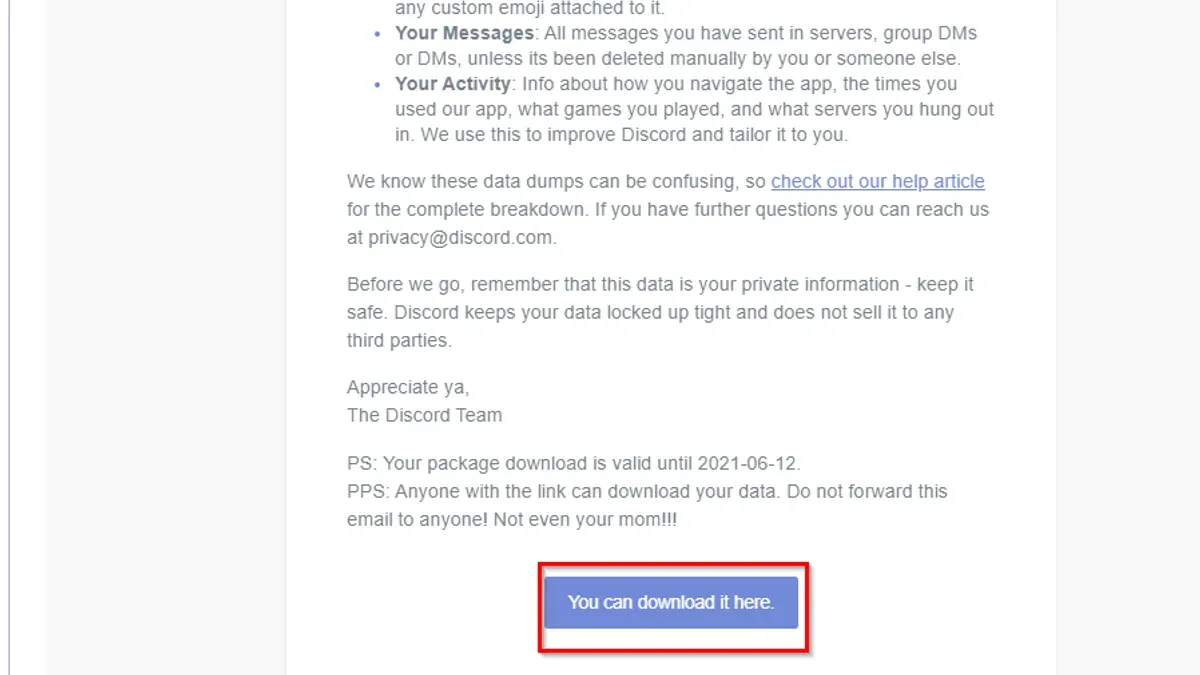
- After submission, Discord shows a confirmation message that the request was received and is processing. The user will receive a notification via the app and an email once the data is ready for download.
- Click the link provided in the notification or email to download the data archive. The exported data is usually delivered as a ZIP file containing JSON files, images, message histories, server information, and account details.
- Ensure sufficient storage space as the file size can vary depending on account activity, sometimes reaching several hundred megabytes. The JSON format allows easy parsing for analysis or backup.
Tip: If the download link expires, a new request must be made, as Discord only provides temporary access to exported data.
How long does it take to get Discord data?
After submitting a data request through Discord’s privacy settings, the typical processing time ranges from a few hours up to seven days. Discord’s official guidance states that most requests are completed within this period, but it can vary based on the volume of requests and the amount of data associated with the account.
Factors influencing wait times include account activity level, server membership counts, and the complexity of data to be compiled. Larger accounts with extensive message history, many servers, or multimedia content may require more time to process. External events like maintenance or high demand can also cause delays.
If the data download notification does not arrive within a week, first check the email linked to the Discord account, including spam or junk folders. If still no notification appears, revisiting the data request page to confirm submission is advised. In cases of extended delays beyond ten days, contacting Discord Support through the official help center provides a path to resolve the issue.
Tip: Keep the Discord app updated and ensure stable internet connectivity to avoid interruptions in receiving your data.
What does requesting Discord data do?
Requesting Discord data provides a downloadable archive containing personal information Discord holds about the user. This includes account details such as username, email, and profile settings, as well as message history from direct messages and channels the user has access to. Usage logs, device information, and connected account data are also typically included, offering a comprehensive overview of the user's interactions and activity on the platform.
Deleted messages and content from private servers where the user is not an owner are excluded from the data export. Discord's privacy policy specifies that data retention and availability depend on server settings and message deletion status, so some historical content may be missing. The data archive does not include data from other users or servers to which the user does not have administrative permissions.
Users commonly utilize the downloaded data for personal backup, to analyze usage patterns, or to comply with data portability requests. The archive is usually provided in JSON or HTML format, making it accessible for further review or migration.
Excerpt from Discord's privacy policy: "We provide users with access to their personal data collected through their use of our services, excluding data that has been deleted or belongs to other users or servers."
Troubleshooting: common issues when downloading Discord data
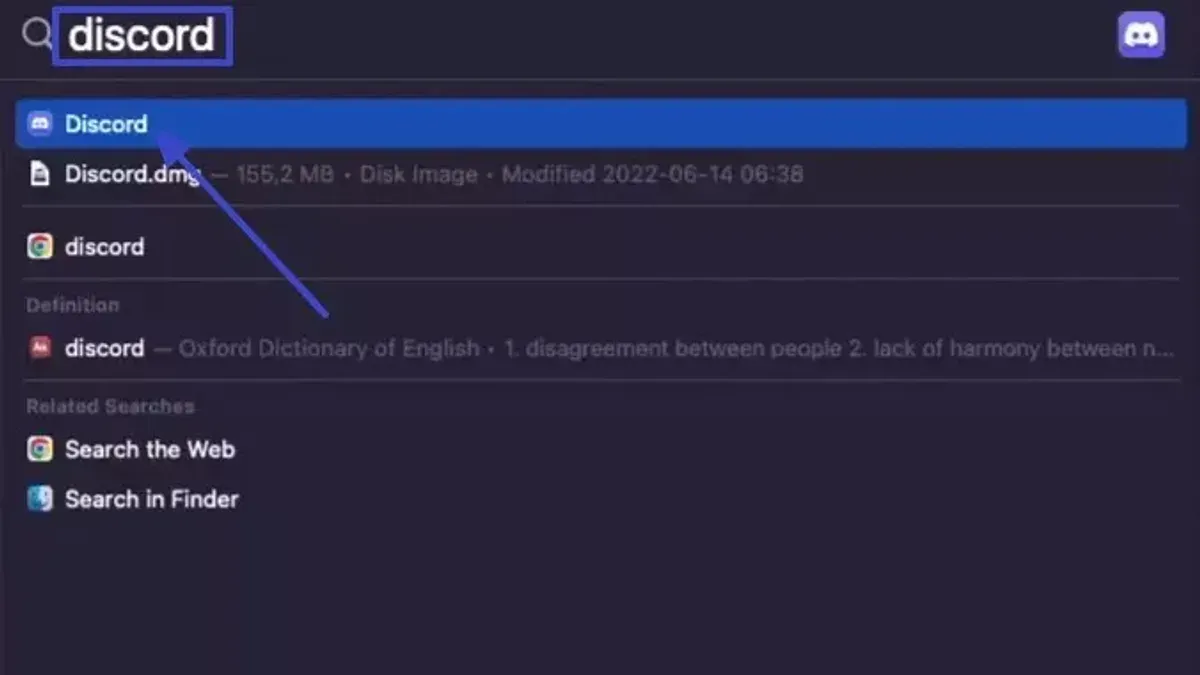
Installing Discord on a PC or laptop can sometimes fail due to incompatible system requirements or corrupted installation files. If the installer does not launch or displays errors like "Installation failed" or "Setup cannot continue," uninstall any previous Discord versions and restart the device before retrying. Using the official Discord download page ensures the latest version. Running the installer as an administrator can also resolve permission-related problems.
Data request errors or delays often arise from incomplete form submissions or server-side processing issues. Error messages such as "Request failed" or "Unable to submit request" typically indicate connectivity problems; switching to a stable network or trying a different browser can help. If the data request remains unfulfilled beyond the typical processing window, contacting Discord support with the request ID is advisable.
Opening and understanding downloaded data files can pose challenges, especially if the archive format or file types are unfamiliar. The data package is usually a compressed ZIP file containing JSON files and media folders. Using standard archive tools to extract and JSON viewers or text editors to open files ensures readability. If the data appears incomplete or corrupted, re-downloading after a fresh request may be necessary.
Tip: Always verify sufficient local storage before downloading large data archives, as insufficient space can cause incomplete downloads or extraction errors.
- Check system compatibility and uninstall old Discord versions. The installer should launch without errors.
- Run the installer as administrator. The installation completes with a Discord shortcut on the desktop.
- Submit the data request on a stable network. A confirmation message with a request ID appears.
- Download the archive once notified. The file should save fully with no interruption.
- Extract the ZIP using a reliable tool. Files open correctly without error messages.
Frequently asked questions
How to download the discord app?
Visit the official Discord website and click on the download button for your device. For computers, select the appropriate version for your operating system, such as Windows or macOS. After downloading, run the installer and follow the on-screen instructions to complete the installation process.
How to download discord on windows?
Go to Discord's official site and click the download link for Windows. Once the installer file is downloaded, usually named "DiscordSetup.exe," open it and proceed through the installation prompts. After installation, launch Discord and log in or create an account to start using it.
How to download discord on pc?
Downloading Discord on a PC involves downloading the Windows or macOS installer from the Discord website, depending on the system. Run the downloaded file and follow installation steps. Alternatively, Discord can be accessed via web browsers without installation, but the app offers full features.
How to download and use discord?
First, download and install the Discord app from the official website. Open the app and sign in or create an account. Use the sidebar to join servers or add friends, explore channels, and adjust settings in the User Settings menu for notifications, privacy, and appearance.
How to download discord data?
Open Discord, go to User Settings by clicking the gear icon, then select "Privacy & Safety." Scroll to "Request all of my Data" and submit a data request. Discord processes requests within days to weeks; a download link will be sent via email when the data is ready.
What this advice does not cover
This article does not cover downloading data from Discord servers or channels where the user lacks appropriate permissions or ownership. It also excludes third-party tools claiming to extract Discord data, as these can pose security and privacy risks. Users seeking data from group servers or other members should contact server administrators or follow Discord’s official channels for such requests.
Tip: Always use Discord’s official data request features to ensure data security and compliance with privacy policies.
The most useful next step after downloading Discord data is to review the downloaded files carefully within a secure environment. This allows verification of the data’s completeness and relevance before any further use, such as backups or analysis. Keeping the data protected and understanding its contents helps maintain privacy and ensures appropriate handling of personal information.
See also: How to Block Someone on Discord: Step-by-Step Guide · Troubleshooting Discord Two-Factor Authentication Code Issues · How to Recognize, Secure, and Manage a Hacked Grindr Account