Troubleshooting Discord Two-Factor Authentication Code Issues
Learn how to troubleshoot and fix Discord two-factor authentication code not working issues to regain secure access to your account efficiently.

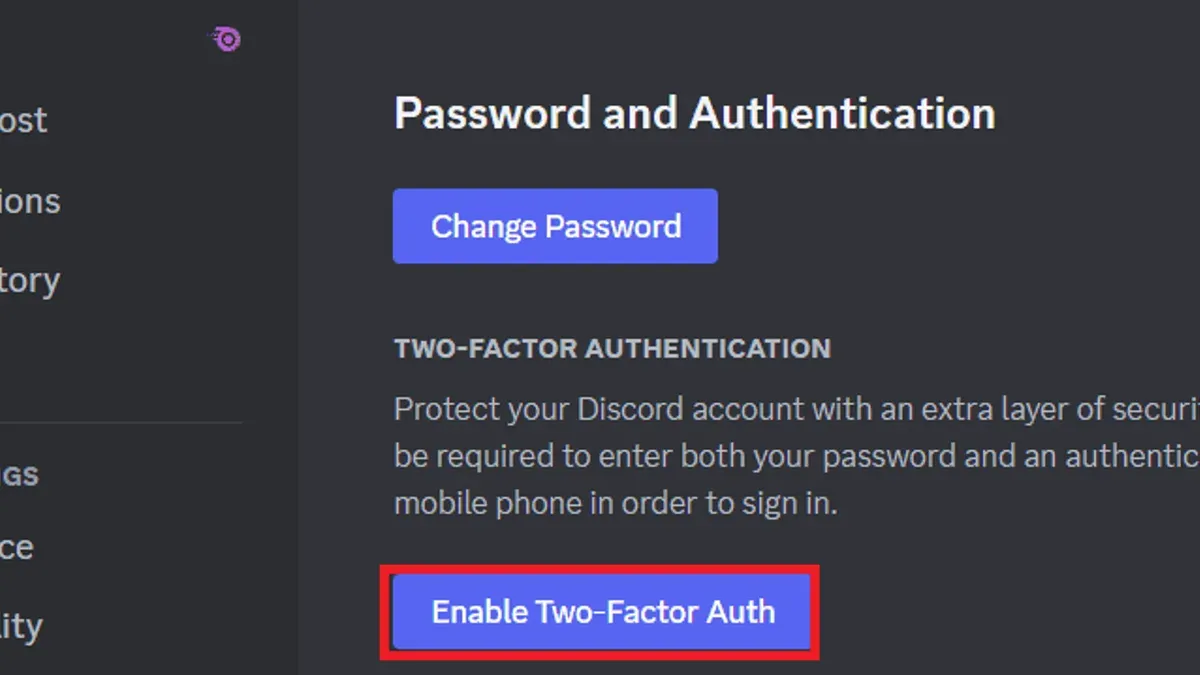
This article provides a detailed troubleshooting guide for users facing the issue of Discord two-factor authentication code not working. Two-factor authentication (2FA) enhances account security by requiring a code in addition to a password, but problems with receiving or entering this code can block access.
Common signs include not receiving the 2FA code via email or authenticator apps, codes being rejected, or delays that cause code expiration. Addressing these issues involves checking notification settings, time synchronization on devices, and app configurations. This guide balances quick fixes like verifying app permissions with advanced steps such as reviewing authenticator app time drift and network restrictions.
How to recognize when the Discord two-factor authentication code is not working
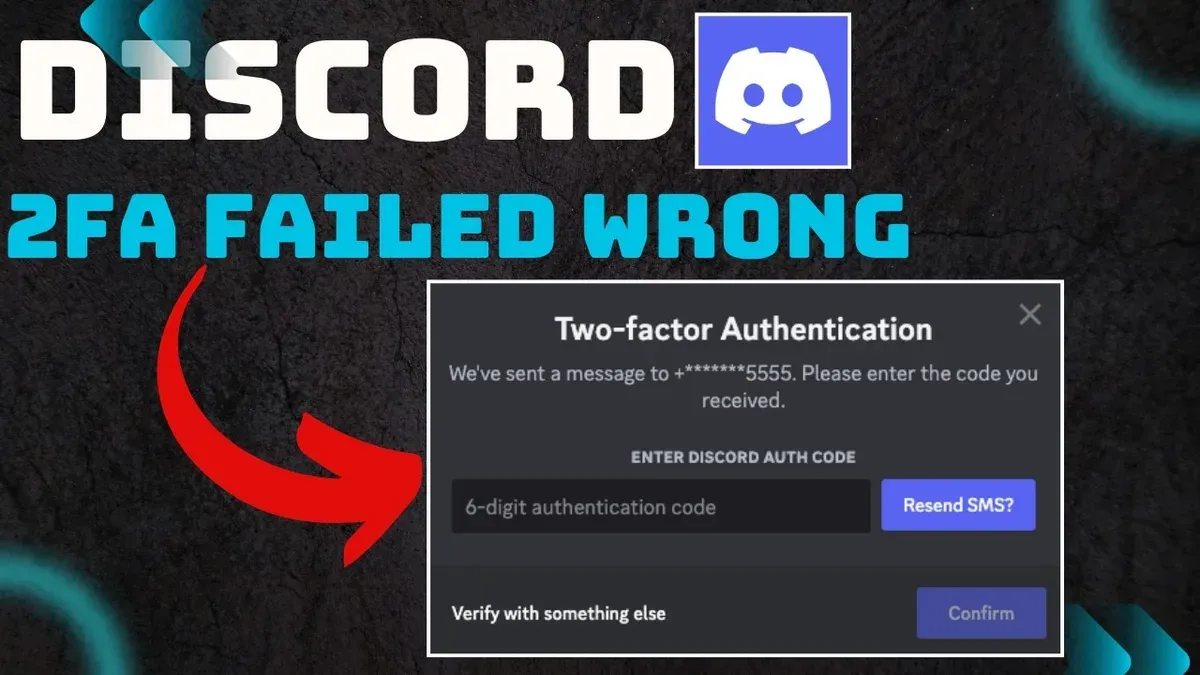
Discord users typically encounter two main signs that their two-factor authentication (2FA) code is not functioning properly: receiving an "Invalid two-factor code" error message during login or not receiving any 2FA code at all. The error message appears immediately after inputting a code generated either by the authenticator app or sent via SMS or email.
It is crucial to distinguish between app-generated codes and SMS/email codes. App-generated codes use time-based one-time passwords (TOTP) that refresh approximately every 30 seconds. If the device's clock is out of sync, these codes may be rejected as invalid. SMS or email codes, by contrast, are sent once per authentication attempt and expire after a short time.
Timing issues are a common cause of invalid TOTP codes. Users should verify that their device's time settings are set to automatic or network-provided time. When codes are entered too late or too early in the refresh cycle, Discord may reject them.
To check if a timing issue affects the authenticator app:
- Ensure the device’s time and date settings are set to update automatically.
- Open the authenticator app and observe the countdown for code expiry.
- Enter the code promptly before it refreshes.
- If the code is still rejected, resync the app’s time correction feature if available.
Success is confirmed when Discord accepts the code without error and allows access. If problems persist, further troubleshooting steps are necessary.
How to get 2 factor authentication code Discord when it’s not received
When Discord 2FA codes fail to arrive, the first step is to verify the authenticator app setup. Open the app used for generating codes (such as Google Authenticator or Authy) and check that the Discord entry is present and its code updates regularly. If codes appear static or invalid, resynchronizing the app's time may help—this option is usually found under settings as "Time correction for codes".
Next, confirm the phone number or email linked to Discord for receiving codes via SMS or email. Ensure the contact details are current and that no spam filters or carrier blocks are preventing delivery. Delivery delays can occur, especially with SMS, due to network issues.
If the primary methods fail, use backup codes generated during 2FA setup. These one-time-use codes should have been saved securely. To use a backup code:
- Open Discord’s login screen and enter the username and password.
- When prompted for the 2FA code, input one of the saved backup codes.
- If accepted, access is granted, confirming the backup code’s validity.
Tip: Backup codes are the safest fallback when authenticator apps or SMS codes fail, but they must be stored securely and accessed only when necessary.
Common causes of Discord two-factor authentication code failures
One frequent cause of Discord 2FA code failures is incorrect device time settings. Authenticator apps rely on time-based one-time passwords (TOTP), which require accurate system clocks. Even small discrepancies can cause generated codes to be invalid. Users should ensure their device time is set to automatic or synchronized with a reliable internet time server.
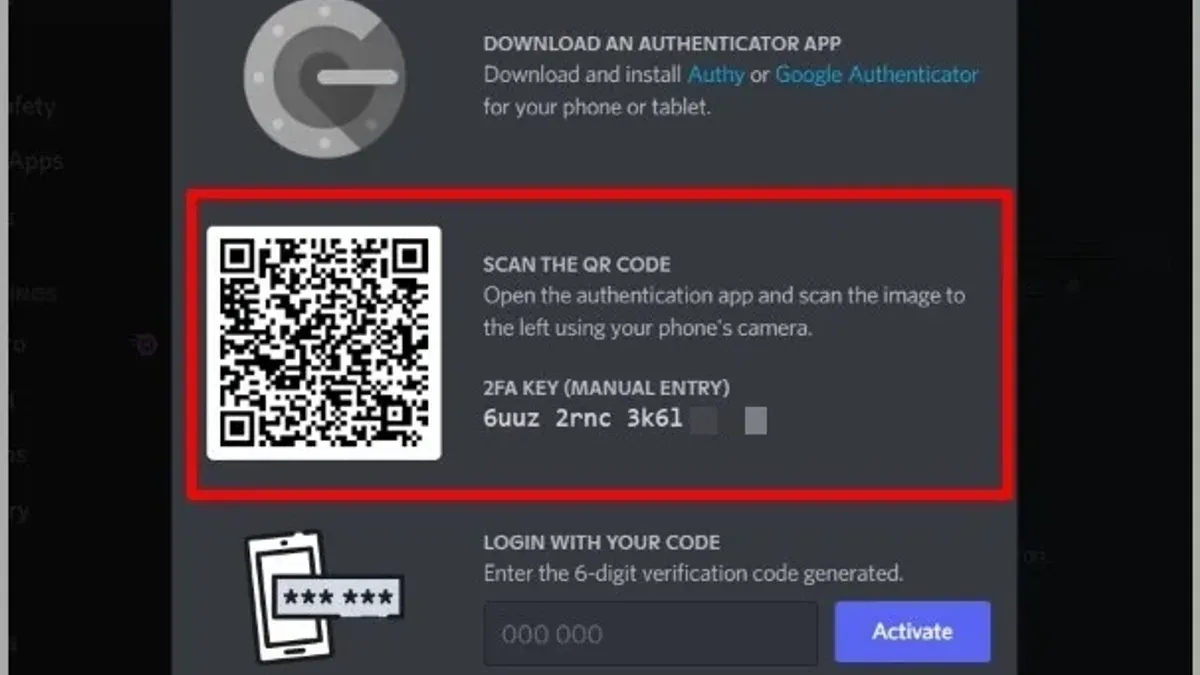
Network issues can also block SMS or app notifications, preventing code delivery. Mobile carriers sometimes experience delays or message filtering, and Wi-Fi or cellular connectivity problems can interrupt real-time communication. SMS delivery failure rates vary but are notably higher in areas with poor signal or carrier restrictions.
Using outdated or unsupported authenticator apps is another common cause. Discord supports standard TOTP apps like Google Authenticator and Authy. Older apps or those with compatibility issues may generate incorrect codes.
Finally, account security flags or temporary lockouts on Discord may block 2FA code acceptance. Suspicious login attempts or policy violations can trigger protective measures that require further verification steps.
Fix for incorrect device time settings:
- Open the device's Settings app.
- Navigate to Date & Time settings.
- Enable "Set time automatically" or "Use network-provided time."
- Restart the authenticator app and generate a new code.
If the new code is accepted by Discord, the time setting was the issue.
Quick and safe fixes for Discord two-factor authentication code problems
Several straightforward steps can quickly resolve common issues with Discord two-factor authentication codes without compromising account security.
Resyncing authenticator app time settings
This fix applies when codes are rejected despite appearing correct, often due to time discrepancies. Most authenticator apps, like Google Authenticator, have a time correction feature:
- Open the authenticator app.
- Go to Settings or Menu (three dots or lines).
- Select "Time correction for codes" or "Sync now".
- Confirm the sync.
After resync, entering a new code should be accepted by Discord. Community feedback indicates many users regain access immediately after this step.
Restarting device and checking network connectivity
This is effective when codes fail to validate due to transient device or network glitches:
- Restart the phone or computer running Discord and the authenticator app.
- Ensure the device has a stable internet connection (Wi-Fi or cellular).
- Open Discord and attempt 2FA code entry again.
Successful login after restart confirms resolution of temporary issues.
Using backup codes to regain access
If authenticator codes remain unusable, backup codes saved during 2FA setup can provide immediate entry:
- Locate previously saved Discord backup codes (printed or stored securely).
- Enter one backup code when prompted for the 2FA code.
- After login, consider generating new backup codes for future use.
This method is a safe fallback with no risk to account integrity.
Logging out and back into Discord app
When app glitches block 2FA acceptance, logging out and back in can reset session issues:
- In Discord, open User Settings > Log Out.
- Close and reopen the app.
- Log in again and enter the 2FA code.
Successful authentication after relogin indicates a resolved session or app state problem.
Tip: Combining these steps sequentially often resolves most 2FA code problems without needing advanced intervention.
Advanced troubleshooting for persistent Discord 2FA issues
When standard fixes fail, reinstalling or switching authenticator apps can resolve compatibility or synchronization problems. Google Authenticator, Authy, and Microsoft Authenticator are widely supported, but some users report better reliability with Authy, especially for multi-device syncing. To reinstall, uninstall the current app, then download the latest version from your device’s official app store. Re-setup your 2FA accounts carefully using Discord’s recovery codes.
Verifying device security settings and permissions is crucial. Ensure the authenticator app has permission to run in the background and access necessary system services. For Android, check Settings > Apps > Discord > Permissions and Settings > Apps > Authenticator > Battery > Unrestricted to prevent app suspension. On iOS, confirm Background App Refresh is enabled for both apps under Settings.
Checking for Discord app updates or reinstalling Discord can fix hidden bugs affecting 2FA. Use the app store to update or reinstall, then log in fresh. Persistent login failures after these steps indicate deeper issues.
Carrier-related SMS blocks may affect 2FA codes sent via text. Some mobile providers block or delay short codes used by Discord. Contacting the mobile carrier to confirm no restrictions exist on premium or short-code SMS can identify this problem. Users should test with an alternative number if possible.
- Uninstall and reinstall or switch to a recommended authenticator app, then re-add Discord 2FA using backup codes.
- Review and adjust device permissions to ensure both Discord and authenticator apps have unrestricted background activity and notification access.
- Update or reinstall the Discord app from the official store, then attempt login again.
- If using SMS 2FA, verify with the mobile carrier that short codes are not blocked; try an alternative phone number if issues persist.
How to know it worked: Successful generation and acceptance of 2FA codes allowing login without error messages or delays confirms resolution.
When to seek professional help for Discord two-factor authentication problems
Professional assistance is necessary when self-troubleshooting fails or when account security is at risk. If there is suspicion of account compromise or hacking, immediate expert help is critical to protect personal data and prevent unauthorized access.
Another scenario requiring professional intervention is the loss of both the authenticator app and backup codes, which effectively locks users out. Discord’s official support can assist with account recovery, though the process may take several days and requires verification of identity.
Persistent errors despite following all recommended troubleshooting steps also justify reaching out to Discord support or a trusted third-party security expert. These specialists can examine account-specific issues or device-level conflicts not apparent in basic troubleshooting.
Steps to seek professional help:
- Visit Discord’s support page and submit a detailed ticket, including any relevant error messages and prior troubleshooting steps.
- Provide requested identity verification documents to confirm account ownership.
- Follow guidance from Discord support carefully, responding promptly to inquiries.
- If necessary, consult a reputable cybersecurity professional for device or network-level analysis.
Successful recovery is indicated by regaining full access to the account with restored 2FA functionality and confirmation from support that the account is secure. Avoid unofficial recovery services that may compromise security.
Further reading
- How to Change Your Discord Password: Complete Step-by-Step Guide
- How to Recognize, Prevent, and Recover a Hacked Call of Duty Account
- How to Secure, Recover, and Manage a Twitch Account After Hacking
Frequently asked questions
Can't receive two factor authentication code?
If the two-factor authentication code is not received, first check that the authentication app or device is properly synced with the correct time settings, as codes are time-sensitive. Ensure the phone or device has a stable internet connection or cellular signal if using SMS codes. Also, verify that the phone number or authentication app is correctly linked to the Discord account and not blocked or restricted by carrier settings or app permissions.
discord two factor authentication not working
When Discord two-factor authentication is not working, common causes include incorrect time synchronization on the authenticator app, using expired codes, or entering codes incorrectly. Sometimes, app updates or device security settings interfere with code generation. Reinstalling the authenticator app or resetting the 2FA setup in Discord can resolve persistent issues after trying basic troubleshooting.
discord verification code not working
A Discord verification code may not work if it has expired, as codes typically refresh every 30 seconds in authenticator apps. Ensure the device’s clock is accurate and set to automatic time. If using SMS verification, delays or network problems can cause invalid codes. Requesting a new code or switching to an authenticator app can help.
2 factor code discord
The two-factor code for Discord is usually generated by an authenticator app like Google Authenticator or Authy, or sent via SMS if that option is enabled. Users must enter the current six-digit code promptly, as it refreshes frequently. Keeping the authenticator app updated and the device time accurate is essential for code validity.
discord invalid two factor code
An invalid two-factor code error typically indicates a timing issue between the authenticator app and Discord’s servers or an incorrect code entry. Checking that the device clock is set to automatic and synced correctly often resolves this. If problems persist, resetting the 2FA setup or using backup codes provided during initial setup can restore access.
What this guide does not cover and when to seek other help
This guide does not cover recovery from a fully lost Discord account without backup codes or linked email access, which requires contacting Discord support directly. It also does not address broader security breaches or account compromises that may involve unauthorized access beyond two-factor authentication issues.
For users who cannot access their account at all due to missing recovery options, or who suspect account hijacking, professional assistance from Discord's official support channels is necessary. Similarly, those encountering hardware failures with authentication devices or app-specific bugs should consider reaching out to device manufacturers or app developers for targeted support.
When two-factor authentication issues persist after following these troubleshooting steps, verifying device time synchronization and app updates remains the most practical next step. Ensuring the device’s clock is set to automatic network time and that the Discord app or authenticator app is up to date often resolves code generation and verification errors.