
How to Change Your Discord Password: Complete Step-by-Step Guide
Step-by-step instructions to change your Discord password on desktop or mobile, including recovery options for forgotten credentials.

This article provides a clear, step-by-step guide on how to change Discord password across different devices and scenarios. Whether updating the password through Discord’s desktop or mobile app, or recovering access after forgetting credentials or losing email access, readers will find targeted instructions to navigate the process securely.
Changing a Discord password requires current account access or recovery options that verify identity. For users already logged in, the process involves accessing User Settings and the My Account section to update credentials. Those who have forgotten their password can initiate a reset via email or alternative verified methods, depending on their account setup.
Following this guide helps balance security with accessibility, ensuring that users maintain control of their accounts without unnecessary complexity when following the steps to change Discord password.
Before you start: What is needed to change a Discord password
Changing a Discord password requires certain prerequisites to ensure a smooth and secure process. Access to the Discord account is essential, either by knowing the current password or having recovery methods available. Recovery options typically include access to the email address linked to the account, a registered phone number, or a connected Gmail account. These methods serve as verification to confirm identity before allowing a password reset.
Users should be aware that the process varies slightly depending on the device used. Instructions differ between PC and mobile platforms, so knowing which device will be used for the password change helps to follow the correct steps efficiently.
Security considerations are important. Changing a password without proper authentication can lead to account lockout or unauthorized access, so having reliable recovery methods is critical. Understanding that either the current password or a recovery option must be provided to proceed is key.
Examples of required inputs: Current password when logged in; or email address and verification code if resetting via recovery; phone number for two-factor authentication if enabled.
- Confirm access to the Discord account or ensure recovery options are available. Successful confirmation means readiness to proceed with password change.
- Identify the device type (PC or mobile) for tailored instructions. This ensures appropriate interface navigation.
- Prepare any necessary verification codes sent via email or phone during recovery. Receipt of these codes indicates readiness to verify identity securely.
How to change Discord password on PC
- Open the Discord desktop app or navigate to the Discord web client and log in with the current account credentials. The main interface should load once logged in.
- Click the gear icon labeled User Settings located near the bottom left corner, next to the username. This opens the settings menu.
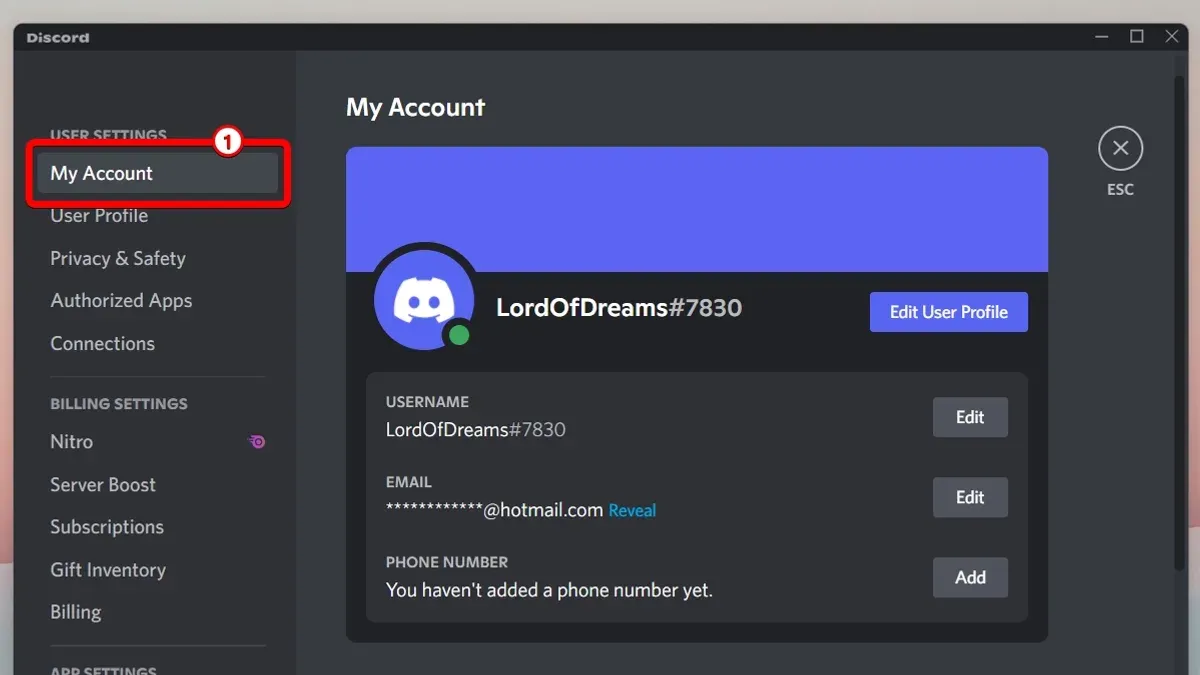
- In User Settings, select the My Account tab from the left sidebar. This section displays account details including username and email.
- Locate the Change Password button within the My Account section and click it to open the password change form.
- Enter the current password in the first field to verify identity. Then enter a new password in the second field and confirm it by typing it again in the third field.
- Click the Save button to apply the change. A confirmation message typically appears indicating the password was successfully updated.
Tip: Choose a strong password combining uppercase and lowercase letters, numbers, and symbols to enhance account security. For example, "P@ssw0rd2026!" is stronger than "password123".
How to change Discord password on mobile
Changing a Discord password on a mobile device involves navigating through the app’s settings, which differ slightly from the PC version but maintain similar logical structure. The mobile app, available for iOS and Android, organizes account options under the User Settings menu accessed from the profile section.
- Open the Discord app and tap the profile icon at the bottom right to access User Settings. The icon typically appears as a small circular avatar.
- Scroll down and select My Account to open account details. This screen displays username, email, and password options.
- Tap Password & Authentication. On some devices, this may appear directly as Password under the account info.
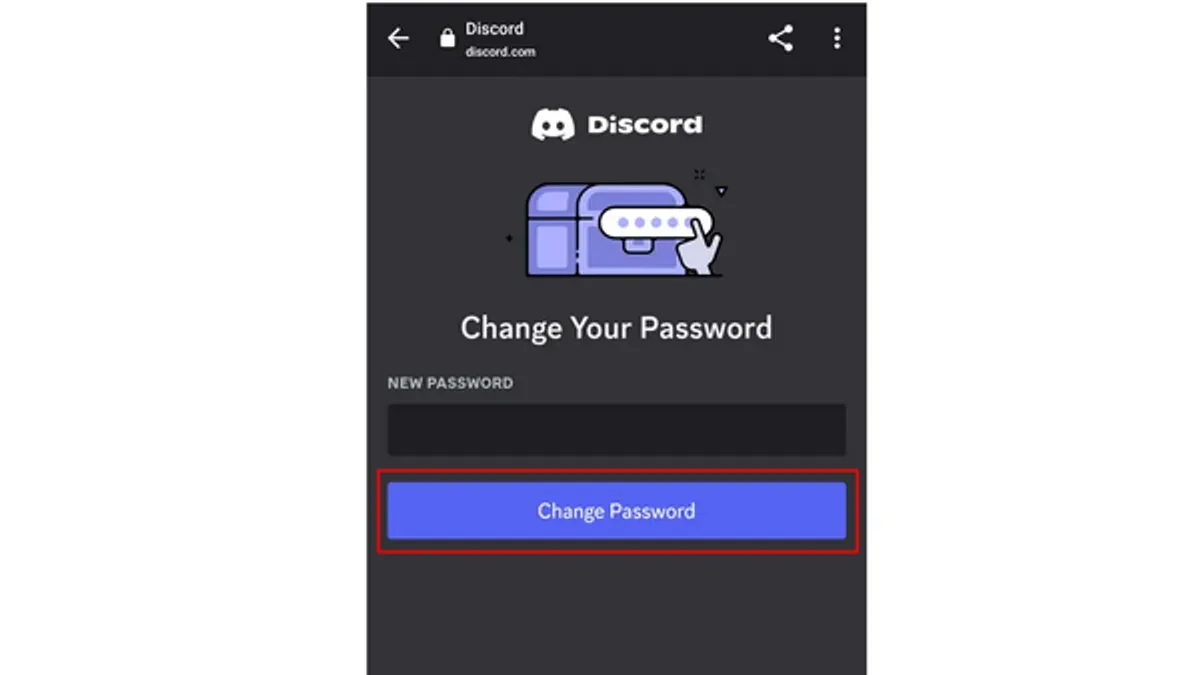
- Enter the current password in the first field. Then, type the new password twice to confirm it.
- Tap Save or the checkmark icon to update the password. A confirmation message or subtle animation indicates success.
Compared to the PC interface, the mobile app uses a more condensed layout with fewer on-screen options at once, requiring more scrolling but maintaining clear labels. It lacks the mouse-hover tooltips present on desktop but compensates with straightforward taps and clear input fields.
Security advice: When entering passwords on mobile, ensure the device is secure and avoid public Wi-Fi to prevent interception. Enable biometric authentication if available to add a layer of security to the account.
Tip: Copying and pasting passwords on mobile can lead to input errors; manually typing the new password helps reduce mistakes.
How to change Discord password if forgotten
If the current password is forgotten, Discord provides a straightforward password reset process that does not require knowing the old password. This process relies on access to the registered email address or phone number linked to the account.
- Navigate to the Discord login screen and select the Forgot your password? link. This opens a password reset prompt.
- Enter the registered email address or phone number associated with the Discord account and submit. A confirmation message indicates that a reset link or code has been sent.
- Check the inbox of the provided email or the device receiving the phone number’s messages. The reset email typically contains a link with a secure token; the email subject line often reads "Discord Password Reset".
- Click the link or enter the received code on the Discord reset page. This page prompts for a new password entry.
- Create and confirm a new password, ensuring it meets Discord’s complexity requirements. Upon successful submission, a confirmation message indicates the password has been changed.
Common issues include the reset email landing in the spam or junk folder, or delays caused by email server processing times. If the reset email is not received within a few minutes, checking these folders or resubmitting the request can help.
Tip: Users should verify the email address entered is correct and that there are no filters blocking Discord emails, as this increases the success rate of password resets.
While exact success rates vary, most users regain access through this method when email or phone access is available.
How to change Discord password without email access
When the registered email is inaccessible, Discord users still have alternative options to change their password, though these come with limitations and verification steps to ensure account security.
Using a linked phone number for password reset
If a phone number is linked to the Discord account, it can be used to reset the password. On the password reset page, selecting the option to receive a reset code via SMS allows users to regain access without email. After entering the code received on the phone, users can set a new password successfully.
Using a linked Gmail account for recovery
For accounts connected to a Gmail address, password recovery can sometimes be facilitated through Google's account recovery tools. This method depends on the Gmail account's security settings and may require multi-factor authentication for verification. However, this approach is indirect and may not always work if Discord's standard reset process requires email access.
Limitations and contacting Discord support
If neither email nor phone number is accessible, changing the password becomes more difficult. In such cases, contacting Discord Support is the last resort. Users should provide proof of account ownership, such as previous payment receipts or server ownership details. Discord Support may ask for additional verification to prevent unauthorized access.
Security risks and verification steps
Each recovery method involves verification to prevent unauthorized password changes. Users should be cautious about sharing account information and aware that recovery options without email access are limited to protect account integrity.
How to change Discord password using Gmail
Using Gmail as the registered email for a Discord account simplifies the password reset process. Discord sends password reset links directly to the Gmail inbox, enabling quick access to recovery options. However, this method requires that the Gmail account is linked to the Discord profile beforehand; if not, password resets via Gmail are not possible.
- Open the Discord login page and click on the "Forgot your password?" link. This directs to a password reset request form.
- Enter the Gmail address associated with the Discord account. A confirmation message will appear, indicating that a reset email has been sent if the address is recognized.
- Log into the Gmail account and locate the email from Discord with the subject "Reset Your Password" or similar. It typically arrives within minutes.
- Open the email and click on the password reset link provided. This opens a Discord password reset page in a browser.
- Enter a new password following Discord's security requirements and confirm it. A success message will confirm the password change.
Tip: Ensure two-factor authentication is enabled on the Gmail account to protect against unauthorized password reset attempts.
Many Discord users rely on Gmail due to its widespread use and reliable delivery of reset emails, but securing the Gmail account is critical since access to it can control Discord account recovery.
Troubleshooting common issues when changing Discord password
Users may encounter several common problems when attempting to change or reset their Discord password. One frequent issue is not receiving the reset email or SMS. This can happen due to spam filters, incorrect email entry, or delays in the email system. Checking spam or junk folders and verifying the email address entered are essential first steps.
If the registered phone number is forgotten or recovery options are unlinked, resetting the password becomes more challenging. In such cases, contacting Discord Support with proper verification is often necessary.
Sometimes, password changes may not save or error messages appear during input. Errors such as "Password does not meet requirements" indicate the new password needs to include a mix of uppercase, lowercase, numbers, and symbols. Users should also confirm that the passwords entered in both fields match exactly.
Account security warnings can appear if suspicious activity is detected or if the password change triggers multi-factor authentication. These warnings serve to protect the account but may require additional verification steps.
When to seek official Discord Support: If recovery options fail, reset emails do not arrive after several attempts, or error messages persist despite correct inputs, reaching out to Discord Support through their official help center is advisable. Community forums also report similar issues, reinforcing the importance of patience and following official guidance.
Security tips for managing Discord passwords
Choosing a strong and unique password is essential to protect a Discord account. Use a combination of uppercase and lowercase letters, numbers, and special characters, avoiding common words or predictable sequences. Accounts with weak or reused passwords are significantly more vulnerable to breaches.
Using a reliable password manager helps generate and store complex passwords securely, reducing the need to remember multiple credentials. These tools also alert users to weak or repeated passwords across services.
Enabling two-factor authentication (2FA) adds a critical security layer. By requiring a secondary verification method, such as an authentication app or SMS code, 2FA drastically decreases the risk of unauthorized access even if a password is compromised. Many security reports highlight that accounts with 2FA enabled are far less likely to be breached.
Regularly updating passwords limits the damage from potential leaks. A good practice is to change passwords every few months or immediately after a suspected security incident.
Recognizing phishing attempts is vital. Discord users should be cautious about suspicious links, unexpected password reset emails, and requests for credentials, which could lead to account compromise.
- Set a strong password using at least 12 characters including letters, numbers, and symbols. Once saved, the account should accept the password and allow login without errors.
- Activate 2FA in Discord by navigating to User Settings > My Account > Enable Two-Factor Auth. Successful setup will prompt for a 2FA code at login.
- Use a password manager to generate and store passwords. Confirm the manager autofills credentials correctly on Discord login screens.
- Update passwords periodically by repeating the password change steps. A successful update allows logging in with the new password only.
- Verify emails and links carefully before clicking. Report or ignore suspicious communications to avoid phishing risks.
Further reading
- Complete Guide to Discord Privacy Settings and Controls
- How to Change Your Bumble Password: Step-by-Step Instructions
- How to Change Your Bluesky Password and Manage Your Account
- How to Change Your BeReal Password: A Clear Step-by-Step Guide
Frequently asked questions
How to change discord password if u forget
If the Discord password is forgotten, use the "Forgot your password?" link on the login page. Enter the registered email address to receive a password reset link. Follow the link to create a new password and regain access to the account securely.
How to change discord password with phone number
Discord does not support password resets directly through a phone number. Password changes require access to the registered email address for verification. Users should ensure their email is up to date to manage password settings.
How to change discord password without knowing old one
Changing the Discord password without knowing the current one requires initiating a password reset. This is done by selecting "Forgot your password?" on the login screen and following the email-based recovery process. Without email access, alternative recovery options are limited.
How to change discord password with email
To change the Discord password using email, log in to the account and navigate to User Settings > My Account > Change Password. Enter the current password, then provide a new password and confirm it. If the current password is unknown, use the password reset link sent to the registered email.
Limitations of this advice and when to seek further help
This guide assumes access to at least one recovery method such as a linked email or phone number. Users who are completely locked out without any recovery options may need to contact Discord support directly. This process can be time-consuming and does not guarantee account restoration.
For those facing persistent issues beyond password changes, such as account hacking or permanent access loss, professional assistance or advanced support channels might be necessary.
The most effective next step is to ensure recovery methods like a verified email address and phone number are always linked to the Discord account. This proactive measure simplifies future password changes and account recovery.



