
How to Change Your Bumble Password: Step-by-Step Instructions
This guide provides clear, step-by-step instructions on how to change your Bumble password, including troubleshooting tips and security advice.

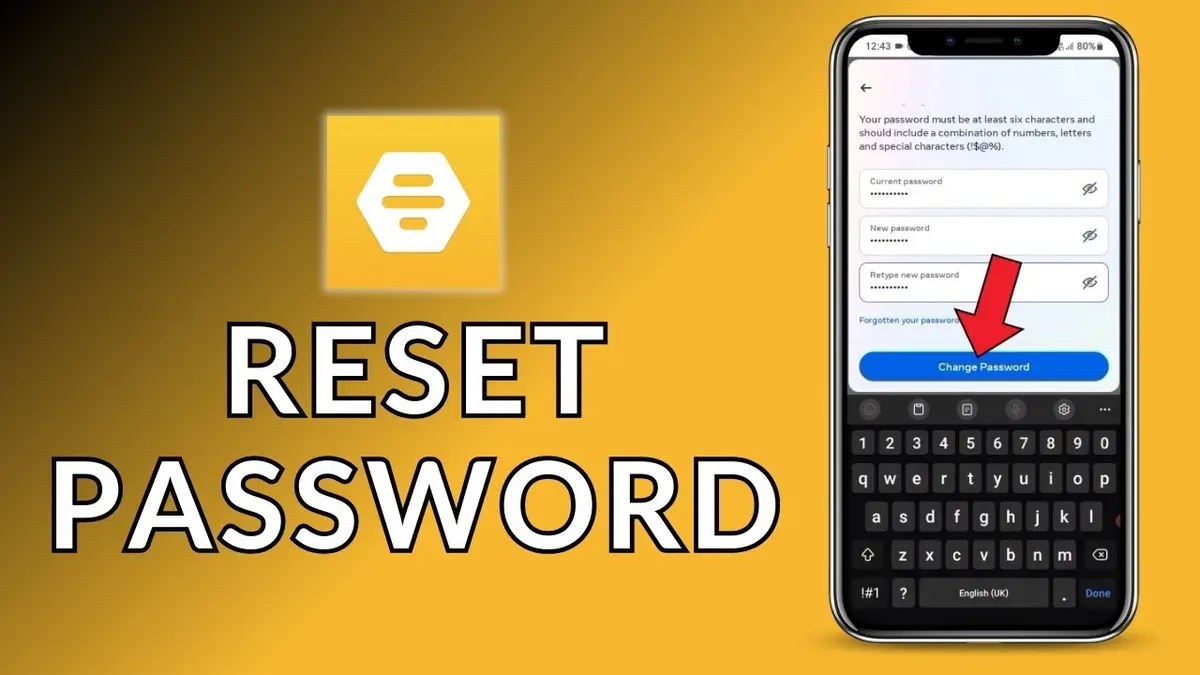
This article explains how to change Bumble password with clear, step-by-step instructions for both updating and resetting credentials. Changing a Bumble password is a straightforward process but requires access to the app or email linked to the account.
Users often compare Bumble’s password management with other dating platforms like Tinder and Hinge to evaluate security features. This guide covers common challenges encountered when resetting passwords and provides practical advice on what to do if the password change option is unavailable.
Additionally, it addresses related concerns such as securely deleting a Bumble account before changing passwords and troubleshooting typical issues experienced during password updates on dating apps.
Before you start: what is needed to change a Bumble password
Changing a Bumble password requires certain prerequisites to ensure a smooth process. First, an active Bumble account with valid login credentials is essential. This could be a password, or in some cases, login via a linked phone number or social media account such as Facebook or Apple ID.
Access to the email account associated with the Bumble profile is needed for verification steps, especially when resetting a forgotten password. Without this, receiving confirmation or reset links will not be possible.
The Bumble app must be installed on the device or the user must be able to access Bumble's website through a desktop or mobile browser. Functionality varies slightly between platforms but both allow password management.
Basic understanding of device security, such as unlocking the phone or managing browser settings, helps in following the required steps accurately.
Note that if the Bumble login is done through a phone number or social login, the password change process differs. For example, users signing in with Facebook or Apple ID typically manage passwords through those platforms rather than Bumble itself.
- Confirm the login method used to access Bumble (email, phone number, or social login). Successful identification means the user knows whether Bumble or an external provider controls password settings.
- Ensure access to the email account linked to Bumble to receive verification or reset emails. Confirmation appears as access to inbox or spam folder.
- Have the Bumble app installed or open Bumble.com on a desktop browser. The user should see the login screen to proceed.
- Understand basic device security steps such as unlocking the phone or enabling notifications, which will aid in verification processes.
How to change your Bumble password via the app
- Open the Bumble app and log in with your current credentials. The home screen should appear once logged in successfully.
- Tap the profile icon located at the bottom-left corner of the screen to access your account settings.
- Select the "Settings" option, usually represented by a gear icon in the top-right corner of your profile page.
- Scroll down and locate the "Account" section; within this, tap on "Password" or "Change Password" depending on app version.
- Enter your current password in the first field to verify your identity. This step ensures only authorized users can update the password.
- Type your new password in the next field, following Bumble’s strength guidelines, which typically recommend at least eight characters including a mix of letters, numbers, and symbols.
- Re-enter the new password in the confirmation field to avoid typos and confirm your intended password.
- Tap "Save" or "Update" to finalize the password change. A confirmation message or prompt should appear indicating the password has been successfully updated.
Tip: If the app does not immediately reflect the change, logging out and back in can help sync the new password across devices.
How to reset your Bumble password if forgotten
Regaining access to a Bumble account after forgetting the password involves a straightforward reset process. This ensures that users can securely set a new password using their registered contact information.

- Open the Bumble app or visit the Bumble website and go to the login screen where the password is requested.
- Click or tap the Forgot Password? link, usually found below the password field. This action directs users to a password recovery page.
- Enter the registered email address or phone number associated with the Bumble account, then submit the request. A confirmation message should appear, indicating that a reset link or code will be sent.
- Check the email inbox or SMS messages for the verification link or code from Bumble. If it does not arrive within a few minutes, users should verify the entered address or check spam/junk folders.
- Follow the instructions in the received email or SMS by clicking the link or entering the code on the Bumble site to access the password reset page.
- Create a new secure password, meeting Bumble’s requirements for length and complexity. After submission, a confirmation screen will indicate the password has been successfully updated.
- Return to the login page and enter the email or phone number with the new password to access the Bumble account.
Common errors during this process include inputting an incorrect email or phone number and missing the reset message in spam folders, which can delay account recovery. In some cases, users also attempt to reset passwords for accounts created with third-party logins, which may require different recovery methods.
Tip: Use a password manager to store new passwords immediately after resetting to avoid future access issues.
How to change password on related dating apps: Tinder and Hinge compared
Changing passwords on Tinder and Hinge involves distinct processes, influenced by how each app handles login credentials and social integrations.
| Action | Tinder | Hinge |
|---|---|---|
| Access password change | Open Tinder app or website; go to Profile > Settings > Manage Account > Password (if available). If signed in via Facebook or phone number, password management may be on those platforms. | Open Hinge app; tap Profile > Settings > Account > Change Password. If using social login (Facebook/Google), password changes are handled externally. |
| Reset password without phone or email | Use "Forgot password?" on Tinder login screen; requires access to linked email. Without email or phone linked, password reset may be impossible. | Use "Forgot password?" on Hinge login screen; requires linked email. Without email or phone, password reset options are limited. |
| Common troubleshooting | If password change option is missing, confirm login method; social logins do not allow in-app password changes. Clearing app cache or reinstalling may help. | For social logins, password resets must be done via Facebook or Google. If issues persist, contacting support is recommended. |
Tip: Users relying on social logins should manage passwords through those platforms for security and consistency.
What to do if the Bumble password change option is unavailable
Some Bumble accounts do not display the option to change a password due to the login method or app version. Accounts that use social media logins (Facebook, Apple ID, or Google) or phone number authentication often lack a traditional password on Bumble, which means the app does not allow password changes directly.
To gain control over password management, users can unlink their social or phone login and convert to an email-based login. This process enables setting and changing a password within the app.
- Open the Bumble app and go to the profile icon in the top-left corner to access Settings.
- Scroll to find the Account section and select Login & Security.
- If the account is linked to a social login or phone number, locate the option to Switch to Email Login or Add Email.
- Follow the prompts to enter a valid email address and verify it through the confirmation email sent by Bumble.
- Once the email login is active, the password change option should appear under Login & Security.
If unlinking is unavailable or the password change option remains missing, contacting Bumble support is recommended. Support can confirm account status and provide guidance or manual assistance in exceptional cases. Official Bumble help pages emphasize contacting support when standard options are restricted due to account type or technical issues.
How to delete a Bumble account securely before changing passwords
Deleting a Bumble account can serve as a definitive step for users who prefer starting anew or who encounter issues changing their password. This process removes access to the account, including all matches, conversations, and subscription details.
- Open the Bumble app and tap the profile icon in the top-left corner; this opens account settings.
- Scroll down and select "Delete Account"; a confirmation screen will appear outlining the effects of deletion.
- Confirm deletion by tapping "Delete My Account"; upon successful deletion, the app returns to the welcome or sign-up screen.
After deletion, Bumble removes user data from the active database, but some information may be retained for a limited time per Bumble's data retention policies, primarily for legal or security reasons. Users lose all matching history and messages permanently, and any active subscriptions tied to the account typically require cancellation separately through the app store or payment provider.
Some users prefer deletion over password changes when they want to avoid potential security risks associated with compromised credentials or when intending to create a fresh profile without legacy data. However, deleting an account means losing all accumulated connections and may affect subscription continuity.
Tip: Before deleting, users should review and cancel any active Bumble subscriptions to avoid ongoing charges.
Common troubleshooting when changing dating app passwords
Many users face difficulties when attempting to change passwords on Bumble and similar dating apps. A frequent issue is not receiving password reset emails; this can often be resolved by checking the spam or junk folder, ensuring the registered email address is entered correctly, and confirming the email server is not blocking messages from the app.
App version and device compatibility also cause errors. Running an outdated app or unsupported device can prevent password changes. Updating to the latest app version through the Google Play Store or Apple App Store typically resolves this.
Password strength requirements vary but usually include a minimum of eight characters, a mix of uppercase and lowercase letters, numbers, and special symbols. Weak passwords are commonly rejected, so using a complex and unique password is advised.
Accounts logged in via social media or phone number often lack a traditional password, leading to confusion. In these cases, password changes must be handled through the social platform or by switching to an email login method if the app permits.
- Verify the registered email address is correct and check all email folders for the reset link; receiving the email indicates success.
- Update the app to the latest version; successful update allows access to password change settings.
- Create a password that meets the app's complexity rules; acceptance confirms compliance.
- For social or phone number logins, follow the external platform's password management steps or change to an email login; confirmation from the platform or app indicates completion.
Further reading
- How to Change Your Bluesky Password and Manage Your Account
- How to Change Your BeReal Password: A Clear Step-by-Step Guide
- How to Password Protect an Excel File: Step-by-Step Guide
- How to Password Protect a PDF: Step-by-Step Guide for All Users
Frequently asked questions
How to change password on rambler.ru?
To change the password on rambler.ru, log into the account and navigate to the "Settings" or "Account" section. Look for the "Password" or "Security" option, then enter the current password followed by the new password twice for confirmation. Save the changes to update the password.
How to change password on rumble?
On Rumble, access the account by signing in, then go to "Settings" or "Account Settings." Find the "Password" tab or section, enter the current password and the new password, and confirm the change. The platform may require email verification or a confirmation code to finalize the update.
How to change tinder password on iphone?
Open the Tinder app on the iPhone, tap the profile icon, then select "Settings." Scroll to "Manage Account" and tap "Change Password." Enter the current password, then the new password twice, and save. If the account uses Facebook or phone number login, password changes may need to be done through those services.
How to change tinder password?
Changing the Tinder password typically requires logging into the Tinder account via the app or website, accessing "Settings," and selecting "Change Password." Users must enter their current password and the new password to confirm. If the account is linked to Facebook or Google, password changes must be made through those platforms.
How to change tinder password without phone number?
If the Tinder account is not linked to a phone number, use the email address associated with the account to reset the password. On the login screen, select "Forgot password?" and enter the email to receive a password reset link. Follow the link to create a new password without needing phone verification.
Limitations of this guide and alternative options
This guide does not cover password management for Bumble accounts accessed through social login options such as Facebook or Apple ID, where passwords are managed externally. Additionally, users who sign in solely with phone number authentication may not have a traditional password to change within the app.
For those using social logins, password changes must be made through the respective service provider's account settings. Phone number authentication users should focus on securing their phone and any linked email accounts to maintain overall account security.
After updating or resetting a Bumble password, the most effective next step is to review connected devices and active sessions within Bumble’s account settings to ensure no unauthorized access remains. Regularly monitoring these details helps maintain a secure online dating experience.



