How to Secure Your Call of Duty Account: Step-by-Step Instructions
Follow step-by-step instructions to secure your Call of Duty account using email verification and two-factor authentication for maximum protection.

Settings, menu paths and limits here were checked against F-Secure in November 2026.
Which Call of Duty account security method fits each player’s needs?
Players aiming to play Call of Duty across multiple platforms must link their Call of Duty account to each platform account, such as Battle.net, Xbox, or PlayStation. This connection ensures cross-platform progression and seamless access. For users prioritizing maximum account security, verifying the associated email and enabling two-factor authentication (2FA) are essential steps. These measures add layers of protection against unauthorized access.
Those experiencing login difficulties should first confirm their email verification status, then review the strength of their password, and finally check if their account has been suspended or banned. Selling Call of Duty accounts is strictly prohibited; engaging in this practice risks permanent account suspension or ban and undermines security.
How to make a Call of Duty account and start securely
Begin by visiting the official Call of Duty website and navigating to the account creation page. Choose a strong, unique password that does not repeat any used on other sites, reducing the risk of compromise. A weak or reused password significantly increases vulnerability to unauthorized access.
Once the account is created, immediately verify the email address. This step is found under Account Settings → Email Verification → Verify your email. Email verification enables account recovery options and ensures receipt of important security notifications. Failure to verify the email can block future recovery attempts and leave the account exposed.
- Go to the official Call of Duty website and select the option to create a new account. The page should confirm the start of the registration process.
- Enter the required personal details and set a strong, unique password. After submission, the account creation confirmation should appear.
- Go to Account Settings, locate Email Verification, and complete the verification process by confirming the email address through the sent link. Successful verification will be indicated on the website.
How to link Call of Duty account to your gaming platforms
Linking a Call of Duty account to platforms such as Battle.net, Xbox, or PlayStation enables cross-platform progression and seamless access across devices. Begin by signing into the Call of Duty official website and navigating to Account Settings. Within this menu, select Linked Accounts to view available platform options.
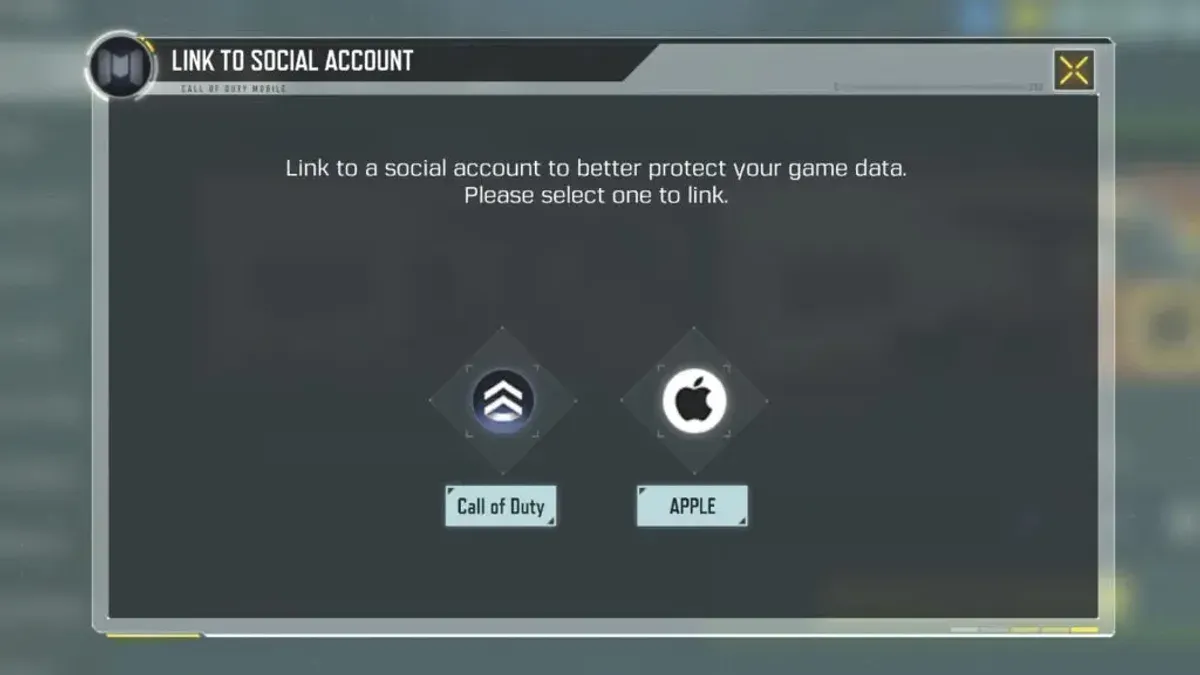
- Click on the platform to link, such as Battle.net, Xbox, or PlayStation. A prompt to authorize the connection appears.
- Follow the on-screen instructions to sign into the platform account and confirm authorization. Successful linking usually shows a confirmation message or the linked platform listed under Linked Accounts.
- Repeat the process for additional platforms if cross-platform play or progression on multiple devices is desired.
This process consolidates progress, unlocks, and purchases across linked platforms, improving convenience and security. Without linking, progress remains isolated to each platform. Account linking also simplifies managing account security settings from one central location.
How to verify your Call of Duty account email and why it matters
Email verification is essential for securing a Call of Duty account and enabling recovery options. Begin by signing into the official Call of Duty website. Navigate to Account Settings and select Email Verification. There, locate and click the option to Verify your email.
After initiating verification, a confirmation link is sent to the registered email address. Open the email and follow the link to confirm the address. Successful verification is confirmed by a notification on the site or app.
Verifying the email enables password resets and alerts on suspicious account activity. Without verification, the account risks being locked out, and critical security notifications will not be received. This leaves the player vulnerable to unauthorized access and complicates account recovery.
- Go to Account Settings → Email Verification
How to secure your Call of Duty account with two-factor authentication
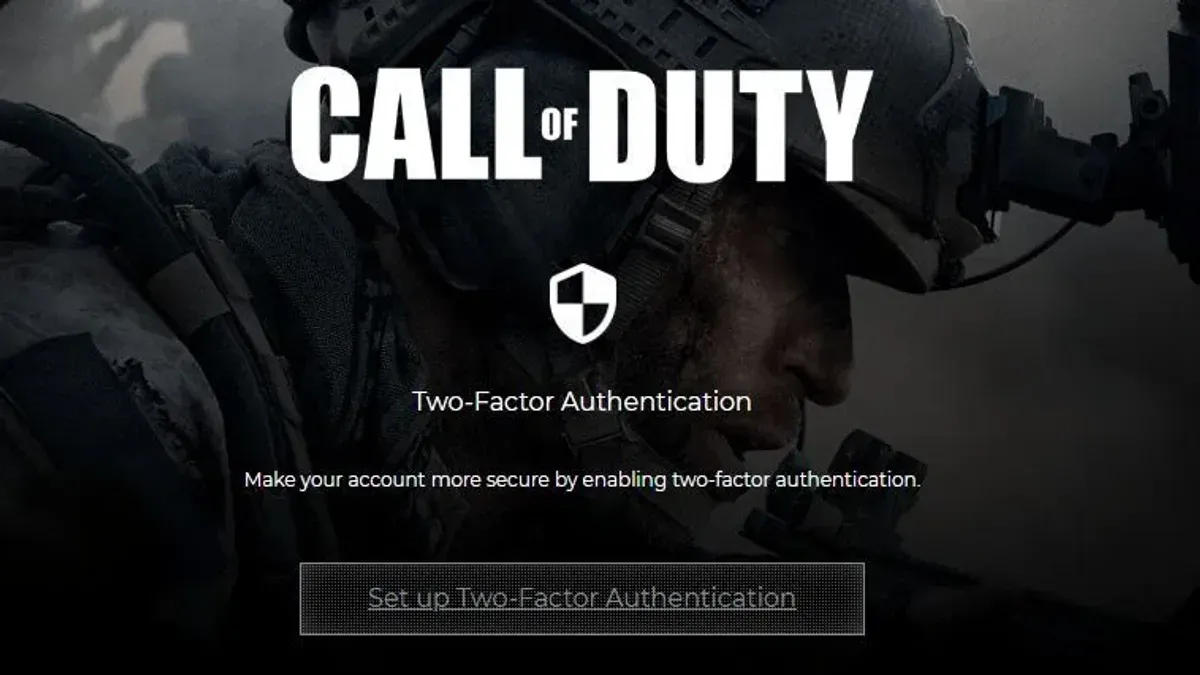
This reduces the risk of unauthorized access even if the password is compromised. Activating 2FA on the Call of Duty account strengthens protection against account takeover.
- Go to the official Call of Duty website and sign in. Navigate to Account Settings > Security.
- Locate the option to enable two-factor authentication. Select whether to use an authenticator app or SMS for the second verification step.
- Follow the prompts to set up the chosen 2FA method. An authenticator app requires scanning a QR code or entering a code manually, while SMS requires confirming a phone number.
- Complete the setup to activate 2FA. Once enabled, every login will require the second verification code in addition to the password.
Enabling 2FA ensures that even if the password is stolen, the account remains secure without the second factor. It is strongly recommended for maximum account security alongside email verification.
What to do if you can’t log into your Call of Duty account
Incorrect username or password entries are the most frequent. Double-check spelling, capitalization, and keyboard layout. If login credentials are correct but access still fails, an unverified email may be the reason. Accounts with unconfirmed email addresses can be blocked from signing in.
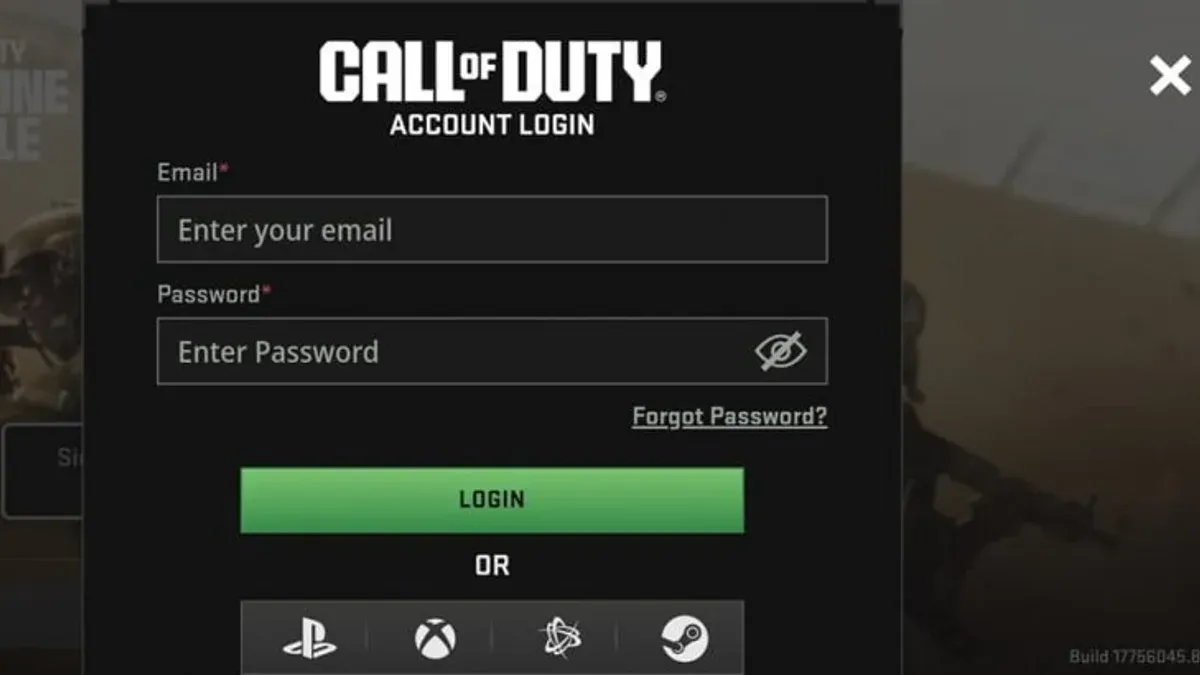
Account suspension is another cause, usually triggered by suspicious activity. The site will display a suspension notice in this case. Restoring access requires resolving the suspension through official support channels.
Using the Account Recovery tool on the Call of Duty website helps reset forgotten passwords or unlock accounts. This process requires access to the registered email. Follow each step carefully to regain entry.
| Symptom or Message | Likely Cause | Recommended Fix |
|---|---|---|
| "Incorrect username or password" | Typing errors or wrong credentials | Re-enter details carefully, check keyboard layout |
| "Account email not verified" | Email confirmation pending | Verify email via link sent to inbox |
| "Account suspended due to suspicious activity" | Security suspension by Call of Duty | Contact support to resolve suspension |
- Attempt login with known credentials; confirm the error message.
- Verify that the account email is confirmed by checking inbox for verification links.
- Use the Account Recovery tool to reset the password or unlock the account; success appears as a password reset confirmation.
- If suspended, follow instructions in the suspension notice or contact support.
Common mistakes that weaken Call of Duty account security
This omission leaves the account vulnerable to permanent lockout if the password is forgotten or compromised. Each account must have a unique, strong password to resist guessing and credential stuffing attempts.
Without 2FA, a stolen password alone grants full account access. Activating 2FA provides an additional verification step that is crucial for robust protection. Attempting to sell or buy Call of Duty accounts directly violates the terms of service and leads to account suspension or permanent bans. This practice not only risks losing access but also undermines the integrity of the account holder's investment.
How to check your Call of Duty account security settings worked
Verifying Call of Duty account security settings ensures protection against unauthorized access and maintains cross-platform functionality. First, confirm that all gaming platforms are properly linked. Visit Account Settings → Linked Accounts. The platforms authorized for cross-play appear listed here. If a platform is missing, linking is incomplete and needs attention.
Next, check the email verification status. Navigate to Account Settings → Email Verification. A verified email status confirms the account can receive password resets and security alerts. Without this, account recovery options are limited, increasing risk.
Then, ensure two-factor authentication (2FA) is enabled for an additional security layer. This setting is found under Account Settings → Security. When enabled, login attempts prompt for a second verification step. Test this by logging out and signing back in; a 2FA prompt should appear to confirm activation.
Finally, review recent account activity regularly for any unauthorized access. This proactive step helps detect suspicious behavior early and supports timely response.
- Open Account Settings → Linked Accounts and verify all platforms appear.
- Go to Account Settings → Email Verification and confirm the email is verified.
- Access Account Settings → Security to check that two-factor authentication is enabled and test login for 2FA prompt.
- Review account activity regularly for signs of unauthorized access.
Frequently asked questions
How to make call of duty account?
Creating a Call of Duty account requires visiting the official Call of Duty website and selecting the option to sign up. The process involves entering a unique username, a valid email address, and a secure password. After registration, verifying the email under Account Settings → Email Verification strengthens account security and enables full access to features.
Can't log into call of duty account?
This issue is addressed in the section on what to do if login fails, which includes a failure map matching specific messages to causes and fixes. Common problems include incorrect passwords, unverified emails, or account suspension from terms violations such as selling accounts. Following the recommended troubleshooting steps or contacting support will resolve most login problems.
Common mistakes that weaken Call of Duty account security
- Using the same password across multiple gaming platforms. To avoid this, create a unique password for the Call of Duty account, reducing the risk if another service is compromised.
- Failing to verify the email address under Account Settings → Email Verification. Without email verification, recovering the account after unauthorized access becomes difficult.
- Not enabling two-factor authentication despite its availability. This optional feature strongly increases account security by requiring a second form of verification.
- Linking accounts improperly or not at all via Account Settings → Linked Accounts, which can limit cross-platform play and complicate account management.
- Attempting to sell or buy Call of Duty accounts, which violates terms and leads to suspension or ban, undermining account safety and access.
Choosing the best security method depends on the player’s situation. Those focused on cross-platform play should prioritize linking accounts correctly. Players worried about unauthorized access must verify their email and enable two-factor authentication. New players should start by creating a strong, unique password and verifying their email immediately. Address login issues by following the specific failure map steps to resolve common access problems quickly and securely.
Sources
- Kirjaudu My F‑Secureen | F‑Secure — F-Secure
See also: How to Log Out of Plenty of Fish on All Devices Quickly · How to Recognize, Prevent, and Recover a Hacked Call of Duty Account · How to Log Out of Call of Duty on All Devices Quickly and Securely