How to Password Protect a PDF: Step-by-Step Guide for All Users
This guide explains how to password protect a PDF using various tools to keep your documents secure and control access effectively.

This article explains how to password protect a PDF using a variety of popular tools, including free software and specialized applications like Bluebeam. Securing PDF documents with passwords helps control access and protect sensitive information from unauthorized viewers.
Multiple methods exist depending on the software available, from Adobe Acrobat’s comprehensive encryption settings to simpler options within Adobe Reader and Mac’s built-in Preview app. Alternatives without Adobe software are also covered, ensuring accessibility for all users. Additionally, this guide clarifies common misconceptions about PDF password protection, such as its limitations against advanced hacking techniques.
Understanding the appropriate tool and method for each situation can prevent unnecessary complexity or expense while maintaining document security.
Before you start: What is needed to password protect a PDF
To password protect a PDF, the essential first step is to have the PDF file ready for securing. This can be any document saved in PDF format, created from text, images, or scanned content. Next, access to software or an online tool capable of adding password protection is required. Common options include Adobe Acrobat, free software like PDF24, macOS built-in tools, or specialized platforms such as Bluebeam. Each tool may differ in compatibility, features, and limitations.
Understanding the distinction between password protection and encryption is also crucial. Password protection restricts access to the file, while encryption secures the file's data by encoding it. Many modern PDF tools combine both, but some may only offer basic password restrictions without strong encryption.
Basic familiarity with the system used—whether Windows, macOS, or a web browser—is necessary to navigate menus and save protected files correctly. Additionally, selecting a strong password is vital to ensure security; simple or common passwords can be easily bypassed.
| Method/Tool | File Size Impact | Software Compatibility |
|---|---|---|
| Adobe Acrobat | Minimal increase | Windows, macOS |
| Adobe Reader (for viewing only) | N/A (cannot add password) | Windows, macOS |
| Free online tools (e.g., Smallpdf) | Minimal increase | Any with browser |
| macOS Preview | Minimal increase | macOS only |
| Bluebeam | Minimal increase | Windows |
- Prepare the PDF file by locating it on the device; the file should open without errors.
Success: The PDF opens normally in the default viewer. - Choose the software or tool to apply password protection.
Success: The software launches and is ready for file input. - Verify knowledge of the platform to navigate menus and settings for password protection.
Success: The user can locate security or protection options within the tool. - Decide on a strong password that combines letters, numbers, and symbols.
Success: The password meets recommended complexity standards.
Tip: Testing the protected PDF on different devices or readers ensures the password works as intended and compatibility is maintained.
How to password protect a PDF in Adobe Acrobat
- Open the PDF file in Adobe Acrobat Pro. The document appears in the main viewing pane, ready for editing.
- Click on the Tools tab in the top menu, then select Protect from the list of available toolsets. The Protect toolbar opens with encryption options.
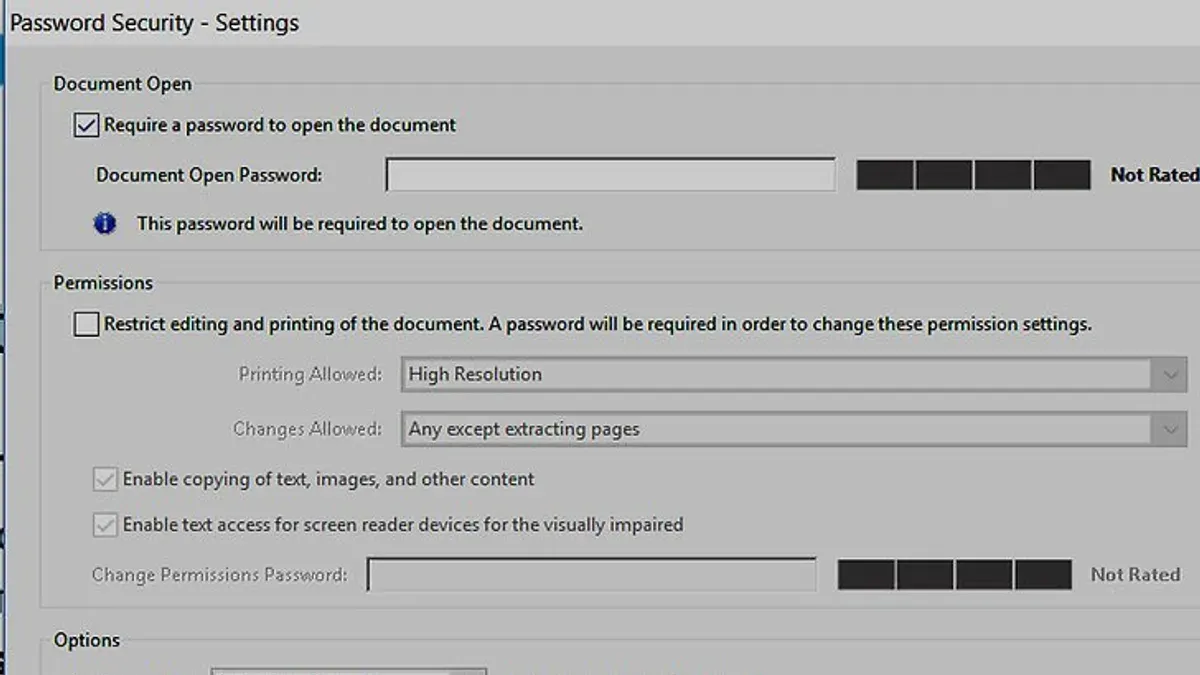
- Choose Encrypt > Encrypt with Password. A dialog box titled "Password Security Settings" will appear.
- Check the box labeled Require a password to open the document to set a user password. Enter a strong password in the field provided. This password is required to open and view the PDF.
- Optionally, under Permissions, check Restrict editing and printing of the document and enter a separate permissions password. This limits actions like editing, printing, or copying content without this second password.
- Set encryption options, such as Compatibility (e.g., Adobe Acrobat 7.0 and later) and encryption level (commonly 256-bit AES), then click OK.
- Save the PDF file to apply the password settings. When reopened, the document prompts for the user password to view it or the permissions password to modify restricted features.
Tip: The user password controls who can open the PDF, while the permissions password limits editing and printing; setting both enhances document security.
How to password protect a PDF in Adobe Reader
Adobe Reader, the free PDF viewer from Adobe, does not have the capability to add password protection to PDF files. According to official Adobe documentation, Reader is designed primarily for viewing, printing, and annotating PDFs, not for creating or modifying security features such as passwords.
To add a password to a PDF, users must use Adobe Acrobat Pro or other third-party tools that support encryption and password settings. Adobe Reader can only open PDF files that already have password protection set by another application.
For users without access to Adobe Acrobat Pro, several free alternatives can password protect PDFs. Popular free tools include PDF24 Creator, PDFsam Basic, and online services like Smallpdf or iLovePDF, which allow password encryption compatible with Adobe Reader.
Steps to password protect a PDF using a free tool compatible with Adobe Reader:
- Download and install a free PDF password tool (for example, PDF24 Creator). The installation should complete without errors.
- Open the PDF file within the tool by selecting "Open" or dragging the file into the application window. The PDF will display inside the program.
- Locate the security or encryption option, often found under "Protect PDF" or "Encrypt PDF" in the menu.
- Set a strong password in the designated field(s) to restrict opening or editing, then confirm the password. The interface usually prompts for confirmation.
- Save the newly password-protected PDF by choosing "Save As" or "Export". The saved file will require the password when opened in Adobe Reader or any compatible PDF viewer.
Tip: Always verify the password protection by reopening the saved PDF in Adobe Reader to ensure the password prompt appears as expected.
How to password protect a PDF without Adobe
Users without Adobe software can use several free tools to add password protection to PDF files, each with varying features, privacy policies, and ease of use. Caution is advised when using online services, as uploading sensitive documents may pose privacy risks.
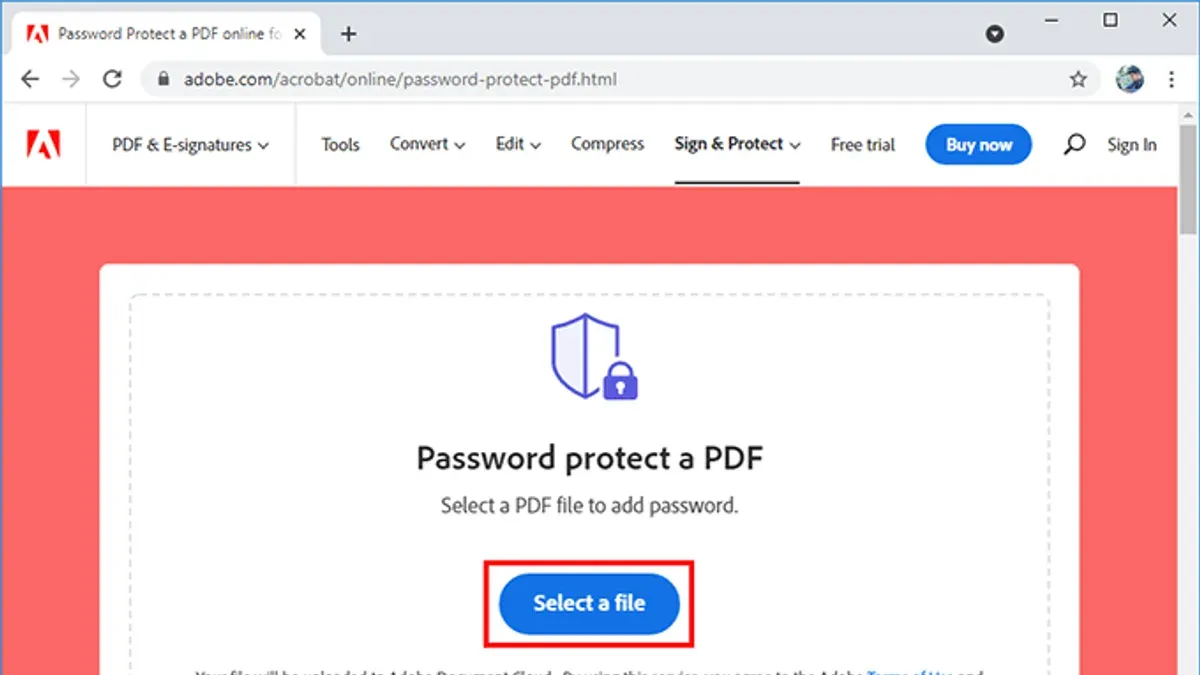
Using free online tools
Many websites offer free PDF encryption, but users should review privacy policies carefully to ensure uploaded files are not stored or shared. These tools are convenient for quick tasks without installing software but may have file size limits and security trade-offs.
- Open a reputable online PDF password protection tool (e.g., Smallpdf, iLovePDF).
- Upload the PDF file; the interface should display the file name once uploaded.
- Enter the desired password in the protection field.
- Click the encrypt or protect button.
- Download the password-protected PDF when the process completes, usually indicated by a download link or button.
Using free desktop software
Free software such as PDF24 Creator, LibreOffice, and Microsoft Word provide offline methods to password protect PDFs with better privacy control.
PDF24 Creator (Windows):
- Install and open PDF24 Creator.
- Drag the PDF into the application window; the preview should appear.
- Click the "Protect PDF" option.
- Set a password in the provided field and confirm.
- Save the encrypted PDF to the desired location.
LibreOffice (Windows/Mac):
- Open the PDF file in LibreOffice Draw.
- Go to "File" > "Export As" > "Export as PDF."
- In the dialog, select the "Security" tab.
- Check "Set password" and enter the desired password.
- Export and save the protected PDF.
Microsoft Word (Windows/Mac):
- Open Word and use "Open" to load the PDF (Word converts it to an editable document).
- Go to "File" > "Save As."
- Select PDF as the file type.
- Click "Options," then check "Encrypt the document with a password."
- Enter and confirm the password, then save.
Free tools vary in usability and security features. Desktop applications offer stronger privacy since no files are uploaded online, while online tools are faster but risk exposure of sensitive data. Checking the tool’s privacy policy and encryption standards is recommended before use.
Tip: Always keep a backup of the original PDF before applying password protection, as losing the password may result in permanent loss of access.
How to password protect a PDF on Mac
Mac users can password protect PDFs using the native Preview app or other compatible software. Preview offers a straightforward way to add encryption, but its security may not match dedicated PDF security tools.
- Open the PDF file with Preview. The file will appear in the Preview window.
- Click File in the menu bar, then select Export. A dialog box appears with export options.
- In the export dialog, select PDF from the Format dropdown.
- Check the box labeled Encrypt. Two password fields will become visible.
- Enter a strong password in the Password field and confirm it in the Verify field.
- Choose the destination folder and filename, then click Save. The encrypted PDF will be created at the chosen location.
Tip: Preview uses 128-bit AES encryption, which is adequate for general use but may not meet high-security requirements.
Alternative Mac apps like PDF Expert, PDFpen, or Adobe Acrobat offer more advanced encryption options and can provide stronger protection or additional permissions controls. These apps are worth considering for sensitive documents or professional needs.
Preview’s encryption restricts opening the document without the password but does not allow setting separate permissions for editing or printing. Users needing granular control should consider other software.
How to password protect a PDF in Bluebeam
- Open the PDF file in Bluebeam Revu by selecting File > Open from the menu, then locating and opening the desired document. The PDF will appear in the main workspace.
- Access the security settings by clicking Document on the top menu bar, then selecting Security > Password Security. A Password Security dialog box will open.
- Set the password for opening the PDF by checking the box labeled Require a password to open the document. Enter a strong password in the provided field. This password will be needed to open the file.
- Optionally, set permissions passwords to restrict editing, printing, or copying by checking Require a password to change security settings and access specific functions. Enter a separate permissions password and configure allowed actions in the Permissions section.
- Choose the encryption level. Bluebeam typically offers 128-bit AES encryption by default, balancing security and compatibility.
- Click OK to apply the password settings. A prompt may ask to confirm the permissions password if set.
- Save the secured PDF by selecting File > Save As, then choosing a new file name or location to avoid overwriting the original. The saved file will now require the specified password to open or modify based on the settings.
Tip: Use a distinct permissions password different from the open password to prevent unauthorized changes while allowing safe viewing.
Note: Bluebeam Revu’s interface clearly shows the password security options under the Document menu, making it straightforward to apply strong encryption without third-party tools.
How to password protect a PDF file in email
Securing a PDF file before emailing is essential to protect sensitive information. The most reliable approach is to apply password protection directly to the PDF using built-in software or third-party tools before attaching it to the email.
- Create the password-protected PDF using your preferred method (e.g., Adobe Acrobat's Protect tool, Mac Preview encryption, or Bluebeam's password security). After saving, the file should prompt for a password when opened.
- Attach the encrypted PDF file to the email message as usual.
- Send the password to the recipient separately using a different communication channel, such as a phone call, SMS, or secure messaging app. This prevents both the file and password from being exposed if the email is intercepted.
Tip: Avoid including the password in the same email or thread as the protected file to reduce the risk of unauthorized access.
Alternatives to password protecting PDFs before emailing include encrypting the entire email using protocols like S/MIME or PGP, or using secure file-sharing services with built-in encryption and access controls. These options add layers of security but may require setup and recipient compatibility.
Relying solely on email client encryption or transport security (such as TLS) is insufficient because emails can be stored unencrypted on servers or accessed by unauthorized parties after delivery. Password protecting the PDF itself ensures the file remains protected regardless of the email's security environment.
Troubleshooting common issues when password protecting PDFs
When a password is not accepted, verify that Caps Lock is off and that the exact password, including special characters, is entered. If the issue persists, confirm the PDF’s encryption method supports the password type used.
Free PDF tools often have limitations such as file size caps or automatic watermarking. For example, online services may refuse files over 10 MB or add visible marks on secured PDFs. Checking tool specifications before use can prevent these problems.
Compatibility issues arise when a PDF protected with one software does not open or prompts for a password differently in another reader. This is common if the software uses proprietary encryption or unsupported algorithms. Testing the PDF on multiple readers like Adobe Acrobat Reader, Foxit, or Preview can identify compatibility.
To remove passwords legally and ethically, users must have authorization—such as being the document creator or having explicit permission. Tools like Adobe Acrobat Pro provide password removal options when the correct password is known.
Fixing password errors
- Double-check the password for typos, case sensitivity, and keyboard layout; successful entry grants document access or permission changes.
- If using free software, review the tool’s file size and feature limits; upgrading or switching tools should remove restrictions.
- Open the PDF in multiple PDF readers to test compatibility; consistent password prompts confirm correct encryption use.
- When authorized, use software with password removal features and enter the correct password to decrypt; the PDF should open without password prompts afterward.
Tip: Always keep a backup of the original PDF before applying or removing passwords to avoid data loss.
Further reading
- Types of Encryption: A Clear Guide to Algorithms and Applications
- How to Encrypt an External Hard Drive: Step-by-Step Guide
- How to Encrypt a USB Drive: Step-by-Step Guide for Mac and Windows
- How to Spot and Report Wells Fargo Scam Texts Safely
Frequently asked questions
how to password protect a pdf for free
Free password protection of PDFs can be done using tools like Microsoft Word (by saving a document as PDF with a password), free online services, or free software such as PDF24 Creator. These options typically involve opening the PDF or creating it from a document, then selecting an option to add password encryption—often found under "Save As" or "Export" settings. Users should be cautious with online tools due to privacy concerns and file size limits.
how to password protect a pdf document
Password protecting a PDF document usually involves using software that supports encryption, such as Adobe Acrobat Pro. The process includes opening the PDF, selecting "Protect" or "Encrypt" from the tools menu, setting a password for opening or editing, and saving the changes. The password can restrict access or limit what actions are permitted on the document.
how to password protect a pdf file
To password protect a PDF file, open it in a compatible application like Adobe Acrobat or a relevant alternative, access the protection or security settings, and choose to require a password to open or modify the file. After entering and confirming the password, save the PDF to apply the protection. This prevents unauthorized viewing or editing depending on the chosen options.
how to unlock password protect pdf
Unlocking a password-protected PDF requires the correct password to open or remove restrictions legally. If the password is lost, some software claims to recover or remove passwords, but success varies and may breach security policies. It is recommended to keep passwords safe or request the password from the document owner.
Limits of PDF Password Protection
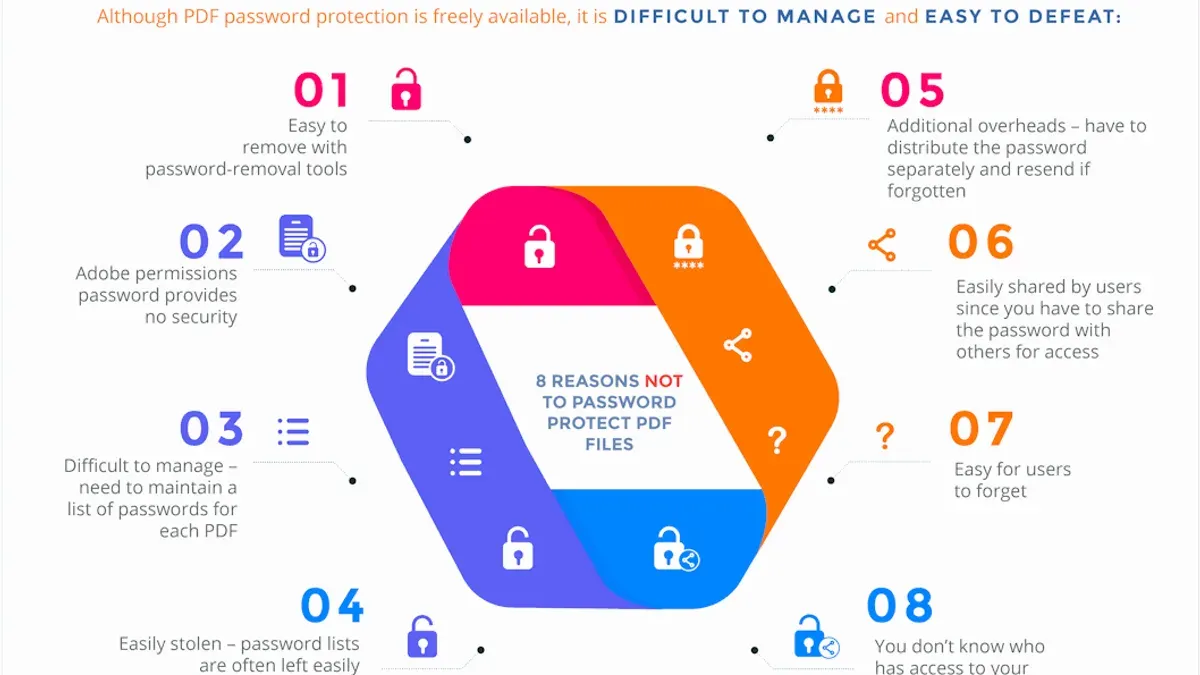
Password protecting a PDF adds an important layer of security by restricting access to the document. However, it does not guarantee absolute protection against advanced hacking techniques or forensic data recovery tools. Passwords can sometimes be cracked or bypassed with specialized software, particularly if the password is weak or the encryption standard is outdated.
Users who need to protect highly sensitive or confidential information should consider additional security measures such as full disk encryption, secure file transfer protocols, or dedicated encryption software that offers stronger algorithms and key management. Relying solely on PDF password protection may leave files vulnerable in high-risk scenarios.
For the most secure approach, combine password protection with controlled access environments and regular security audits.
The next step is to choose the tool and method that best fits the specific security needs and workflow, then test the password protection by attempting to open the PDF on different devices or software to ensure the settings are applied correctly.