
Can Hackers Steal Passwords Saved in Chrome? What You Should Know
Explore how hackers might steal passwords saved in Chrome and practical tips to safeguard your credentials from local and remote threats.

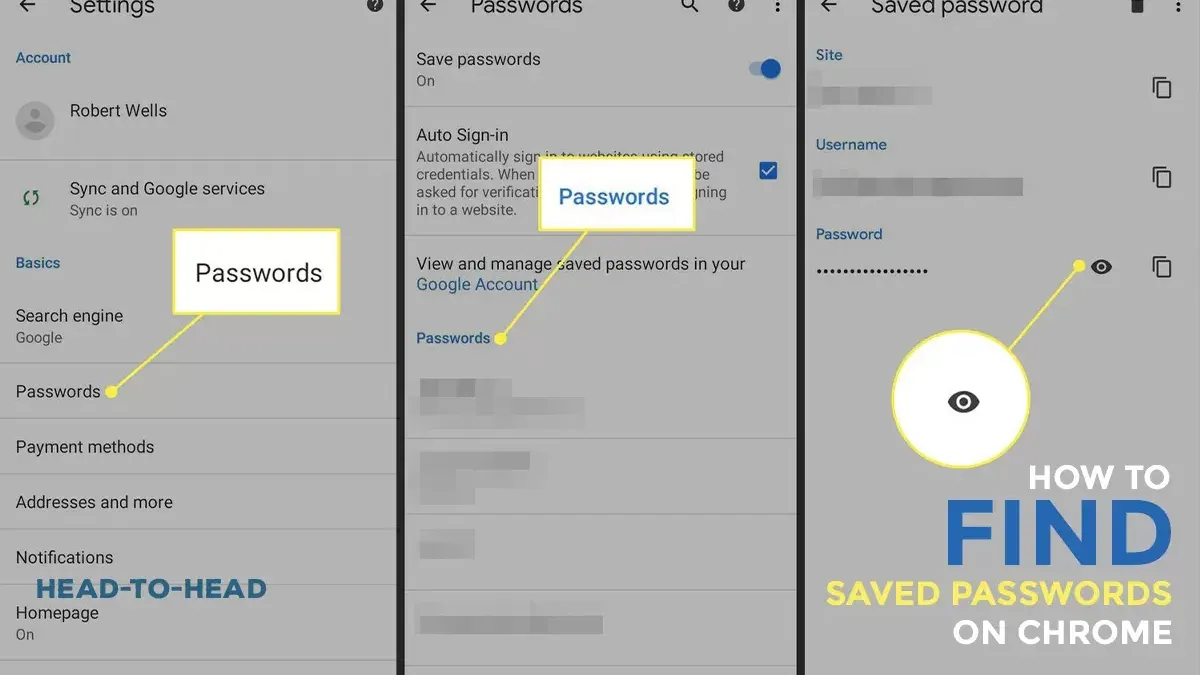
This article examines the question, can hackers steal passwords saved in Chrome, by exploring the realistic security risks involved. While Google Chrome offers built-in password management and encryption, vulnerabilities exist both locally and remotely that could expose saved credentials.
Local attacks may involve someone with physical access to a device or malware exploiting saved data, whereas remote attacks typically require phishing or exploiting browser or system weaknesses. Understanding these scenarios helps clarify the balance between convenience and security when using Chrome's password saving feature.
The discussion will also highlight common user oversights and practical steps for protecting saved passwords beyond generic advice often found online.
Is Google Chrome safe from hackers?
Google Chrome encrypts passwords saved in its built-in password manager, protecting them with the device’s login credentials. This means that passwords are generally secure from remote hacking attempts unless the attacker can bypass or compromise the device’s user authentication system.
Chrome uses AES-256 encryption for stored passwords, a standard comparable to other major browsers like Firefox and Edge. While remote breaches of password managers are rare, the real vulnerability arises if a hacker gains physical access to the device or remote access through malware, allowing them to potentially extract saved passwords once logged in.
Ultimately, the security of passwords saved in Chrome heavily depends on the strength of the device login, such as a strong password, PIN, or biometric protection, combined with overall system security measures like up-to-date software and antivirus protection.
How to remove saved passwords from Chrome
Removing saved passwords from Chrome helps reduce the risk of unauthorized access. To delete individual passwords, open Chrome settings by clicking the three dots in the upper-right corner, then select Settings. Navigate to Autofill and click on Passwords. Here, under Saved Passwords, find the entry to delete, click the three dots next to it, and choose Remove. For bulk deletion, scroll through the list and remove passwords one by one as Chrome does not provide a direct “delete all” option.
To prevent Chrome from saving passwords in the future, stay in the Passwords section and toggle off Offer to save passwords. This stops Chrome from prompting to save new passwords.
Regularly reviewing and cleaning saved passwords is advised to maintain account security. Removing outdated or unused entries minimizes exposure if the device is compromised.
Tip: Use chrome://settings/passwords in the address bar to quickly access password management.
How hackers could steal passwords saved in Chrome
Hackers can steal passwords saved in Chrome primarily through local or remote access attacks that bypass the browser's encryption safeguards. Locally, malware such as keyloggers or credential-stealing tools like LokiBot and RedLine Stealer actively target stored passwords by exploiting logged-in user sessions or extracting data from Chrome's encrypted storage if the device is unlocked. Physical access also poses a risk, as attackers may use social engineering or direct device control to bypass login screens and retrieve saved credentials.
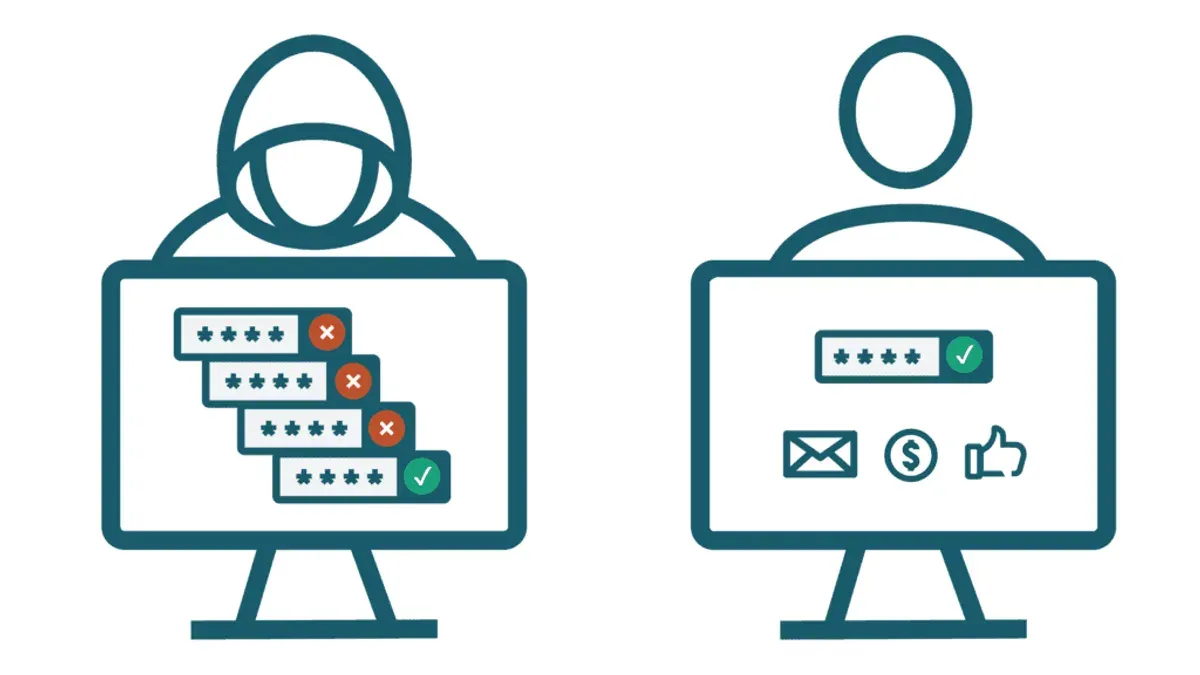
Remote attacks often begin with phishing campaigns that trick users into revealing their system credentials or installing malware capable of extracting saved passwords. Once the attacker gains control of the operating system account or user session, Chrome’s encryption offers limited defense, allowing decryption of stored passwords.
Notable breaches, such as incidents involving credential-stealing malware in the late 2010s, demonstrate how attackers exploited compromised devices to harvest saved passwords, underscoring the importance of securing both device access and user behavior.
Tip: Using strong device authentication and avoiding suspicious links or downloads reduces the risk of attackers gaining the necessary access to steal saved passwords.
What users can do to protect passwords saved in Chrome
Users can significantly reduce the risk of password theft by combining strong device security with Chrome's native features and, when needed, third-party tools. First, enabling a strong device login password and activating two-factor authentication (2FA) on accounts adds critical layers of defense; 2FA, in particular, is widely recognized for dramatically decreasing unauthorized access risks.
Chrome's built-in password management tools include the Password Checkup feature, which scans for compromised passwords and alerts users to security issues. Regularly reviewing these alerts and updating affected passwords helps maintain account safety. Additionally, Chrome allows users to manually clear saved passwords and browsing data via Settings > Privacy and Security > Clear browsing data, a useful step when devices are shared or lost.
For users seeking enhanced security, reputable third-party password managers offer features beyond Chrome’s capabilities, such as zero-knowledge encryption, biometric unlock, and cross-platform sync independent of browsers. While Chrome’s password manager covers basic needs, third-party solutions often provide more robust protection and flexibility.
Tip: Combine strong device authentication, Chrome’s security alerts, and selective use of third-party managers to create a layered defense against password theft.
When saving passwords in Chrome might not be safe
Saving passwords in Chrome becomes especially unsafe on shared or public computers where multiple users have access, as anyone with physical access can potentially retrieve saved credentials. Devices infected with malware or keyloggers pose a significant risk, as malicious software can capture keystrokes or extract stored passwords despite Chrome's encryption.

Weak or absent device login credentials, such as no password or PIN on the operating system account, also increase vulnerability by allowing unauthorized users to access Chrome's saved password vault. Additionally, ignoring browser security updates can leave saved passwords exposed to known exploits that cybercriminals actively target.
Cybersecurity authorities have repeatedly warned that these scenarios create prime opportunities for hackers to compromise saved passwords, emphasizing that user diligence on device security and update management is critical for protection.
Tip: Avoid saving passwords on devices that are shared, unprotected, or infected, and always keep Chrome and the operating system up to date.
Further reading
- Can Hackers See You Through Your Phone Camera? What You Need to Know
- Can Hackers Hack Your Phone Through WiFi? What You Should Know
- Can Hackers Hack Your Phone Through Bluetooth? What You Need to Know
- How to Check If an Online Store Is Legit: A Step-by-Step Guide
Frequently asked questions
Passwords saved in Chrome: are they really secure?
Passwords saved in Chrome are protected by encryption tied to the user’s operating system login credentials. This means they are reasonably secure against remote attacks but can be vulnerable if someone gains access to the unlocked device or user account. The security depends heavily on the strength of the device’s login and any additional authentication measures in place.
Can hackers see passwords saved on computer Google Chrome?
Hackers cannot directly access saved Chrome passwords remotely without compromising the device or user account first. However, if malware or a hacker gains local access, they could potentially extract stored passwords, especially if the device is unlocked or lacks strong security controls. Remote attacks targeting Chrome’s password storage alone are highly complex and uncommon.
How do I check what passwords are saved in Google Chrome?
To view saved passwords, open Chrome settings, navigate to "Autofill" then "Passwords." Here, users can see a list of saved websites and usernames. Selecting the eye icon next to a password will display it after verifying the device’s login credentials, such as a system password or biometric authentication.
Is it safer to save passwords in Chrome or use a separate password manager?
Using a dedicated password manager often offers stronger security features like multi-factor authentication, breach alerts, and cross-platform syncing. Chrome’s built-in manager is convenient but may lack advanced protections found in specialized tools. The choice depends on the user’s security needs, with separate managers generally recommended for managing many complex passwords.
Limits of this advice
This advice assumes users have control over their device and are not already compromised by advanced malware or targeted attacks capable of bypassing Chrome's encryption and system protections. Users facing sophisticated threats, such as state-sponsored actors or persistent targeted intrusions, should seek specialized cybersecurity support beyond general password management guidance.
The single most useful next step for everyday users is to enable two-factor authentication (2FA) on critical accounts whenever possible. This adds a strong layer of protection that remains effective even if saved passwords in Chrome are exposed, significantly reducing the risk of unauthorized access.



