How to Change Your Binance Password: Clear Step-by-Step Guide
This guide shows you how to change your Binance password securely and efficiently, including troubleshooting and related account management tips.

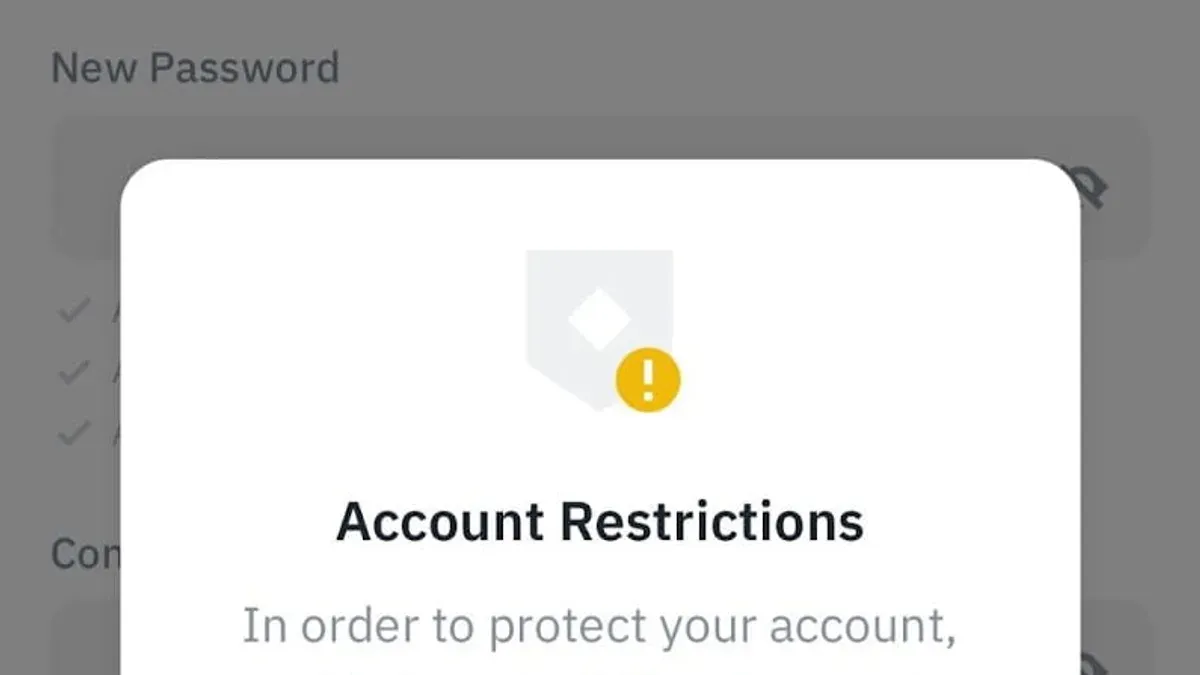
This guide explains how to change Binance password efficiently and securely, integrating related account management tasks and troubleshooting steps. Changing a Binance password is straightforward but requires proper preparation, including access to the registered email and two-factor authentication (2FA) methods. Users facing login or verification issues will find solutions here, ensuring smoother account management.
Start by verifying the current security settings under the "Security" tab in the Binance user dashboard. This section controls password changes, 2FA setup, and recovery options. Understanding these basics prevents common errors such as failed password resets or account lockouts.
Follow the step-by-step instructions to update the password via the Binance app or website. The guide also covers scenarios where email access is unavailable, how to set up a new Binance account, and managing linked payment methods. Troubleshooting advice and safety tips for related credentials are included to maintain account integrity.
Before you start: What is needed to change the Binance password
Changing a Binance password requires access to the current account credentials or verified recovery options to complete verification steps. The process typically involves confirming identity through the linked email address or phone number. Users should have these contact methods active and accessible before initiating a password change to avoid lockouts.
Binance enforces two-factor authentication (2FA) for enhanced account security. If 2FA is enabled, it must be ready to use during the password update process. Common 2FA methods include Google Authenticator or SMS verification. Most major cryptocurrency exchanges, including Binance, recommend 2FA adoption to prevent unauthorized access.
Familiarity with basic online security practices is essential. This includes using a strong, unique password for Binance and avoiding password reuse across multiple sites. Users should also be prepared to check for phishing attempts and ensure they are on the official Binance website or app before entering any credentials.
- Verify access to the current Binance login credentials. Successful login redirects to the account dashboard.
- Confirm access to the registered email or phone number. A verification code should be receivable when requested.
- Ensure the 2FA method linked to the account is functional. A valid 2FA code must be generated or received during password change.
- Review and understand basic security principles, such as creating a strong password and recognizing phishing attempts. This ensures a safer password update experience.
How to change Binance password on app
- Log in to the Binance app using the current credentials. Upon successful login, the home screen appears.
- Tap the profile icon at the top-left corner to open the Account menu.
- Scroll down and select Security. This opens security settings.
- Tap Password under the Account Security section to start the password change process.
- Enter the current password when prompted, then tap Next. The app proceeds to verification.
- Complete the two-factor authentication (2FA) step, which may involve entering a code from the Google Authenticator app or an SMS code, depending on the configured method.
- Once verified, enter the new password twice. A strong password example is at least 8 characters with uppercase letters, numbers, and symbols, such as Binance$2026!. Avoid weak passwords like password123.
- Tap Confirm to submit the new password. A confirmation screen will appear.
- After confirmation, the app offers to log out from all other sessions for security. Select Log out from other devices to ensure no unauthorized access continues.
- Return to the home screen. The password update is complete and effective immediately.
Tip: Use a password manager to generate and store complex passwords securely, reducing the risk of reuse or simple patterns.
How to change Binance password without email
If the registered email is inaccessible, Binance offers alternative verification methods to reset the password. Phone number verification and two-factor authentication (2FA) serve as primary backups for identity confirmation. These methods maintain security while allowing password changes without email access.
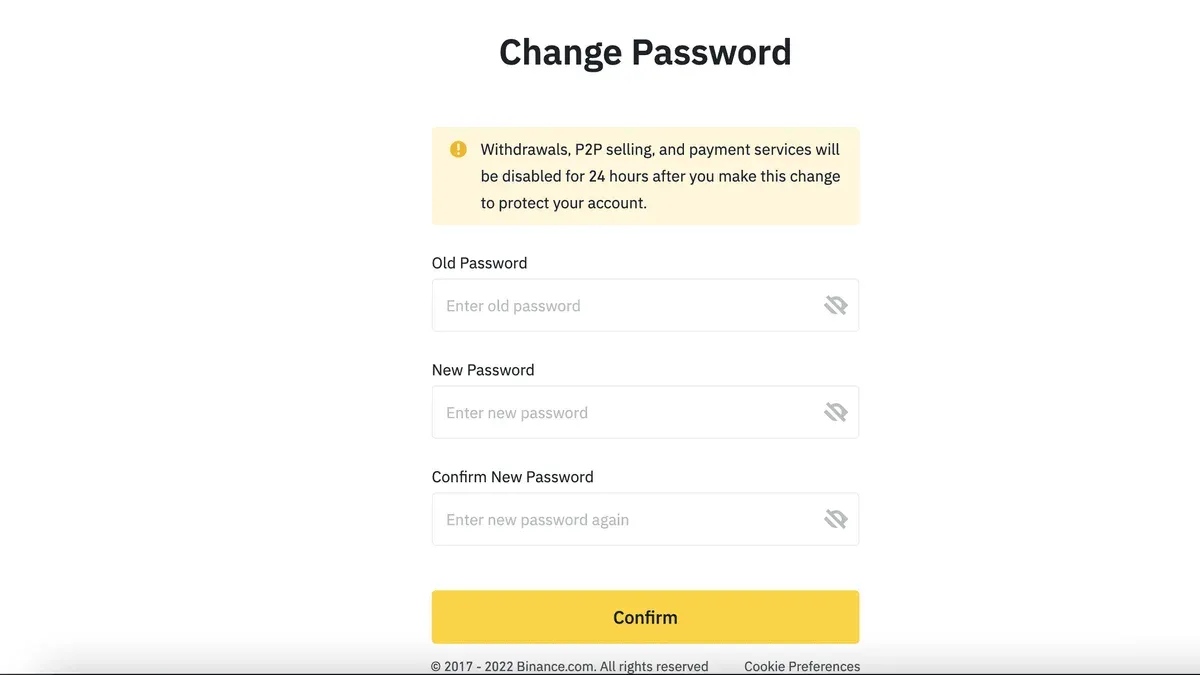
To reset using phone verification, select the "Reset Password" option on the login page, then choose "Verify by Phone." Enter the registered phone number to receive an SMS code. Input the code on Binance's platform to proceed. Successful verification leads to the password reset page.
If phone verification is unavailable or unsuccessful, Binance requires identity verification through their support team. This process involves submitting government-issued ID and a selfie to prove identity. After approval, Binance support assists in resetting the password. This step is slower and used only when automated methods fail.
Skipping email verification poses risks, including potential delays or account lockouts if identity cannot be confirmed through phone or 2FA. Binance's policy strongly encourages maintaining updated contact information to avoid such issues.
Once email access is restored, updating the account email is recommended. Navigate to "Profile" > "Security" > "Email" to change it. This ensures smoother future password recovery and account notifications.
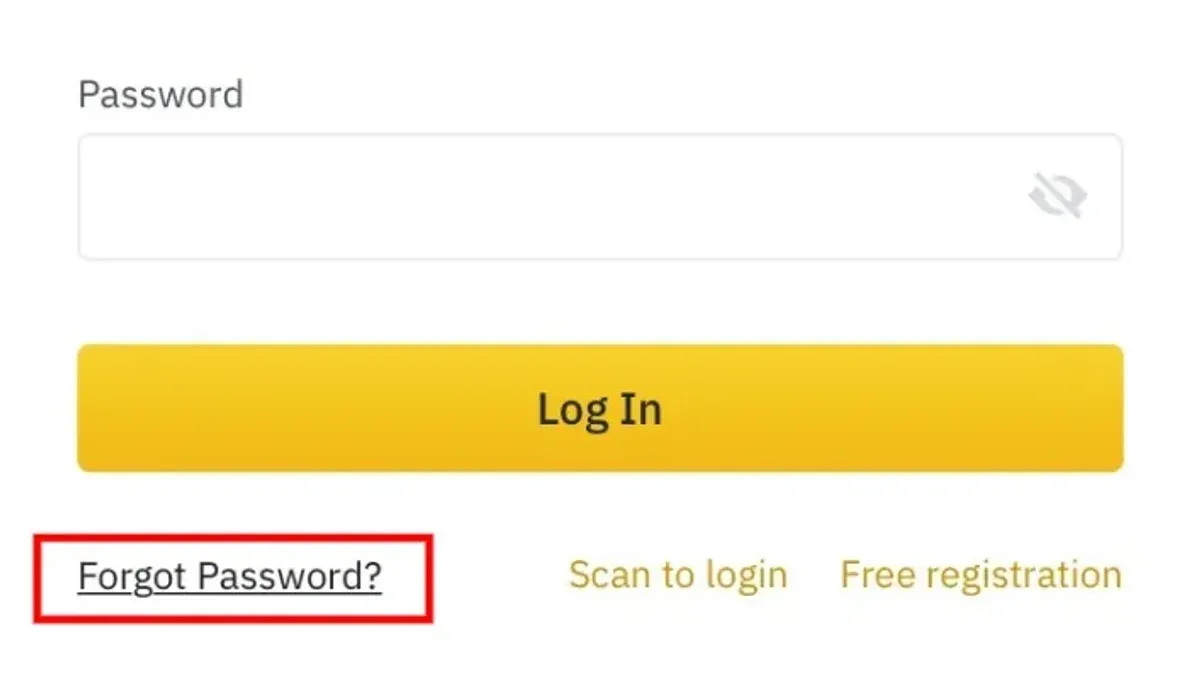
- Go to Binance login and click "Forgot Password?" - The password reset page appears.
- Choose "Verify by Phone" and enter the registered phone number - Receive an SMS code.
- Input the SMS code on Binance - Access the password reset form.
- Set a new strong password and confirm - Password successfully changed.
- If phone verification fails, contact Binance support via the help center - Submit identity documents as instructed.
- Wait for identity verification approval - Receive instructions from support to reset password.
- After regaining email access, update the email in "Profile" > "Security" > "Email" - Confirmation message appears.
How to create, open, and set up a Binance account
Starting a Binance account requires a clear, step-by-step registration and verification process to ensure full functionality and secure password management. New users typically register via the Binance homepage or app, where the registration form requires a valid email address or phone number and a strong password. Common errors during registration include typos in contact information and choosing passwords that do not meet Binance’s complexity requirements, which can delay account activation.
- Navigate to Binance's official website or open the Binance app and select "Register." The registration form will appear.
- Enter a valid email address or phone number and create a password that includes uppercase and lowercase letters, numbers, and special characters. After submission, a verification code will be sent to the provided contact method. Successfully entering this code confirms contact verification.
- Complete the initial registration by agreeing to Binance's terms and conditions. The user should then see a confirmation screen indicating successful account creation.
- Proceed to identity verification (KYC) by selecting "Verify" in the account dashboard. Upload government-issued identification and a selfie as required. Typical verification processing times vary from a few minutes to several hours depending on volume.
- Once KYC is approved, the account gains full access to Binance’s features, including fiat deposits and higher withdrawal limits.
- Set up two-factor authentication (2FA) by navigating to "Security" settings and enabling Google Authenticator or SMS authentication. This step is critical for protecting account access and for future password changes.
Proper completion of these steps reduces the risk of login issues and complications when changing passwords. Delays in KYC or incorrect contact info can lock users out or complicate password resets. Most users complete registration and verification within a day but should anticipate possible delays during peak times.
Tip: Double-check all contact details and save backup 2FA codes immediately after setup to avoid access problems later.
How to change card on Binance and change currency in Binance website
Updating payment cards linked to Binance is essential for smooth deposits and withdrawals. To replace or add a new card, access the Binance website and navigate to Wallet > Payment Methods. Here, users can view existing cards and add a new one by selecting Add Card. Enter the card details as prompted, including card number, expiration date, and CVV. Once saved, the new card appears in the list and can be set as the default payment method.
- Log in to Binance and go to Wallet > Payment Methods. The current cards linked to the account will display.
- Click Add Card to enter new card details. A confirmation prompt appears after submitting valid information.
- Set the new card as default by selecting the Set as Default option next to the card. The system confirms the default card update.
- Remove an old or unused card by clicking the Delete icon next to it, with a confirmation popup to prevent accidental deletion.
Changing the display or transaction currency on Binance customizes the interface and trading experience. To adjust this, go to the top-right corner of the website and click the currency symbol or abbreviation (e.g., USD). A dropdown menu lists supported fiat and stablecoin currencies. Select the preferred currency to update prices and balances shown across the platform.
- Click the currency indicator near the profile icon on the top right. A dropdown with currency options appears.
- Choose the desired currency (for example, EUR or GBP). The Binance interface reloads with updated currency displays.
Security considerations: When updating payment cards, ensure the account uses strong passwords and two-factor authentication to protect sensitive financial data. Removing outdated cards reduces exposure to fraud. Changing display currency does not affect security directly but helps in clearer financial tracking and reduces errors in currency conversion.
Tip: Regularly review linked payment methods and currency settings after password changes to maintain consistent account security and management.
Troubleshooting common Binance account login problems
Login issues on Binance often stem from verification code delays, account lockouts, or lost two-factor authentication (2FA) devices. Verification codes may fail to arrive due to network delays or incorrect contact information. Users should first check their signal strength, ensure the registered email or phone number is current, and verify that messages are not blocked by spam filters or carrier restrictions.
Account lockouts or suspicious activity alerts occur when Binance detects unusual login patterns or multiple failed attempts. In such cases, the platform temporarily restricts access to protect the account. Users should wait for the lockout period to expire or follow on-screen instructions to verify identity, often involving submitting identification documents or answering security questions.
Lost or compromised 2FA devices present a significant barrier to login. Binance offers a recovery process through identity verification if the Google Authenticator or SMS 2FA is unavailable. This process requires providing personal identification and may take several days depending on verification complexity. Users should prepare clear photos of ID and any requested documents to expedite the process.
When to contact Binance support: If verification codes do not arrive after checking connectivity and contact info, if account lockouts persist beyond the stated period, or if 2FA recovery steps fail, contacting Binance Support is necessary. Provide the registered email, phone number, account ID, and a detailed description of the problem. Support response times vary but generally fall within a few hours to a few days.
- Verify the phone number or email registered on Binance is correct and accessible. Successful verification means receiving a test code or email promptly.
- Check for account lockout messages on login attempts. If locked out, follow Binance’s on-screen recovery prompts until access is restored.
- If 2FA device is lost, initiate the Binance 2FA reset from the login page by selecting the appropriate recovery option. Submit required identity verification documents as requested.
- If none of the above resolve the issue, open a support ticket at Binance Support with all relevant account information and problem details. A successful ticket submission will generate a confirmation email or ticket number.
Tip: Regularly update recovery contact details and keep backups of 2FA codes in secure locations to minimize login disruptions.
How to change finance password and related passwords safely
Changing passwords for financial platforms, including Binance, requires adherence to security best practices and awareness of regulatory guidelines in Portugal. Portuguese laws emphasize data protection and secure authentication, mandating strong password use and multi-factor authentication to reduce fraud risks in online finance services.
To change financial passwords securely, use unique, complex passwords combining uppercase, lowercase, numbers, and special characters. Avoid reusing passwords across platforms. When updating passwords, confirm account access immediately after change and log out of all sessions to prevent unauthorized access.
Managing multiple passwords securely is critical. Password managers such as Bitwarden, LastPass, and 1Password are recommended for their encryption standards and usability. These tools store credentials safely and generate strong passwords, reducing the risk of breaches caused by weak or repeated passwords.
Tip: Enable two-factor authentication wherever possible, and regularly audit stored passwords for outdated or duplicate entries.
Portuguese financial institutions follow guidelines aligned with the European Union's PSD2 directive, which promotes strong customer authentication and secure communication, impacting password and access management. Users should stay informed about updates to these regulations to ensure compliance.
- Access the account security settings of each financial platform, such as Binance, by navigating to the profile or security section. The interface should display options to change passwords.
- Enter the current password, then create and confirm a new strong password. After submission, a confirmation message or email notification should appear, confirming the change.
- Immediately log out of all other active sessions from the security settings to prevent unauthorized use. The platform should confirm session termination.
- Update the password in the chosen password manager to keep credentials synchronized and secure; the password manager should confirm the saved update.
- Enable or verify two-factor authentication settings remain active post-password change to maintain enhanced security. The system should confirm 2FA status.
Frequently asked questions
How to change currency in binance website?
To change the currency displayed on the Binance website, navigate to the bottom of the homepage or any page and locate the currency selector, often labeled with the current fiat currency symbol (e.g., USD). Click it to open a dropdown menu and select the preferred currency. This setting updates prices and balances to the chosen currency for easier tracking.
How to create binance account?
Creating a Binance account starts at the Binance homepage by clicking the "Register" button. Provide a valid email address or phone number, create a strong password, and agree to the terms of service. Verification steps follow, including email or SMS confirmation and optionally identity verification, to unlock full platform features.
How to open binance account?
Opening a Binance account involves registration and verification. After signing up with an email or phone number and password, users must complete basic identity verification by submitting required documents such as an ID or passport. This process enables trading, deposits, and withdrawals while complying with security standards.
How to set up a binance account?
Setting up a Binance account includes registration, enabling two-factor authentication (2FA) via Google Authenticator or SMS, and setting security questions if available. Users should complete identity verification (KYC) to access higher withdrawal limits and advanced features. Linking payment methods and funding the account completes the setup for trading.
How to change card on Binance?
To change the payment card on Binance, go to the "Payment Methods" section found under the user profile or wallet settings. Remove the existing card if necessary, then add a new card by entering the card details, including number, expiration date, and CVV. Confirm the new card through any verification steps Binance requires, such as a small authorization charge.
What this advice does not cover and who should do something else
This guide does not cover advanced account recovery for accounts compromised by hacking or phishing attacks. Users facing unauthorized access or suspicious activity should contact Binance support directly and follow their recommended security protocols. This includes providing identity verification documents and using Binance’s dedicated account recovery channels. For issues beyond password changes and basic troubleshooting, relying on Binance’s official support is essential to protect account security and prevent further breaches.
The single most useful next step after changing a Binance password is to enable two-factor authentication (2FA) if not already active. Using Google Authenticator or SMS-based 2FA significantly enhances account security by adding an extra verification layer during login and sensitive operations. This step helps prevent unauthorized access even if passwords are compromised. Access 2FA settings under [Profile] > [Security] > [Two-Factor Authentication] and follow the setup instructions carefully.
See also: How to Change Your Amazon Password: Clear Step-by-Step Guide · How to Change Your AliExpress Password: Clear Step-by-Step Guide · How to Protect and Recover from an AliExpress Account Hacked