How to Set Up Two-Factor Authentication for Ally Bank Accounts
Step-by-step instructions to set up Ally Bank two-factor authentication for added security and easy account access.

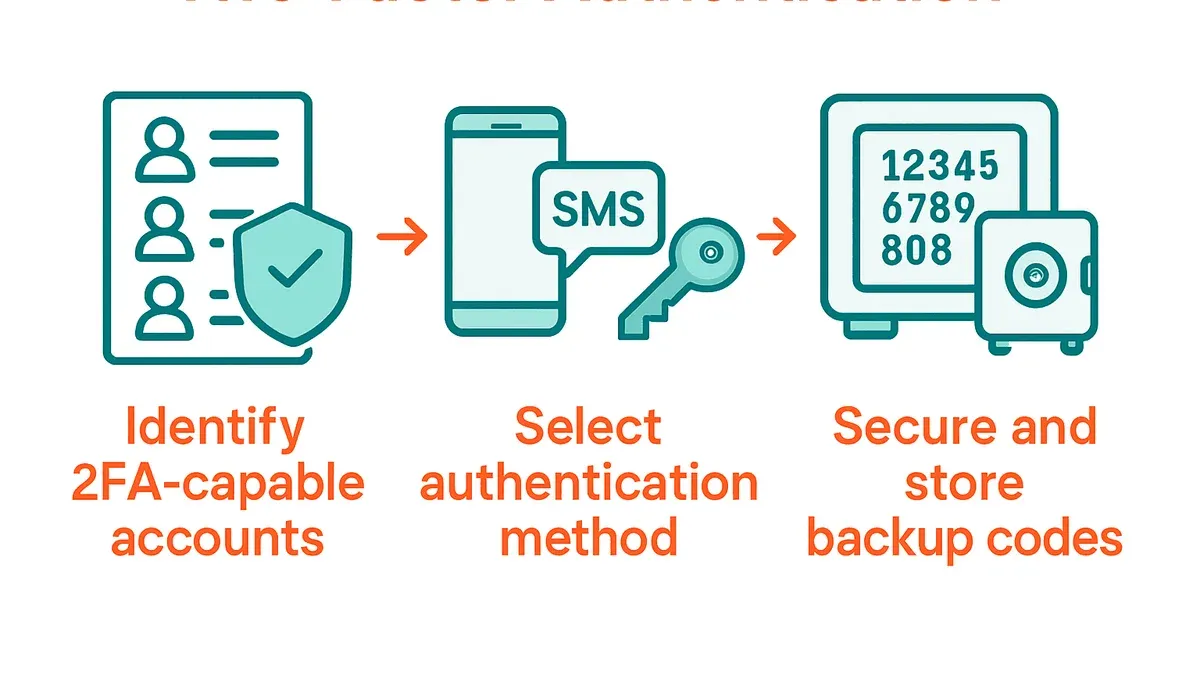
This article provides clear, step-by-step instructions for Ally Bank two-factor authentication setup, tailored specifically to Ally's online banking platform. Two-factor authentication (2FA) adds a critical layer of security by requiring a second verification step beyond the password. Setting up 2FA on Ally Bank accounts involves navigating precise menu options within the online banking site or mobile app.
The process uses either SMS text messages or an authenticator app to generate login codes. Understanding the exact settings and options Ally provides helps avoid common setup pitfalls and ensures reliable access. This guide also covers updating 2FA methods and troubleshooting frequent problems encountered when managing Ally Bank two-factor authentication.
Before you start: What is needed to set up Ally Bank two-factor authentication
Setting up two-factor authentication (2FA) on an Ally Bank account requires preparation. First, an active Ally Bank online account with valid login credentials is necessary. Access to the Ally Bank online portal is essential to initiate and manage 2FA settings.
A smartphone or device capable of receiving authentication codes is required. Ally Bank supports multiple 2FA methods, including app-generated codes and SMS text messages. Commonly recommended authenticator apps compatible with Ally Bank include Google Authenticator and Authy, both available for iOS and Android devices.
Google Authenticator offers a straightforward interface for generating time-based one-time passwords (TOTPs) without requiring internet access once set up. Authy provides similar functionality but includes backup and multi-device syncing options. Ally Bank’s help resources confirm support for both app-based codes and SMS, allowing users to choose based on convenience and security preferences.
- Ensure the Ally Bank online account login credentials (username and password) are available and working. Successful login leads to the account dashboard.
- Verify possession of a smartphone or device capable of receiving SMS or installing an authentication app. The device should be operational with network or internet access.
- Download a compatible authenticator app such as Google Authenticator or Authy from the official app store. Upon installation, the app should open without errors.
- Familiarize with Ally Bank’s 2FA options through their security settings or help page to understand available methods before starting the setup.
How to set up two-factor authentication on Ally Bank online account
- Log into the Ally Bank online banking portal at ally.com using the username and password. Once logged in, the account overview page should be visible.
- Navigate to the profile icon or menu in the top right corner and select Settings from the dropdown. Then choose the Login & Security tab to access authentication options.
- Locate and click on the Two-Factor Authentication or Multi-Factor Authentication option to begin setup. This opens the 2FA setup page.
- Choose the preferred 2FA method: either Authenticator App or SMS Text Message. Selecting the authenticator app will display a QR code and a manual setup key.
- If using an authenticator app like Authy, open the app and scan the QR code shown on the Ally Bank screen or enter the provided setup key manually. The app will generate a 6-digit verification code.
- Enter the 6-digit verification code from the authenticator app or the SMS text message received into the input field on Ally Bank's setup page. This confirms that the authentication method is working.
- Click Save or Confirm to activate two-factor authentication. A confirmation message or screen will indicate the 2FA setup is complete.
Tip: When scanning the QR code with Authy, ensure the camera is steady and the code is fully visible for accurate scanning.
How to change or update two-factor authentication settings for Ally Bank
To modify two-factor authentication (2FA) preferences or switch methods after initial setup, start by logging into the Ally Bank online account. Navigate to the Security Settings section found under the main account menu. Within this area, locate the Two-Factor Authentication management options to view current configurations.

Before enabling a new 2FA method, disable the existing one to avoid conflicts. For example, to switch from receiving SMS codes to using an authenticator app, first select the option to turn off SMS-based 2FA. The system will prompt for verification to confirm this change.
- Log in to the Ally Bank online account and click on the profile icon or menu to access Security Settings. The security overview page should appear.
- Find and select Two-Factor Authentication or 2FA Settings. The current 2FA method will be displayed.
- Choose Disable or Turn off next to the active 2FA method (e.g., SMS). A prompt will request verification via SMS code or email to confirm the disabling.
- Once disabled, select Enable Authenticator App to switch methods. A QR code and setup key will appear for linking the new app.
- Open the preferred authenticator app (like Google Authenticator or Authy), scan the QR code, and enter the generated code back into the Ally site to confirm activation.
- To update a phone number or device used for 2FA, go to Contact Information within security settings and edit the phone number associated with SMS codes or re-register the authenticator app on a new device by repeating the setup process.
Ally Bank requires verification during any 2FA changes to prevent unauthorized access, so expect confirmation steps by SMS or email. Switching from SMS to an authenticator app improves security by reducing reliance on mobile carriers.
Tip: Always disable the old 2FA method before enabling a new one to avoid lockouts or conflicting verification prompts.
How to access two-factor authentication codes when logging into Ally Bank
- Open the authenticator app linked to the Ally Bank account, such as Google Authenticator or Authy. The app will display a one-time code that refreshes every 30 seconds. Enter this code promptly on the Ally Bank login page to proceed.
- If the account uses SMS for two-factor authentication, check the phone’s text messages for a one-time numeric code sent by Ally Bank. Enter this code within the short validity period, typically under five minutes.
- If the code is not received via SMS or the authenticator app is unavailable, use Ally Bank’s backup codes. These are provided when setting up 2FA and can be entered instead of a one-time code. Enter a backup code exactly as shown to complete the login.
- In case none of these options work, select the “Need help?” or “Can’t access your code?” link on the login page. Follow the instructions to verify identity through alternative methods such as email verification or contacting Ally Bank customer support.
Tip: Keep backup codes stored securely offline to avoid being locked out if the authenticator app or phone is inaccessible.
Troubleshooting common issues with Ally Bank two-factor authentication
Authentication codes may sometimes be rejected due to time synchronization problems or incorrect code entry. Ensure the device’s clock is set to automatic and codes are entered promptly. If codes are consistently invalid, resync the authenticator app via its settings.
Lost or changed phones can block access to the authenticator app. In this case, use Ally Bank’s backup codes saved during setup or initiate account recovery by contacting Ally Bank support. Having updated contact information in the account settings speeds this process.
Delays or failure to receive SMS codes often result from network issues or carrier restrictions. Verify mobile service is active and signal strength is adequate. Switching to authenticator app verification can bypass SMS-related problems.
If locked out due to two-factor authentication problems, follow these steps:
- Navigate to Ally Bank's sign-in page and select the "Trouble signing in?" link; the recovery options should appear.
- Enter the registered email or phone number; a verification prompt will follow.
- Use backup codes or request a temporary bypass code via email or SMS; success is indicated by receiving the code.
- Log in using the bypass or backup code and immediately update two-factor authentication settings.
If issues persist, contact Ally Bank support via phone or secure messaging within the online portal. Response times vary but are generally prompt during business hours.
Tip: Keep backup codes in a secure, accessible place to avoid lockout scenarios.
Frequently asked questions
How do you set up two-factor authentication?
Log in to the Ally Bank online account and navigate to the Security Settings section. Select the option to enable two-factor authentication, then choose a verification method such as text message or an authenticator app. Follow the prompts to verify the chosen method, typically by entering a code sent to the phone or app.
How to set up 2 factor authentication?
Access the online banking profile and locate the Security or Login Settings area. Activate two-factor authentication by selecting the preferred verification option, commonly SMS or an authenticator application. Complete the setup by confirming the verification code sent through the selected method.
How to do two factor authentication?
After enabling two-factor authentication, each login requires entering the usual password plus a second code. This code is generated by the authenticator app or received via text message. Input this code when prompted to successfully access the account.
How to change my two factor authentication?
Visit the Security Settings in the Ally Bank online account and find the two-factor authentication section. Choose the option to update or change the current verification method. Follow instructions to link a new phone number or authenticator app and verify the change with a confirmation code.
How to turn on 2 factor authentication?
Sign in to Ally Bank’s online account and open Security Settings. Locate the two-factor authentication feature and toggle it on. Select the preferred method for receiving authentication codes and complete setup by entering the confirmation code sent to that method.
What this advice does not cover and who should do something else
This guide does not cover advanced security practices beyond Ally Bank’s official two-factor authentication setup, such as hardware security keys or biometric-only authentication methods. It also does not replace contacting Ally Bank customer support for account-specific problems, suspected unauthorized access, or breaches. Customers requiring help with complex security issues, locked accounts, or fraud investigations should reach out directly to Ally Bank’s support team through official channels.
For the most secure experience, ensure that the phone number, email, or authentication app linked to the account is regularly updated and protected. Regularly review account activity and update passwords as needed to complement two-factor authentication.
The single most useful next step is to log into the Ally Bank online account, navigate to the Security Settings page under Profile, and verify that two-factor authentication is enabled and set to the preferred verification method. This ensures the account benefits immediately from the additional security layer described in this guide.
See also: What to Do If Your Citi Account Is Hacked: Clear Steps to Recover and Secure · What to Do If Your Chase Account Is Hacked: A Clear Recovery Guide · What to Do If Your Capital One Account Is Hacked: A Clear Recovery Guide · What to Do If Your Bank of America Account Is Hacked