How to Delete Google Account Permanently: Complete Step-by-Step Guide
This guide provides clear, step-by-step instructions on how to delete Google account account permanently on Android, iPhone, and PC devices.

This article delivers a complete, step-by-step guide on how to delete Google account account permanently across all major devices. It targets users who need clear, direct instructions to remove their Google accounts securely and fully, whether on Android phones, iPhones, or PCs.
Deleting a Google account permanently involves more than just signing out; it erases all associated data, including emails, contacts, and app purchases. This guide covers the precise settings paths, necessary verification steps, and key warnings to avoid data loss or lockout. It also explains how to handle deletion without the account password and how to remove the account from all connected devices.
Understanding the consequences and troubleshooting common issues are essential to ensure a smooth account deletion process. Follow the detailed instructions that suit your device for a thorough and secure removal of a Google account.
Before you start: What is needed to delete a Google account permanently
Deleting a Google account is irreversible and affects all services linked to it. Ensure the account is accessible by having the correct password or verified recovery options such as a phone number or recovery email. Without access, deletion cannot proceed securely.
Backup all important data before deletion to avoid permanent loss. This includes emails from Gmail, contacts stored in Google Contacts, files in Google Drive, photos in Google Photos, and calendar events. Also consider data from third-party apps connected via the Google account.
Check for any active subscriptions or payments tied to the account, like Google Play subscriptions or YouTube Premium. Cancel these to prevent service interruptions or unexpected charges after deletion. Confirm access to all devices currently logged into the Google account to manage sign-outs and device-specific data cleanup.
- Log into the Google account at myaccount.google.com. Successful login confirms access.
- Go to 'Data & Privacy' and select 'Download or delete your data' to start backing up important files. Completion shows a downloadable archive link.
- Review subscriptions under 'Payments & subscriptions' to identify and cancel active services. Canceled subscriptions will appear inactive.
- Check devices linked to the account under 'Security' > 'Your devices'. Active devices are listed with last activity date.
Tip: Use Google Takeout to create a comprehensive archive of all account data before deletion.
How to delete Google account permanently in Android phone
- Open the Settings app on the Android device. Scroll down and tap Accounts or Users & accounts, depending on the device model. This opens a list of all accounts synced to the phone.
- Locate and select Google from the accounts list. All Google accounts logged into that device will appear here.
- Tap the specific Google account intended for deletion. This will open account sync settings and options.
- Tap Remove account at the bottom of the screen. A confirmation prompt appears asking to confirm account removal.
- Confirm by tapping Remove account again. The account is removed from the Android device, disconnecting all Google services on that phone.
This removal only deletes the account from the device; it does not permanently delete the Google account online.
To delete the Google account permanently, open a web browser on any device and visit the Google Account deletion page. Sign in with the Google account, follow the prompts to review data and confirm permanent deletion.
Tip: Removing the account from the device first prevents syncing conflicts during the permanent deletion process.
How to delete Google account permanently from laptop or PC
- Open a web browser and go to Google Account management page. The account overview dashboard should appear.
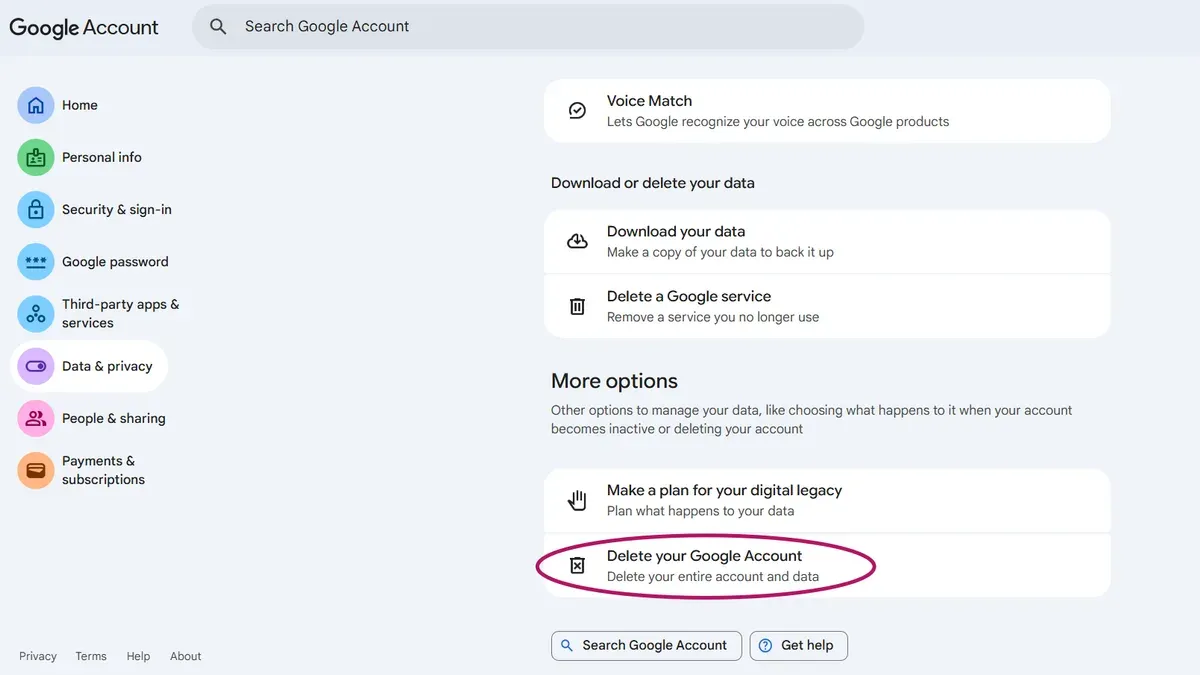
- Click on Data & Privacy in the left-hand menu. This section manages personal data and privacy settings.
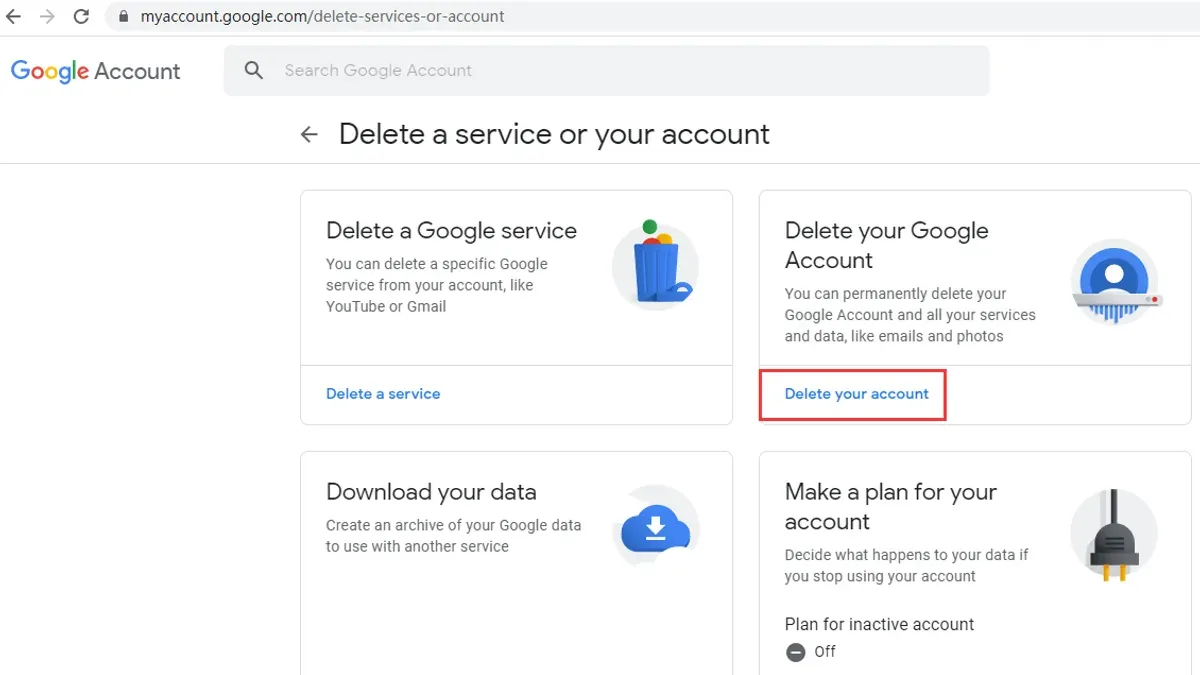
- Scroll down to find Delete your Google Account under the "More options" or "Data from apps and services you use" area. Click this option to proceed.
- Sign in again if prompted, entering the Google account password. If two-factor authentication (2FA) is enabled, complete the verification step as requested.
- Review the summary of data and services that will be permanently deleted, including emails, files, and subscriptions. This page highlights the irreversible nature of the deletion.
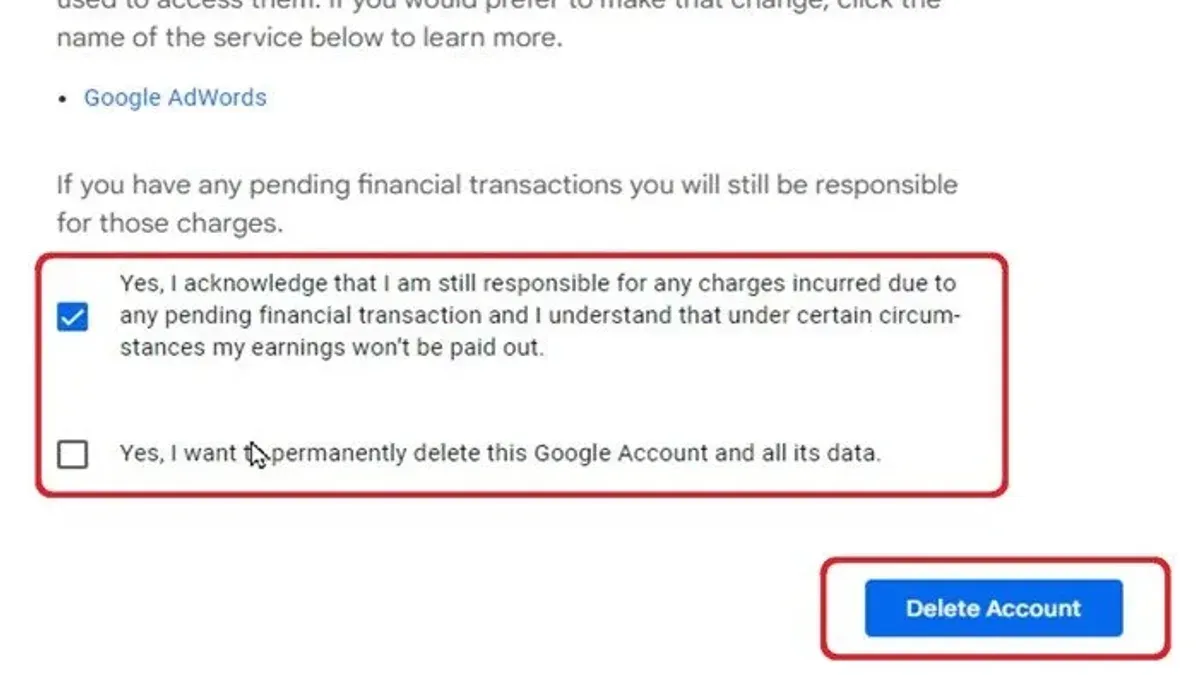
- Check the required confirmation boxes acknowledging the consequences and data loss.
- Click Delete Account to finalize the permanent removal. A confirmation screen should appear, indicating the account is deleted.
This process mirrors the mobile deletion steps but completes the permanent deletion directly on the Google Account website rather than through device settings. It is critical to understand that once the deletion is confirmed here, the account and all associated data cannot be recovered.
How to delete Google account permanently in iPhone
Removing a Google account from an iPhone disconnects it from apps like Mail, Calendar, and Contacts but does not delete the account permanently. To remove the account from the device, open Settings and navigate to Passwords & Accounts. Select the Google account to be removed and confirm the removal. The account will no longer sync with the iPhone, but the Google account itself remains active online.
Permanent deletion of the Google account must be completed through a web browser by accessing the Google Account management site. This process deletes all data and access across all devices and services linked to the account.
- Open Settings on the iPhone.
- Scroll down and tap Passwords & Accounts (or Mail > Accounts on some iOS versions).
- Select the Google account to remove; it will display account details and sync options.
- Tap Delete Account at the bottom of the screen.
- Confirm the removal by tapping Delete from My iPhone; the account disappears from device apps.
- Open Safari or another browser on the iPhone and go to https://myaccount.google.com/.
- Sign in with the Google account credentials if prompted.
- Navigate to Data & privacy, scroll to More options, and select Delete your Google Account.
- Follow the on-screen instructions to verify identity, review data loss warnings, and confirm permanent deletion.
Tip: Removing the account from the iPhone first prevents sync errors during the permanent deletion process.
How to delete Google account permanently from all devices
Deleting a Google account permanently through the Google Account website revokes access across all devices linked to that account. This action removes the account from smartphones, tablets, computers, and any other device where the account was signed in, but the process may take some time to fully propagate.
Before initiating permanent deletion, it is recommended to manually sign out or remove the Google account from each device through device settings. This step ensures immediate access revocation and prevents any potential sync issues or delays.
Also, revoke permissions for third-party apps connected to the Google account via the Security > Third-party apps with account access section in Google Account settings. This prevents these apps from retaining access after the account is deleted.
- Sign out of the Google account on all devices manually: Go to each device’s account settings and remove the Google account. Confirmation is seeing the account no longer listed.
- Visit the Google Account deletion page online and follow the prompts to delete the account permanently. Confirmation is a final deletion notice on the website.
- Allow up to 48 hours for the deletion to propagate fully across all synced devices and services. During this time, the account may still appear on some devices but will gradually disappear.
Tip: Removing the account from devices before deletion speeds up access revocation and minimizes potential sync conflicts.
How to delete Google account permanently without password
Deleting a Google account permanently without knowing the password requires first recovering access through Google's account recovery system. Google does not allow permanent deletion without verified access to the account for security reasons. Recovery attempts rely on verification methods such as recovery email, phone number, or answering security questions. Success rates vary depending on how recently recovery options were updated and the accuracy of provided information.
- Go to the Google Account Recovery page at accounts.google.com/signin/recovery. The screen will prompt for the email address or phone number associated with the account.
- Enter the email or phone and click Next. Google will then offer recovery options based on the account's setup, such as sending a verification code to the recovery email or phone.
- Choose a recovery method and follow the instructions to receive and enter the verification code. Successful verification leads to password reset options.
- Create a new password and confirm it. Once reset, sign in to the Google Account with the new password.
- After regaining access, proceed to the Google Account settings to initiate permanent deletion as usual.
If recovery fails due to outdated or inaccessible recovery options, permanent deletion is not possible without account access. In such cases, contacting Google Support for further assistance is recommended, though resolution is not guaranteed.
Tip: Keep recovery contact information up to date to improve chances of successful account recovery.
Troubleshooting common issues when deleting a Google account
Verification failures and two-factor authentication (2FA) problems often prevent account deletion. If an error like "Verification failed" or "Unable to verify your identity" appears, confirm that the current password is correct and that 2FA devices such as phones or security keys are accessible. Disabling 2FA temporarily is not recommended; instead, use backup codes or alternate verification methods provided by Google.
If the deletion option is missing or greyed out in the Google Account settings, check for active subscriptions linked to the account. Google blocks deletion when services like YouTube Premium, Google Play Pass, or Google One are active. Cancel all subscriptions from the "Payments & subscriptions" section before retrying deletion.
Sometimes, after confirming deletion, the account still appears accessible due to sync delays across devices or Google's servers. This can cause confusion but usually resolves within 24 to 48 hours. Signing out manually from all devices and clearing browser caches can speed this process.
- Attempt to verify identity using available methods; success is indicated by access to deletion confirmation screen.
- Navigate to "Payments & subscriptions" and cancel any active paid services; the deletion option should become available afterward.
- Sign out from all devices via "Security > Your devices > Manage devices"; confirmation appears next to each signed-out device.
- Clear browser cache and cookies, then refresh the account page; the deleted account should no longer be accessible after Google's processing time.
Security and data considerations when deleting a Google account permanently
Deleting a Google account permanently results in the irreversible loss of all associated data. This includes emails in Gmail, contacts, Google Drive files, Google Calendar events, Google Photos, and any other information stored within Google's services. Linked services such as YouTube channels, Google Pay information, and app data tied to the account will also become inaccessible. Any ongoing subscriptions or purchases linked to the account will be lost without refund.
Before deletion, users should export their data using Google Takeout. This tool allows downloading a comprehensive archive of emails, files, photos, and other personal data for offline storage. Exported data remains available even after account deletion, but cached data stored on third-party websites or apps may persist and is outside Google’s control.
After deletion, Google's data retention policies mean the account and its data are removed from Google's active systems within a few weeks. However, residual backup copies may exist temporarily for recovery or legal reasons but are inaccessible to the user. No new data can be added or recovered post-deletion.
- Access Google Takeout at takeout.google.com and select the data to export. Once configured, submit the export request and wait for the archive link via email.
- Download and verify the archive contains all needed data. This ensures data preservation before deletion.
- Review linked services and cancel any subscriptions or payments to avoid future charges after account removal.
- Perform permanent account deletion via the Google Account settings. Confirm the deletion and wait for the process to complete, noting that data removal occurs over several weeks.
Frequently asked questions
How to delete google gmail account permanently?
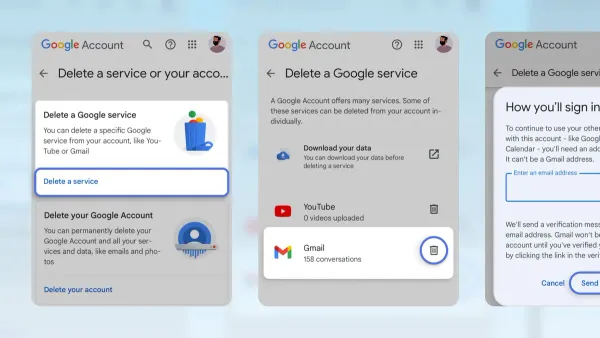
To delete a Gmail account permanently, sign in to the Google Account, navigate to Data & Privacy, then select 'Delete a Google service.' Choose Gmail and follow the verification steps. This removes access to Gmail but may retain other Google services.
How to delete account from google account?
Deleting an account from within a Google Account typically refers to removing linked accounts or devices. To fully delete the Google Account itself, go to Data & Privacy, select 'Delete your Google Account,' and complete the confirmation process. Removing linked accounts separately requires managing connected apps or devices under Security settings.
How to delete Google Gmail account permanently?
The process is identical to deleting a Gmail account permanently: access Google Account settings, go to Data & Privacy, select 'Delete a Google service,' then choose Gmail. After verification, the Gmail service is deleted while other Google services may remain active.
How to delete Google account permanently in mobile?
On a mobile device, open the Google app or Settings, then Google, and access Manage your Google Account. Under Data & Privacy, find 'Delete your Google Account,' verify identity, and confirm deletion. This process works similarly on both Android and iPhone devices.
How to delete Google account permanently on PC?
Using a PC, sign in at myaccount.google.com, go to Data & Privacy, then select 'Delete your Google Account.' Follow the prompts to verify identity and confirm. This action deletes the entire Google Account, including all associated services and data.
What this guide does not cover
This guide does not cover deletion of Google Workspace or G Suite accounts managed by organizations, which require administrator intervention and specific procedures beyond personal account deletion. Users with such accounts should contact their organization's IT administrator for assistance. Additionally, this guide does not address account recovery options or temporary suspension of Google accounts, focusing solely on permanent deletion.
The most critical next step after deleting a Google account permanently is to ensure that all important data is backed up or migrated beforehand. Once deleted, account recovery is not possible, and all data, including emails, contacts, and Google Drive files, will be irretrievably lost. Confirm that any subscriptions or services linked to the Google account are updated with a new email to avoid loss of access.
See also: How to Delete an Amazon Account Permanently: Step-by-Step Guide · How to Delete an Airbnb Account Permanently: A Step-by-Step Guide · How to Delete an Etsy Account Permanently: Step-by-Step Guide