How to Delete an Amazon Account Permanently: Step-by-Step Guide
A clear, step-by-step guide on how to delete Amazon account permanently across all account types and devices without confusion.

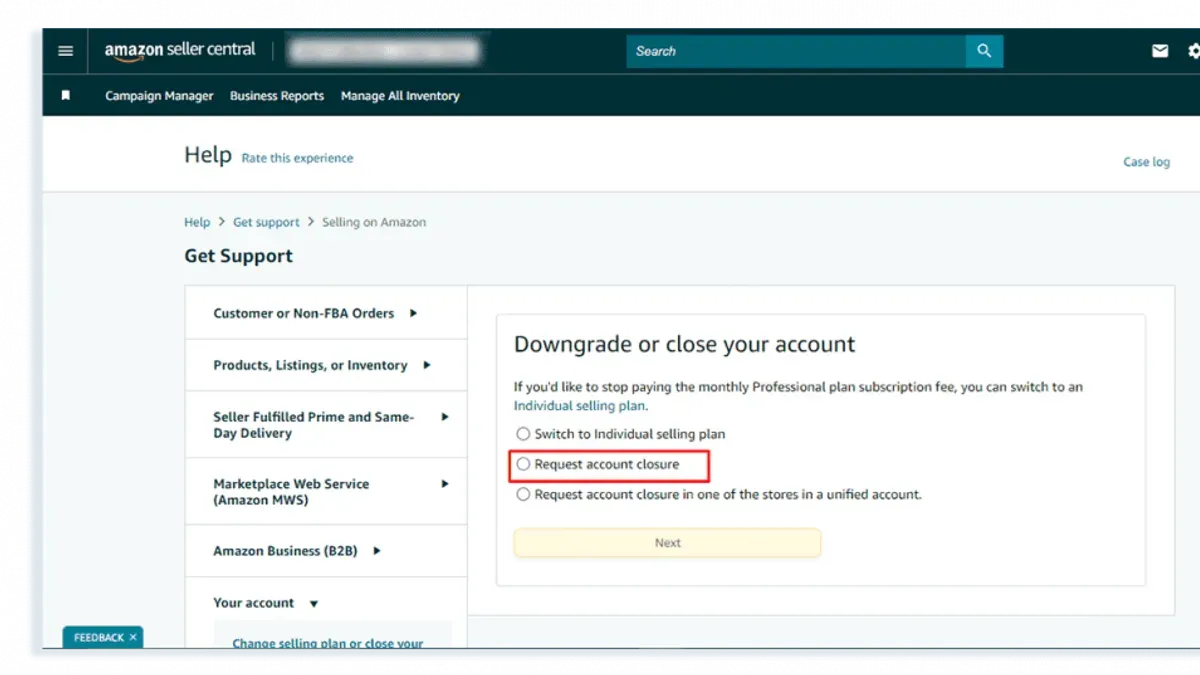
This article provides a clear, step-by-step guide on how to delete Amazon account permanently across all account types and devices. Closing an Amazon account is irreversible and deletes access to all services linked to it, including purchase history, subscriptions, and personalized settings. Users must understand the requirements before starting, such as having account credentials and resolving any pending transactions or subscriptions. The process varies slightly depending on whether the account is a standard customer, seller, business, or jobs account, and whether deletion is initiated via mobile, desktop, or the Amazon app. This guide consolidates all these variations into one comprehensive resource to ensure the deletion is completed successfully without confusion.
Before you start: What is needed to delete an Amazon account permanently
Deleting an Amazon account permanently requires preparation and understanding of its implications. The first necessity is access to the Amazon account's login credentials, including the registered email and password. If login details are unavailable, recovery options such as linked phone numbers or backup email addresses must be accessible to regain access before deletion.
Amazon accounts come in various types: consumer accounts for shopping and Prime memberships, seller accounts managing product listings and sales, business accounts handling organizational purchases, and jobs accounts used for Amazon employment applications. Each type controls different data and services, so identifying the correct account type is critical before proceeding.
Permanent deletion results in immediate loss of access to order history, subscriptions, saved payment methods, and any associated digital content. Amazon’s policy states that deletion is irreversible; therefore, backing up important information such as invoices, order details, and digital assets is essential.
Consider the device and platform used for deletion. While desktop browsers offer full account management options, mobile browsers and the Amazon app might have limited functionality or different navigation paths. Confirming the preferred device and platform beforehand streamlines the deletion process.
- Verify possession of login credentials or recovery methods; successful login should display the account homepage.
- Confirm the account type by checking account settings or account details; the account type will be clearly indicated.
- Backup any important data, downloads, or invoices; saved files should be accessible locally or on a secure cloud storage.
- Choose the device and platform to perform deletion; ensure the account interface loads correctly.
How to delete Amazon account permanently on mobile
- Open a mobile web browser and go to the Amazon homepage at www.amazon.com. Ensure the browser is not in desktop mode for the best experience.
- Log in using the correct Amazon account credentials. Once logged in, tap the three horizontal lines (menu icon) in the top left corner to open the main menu.
- Scroll down and select Help & Customer Service. In the search bar, type "close your account" and tap the suggested link to the Close Your Amazon Account help page.
- On the help page, find and tap the direct link to the account closure form, usually labeled Close Your Account or Request Account Closure. This will open the account closure request form.
- Carefully read the instructions and warnings. Fill in any required information confirming the account and reason for closure, then submit the request.
- Amazon will send a verification code or confirmation link via email or SMS to the registered contact method. Enter the code or follow the link as instructed to verify identity and confirm the deletion request.
- After verification, the account closure request will be processed. Expect a confirmation email within a few hours or up to a couple of days indicating the account deletion is complete.
Tip: Bookmark the confirmation email or take a screenshot of the closure confirmation page for records, as the account and its data become inaccessible after deletion.
How to delete Amazon account permanently in app
The Amazon mobile app does not provide a built-in option to close or delete an account directly. Users attempting to delete their account will find no such feature under account settings or privacy sections within the app. This limitation requires using an alternative method to initiate account closure.
To work around this, open the Amazon app and access the customer service chat or help section. From there, users can request a direct link to the account closure page, which opens in the device’s web browser. This method leverages the app’s ability to redirect to external resources but still requires completing the deletion process outside the app environment.
Steps to access the account closure link via the Amazon app:
- Open the Amazon app and tap the menu icon (three horizontal lines) usually at the bottom or top left corner. The menu should expand.
- Scroll down and select "Customer Service" or "Help & Customer Service." The help options page will appear.
- Use the search bar or browse topics to find "Close Account" or "Delete Amazon Account." Suggestions or a chat option should appear.
- Initiate a chat with customer support and request the direct link to close the account permanently. The support agent will provide a URL or guide to open it.
- Tap the provided link to open it in the device’s default web browser. The official account closure page will load, allowing the user to log in and proceed with deletion.
Tip: Bookmark the official account closure URL once accessed in the browser for quicker access in the future.
How to delete Amazon seller account permanently
Closing an Amazon seller account permanently involves additional steps compared to a standard consumer account. Before initiating closure, ensure all pending orders are fulfilled and shipped, outstanding fees are paid, and account balances are settled. Failure to clear these may delay or prevent account closure.
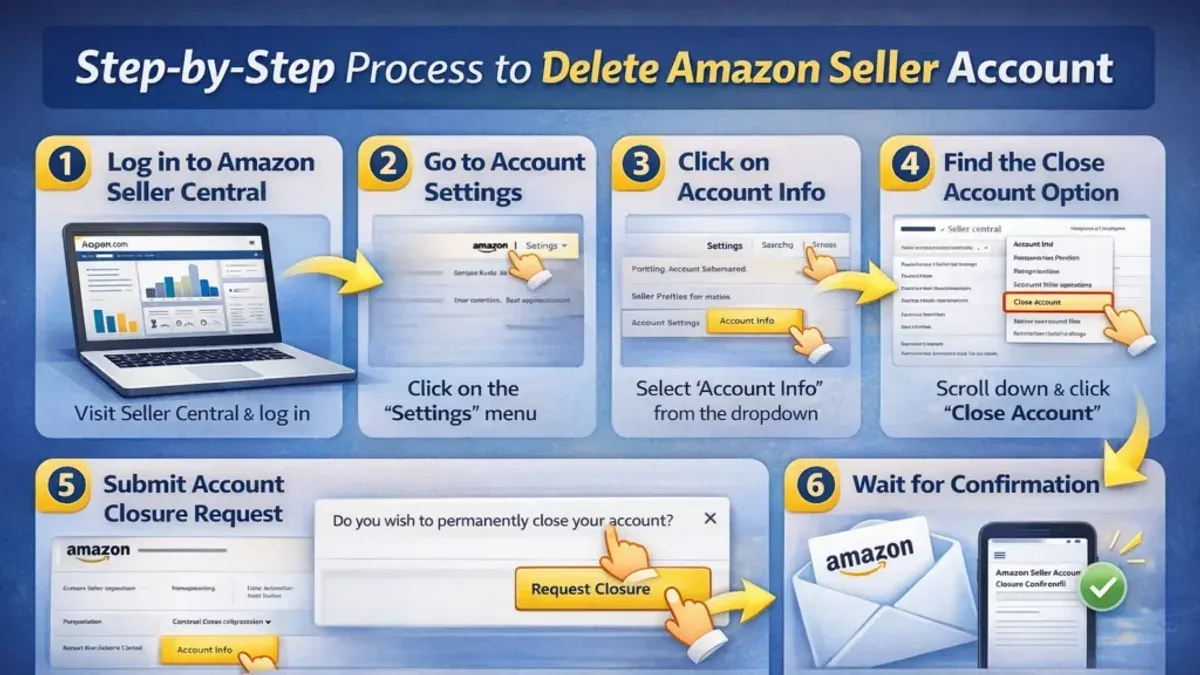
- Log in to Seller Central and go to Settings in the top-right menu, then select Account Info. A page with various account details should appear.
- Scroll to the Account Management section and click on Close Account. This option initiates the closure request.
- Read the information regarding the consequences of closing the seller account, including loss of access to sales history, tax documents, and Seller Central. Confirm the decision by selecting the checkbox and clicking Close Account.
- Wait for confirmation from Amazon. The account closure process can take several days as Amazon verifies account status and pending obligations.
- If any issues arise, such as account holds or disputed fees, contact Amazon Seller Support directly through the Help section in Seller Central for assistance. Resolution times vary depending on the issue.
Unlike consumer accounts, seller accounts retain sales history and tax documents only as long as the account is active. Once closed, access to these records is lost. Ensure all necessary documentation is downloaded prior to closure.
Tip: Verify that your account has no active subscriptions or services linked to it to avoid unexpected charges after closure.
How to delete Amazon business account permanently
Before closing an Amazon Business account, confirm that all business transactions, invoices, and payments are fully settled. Unresolved orders or pending invoices can delay or block account closure. Verify that linked users and business profiles are aware that closure will remove their access and data associated with the business account.
- Sign in to the Amazon Business account with administrator credentials. The Business Settings page should appear.
- Navigate to Settings > Account Settings. Locate the Close Account option near the bottom of the page.
- Click Close Account and review the information about the consequences of closure, including loss of access, data, and business-specific features.
- Follow the prompts to confirm the closure request. A confirmation screen should acknowledge receipt of the closure request.
- If the option is not visible or closure is restricted, contact Amazon Business Support via the help section or business support phone line. Support responses typically clarify outstanding obligations or provide manual closure instructions.
Amazon Business accounts have stricter closure policies to ensure compliance with tax and procurement records. This process may take several business days after confirmation.
Tip: Download and save all business invoices and reports before initiating closure to maintain records for accounting purposes.
How to delete Amazon jobs account permanently
Amazon jobs accounts are distinct from standard Amazon shopping accounts and are managed exclusively through the Amazon Jobs portal. Deleting or deactivating a jobs profile does not impact the personal consumer account used for shopping or other Amazon services. To close a jobs account, users must take specific actions within the Amazon Jobs site.
- Sign in to the Amazon Jobs portal at amazon.jobs. The dashboard should display your candidate profile and job application history.
- Navigate to the "Profile" or "My Account" section, where personal information and application settings can be reviewed and managed.
- Locate the option to "Deactivate Profile" or "Close Account"—this may appear as a link or button at the bottom of the profile settings page. Clicking this should prompt a confirmation message indicating the profile will be deactivated and no longer accessible by recruiters.
- Confirm the deactivation by following on-screen instructions. After confirmation, the profile will be disabled, and personal data removed from active candidate listings.
- If no direct deletion option is visible, or difficulties arise, contact Amazon Jobs support via the "Contact Us" link on the portal. A support representative can assist with account closure requests.
Tip: Deactivating a jobs account is reversible only by reactivating the profile through login; permanent deletion requests may require direct support assistance.
How to delete Amazon account permanently without login
Deleting an Amazon account permanently without login is generally not possible due to strict security and privacy policies. Amazon requires verified access to the account to initiate deletion, preventing unauthorized removals. However, users locked out can attempt account recovery through standard verification methods before requesting deletion.
Follow these steps to recover access and proceed with deletion:
- Go to the Amazon Sign-In page and click Forgot password?. Enter the registered email or phone number and follow instructions to receive a verification code. Successful verification will prompt password reset.
- After resetting the password, attempt to log in with the new credentials. Successful login confirms account access and enables deletion requests via account settings.
- If password reset or verification fails, contact Amazon Customer Service directly through the Help section or official contact page. Provide proof of identity such as government-issued ID or billing information to verify ownership.
- Customer Service may guide through additional identity verification steps. Upon confirmed ownership, they can initiate the account closure process on behalf of the user.
Tip: Keep records of communication with Amazon Customer Service and any submitted documents for reference during the deletion process.
Amazon’s policies prioritize account security, restricting deletion without login or verified identity to protect user data and prevent fraudulent activity.
Troubleshooting common issues when deleting an Amazon account permanently
Users may not find the account closure option under Login & security or Account settings if the interface has changed or if the account type requires a separate closure process. In such cases, contacting Amazon Customer Service directly is the recommended step.
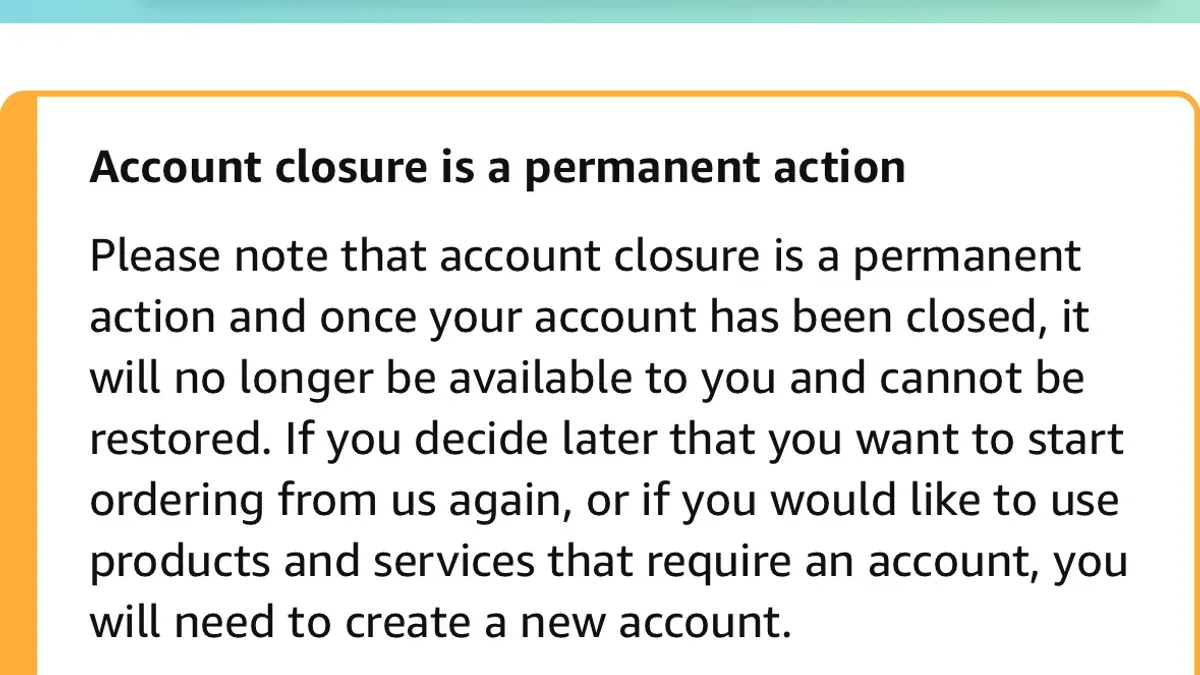
Verification emails for account deletion can fail to arrive or expire quickly. Check the spam/junk folder and ensure the email address linked to the account is current. If the link expires, request a new one through the deletion request or support.
Pending orders, active subscriptions, or outstanding balances will block account closure. All orders must be delivered or canceled, subscriptions ended via Memberships & subscriptions, and unpaid balances cleared in Payment options. Only then can closure proceed.
Confusion often arises about data accessibility after deletion. Amazon permanently deletes order history, payment info, and personal details. However, digital content like Kindle books may remain accessible on linked devices, but the account itself will be unusable.
Delays in confirmation emails or continued login access after closure requests are common. Amazon's system processes closure within a few days, but if the account remains active beyond a week, follow up with Customer Service to verify the closure status.
- Verify account status in Login & security to locate closure option; if missing, contact support and expect a response within 2 business days.
- Check all email folders for verification messages; if absent or expired, request a new link and confirm receipt within 30 minutes.
- Review orders and subscriptions; cancel or complete all pending items, then confirm zero balance in Payment options.
- Attempt login after 7 days post-closure request; if access persists, contact Customer Service with closure request details.
Tip: Keep records of all communication with Amazon support during the closure process to resolve disputes efficiently.
Frequently asked questions
How to close amazon account permanently?
To close an Amazon account permanently, sign in to the account and navigate to the "Help" section. Search for "Close Your Amazon Account" and follow the provided link to the account closure page. Confirm the identity by entering the required details and submit the closure request. Amazon processes the request and deletes the account after verifying no pending transactions or issues.
How to delete Amazon account permanently in India?
In India, deleting an Amazon account follows the same global process. Log in, visit the "Help" section, then search for "Close Your Amazon Account." Complete the identity verification and submit the account closure request. Ensure all pending orders and payments are cleared before initiating the process.
How to delete Amazon account permanently in UK?
For UK users, the permanent deletion process matches the standard approach. Access the Amazon website, sign in, and go to "Help." Search for "Close Your Amazon Account," proceed with the identity checks, and confirm the closure. Users should confirm that subscriptions like Amazon Prime are canceled to avoid further charges.
How to close Amazon account permanently?
Closing an Amazon account permanently requires logging into the account and requesting closure via the "Help" menu under "Close Your Amazon Account." Follow the step-by-step instructions, verify identity, and submit the request. Account closure includes deletion of personal data after all obligations are met.
How to delete Amazon Prime account permanently?
To delete an Amazon Prime account, first cancel the Prime membership through "Your Account" > "Prime Membership." After cancellation, proceed to close the entire Amazon account if desired, as Prime is linked to the main account. Deleting only Prime without closing the Amazon account is done via membership cancellation, not account deletion.
What this advice does not cover and who should take different steps
This article does not cover temporary deactivation or suspension of Amazon accounts, only permanent deletion. Users seeking to pause their account access temporarily should consult Amazon’s help pages on account suspension or deactivate specific services instead. Accounts with active subscriptions, pending orders, or unresolved payments must clear these issues before deletion can proceed, as Amazon may block deletion requests until all obligations are settled.
Permanent deletion is irreversible. Once the process completes, all access to Amazon services linked to the account—including Prime benefits, order history, digital content, and seller tools—will be lost forever. If preserving purchase history or digital content matters, consider downloading or backing up data before starting.
The single most useful next step is to visit Amazon’s official "Close Your Account" page via the Help section. There, submit a deletion request tailored to the specific account type and follow prompts carefully to ensure successful, irreversible closure.
See also: How to Delete an Airbnb Account Permanently: A Step-by-Step Guide · How to Change Your Amazon Password: Clear Step-by-Step Guide