
How to Set Up Wells Fargo Two-Factor Authentication Securely
This guide explains how to securely set up Wells Fargo two-factor authentication with clear steps and troubleshooting tips.

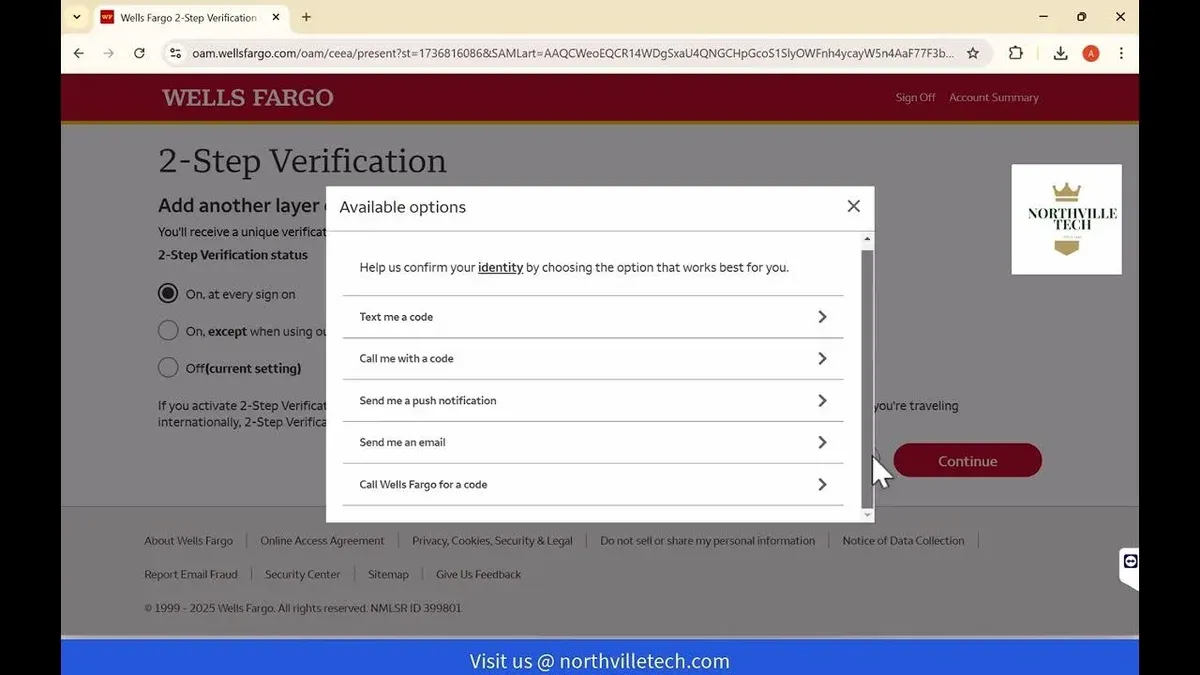
This article explains the Wells Fargo two-factor authentication setup process with clear, step-by-step instructions tailored to the bank’s system. It addresses common user errors and specific troubleshooting to ensure secure account access. Wells Fargo uses two-factor authentication (2FA) as an extra layer of security beyond passwords, requiring a verification code sent via text message or generated through an authenticator app.
Wells Fargo two-factor authentication setup involves navigating the account security settings, selecting the preferred 2FA method, and verifying contact details. Skipping verification steps or entering outdated phone numbers often causes setup failures. This guide focuses solely on Wells Fargo’s approach and does not cover generic 2FA practices.
Does Wells Fargo have 2 factor authentication?
Wells Fargo offers two-factor authentication (2FA) as a core security measure to protect customer accounts from unauthorized access. This 2FA is integrated into the online banking login process and is designed to add an extra layer of identity verification beyond just a password.
The bank supports multiple forms of 2FA. Customers can receive one-time passcodes via SMS text messages sent to their registered mobile phone numbers. Additionally, Wells Fargo enables authentication through their mobile app, which can generate time-based codes or send push notifications for approval. These options align with common industry practices among major U.S. banks.
Enabling Wells Fargo’s 2FA significantly reduces the risk of account breaches caused by stolen or compromised passwords. The additional verification step ensures that access requires possession of a physical device or phone number linked to the account holder. Compared to banks that only use single-factor authentication, Wells Fargo’s 2FA offers stronger protection against phishing and password-based attacks.
How to set up two-factor authentication on Wells Fargo
Before starting, have Wells Fargo online banking credentials ready along with a mobile phone capable of receiving SMS or an authenticator app installed (such as Google Authenticator or Authy). The setup process typically takes under 10 minutes.
- Log in to Wells Fargo via the official website or mobile app. Upon successful login, the account dashboard should be visible.
- Navigate to the Profile & Settings menu, then select Security Preferences. This section contains options related to account protection.
- Within Security Preferences, find and click Two-Factor Authentication or Two-Step Verification. The screen will present method choices, usually SMS text or authenticator app.
- Select the preferred 2FA method. For SMS, enter and verify the mobile phone number by inputting the received code. For an authenticator app, scan the displayed QR code using the app to link the account.
- Complete the setup by confirming the activation. Wells Fargo will display a confirmation message indicating two-factor authentication is enabled.
Tip: Use an authenticator app for better security and fewer SMS delays compared to text messages.
How to set up a 2 factor authentication for Microsoft accounts (comparison)
Microsoft offers multiple two-factor authentication options, including the Microsoft Authenticator app, SMS codes, and hardware security keys like the FIDO2-compliant keys. Each method adds a second verification step after password entry to secure user accounts. The setup process begins in the Microsoft account security settings, under "Advanced security options."
- Sign in to the Microsoft account at account.microsoft.com and navigate to "Security" > "Advanced security options." A list of security settings appears.
- Under "Two-step verification," select "Turn on." A setup wizard will start.
- Choose the preferred verification method—Authenticator app, phone number for SMS, or security key—and follow the prompts. For the app, scanning a QR code with the Microsoft Authenticator installs the account.
- Verify the chosen method by entering the code received via app or SMS, or by tapping the hardware key. Successful verification shows a confirmation screen.
- Complete setup by confirming backup options and recovery codes if prompted, ensuring account access if the primary method fails.
Compared to Wells Fargo's 2FA setup, Microsoft's process supports more diverse authentication methods and requires additional steps, making it slightly more complex but offering greater flexibility and security layers. Understanding Microsoft's approach helps users grasp the general principles of two-factor authentication, including the importance of backup options and varied verification methods.
Troubleshooting common issues with Wells Fargo two-factor authentication
If SMS codes are not received, confirm the phone number registered under Security Settings is correct and has proper cellular service. Check for any SMS blocking or Do Not Disturb modes that might prevent code delivery. If delays occur, wait a few minutes before requesting a new code.
Incorrect or expired authentication codes typically result from time synchronization issues. For app-based 2FA, ensure the device’s clock is set to automatic and the authenticator app is updated. Request a new code after a code expires, usually within 30 seconds.
When the authenticator app fails to sync or generate codes, remove and re-add the Wells Fargo account within the app using the QR code or manual key from Wells Fargo’s Security Settings. This resets the token generation process.
If the registered phone or device is lost, use Wells Fargo’s account recovery options by selecting “Trouble signing in?” on the login page to verify identity via alternative methods. Contact Wells Fargo Customer Support if recovery options fail.
For persistent problems, Wells Fargo recommends contacting their support line directly at the number listed on the website. Provide details like error messages such as “Invalid code” or “Code expired” for faster resolution.
How to get all 2 factor authentication codes securely
Managing multiple two-factor authentication codes requires a secure, organized approach to avoid lockouts and maintain account safety. Authenticator apps like Google Authenticator, Microsoft Authenticator, or Authy allow storing codes for various accounts in one place, reducing reliance on SMS, which can be vulnerable to interception. Authy also offers encrypted backups protected by a password, helping restore access if a device is lost.
Backing up 2FA codes securely is essential. Record recovery codes provided during setup and store them in a secure password manager or offline in a locked safe. Avoid storing codes in plain text files or sharing them through unsecured channels like email or messaging apps. Use devices with updated security patches and avoid public or shared devices for generating or entering 2FA codes.
Hardware tokens such as YubiKey provide an alternative for securing 2FA codes. These physical devices generate or store codes offline, eliminating risks tied to software-based methods. They require initial setup but offer strong protection against phishing and malware.
- Download and install a trusted authenticator app on a personal device. Once installed, open the app and select “Add Account.” This action should display a QR code scanner or an option to enter a setup key manually.
- Scan the QR code or enter the secret key provided during Wells Fargo or other account 2FA setup. The app will generate a rotating code every 30 seconds. Verify the code by entering it on the account setup page to confirm activation.
- Save recovery codes provided by each service during 2FA setup. Store these in a dedicated password manager or an encrypted digital vault. Confirmation of secure storage is when recovery codes can be retrieved without exposing them to others.
- Periodically review 2FA settings across accounts. Remove unused devices or apps from authorized lists via each account’s security settings. Successful review is when only current devices remain authorized, reducing exposure to unauthorized access.
- Consider setting up a hardware token if available and supported. Register the device following the provider’s instructions and confirm functionality by logging in using the token-generated code or tap. A working token confirms an additional secure authentication layer.
Tip: Use a dedicated authenticator app rather than SMS for all accounts to minimize risk from SIM swapping or interception.
Frequently asked questions
Does Wells Fargo offer two step authentication?
Yes, Wells Fargo provides two-step authentication as an additional security layer for online banking. This feature requires users to verify their identity with a code sent via text message or generated through an authentication app each time they log in. It helps prevent unauthorized access even if the password is compromised.
Can Wells Fargo two-factor authentication be set up on the mobile app?
Yes, Wells Fargo two-factor authentication can be enabled directly within the Wells Fargo mobile app. Users need to access the Security Settings menu, select Two-Step Verification, and follow prompts to register a phone number or authentication app for receiving verification codes. The process is streamlined for mobile use and mirrors the website setup.
What should be done if the Wells Fargo two-factor authentication code is not working?
If the authentication code is not working, first confirm the device receiving the code is the one registered with Wells Fargo. Check that the code is entered promptly, as codes expire quickly. If problems persist, users should restart their device, ensure the app or SMS service is functioning, or request a new code. Contacting Wells Fargo customer support is advised if the issue continues.
Is Microsoft two factor authentication setup similar to Wells Fargo's?
Microsoft two-factor authentication setup shares basic principles with Wells Fargo's process, such as using verification codes and authentication apps. However, Microsoft offers broader options, including hardware tokens and app notifications, and requires configuration via the Microsoft account security dashboard. Wells Fargo’s setup is more streamlined and focused specifically on banking security.
What this advice does not cover
This article does not cover advanced enterprise-level authentication options or Wells Fargo’s internal fraud detection systems beyond customer-facing 2FA. Users without reliable phone or internet access may find 2FA setup or usage challenging and should consult Wells Fargo support for alternative verification methods.
For customers managing multiple accounts or requiring hardware security keys, Wells Fargo’s customer service can provide guidance tailored to complex security needs. Additionally, this guide does not address recovery procedures for lost or stolen devices beyond basic troubleshooting steps.
The most practical next step is to enable two-factor authentication immediately via the Wells Fargo online banking portal under the “Security Settings” menu. Activating 2FA there will significantly reduce the risk of unauthorized access and provide clear prompts for managing devices and verification methods.
See also: Instagram Two-Factor Authentication Code Not Working: How to Fix It · How to Turn On Two-Factor Authentication on YouTube: A Step-by-Step Guide · How to Turn On Two-Factor Authentication on X (Twitter): A Clear Step-by-Step Guide


