
How to Turn On Two-Factor Authentication on X (Twitter): A Clear Step-by-Step Guide
Learn how to enable two-factor authentication on X (Twitter) with a clear guide covering setup steps and troubleshooting tips.

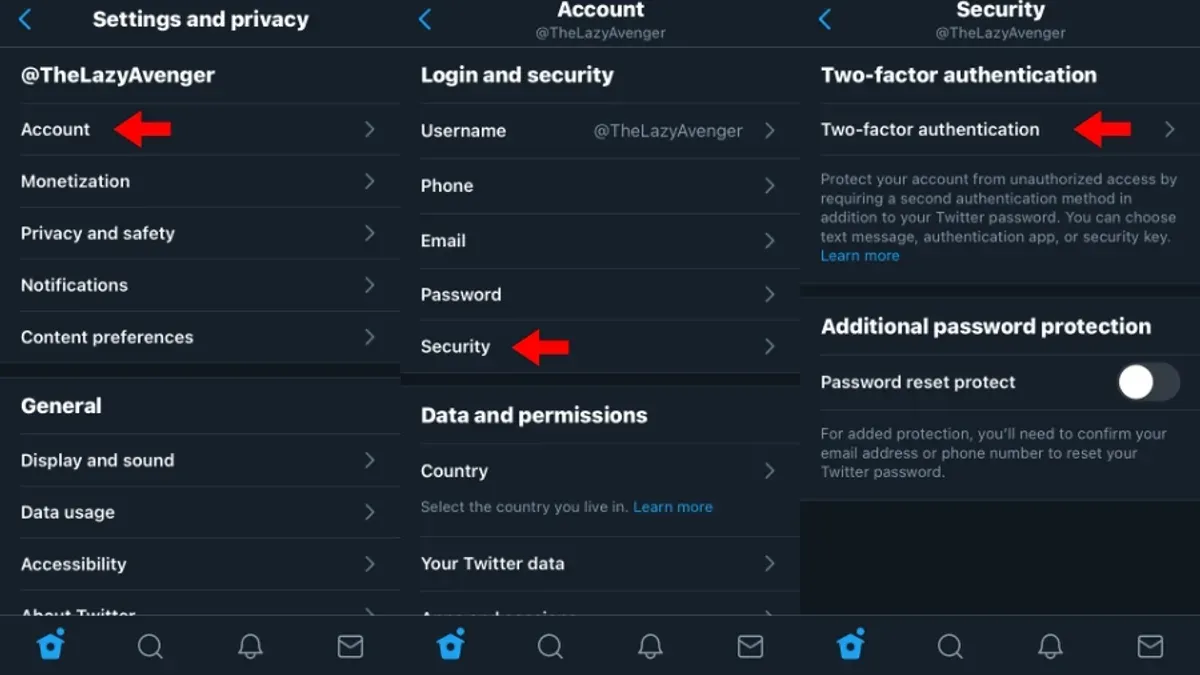
This guide explains how to turn on two-factor authentication on X (Twitter) with a focus on practical troubleshooting and security trade-offs among its 2FA options. Enabling two-factor authentication adds a vital layer of security by requiring a second form of verification when logging in. X offers three main methods: SMS codes, authenticator apps, and security keys, each with specific benefits and limitations.
Understanding these options helps avoid common pitfalls, such as delayed SMS delivery or losing access to authenticator apps. This article breaks down the setup process step-by-step and addresses real-world challenges users face when activating and managing two-factor authentication on X.
Before you start: What is needed to enable two-factor authentication on X?
Enabling two-factor authentication (2FA) on X requires a few prerequisites to ensure a smooth setup. First, an active X account with verified login credentials is essential. Access is needed either through the X mobile app or the desktop website to modify security settings.
Next, users must have either a phone number linked to their account or an authenticator app installed on a separate device. X supports three primary 2FA methods: SMS verification, authenticator apps, and security keys. Each method has distinct security strengths and practical considerations.
SMS-based 2FA is the most common among users but offers weaker protection due to vulnerabilities like SIM swapping. Authenticator apps generate time-based codes that are more secure and less prone to interception. Security keys, physical devices used for authentication, provide the highest security level but require compatible hardware and may be less convenient.
Before proceeding, ensure the intended 2FA method aligns with security needs and device availability. Preparing these elements ahead reduces setup errors and enhances account protection.
How to enable two-factor authentication on X using SMS verification
- Open the X app or website and navigate to Settings and privacy from the profile menu. The settings page should load with multiple options.
- Select Security and account access, then tap Security. This opens the security settings where two-factor authentication options reside.
- Choose Two-factor authentication, then select Text message as the verification method. The screen will prompt for a phone number if one is not already linked.
- Enter the phone number intended for SMS codes and tap Send code. A verification code will be sent to this number via SMS.
- Input the received code into the app when prompted. Upon successful verification, the SMS method will be enabled for 2FA on the account.
- Log out of X and then log back in to trigger the SMS 2FA prompt. Enter a new code sent by SMS to confirm the setup works as expected.
Commonly, SMS codes arrive within seconds but delays can occur, especially with certain carriers or in areas with poor signal. It is not unusual for users to wait up to a minute. If codes repeatedly fail to arrive, consider switching to an authenticator app or security key for reliability.
Tip: Keep the linked phone number updated in account settings to avoid missing SMS codes during login.
How to enable two-factor authentication on X using an authenticator app
- Install a recommended authenticator app such as Google Authenticator or Authy on a smartphone. The app should be ready to scan QR codes or manually enter keys.
- Log into X and navigate to Settings and privacy > Security and account access > Security > Two-factor authentication. Select the option for Authenticator app. A QR code and a manual key will appear.
- Open the authenticator app and either scan the QR code displayed on X or manually enter the provided key. The app will generate a six-digit time-based one-time password (TOTP) that refreshes every 30 seconds.
- Enter the current TOTP from the authenticator app into X’s confirmation field and submit. If accepted, two-factor authentication via the app is activated.
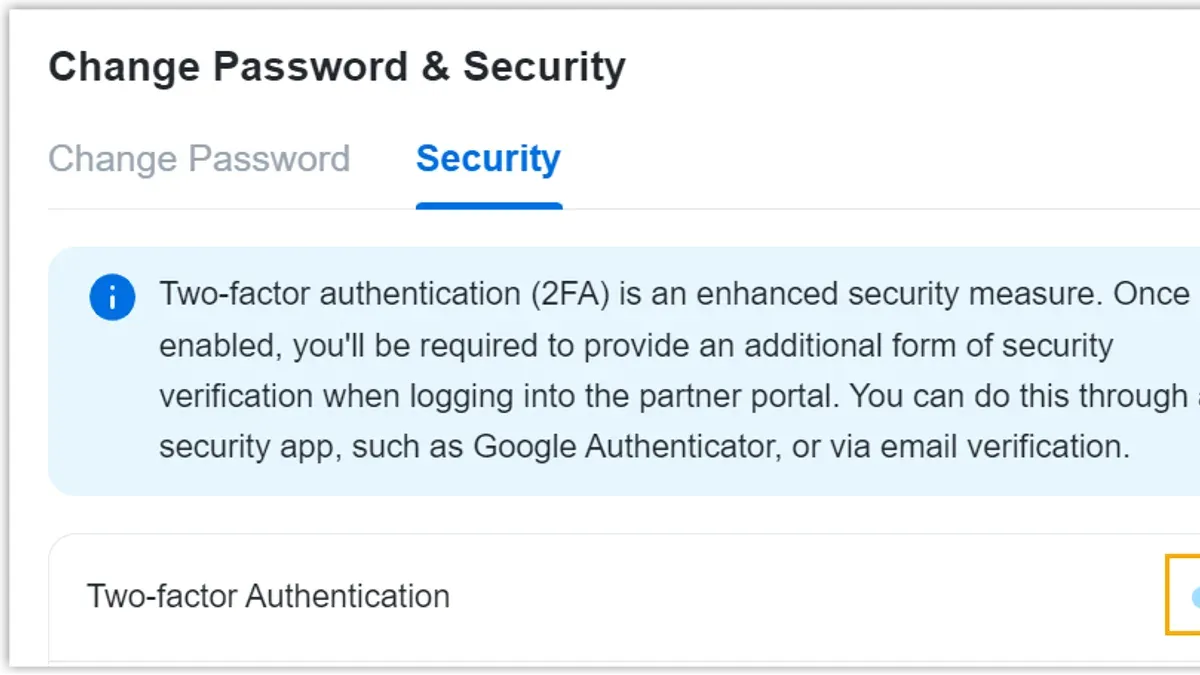
Authenticator apps offer stronger security than SMS by generating codes locally, eliminating risks related to SIM swapping or network interception. However, their use depends on access to the app during login, which can be problematic if the device is lost or reset without backup codes. Users should store backup codes securely and consider multi-device app options like Authy.
| Feature | Google Authenticator | Authy |
|---|---|---|
| Multi-device sync | No | Yes |
| Cloud backup | No | Yes |
| Open source | No | No |
| Platform availability | iOS, Android | iOS, Android, Desktop |
Example: The TOTP code displayed might be 482915 and changes every 30 seconds, so it must be entered promptly to be accepted.
How to enable two-factor authentication on X using security keys
Security keys, such as YubiKey and other FIDO2-compliant devices, offer the strongest protection against account takeovers on X. These hardware tokens provide cryptographic verification, eliminating risks associated with SMS interception or authenticator app vulnerabilities. Security keys are especially beneficial for users with high-value accounts or those frequently targeted by phishing attempts.
- Navigate to X’s Settings & privacy > Security > Two-factor authentication.
- Select "Security key" as the 2FA method and click "Add key."
- Insert the hardware security key into the device’s USB port or connect via NFC if supported; X will prompt to touch the key’s button or sensor.
- Once the key registers, it will appear in the list of active 2FA methods in the security settings.
- During future logins, after entering the password, insert and activate the security key when prompted to complete authentication.
Security keys prevent unauthorized access even if passwords are compromised, as login requires physical possession of the key. However, losing the key can lock users out unless backup 2FA methods are configured, so it is advisable to register multiple keys or maintain alternative verification options.
Tip: Register at least two security keys to avoid account lockout if one is lost or damaged.
What to do if two-factor authentication codes are not received or fail
Failure to receive or use two-factor authentication (2FA) codes on X is often due to common issues that can be quickly resolved. For SMS-based 2FA, poor phone signal or carrier delays are frequent causes. Checking for signal strength and confirming the phone number linked in X's settings can prevent missed codes. If SMS messages are delayed or not arriving, switching temporarily to an authenticator app or another 2FA method is advisable.
Authenticator apps depend on accurate device time synchronization. If codes are rejected, verify that the phone’s clock is set to automatic date and time. Manual time settings frequently cause code mismatches, resulting in error messages like "Invalid code" or "Code expired." Resyncing time usually restores functionality.
If regular codes fail or are inaccessible, backup codes provided during 2FA setup offer a reliable fallback. These one-time use codes should be stored securely offline. Entering a valid backup code will bypass regular 2FA prompts and allow account access.
Being locked out due to 2FA issues requires contacting X support with verified identity. Prepare to provide proof of account ownership such as linked email, phone number, or ID. Recovery can be slow but is necessary if all automated options fail.
- Check phone signal and confirm the phone number in Settings > Security > Two-factor authentication > SMS. Successful check shows signal bars and correct number.
- If using an authenticator app, go to the phone’s Date & Time settings and toggle on “Set Automatically.” Enter a generated code on X; a green check confirms proper sync.
- Locate backup codes saved during setup. Enter one backup code at login; success is indicated by immediate access without a 2FA prompt.
- If locked out, visit X’s help center and submit an account recovery form with requested verification. A confirmation page confirms submission.
How to manage and disable two-factor authentication on X safely
Disabling two-factor authentication (2FA) on X reduces account security significantly and should only be done if absolutely necessary, such as changing 2FA methods or updating linked devices. Before disabling 2FA, ensure an alternative authentication method is set up to avoid exposure during the transition. Switching between 2FA methods requires removing the current method first, then enabling the new one promptly.
- Go to Settings and privacy > Security and account access > Security > Two-factor authentication.
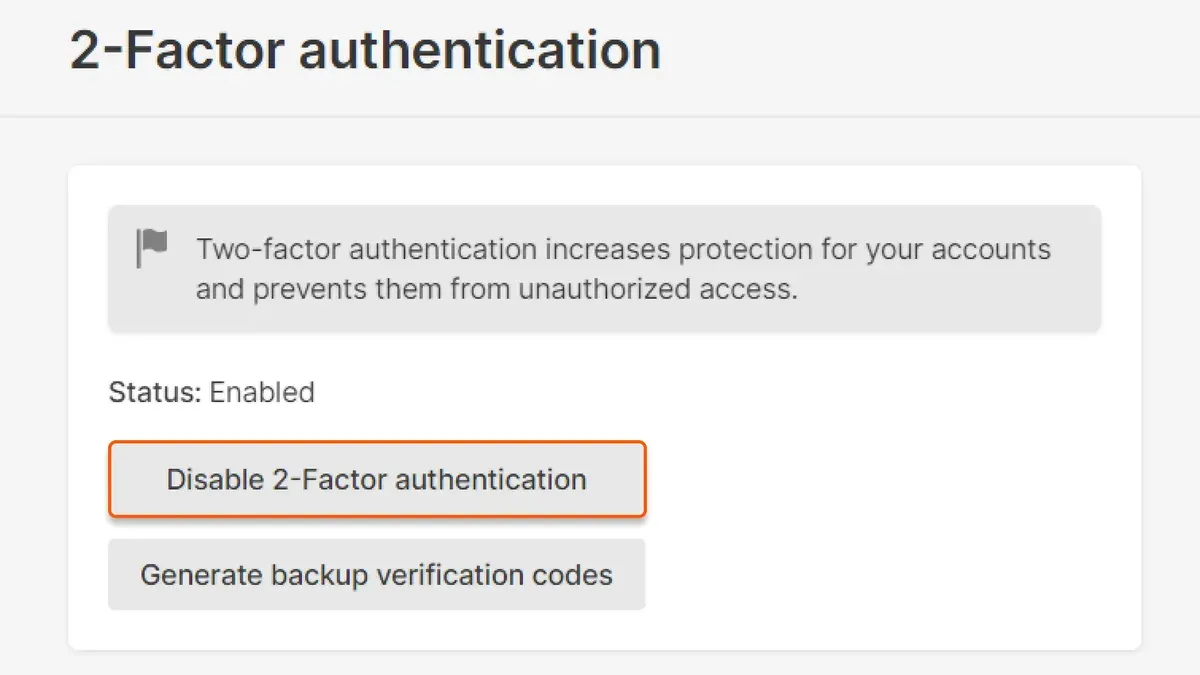
- To disable 2FA, uncheck all enabled options (SMS, authenticator app, security key), then confirm the action. The account will no longer require secondary verification on login.
- To switch methods, first disable the current 2FA option as above, then immediately enable the preferred one to maintain protection. This prevents gaps where the account is vulnerable.
- To update a phone number or authenticator app, disable 2FA, update the contact method or install the new app, then enable 2FA again using the updated method.
- After disabling or changing 2FA, review login activity and consider changing the password to mitigate any risk from temporarily lowered security.
Disabling 2FA leaves the account reliant on password strength alone, increasing chances of unauthorized access. For example, users who lose their phone and have not prepared backup codes should avoid disabling 2FA without first securing an alternative method. Maintaining continuous 2FA coverage is the safest approach.
Tip: Prepare backup codes and save them securely before making changes to 2FA settings to avoid lockout.
Frequently asked questions
Can two-factor authentication be enabled on X without a phone number?
Yes, two-factor authentication on X can be enabled without linking a phone number by using an authenticator app or security keys. These methods provide 2FA without relying on SMS and eliminate the need to share a phone number. However, some features or recovery options may be more limited without a registered phone number.
What happens if the authenticator app is lost or deleted?
If the authenticator app is lost or deleted, access to 2FA codes is lost as well. In this case, using previously saved backup codes is necessary to regain account access. Without backup codes, account recovery may require contacting X support and verifying identity through other means, which can be time-consuming.
Is SMS or authenticator app 2FA more secure on X?
Authenticator app 2FA is generally more secure than SMS because it is not vulnerable to SIM swapping or interception. SMS-based 2FA is easier to set up but carries risks associated with phone number-based attacks. Security keys provide even stronger protection but require compatible hardware.
How to use backup codes if two-factor authentication codes are not working?
Backup codes can be used by entering them in place of the 2FA code when prompted during login. Each code is single-use, so it’s important to keep them secure and generate new ones if all are used. Backup codes are found under the two-factor authentication settings in the account security menu.
What this guide does not cover and who should look elsewhere
This guide does not cover enterprise or business account two-factor authentication setups, which often require integration with corporate identity providers or specialized hardware tokens beyond standard consumer options. Users managing business accounts or requiring advanced security measures like single sign-on (SSO) or compliance-specific configurations should consult X’s official business security documentation or their IT administrators. Additionally, this guide does not address recovery options for accounts that have lost all access methods, such as phone number and backup codes, where contacting X support is necessary.
The next critical step after enabling two-factor authentication is to securely store backup codes provided by X. These codes serve as a fallback if the primary 2FA method fails or is inaccessible. Without backing up these codes, account recovery can become complicated and time-consuming, negating much of the security benefit. Secure storage options include encrypted password managers or physically safe locations. Ensuring this step is not skipped often distinguishes a resilient 2FA setup from one vulnerable to lockout.
See also: How to Turn On Two-Factor Authentication on Signal: A Clear Step-by-Step Guide · How to See Where You're Logged Into Twitter: Step-by-Step Guide · How to Secure Your X (Twitter) Account: Step-by-Step Guide



