
How to Turn On Two-Factor Authentication on Twitch: A Clear Step-by-Step Guide
Learn how to turn on two-factor authentication on Twitch to add an extra layer of security and protect your account from unauthorized access.

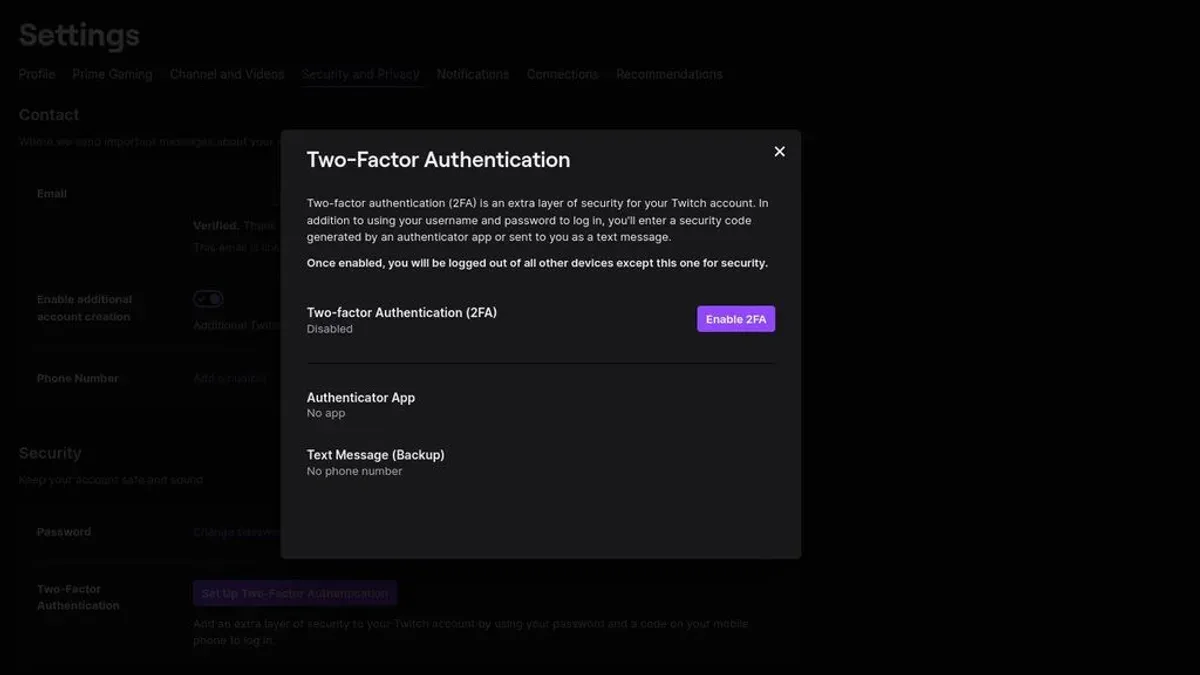
This article explains how to turn on two-factor authentication on Twitch, providing a clear, step-by-step guide tailored to Twitch users prioritizing account security. Two-factor authentication (2FA) adds a crucial layer of protection by requiring a verification code alongside the password during login.
Before enabling 2FA, ensure access to a mobile device with an authenticator app like Google Authenticator or Authy, or a phone number capable of receiving SMS codes. Twitch’s 2FA system depends on these methods, so preparing them ahead avoids setup interruptions.
Understanding Twitch’s specific 2FA settings and common errors helps prevent lockouts and confusion. This guide covers enabling and disabling 2FA, recovering access if the device is lost, and troubleshooting frequent issues, ensuring smooth management of Twitch account security.
Before you start: What is needed to turn on two-factor authentication on Twitch
Two-factor authentication (2FA) on Twitch requires a verified account with access to the registered email address. Without account verification, the 2FA setup process cannot proceed. A smartphone or device capable of receiving authentication codes is essential. Twitch supports receiving codes via SMS or through authenticator apps.
Supported authenticator apps include Google Authenticator and Authy. These apps generate time-sensitive codes that must be entered during login. Before enabling 2FA, ensure one of these apps is installed and ready to use. Alternatively, SMS can be used for code delivery, but authenticator apps are generally more secure.
Backup codes are critical in case the primary 2FA device is lost or inaccessible. Twitch provides a set of one-time-use backup codes during setup. These should be saved securely outside the phone or device used for 2FA. Without backup codes or recovery options, account access may become permanently locked if the 2FA device is unavailable.
- Verify the Twitch account email under Settings > Security & Privacy; a verified status must be visible. Success shows the email as confirmed.
- Install a supported authenticator app (Google Authenticator or Authy) on the smartphone or ensure SMS capability. Opening the app should display a ready interface for adding new accounts.
- Prepare to save backup codes provided during the 2FA setup process. The interface will prompt to download or copy these codes for safekeeping.
How to turn on two factor authentication on Twitch
- Log into the Twitch account and access the user profile menu by clicking the profile icon at the top-right corner. Select Settings from the dropdown menu to open the account settings page.
- Navigate to the Security and Privacy tab within Settings. Scroll down to find the Two-Factor Authentication (2FA) section and click the Set Up Two-Factor Authentication button to initiate the process.
- Choose the preferred method to receive authentication codes: either via SMS to a verified phone number or through an authenticator app such as Google Authenticator or Authy. Selecting the authenticator app option will display a QR code and a manual key.
- If using an authenticator app, scan the QR code displayed on Twitch or enter the provided key manually into the app. The app will generate a six-digit code that refreshes periodically.
- Enter the current six-digit code from the SMS or authenticator app into the Twitch prompt to verify the setup. A confirmation message will appear once the code is accepted, activating two-factor authentication on the account.
- Immediately download or copy the backup codes presented after activation. Store these codes securely offline to regain access if the authentication device is lost or unavailable.
Tip: Always verify that the time settings on the authenticator app device are accurate to avoid verification errors.
How to turn off two factor authentication on Twitch
Disabling two-factor authentication (2FA) on Twitch can be necessary when changing devices or troubleshooting access issues. However, turning off 2FA significantly reduces account security, exposing it to greater risks of unauthorized access. Before proceeding, consider if disabling 2FA is essential and plan to re-enable it promptly or secure the account with alternative measures.
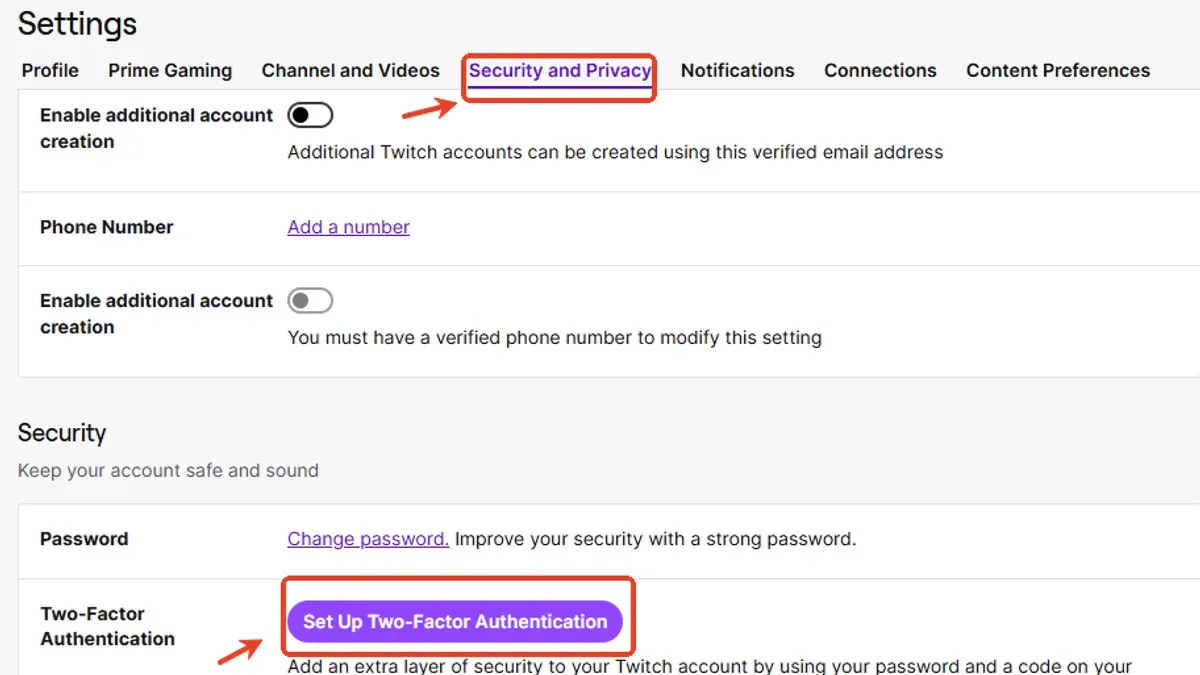
- Log into the Twitch account and access the user menu by clicking the profile icon in the top-right corner. The dropdown menu will appear.
- Select Settings from the dropdown, then navigate to the Security and Privacy tab. This section manages account security features.
- Scroll to the Two-Factor Authentication area and click Disable 2FA. A prompt will request confirmation and verification through a code sent via SMS or authenticator app.
- Enter the verification code received and confirm the action. Once accepted, Twitch will disable 2FA, and the account will rely solely on the password for login.
Security risks increase without 2FA enabled, as passwords alone can be compromised through phishing or data breaches. It is recommended to have a strong, unique password and monitor account activity closely if 2FA is turned off.
Tip: Re-enable two-factor authentication as soon as possible to maintain optimal account protection.
How do I turn on two-factor authentication if I lost my device or can’t receive codes
When access to the authentication device or code delivery method is lost, recovery relies primarily on backup codes. Backup codes are single-use and must be saved securely when two-factor authentication is initially set up. They allow account access without the authentication app or SMS.
- Locate the saved backup codes from the initial setup. Enter one backup code at Twitch’s two-factor authentication prompt. Successful entry grants account access and allows setting up a new authentication method.
- If backup codes are unavailable, contact Twitch Support through the official help page. Provide account verification details as requested. Twitch Support can assist in regaining access but will require identity verification.
- Once access is restored, navigate to Settings > Security and Privacy > Two-Factor Authentication. Disable the existing 2FA setup and enable it again with a new authenticator app or updated phone number.
Tip: Store backup codes in multiple secure locations to prevent loss.
Following these steps helps regain control and restore two-factor authentication even when original devices or codes are inaccessible.
Troubleshooting common issues when turning on two-factor authentication on Twitch
Authenticator apps occasionally fail to generate valid codes due to time synchronization problems. Ensure the device's time and date settings are set to automatic or network-provided time. Most apps, like Google Authenticator, rely on accurate system time to generate correct codes.
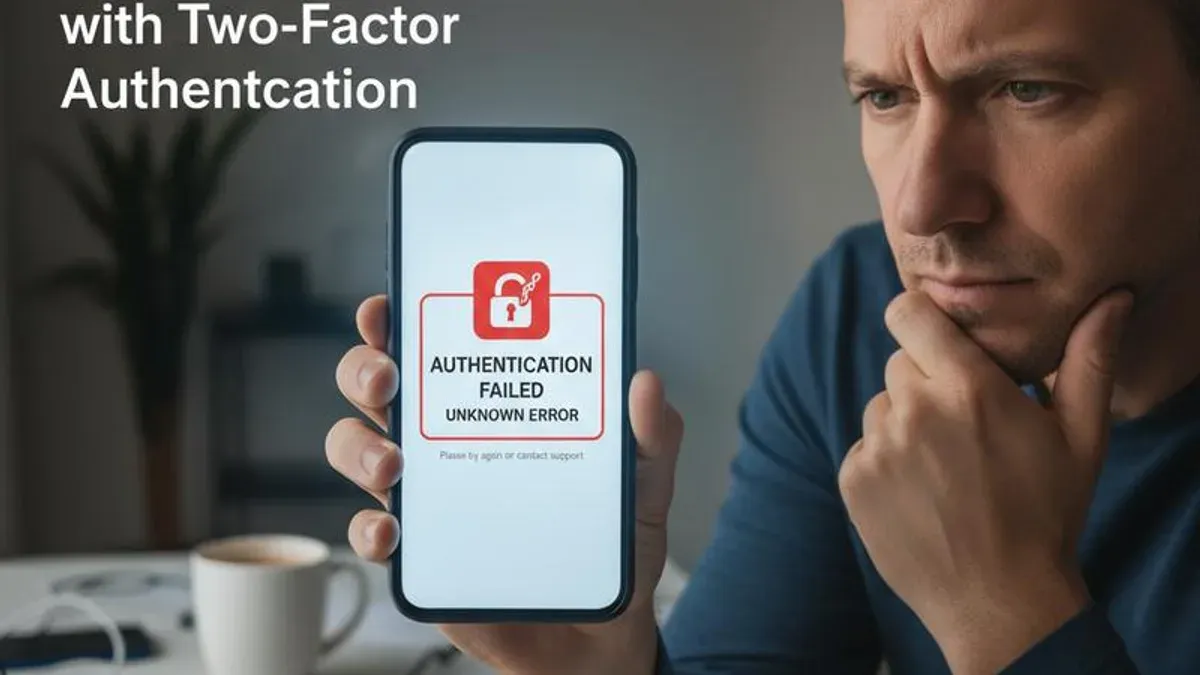
SMS codes may not arrive because of carrier restrictions, network outages, or incorrect phone numbers. Verifying the entered phone number matches the device receiving the code is crucial. If SMS delivery fails repeatedly, switching to an authenticator app can avoid carrier-related delays.
Error messages during setup often indicate specific issues. For example, "Invalid code" usually means the entered code has expired or is mistyped. "Too many attempts" signals a temporary lockout after repeated failures and requires waiting before retrying. "Verification failed" can suggest server-side problems or connectivity issues.
To ensure successful activation:
- Confirm the Twitch app or website is up to date and the device has a stable internet connection; a successful connection enables communication with Twitch servers.
- Use the authenticator app recommended by Twitch or a well-known one such as Google Authenticator or Authy for better compatibility.
- Enter the verification code promptly after generation; codes typically expire within 30 seconds.
- Keep backup codes saved securely before completing setup to avoid lockouts.
- If persistent errors occur, clear the browser cache or try a different browser, as session conflicts can cause verification failures.
Tip: When switching between SMS and authenticator methods, disable one before enabling the other to prevent conflicts.
Frequently asked questions
How to enable two factor authentication on twitch?
Log in to the Twitch account and go to the Security and Privacy section in Settings. Select "Set Up Two-Factor Authentication" and enter the account password. Use an authenticator app or SMS to receive the verification code, then input it to complete activation.
How to activate 2 factor authentication on twitch?
Access Twitch Settings and navigate to Security and Privacy. Click "Enable Two-Factor Authentication," verify the password, then scan the QR code with an authenticator app or opt for SMS codes. Enter the received code to activate.
How to turn on 2 factor authentication twitch?
From the Twitch homepage, open Settings, find Security and Privacy, and select "Two-Factor Authentication." After password confirmation, choose an authentication method, receive the code, and enter it to enable two-factor authentication.
how to enable two factor authentication on twitch
Go to Twitch Settings > Security and Privacy > Two-Factor Authentication. Confirm the Twitch password, then select an authenticator method (app or SMS). Enter the verification code sent to finalize the setup.
how to activate 2 factor authentication on twitch
Navigate to the Security and Privacy tab in Twitch Settings. Click "Set Up Two-Factor Authentication," confirm the password, then follow prompts to scan a QR code or receive a text message. Provide the received code to activate two-factor authentication.
What this guide does not cover
This guide does not cover advanced account recovery for hacked accounts or Twitch-specific security breaches. Users facing unauthorized access or complex security incidents should contact Twitch support directly for specialized assistance. Additionally, this walkthrough does not include instructions for third-party authenticator apps beyond setting up the basic two-factor authentication through Twitch’s official process.
Two-factor authentication adds a strong layer of security, but it is not a substitute for regularly updating passwords or monitoring account activity. For comprehensive security, consider combining 2FA with unique, strong passwords and reviewing connected apps and permissions periodically.
Next step: After enabling two-factor authentication, keep backup codes in a secure location. These codes are essential to regain access if the authentication device is lost or cannot receive codes, preventing lockout and ensuring uninterrupted account security management.
See also: How to See Where You're Logged Into Twitch: Step-by-Step · How to Turn On and Off Two-Factor Authentication on TikTok · How to Turn On Two-Factor Authentication on Threads: A Step-by-Step Guide



