How to Turn On and Off Two-Factor Authentication on TikTok
This guide explains how to enable and disable two-factor authentication on TikTok to enhance your account security.

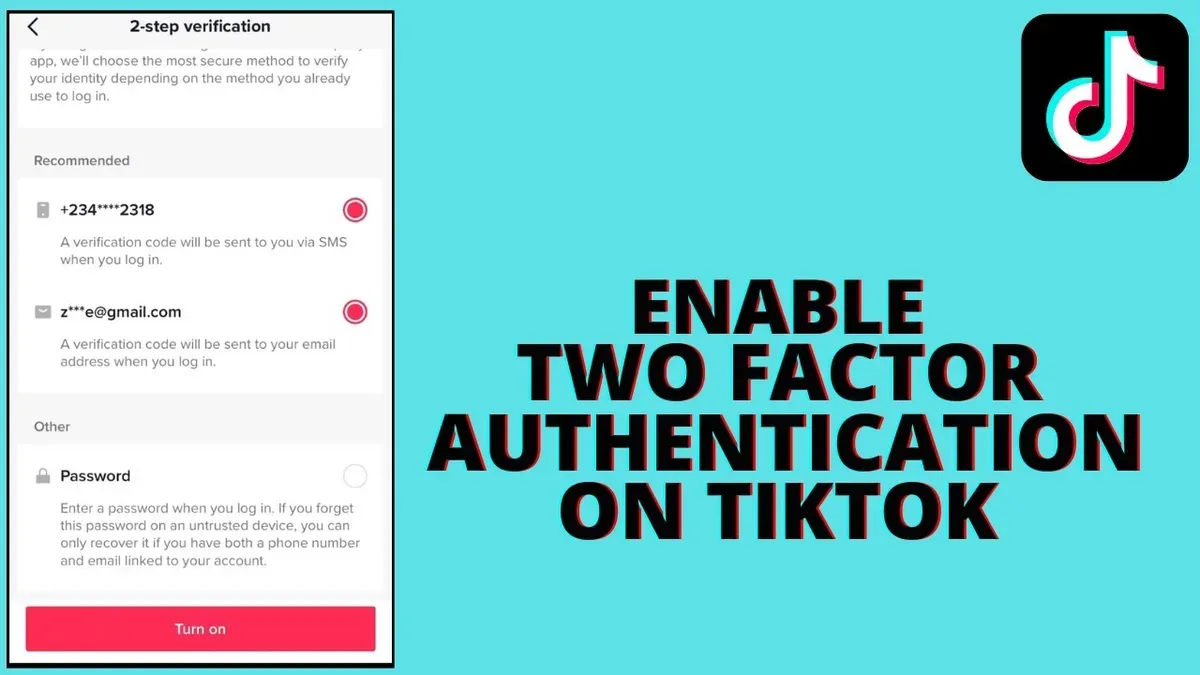
This article explains how to turn on two-factor authentication on TikTok and provides clear steps to enable or disable this security feature. Two-factor authentication adds an extra layer of protection by requiring a verification code in addition to the password when logging in. Users concerned about account security will learn how to navigate TikTok's settings to manage this feature effectively.
In addition to straightforward instructions, the article addresses common issues such as not receiving verification codes and the difference between two-factor authentication and two-step verification on TikTok. Practical troubleshooting tips help maintain access to the account if problems arise. This guide ensures users can confidently control their security preferences without confusion.
Before you start: What is needed to set up two-factor authentication on TikTok
Two-factor authentication (2FA) on TikTok adds an extra layer of security by requiring a second form of verification beyond the password. This reduces the risk of unauthorized access, which is crucial given the volume of account breaches reported across social platforms. Enabling 2FA helps protect personal information, videos, and account settings from being compromised.
To set up 2FA, a TikTok account with a verified phone number or email address is mandatory. The verification codes are sent to these contact points, so access to the linked phone or email is essential during setup and future sign-ins.
TikTok supports multiple 2FA methods, including SMS codes sent to a phone and authenticator apps that generate time-based codes. Users can choose their preferred method during setup.
It is important to distinguish between two-factor authentication and two-step verification on TikTok. Though often used interchangeably, TikTok uses "two-factor authentication" primarily for the additional security step involving code verification, whereas "two-step verification" sometimes refers to slightly different security processes within the app's settings.
- Open the TikTok app and go to the profile tab. Confirmation: Profile page is visible.
- Tap the three-line menu to access Settings and Privacy. Confirmation: Settings menu appears.
- Select "Security" or "Privacy and safety" depending on the app version. Confirmation: Security options are displayed.
- Choose "Two-factor Authentication" to see available setup options. Confirmation: 2FA methods like SMS and authenticator apps are shown.
- Ensure a verified phone number or email is linked under account information. Confirmation: Contact details are confirmed verified.
Tip: Before enabling 2FA, verify the phone number or email linked to the TikTok account is current and accessible to avoid lockouts.
How to turn on two-factor authentication on TikTok
- Open the TikTok app and tap the Profile icon in the bottom-right corner. Then tap the three-line menu in the top-right to access Settings and privacy. A settings menu should appear.
- Scroll to and select Security and login. This section lists options related to account security.
- Tap Two-factor authentication. Depending on the app version, this may also be labeled as Two-step verification. The two-factor authentication setup screen will open.
- Choose the preferred 2FA method: either Phone number for SMS verification or Authenticator app for app-based codes. Selecting one will prompt the next steps.
- If using phone number, confirm the linked number and tap Send code. If using an authenticator app, a QR code will display to scan with the app (Google Authenticator, Authy, etc.).
- Enter the received verification code from the SMS or authenticator app into the input field, then tap Verify. A confirmation message should appear confirming activation.
- Save any provided backup codes by tapping the option to View backup codes. These codes allow access if the phone or authenticator app is unavailable. Store them securely outside the TikTok app.
Tip: If the verification code does not arrive, verify the phone number is correct or that the authenticator app scanned the QR code properly before retrying.
How to turn off two-factor authentication on TikTok
- Open the TikTok app and tap the profile icon at the bottom right to access the account page.
- Tap the three horizontal lines or the settings gear icon at the top right to open the Settings and Privacy menu.
- Scroll down and select Security and login from the list of options.
- Locate the Two-factor authentication section and tap it to open the 2FA settings.
- Find the toggle switch or the option labeled Disable two-factor authentication and select it.
- If prompted, enter the account password or provide a verification code sent via SMS or email to confirm the identity.
- After confirmation, the app will display a message or screen indicating that two-factor authentication has been turned off successfully.
- Return to the Security and login page to verify that two-factor authentication is no longer active; the toggle switch should be off or the section should indicate 2FA is disabled.
Tip: Keep the password handy before disabling 2FA, as TikTok requires identity confirmation to prevent unauthorized changes.
How to turn off 2 step verification on TikTok
TikTok’s two-step verification is essentially another term for two-factor authentication (2FA). Both terms describe the same security feature requiring an additional verification step beyond the password. This overlap causes confusion in searches and settings but disabling two-step verification follows the same process as disabling 2FA.

To turn off two-step verification on TikTok, follow these steps:
- Open the TikTok app and go to the profile tab.
- Tap the three-line menu icon in the top right corner to open Settings and privacy.
- Select "Security" from the menu.
- Tap "Two-step verification."
- Choose the verification method currently enabled (SMS or authenticator app).
- Tap "Turn off" or "Disable."
- Confirm identity by entering the verification code sent via the chosen method or input from the authenticator app.
- Once confirmed, the app will display a message that two-step verification has been disabled.
Tip: If the option to disable two-step verification does not appear, ensure the account has 2FA enabled and try restarting the app or updating to the latest version.
This single process disables both two-step verification and two-factor authentication since TikTok uses the terms interchangeably.
Does TikTok have two-factor authentication and 2 step verification?
TikTok supports both two-factor authentication (2FA) and two-step verification, providing users with added layers of account security. These features help protect accounts by requiring a secondary verification step beyond just the password. TikTok’s 2FA methods include SMS verification codes sent to a registered phone number and codes generated by authenticator apps like Google Authenticator or Authy.
Two-factor authentication on TikTok was introduced to enhance security amid rising concerns about account breaches. Official TikTok security documentation confirms these options, emphasizing their role in safeguarding user accounts. The rollout of these features followed a broader industry trend among social media platforms to encourage stronger authentication.
Compared to other major platforms, TikTok’s 2FA offerings are consistent with standard practices. For example, Facebook and Instagram also provide SMS and authenticator app methods, while Twitter and Google offer additional alternative methods like security keys. TikTok’s approach focuses on simplicity and accessibility, making 2FA straightforward to enable and manage.
| Platform | SMS | Authenticator App | Security Key |
|---|---|---|---|
| TikTok | Yes | Yes | No |
| Yes | Yes | Yes | |
| Yes | Yes | Yes | |
| Yes | Yes | Yes | |
| Yes | Yes | Yes |
How do I turn on two-factor authentication on TikTok if I don’t receive the verification code?
When the verification code does not arrive, first confirm that the phone number or email linked to the TikTok account is accurate. Navigate to Profile > Settings and privacy > Security > Two-factor authentication to review the contact details used for code delivery. Errors like "Code not sent" or "Failed to receive code" often indicate incorrect or outdated information.
Ensure the device has a stable internet connection and cellular network signal, as weak connectivity can delay or block SMS or email delivery. Check the phone’s messaging app for blocked numbers, spam filters, or carrier restrictions that might prevent receipt of SMS codes. Some users report delays extending beyond a few minutes depending on network traffic or carrier issues.
If SMS codes consistently fail, switching to an authenticator app such as Google Authenticator or Authy is a reliable alternative. In TikTok’s two-factor authentication settings, select the authenticator app option and follow the prompts to scan the QR code and generate codes offline.
If locked out due to not receiving codes, try resetting two-factor authentication by logging into TikTok on a trusted device or browser and navigating to the security settings to disable and then re-enable 2FA. Contacting TikTok support is recommended if access cannot be regained; users have reported response times varying from a few hours to a couple of days.
- Verify phone number or email accuracy in TikTok security settings. Successful verification shows correct contact info.
- Check device connectivity and messaging filters for blocking or delays. Confirm by receiving other SMS or emails promptly.
- Switch to an authenticator app in TikTok 2FA settings if SMS fails. The app shows time-based codes after setup.
- If locked out, attempt to reset 2FA through account settings or reach out to TikTok support for recovery. Confirmation comes with regained account access.
Tip: Keep backup codes or alternate verification methods updated in TikTok settings to prevent lockout in case primary 2FA methods fail.
What to do if locked out after turning on two-factor authentication on TikTok
Being locked out after activating two-factor authentication (2FA) on TikTok can happen if verification codes or authentication devices become inaccessible. The first step is to use the backup codes generated during the 2FA setup. These codes provide a direct way to regain access without needing the usual verification methods.
- Locate the backup codes saved at the time of enabling 2FA. Enter one of these codes when prompted during login. Successful entry will grant account access.
- If backup codes are unavailable, initiate a password reset by selecting “Forgot password?” on the login screen. Follow the prompts using the registered email or phone number to receive recovery instructions. Completion of this process should restore access.
- Should password reset attempts fail, contact TikTok support. Provide proof of identity such as a government-issued ID or linked account information. TikTok’s recovery policy allows manual verification to regain account control.
Tip: Always save backup codes in a secure location and keep contact information updated to avoid lockouts.
Users have reported that relying on backup codes resolved lockouts quickly, while TikTok support interventions typically take longer but are effective when other options fail. TikTok’s recovery process prioritizes identity verification to prevent unauthorized access.
How to manage and update two-factor authentication settings on TikTok
Managing two-factor authentication (2FA) settings on TikTok allows users to maintain optimal account security and adapt to changes in contact information or preferred verification methods. Access the 2FA settings by navigating to Profile > Settings and Privacy > Security > Two-Factor Authentication. Here, users can switch between SMS and authenticator app methods.
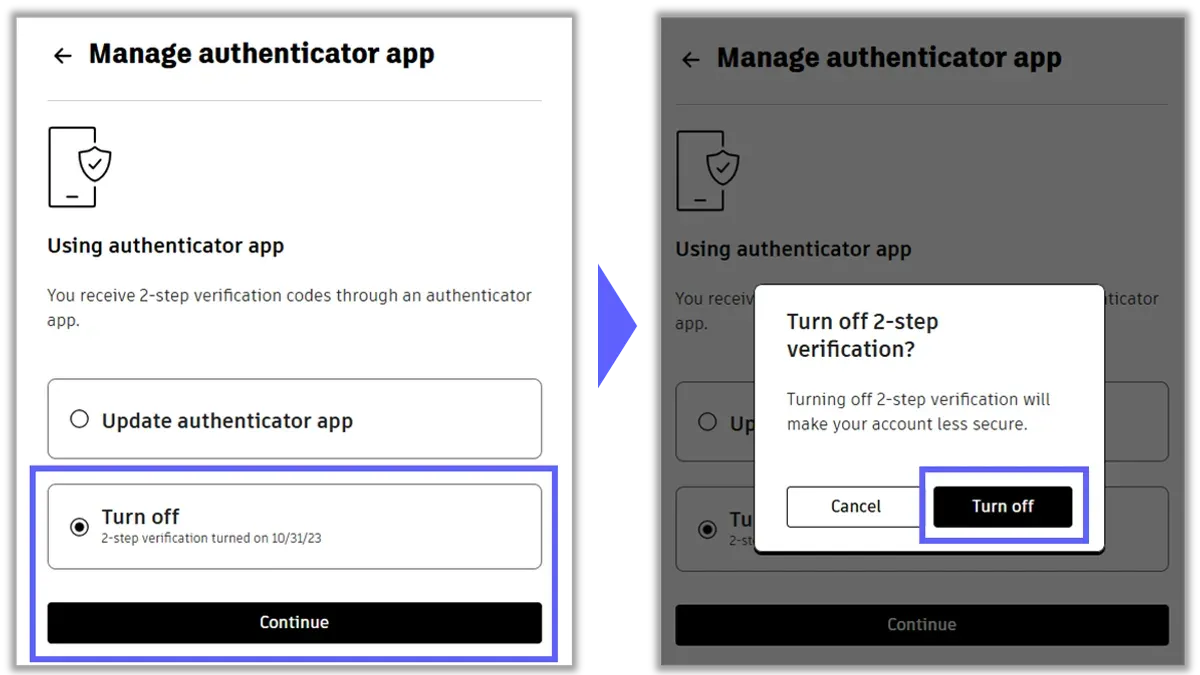
- Select the desired verification method under the "Two-Factor Authentication" section. A confirmation prompt should appear, indicating the change was successful.
- To update the phone number or email linked to 2FA, go to Account > Personal Information. Change the phone number or email and verify it through the confirmation code sent. Updated contact details will be used for future 2FA codes.
- If temporary disabling of 2FA is necessary, return to the Two-Factor Authentication settings and toggle off the feature, confirming identity when prompted. This will turn off 2FA until re-enabled.
Tip: Always verify new contact details immediately after updating to prevent lockouts.
Maintaining account security includes regularly reviewing 2FA settings, updating contact info promptly after changes, and choosing the authenticator app method when possible for stronger protection. Backup codes should also be securely stored and refreshed if TikTok provides new ones during updates.
Frequently asked questions
Does tiktok have two factor authentication?
Yes, TikTok offers two-factor authentication (2FA) as a security feature. It adds an extra layer of protection by requiring a verification code in addition to the password during login, helping to prevent unauthorized access.
How to turn on two factor authentication on tiktok?
To enable two-factor authentication on TikTok, navigate to Profile > Settings > Privacy and safety > Security > Two-step verification. Choose a verification method such as SMS or an authenticator app, then follow the prompts to complete setup by entering the code sent to the selected method.
How to turn off two factor authentication on tiktok?
To disable two-factor authentication, go to Profile > Settings > Privacy and safety > Security > Two-step verification. Select the active verification method and toggle off or choose the option to disable it. Confirm the choice to remove 2FA from the account.
Does tiktok have 2 step verification?
TikTok uses the term “Two-step verification” to refer to its two-factor authentication process. Both terms generally describe the same security feature that requires a second verification step during login.
How to turn on two step authentication on tiktok?
Turning on two-step authentication on TikTok follows the same steps as enabling two-factor authentication. Access Settings > Privacy and safety > Security > Two-step verification, then select a verification method and enter the code provided to activate it.
What this advice does not cover and who should seek other solutions
This article does not cover advanced security measures beyond TikTok’s native two-factor authentication such as hardware security keys or third-party security integrations. Users who require enterprise-level security or multi-device management should explore specialized security platforms. Additionally, users without access to the phone number or email linked to their TikTok account may not be able to enable or disable two-factor authentication without contacting TikTok support directly.
Tip: Keep recovery options like email and phone number up to date in TikTok’s settings to avoid losing access to two-factor authentication features.
For managing TikTok account security effectively, the most useful next step is to regularly review the linked contact information under Privacy and Settings > Security > Two-Step Verification. Ensuring that phone numbers and emails are current helps prevent lockouts and streamlines two-factor authentication management.
See also: How to Turn On and Off Two-Factor Authentication on LinkedIn · How to Turn On and Off Two-Factor Authentication on Instagram · How to Turn On Two-Factor Authentication on Facebook: Step-by-Step Guide