
How to Turn On and Off Two-Factor Authentication on LinkedIn
This article explains how to enable and disable two-factor authentication on LinkedIn to secure your account effectively.

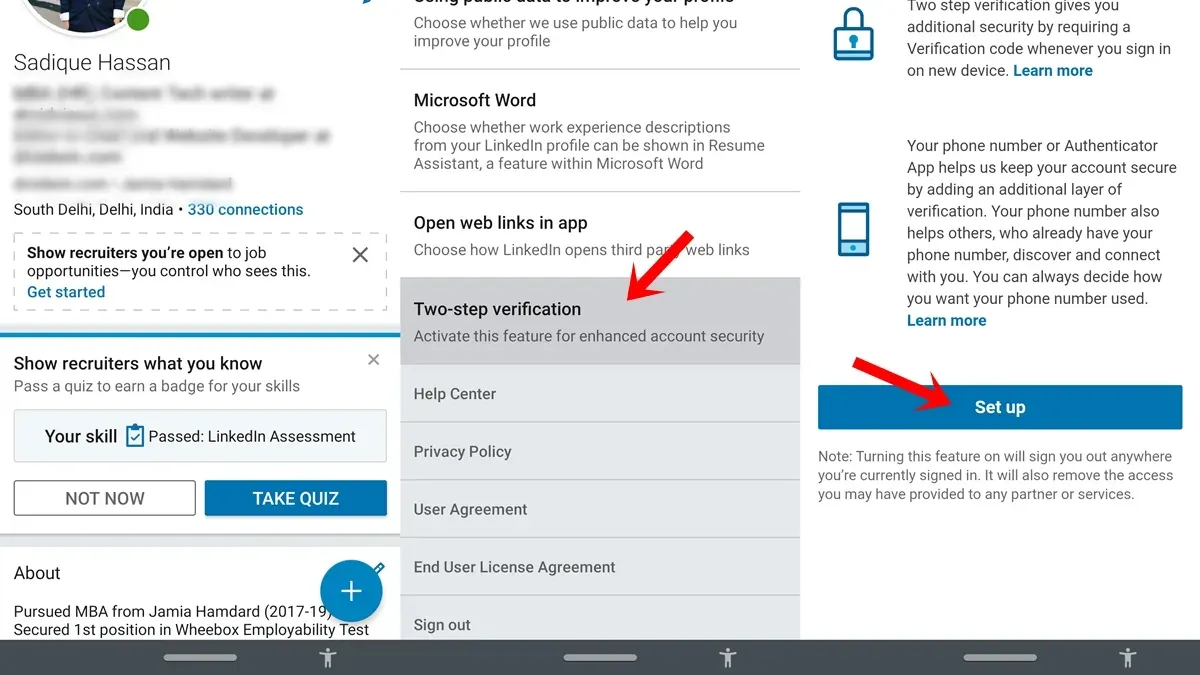
This article explains how to turn on two-factor authentication on LinkedIn and how to manage this security feature effectively. Two-factor authentication (2FA) adds an extra layer of protection by requiring a verification code in addition to a password when signing in. LinkedIn’s settings use the term “two-step verification” interchangeably with two-factor authentication, which can cause confusion. The guidance covers enabling and disabling 2FA, the practical differences between two-factor and two-step verification, and common troubleshooting steps if problems arise. The goal is to provide clear, direct instructions for LinkedIn users who want to secure their accounts without unnecessary complexity or jargon.
Before you start: What is needed to enable two-factor authentication on LinkedIn
Access to a LinkedIn account with valid login credentials is essential before enabling two-factor authentication (2FA). The process requires a mobile device that can either receive SMS messages or run an authenticator app. LinkedIn supports authenticator apps such as Google Authenticator, Microsoft Authenticator, and Authy for generating time-based one-time passwords (TOTPs). These app-based methods provide stronger security than SMS, which can be vulnerable to interception or SIM swapping.
Understanding the difference between two-factor authentication and two-step verification on LinkedIn is important. Two-factor authentication typically involves combining a password with a code from an authenticator app or SMS. Two-step verification often refers to the same process but may emphasize the stepwise nature of verification. LinkedIn uses these terms interchangeably but recommends app-based 2FA for better security.
Backup methods should be prepared before starting. This includes saving recovery codes provided during setup and registering alternate phone numbers if available. Recovery codes allow access if the primary authentication method is unavailable. Without backups, account access risks being locked out if the mobile device is lost or inaccessible.
- Have the LinkedIn username and password ready to log in. Successful login leads to the LinkedIn homepage.
- Ensure a mobile device is available with either an SMS-capable phone number or an authenticator app installed. The app should display a six-digit code refreshed every 30 seconds.
- Decide on the preferred authentication method: SMS or authenticator app. Using an app is recommended for enhanced security.
- Locate and save backup options such as recovery codes or an alternate phone number during the setup process. These will appear during 2FA configuration.
How do I turn on two-factor authentication on LinkedIn?
- Log into the LinkedIn account and click the profile icon at the top right corner to open the dropdown menu. Select Settings & Privacy. The Settings page will load.
- In the Settings menu, click the Account Access tab on the left sidebar. Scroll down to locate the Two-step verification option.
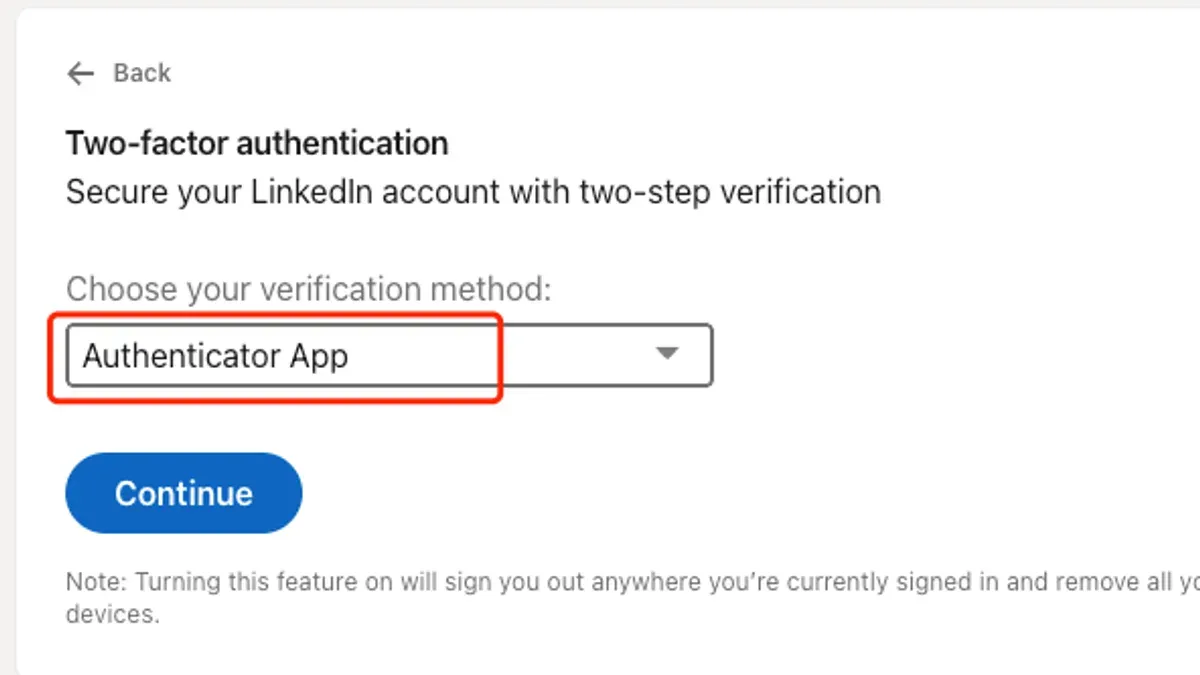
- Click Two-step verification to open the setup page. It will offer two methods: SMS and Authenticator app. Choose one based on preference.
- If SMS is selected, enter the mobile phone number to receive verification codes. Click Send code. A text message with a six-digit code will arrive shortly.
- Enter the received six-digit verification code into the provided field. Click Verify. A confirmation message will indicate success.
- If Authenticator app is chosen, launch the app on the mobile device and scan the QR code displayed on LinkedIn. The app will generate a six-digit code.
- Enter the six-digit code from the authenticator app into the LinkedIn field and click Verify. LinkedIn confirms activation once the code is accepted.
- After verification, LinkedIn shows a confirmation screen stating two-step verification is active. It also displays current active sessions and options to manage them.
- Review backup method instructions if provided, such as recovery codes or alternative phone numbers, and store them securely.
Tip: When entering verification codes, ensure the device's time settings are accurate, especially for authenticator apps, to avoid code rejection.
How to turn off two-factor authentication on LinkedIn?
Disabling two-factor authentication (2FA) on LinkedIn requires navigating through security settings and confirming identity to ensure account safety. This process removes the additional verification layer, increasing vulnerability to unauthorized access. Security experts consistently advise keeping 2FA enabled to reduce risk from compromised passwords or phishing attacks.
- Sign in to LinkedIn and select the Me icon at the top right, then click Settings & Privacy. The settings page should open.
- Go to the Sign in & security section on the left menu, then choose Two-step verification. This page shows the current 2FA status and methods.
- Identify the active two-factor authentication method (such as SMS or authenticator app) and click Turn off next to it. A prompt will appear requesting confirmation.
- Verify identity by entering the LinkedIn account password and, if requested, the current authentication code. Successful verification will enable the option to disable 2FA.
- Confirm the action to turn off two-step verification. The page will update, showing 2FA as disabled and removing the prompt for verification codes on login.
Security risk: Disabling two-factor authentication removes a critical barrier against unauthorized access. Accounts without 2FA rely solely on password strength and are more susceptible to breaches through credential theft. Security professionals recommend maintaining 2FA to protect personal and professional data.
Tip: Before disabling 2FA, ensure other security measures like strong unique passwords are in place to reduce risk.
Does LinkedIn have two-factor authentication?
LinkedIn officially supports two-factor authentication (2FA), referred to within its settings as two-step verification. This security feature adds an additional layer of protection beyond just a password by requiring a second form of verification during sign-in.
LinkedIn offers two primary methods for two-step verification: SMS-based codes sent to a registered mobile phone number and codes generated by authenticator apps such as Google Authenticator or Microsoft Authenticator. Users can select either method in their account security settings under "Two-step verification."
Compared to other platforms, LinkedIn’s implementation is straightforward but lacks some advanced features found elsewhere, such as physical security keys (U2F) or biometric options. The focus remains on ease of use and broad accessibility through SMS and authenticator apps.
From LinkedIn Help Center: "Two-step verification adds an extra layer of security by requiring a verification code in addition to your password. You can receive this code via text message or authenticator app."
The following table compares LinkedIn’s 2FA options with common platforms:
| Platform | 2FA Methods | Advanced Options |
|---|---|---|
| SMS, Authenticator App | No physical keys or biometrics | |
| SMS, Authenticator App, Security Key, Prompt | Yes | |
| SMS, Authenticator App, Security Key | Yes | |
| Microsoft | SMS, Authenticator App, Security Key, Biometric | Yes |
How to turn on two-step verification on LinkedIn?
LinkedIn uses the term "two-step verification" interchangeably with "two-factor authentication." According to LinkedIn’s help pages and account settings, "two-step verification" describes the process that adds an extra layer of security by requiring a verification code during sign-in.
To enable two-step verification, follow these steps precisely, noting the terminology as it appears in the LinkedIn user interface:
- Go to the LinkedIn homepage and click the Me icon at the top right corner.
- Select Settings & Privacy from the dropdown menu.
- In the left sidebar, click Sign in & security.
- Click Two-step verification under the "Account access" section.
- Click Turn on. LinkedIn will prompt to choose between receiving codes via SMS or using an authenticator app.
- Follow the instructions to set up the chosen method. For SMS, verify the phone number by entering the received code. For an authenticator app, scan the QR code and enter the generated code.
- After successful verification, the settings page will indicate that two-step verification is enabled.
Tip: The LinkedIn UI consistently uses “two-step verification” in the security settings and help documentation, so looking for that exact phrase ensures finding the correct feature.
The process is identical to enabling two-factor authentication; the difference is solely in terminology. LinkedIn’s use of "two-step verification" aligns with common security language, but functionally it provides the same protection.
Troubleshooting common issues when turning on or off two-factor authentication on LinkedIn
Not receiving SMS or authenticator app codes
If SMS codes do not arrive, first confirm the mobile number entered in LinkedIn settings is correct and active. Network delays or carrier blocks can cause SMS delivery failures. Switching to an authenticator app often resolves this issue.
Authenticator apps may fail to generate valid codes if their time settings are out of sync. Re-sync the app’s time or reinstall it to fix this. Apps like Google Authenticator and Microsoft Authenticator are reliable choices.
Authenticator app syncing and invalid codes
Invalid code errors typically stem from incorrect setup or time drift. Remove and re-add the LinkedIn account in the authenticator app, scanning the QR code again from LinkedIn’s security settings. Ensure the device’s clock is set to automatic network time.
Account lockout after enabling two-factor authentication
If locked out due to 2FA, use backup codes saved during setup to regain access. If backup codes are unavailable, LinkedIn’s identity verification process, accessible via the login page, can restore account control but may take several days.
Steps to recover a locked LinkedIn account due to 2FA
- Go to LinkedIn’s login page and select "Forgot password?" to initiate recovery; the system will prompt for identity verification.
- Follow instructions to submit a government-issued ID or other requested documents; a confirmation message will appear once submitted successfully.
- Wait for LinkedIn support to review and respond; response times vary but users are notified by email.
- Once verified, reset login credentials and disable or reconfigure two-factor authentication if necessary.
Tip: Always save backup codes securely to avoid lockout scenarios and reduce recovery time.
For additional support, LinkedIn’s official help center provides updated troubleshooting guides: LinkedIn Two-Step Verification Help.
Can you turn off two-factor authentication on LinkedIn and should you?
Turning off two-factor authentication on LinkedIn is possible but not advisable for most users. Disabling 2FA reduces account security significantly, exposing the account to higher risks of unauthorized access. Security experts consistently stress that accounts without 2FA are far more vulnerable to breaches, as passwords alone can be compromised through phishing or data leaks.
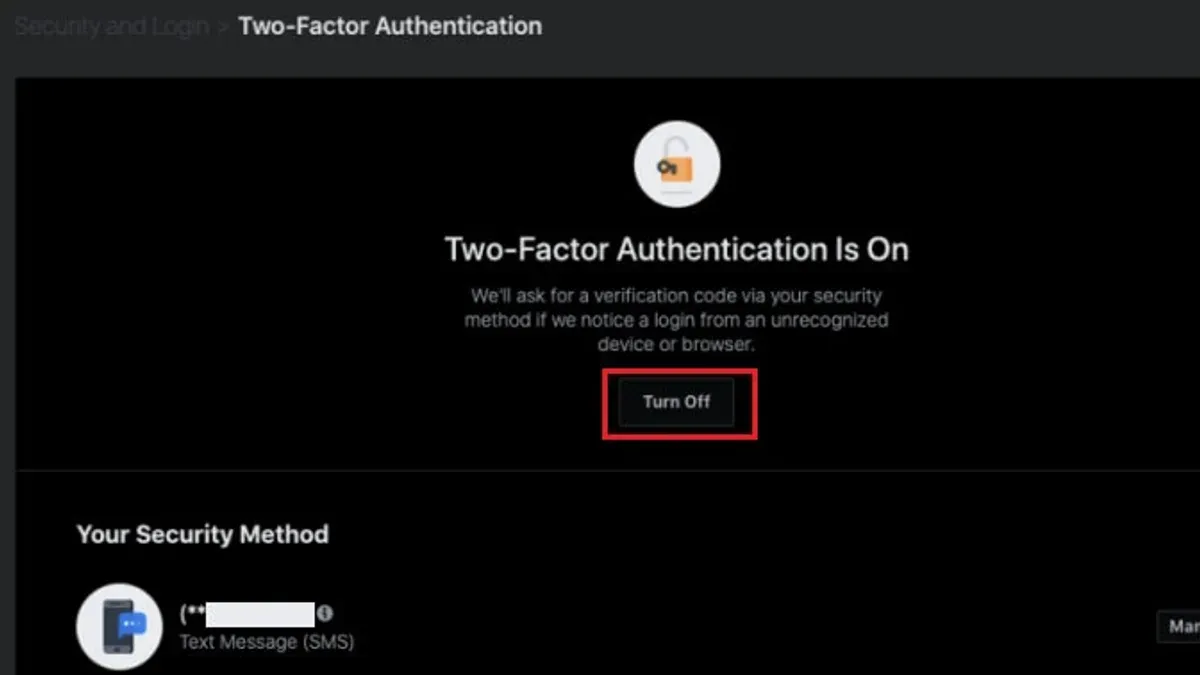
Situations where disabling 2FA might be considered include loss of access to the authentication device, inability to receive SMS codes, or technical restrictions with authenticator apps. In these cases, it is critical to set up alternative recovery methods such as backup codes or an updated phone number before disabling 2FA. Temporary disabling should be followed by prompt reactivation once access issues are resolved.
If turning off two-factor authentication is necessary, it is recommended to use other security measures to compensate. These include strong, unique passwords, regular password changes, and monitoring account activity for suspicious behavior. LinkedIn’s security settings allow users to review active sessions and revoke access if unusual activity is detected, mitigating some risks.
Tip: Always ensure backup authentication methods are configured before disabling two-factor authentication to avoid permanent lockout.
Frequently asked questions
How to turn on two factor authentication on linkedin?
Go to LinkedIn Settings & Privacy, select the "Sign in & security" tab, then click "Two-step verification." Choose to enable it and select either authentication app or SMS as the verification method. Follow the prompts to complete setup, including scanning a QR code or entering a phone number.
How to turn off two factor authentication on linkedin?
Access LinkedIn Settings & Privacy, navigate to "Sign in & security," and open the "Two-step verification" section. Click "Turn off," then confirm the action by entering the account password if prompted. This disables the two-factor authentication requirement for future logins.
Does linkedin have two factor authentication?
Yes, LinkedIn offers two-factor authentication as part of its security features. It is referred to as "Two-step verification" in the settings and supports verification via authentication apps or SMS codes. This adds an extra layer of account protection beyond just a password.
How to turn on two step verification on linkedin?
Two-step verification on LinkedIn is synonymous with two-factor authentication. To enable it, open Settings & Privacy, go to "Sign in & security," then select "Two-step verification." Follow the instructions to activate either an authentication app or SMS verification.
Can you turn off two factor authentication on linkedin?
Yes, users can disable two-factor authentication anytime through LinkedIn’s settings. Under "Two-step verification," choose to turn it off and confirm by entering the account password. However, disabling it reduces account security, so consider the risks before doing so.
What this advice does not cover
This article does not cover advanced enterprise LinkedIn security features such as single sign-on (SSO) or conditional access policies managed by corporate IT departments. It also excludes third-party authentication apps or hardware security keys beyond the basic authenticator app methods supported directly through LinkedIn’s settings. Organizations using specialized security solutions should consult their IT administrators for guidance tailored to their environment.
For individuals managing personal LinkedIn accounts, the steps outlined here provide a clear path to enable or disable two-factor authentication and address common issues. However, users requiring multi-layered security or integration with identity providers should look beyond this basic setup.
The most useful next step is to access LinkedIn’s Settings & Privacy menu, navigate to the "Sign in & security" section, and review the "Two-step verification" options carefully. Enabling this feature there ensures an added layer of protection that significantly reduces unauthorized access risks without overly complicating the sign-in process.
See also: How to Turn On Two-Factor Authentication on Facebook: Step-by-Step Guide · How to See Where You're Logged Into LinkedIn: Step-by-Step Guide



