
How to Turn On Two-Factor Authentication on Kik: A Step-by-Step Guide
Learn how to enable two-factor authentication on Kik with simple steps for enhanced account security and to avoid common setup errors.

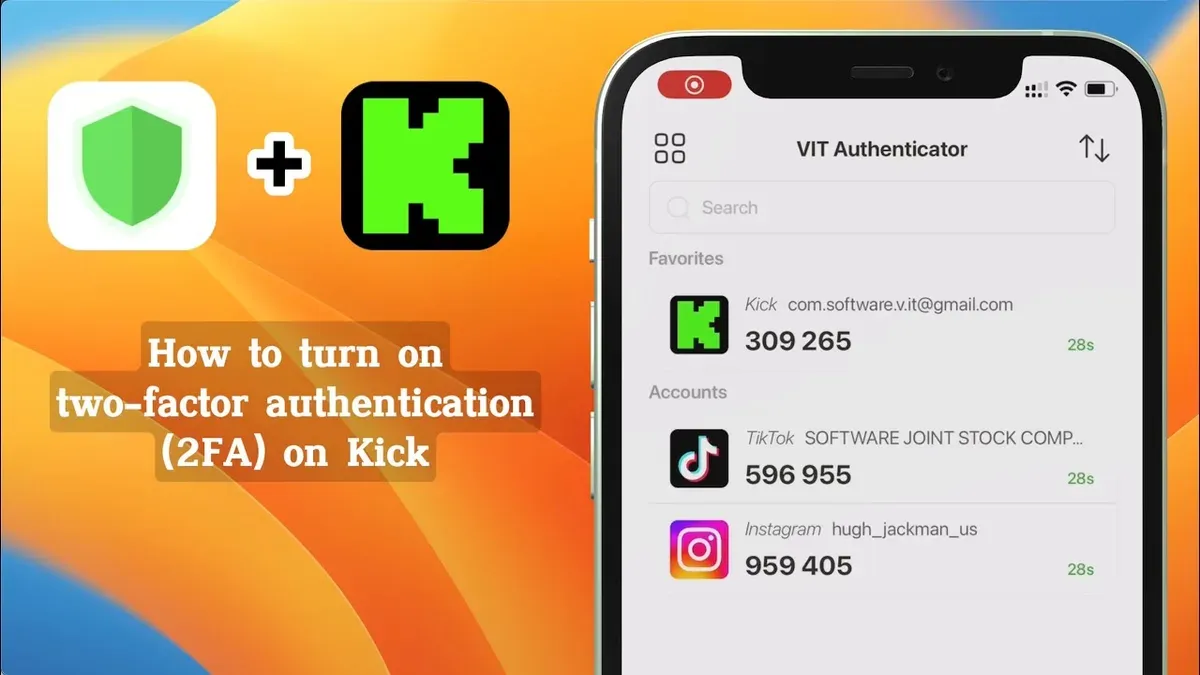
This article explains how to turn on two-factor authentication on Kik to add an extra layer of security to the account. Kik’s 2FA setup is not as straightforward as on some other platforms, requiring users to navigate specific menus and manage backup options carefully. This guide provides clear, step-by-step instructions to enable two-factor authentication efficiently and avoid common setup errors.
Before starting, ensure the Kik app is updated to the latest version from the app store. Users must have a verified email address linked to their Kik account since 2FA codes are sent via email or authenticator apps. Understanding these prerequisites prevents interruptions during the setup process.
What is needed before enabling two-factor authentication on Kik?
Enabling two-factor authentication (2FA) on Kik requires several prerequisites to ensure the process goes smoothly. First, an active Kik account with a verified phone number or email address is necessary. This verification allows Kik to send authentication codes or recovery information. Second, access to a secondary device is often required, especially if using an authenticator app like Google Authenticator or Authy, which Kik supports. Third, familiarity with Kik’s navigation is helpful, particularly knowing where the security settings reside under "Settings" > "Privacy" or "Account" menus.
Additionally, the Kik app must be updated to the latest version—generally version 17.0 or higher—since 2FA options are unavailable in older releases. Without these updates, users may not see 2FA settings at all. Finally, ensure the secondary device has internet access and the authenticator app installed if applicable. These preparations prevent common setup errors and reduce the risk of being locked out during configuration.
- Verify the phone number or email linked to the Kik account; successful verification prompts a confirmation message.
- Update the Kik app via the App Store or Google Play to at least version 17.0; the app should show the latest version number in the "About" section.
- Install and configure an authenticator app on a secondary device if planning to use app-based 2FA; the app should display a setup option for Kik.
- Open Kik and navigate to "Settings" > "Privacy" or "Account" to confirm 2FA options are visible.
How to access Kik’s security settings to find two-factor authentication options?
- Open the Kik app on the device. The home screen or chat list should appear.
- Tap the profile icon in the top-left corner (iOS) or top-right corner (Android). This opens the user profile menu.
- In the profile menu, locate and tap the gear-shaped Settings icon near the top right.
- Within Settings, scroll down and select either Privacy or Security. The exact label varies by app version and operating system.
- In the Privacy or Security section, find the option labeled Two-Factor Authentication or 2-Step Verification. Tap to open the 2FA management screen.
On some Android versions, the 2FA option may be under Account Settings instead of Privacy or Security. If it’s not immediately visible, check under Account or Login & Security.
Tip: If the 2FA option is missing, verify the app is updated to the latest version from the official app store.
What are the exact steps to enable two-factor authentication on Kik?
- Open Kik and navigate to Settings > Privacy > Two-Factor Authentication. The 2FA setup screen appears, offering verification method options.
- Select the preferred verification method: either "Authenticator App" or "SMS Verification." Choosing "Authenticator App" prompts a QR code and a manual key; choosing "SMS Verification" asks for a phone number.
- If "Authenticator App" is selected, open a compatible authenticator app (such as Google Authenticator or Authy), scan the provided QR code or enter the manual key. The app generates a 6-digit code that refreshes every 30 seconds.
- Enter the current 6-digit code from the authenticator app into Kik to verify the connection. A message confirms successful verification.
- If "SMS Verification" is selected, enter the phone number and wait for a 6-digit code sent via text message. Input this code into Kik to verify. Confirmation of successful setup appears after validation.
- After verification, enable two-factor authentication by toggling the activation switch. Kik displays a confirmation message and prompts to test the 2FA login.
- Log out and attempt to log back in. After entering the password, Kik requests the second factor: either the 6-digit authenticator app code or the SMS code. Enter the code to complete login, confirming 2FA is active and functioning.
Tip: When using SMS verification, ensure the phone number is current and can receive texts, as failed delivery blocks 2FA activation.
How to manage backup options and recovery codes for Kik 2FA?
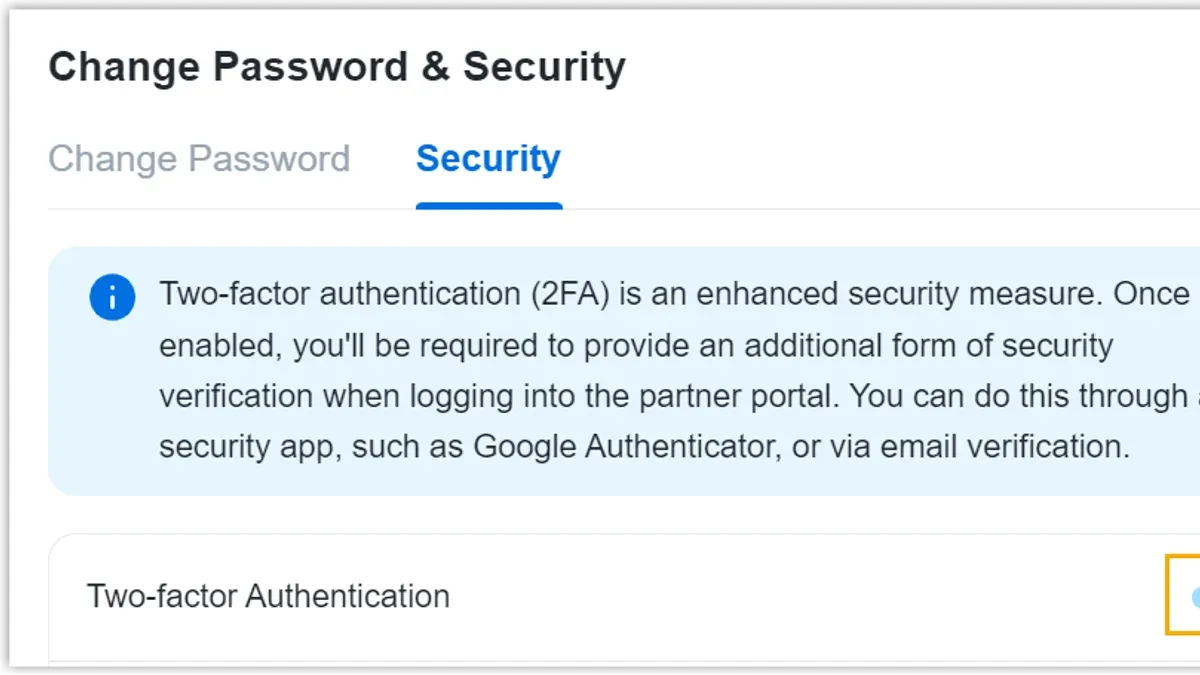
Kik’s two-factor authentication setup typically includes generating backup codes to secure account access if the primary authentication method is unavailable. These backup codes act as one-time passwords and should be saved securely offline, such as in a password manager or printed and stored safely. Unlike some platforms that offer multiple alternate authentication methods (like email or hardware tokens), Kik’s options are more limited, making backup codes critical for account recovery.
- Open Kik and navigate to the 2FA settings under Security & Privacy.
- Locate the "Backup Codes" section and tap "Generate Backup Codes." A set of codes, usually 5-10, will appear—each usable once to bypass standard 2FA.
- Save these codes immediately by copying them to a secure location or printing them; once you leave the screen, codes may not be retrievable.
- If available, enable an alternate authentication method such as SMS verification as a secondary fallback. This option appears under "Authentication Methods." Selecting this adds an alternative way to receive verification codes.
- Test backup codes by logging out and logging back in, entering a backup code when prompted to confirm functionality.
Tip: Backup codes are the last line of defense against lockout; treat them like passwords and never share them.
What common problems occur when enabling two-factor authentication on Kik and how to fix them?
One frequent issue is not receiving the 2FA SMS code. Confirm the phone number entered matches the registered number in Kik and that the device has a stable network connection. Carrier delays or message blocking can also cause this; switching to an authenticator app is recommended if SMS fails repeatedly.
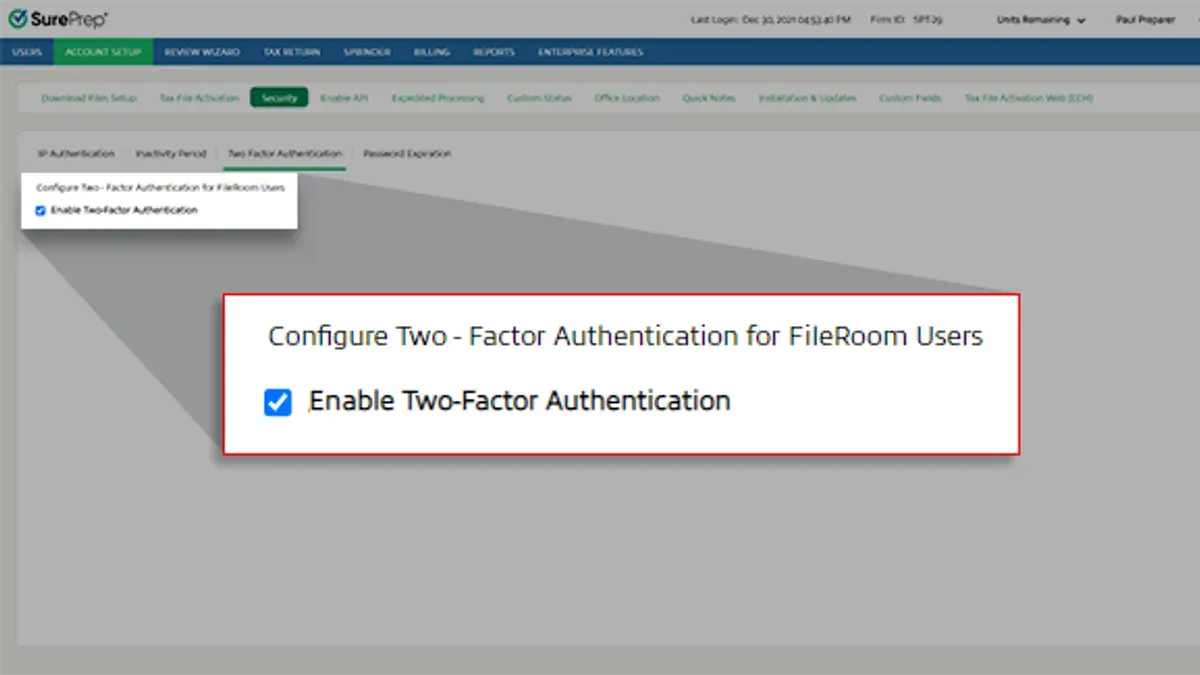
Authenticator apps sometimes fail to sync with Kik’s servers. Ensure the device’s date and time settings are set to automatic and the authenticator app version is up to date. Incompatible or outdated apps can generate incorrect codes, resulting in verification errors.
Account lockout can occur if multiple 2FA attempts fail. Use the backup codes saved during setup to regain access. If backup codes are unavailable, contacting Kik support with proof of ownership is necessary, though response times vary.
Compatibility problems arise if the Kik app version or device OS is outdated. Updating Kik to the latest version and using supported devices minimizes errors during 2FA activation. Error messages like "Verification failed" often indicate version mismatches or connectivity issues.
- Verify the phone number in Kik’s settings matches the one receiving SMS codes. Successful verification shows a code prompt.
- Check the device’s date and time are automatic. Correct settings allow the authenticator app to generate valid codes.
- Use backup codes to log in if 2FA codes fail. Entering a backup code grants access.
- Update Kik to the latest version via the app store. The app should open without error messages after updating.
How does enabling two-factor authentication improve Kik account security?
Enabling two-factor authentication (2FA) on Kik significantly reduces the risk of account hijacking caused by password compromise. Even if a password is stolen or guessed, the attacker cannot access the account without the second authentication factor, typically a code from an authenticator app or SMS. This layered security step adds a critical barrier against unauthorized logins.
However, Kik’s 2FA does not fully protect against phishing attacks if the attacker gains direct access to the user's device or intercepts authentication codes. In such cases, the security benefit diminishes because the second factor can be bypassed along with the password. Users should remain vigilant against phishing attempts and device security threats.
Compared to other messaging apps, Kik’s 2FA implementation is straightforward but lacks some advanced features like hardware security keys or biometric verification found in competitors. Despite this, Kik’s 2FA provides a meaningful security upgrade over password-only protection, effectively preventing many common unauthorized access attempts documented in past security incidents involving compromised passwords.
Frequently asked questions
Can two-factor authentication be disabled later on Kik?
Yes, two-factor authentication can be disabled on Kik by returning to the Security settings where it was enabled. Users must enter their password and verify their identity to turn off 2FA. Disabling 2FA reduces account security and should be done cautiously.
What should be done if the authentication method is lost or unavailable?
If the authentication app or phone number used for 2FA is lost or unavailable, recovery codes saved during setup must be used to regain access. Without recovery codes, account recovery is difficult because Kik does not support alternative verification methods. It is critical to store backup codes securely when enabling 2FA.
Does Kik support hardware security keys for two-factor authentication?
Kik does not currently support hardware security keys such as YubiKey for two-factor authentication. The platform relies on SMS codes or authenticator apps for 2FA. Users requiring hardware key support will need to use other security tools outside Kik.
Is two-factor authentication mandatory on Kik?
Two-factor authentication is optional on Kik. Users concerned about account security are encouraged to enable it, but it is not required for account access. Without 2FA, accounts rely only on passwords, increasing vulnerability to unauthorized access.
What this guide does not cover
This guide does not cover account recovery if both the password and two-factor authentication methods are inaccessible. Users facing such issues should contact Kik support directly for assistance. It also does not address third-party authentication apps beyond Kik’s built-in 2FA options or broader mobile device security measures.
Enabling two-factor authentication greatly strengthens account security but requires maintaining access to the chosen verification method. Losing access without backup or recovery options can lead to permanent lockout.
The single most useful next step is to immediately set up backup verification methods after enabling two-factor authentication. This includes saving recovery codes and confirming a secondary contact option. Doing so ensures access continuity and avoids common lockout pitfalls associated with Kik’s 2FA system.
See also: How to Turn On Two-Factor Authentication on Facebook: Step-by-Step Guide · How to Turn On Two-Factor Authentication on Discord: A Step-by-Step Guide



