How to Change Your Cash App Password: Clear Step-by-Step Guide
This guide explains how to change your Cash App password with step-by-step instructions for Android and iPhone users.

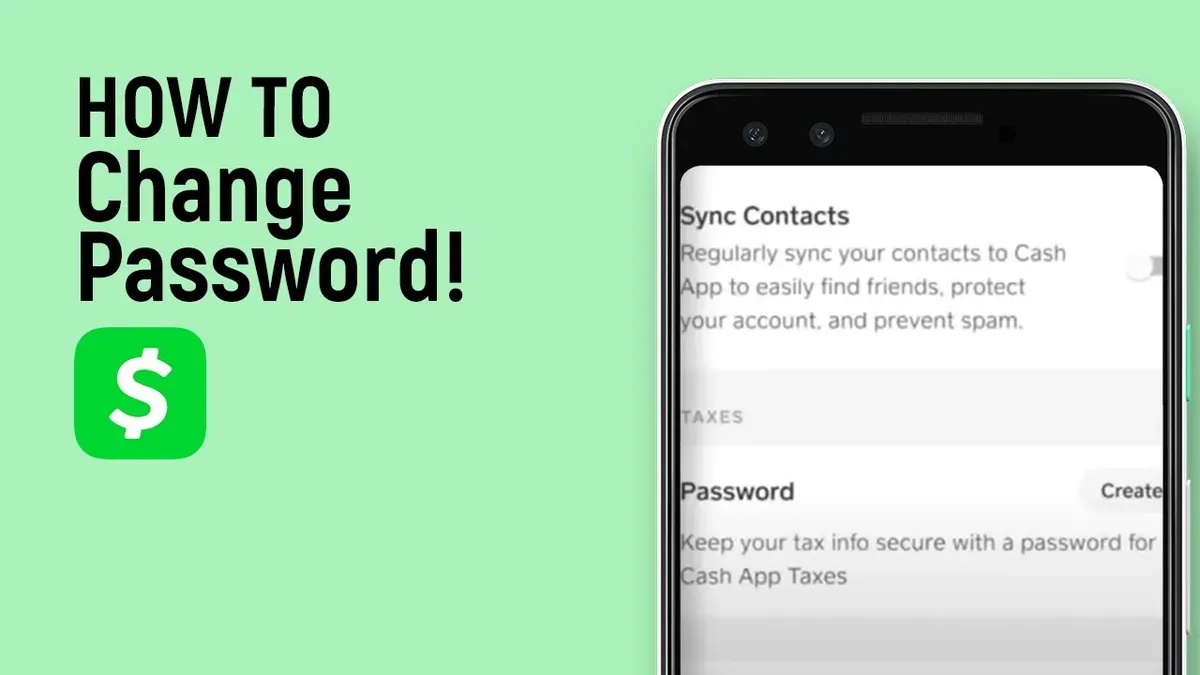
This article explains how to change Cash App password with clear, device-specific instructions. Cash App users often confuse the password with the PIN; this guide distinguishes both and focuses on managing the login password securely. It covers standard password changes, resetting forgotten passwords, and solutions when phone number access is unavailable. Step-by-step directions for Android and iPhone devices are included to ensure precise guidance.
Changing the Cash App password helps protect the account from unauthorized access and maintains control over financial transactions. The process requires access to the Cash App account, an active email or phone number linked to the account, and the current password or recovery options. This article also addresses common issues encountered during password changes and how to resolve them efficiently.
Before you start: What is needed to change the Cash App password
Changing the Cash App password requires specific credentials and access to certain devices or contact points. The core prerequisite is having the current Cash App login details or recovery options ready. This includes access to the device where Cash App is installed, whether Android or iPhone, as the process often involves confirmation via the app or device settings.
Access to the registered email address or phone number is essential if resetting the password is necessary. This access allows receiving verification codes or recovery links. Users should also understand the difference between the Cash App password and the Cash App PIN: the password is primarily used for logging into the app or web account, while the PIN or biometric login is used for quick device access and transactions.
| Login Method | Purpose | Security Role |
|---|---|---|
| Password | App and web login | Controls account access, requires reset via email or phone |
| PIN | Device app access and payments | Quick authentication, can be changed in app settings |
| Biometric (Face ID, Touch ID) | Device app access | Convenient secure login, device-dependent |
- Confirm availability of current login credentials; successful login to Cash App app or web should show the main dashboard.
- Ensure the device with Cash App installed is at hand; the app should open without login issues.
- Verify access to the registered email or phone number; expect to receive verification codes or reset links when requested.
- Understand if the goal is to change the password or PIN; password changes affect web/app login, PIN changes affect device-level access.
How to change my Cash App password
- Open the Cash App on the device and log in using current credentials. The home screen should appear with the balance visible at the top.
- Tap the profile icon or account avatar located in the upper right corner. This opens the account settings menu.
- Scroll down and select the "Personal" or "Account Settings" option. This section contains security and login-related settings.
- Look for a "Password" or "Login Password" option. If present, tap it to access the password change screen. If not visible in the app, proceed to the Cash App web portal for password management.
- Enter the current password when prompted, then type the new password twice to confirm. Ensure the new password meets Cash App’s security requirements, typically including a mix of letters, numbers, and symbols.
- Save the changes and wait for a confirmation message indicating the password was updated successfully.
- Log out of Cash App and log back in using the new password to verify the update. The app should accept the new password and display the home screen normally.
Tip: If the password change option is not found in the app, visit the official Cash App website, log in, and access security settings to update the password.
How to change Cash App password if forgotten
- Open the Cash App on the device and tap on the profile icon or the account login screen.
- Tap the Forgot Password? link below the login fields. This will direct to the password recovery process.
- Enter the registered email address or phone number linked to the Cash App account and tap Send Code. A verification code will be sent, usually within a few minutes.
- Check the email inbox or SMS messages for the verification code. Enter the code in the app when prompted. If the code does not arrive within 5 minutes, request a new one or check spam/junk folders.
- Once the code is verified, the app will prompt to create a new password. Enter a strong new password and confirm it by typing it again.
- After confirmation, the password will be reset. The app should show a success message and allow login with the new password immediately.
- If access to the phone number is not possible, select the email verification option instead. If both are inaccessible, contact Cash App support for identity verification and password reset assistance.
Tip: Keep the recovery email and phone number updated to avoid delays in password reset.
How to change Cash App password on Android
- Open the Cash App on the Android device. The app icon is a green square with a white dollar sign. After launching, the home screen should display recent activity and the balance.
- Tap the profile icon located in the top-right corner. This opens the profile settings menu.
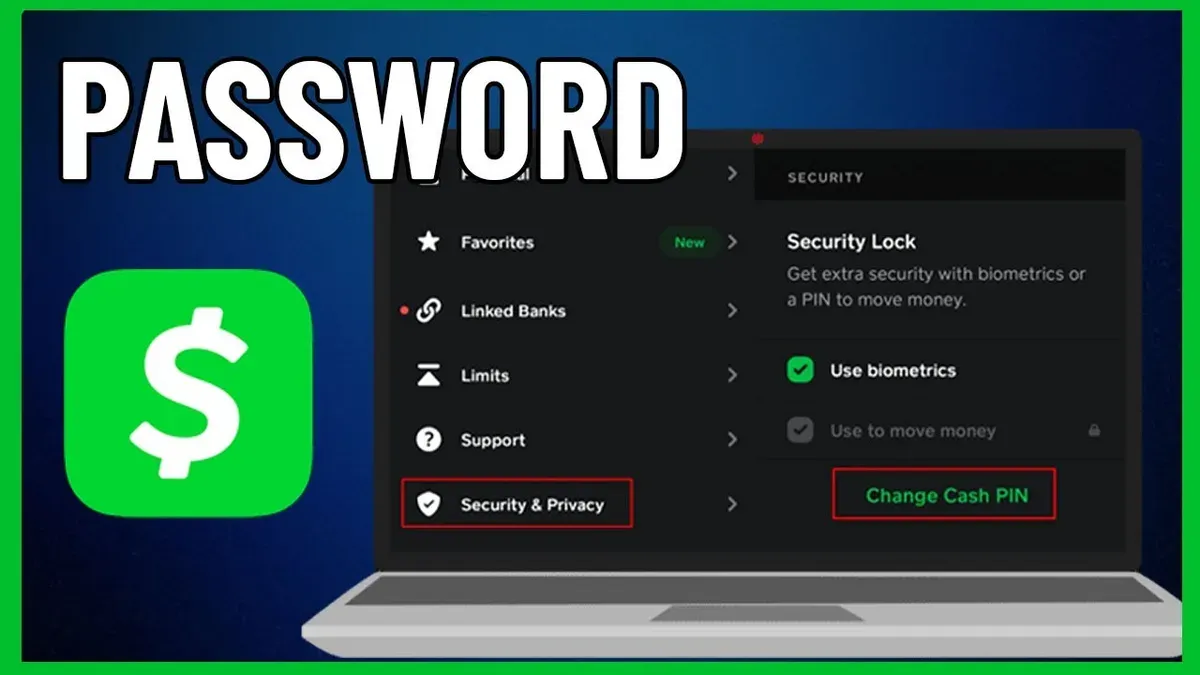
- Scroll down and select "Privacy & Security." This section contains security-related settings including password management.
- Tap on "Change Password." If this option is not immediately visible, it may be under "Security" or "Login & Security." The app will prompt for the current password to verify identity.
- Enter the current password, then enter the new password twice to confirm. The new password must meet Cash App’s security criteria, typically a mix of letters and numbers.
- Tap "Save" or "Confirm." A confirmation message will appear, indicating the password has been updated.
- If the password is forgotten, select "Forgot Password?" on the login screen or within the security settings. Follow the prompts to receive a verification code via the registered email or phone number, then reset the password.
- Review app permissions in the Android device settings to ensure Cash App has access only to necessary features like phone and SMS for verification. This reduces risk from unauthorized access.
Tip: Regularly review app permissions under Android Settings > Apps > Cash App > Permissions to maintain login security.
How to change Cash App password on iPhone
- Open the Cash App on the iPhone. The app’s home screen should display your balance and quick action buttons.
- Tap the profile icon in the top right corner to access account settings. This opens a menu with personal and security options.
- Select "Privacy & Security" from the settings list. The screen will show options related to login credentials and security features.
- Tap "Change Password." A prompt appears requesting the current password for verification.
- Enter the existing password correctly to proceed. Once verified, fields for the new password and confirmation will appear.
- Type the new password twice, ensuring it meets Cash App's complexity requirements (usually a mix of letters, numbers, and symbols). Tap "Save" or "Update Password."Tip: Choose a strong password distinct from other accounts to enhance security.
- If the password is forgotten, use the "Forgot Password?" link on the login screen to receive a reset code via email or SMS, then follow onscreen instructions to create a new password.
- Enable Face ID or Touch ID by returning to "Privacy & Security" and toggling on biometric login options. This allows faster, secure access without the password each time.
- Review app notifications and permissions under iPhone Settings > Cash App to ensure alerts about suspicious activities are enabled, supporting overall account security.
How to change Cash App password without phone number
When the registered phone number is unavailable, resetting or changing the Cash App password relies primarily on the registered email address. The app sends verification codes to the email on file, enabling password reset without phone access. This method is less common than phone-based recovery and can experience slower response times due to additional identity checks.
- Open Cash App and select the option to reset password.
- Choose to receive the verification code via the registered email address.
- Check the email inbox for the code and enter it into the app promptly; a successful entry allows password reset.
- Create and confirm a new password following the app's guidelines.
- If email verification is unavailable or fails, contact Cash App support through the app's help section or website.
- Submit identity verification documents as requested by support; this process can take several business days.
- Once verified, support will provide instructions to reset the password securely without phone number access.
Tip: Keep the registered email account secure and accessible to avoid delays in password recovery when the phone number is lost or changed.
Security precautions during this process include verifying identity through official Cash App channels only and avoiding third-party services claiming to assist with password recovery. Account recovery without phone number access is possible but may require patience due to the stricter verification process.
How to change Cash App password not PIN
The Cash App password is the key credential used for logging into the account, while the PIN is a shorter numeric code primarily used for quick app access and authorizing payments. The password offers a higher security level as it can include a mix of characters, making it harder to guess or brute force. In contrast, the PIN is a convenience feature designed for speed but is less secure due to its limited length and numeric-only format.
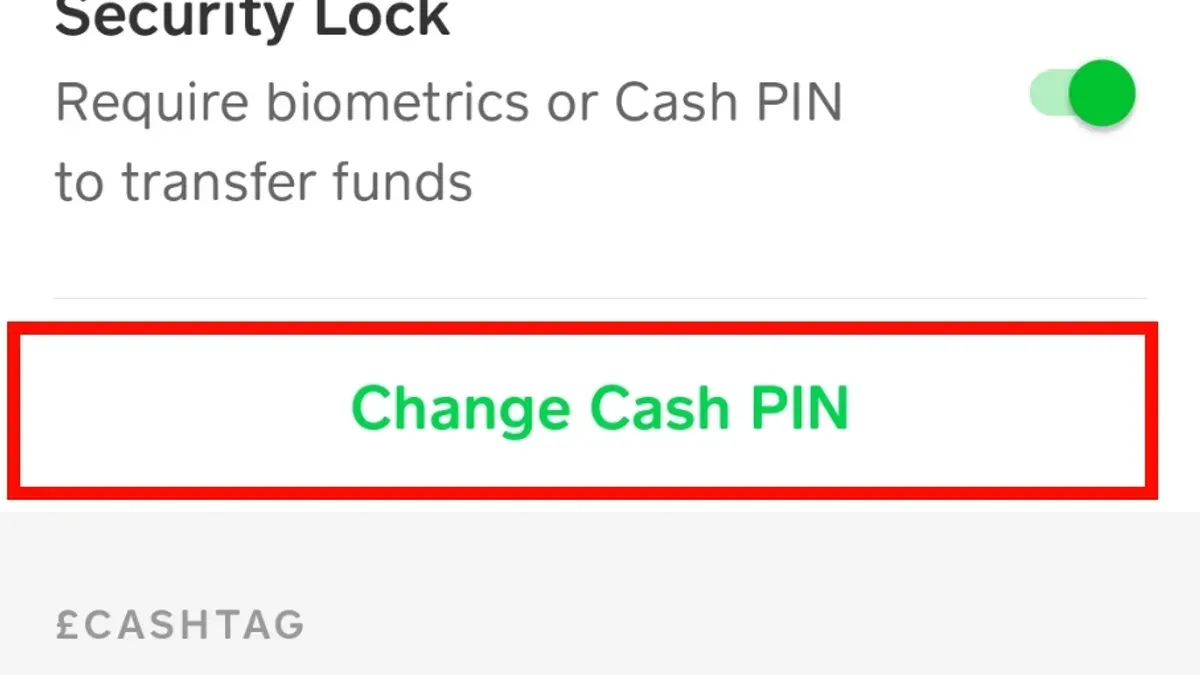
To change the Cash App login password without altering the PIN, follow these steps:
- Open the Cash App and tap the profile icon or account settings.
- Navigate to the Security or Password section.
- Select the option to change the password.
- Enter the current password when prompted, then input the new password twice to confirm.
- Save the changes and log out, then log back in using the new password to verify it is active.
Tip: Changing the password regularly enhances account security more significantly than changing the PIN.
Change the PIN separately through the "Privacy & Security" menu if faster app access or transaction authorization is the goal. Use the password change for full login credential updates or when recovering from a suspected breach. Experts emphasize that relying solely on the PIN for security is insufficient due to its simplicity and ease of compromise.
Troubleshooting common issues when changing Cash App password
Not receiving the reset code via SMS or email is a frequent issue. Check spam or junk folders for email codes. Ensure the registered phone number or email is correct and active. Temporary network issues may delay code delivery; wait a few minutes before retrying.
Errors in entering a new password or confirmation mismatch happen often. The new password must meet Cash App’s criteria, typically including a minimum length and a mix of characters. Confirm both password fields match exactly. Carefully retype to avoid common typos or accidental spaces.
Account lockout can occur after multiple failed password attempts, typically after 5-7 tries. This lockout may last from a few minutes to an hour, depending on Cash App’s security protocols. During lockout, refrain from repeated attempts to prevent extension of the lockout period.
If the password change option does not appear in the app, verify the app is updated to the latest version. Clear app cache or reinstall if the issue persists. Some account types or regional restrictions might limit password changes via the app; try the web version in such cases.
When to contact Cash App support: If reset codes never arrive despite correct contact info, if account lockout lasts unusually long, or if app options remain missing after troubleshooting, reach out to Cash App support. Response times vary but typically fall within 24 to 72 hours. Provide clear details of the issue and any error messages received.
- Verify contact information accuracy and check spam folders for reset codes. Successful receipt is confirmed by code arrival within 10 minutes.
- Enter the new password adhering to length and character rules, matching both fields precisely. Success is indicated by acceptance without error messages.
- If locked out after failed attempts, wait at least 30 minutes before retrying. Access regained means the lockout period ended.
- Update or reinstall the app if password change options are missing. Opening the updated app should display the correct menus.
- Contact Cash App support if issues persist beyond these steps. Confirmation is a support ticket number or email reply.
Frequently asked questions
How to change cash app card password?
Cash App does not provide a separate password specifically for the Cash Card. Instead, the Cash Card uses the Cash App PIN or Touch ID/Face ID for security. To secure the card, ensure the Cash App login PIN is updated following the app’s security settings.
How to change cash app login password?
To change the Cash App login password, access the app's profile settings and select the security or password option. Follow the prompts to enter the current password or PIN, then create and confirm the new password. This process ensures the login credentials are updated securely.
How to change password for cashapp?
Changing the Cash App password involves navigating to the account settings within the app. Locate the password or security section, verify identity if prompted, and input a new password. Confirm the change by following any additional verification steps required by the app.
How to change my cashapp password?
Open Cash App, go to the profile or account settings, and find the password management option. Enter the current password or verify identity, then set a new password. Save changes to update the login credentials securely.
Cash app login change password steps?
Start by opening Cash App and tapping the profile icon. Select 'Privacy & Security' or 'Security' settings, then choose 'Change Password.' Enter the current password or PIN, type in the new password, and confirm it. Complete the process by saving the changes.
What this guide does not cover and limitations
This guide does not cover changing the Cash App PIN extensively, which is a separate security feature from the password and used primarily for authorizing transactions within the app. Users who lack access to their registered email or phone number may face delays or be unable to reset passwords without direct contact with Cash App support for identity verification. Cash App’s security model relies heavily on PIN and biometric authentication for daily use; password changes mainly affect login on web browsers or newly linked devices rather than the app’s core authentication.
Tip: Keep recovery information like phone number and email up to date in the app settings to avoid complications when resetting passwords.
The most useful next step is to verify that the registered email and phone number are current and accessible, ensuring a smooth password change or reset process. If either is unavailable, contacting Cash App support promptly is essential to regain account access securely.
See also: How to Change Your Amazon Password: Clear Step-by-Step Guide · How to Block Someone on Viber: Complete Step-by-Step Guide · Amazon Account Hacked? How to Identify, Recover, and Protect It · How to Identify, Recover, and Protect a Hacked Yahoo Mail Account