
How to Secure Your LinkedIn Account: Step-by-Step Guide
This guide explains practical steps to secure your LinkedIn account, protecting your profile from unauthorized access while maintaining visibility.

This guide explains how to secure your LinkedIn account using platform-specific features and practical tactics designed for professionals and job seekers. Understanding how to secure your LinkedIn account involves setting strong passwords, managing profile visibility, enabling two-step verification, and distinguishing between personal and business account settings. LinkedIn combines social networking with professional branding, so security measures must balance privacy with ongoing visibility to recruiters and contacts. Each step targets a particular aspect of account safety to prevent unauthorized access while maintaining effective networking.
Before you start: What is needed to secure a LinkedIn account
Securing a LinkedIn account requires preparation and access to specific tools. First, ensure possession of valid login credentials: the email address linked to the account and its current password. This allows access to the LinkedIn settings necessary for making security adjustments.
A smartphone or device capable of receiving authentication codes is essential for setting up two-step verification. Access to the registered email and phone number is also necessary to receive verification prompts or recovery options during account changes or lockouts.
Understanding the difference between personal and business LinkedIn accounts helps tailor security settings appropriately. Business accounts often involve multiple users and integrations, which require additional considerations beyond individual profiles.
Security setup times vary depending on the user's familiarity and the complexity of chosen measures but typically take under 15 minutes. Being prepared with required access reduces interruptions and streamlines the process.
- Confirm login credentials by signing into LinkedIn; a successful login means credentials are current and working.
- Verify access to the registered email by checking the inbox for recent LinkedIn messages or sending a test email.
- Ensure the smartphone or device can receive text messages or run authentication apps; a test code from LinkedIn’s two-step verification setup confirms this.
- Identify account type under Me > Settings & Privacy > Account Preferences > Account Type to know which security options apply.
Tip: Keep contact information up to date in LinkedIn settings to avoid lockout during security checks.
How to secure LinkedIn account with a strong password
A strong password is the first line of defense against unauthorized LinkedIn access. Weak passwords like "password123" or "linkedin2026" are easily cracked and significantly increase breach risk. In contrast, a strong password combines at least 12 characters, mixing uppercase and lowercase letters, numbers, and symbols—for example, "M7&cLp9#xVz2!".
Avoid reusing passwords from other sites; a breach elsewhere can expose LinkedIn credentials if passwords overlap. Use a reputable password manager to generate complex passwords and securely store them, reducing the need to memorize multiple strings. Password managers also prompt regular updates and detect weak or duplicate passwords.
- Sign in to LinkedIn and navigate to Settings & Privacy under the profile menu. Upon success, the settings page appears.
- Select Sign-in & Security, then click Change password. The password change interface opens.
- Enter the current password, then create a new strong password using a password manager or a manually crafted complex string. Confirm the new password.
- Save changes. LinkedIn confirms the password update, and subsequent logins require the new password.
- Repeat password updates regularly or immediately after any suspicious login attempt or security alert.
Tip: Use passphrases combining unrelated words with numbers and symbols to create memorable yet strong passwords, such as "Coffee7*Giraffe!Table".
How to lock your LinkedIn profile to control visibility
LinkedIn offers several privacy settings to limit who can view profile details and activity. Adjusting these settings helps maintain a balance between professional visibility and personal privacy.
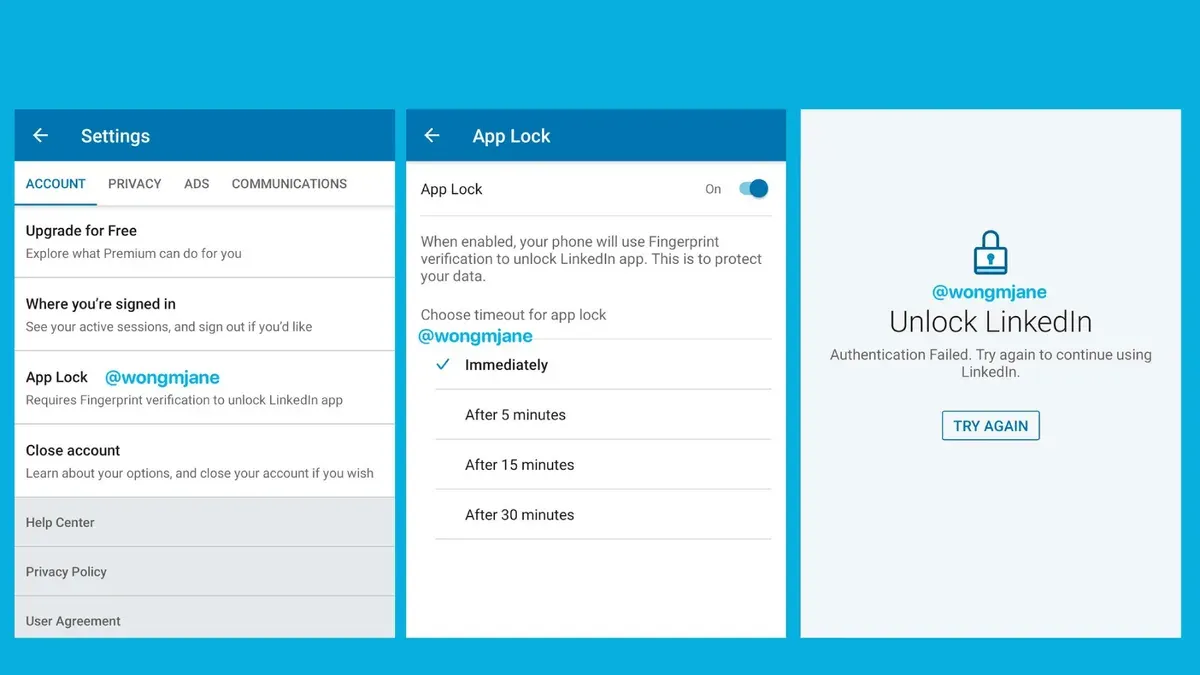
- Go to the LinkedIn homepage and click on "Me" in the top navigation bar, then select "Settings & Privacy" from the dropdown menu. A new page with multiple privacy options will appear.
- Under the "Visibility" tab, select "Edit your public profile". On the right side, toggle "Your profile’s public visibility" to “Off” to prevent non-LinkedIn users from seeing your profile. This immediately limits public exposure.
- Return to the "Visibility" tab and click "Visibility of your LinkedIn activity". Here, set "Who can see your connections" to "Only you" to restrict connection lists from being viewed by others. Additionally, turn off "Share profile updates with your network" to hide changes and new connections from appearing in your contacts’ feeds.
- Next, under "Visibility of your profile & network", select "Profile viewing options" and choose "Private mode" or "Private profile characteristics". This limits what non-connections see when browsing your profile but disables your ability to see who viewed your profile.
- Finally, navigate to "Data privacy" and select "Permitted services" or "Third-party applications". Review and revoke access for any apps that do not require LinkedIn data. This reduces data exposure through external services.
Tip: Regularly revisit these settings, as LinkedIn updates its privacy options and default visibility may change.
How to protect your LinkedIn account from hackers using two-step verification
Enabling two-step verification (2FA) on LinkedIn adds a critical layer of security by requiring a second form of authentication beyond the password. This significantly reduces unauthorized access, as accounts without 2FA are far more vulnerable to compromise. LinkedIn offers two main 2FA methods: authenticator apps and SMS codes.
To enable 2FA, navigate to Settings & Privacy > Sign in & security > Two-step verification. Click Turn on to begin. Choose between receiving verification codes via an authenticator app like Google Authenticator or Microsoft Authenticator, or via SMS text messages. Authenticator apps are generally more secure because SMS can be intercepted or redirected.
- Open LinkedIn and go to Settings & Privacy.
- Select Sign in & security and then Two-step verification.
- Click Turn on and select the preferred authentication method.
- If choosing an authenticator app, scan the QR code with the app and enter the generated code to confirm.
- If choosing SMS, enter a valid phone number and input the received code to verify.
- Save backup codes provided by LinkedIn for account recovery if the 2FA device is lost.
In case the 2FA device is lost or inaccessible, use the backup codes to regain access. If backup codes are unavailable, LinkedIn's account recovery process will require identity verification, which can delay access. Maintaining up-to-date contact information linked to the account is crucial.
Tip: Prefer authenticator apps over SMS for stronger protection against SIM swapping and interception.
How to access my LinkedIn account securely and recover if locked
LinkedIn accounts can be locked due to suspicious activity, multiple failed login attempts, or security policy violations. Regaining access requires following LinkedIn's recovery process carefully to verify identity and restore control while maintaining account security.
- Go to the LinkedIn sign-in page and click Forgot password? Enter the email address or phone number linked to the account. A password reset link or code should be sent within minutes if the contact information is current.
- If the password reset does not work or the account remains locked, visit the LinkedIn Help Center and submit a locked account recovery request. Prepare to provide identification details such as a government-issued ID and any recent account activity evidence.
- Check the email associated with the LinkedIn account for messages about suspicious login attempts or security alerts. This helps identify unauthorized access and supports the recovery claim.
- Once access is restored, immediately update recovery options under Settings & Privacy > Sign in > Change email addresses and phone numbers to ensure current contact methods are available for future recovery.
- Review recent login history in Settings & Privacy > Sign in > Where you’re signed in and sign out of unfamiliar sessions to prevent ongoing unauthorized access.
LinkedIn recovery timelines vary, often resolving within a few hours to a couple of days depending on verification complexity. Most locked accounts regain access successfully when accurate recovery information is provided. Common causes include repeated incorrect passwords, suspicious IP addresses, or flagged content.
Tip: Regularly update and verify recovery contact details to avoid extended lockout periods and enable swift account recovery.
Is LinkedIn messaging secure and how to protect your communications
LinkedIn messaging uses encryption to protect messages in transit between users, but it does not provide end-to-end encryption. This means LinkedIn can technically access message contents, and messages may be stored on LinkedIn’s servers. Users should avoid sharing sensitive personal details, financial data, or login credentials through LinkedIn messages to reduce exposure risk.
Phishing and scam messages are common on LinkedIn, often disguised as job offers, networking opportunities, or requests for urgent help. These messages may contain suspicious links or prompt users to share confidential information. Vigilance is required to identify such scams, which often feature poor grammar, urgent language, or unfamiliar sender profiles.
To protect communications, suspicious messages and contacts should be reported and blocked immediately. LinkedIn’s interface allows reporting by clicking the “More” option (three dots) on a message and selecting “Report.” Blocking a contact removes their ability to message or view the profile. Regularly reviewing message requests and connection status can help maintain a secure communication environment.
- Open the LinkedIn message from the suspicious sender. When the message opens, the conversation window appears.
- Click the “More” option (three dots) at the top right of the message window. A dropdown menu will appear.
- Select “Report” to flag the message for LinkedIn review. A confirmation prompt should appear to confirm the report.
- To block the sender, return to the sender’s profile, click “More” below their profile photo, then select “Block or report.” A confirmation message will appear once blocked.
- Regularly check the “Message Requests” folder to review messages from people outside the network. This helps identify potential scams early.
Tip: Enable LinkedIn’s notification settings for message requests and new messages to respond quickly to suspicious activity.
Should I make a LinkedIn account? Balancing benefits and security concerns
LinkedIn offers significant advantages for professionals seeking to expand their network, discover job opportunities, and showcase expertise. Many users report positive career impacts by connecting with industry peers, recruiters, and potential employers. However, privacy concerns arise from sharing personal and professional details online. LinkedIn's security features reduce these risks, but users must remain vigilant about data visibility and connection requests.
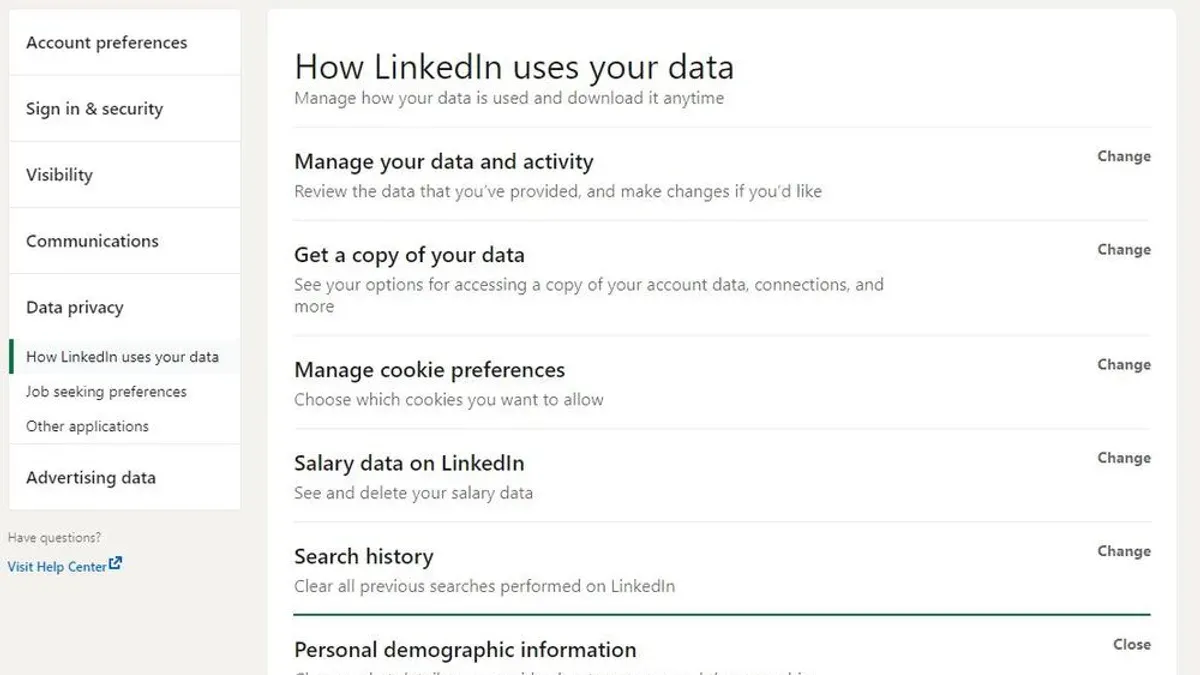
Personal accounts are designed for individual professionals, allowing control over profile visibility and connections. Business accounts focus on company presence, requiring different security considerations such as managing multiple administrators and protecting corporate data. Understanding these distinctions helps users choose the account type that aligns with their security and networking goals.
Those hesitant about an online professional presence should weigh the benefits of increased visibility against potential privacy trade-offs. Using LinkedIn selectively—limiting profile information, accepting connections cautiously, and regularly reviewing privacy settings—can strike a balance between networking advantages and security.
Tip: Reviewing recent user surveys reveals that while most find LinkedIn valuable for career growth, a significant portion express ongoing concerns about privacy, underscoring the importance of proactive security management.
Troubleshooting common LinkedIn security issues
LinkedIn users may face several security issues that require prompt action to maintain account integrity. One frequent problem is unexpected account locking, often triggered by suspicious activity or multiple failed login attempts. To resolve this, follow LinkedIn’s account recovery steps using a verified email or phone number; successful recovery will restore full access and display a confirmation message.
Suspicious login alerts indicate possible unauthorized access. Upon receiving such alerts, review recent sign-in activity via Settings > Login & Security > Where You’re Logged In. If unfamiliar devices or locations appear, immediately change the password and revoke access from those sessions. LinkedIn will show updated session information confirming the action.
Two-step verification (2SV) failures commonly arise from lost access to authentication apps or phone numbers. To fix this, use backup codes saved during 2SV setup or request LinkedIn support assistance. Restoring 2SV functionality will be confirmed by successful login without error.
Privacy settings confusion or accidental exposure can expose sensitive information. Regularly audit settings under Settings > Visibility to ensure intended profile sections remain private. Adjusting these settings will update the profile visibility in real time, visible when previewing the profile view as others see it.
- Identify the specific issue from locked account, suspicious alerts, 2SV failure, or privacy exposure.
- For locked accounts, initiate recovery via the "Forgot Password" link and confirm identity through email or phone.
- For suspicious logins, navigate to "Where You’re Logged In," sign out of unknown devices, and change the password immediately.
- For 2SV problems, use backup codes or contact LinkedIn support to regain authentication access.
- Review privacy settings under "Visibility" and adjust to correct any unintended public exposure.
- Verify changes by checking the account status or previewing the profile as a visitor.
Tip: Save backup codes when enabling two-step verification to avoid access issues if the primary authentication method fails.
Frequently asked questions
How secure is linkedin?
LinkedIn employs multiple security measures including encryption, monitoring for suspicious activity, and two-step verification to protect accounts. However, its security depends on user practices like strong passwords and enabling additional protections. The platform regularly updates security protocols but remains vulnerable if users neglect basic safeguards.
How to lock linkedin account?
Locking a LinkedIn account to control visibility involves activating the "Profile viewing options" and switching to "Private mode" under Settings > Visibility. For more control, use "Edit your public profile" to limit what non-connections can see. These settings restrict profile information without disabling the entire account.
How to secure my linkedin account?
Secure a LinkedIn account by creating a strong password with a mix of characters and avoiding reuse from other sites. Enable two-step verification via Settings > Sign in & security > Two-step verification. Regularly review active sessions and revoke unfamiliar devices under Settings > Account preferences > Where you’re signed in.
How secure is LinkedIn compared to other social networks?
LinkedIn's security focuses on professional networking with features like encrypted messaging and stricter profile controls. Compared to some social networks, it offers more granular privacy settings but may lack certain consumer-level protections. Overall, its security is solid but depends heavily on user configuration.
How to lock LinkedIn account quickly?
The fastest way to restrict a LinkedIn profile is to switch to "Private mode" in Profile settings, which hides profile viewing activity immediately. Next, adjust public profile visibility to "Off" via Settings > Visibility. These two steps minimize exposure swiftly without account deactivation.
What this guide does not cover and who should look elsewhere
This guide does not cover advanced corporate LinkedIn security management or legal compliance requirements for organizations. Businesses managing multiple accounts or handling sensitive client data should consult dedicated enterprise security resources and LinkedIn's specialized business solutions. Users should remain vigilant beyond technical settings, as social engineering attacks such as phishing or impersonation can bypass many security measures.
Regularly reviewing account activity and staying informed about emerging threats is essential to maintaining security. Those requiring detailed incident response or forensic analysis should seek professional cybersecurity assistance.
For the most effective next step, enable two-step verification immediately if it is not already active. This setting, found under Settings & Privacy > Sign in & security > Two-step verification, adds a critical layer of protection by requiring a verification code in addition to a password, significantly reducing the risk of unauthorized access.
See also: How to Secure Your Discord Account: A Step-by-Step Guide · How to Secure Your Kik Account: A Step-by-Step Guide



