
How to Recover a LinkedIn Account Without Phone Number or Email
This guide explains how to recover a LinkedIn account without phone number or email by using identity verification and alternative recovery methods.

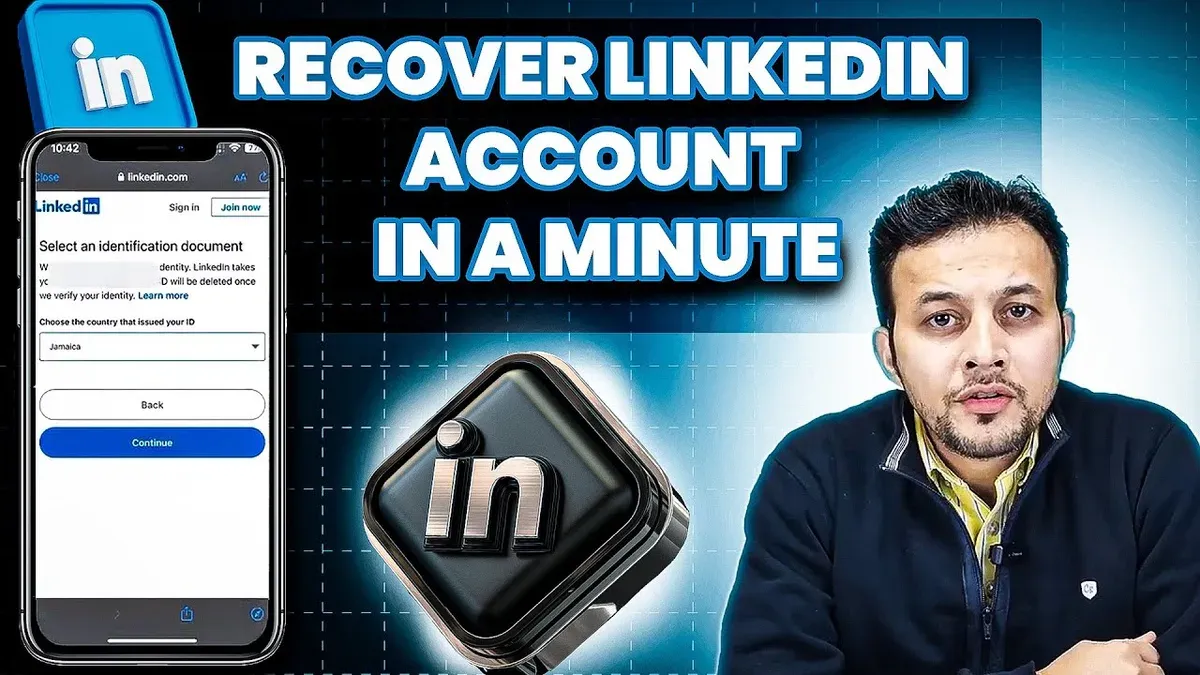
This article explains how to recover LinkedIn account without phone number when both the registered phone number and email are inaccessible. Standard recovery methods depend on these contact points, but alternative steps exist for users locked out without them. The guide provides direct instructions for regaining access using LinkedIn’s identity verification options and support channels.
First, confirm possession of the LinkedIn profile URL or username, as this information is essential for account identification. Next, prepare any government-issued ID or official documentation that LinkedIn might request for verification. These materials enable LinkedIn to confirm ownership when standard recovery routes fail.
Follow the outlined steps carefully to navigate LinkedIn’s recovery process without relying on phone or email credentials. This approach minimizes downtime and helps restore account control promptly.
Before you start: What is needed to recover a LinkedIn account without phone number
Recovery without access to the registered phone number requires specific information and preparation. First, have the LinkedIn username or the exact profile URL ready; this helps LinkedIn identify the account quickly. If possible, locate any previously used email addresses or phone numbers tied to the account, even if they are no longer accessible, as these may assist in verification.
Gather identifiable details such as the full name on the account, past or current job titles listed, and names of connections or groups joined. This information supports identity confirmation during the recovery process. LinkedIn may request a government-issued ID, such as a passport or driver’s license, to verify ownership. Be prepared to upload a clear, valid form of identification when prompted.
Examples of information LinkedIn might require include the exact profile URL, email addresses linked to the account, previous passwords, or details about recent activity. Having this data at hand reduces delays and increases the chances of successful recovery. Without the phone number or email access, these alternative proofs become critical.
- Locate the LinkedIn profile URL or username. After entry, the system should display the associated account.
- List any prior emails or phone numbers connected to the account. The platform will show related recovery options based on this data.
- Prepare personal and professional details linked to the account. These will be requested during identity verification.
- Have a government-issued ID ready for uploading if LinkedIn asks for identity confirmation. The upload interface appears only when necessary.
How do I recover my LinkedIn account without email and phone number
- Go to LinkedIn’s sign-in page and click on the Forgot password? link. This directs to a recovery interface where entering the LinkedIn username or full profile URL is possible.
- Input the LinkedIn profile URL or username associated with the account. If accepted, LinkedIn will attempt to find the account and prompt for recovery options.
- When asked to choose a recovery method, select I don’t have access to these or a similar option indicating no access to email or phone. LinkedIn then offers alternative verification paths.
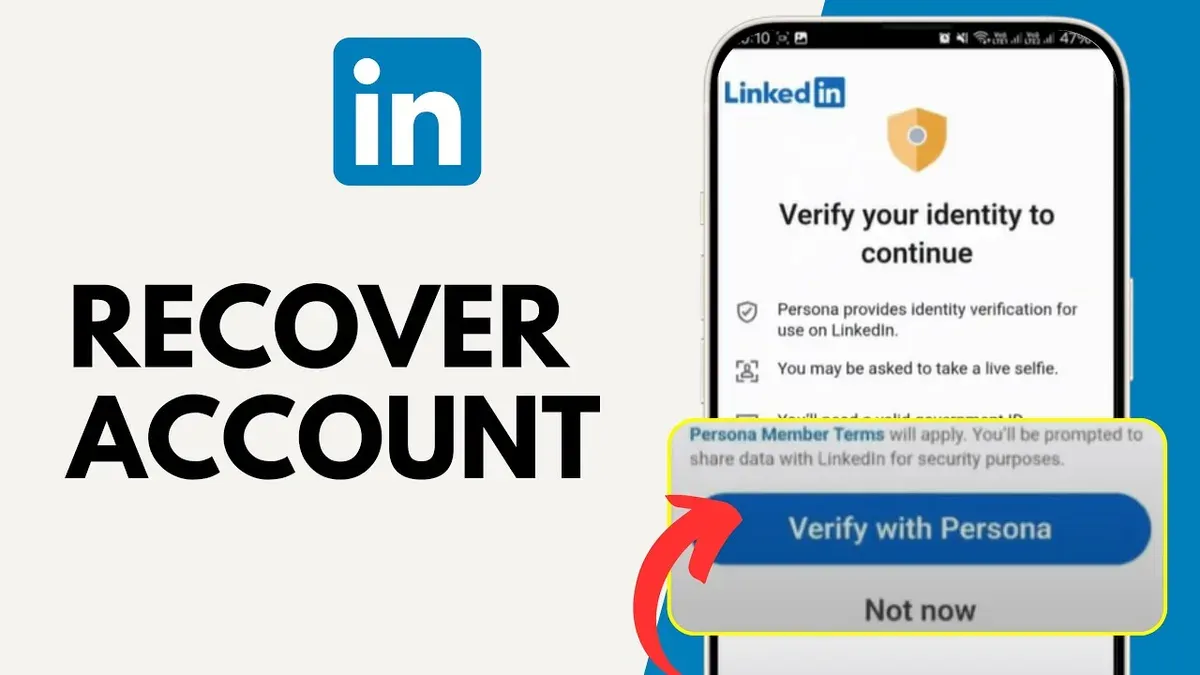
- Choose Verify your identity or Submit ID option. This leads to a secure upload form where a government-issued ID, such as a passport or driver’s license, must be submitted.
- Follow instructions carefully to upload a clear image of the ID. LinkedIn uses this to verify ownership and identity. After submitting, expect confirmation or further instructions via LinkedIn’s support channels.
- If the identity verification fails or is not available, access LinkedIn’s Help Center and use their Contact Us or Support forms to request manual account recovery assistance. Provide all requested details to expedite the process.
Tip: Keep the LinkedIn profile URL handy before starting recovery; it’s crucial for identification when email and phone are inaccessible.
How do I recover my LinkedIn account without email and password
When access to both the registered email and password is lost, start by locating the LinkedIn username or profile URL. This identifier allows direct navigation to the profile and initiates recovery without needing email credentials. The username can often be found through search engines or by recalling connections' profiles.
If the account is still logged in on any device, such as a smartphone or another computer, use it to reset the password. Navigate to the "Settings & Privacy" section, then to "Sign in & security" and select "Change password." This method bypasses email verification if the session remains active.
Another option is to check if the browser or a password manager has saved the LinkedIn login credentials. Browsers like Chrome, Firefox, or password managers store passwords that can be viewed in their respective settings under "Passwords" or "Saved logins." Retrieving the password here allows direct login and subsequent account management.
If these methods fail, use LinkedIn’s identity verification process. Access the "Forgot password" link and select "Verify your identity" or similar options. Prepare to submit government-issued ID or other requested documents. A documented case involved a user who recovered their account by submitting a driver’s license and confirming details linked to their profile; LinkedIn restored access within a few days without email or password use.
- Find and enter the LinkedIn username or profile URL on the login page; the profile should load, prompting recovery options.
- Check other devices for active sessions, then navigate to "Settings & Privacy" > "Sign in & security" > "Change password"; a successful password change confirms access.
- Inspect browser or password manager saved credentials; retrieving the password enables direct login.
- If all else fails, click "Forgot password?" and choose identity verification; submit required ID and wait for LinkedIn confirmation.
How to reset LinkedIn password without phone number
When the registered phone number is unavailable, resetting the LinkedIn password relies primarily on email or username verification. Begin by navigating to LinkedIn's password reset page at https://www.linkedin.com/uas/request-password-reset. This page prompts for the email address or username associated with the account.
- Enter the email address or LinkedIn username and click Find account. If the email is still accessible, a password reset link will be sent promptly.
- If the email is inaccessible, select the option to verify identity through LinkedIn's alternative methods, which may include answering security questions or submitting identification documents. These steps typically involve longer verification times.
- Follow the on-screen instructions to complete identity verification. Upon successful verification, LinkedIn will allow setting a new password.
- After resetting the password, log in immediately to update account recovery options, such as adding a new phone number or email, to prevent future access issues.
Tip: Password reset without phone number usually takes longer due to manual identity checks, so prepare for potential delays.
Compared to phone number verification, which offers near-instant password reset via SMS codes, email or username-based resets without phone access can be slower and less reliable. Success rates depend on having access to alternative contact methods or being able to complete LinkedIn's identity verification steps.
What if I forgot my LinkedIn password and can't access email or phone
When both email and phone recovery options are unavailable, and the LinkedIn password is forgotten, recovery becomes challenging but not impossible. The primary remaining method is identity verification through official documents. LinkedIn supports this approach by requesting government-issued ID or other valid identification to confirm account ownership.
- Go to the LinkedIn login page and click on "Forgot password?".
- When prompted for email or phone, select the option "Try another way" or "Verify your identity."
- Upload a clear scan or photo of an official ID (passport, driver’s license, or national ID card). Upon successful upload, LinkedIn will review the documents.
- Wait for LinkedIn’s response via the support email or LinkedIn Help Center messaging. Successful verification typically leads to a password reset link or account recovery instructions.
- If the verification fails or no response arrives within a reasonable timeframe, contact LinkedIn Customer Support directly through the Help Center, providing as much detailed account information as possible, such as the profile URL, past usernames, and previous locations.
Success rates for identity verification vary; some users report recovery within days, while others face delays or denials if documentation is incomplete or mismatched. If all recovery attempts fail, creating a new LinkedIn account may be the only option to regain access to the network.
Tip: Regularly update recovery options on LinkedIn to avoid this situation and enable faster account recovery in the future.
Can't access my LinkedIn account: Troubleshooting common issues
Locked or suspended accounts often display messages like "Account Restricted" or "Access Temporarily Limited." This usually happens due to policy violations or suspicious activity. To resolve this, visit LinkedIn's Help Center and follow the prompts to submit an appeal form. Expect a response within several business days; meanwhile, avoid creating duplicate accounts as this can worsen restrictions.
Handling multi-factor authentication (MFA) issues without phone access
MFA problems arise when the registered phone number is unavailable for verification codes. If backup codes were saved during MFA setup, use those to regain access. If not, select "I don't have access to my authentication method" on the login page, prompting LinkedIn to verify identity via alternative methods, such as email or identity documents. This process can take longer and may require direct interaction with LinkedIn support.
Recognizing phishing or hacking attempts and securing the account
Error messages like "Incorrect Password" or unexpected password reset emails can indicate account compromise. Immediately check for unauthorized account activity by reviewing recent login sessions under "Settings & Privacy" > "Where You're Logged In." Report suspicious activity through LinkedIn's "Report a hacked account" page. Change passwords on other platforms using the same credentials to prevent further breaches.
Understanding LinkedIn’s support response times and escalation paths
LinkedIn support response times vary from a few hours to over a week depending on case complexity and volume. Users can escalate unresolved issues by replying to support emails or posting in LinkedIn's official forums. Maintaining clear communication and providing requested documents promptly increases the chance of faster resolution.
Can you use LinkedIn without an account?
LinkedIn allows limited access to its platform without logging in. Anyone can browse certain public profiles and company pages, but this access comes with strict restrictions. Without an account, interacting with content, sending connection requests, and viewing full profile details are unavailable.
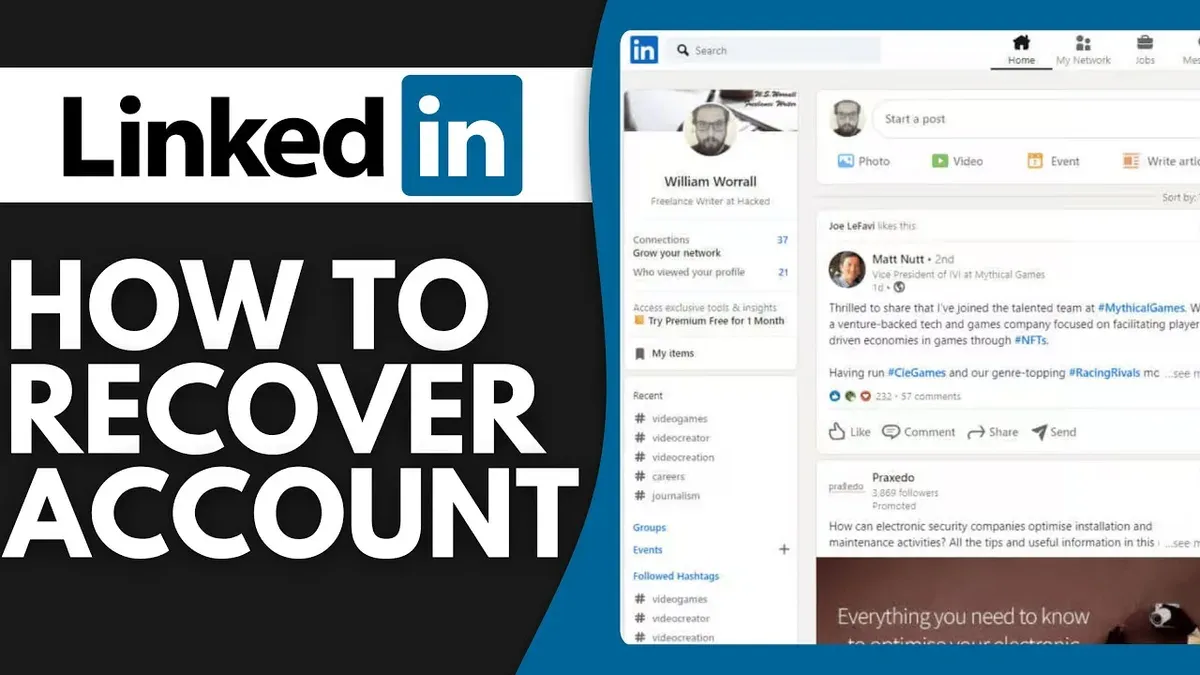
Browsing public profiles typically shows basic information such as name, headline, location, and current position. Company pages display an overview, recent posts, and job listings. However, deeper details like full work history, endorsements, and recommendations remain hidden unless logged in.
Having a LinkedIn account unlocks the platform's core functionality. Users gain the ability to connect with professionals, send messages, follow companies, apply for jobs, and receive personalized content. Account holders also benefit from access to LinkedIn Learning, saved searches, and analytics on profile views.
When account recovery proves difficult or impossible, creating a new LinkedIn account may be a practical alternative. This option provides immediate access to all platform features without waiting for recovery processes.
| LinkedIn Feature | Without Account | With Account |
|---|---|---|
| View basic public profiles | Yes | Yes, with more details |
| View full profiles | No | Yes |
| Send connection requests | No | Yes |
| Send messages | No | Yes |
| Follow companies | No | Yes |
| Apply for jobs | No | Yes |
| Access LinkedIn Learning | No | Yes |
| Save searches and alerts | No | Yes |
| Receive profile view analytics | No | Yes |
Frequently asked questions
How to recover linkedin account without email and phone number?
Use LinkedIn's identity verification process by visiting the Help Center and submitting a government-issued ID. This method bypasses email and phone verification. Follow the instructions carefully to upload the required documents for manual review.
How to recover linkedin account without email?
If access to the email is lost, attempt recovery through the phone number linked to the account. If the phone number is also unavailable, use LinkedIn's identity verification via the Help Center to submit identification documents.
How to recover account without phone number?
Start by using the registered email address to reset the password. If email access is lost, use LinkedIn's Help Center to verify identity by uploading an official ID. This alternative helps regain access when the phone number is inaccessible.
How to recover linkedin account?
Initiate recovery by using the "Forgot password" option on the login page, entering the registered email or phone number. If both are unavailable, use LinkedIn's identity verification process through the Help Center by submitting ID proof for manual review.
How to recover LinkedIn account without email and phone number?
Access LinkedIn's Help Center and select the option for account recovery without email or phone. Upload a valid government-issued ID as proof of identity. Wait for the LinkedIn support team to verify and restore account access.
What this advice does not cover and when to seek further help
This advice assumes the LinkedIn account has not been permanently deleted or banned. If the account was removed due to violations of LinkedIn's policies or inactivity, recovery options are extremely limited. In such cases, contacting LinkedIn support directly through their Help Center is necessary, though successful recovery is unlikely. Creating a new account may be the only viable alternative when permanent deletion or bans are involved. This guide also does not cover recovery through third-party apps or unauthorized services, which pose security risks.
For accounts locked without access to email or phone, following the outlined steps provides the best chance of recovery. However, if these methods fail, submitting a support ticket with LinkedIn and providing government-issued ID verification is the recommended next step. Persistence and accurate information improve chances of regaining access.
The single most useful next step is to visit LinkedIn's official Help Center and initiate the identity verification process. This formal approach ensures communication with LinkedIn's support team and leverages their internal tools for account recovery beyond standard automated options.
See also: How to Recover Instagram Account Without Phone Number · How to Recover a Facebook Account Without a Phone Number: Step-by-Step · How to Recover a Discord Account Without a Phone Number · How to Log Out of LinkedIn on All Devices: Clear Step-by-Step Instructions



