How to Log Out of LinkedIn on All Devices: Clear Step-by-Step Instructions
This guide provides clear steps to log out of LinkedIn on all devices, helping you secure your account and manage active sessions effectively.

This article explains how to log out of LinkedIn on all devices, providing clear, step-by-step instructions to secure the account across platforms. Logging out remotely is essential after losing devices, sharing access, or addressing security concerns. The guide covers logging out via desktop, mobile apps, and specific device scenarios, ensuring complete control over active sessions.
LinkedIn session management can be confusing, especially when distinguishing between logging out from one device versus all devices. This article clarifies those differences and integrates details about Microsoft account linked devices, which affect LinkedIn sessions when accounts are connected. Understanding these links helps maintain account security beyond LinkedIn’s native controls.
Following these instructions will ensure users can efficiently manage their LinkedIn sessions, preventing unauthorized access and maintaining full control over where and how the account remains active.
Before you start: What is needed to log out of LinkedIn on all devices
Logging out of LinkedIn on all devices requires certain preparations to ensure the process is effective and secure. Access to LinkedIn account credentials or an active login session on at least one device is essential. This allows entry into account settings where session management options are available. Without this access, logging out remotely is not possible.
Understanding the distinction between logging out on one device versus all devices is critical. Logging out on a single device ends only that session, leaving others active. Logging out on all devices terminates all active sessions, which can enhance security but may require re-authentication on trusted devices.
It is advisable to have access to the email address or phone number linked to the LinkedIn account. This facilitates verification steps, such as receiving security codes or notifications during the logout process. Missing access to these contact methods may hinder account recovery if prompted.
Be aware that logging out of LinkedIn on all devices can affect Microsoft account device links connected to LinkedIn. Since LinkedIn is part of Microsoft’s ecosystem, some linked devices might also require separate sign-in or verification afterward.
- Verify possession of LinkedIn login credentials or confirm an active session on at least one device. Success is confirmed by access to LinkedIn’s main interface.
- Confirm access to the email or phone number registered to the LinkedIn account to receive verification codes if prompted. The ability to receive such codes confirms readiness.
- Understand the difference between logging out on one device and all devices by reviewing session management options under "Settings & Privacy > Sign in & security > Where you’re signed in." Seeing multiple active sessions indicates the need for a full logout.
Tip: Review active sessions regularly to reduce the risk of unauthorized access, as unattended active sessions are a common vector for account hijacking.
How to log out of LinkedIn on the desktop website
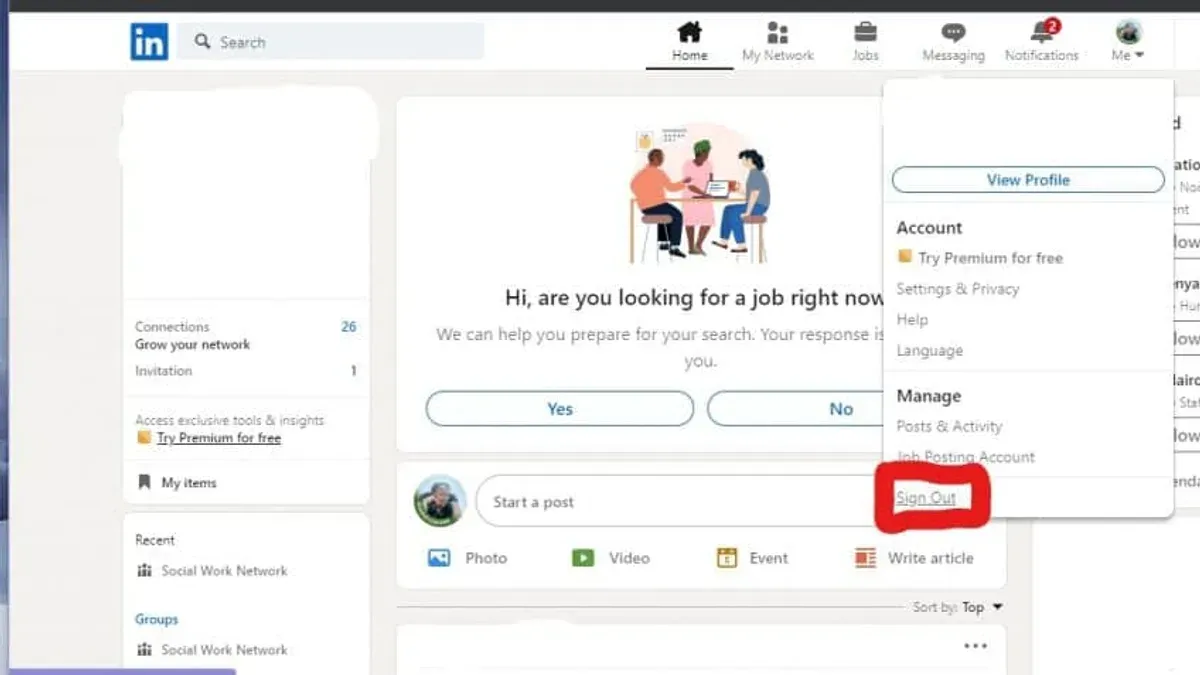
- Click on the profile icon at the top right corner of the LinkedIn homepage. A dropdown menu will appear.
- Select Sign Out from the dropdown menu. This immediately logs out the current session on the desktop browser.
- To log out of all devices, click on the Me icon again, then choose Settings & Privacy.
- Navigate to the Sign in & security tab on the left sidebar.
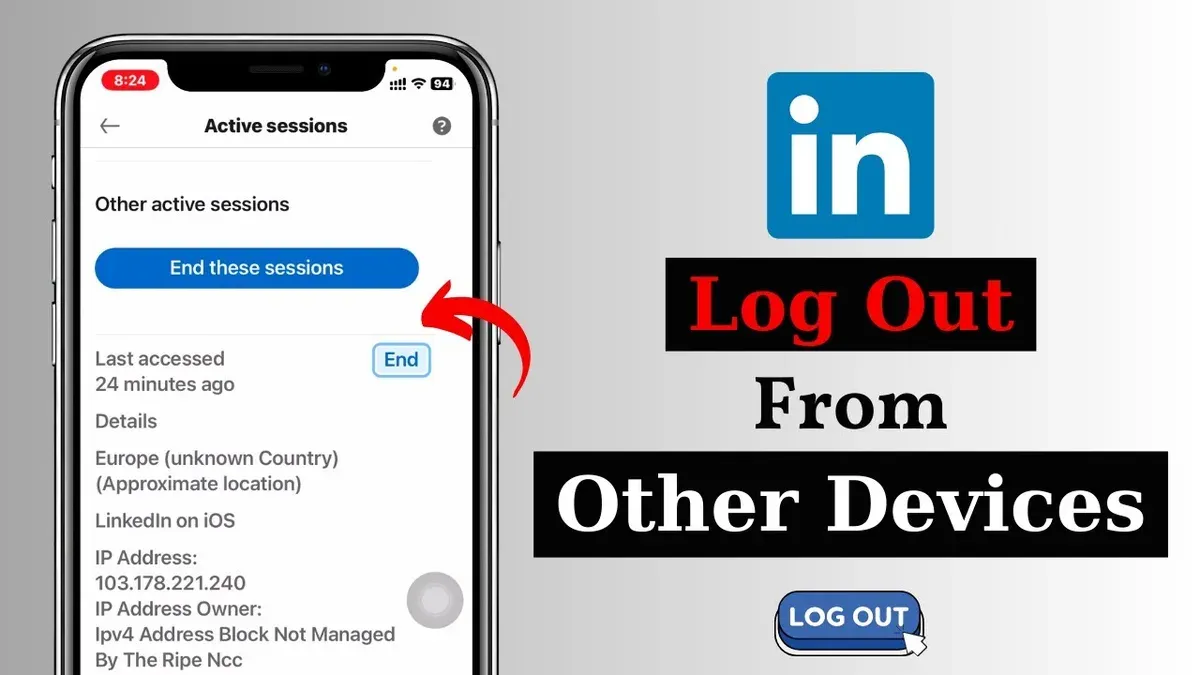
- Click on Where you’re signed in under the Account access section. This displays a list of all active LinkedIn sessions including device type, location, and last active time.
- To log out of individual sessions, click the Sign out button next to each session. To log out of all sessions, select Sign out of all sessions at the bottom of the list.
- Confirm the action when prompted. LinkedIn invalidates the session tokens for the signed-out devices, effectively forcing them to require login again.
After logging out, the browser or device will no longer have access tokens valid for LinkedIn. Any attempt to use the old session will redirect to the login page.
Tip: Use the Where you’re signed in page regularly to monitor active sessions and enhance account security.
How to log out of LinkedIn on the mobile app (iOS and Android)
Signing out on LinkedIn’s mobile app is straightforward but offers fewer session management options than the desktop site. Users can log out of the current device directly, but managing or terminating sessions on other devices requires remote session management via the desktop or web interface.
- Open the LinkedIn app on the iOS or Android device. The home feed should appear.
- Tap the profile icon in the top left corner to open the navigation menu.
- Scroll down and select Settings & Privacy. This opens account controls.
- Under the Account tab, tap Sign Out at the bottom. A confirmation prompt appears.
- Confirm Sign Out. The app returns to the login screen, indicating successful logout from the current device.
To manage sessions across devices, users must access Settings & Privacy > Account preferences > Where you’re signed in on desktop or mobile web. This section lists active sessions and allows termination of specific devices remotely.
Limitations: The mobile app does not allow session termination of other devices directly within the app. Remote session management must be done via desktop or browser. Also, signing out on one device does not log out sessions on other devices automatically.
| Feature | iOS App | Android App |
|---|---|---|
| Sign out current device | Yes | Yes |
| View active sessions | No (requires browser) | No (requires browser) |
| Remote log out other devices | No | No |
Tip: Use a desktop browser for comprehensive session management and security controls beyond the current device logout available on mobile apps.
How to log out of LinkedIn on all devices remotely
LinkedIn offers a dedicated feature to sign out from all active sessions across every device remotely. This function is essential when devices are lost, stolen, or when unauthorized access is suspected. Using the "Sign out of all sessions" option invalidates all authentication tokens, ending every session immediately or within a short timeframe, ensuring no lingering access remains.
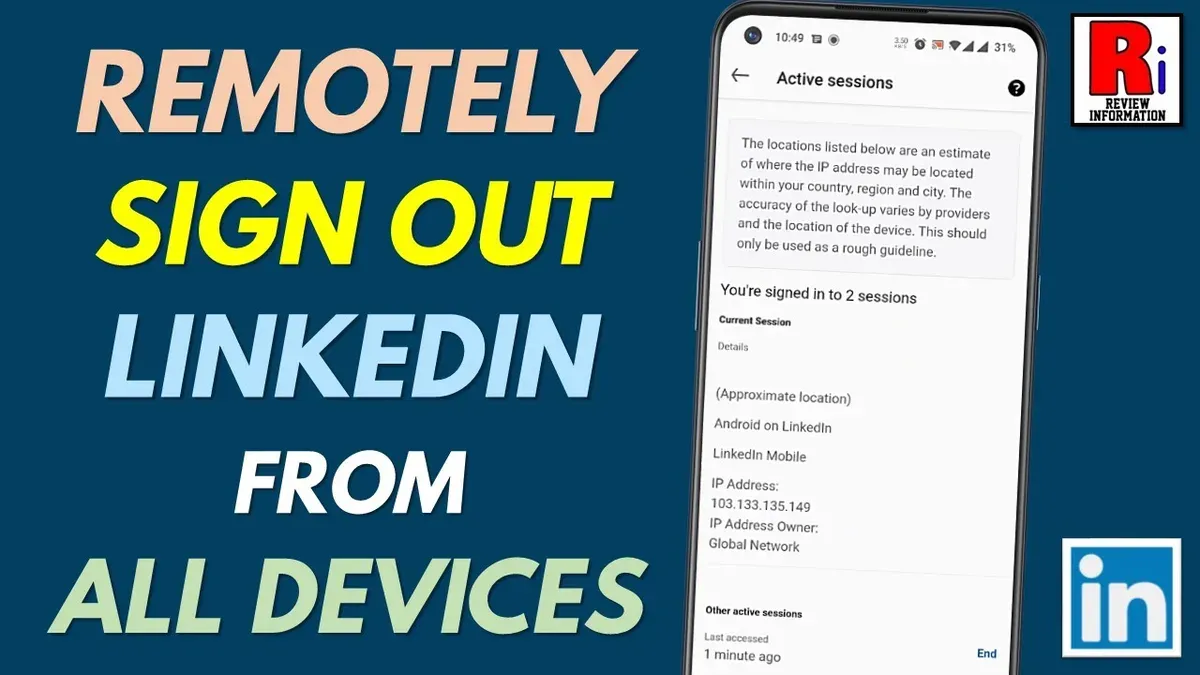
The process can be completed from the LinkedIn desktop website under account settings. Once activated, all devices currently logged in will be disconnected, requiring fresh login credentials to regain access. According to LinkedIn’s official support, session termination may take a few minutes to propagate across all devices.
- Navigate to LinkedIn and sign in using valid credentials.
- Click the profile icon at the top right corner and select "Settings & Privacy" from the dropdown menu.
- Go to the "Sign in & security" section.
- Under "Where you're signed in," click "See all sessions." This lists every active device and browser session.
- Click the "Sign out of all sessions" button. A confirmation prompt appears.
- Confirm the action. The system begins invalidating all active tokens and ending sessions.
- After a few moments, all devices will be signed out. The list of active sessions will clear or update to show no current logins.
Tip: Use this option immediately after noticing any suspicious activity or losing control of a device to secure the LinkedIn account effectively.
How to log out of LinkedIn on iPhone specifically
Logging out of LinkedIn on an iPhone involves navigating the LinkedIn app's interface, which differs slightly from other platforms. The logout option is embedded within the profile settings rather than directly visible on the main menu. Additionally, iOS device settings such as background app refresh and app permissions can influence session persistence.
- Open the LinkedIn app on the iPhone. The home feed should appear immediately after loading.
- Tap the profile icon located at the top left corner of the screen. This opens the profile and account menu.
- Scroll down to the bottom of the menu and select "Settings". The settings screen will appear.
- Within Settings, tap "Account preferences". This section contains account management options.
- Find and tap "Sign out" at the bottom. A confirmation prompt appears.
- Confirm sign out by tapping "Sign out" again. The app returns to the login screen, indicating a successful logout.
Some users report that after signing out, the app may automatically log back in due to iOS keychain auto-fill or cached credentials. To address this, clearing the app cache is recommended. Since iOS does not provide a direct cache clearing option, uninstalling and reinstalling the LinkedIn app effectively removes cached data and stored credentials.
Tip: If logout issues persist, disable LinkedIn access in iPhone Settings under Passwords & Accounts or remove saved LinkedIn credentials from the iOS Keychain to prevent automatic re-login.
How to log out of LinkedIn on other devices you no longer have access to
When physical access to certain devices is impossible, securing a LinkedIn account requires remote actions. The most effective method is to use LinkedIn’s session management to terminate all active sessions remotely. This invalidates login tokens on all devices, including those lost or inaccessible.
Changing the LinkedIn account password forces sign-out from all devices except the one currently in use. This step is crucial because some sessions might persist if only remotely terminated without a password change. After resetting the password, all previously authorized sessions become invalid, requiring reauthentication.
For LinkedIn accounts linked to a Microsoft account, check connected devices in the Microsoft account settings. Unlink any devices no longer in use or that might pose a security risk. This prevents unauthorized access through Microsoft-linked credentials.
Activating two-factor authentication (2FA) enhances security by requiring a second verification step during login attempts. After logging out remotely and changing passwords, enabling 2FA adds a robust defense layer against unauthorized access.
- Log in to LinkedIn on a secure device and navigate to Settings > Sign in & security > Where you’re signed in. Here, terminate all sessions by clicking “Sign out of all sessions.” A confirmation message appears once sessions are ended.
- Go to Settings > Sign in & security > Change password. Enter the current password, then the new password twice. Submit the change. LinkedIn immediately logs out all other devices except the current one.
- Visit the Microsoft account device page at account.microsoft.com/devices. Review all listed devices. Select any unknown or unused devices, then choose “Remove” or “Unlink.” A confirmation prompt appears upon successful unlinking.
- Enable two-factor authentication by navigating to Settings > Sign in & security > Two-step verification. Follow prompts to set up 2FA via authenticator app or SMS. Once enabled, every login attempt requires a verification code.
Worked example: After remotely signing out and changing the password, a user found that a lost tablet no longer had access to the LinkedIn account, confirming session termination. The Microsoft-linked device removal ensured no backdoor access, and enabling 2FA prevented unauthorized logins even if credentials were compromised.
Troubleshooting common issues when logging out of LinkedIn
When the logout button does not respond or the app freezes, force closing the app or refreshing the browser often resolves the issue. On mobile, clearing the app cache or reinstalling the app can fix corrupted data causing logout failures. If sessions remain active after logout attempts, this usually means the session tokens were not invalidated properly; changing the account password forces all sessions to expire.
LinkedIn Help Center articles and user forums recommend these steps for persistent logout problems. If the logout function still fails, users should ensure the app or browser is updated to the latest version. In some cases, browser extensions or network problems interfere with session management and should be temporarily disabled or tested on another network.
If logging out is impossible due to technical issues and access to the account persists, contacting LinkedIn support is advisable. Without logging in, support can be reached via the LinkedIn Help Center website by selecting "Contact Us" and following prompts for account access problems, including identity verification steps.
- Force close the LinkedIn app or refresh the browser. Expect the interface to reload without freezing.
- Clear app cache (Settings > Apps > LinkedIn > Storage > Clear Cache) or reinstall the app. The app should open cleanly and respond normally.
- Change the LinkedIn account password via Settings > Account Preferences > Change Password. This logs out all sessions and requires re-login.
- Disable browser extensions and retry logout on a different network. The logout button should function without interruption.
- If issues persist, visit LinkedIn Help Center > Contact Us > Account Access. Submit the request and await support contact.
How LinkedIn session management interacts with Microsoft account linked devices
LinkedIn, owned by Microsoft, integrates certain account management features with Microsoft accounts, but session control remains distinct. Logging out of LinkedIn does not automatically sign out from Microsoft account linked devices, as each service manages sessions independently. Removing a device from the Microsoft account linked devices list can prevent that device’s access to Microsoft services but does not forcibly terminate active LinkedIn sessions on that device.
To manage linked devices in the Microsoft account, navigate to the Microsoft account security page and select Devices. Here, devices connected to the Microsoft account are listed with options to remove or find details. Removing a device here restricts Microsoft service access but does not directly log LinkedIn out on that device.
LinkedIn session logout features operate within LinkedIn’s own infrastructure. The Sign out of all sessions option on LinkedIn invalidates LinkedIn session tokens but does not affect Microsoft account device links or sessions outside LinkedIn. For comprehensive security, users should manage both LinkedIn sessions and Microsoft account devices separately.
- Go to https://account.microsoft.com/devices and sign in to the Microsoft account. The device list should appear.
- Select a specific device to view details. Device info and last activity should be visible.
- Click Remove device to unlink it. A confirmation prompt appears.
- Confirm removal. The device is then removed from the Microsoft account, limiting Microsoft service access.
Tip: After removing devices from Microsoft account, also use LinkedIn’s session management to sign out of LinkedIn on those devices for full account security.
Frequently asked questions
How to log out of linkedin app?
Open the LinkedIn app and tap your profile picture in the top left corner. Scroll down to find the "Settings" option, then select "Sign Out" at the bottom of the menu. Confirm the action to log out from the app on that device.
How to logout linkedin from all devices?
To log out from all devices, go to LinkedIn's desktop website and access "Settings & Privacy." Under the "Sign in & security" tab, select "Where you're signed in." From there, click "Sign out of all sessions" to remotely end all active sessions on every device.
How to log out linkedin account?
Logging out of a LinkedIn account involves selecting the profile icon, navigating to "Settings & Privacy," then choosing "Sign Out" from the menu on either the desktop site or mobile app. This action ends the session on the current device only unless multiple sessions are managed separately.
How to sign out of linkedin app?
Within the LinkedIn app, tap the profile avatar at the top left, then open "Settings." Scroll down to the bottom and tap "Sign Out." Confirm the prompt to complete the sign-out process on the app.
How to logout linkedin in mobile?
On mobile devices, open the LinkedIn app, access your profile menu by tapping your photo, then go to "Settings." Scroll to find and tap "Sign Out." This logs out the current mobile session but does not affect other devices unless signed out remotely via session management.
What this advice does not cover
This guide does not cover logging out of LinkedIn sessions on third-party apps or integrations that use LinkedIn credentials, such as external job boards or CRM software. Those sessions require managing access directly through the respective app or service’s security settings. Additionally, this advice does not address changing passwords or recovering compromised accounts, which should be done separately via LinkedIn’s security and password reset options.
Tip: Regularly review authorized apps and revoke access to unfamiliar third-party services via LinkedIn's Settings & Privacy > Data Privacy > Other Applications.
For the most effective account security, the next step after logging out of all devices is to update the LinkedIn account password and enable two-step verification. This ensures that even if previous sessions were compromised, unauthorized access is blocked going forward.
See also: How to Log Out of Discord on All Devices: Clear Step-by-Step Guide · How to Block Someone on LinkedIn: Step-by-Step Privacy Control