How to Turn On Two-Factor Authentication on Threads: A Step-by-Step Guide
This guide provides clear steps to turn on two-factor authentication on Threads, improving your account security with platform-specific instructions.

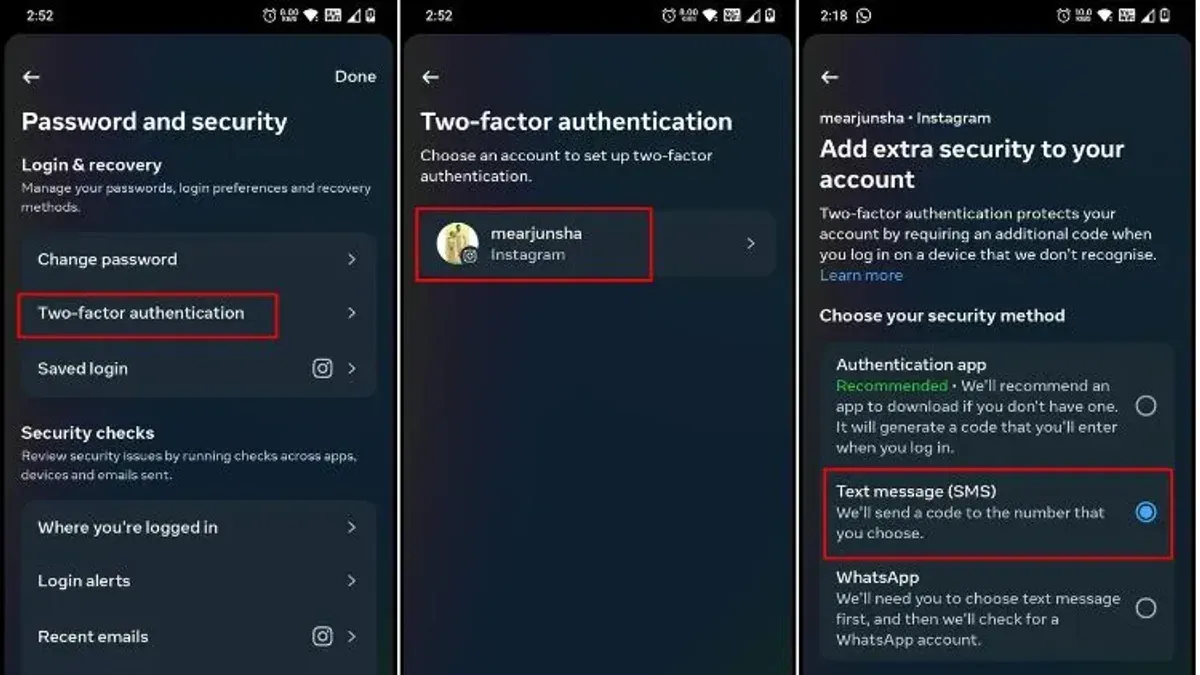
This guide explains how to turn on two-factor authentication on Threads with precise, platform-specific instructions and troubleshooting tips.
Enabling two-factor authentication (2FA) on Threads adds a vital layer of security by requiring a second verification step during login. This article covers the exact menu paths and options within the Threads app or web interface, highlighting unique details that generic 2FA guides often overlook. It also addresses common setup issues, such as problems with authentication apps or SMS verification, ensuring users can complete the process without confusion.
Following this guide will help secure a Threads account against unauthorized access, making it harder for attackers to bypass passwords alone.
Before you start: What is needed to enable 2FA on Threads?
Two-factor authentication (2FA) on Threads requires a verified account linked to Instagram or a Meta account. This connection is mandatory because Threads leverages Meta’s authentication infrastructure. Access to the email address or phone number associated with the account is essential for verification codes during setup and recovery.
A smartphone is necessary, preferably with an authenticator app installed. Threads recommends apps such as Google Authenticator, Microsoft Authenticator, or Authy for generating time-based one-time passwords (TOTPs). While SMS-based 2FA is available, authenticator apps provide stronger security and reduce vulnerability to SIM swapping.
Users should have a basic understanding of 2FA’s security benefits: it significantly reduces the risk of unauthorized access, with many breaches avoided by requiring a second verification step. Preparing these elements before starting streamlines the setup and prevents common interruptions during the process.
How to access the security settings for two-factor authentication on Threads
- Open the Threads app on the device. The home screen appears with the feed and navigation bar.
- Tap the profile icon in the bottom-right corner to access the profile page. The profile page shows the username, bio, and settings gear icon.
- Tap the gear icon (Settings) located at the top-right of the profile page. The settings menu opens.
- Scroll down and select "Account Center," which manages linked Meta accounts including Instagram and Threads. The Account Center page appears.
- Within Account Center, tap "Security and Login" or "Security" depending on the app version. This opens security-related settings.
- Look for "Two-Factor Authentication" settings here. If 2FA is managed via Instagram, the option will redirect to Instagram’s security page within Account Center.
- If 2FA is handled directly in Threads, the toggle and setup options appear within this section. Users can enable or modify 2FA without leaving Threads.
In summary, Threads’ 2FA settings are accessed through the profile’s gear icon, then Account Center, and finally the security submenu. The exact location depends on whether 2FA is linked to Instagram or set up solely on Threads.
Tip: If the 2FA option is not visible in Threads, check Instagram’s app under Settings > Security > Two-Factor Authentication, since Threads inherits 2FA from Instagram accounts linked via Meta.
What are the available two-factor authentication methods on Threads?
Threads offers three primary two-factor authentication (2FA) methods: SMS-based verification codes, authentication apps, and hardware security keys. Each method balances security and convenience differently, making it essential to choose the one that fits the user's needs.
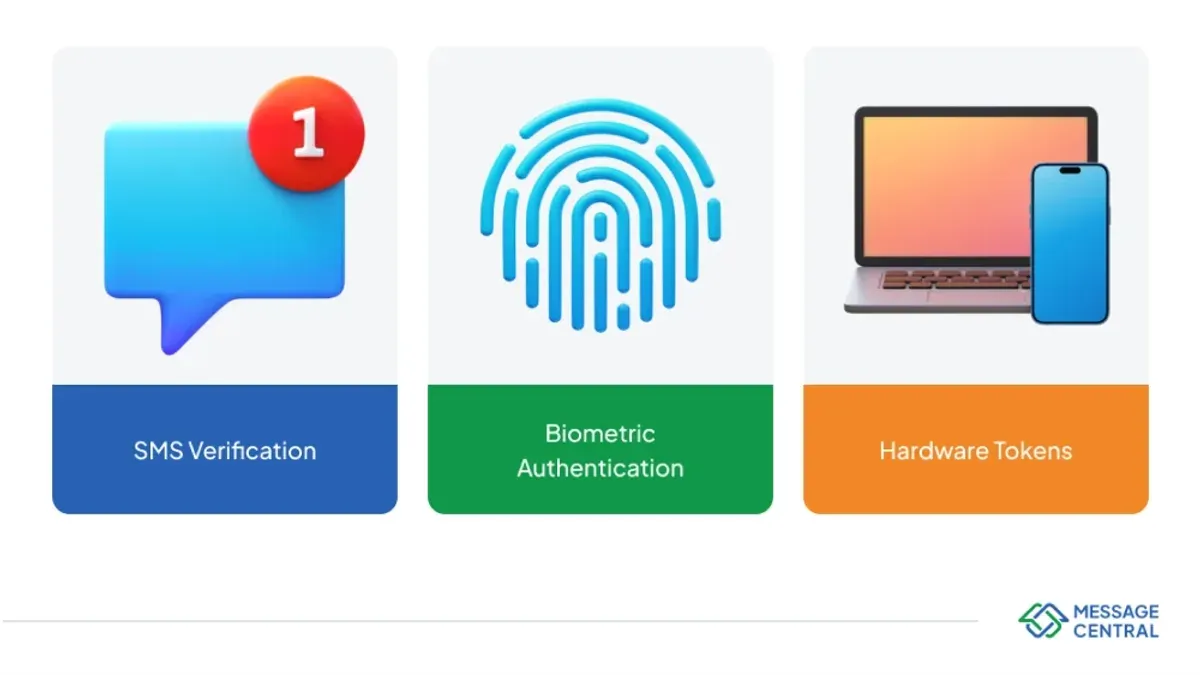
SMS-Based Verification Codes
This method sends a one-time code via SMS to the linked phone number when logging in. It is straightforward and requires no additional apps. However, it is less secure due to risks like SIM swapping or interception.
Authentication Apps
Apps like Google Authenticator or Authy generate time-based one-time passwords (TOTPs) on the device itself. This method is more secure than SMS as it doesn’t rely on the phone network, but it requires installing and setting up the app properly.
Hardware Security Keys
Physical keys such as YubiKey provide the highest security by requiring physical possession to authenticate. Threads supports these keys through standard protocols if the device and browser are compatible. This method is the most secure but less convenient for everyday quick access.
| 2FA Method | Security Level | Ease of Use | Threads-Specific Notes |
|---|---|---|---|
| SMS Verification | Moderate | High | Simple setup but vulnerable to phone-based attacks |
| Authentication Apps | High | Moderate | Preferred for stronger security; requires app installation |
| Hardware Security Keys | Very High | Low to Moderate | Best for maximum security; requires compatible hardware and browser |
Step-by-step: How to enable two-factor authentication on Threads
- Open the Threads app and navigate to your profile. Tap the menu icon and select Settings, then choose Account Center. From there, access the Security or linked Instagram settings where the Two-Factor Authentication option appears.
- Tap Two-Factor Authentication. The screen will display available methods: SMS, authenticator app, and hardware key. Choose the preferred method by tapping it.
- If selecting SMS, enter the phone number to receive codes. For an authenticator app, scan the provided QR code with the app. Hardware key users will be prompted to connect their key device.
- Follow the on-screen instructions to verify the chosen method. For SMS, input the received code; for authenticator apps, enter the generated code; for hardware keys, complete the device confirmation.
- After verification, Threads will present backup codes. Save these codes securely outside the app. They are essential for account access if the primary 2FA method is unavailable.
- Confirm that two-factor authentication is active by checking the status in the security settings. Optionally, log out and log back in to test the 2FA prompt and verify the setup works correctly.
Tip: Backup codes are one-time-use and cannot be regenerated; store them safely to avoid lockout.
Troubleshooting: What to do if two-factor authentication setup fails on Threads
Issues Receiving SMS Codes
If SMS codes do not arrive, first verify the phone number linked to the account is correct. Network coverage or carrier restrictions can block messages; switching to a different network or contacting the carrier may resolve this. Some users report delays or non-delivery, especially with virtual or VoIP numbers, which Threads does not support reliably.
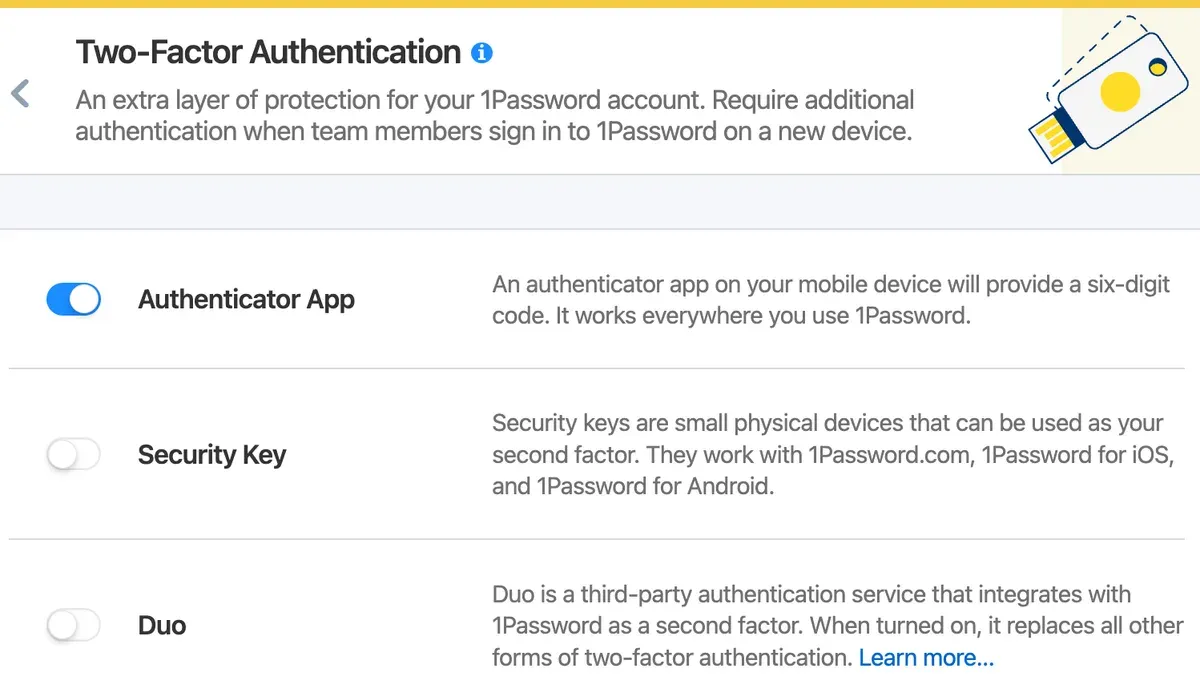
Authenticator App Problems
If the authenticator app generates incorrect codes or fails to sync, ensure the device's date and time settings are set to automatic. Incorrect time is a common cause of code mismatch errors. Re-adding the Threads account to the authenticator app or reinstalling the app can fix setup glitches.
Accessing 2FA Settings Issues
Failure to access 2FA settings often results from outdated app versions or incomplete account linkage. Confirm both Threads and Instagram apps are updated to the latest versions. Verify that the account is properly linked through Account Center under Settings & Privacy > Account Center > Accounts & Profiles.
Lost Backup Codes and Lockouts
If backup codes are lost and 2FA lockout occurs, recovery options are limited. Using a registered phone number or email to reset access is necessary. Contacting Meta support is the last resort but can be slow and may require identity verification.
Step-by-Step Fix for SMS Code Issues
- Check the phone number in Threads settings under Account Center > Security > Two-Factor Authentication. The correct number should appear; if not, update it. Success is indicated by receiving a test SMS code.
- Verify mobile network connectivity by sending a text message from the device to confirm SMS functionality. A sent message confirms network operation.
- Restart the device to refresh network and app processes. Upon restart, retry receiving a code; success is the code arriving within a minute.
- If issues persist, switch to an authenticator app as a 2FA method to bypass SMS dependency. Successful setup is confirmed by code acceptance during login.
Tip: Avoid using VoIP or virtual phone numbers for SMS 2FA on Threads as they commonly fail to receive codes.
How to manage and update two-factor authentication settings on Threads
Maintaining two-factor authentication (2FA) settings on Threads is essential to ensure ongoing account security. When changing a phone number or authenticator app, users must update these details promptly in the Account Center under Security and Login to avoid losing access during login attempts.
- Open Threads and navigate to Profile > Account Center > Security and Login. The 2FA settings page appears.
- Select the option to update the phone number or authenticator app. A prompt will request verification using the current 2FA method.
- Enter the new phone number or scan the new authenticator app QR code. A confirmation message indicates the update was successful.
- Generate and securely save new backup codes immediately after any change. These codes are your fallback for account recovery.
- To disable 2FA temporarily, toggle off the two-factor authentication option in the Security and Login settings, then re-enable it following the standard setup process when ready.
Updating 2FA details reduces risks like unauthorized access from outdated phone numbers or lost authentication devices. For example, failure to update a changed phone number can lock users out, requiring identity verification with support. Consider upgrading to hardware security keys for stronger protection against phishing compared to SMS or apps.
Tip: Regularly review and update 2FA settings after changing devices or phone numbers to prevent account access issues and maintain optimal security.
Frequently asked questions
Can two-factor authentication be enabled directly in Threads or only via Instagram?
Two-factor authentication for Threads is managed through Instagram's security settings, not directly within the Threads app. Users must enable 2FA in the Instagram app or website, which then secures both Instagram and Threads accounts simultaneously.
What should be done if the phone number used for 2FA is lost or changed?
If the phone number linked to two-factor authentication is lost or changed, users should update their phone number in Instagram's account settings immediately. It's also recommended to set up backup codes or an authenticator app to avoid lockouts in case of phone access issues.
Are hardware security keys supported for Threads two-factor authentication?
Hardware security keys are supported but only through Instagram's 2FA settings. Users can register a security key in Instagram’s Two-Factor Authentication section, and this protection extends to the Threads account as well.
How does two-factor authentication protect the Threads account from hacking?
Two-factor authentication adds a second verification step beyond the password, requiring a code from an authenticator app, SMS, or security key. This prevents unauthorized access even if the password is compromised, significantly reducing hacking risk on Threads.
What this guide does not cover and who should seek alternative help
This guide focuses solely on enabling and managing two-factor authentication (2FA) within the Threads app. It does not cover full account recovery processes beyond 2FA setup, such as regaining access if the linked email or phone number is lost or compromised. Users without access to their registered contact methods should consult Threads support directly or follow official recovery procedures provided by Meta. Additionally, this guide does not address broader account security strategies like password management or phishing prevention.
For anyone experiencing persistent issues with 2FA setup or access, contacting Threads customer support or using the help center resources is the recommended next step. Ensuring that contact information linked to the account is accurate and current is essential before enabling 2FA to avoid lockouts.
The single most useful next step is to verify that the correct phone number or authentication app is linked in Threads’ security settings immediately after enabling 2FA. This simple check prevents common pitfalls such as failing to receive verification codes and ensures smoother future logins.
See also: How to Turn On Two-Factor Authentication on Signal: A Clear Step-by-Step Guide · How to See Where You're Logged Into Threads: A Step-by-Step Guide