How to Change Your Apple Pay Password: Clear Step-by-Step Guide
This guide explains how to change your Apple Pay password and manage related security settings to keep your account safe.

This article explains how to change Apple Pay password and clarifies the difference between updating the Apple ID password and managing the Apple Pay passcode. Apple Pay security relies on both the Apple ID credentials and the device-level passcode or biometric authentication. The processes for changing these passwords are separate and involve different settings.
Understanding how to change Apple Pay password correctly prevents confusion and ensures the account remains secure. This guide covers step-by-step instructions for updating the Apple ID password, modifying the Apple Pay passcode, enabling Face ID for payments, and managing payment methods. Troubleshooting tips for common issues are also included to make the changes seamless on iPhone or other Apple devices.
Before you start: What’s needed to change Apple Pay password or Apple ID password
Changing the Apple ID password and managing the Apple Pay passcode are distinct processes tied to different security layers. The Apple ID password grants access to the entire Apple account, including iCloud services, App Store purchases, and device syncing. The Apple Pay passcode, often the device passcode, secures payment authorization at the device level. Confusing these two can result in failed attempts to update settings or access Apple Pay features.
To proceed, ensure the device with Apple Pay enabled is accessible and connected to the internet for verification and sync. The current Apple ID password must be known and ready for entry when prompted to authorize account changes. Additionally, having the device passcode on hand is necessary when adjusting Face ID or passcode settings related to Apple Pay security.
Common errors include trying to reset Apple Pay payment authorization by changing the Apple ID password alone, or attempting to manage Apple ID account security through the Apple Pay settings. Understanding which password to modify avoids unnecessary lockouts or confusion.
- Verify that the iPhone or iPad has Apple Pay set up and is unlocked; the device should display the Wallet app with linked cards.
- Confirm the device is connected to Wi-Fi or cellular data; a stable connection is required for password verification.
- Have the current Apple ID password ready; this is used to authenticate changes to the account password.
- Know the device passcode; this is essential for changing the Apple Pay passcode or biometric authentication settings.
- Recognize the difference: Apple ID password changes affect account-wide access, whereas Apple Pay passcode changes affect payment authorization on the device only.
How to change password to Apple account
Updating the Apple ID password is essential for maintaining security across Apple services, including Apple Pay. This process requires access to the device or the Apple ID website and verification of identity through the current password or two-factor authentication.
- Open the Settings app on the iPhone or iPad, then tap the user’s name at the top to access Apple ID settings. The Apple ID profile page should appear.
- Tap "Password & Security," then select "Change Password." The system will prompt for the current device passcode or Apple ID password to verify identity.
- After verification, enter a new password that meets Apple's requirements: at least eight characters, a mix of uppercase and lowercase letters, and at least one number. The password strength meter will provide feedback to ensure it is strong enough.
- Re-enter the new password to confirm, then tap "Change" or "Next." A confirmation screen will indicate the password has been successfully updated.
- Sign in again with the new password on all Apple devices and services to maintain continuous access. This step ensures Apple Pay and other services recognize the updated credentials.
Tip: Use a password manager to generate and store strong, unique passwords for Apple ID to reduce the risk of compromise.
How to change your password on Apple Pay passcode or Apple Wallet passcode
Apple Pay does not use a separate password. Instead, it relies on the device passcode or biometric authentication methods like Face ID or Touch ID for payment authorization. Changing the Apple Pay authentication means updating the device passcode or enabling biometric authentication on the device.
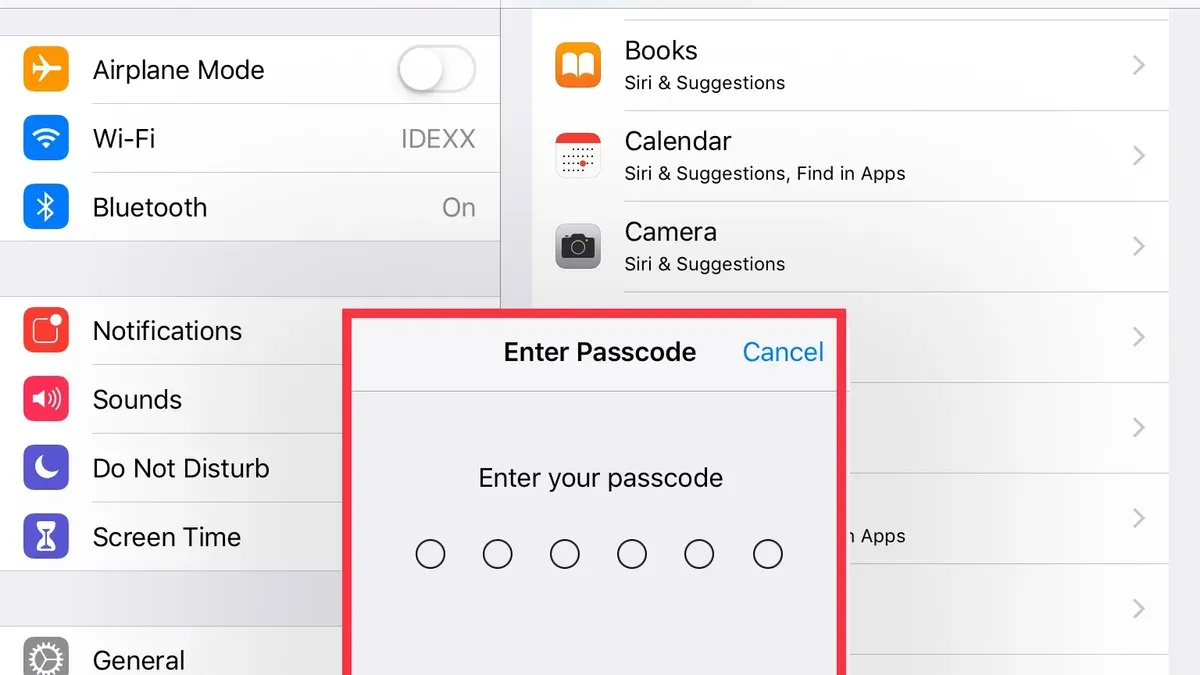
Changing the device passcode on iPhone or iPad
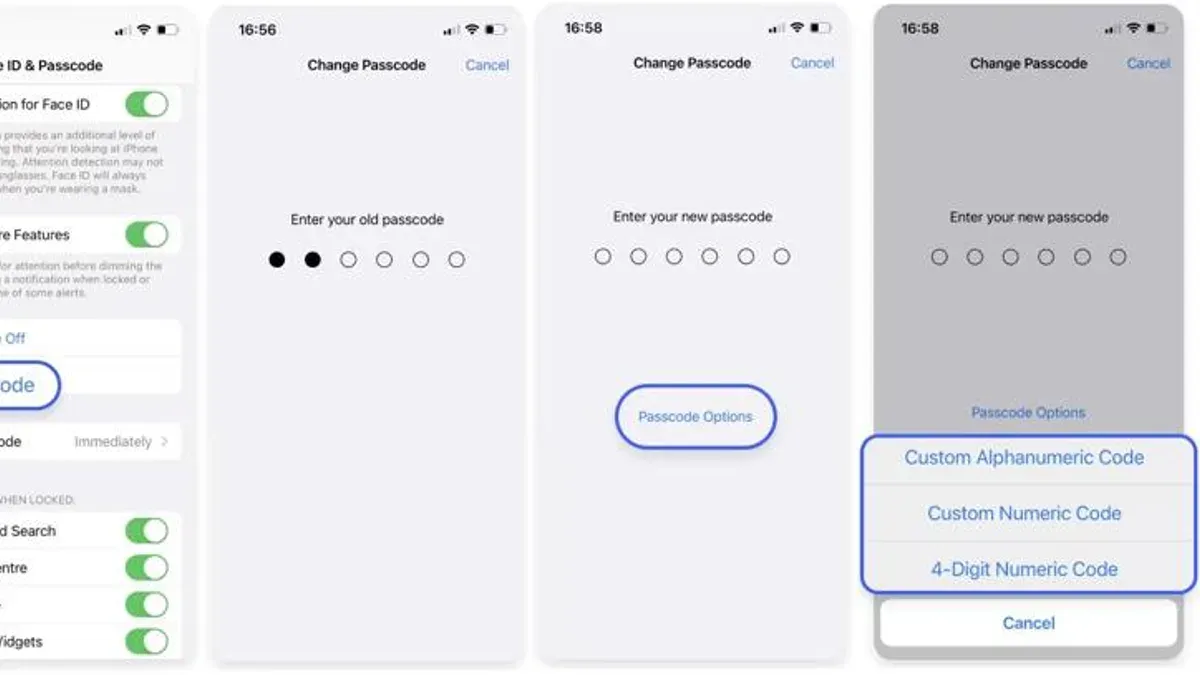
- Open the Settings app and tap Face ID & Passcode or Touch ID & Passcode, depending on the device.
- Enter the current passcode when prompted to access the settings.
- Scroll down and select Change Passcode.
- Follow the on-screen instructions to enter a new passcode.
- After confirmation, the new passcode will secure device access and Apple Pay transactions.
Enabling or switching to Face ID or Touch ID for Apple Pay
- Go to the Settings app and tap Face ID & Passcode or Touch ID & Passcode.
- Ensure the option for Apple Pay is toggled on under Use Face ID For or Use Touch ID For.
- If Face ID or Touch ID is not set up, tap Set Up Face ID or Set Up Touch ID and follow the guided steps.
- Once enabled, Apple Pay transactions will authenticate using biometrics instead of just the passcode.
Managing Apple Wallet authentication settings
Open the Settings app and tap Wallet & Apple Pay. Here, verify that Double-Click Side Button (or Home button on older devices) is enabled for quick Apple Pay access. While there are no separate password settings in Wallet, biometric and passcode authentication requirements are managed through the device’s security settings.
Tip: Switching to Face ID or Touch ID not only speeds up payments but also adds a layer of biometric security that is harder to compromise than a passcode alone.
How to change Apple Pay password to Face ID
Devices with Face ID, such as iPhone X and later models, support biometric authentication for Apple Pay, replacing the need to enter a passcode manually during payments. Enabling Face ID streamlines transactions while maintaining high security.
- Open the Settings app and select Face ID & Passcode. Enter the device passcode when prompted; this confirms authorized access.
- Ensure that Apple Pay is enabled under the Use Face ID For section. If it is off, toggle the switch on. A green indicator confirms activation.
- Next, open the Wallet & Apple Pay settings. Verify that the correct cards are available and Face ID is set as the authentication method for payments.
- To test Face ID for Apple Pay, hold the iPhone near a contactless reader with the side button pressed once; the device should authenticate with Face ID and complete the transaction without asking for a passcode.
Face ID adoption for Apple Pay has grown rapidly due to its convenience and robust security. When Face ID recognition fails, the device defaults to requiring the passcode to complete payments. Common issues include obstructed sensors or improper positioning of the face. Clearing the TrueDepth camera and re-registering Face ID can resolve recognition problems.
Tip: Regularly updating the iOS version ensures Face ID improvements and compatibility with the latest Apple Pay features.
How to change Apple Pay passcode on iPhone
Changing the iPhone passcode that secures Apple Pay transactions involves updating the device passcode itself. This passcode serves as a critical security layer, required to authorize payments when biometric methods are unavailable or disabled. The process is straightforward but must be completed carefully to maintain transaction security.
- Open the Settings app and scroll to Face ID & Passcode or Touch ID & Passcode, depending on the device model. The passcode settings screen will appear.
- Enter the current device passcode when prompted to authorize access to these settings. This verifies the user's identity before making changes.
- Select Change Passcode. The device will ask for the current passcode again as a security measure.
- Enter a new passcode. For stronger security, choose a six-digit numeric code or opt for a custom alphanumeric code by tapping Passcode Options. Avoid simple sequences or repeated digits to reduce vulnerability.
- Re-enter the new passcode to confirm. Once accepted, the device updates the passcode immediately.
After changing the device passcode, Apple Pay transactions will require the new code if biometric authentication is not used. This ensures continuity in securing payments and prevents unauthorized use if the device is lost or stolen.
Tip: Enabling Face ID or Touch ID alongside a strong passcode provides balance between convenience and security for Apple Pay transactions.
How to change Apple Pay card or payment method
Managing payment cards in Apple Pay is separate from changing passwords or passcodes but closely linked to maintaining secure transactions. The Wallet app provides a centralized interface to view, add, update, or remove cards used for Apple Pay. Unlike password changes that affect account access, updating payment cards focuses on financial details and requires secure verification from the card issuer.
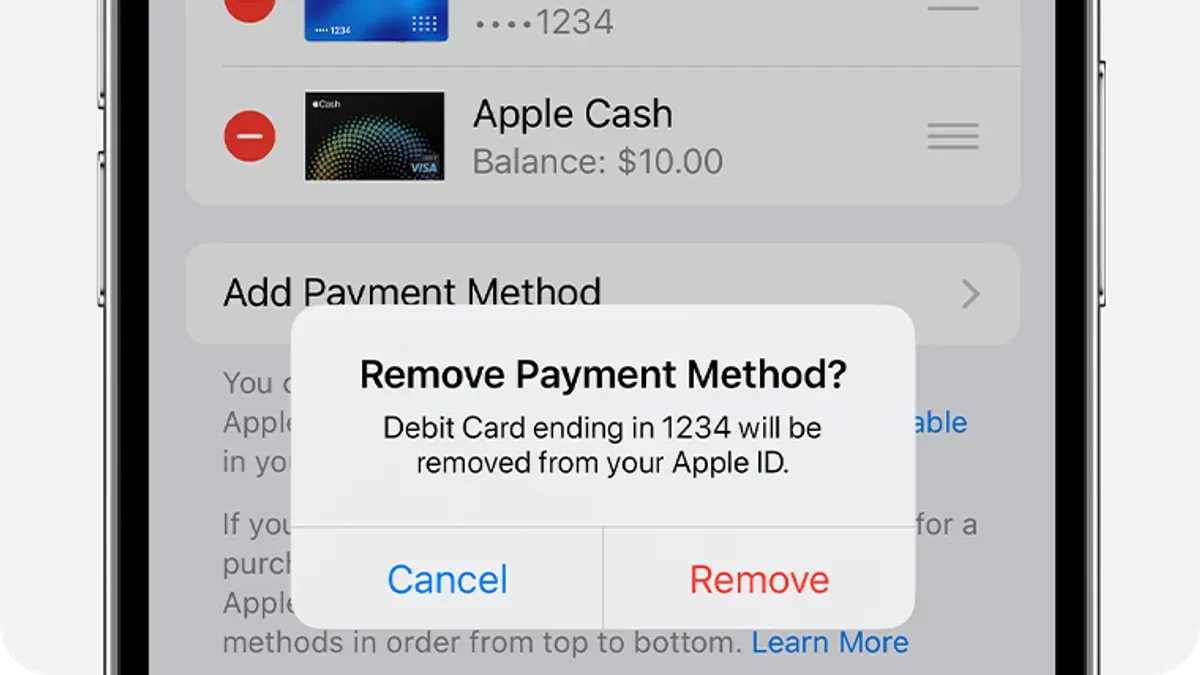
- Open the Wallet app on the iPhone or iPad. The main screen displays all cards currently added for Apple Pay.
- To remove an existing card, tap the card, then tap the three-dot icon (More) at the top right corner. Scroll down and select "Remove This Card." A confirmation prompt appears; confirm removal. The card will no longer be available for Apple Pay on that device.
- To update card information, users typically need to remove the outdated card and add it again with the new details, as direct editing of card information is not supported.
- To add a new card, tap the plus (+) icon in the Wallet app. Follow the on-screen prompts to scan the card or enter details manually. The card issuer will verify the information before activation.
- After adding or removing cards, the changes sync automatically across all devices signed in with the same Apple ID, ensuring consistent payment options everywhere Apple Pay is used.
Although the interface for managing cards is straightforward, users should note that card verification may require issuer approval through a text message, email, or phone call. This verification step is a security measure distinct from device passcode or Apple ID password changes.
Tip: Removing a card from Apple Pay does not cancel the card with the bank; it only removes it from the device’s Wallet app.
Troubleshooting common issues when changing Apple Pay or Apple ID passwords
Forgotten Apple ID passwords require a reset through Apple's official recovery process. Visit iforgot.apple.com, enter the Apple ID email, and follow the on-screen instructions to reset the password via email, security questions, or two-factor authentication methods. A successful reset leads to immediate account access restoration.
If the device passcode is not accepted or Face ID fails, first ensure the device software is up to date under Settings > General > Software Update. Restart the device to clear temporary glitches. Re-enroll Face ID under Settings > Face ID & Passcode and test again. Persistent passcode rejection may require resetting the passcode through Settings > Face ID & Passcode > Change Passcode, following prompts to verify identity.
Apple Pay transaction failures after changing the password or passcode can result from authorization or verification mismatches. Verify that the device is connected to the internet and that the Wallet app shows cards as active. Removing and re-adding a payment card can resolve authorization issues. Also, ensure the new passcode or biometric authentication is fully set up and recognized by the device.
Account security alerts or lockouts often appear after multiple failed login attempts. Use Apple's account recovery options from iforgot.apple.com to regain access. Enable two-factor authentication for added security. If locked out of Apple Pay, contact Apple Support directly for assistance in unlocking the account.
Common error messages:
- "Incorrect Apple ID or password" — indicates login credentials are wrong or the account is locked.
- "Passcode not recognized" — device passcode entered does not match the current code.
- "Transaction declined" — payment authorization failed, often resolved by verifying card status.
- "Face ID not available" — hardware or software issue requiring reconfiguration or update.
Tip: Always update to the latest iOS version before changing passwords or passcodes to minimize compatibility issues.
Frequently asked questions
How to change your apple account password?
To change the Apple ID password, go to Settings, tap on your name at the top, then select Password & Security. Choose Change Password, then enter your device passcode to authenticate. Follow the prompts to set a new password that meets Apple’s security requirements.
How do i change my apple pay password?
Apple Pay does not have a separate password. The security is tied to the device passcode or biometric authentication like Face ID or Touch ID. To update security, change your device passcode or enable biometric authentication in Settings under Face ID & Passcode or Touch ID & Passcode.
How to change my apple password?
Changing the Apple ID password requires accessing the Apple ID settings on the device or via the Apple ID website. On an iPhone, open Settings, tap your name, then Password & Security, and select Change Password. Verify identity and enter a new secure password.
How to change apple wallet password?
Apple Wallet does not use a separate password. Access to Apple Wallet is controlled by the device passcode and biometric settings. To effectively change Apple Wallet security, update the device passcode or configure Face ID/Touch ID settings.
How to change apple wallet passcode?
The Apple Wallet passcode is the device passcode. To change it, open Settings, tap Face ID & Passcode or Touch ID & Passcode, then select Change Passcode. Follow the on-screen instructions to set a new passcode, which will secure Apple Wallet and Apple Pay transactions.
What This Guide Does Not Cover
This guide does not cover recovery procedures for lost Apple ID credentials beyond password reset. It also does not address issues resulting from device theft or account hacking, which require direct contact with Apple Support. Users needing to regain full account access after security breaches or who face hardware security lockouts should seek specialized assistance.
The single most useful next step is to regularly review Apple ID security settings by visiting Settings > [user name] > Password & Security on iPhone or iPad. Ensuring two-factor authentication is enabled and keeping trusted phone numbers updated strengthens account protection beyond just changing passwords or passcodes.
See also: How to Change Your Amazon Password: Clear Step-by-Step Guide · How to Identify, Respond to, and Prevent Google Pay Account Hacks