How to Change Your AliExpress Password: Clear Step-by-Step Guide
This guide provides clear, step-by-step instructions on how to change your AliExpress password and improve account security.

This guide explains how to change AliExpress password with clear, step-by-step instructions and covers related account management and security settings. Changing a password on AliExpress is straightforward but integrating this with account safety practices improves overall security. The process differs slightly between the mobile app and website, both covered here to ensure no confusion.
Before beginning, ensure access to the registered email or phone number is available, as verification codes are mandatory. Knowing how to navigate AliExpress settings efficiently helps prevent common errors and saves time. This guide also addresses password recovery, account creation, deletion, withdrawal password changes, and troubleshooting to offer a comprehensive resource.
Before you start: What is needed to change the AliExpress password
Changing the AliExpress password requires access to the registered email address or phone number linked to the account. These are necessary for identity verification, as AliExpress sends confirmation codes via email or SMS to confirm the request. If the current password is forgotten, the user must be able to verify identity through these linked methods or security questions set up previously.
A stable internet connection is essential to ensure seamless access to the AliExpress app or website during the process. Password changes immediately affect login credentials and related security features, so users should prepare accordingly to avoid being locked out.
Common scenarios causing issues include outdated phone numbers or emails no longer in use, which block verification code delivery. In such cases, account recovery becomes more complicated and might require contacting AliExpress support. Knowing these prerequisites helps prevent interruptions during the password change process.
- Confirm access to the email or phone number registered with the AliExpress account; this ensures receiving verification codes successfully.
- Ensure the current password is known or have the ability to verify identity via linked contact methods; this enables authorization of the change.
- Check for a stable internet connection and access to the AliExpress app or website; this allows smooth navigation through account settings.
How to change AliExpress password in app
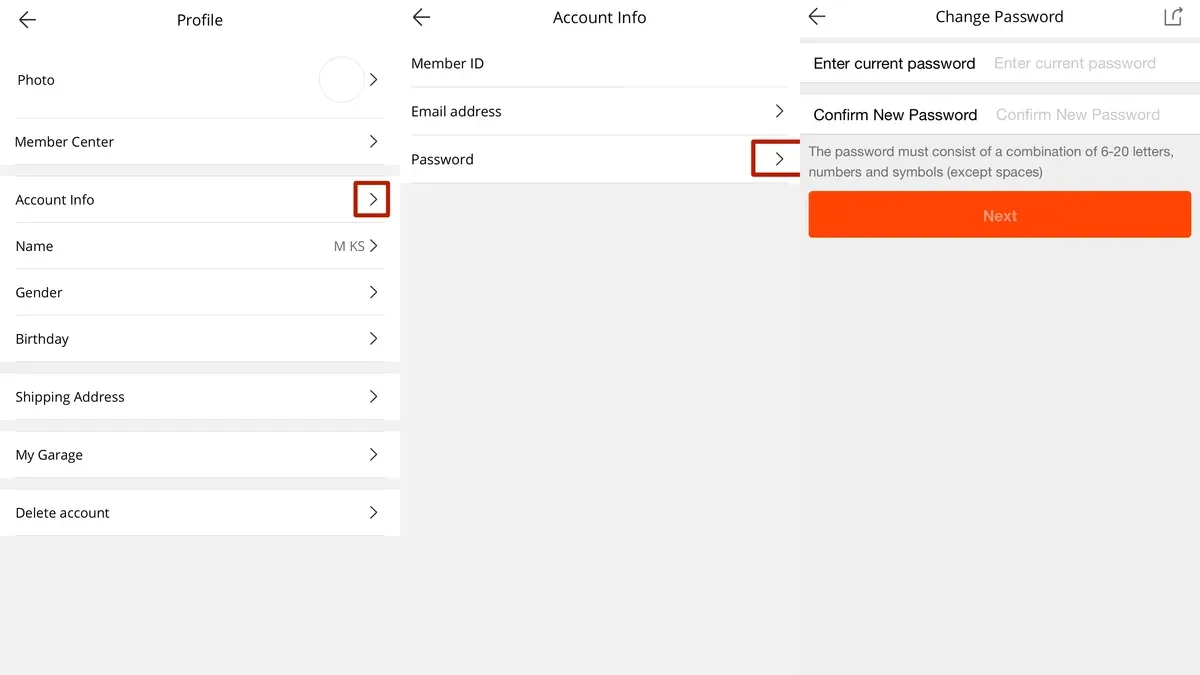
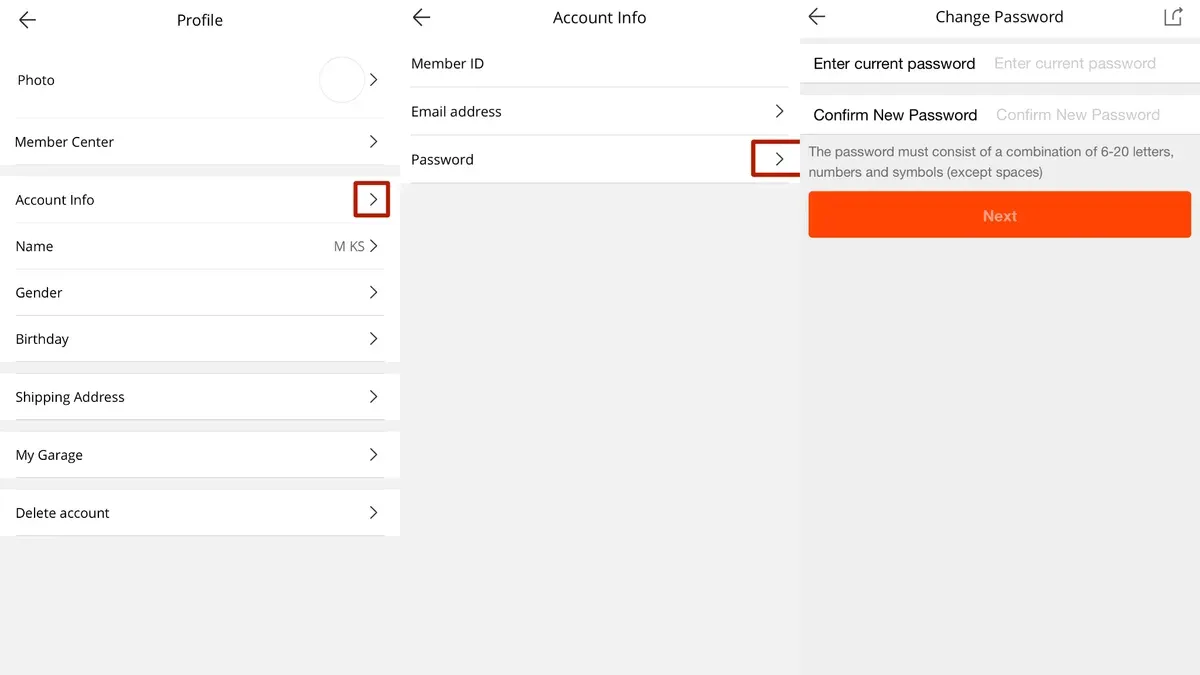
- Open the AliExpress app and log in using the current username and password. The main dashboard or home screen should appear after successful login.
- Tap the My Account icon, usually located at the bottom right of the screen. This opens the account overview page.
- Navigate to Account Settings or Security Settings. These options are typically found under the profile or settings menu within the account page.
- Select the Change Password option. A form with fields for the current password, new password, and confirmation of the new password will appear.
- Enter the current password in the first field to verify identity.
- Type the new password in the second field, ensuring it meets AliExpress’s security requirements (usually 6-20 characters, combining letters and numbers).
- Re-enter the new password in the confirmation field to avoid typos.
- Tap Save or Confirm to apply the changes. The app may prompt for additional verification such as a code sent via SMS or email.
- After successful password change, a confirmation message will display. Log out and log back in using the new password to verify the update.
Tip: If the app does not immediately reflect the password change, clear cache or restart the app.
How to change AliExpress password on the website
- Log in to AliExpress.com using the current username and password. The homepage should display the user’s dashboard or main shopping page upon successful login.
- Navigate to My Account by clicking the user icon at the top right corner of the page. A dropdown menu appears with several options including Account Settings or Security Center.
- Select Account Settings or directly access Security Center if visible. The security options page will load, showing password management features.
- Click the Change Password link or button. This opens a form requesting the current password, new password, and confirmation of the new password.
- Enter the current password, then type the new password twice to confirm accuracy. Follow the password requirements shown on the page to avoid errors.
- Complete any verification steps prompted, often an email or SMS confirmation code sent to the registered contact method. Enter this code as required to proceed.
- Submit the change request. A confirmation message should appear indicating the password was successfully updated.
- Sign out from the account and sign back in using the new password to verify the change took effect.
| Step | App Process | Website Process |
|---|---|---|
| Login | Via app login screen | Via browser on AliExpress.com |
| Navigation | Profile tab > Settings > Password | User icon > Account Settings or Security Center |
| Password input | Current + new + confirm in app form | Current + new + confirm in browser form |
| Verification | Email/SMS code within app | Email/SMS code via browser prompt |
| Confirmation | Instant app confirmation message | Browser confirmation message |
Tip: Using the website’s Security Center allows quick access to additional security settings beyond password changes.
How to recover and reset AliExpress password if forgotten
- Go to the AliExpress login page on the app or website and click the "Forgot Password" link. A password recovery interface should appear.
- Enter the registered email address or phone number associated with the AliExpress account. After submitting, a verification code will be sent to the chosen contact method.
- Check the email inbox or SMS messages for the verification code. Enter the code in the provided field on AliExpress. If the code is correct, proceed to the next step; if not, request a new code or verify the contact information.
- Create a new password following AliExpress's security guidelines: use at least 8 characters, combine letters, numbers, and symbols, and avoid common phrases. Confirm the new password by re-entering it.
- Submit the new password. A confirmation message will indicate a successful reset. Log in using the new password immediately.
- After login, navigate to the Account Security Settings to review and update any additional security measures, such as two-factor authentication or recovery methods, to prevent future access issues.
Tip: If the verification code is not received, check spam or junk folders for emails and ensure the phone number is entered with the correct country code.
How to create an AliExpress account
- Open the AliExpress app or visit the official website. The home screen will display options to sign in or sign up.
- Select the 'Sign Up' or 'Create Account' button. This leads to the registration form.
- Enter a valid email address or mobile phone number. Choose a strong password combining letters, numbers, and symbols. The form will indicate if the password meets security standards.
- Complete the verification process by entering the code sent via email or SMS. Successful verification grants access to the next step.
- Access the account dashboard, which confirms the new account creation. From here, users can proceed to customize profiles and review settings.
Tip: Use a password manager to generate and save a strong password that is difficult to guess but easy to retrieve.
Step-by-step screenshots usually accompany the registration process, showing each screen's layout and where to input information, helping users avoid common mistakes such as typos in email addresses.
How to delete AliExpress account permanently
Deleting an AliExpress account is irreversible. It removes all order history, saved information, and access to the account. This action cannot be undone, so it should be considered carefully before proceeding.
To delete the account, navigate to Account Settings on the AliExpress website or app. Within the settings menu, locate the Delete Account option, usually found under the Privacy or Security section.
- Click on Delete Account. The system will prompt for identity verification, such as entering the current password or a verification code sent to the registered email or phone number.
- Complete the verification process. Upon successful verification, confirm the deletion request when prompted.
- After confirmation, a final notification will indicate that the account deletion request has been processed.
Tip: Instead of permanent deletion, consider temporarily deactivating the account or changing the password to secure access without losing data.
AliExpress’s official policy states that once an account is deleted, all associated data is permanently removed and cannot be recovered. User reports confirm that the deletion process follows these steps strictly, emphasizing the need for verification to prevent unauthorized removal.
How to change withdrawal password on AliExpress
The withdrawal password on AliExpress is a separate security measure designed specifically to authorize fund transfers and withdrawals, distinct from the login password. Changing this password is crucial if there is suspicion of unauthorized access or after sharing it for temporary use. It helps protect financial transactions even if the main account password is compromised.
- Log in to the AliExpress account and navigate to the Account Security or Wallet section; this is where withdrawal password settings are located.
- Find and select the Withdrawal Password option; this will prompt a verification step.
- Verify identity by entering the current withdrawal password or confirming via a linked phone number or email; successful verification grants access to change the password.
- Enter the new withdrawal password, confirm it by retyping, and save the changes; the system will notify if the update is successful.
- If possible, perform a low-risk transaction such as a small withdrawal or balance check requiring the withdrawal password to ensure the new password works correctly.
Tip: Change the withdrawal password periodically or immediately after any suspected security breach to maintain financial safety.
How to manage AliExpress account security settings
Beyond changing passwords, account security on AliExpress relies on several proactive measures. First, enable two-factor authentication (2FA) in the Security Center under Account Settings. This adds a verification step during login, significantly reducing unauthorized access risks. Many security breaches are prevented by 2FA, making it a critical layer of defense.
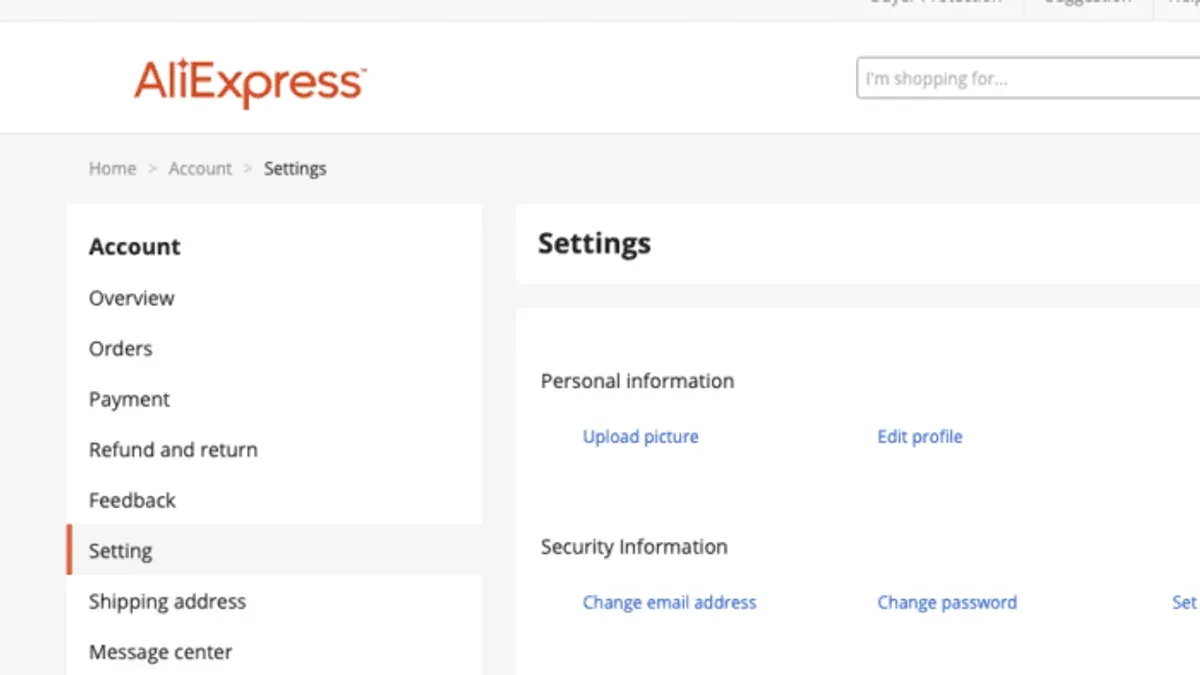
Regularly updating recovery email addresses and phone numbers ensures account recovery options remain accessible. Navigate to Personal Information to review and edit these details. Outdated contact info can block recovery attempts and delay responses to security alerts.
Review recent login activity under Security Center to spot unfamiliar devices or sessions. Revoke access for unknown entries immediately to prevent continued unauthorized use. Set up alerts for suspicious activity, which AliExpress offers as notifications or emails, to stay informed of potential threats in real time.
Use strong, unique passwords combining letters, numbers, and symbols for all AliExpress-related credentials. Changing passwords periodically helps mitigate risks from data leaks elsewhere. Avoid repeating passwords from other sites to limit exposure if one account is compromised.
Troubleshooting common issues when changing AliExpress password
When the verification code is not received via email or SMS, first check the spam or junk folder. Ensure the device has a stable internet or cellular connection, and confirm that message blocking or Do Not Disturb settings are disabled. If the code still doesn't arrive, try resending it after a few minutes.
If the current password is forgotten and recovery options are inaccessible, contacting AliExpress customer support through the Help Center is necessary. Provide identity verification details as requested to regain account access.
When password changes fail to save or error messages appear, clear the browser cache and cookies or update the AliExpress app to the latest version. Trying a different device or browser can also resolve compatibility issues that block saving changes.
Accounts locked after multiple failed attempts require waiting for the lock period to expire or completing identity verification via the provided prompts. This temporary lock prevents unauthorized access.
Password complexity errors occur when the new password does not meet requirements. Use at least eight characters combining uppercase and lowercase letters, numbers, and symbols. Avoid common words or simple sequences to ensure acceptance.
Frequently asked questions
How to open account in aliexpress?
Open the AliExpress homepage or app and click the "Join" or "Register" button. Provide a valid email address or mobile number, create a password, and fill in required personal details. Verify the email or phone number through the confirmation code sent to complete registration.
How to change alibaba password?
Alibaba and AliExpress are separate platforms. To change the Alibaba password, log into Alibaba, go to "Account Settings," select "Security Settings," then "Change Password." Enter the current password and set a new password following the platform’s requirements.
How to use aliexpress?
Browse or search for products using categories or keywords. Add desired items to the cart or buy immediately. Complete checkout by entering shipping information and selecting a payment method. Track orders and communicate with sellers via the order page.
How to change password for aliexpress?
Access the AliExpress account settings through the profile menu. Navigate to "Account & Security" and select "Change Password." Enter the current password, then input and confirm the new password. Save changes to update the password securely.
How to create an AliExpress account?
On the AliExpress website or app, click "Join" or "Register." Enter a valid email or phone number and create a strong password. Complete any verification steps required, such as entering a code sent by email or SMS, to activate the account.
What This Guide Does Not Cover
This guide does not cover recovering accounts without access to the registered email or phone, which requires direct AliExpress customer support intervention. Users who have lost all access to their linked contact details must contact AliExpress support through the official help center or app chat for identity verification and account recovery. Additionally, this article does not address third-party password managers or advanced security tools beyond AliExpress’s native settings.
For users seeking to enhance security beyond password changes, enabling two-factor authentication and regularly reviewing authorized devices under the AliExpress "Security Settings" section is strongly recommended. This adds a critical layer of protection against unauthorized access.
The most practical next step after changing or recovering an AliExpress password is to immediately review the "Account Security" page. Confirm that the registered email, phone number, and withdrawal password are current and secure, then enable login alerts and two-factor authentication to maintain ongoing account safety.
See also: How to Change Your Airbnb Password: Clear Step-by-Step Guide · How to Change Your Afterpay Password: Clear Step-by-Step Guide