How to Turn On Two-Factor Authentication on Tinder: A Step-by-Step Guide
Learn how to turn on two-factor authentication on Tinder with a clear step-by-step guide to protect your account from unauthorized access.

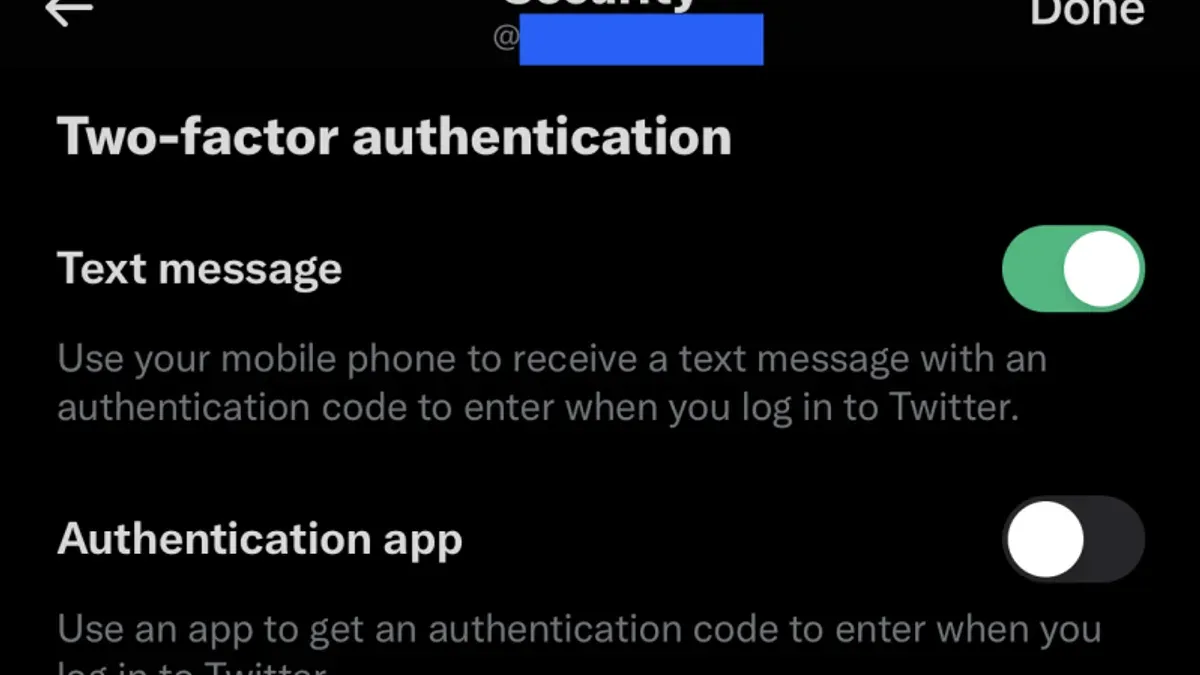
This article explains how to turn on two-factor authentication on Tinder with a clear, step-by-step approach. Two-factor authentication (2FA) adds a layer of security beyond the password, requiring a verification code during login. Tinder’s 2FA setup differs slightly from other apps by focusing on SMS-based verification and occasionally email confirmations. Understanding Tinder’s specific process, supported verification methods, and common setup pitfalls helps ensure the dating profile stays protected from unauthorized access.
Before enabling 2FA, users should prepare by verifying their phone number and ensuring access to the linked email account. This guide covers accessing Tinder’s security settings, completing the 2FA setup, troubleshooting failures, and managing or disabling 2FA if necessary. It also clarifies what Tinder’s two-factor authentication protects against—and what it doesn’t.
Before You Start: What Is Needed to Enable Two-Factor Authentication on Tinder?
Setting up two-factor authentication (2FA) on Tinder requires several prerequisites to ensure a smooth process. First, an active Tinder account with a verified phone number or email address is necessary, as these are linked to security features. Access to the device where the Tinder app is installed and logged in is essential because the 2FA setup must be performed within the app's security settings. A secondary verification method is required; Tinder supports SMS codes sent to a phone number and authenticator apps such as Google Authenticator or Authy.
Most modern smartphones running recent versions of iOS or Android are compatible with Tinder's 2FA features. Basic familiarity with Tinder’s interface, including navigating to the profile and settings menus, will help avoid setup errors.
- Ensure the Tinder account has a verified phone number or email; the account should show confirmation in the profile settings.
Success indicator: Verified contact details are visible under account settings. - Have the device with Tinder installed and logged in ready.
Success indicator: Access to Tinder’s main screen without login prompts. - Prepare a secondary verification method: either an SMS-capable phone number or an authenticator app installed and configured.
Success indicator: Ability to receive SMS or generate time-based codes on the authenticator app. - Confirm basic ability to navigate Tinder’s menus, especially the profile and security settings.
Success indicator: Access to security options within the app.
How to Access Tinder Security Settings to Enable Two-Factor Authentication
- Open the Tinder app and tap the profile icon located at the top-left corner of the main screen. This opens the account overview.
- Tap the gear icon labeled “Settings” to enter the app’s configuration menu.
- Scroll down to find the “Security” section. On some versions, this may be under “Account” settings instead.
- Within “Security” or “Account,” look for the option named “Two-Factor Authentication” or “2FA.” This is where the setup begins.
On iOS, the “Security” tab is usually a distinct section in Settings, clearly labeled and easy to locate. Android versions may place security options under the broader “Account” header, so check both if unsure.
Tip: If the 2FA option is not immediately visible, ensure the Tinder app is updated to the latest version, as UI changes may relocate security settings.
What Are the Steps to Turn On Two-Factor Authentication on Tinder?
- Select Two-Factor Authentication from the Security Settings menu. The app displays options for verification methods.
- Choose the preferred verification method: either SMS or an authenticator app. SMS requires entering a phone number; the authenticator app option requires scanning a QR code.
- If SMS is selected, enter the phone number to receive a verification code. If using an authenticator app, open the app, scan the QR code, and generate a 6-digit code.
- Enter the received or generated 6-digit verification code into Tinder's prompt. A typical code looks like 493827. Upon success, Tinder confirms "Two-Factor Authentication is enabled".
- Save changes by tapping Enable or Save. To verify, log out and log back in; Tinder will request the 2FA code after the password.
Tip: If the verification code is rejected, check the phone number entered or the time synchronization in the authenticator app.
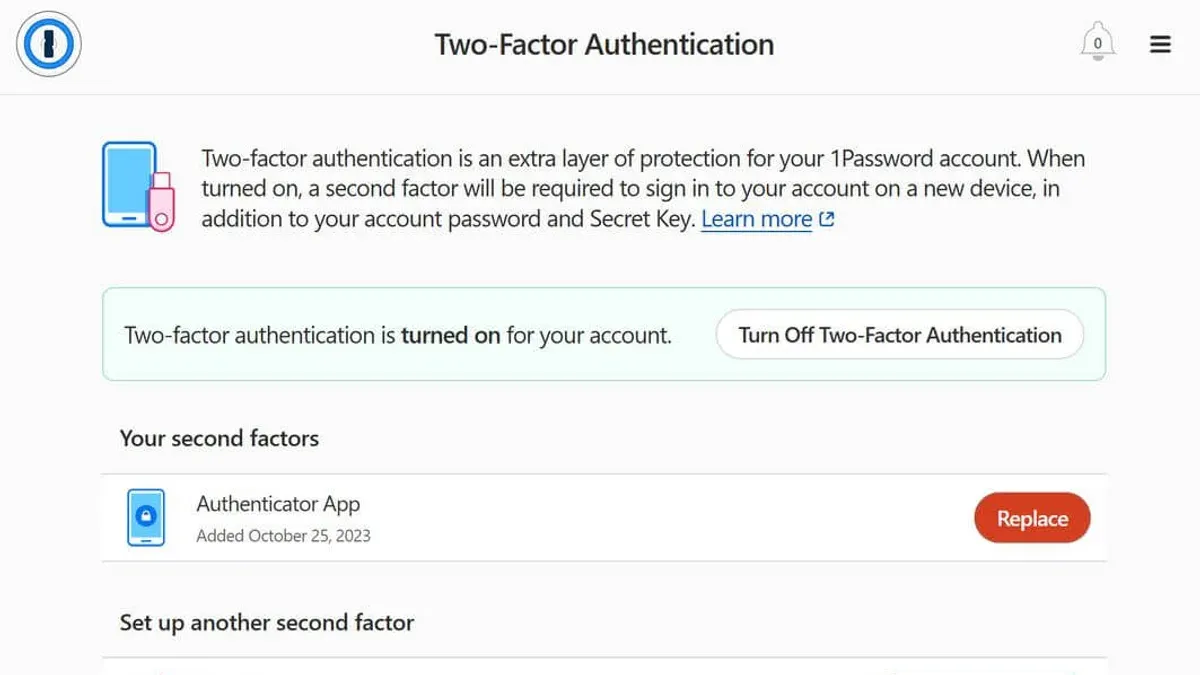
What Should Be Done If Two-Factor Authentication Setup Fails on Tinder?
Failure during two-factor authentication (2FA) setup on Tinder often arises from common issues such as SMS code delivery problems, authenticator app sync errors, or app compatibility limitations. When SMS codes do not arrive, verify the phone number is correct and the device has network connectivity. Carrier delays or blocking of short codes can also cause issues.
Authenticator apps can fail if device time is not synchronized accurately, leading to invalid or expired time-based one-time passwords (TOTPs). Ensure the device clock is set to automatic network time, then rescan the QR code or re-enter the setup key.
App version incompatibility or outdated operating systems can prevent 2FA activation or cause errors like "Unable to Enable Two-Factor Authentication." Updating Tinder to the latest version and verifying OS compatibility often resolves these problems.
If initial attempts fail, restart the 2FA setup from the Tinder app’s Security Settings. Should errors persist, contact Tinder Support via the app’s Help Center, providing screenshots and error messages for faster resolution.
- Check phone number and network; request SMS code; code received confirms SMS path works.
- Sync device time to automatic; open authenticator app; enter fresh code; code accepted confirms app sync.
- Update Tinder app and device OS; retry 2FA activation; success indicates compatibility resolved issue.
- If errors continue, restart setup process; no error prompts indicate reset success.
- Contact Tinder Support with error details; awaiting response confirms support engagement.
How to Manage and Disable Two-Factor Authentication on Tinder If Needed
To disable or change two-factor authentication (2FA) on Tinder, access the Security Settings from the profile menu, then select the Two-Factor Authentication option. Here, choose either to turn off 2FA or switch between SMS and authenticator app methods. Tinder will prompt for confirmation and typically requires entry of a verification code to finalize changes, ensuring that only the account owner can modify security settings.
Disabling 2FA reduces account protection and should only be done if necessary, such as loss of all verification devices or switching to a new phone. Tinder warns users that disabling 2FA makes the account more vulnerable to unauthorized access, emphasizing the trade-off between convenience and security.
If the primary verification method is lost, backup options include using recovery codes saved during setup or switching to an alternative verification method within settings. Keeping recovery codes secure and accessible is a crucial best practice to avoid being locked out.
- Open the Tinder app and tap the profile icon.
- Tap Settings > Security Settings > Two-Factor Authentication.
- Select "Disable Two-Factor Authentication" or choose a new verification method.
- Enter the verification code sent via the current 2FA method to confirm.
- Receive confirmation that 2FA is disabled or updated.
Tip: Always save recovery codes in a secure location before making changes to 2FA settings to ensure uninterrupted account access.
What Are the Limits of Tinder’s Two-Factor Authentication?
Two-factor authentication (2FA) on Tinder adds a crucial layer of security by requiring a second verification step during login, typically via SMS or an authenticator app. This protects against unauthorized access even if the password is compromised. However, 2FA does not defend against phishing attacks or social engineering tactics that trick users into revealing their credentials or verification codes.
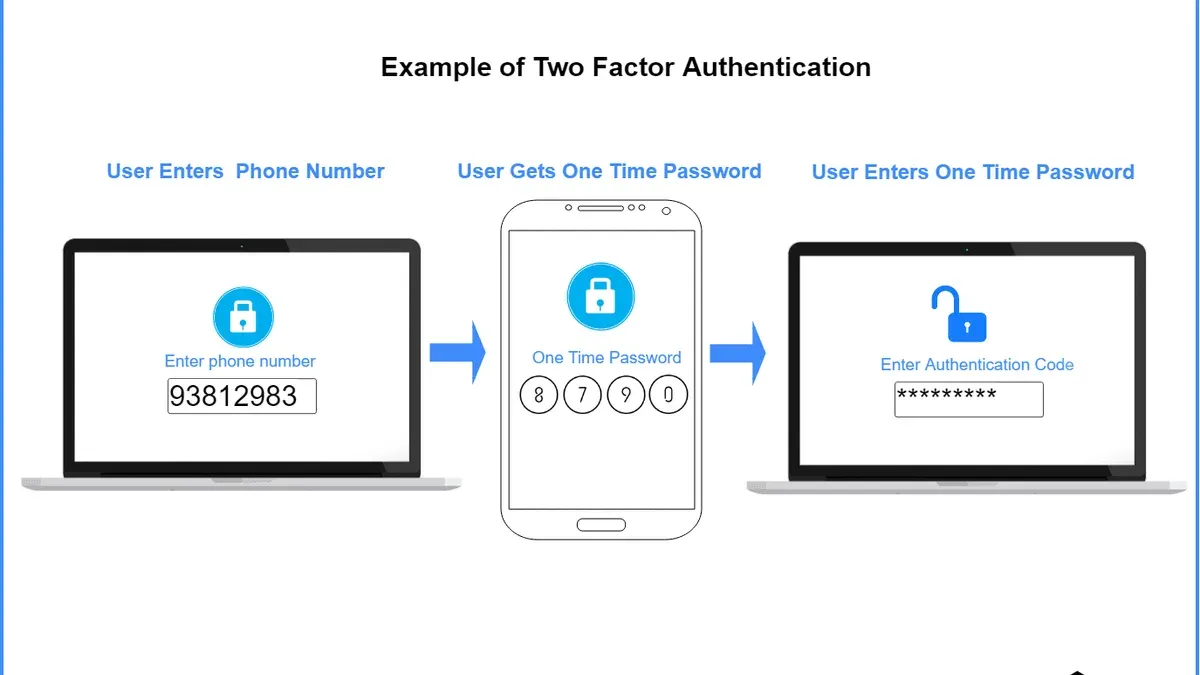
Tinder’s 2FA also does not encrypt private messages or control who can see a profile. Message content and profile visibility remain subject to Tinder’s standard privacy settings and are not shielded by 2FA. Users should not assume 2FA provides comprehensive protection beyond login security.
Security experts emphasize that 2FA is one component of a broader security strategy. Combining strong, unique passwords with cautious app usage—such as avoiding suspicious links and verifying contacts—reduces risk significantly. Tinder’s security policy highlights 2FA as an effective but partial safeguard rather than a complete solution.
Frequently asked questions
Can two-factor authentication be enabled without a phone number on Tinder?
No, Tinder requires a valid phone number to enable two-factor authentication. The verification codes are sent via SMS to the registered phone number, making the phone number essential for 2FA setup and use.
What happens if the phone used for 2FA is lost or stolen?
If the phone used for 2FA is lost or stolen, access to the verification codes is also lost, which can lock the user out of the account. It is crucial to update the phone number associated with the account promptly or contact Tinder support for identity verification and account recovery options.
Does Tinder support authenticator apps like Google Authenticator or Authy for 2FA?
Tinder does not currently support third-party authenticator apps such as Google Authenticator or Authy. The platform relies solely on SMS-based verification codes for its two-factor authentication process.
Will enabling two-factor authentication slow down login or app performance?
Enabling two-factor authentication adds an extra step during login but does not affect the app’s overall performance. Users will need to enter a verification code sent via SMS after submitting their password, which may slightly increase login time but does not impact app speed or functionality.
What Are the Limits of Tinder’s Two-Factor Authentication?
Tinder’s two-factor authentication (2FA) enhances account security by requiring a verification code during login, but it does not protect against all security threats. It does not prevent unauthorized access if the primary password is compromised through phishing or keylogging before 2FA is enabled. Also, 2FA does not secure the account if the linked phone number or email is hijacked. This guide does not cover Tinder’s overall account recovery process if 2FA lockout occurs; users should consult Tinder support for account recovery.
The single most useful next step is to enable 2FA immediately through Tinder’s Security Settings, using a reliable phone number for SMS verification. Ensuring the number is always accessible prevents lockout and keeps the dating profile protected from unauthorized access effectively.
See also: How to Turn On Two-Factor Authentication on Hinge: A Step-by-Step Guide · How to Turn On Two-Factor Authentication on Bumble: A Step-by-Step Guide · How to See Where You're Logged Into Tinder: Step-by-Step Guide