
How to Secure Your X (Twitter) Account: Step-by-Step Guide
This guide provides clear steps to secure your X (Twitter) account by adjusting privacy settings and enabling two-factor authentication.


This guide explains how to secure your X (Twitter) account with clear, step-by-step instructions tailored to the platform's specific settings and recent changes. Securing an X account involves more than just setting a strong password; it requires adjusting privacy controls, enabling two-factor authentication, and understanding how the rebranding affects security features.
Start by reviewing the essential requirements: access to the email or phone number linked to the account, the X app or web access, and a secure device. This foundation enables effective use of X’s security tools like login verification and profile locking.
Following these steps ensures protection against unauthorized access and helps control who can see tweets and personal information. The guide also addresses common misconceptions about X’s privacy options and highlights settings often overlooked in generic security advice.
Before you start: What is needed to secure an X account
Securing an X account requires preparation and access to specific tools and information. First, full access to the account’s login credentials is essential, including the correct username and password. Without these, no security updates or privacy adjustments can be made.
A verified email address and phone number must be linked to the account. These are critical for account recovery and enabling security features such as two-factor authentication (2FA). X uses these contacts to verify identity during suspicious login attempts or password resets.
Two-factor authentication significantly increases account security by requiring a secondary verification step beyond just a password. Setting up 2FA requires a smartphone or an authentication app like Google Authenticator, Authy, or Microsoft Authenticator. Although adoption varies, many social media platforms report that only a minority of users enable 2FA, despite its effectiveness in preventing unauthorized access.
Before making changes, it is necessary to review the account’s current privacy settings. This includes checking who can see tweets, who can send direct messages, and the visibility of personal information. Understanding these settings helps tailor security measures to the user’s needs.
- Log in to the X account using the username and password; successful login shows the home timeline.
- Verify that the account has a confirmed email address and phone number under Settings & Privacy > Your Account > Account Information; these fields should display linked contact details with confirmation status.
- Install and set up an authentication app on a smartphone; the app should be ready to scan QR codes or enter setup keys.
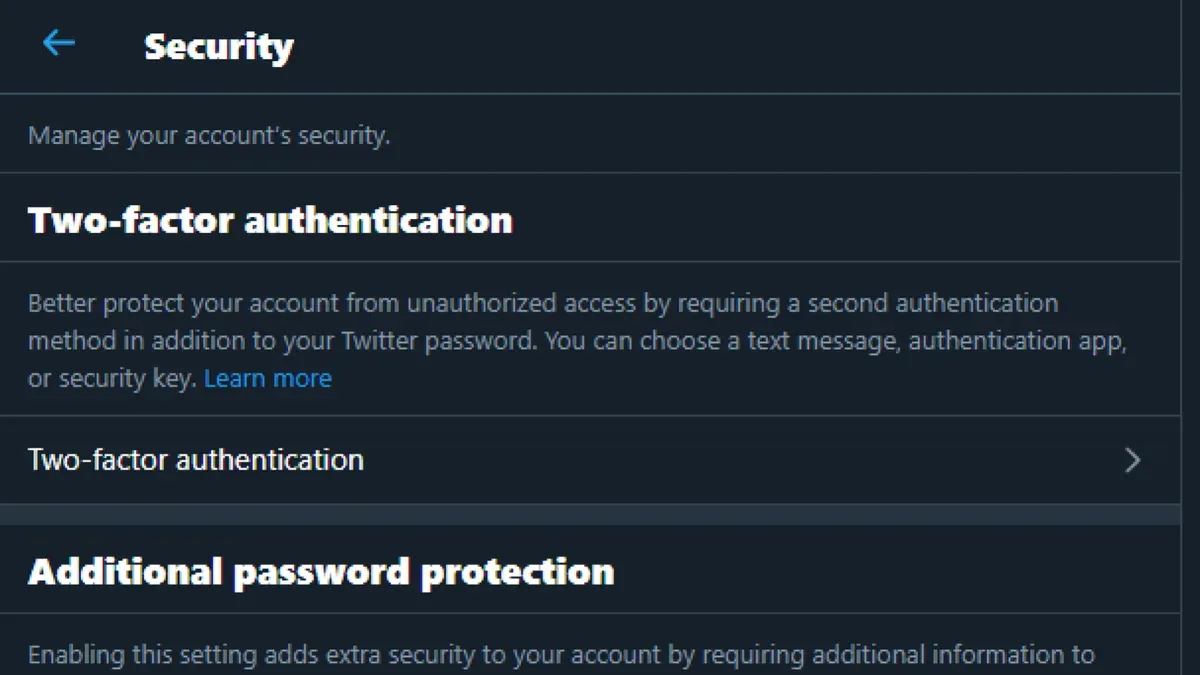
- Navigate to Settings & Privacy > Security & Account Access > Security > Two-Factor Authentication; options for authentication app, text message, or security key should be visible.
- Review current privacy settings under Settings & Privacy > Privacy & Safety; visibility options for Tweets and profile information should be accessible.
How to protect your Twitter account
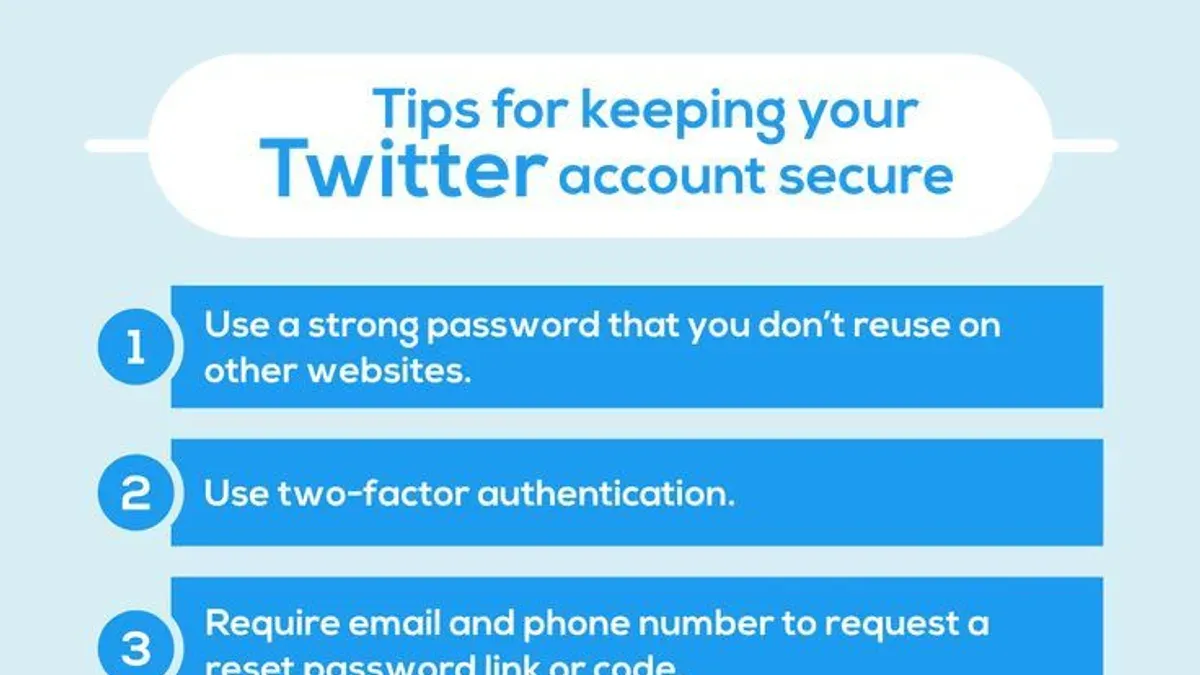
- Enable two-factor authentication (2FA) using an authenticator app: Navigate to Settings and privacy > Security and account access > Security > Two-factor authentication. Select "Authentication app," then follow prompts to link an app like Google Authenticator or Authy. A successful setup shows 2FA enabled under Security settings. Authenticator apps provide stronger protection than SMS, which can be vulnerable to SIM swapping.
- Set a strong, unique password: Go to Settings and privacy > Security and account access > Password. Choose a password at least 12 characters long, mixing uppercase, lowercase, numbers, and symbols. Avoid common words or reused passwords. A strong password reduces risk of brute-force attacks and credential stuffing.
- Review connected apps and revoke access: Visit Settings and privacy > Security and account access > Apps and sessions > Connected apps. Examine the list for unfamiliar or unused apps. Revoke access to any suspicious entries by selecting them and choosing "Revoke access." This prevents third parties from misusing the account.
- Keep email and phone number updated: Under Settings and privacy > Account information, verify the current email address and phone number. Update if outdated to ensure account recovery options remain valid. This step helps receive security alerts and reset passwords securely.
- Turn on login verification alerts: In Security settings, enable notifications for unrecognized logins. This setting sends immediate alerts if a login occurs from an unfamiliar device or location, allowing prompt response to unauthorized access attempts.
Tip: Use a reputable password manager to generate and store complex passwords securely.
How to lock your X account on Twitter
Locking an X account makes tweets visible only to approved followers, enhancing privacy and restricting interaction with non-followers. This feature, named “Protect your Tweets,” prevents anyone not approved from seeing content, searching tweets publicly, or retweeting. Unlike deactivating or deleting, locking keeps the account active but private.
- Open the X app or website and log in to the account.
- Go to Settings and privacy via the profile menu.
- Select Privacy and safety.
- Under Audience and tagging, find Protect your Tweets and toggle it on.
- Confirm the change when prompted; a lock icon now appears next to the profile name.
Once enabled, only followers approved before or after locking can see tweets. New followers require manual approval. Non-followers see a message stating the account is private when attempting to view tweets. Search engines will no longer index tweets, and retweeting is disabled.
Before locking, profiles and tweets are publicly visible, allowing open interaction. After locking, visibility is limited, increasing control but reducing reach. Some users report improved account security and fewer unwanted interactions, though the trade-off includes lower public engagement.
Tip: Review existing followers before locking to ensure only intended users maintain access to tweets.
How to see a protected Twitter account
Protected Twitter accounts restrict tweet visibility to approved followers only. To view the tweets of a locked account, a follow request must be sent and accepted by the account owner. This approval process ensures privacy and control but can delay or prevent access depending on the account holder’s response.
To request access to a protected account, navigate to the profile page and click the "Follow" button. Once the request is sent, the button will change to "Requested," indicating the follow request is pending. If approved, tweets will become visible immediately; if denied or ignored, access remains restricted.
Third-party tools and search engines typically cannot access locked tweets because the content is not publicly indexed. Attempting to view protected tweets through such means usually fails or shows only limited metadata like the profile name and bio. This limitation reinforces the importance of follower approval for access.
Follower approval rates vary widely and depend on the account owner’s preference and activity. Many users accept follow requests from known contacts or legitimate profiles but reject unknown or suspicious ones. When requesting access, providing a clear and relevant profile may improve approval chances.
- Open the protected account’s profile page on X.
- Click the "Follow" button; it should change to "Requested".
- Wait for the account owner to approve or deny the request.
- Once approved, the tweets become visible immediately within the timeline.
- If the request remains pending or is denied, tweets stay hidden.
Tip: Avoid using third-party tools claiming to reveal protected tweets; they rarely work and may compromise account security.
How secure is Twitter
X employs several robust security measures to protect user accounts. Data transmitted on the platform is encrypted using HTTPS, securing information from interception. Login protection includes options like two-factor authentication (2FA) via authenticator apps and SMS, while login alerts notify users of suspicious access attempts. Abuse prevention tools monitor and limit spam, automated bots, and harmful content, contributing to overall platform integrity.
Despite these safeguards, X has experienced notable security incidents. A high-profile breach in 2020 compromised numerous high-profile accounts through a social engineering attack targeting internal employees. The platform responded by strengthening internal controls and limiting employee access to sensitive tools. While no widespread compromise of user passwords has been reported, phishing remains a common vector for account hijacking on X.
User behavior significantly impacts account security. Weak passwords, reusing credentials across sites, and ignoring suspicious login alerts increase vulnerability. Even with strong platform defenses, compromised email accounts or falling for phishing scams can lead to unauthorized access. Users must maintain vigilance alongside X’s protections for optimal security.
Why Twitter became X and how it affects account security
The rebranding of Twitter to X marked a significant shift in the platform's identity, aiming to expand beyond microblogging into a broader digital experience. While the core functionality remains, the change reflects new ambitions under the ownership of Elon Musk, with an emphasis on integrating various services and features.
During the transition, the company updated its privacy policy to reflect new data practices, including expanded data sharing with third parties to support additional services. Official statements indicate that these changes aim to offer more personalized experiences but require users to be more attentive to permission settings and data sharing preferences.
Security-wise, the platform maintained its existing protection mechanisms such as two-factor authentication and login alerts. However, users have reported changes in interface layout and notification behaviors that may temporarily affect how security settings are managed. No fundamental weakening of security features has been confirmed, but vigilance is advised as the platform evolves.
What remains consistent: Authentication methods, password requirements, and account protection options are intact. What to watch for: New permission requests, updated terms regarding data use, and changes in how third-party apps integrate with the platform.
Tip: Regularly review the privacy settings under "Settings and privacy > Privacy and safety" to ensure preferences align with current platform updates.
Troubleshooting common issues when securing an X account
Two-Factor Authentication Codes Not Arriving
If two-factor authentication (2FA) codes do not arrive via SMS or authenticator app, first confirm that the phone number or app is correctly linked in Settings & Privacy > Security > Two-factor authentication. Check network connectivity and signal strength. For SMS, ensure the carrier is not blocking messages from shortcodes. If using an authenticator app, verify the time synchronization on the device.
- Open the Authenticator app and confirm the X account entry is present; if missing, add it via the QR code in the 2FA setup page. Successful setup shows rotating 6-digit codes every 30 seconds.
- If SMS codes are expected but not received, try resending the code from the login screen and verify the phone number under the 2FA menu.
- Restart the device to refresh network connections.
Tip: Use an authenticator app instead of SMS for more reliable 2FA codes.
Recovering Access After Being Locked Out
Lockouts often occur after changing security settings or losing access to 2FA methods. Recovery requires using backup codes or alternative verification methods configured in advance.
- On the login page, click "Forgot password?" and follow prompts to verify identity via email or phone.
- If 2FA blocks access, select "Use backup code" and enter a previously saved code.
- If no backup codes exist, navigate to X’s account recovery form and provide requested identity verification details.
- Once access is restored, update 2FA settings and save backup codes securely.
Issues Locking Account or Changing Privacy Settings
Problems locking an account or modifying privacy settings often stem from app version mismatches or temporary server errors. First, update the X app or clear the browser cache.
- Navigate to Settings & Privacy > Privacy > Audience and tagging.
- Toggle "Protect your Tweets" on or off. A confirmation message should appear immediately.
- If changes do not save, log out and back in, then retry.
- Check X’s status page for ongoing service disruptions.
When to Contact X Support
If troubleshooting fails or suspicious account activity is detected, escalate to X Support immediately. Use the Help Center’s "Contact Support" feature, selecting "Security" as the issue type. Provide detailed descriptions and screenshots if possible. Support response times vary, so continue monitoring the account and update recovery options in the meantime.
Frequently asked questions
How to lock twitter profile?
Locking a Twitter profile means setting it to protected so only approved followers can see tweets. To do this, go to Settings and privacy > Privacy and safety > Audience and tagging, then enable "Protect your Tweets." This restricts tweet visibility and requires follow requests to be approved.
Why twitter become x?
Twitter was rebranded as X to reflect its transformation into a broader platform beyond microblogging. The change aims to position the service as an "everything app," integrating features like payments, video, and messaging, while continuing to support social networking and news sharing.
How to use x twitter?
Using X (formerly Twitter) involves creating an account or logging in, then posting short updates called tweets. Users can follow others, engage with tweets via likes, retweets, and replies, and customize their feed. The interface includes timelines, notifications, and direct messaging, with ongoing feature updates under the X brand.
Can you lock your twitter account?
Yes, locking a Twitter account refers to protecting tweets so only approved followers see them. This is done through the "Protect your Tweets" option in privacy settings. It limits public access and requires follower approval to increase account privacy.
How to lock an account on twitter?
Locking an account on Twitter is done by enabling protected tweets. Navigate to Settings and privacy > Privacy and safety > Audience and tagging, then turn on "Protect your Tweets." After this, only followers accepted by the account owner can view tweets and activity.
What this advice does not cover and who should do something else
This guide does not cover advanced threat scenarios such as targeted hacking or state-sponsored attacks and is intended for general user-level security improvements. Users facing persistent or sophisticated threats should consider professional cybersecurity services and more robust protective measures like hardware security keys and dedicated security software. It also does not address account recovery in cases of total account compromise beyond standard password resets and login verifications.
The most useful next step is to enable two-factor authentication (2FA) using an authenticator app rather than SMS, found under Settings and privacy > Security > Two-factor authentication. This significantly reduces the risk of unauthorized access even if the password is compromised, providing a strong, practical layer of protection tailored to X’s platform.
See also: How to Secure Your WeChat Account: A Complete Step-by-Step Guide · How to Secure Your Twitch Account: A Step-by-Step Guide · How to Secure Your Snapchat Account: A Step-by-Step Guide



