
How to Secure Your Snapchat Account: A Step-by-Step Guide
This guide explains how to secure your Snapchat account with clear, actionable steps to protect your privacy and prevent unauthorized access.

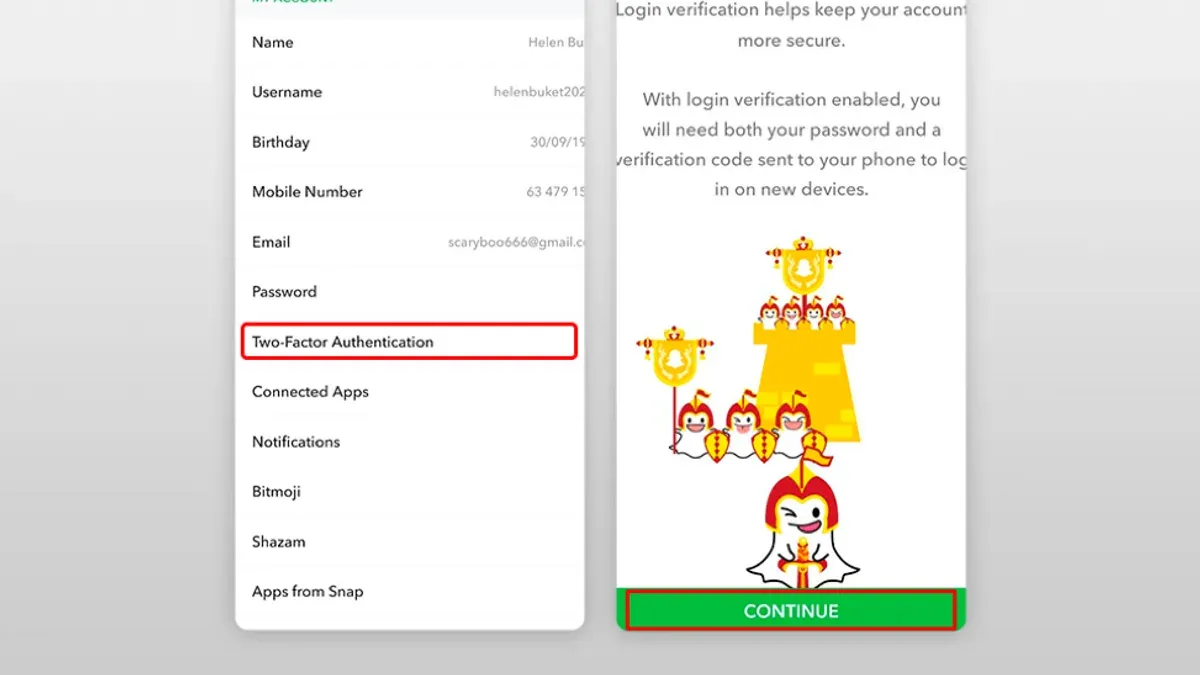
This guide explains how to secure your Snapchat account with clear, actionable steps tailored to the app’s unique features. It covers essential settings to prevent unauthorized access, methods to keep your snaps and chats private, and instructions for handling locked accounts.
Snapchat’s security depends on proper configuration of two-factor authentication, strong passwords, and privacy controls found under Settings > My Account > Password & Security and Settings > Who Can. Many users overlook enabling login verification or restricting who can contact them, leaving accounts vulnerable to hacking or unwanted exposure.
Learn how to secure your Snapchat account thoroughly, including how to recover it if locked, manage privacy preferences, and understand Snapchat’s security limitations. This step-by-step approach ensures confidence in protecting the account from common threats and managing it securely.
Before you start: What is needed to secure a Snapchat account
Securing a Snapchat account requires certain prerequisites to ensure the process is effective. First, access to the Snapchat app or the official website is mandatory. This allows interaction with the account’s security settings directly. Next, accurate login credentials—specifically the username and current password—are essential, as many users encounter problems when these are forgotten or outdated.
Access to the email address and phone number linked to the Snapchat account is crucial. These contact points serve as verification channels for password resets and account recovery. Without them, regaining control of a compromised account becomes significantly more difficult. Familiarity with basic Snapchat navigation is necessary to follow security steps within the app menus efficiently.
Understanding common hacking methods like phishing, password reuse, and social engineering is also important. Many support forums highlight that users often fail to secure accounts because they overlook verifying the authenticity of links or messages claiming to be from Snapchat. Recognizing these risks helps prevent falling victim during the security update process.
- Open the Snapchat app or go to snapchat.com and log in with the current username and password. Successful login leads to the main screen or user profile.
- Confirm access to the registered email and phone number by checking for recent Snapchat notifications or verification codes sent to these contacts.
- Navigate through the app to familiarize with settings: tap the profile icon, then the gear icon to reach the settings menu.
How to save my Snapchat account from being hacked
Hacking incidents often stem from weak passwords and lack of two-factor authentication (2FA). Enabling 2FA on Snapchat significantly reduces unauthorized access by requiring a verification code in addition to the password. Weak or reused passwords are a common vulnerability; a strong password includes a mix of letters, numbers, and symbols and should be changed regularly to maintain security.
Third-party apps requesting Snapchat data can pose risks. Reviewing and revoking access for apps that seem suspicious or unnecessary prevents potential data leaks. Phishing scams targeting Snapchat users often come as fake login pages or messages requesting personal information. Recognizing these attempts and avoiding clicking on unknown links is critical.
Keeping the recovery email and phone number current ensures effective account recovery if a breach occurs. Without updated contact details, regaining control becomes difficult.
- Open Snapchat and tap the profile icon in the top-left corner. Navigate to Settings by tapping the gear icon in the top-right corner.
- Scroll to "Two-Factor Authentication" under the "Account Security" section. Tap "Continue" and follow instructions to link a phone number or use an authenticator app. A confirmation message appears once 2FA is active.
- In Settings, select "Password". Enter the current password, then create a new password with at least 8 characters, including uppercase, lowercase, numbers, and symbols. Submit to update; a confirmation appears.
- Tap "Connected Apps" or "Apps and Websites" in Settings. Review the list of authorized apps and revoke any unfamiliar or unused ones by selecting them and tapping "Remove Access."
- Verify the recovery email and phone number under "Email" and "Mobile Number" in Settings. Update if necessary and confirm changes via verification codes sent to the new contacts.
How to make your Snapchat account private
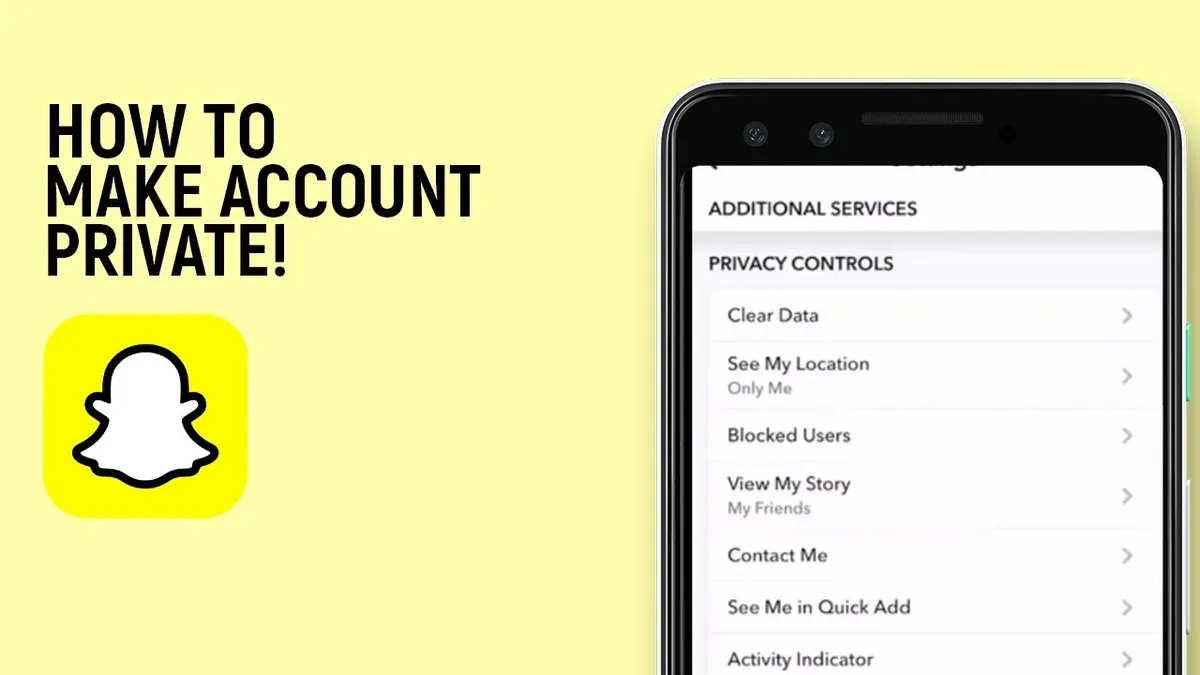
Adjusting Snapchat's privacy settings limits who can contact or view content, strengthening account privacy. Begin by setting 'Who Can Contact Me' to Friends or a Custom list to restrict messages and calls to trusted contacts only. This change ensures only selected individuals can initiate communication.
- Open Snapchat and tap your profile icon in the top-left corner.
- Tap the gear icon in the top-right to open Settings.
- Scroll to 'Privacy Control' and select 'Contact Me.'
- Choose 'Friends' or 'Custom' to select specific contacts allowed to message.
Next, control story visibility by limiting 'Who Can View My Story' to Friends or a Custom group. This prevents strangers or unwanted followers from viewing snaps posted to stories.
- Within Settings, tap 'View My Story.'
- Select 'Friends' to allow only Snapchat friends or 'Custom' to pick specific viewers.
Disable 'Quick Add' to prevent Snapchat from suggesting the account to unknown users, reducing unsolicited friend requests. This option is found under 'Who Can...' in Settings.
- In Settings, tap 'See Me in Quick Add.'
- Toggle off the option to stop appearing in Quick Add suggestions.
Manage location sharing by opening 'See My Location' in Settings. Enable Ghost Mode to hide location entirely or select which friends can view location on Snap Map. This controls real-time visibility.
- Tap 'See My Location' under Privacy Control.
- Activate 'Ghost Mode' to hide location or choose specific friends for selective sharing.
Finally, control who sees Charms and Bitmoji by adjusting settings for friend lists and story visibility, ensuring personal details remain within trusted circles. These settings affect how connection badges and avatars appear to others.
Tip: Use Custom lists for granular control, balancing privacy with social interaction.
How to unlock your Snapchat account if it is locked or permanently locked
Snapchat accounts are typically locked due to suspicious activity, violation of community guidelines, or repeated login failures. Temporary locks are common and usually last 24 hours, while permanent locks require a more involved recovery process. According to Snapchat Help Center, most locks result from either automated detection of unusual behavior or multiple failed login attempts.
- Go to the official Snapchat unlock page at https://accounts.snapchat.com/accounts/unlock. Enter the username and password to check the status. If the account is temporarily locked, a confirmation message will appear.
- If temporarily locked, select the option to unlock the account. Follow on-screen prompts to verify identity through email or phone number linked to the account. Successful verification will restore access within a few minutes.
- For permanent locks, the unlock page will instruct submitting a government-issued ID for verification. Prepare a clear photo of the ID as specified by Snapchat guidelines and upload it securely through the provided portal.
- Avoid multiple failed login attempts during this process, as repeated failures can extend lock duration or cause permanent lock. Wait 24 hours before retrying if unsure.
- If issues persist after submitting ID or the unlock page shows no progress, contact Snapchat support via the app or https://support.snapchat.com. Provide details of the lock and any error messages received.
Example: A user locked out for suspicious login attempts successfully regained access by using the unlock page, verifying their phone number, and waiting the required time without retrying login.
How to get a Snapchat account and manage it securely
- Download the Snapchat app from the official app store. After launching it, tap on "Sign Up". A successful start shows the account creation screen requesting personal details.
- Enter a valid email address and date of birth. These details support account recovery and comply with Snapchat’s age requirements. Proceeding leads to username and password selection.
- Choose a username that avoids personal identifying information and is not easily guessable. A secure username differs from common names or birth years. After confirmation, the password setup screen appears.
- Create a strong password with at least 8 characters, mixing uppercase and lowercase letters, numbers, and symbols. Avoid simple sequences or repeated characters. After entering, the app indicates password strength before allowing continuation.
- Set up recovery options immediately by linking a verified phone number and confirming the email address. This step enables two-factor authentication activation and easier account recovery. Successful linking is confirmed by verification codes sent to those contacts.
- Configure initial privacy and security settings by navigating to Settings > Privacy Controls. Set "Who Can Contact Me" to "Friends" and "Who Can View My Story" to "Custom" or "Friends". These settings reduce exposure from the start. The app displays updated settings after saving.
- Review Snapchat’s Terms of Service and Community Guidelines presented during sign-up. Understanding these rules helps avoid actions that could lead to account restrictions or bans. Completion leads to the main Snapchat camera screen, confirming account readiness.
Tip: Starting with secure credentials and recovery options greatly reduces risks of unauthorized access and simplifies future account management.
How secure is Snapchat and what are its privacy limitations
Snapchat employs end-to-end encryption for messages sent in Chat, enhancing the confidentiality of direct conversations. However, not all content benefits from this level of protection; Snaps and Stories are encrypted during transmission but stored decrypted on Snapchat servers, where they are accessible for moderation and legal compliance. This model balances user privacy with platform requirements but introduces a potential vulnerability in data storage.
Ephemeral messaging reduces the risk of long-term data exposure but does not eliminate it. Recipients can capture screenshots or use third-party tools to save content, circumventing Snapchat’s self-deleting features. Additionally, the use of unauthorized third-party apps to access Snapchat can lead to data leaks or account compromise, as these apps often bypass official security protocols.
Historically, Snapchat has faced security issues, including a 2014 incident where millions of usernames and phone numbers were leaked, highlighting risks from inadequate API protection. Independent security audits note Snapchat’s efforts to improve but emphasize that users must remain vigilant.
To strengthen security beyond Snapchat’s built-in features, users should regularly update the app, avoid unofficial third-party applications, enable two-factor authentication, and monitor account activity. Combining Snapchat’s encryption with cautious user behavior minimizes privacy risks.
How to keep Snapchat private while enjoying its benefits
Snapchat’s design supports privacy through ephemeral content, but balancing privacy with social interaction requires careful settings management and usage habits. Users can create Private Stories to share snaps with a select group, ensuring control over who views sensitive content. This selective sharing preserves the social value of Snapchat while maintaining privacy boundaries.
Using Snapchat’s creative features like filters and lenses enhances fun without compromising privacy, as these apply locally to snaps before sending. Limiting the friend list to trusted contacts and regularly reviewing this list reduces exposure to unwanted viewers and interactions. Avoiding oversharing personal details and disabling precise location sharing prevent inadvertent privacy breaches.
Many users report feeling more secure when they restrict story visibility to Custom settings and disable the “See My Location” option or use Ghost Mode. Comparing users who share openly versus those who employ these privacy controls reveals a clear reduction in unwanted contact and data exposure for the latter group.
- Open Snapchat and tap the profile icon in the top-left corner. The profile page appears.
- Tap "My Stories," then "New Private Story." A list of friends displays.
- Select only trusted friends to view this story and tap "Create Story." The story icon updates to reflect privacy.
- Go to Settings > "Who Can..." and set "See My Location" to "Ghost Mode." The map icon will gray out, indicating the location is hidden.
- Review the friend list under "My Friends" and remove any contacts not trusted by tapping their name and selecting "Remove Friend." The list updates immediately.
Tip: Regularly updating who can see stories and location prevents accidental sharing with unintended contacts.
Troubleshooting: What to do if security steps fail or the account is compromised
If locked out, start by resetting the password through Snapchat's “Forgot your password?” link on the login screen. Choose verification via email or phone; success is indicated by receiving a reset code or link. If this fails, proceed to Snapchat Support for guided assistance.
Use Snapchat's Help Center to report issues precisely: navigate to Settings > Support > I Need Help. Clear descriptions of the problem improve response accuracy. Common signs of compromise include unexpected messages sent from the account, unknown login locations, or sudden changes in settings.
To report impersonation or hacking, access the Snapchat Support page and select “Report a Safety Concern” > “Someone is pretending to be me” or “My account was hacked.” Follow prompts to provide details; Snapchat typically responds within a few days. Keep records of correspondence for reference.
If recovery attempts repeatedly fail or the account remains compromised, consider creating a new Snapchat account. Inform trusted contacts of the change and update linked services. This is a last resort but ensures a secure start free from previous breaches.
- Reset password via “Forgot your password?” link, receive reset code or link, and set a new password. Confirmation is successful login.
- If unsuccessful, visit Snapchat Help Center, submit detailed support request, and wait for official response.
- Report hacking or impersonation using the Support page’s safety concern forms. Expect a reply within days.
- If issues persist or account is permanently compromised, create a new account and update contacts accordingly.
Tip: Using an email and phone number not previously linked to Snapchat can speed up recovery by proving account ownership more clearly.
Frequently asked questions
How to make a private snapchat account?
Open Snapchat and tap the profile icon, then the gear icon to enter Settings. Under "Who Can…", select "Contact Me" and set it to "My Friends" only. Likewise, adjust "View My Story" to "Friends" or "Custom" to limit who sees your content.
How to secure your snapchat account from hackers?
Enable two-factor authentication from Settings under "Two-Factor Authentication" using SMS or an authenticator app. Use a strong, unique password changed regularly and never share login details. Regularly review active devices and revoke unfamiliar sessions.
How to secure my snapchat account from hackers?
Activate two-factor authentication and verify your recovery information is current. Monitor login alerts and immediately change your password if suspicious activity appears. Avoid third-party apps claiming to enhance Snapchat features, as they may compromise security.
How to private snapchat account?
Adjust privacy settings by restricting who can contact and view stories. Set "Who Can Contact Me" and "View My Story" to "Friends" or more restrictive options. Remove unknown or untrusted contacts to maintain privacy.
How to save my Snapchat account?
Ensure the email and phone number linked to the account are up to date for recovery options. Use the "Forgot Password" feature if locked out and follow prompts to reset credentials securely. Contact Snapchat Support if facing a permanent lockout or suspicious activity.
What this guide does not cover and when to seek professional help
This guide does not cover advanced digital forensics or legal recourse for compromised accounts. Users facing targeted harassment, stalking, or sophisticated cyberattacks should consult cybersecurity experts or legal authorities. Additionally, recovering accounts that have been permanently disabled by Snapchat due to violations may require direct communication with Snapchat support and is not guaranteed by following these steps.
For the majority of users, the most effective next step is to enable two-factor authentication (2FA) in Snapchat settings under Settings > Two-Factor Authentication. This adds a critical layer of protection by requiring a verification code upon login attempts from unrecognized devices, significantly reducing the risk of unauthorized access.
See also: How to Report Impersonation on Snapchat: A Clear Step-by-Step Guide · How to Log Out of Snapchat on All Devices: Clear Step-by-Step Guide · How to Secure Your Signal Account: A Complete Step-by-Step Guide · How to Secure Your Reddit Account: Step-by-Step Guide



