
How to Log Out of Snapchat on All Devices: Clear Step-by-Step Guide
This guide explains how to log out of Snapchat on all devices to manage account security and prevent unauthorized access effectively.

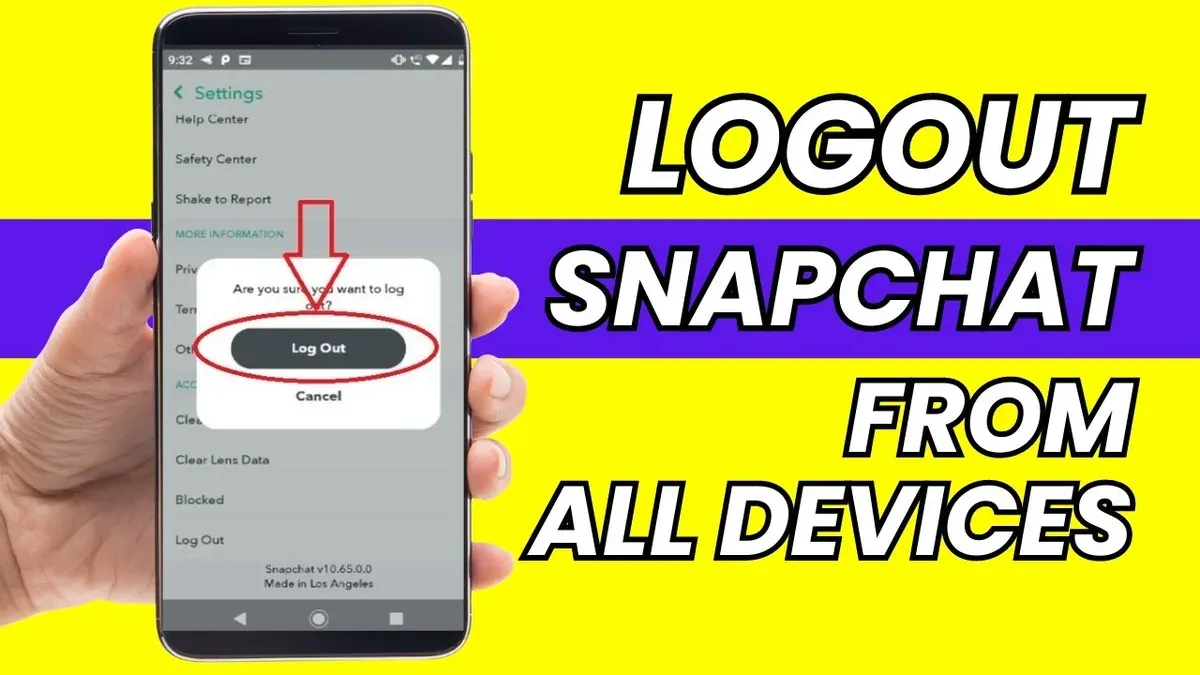
This article explains how to log out of Snapchat on all devices, providing clear instructions for managing account access and device security.
Logging out of Snapchat on all devices helps prevent unauthorized access, especially if a device is lost or shared. Snapchat does not offer a direct "log out everywhere" button, so understanding current session management is key. This guide covers how to log out on the current device, remotely log out on other devices, and what to do if the password is unavailable.
Users often ask if logging in online logs out other devices and how to check which devices have active sessions. The article also addresses logging out on desktop platforms and common issues that arise when managing Snapchat device sessions.
Before you start: What is needed to log out of Snapchat on all devices
Logging out of Snapchat on all devices requires active access to the Snapchat account. The user must have valid login credentials, including username and password, to initiate any logout process. Access to either the Snapchat mobile app or the Snapchat web version is necessary since these platforms provide the tools to manage sessions and device connections.
Snapchat does not offer a direct "log out of all devices" button like some other apps do. Unlike platforms such as Facebook or Google that display a list of active sessions with easy logout options, Snapchat’s session management is limited. To forcibly log out all devices, a password reset is often required, which invalidates active sessions on other devices.
Understanding these limitations prepares users to manage their account security effectively. Without proper login access or device control, it is impossible to remotely terminate all active Snapchat sessions. Planning for password recovery or reset beforehand can streamline the process if unauthorized access is suspected.
- Ensure the Snapchat account credentials (username and password) are at hand. Once entered correctly, access to the account dashboard or app home screen confirms successful login.
- Open the Snapchat app or navigate to the Snapchat web version. Confirmation appears as the main interface with chat and story tabs visible.
- Review settings to confirm the absence of a direct "log out all devices" option. The presence of only "Log Out" for the current device indicates this limitation.
- Prepare to use the password reset process if complete device logout is needed. Initiating a reset will show prompts for entering the recovery email or phone number linked to the account.
How to log out of Snapchat on the current device
Logging out of Snapchat on the device currently in use is straightforward but differs slightly between mobile platforms and the web. On mobile apps, the logout option is found within the settings menu, while the web version requires navigating profile options.
- Open the Snapchat app on iOS or Android.
- Tap the profile icon at the top-left corner of the screen to access your profile.
- Tap the gear icon in the top-right corner to open Settings.
- Scroll to the bottom of the Settings menu and tap Log Out.
- Confirm the logout action in the prompt that appears; the app will then return to the login screen.
- On Snapchat Web, click the profile icon at the top-left.
- Click the three dots next to your username to open a menu.
- Select Log Out from the dropdown.
- Confirm to complete logging out on the web.
Logging out on the current device only terminates the session on that device. Other devices with active Snapchat sessions remain logged in unless logged out separately.
Tip: Logging out clears local data on the device, so saved login information like passwords will need to be re-entered on next login.
How to log out of Snapchat on other devices remotely
Snapchat does not offer a direct feature to log out from all other devices remotely while maintaining the current session. The primary method to force a logout on all devices except the one currently in use is to reset the account password. Changing the password invalidates active sessions on other devices, thereby logging them out automatically.
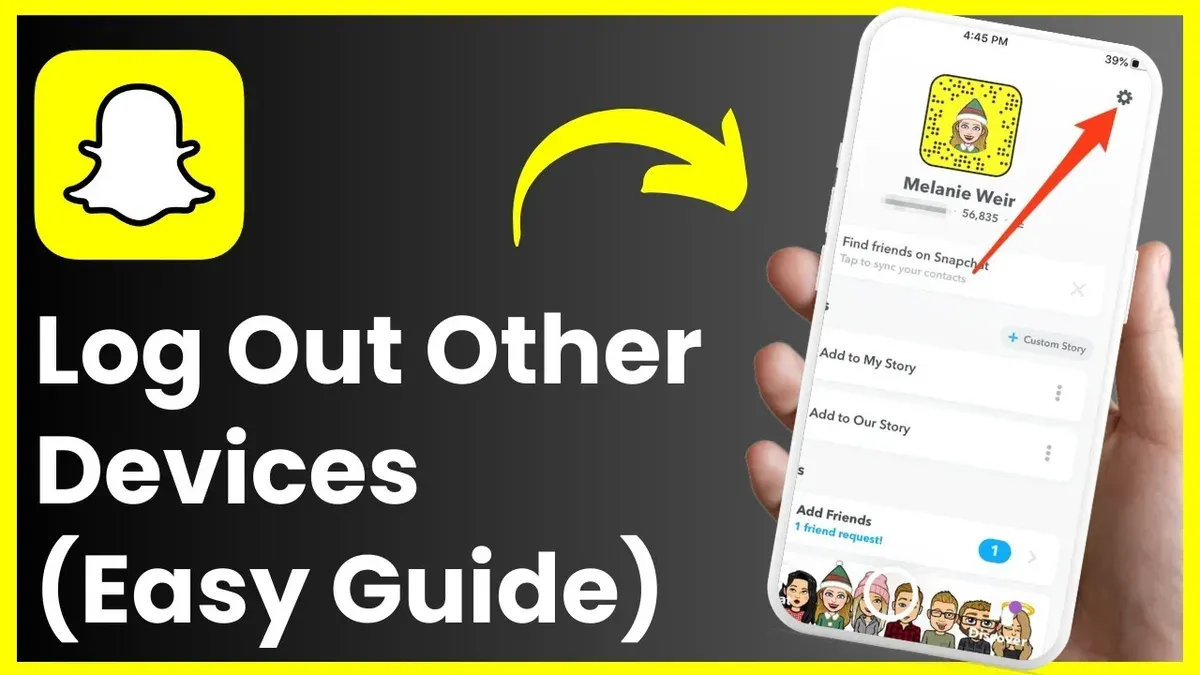
To reset the password, navigate to Snapchat’s settings, select "Password," and follow the prompts to create a new password. After the reset, all devices previously logged in will require the new password to access the account again. This action effectively removes unauthorized access from lost or compromised devices, except for the device used to reset the password.
Enabling two-factor authentication (2FA) adds an extra layer of security by requiring a verification code when signing in on new devices. This helps prevent unauthorized logins and can alert the account holder to suspicious activity.
Snapchat’s "Login Verification" settings allow users to monitor active sessions and receive notifications about new logins. While this does not offer a logout control, it helps identify unrecognized devices promptly.
- Open Snapchat and go to Settings > Password.
- Choose to reset the password and complete the verification steps.
- Create a new strong password and save changes.
- Check Login Verification under Settings > Two-Factor Authentication to enable or review active devices.
- Monitor login alerts to detect unauthorized access.
Tip: Regularly resetting passwords and enabling two-factor authentication are the most effective ways to manage active Snapchat sessions remotely.
How to log out of Snapchat on all devices without password
Logging out of Snapchat on all devices without knowing the password is challenging due to Snapchat’s security measures. The password is generally required to authorize changes like logging out of active sessions on other devices. However, if the password is forgotten or unknown, the account recovery process is the primary way to regain control and log out everywhere.
Snapchat allows account recovery via the registered email address or phone number. These methods enable resetting the password, which forces all other devices to be logged out automatically. This process ensures that unauthorized users cannot easily hijack the account without access to recovery information.
Follow these steps to recover the account and log out of all devices without the current password:
- Open the Snapchat login screen and tap "Forgot your password?" This directs to the recovery options.
- Choose to recover via phone number or email. Enter the relevant information and submit.
- Follow the verification steps sent to the email or phone, such as entering a code.
- Create a new password when prompted. Upon successful reset, all active Snapchat sessions except the current one will be logged out.
- Log in with the new password on the current device to regain full access and security control.
Limitations: If access to the registered email or phone is lost, recovery is not guaranteed. Snapchat’s support may have limited options for account recovery without verification. This highlights the importance of keeping recovery info up to date.
Tip: Enable two-factor authentication after regaining access to prevent unauthorized session persistence.
Will logging into Snapchat online log out other devices?
Snapchat permits multiple devices to be logged into the same account simultaneously. Logging into Snapchat on a web browser or a new device does not automatically sign out existing sessions on other devices. This behavior differs from some social media platforms that limit accounts to one active session or automatically log out previous devices when a new login occurs.
Because Snapchat allows concurrent logins, users should not assume that signing in on one device will secure their account by logging out others. This makes it necessary to manage sessions explicitly by resetting the password or using security features like two-factor authentication to terminate unauthorized access on other devices.
Official Snapchat support outlines that session management requires deliberate action and is not handled passively by new logins. Users concerned about account security should review active devices and reset passwords when necessary instead of relying on logging in from a new device to clear sessions elsewhere.
How to check devices logged into Snapchat
Snapchat does not provide a dedicated device management dashboard that lists all active sessions. Instead, users must rely on indirect methods to monitor their account's active devices. One primary tool is the login verification feature, which sends alerts when a new device or location accesses the account. These alerts appear as notifications or emails, showing approximate device details and timestamps.
To view recent login activity, open Snapchat and tap the profile icon. Then navigate to Settings > Login Verification. Here, users can see whether login verification is enabled and set up trusted devices. While this does not show a full device list, it helps confirm if unrecognized devices have attempted access.
Another useful setting is Settings > Email Notifications, where Snapchat sends alerts about suspicious logins or password changes. Checking these notifications regularly helps identify unauthorized access attempts promptly.
Some third-party apps claim to track Snapchat sessions, but these are generally unreliable and may compromise account security. Using Snapchat's built-in security alerts and enabling two-factor authentication remain the safest ways to monitor device activity.
Example: If suspicious login alerts appear from locations not visited, this indicates the account may be active on unknown devices requiring immediate password reset.
How to log out of Snapchat on PC
Accessing Snapchat on a PC typically involves using the web version at web.snapchat.com. Logging out from this interface is straightforward but differs from the mobile app in session management. Unlike mobile devices, where sessions persist actively, the web session may time out more quickly but still requires explicit logout to ensure security.
- Open a web browser and go to web.snapchat.com. The Snapchat web interface should load, showing chats and contacts if logged in.
- Click the profile icon or Bitmoji avatar located in the top-left corner of the screen. This opens the account menu.
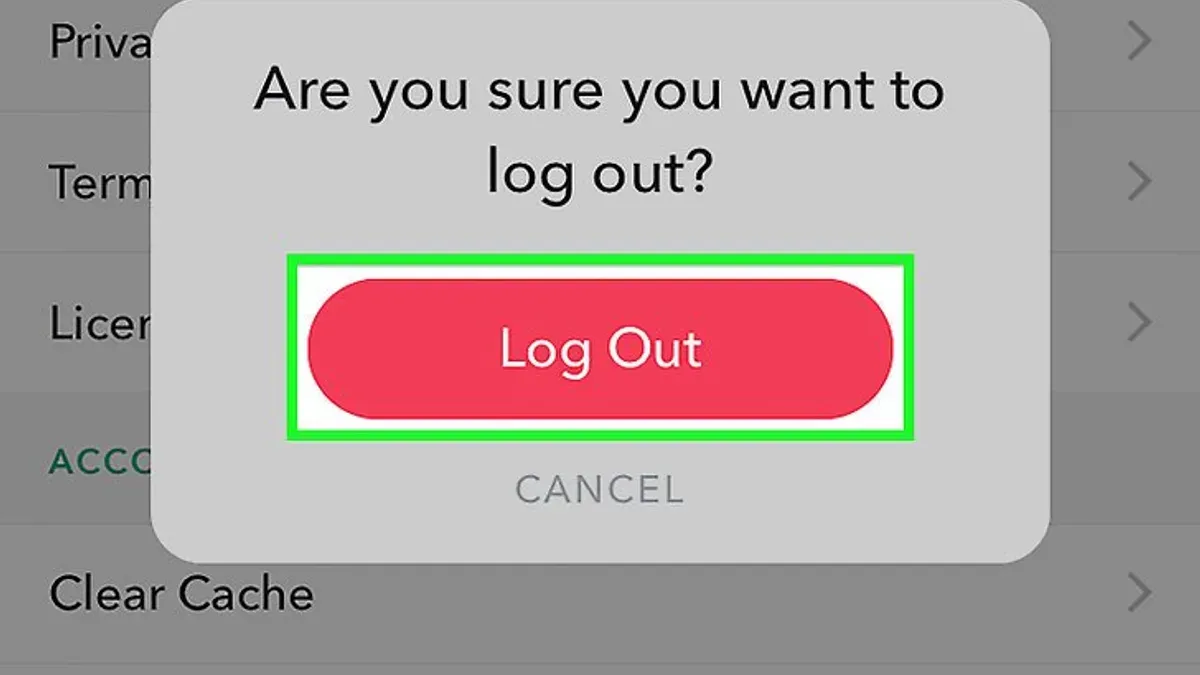
- Scroll down in the menu and select Log Out. A confirmation prompt may appear.
- Confirm the logout action by clicking Log Out again. The screen will redirect to the Snapchat login page, indicating a successful logout.
When using Snapchat on a public or shared PC, it is critical to log out completely to prevent unauthorized access. Avoid saving login credentials in the browser and consider clearing browsing data after the session ends. Using private or incognito mode can add a layer of privacy by not retaining session cookies and history.
Tip: Always verify logout by closing the browser tab and reopening the Snapchat web page to ensure the session is terminated.
Troubleshooting common issues when logging out of Snapchat on all devices
Sometimes the logout option on Snapchat may be missing or unresponsive due to app glitches or outdated versions. Ensuring the app is updated to the latest version can resolve this. If the logout button still does not work, force closing and reopening the app or reinstalling it often restores normal function.
Persistent sessions after a password reset can occur if devices remain connected due to cached credentials or delayed server updates. Waiting a short period and restarting the devices may help. If sessions persist beyond several hours, changing the password again or enabling two-factor authentication strengthens security and forces active logouts.
In cases of unauthorized access or suspected hacking, immediate password reset combined with reviewing connected accounts and enabling login verification is critical. Users should also check for suspicious login alerts via email or phone. If the account shows signs of compromise beyond remote logout capabilities, contacting Snapchat support is necessary.
- Update Snapchat to the latest version; the logout option should then appear under Settings > Log Out.
- If logout is unresponsive, force close and reopen the app; a functional logout screen should appear.
- After resetting the password, restart all devices with Snapchat installed; persistent sessions should end.
- If sessions continue, enable two-factor authentication via Settings > Login Verification; this triggers forced logout.
- For suspected hacks, review login alerts and change the password again; if problems persist, contact Snapchat support through their help portal.
Tip: Regularly updating the app and enabling login verification reduces logout and session issues.
Frequently asked questions
How to logout snapchat from other devices?
Logging out of Snapchat on other devices requires changing the account password, which forces all devices to sign out. Currently, Snapchat does not provide a direct remote logout option for individual devices within the app. After changing the password, all active sessions except the one used to change the password will be logged out.
How to log other devices off snapchat?
To log other devices off Snapchat, navigate to your account settings and select 'Password'. Change the password to a new one. This action signs out the account from all devices except the current one, effectively logging off other devices.
How to log out of my snapchat on all devices?
Since Snapchat lacks a one-click remote logout for all devices, the only way is to change the account password. This invalidates all active sessions and logs the user out from all devices except the one currently in use. It is advisable to enable two-factor authentication afterward for added security.
How to log out of snapchat account on other devices?
Logging out of Snapchat on other devices requires resetting the password in the app's settings. This process forces all devices to require the new password to access the account, logging out any unauthorized or lost devices.
How do you log out of other devices on snapchat?
Snapchat does not provide a direct option to remotely log out other devices within the account interface. Changing the account password is the recommended method to log out all other devices. This ensures that only devices with the updated credentials remain signed in.
What This Guide Does Not Cover
Snapchat does not offer a native "log out of all devices" button. The closest option for forcing logout on all devices is to reset the account password, which may not be immediate or foolproof. Users who do not have access to their password or recovery options might be unable to secure their account remotely. This guide also does not cover deleting Snapchat accounts or uninstalling the app from devices.
The most effective next step after ensuring logout from unwanted devices is to update the Snapchat password immediately and review account recovery options. This helps secure the account against unauthorized access and prevents old sessions from reconnecting.
See also: How to Log Out of Signal on All Devices: Step-by-Step Guide · How to Log Out of Reddit on All Devices: Clear Step-by-Step Guide · How to Log Out of Instagram on All Devices: Complete Step-by-Step Guide · How to Log Out of Discord on All Devices: Clear Step-by-Step Guide



