
How to Log Out of Signal on All Devices: Step-by-Step Guide
This guide explains how to log out of Signal on all devices by unlinking sessions via the mobile app or desktop clients to ensure account security.

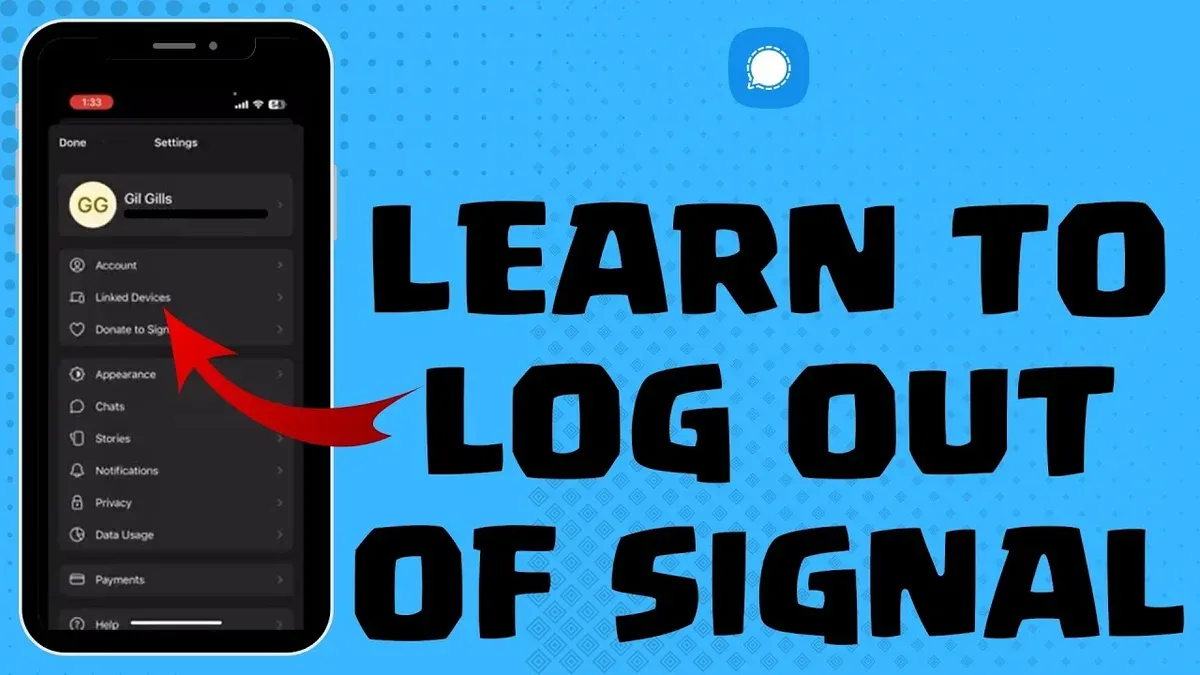
This article explains how to log out of Signal on all devices, covering both mobile and desktop apps. Signal’s device linking differs from typical messaging apps by requiring explicit pairing between the primary mobile device and secondary devices like desktops or laptops. Unlike other platforms, Signal sessions remain active on linked devices until manually disconnected from the mobile app or the desktop itself.
Understanding this approach is crucial for securely logging out everywhere. The process involves unlinking devices through the mobile app or managing sessions directly on desktop clients. This guide provides clear steps to fully disconnect Signal sessions across all platforms, ensuring account security and resolving lingering active sessions.
Before you start: What is needed to log out of Signal on all devices
Logging out of Signal on all devices requires access to the primary mobile device that hosts the account. Signal’s security model links desktop and laptop apps directly to the mobile app; these secondary devices do not operate independently. This means that managing sessions and logging out on other devices must be done through the primary mobile device.
Signal’s device linking is based on a pairing process where the mobile app generates a unique QR code to authorize desktop or laptop clients. Each linked device maintains encrypted communication via this pairing, ensuring messages stay secure and synchronized. Unlinking a device revokes its access, effectively logging it out.
Before proceeding, ensure the primary mobile device is available and unlocked. Without it, managing or revoking sessions on other devices is not possible through standard app controls. This approach is rooted in Signal’s design to enhance security by centralizing account management on a single, trusted device.
Tip: Keep the primary mobile device secure and updated, as it controls all linked device sessions and logout capabilities.
How to log out of Signal app on mobile devices
Logging out of Signal on mobile devices requires unregistering the Signal account, which deletes the profile, message history, and unlinks all connected devices. Both Android and iOS follow a similar process for unregistering, but the exact menu labels differ slightly.
Unregistering is irreversible and results in losing all local messages and contacts synced with Signal. If the goal is to temporarily log out without deleting the account, there is no direct logout option; instead, uninstalling the app will remove local data but keep the account active on linked devices.
- Open the Signal app on the mobile device.
- Tap the profile icon in the upper left corner to open Settings.
- Scroll down and select Advanced (on Android) or Privacy (on iOS).
- Tap Delete Account or Unregister (wording varies by platform).
- Confirm by entering the phone number associated with the Signal account.
- Tap Delete Account or Unregister to complete the process.
After confirmation, Signal deletes the account data from the device and unlinks all desktop and secondary devices. The app returns to the initial setup screen.
Tip: Before unregistering, export any important messages or media as Signal does not support account recovery after deletion.
How to log out of Signal desktop app on Windows, Mac, and Linux
Signal desktop apps are linked to the primary mobile device and do not have a standalone logout feature. To sign out from a desktop app, the user must unlink the desktop session via the mobile device settings. This ensures the desktop app no longer has access to Signal messages or contacts.
Follow these steps to unlink and log out from Signal desktop apps:
- Open the Signal app on the primary mobile device. The main screen with conversations will appear.
- Tap the profile icon or menu button (three dots) in the top-right corner to access Settings.
- Select Linked devices from the Settings menu. This displays all devices currently connected to the Signal account.
- Find the desktop device to log out from in the linked devices list. Each entry shows a device name and last active timestamp.
- Tap the desktop device entry, then confirm by selecting Unlink device. The device will be removed from the list.
- Once unlinked, the desktop app will automatically sign out and display the setup screen requiring re-linking.
For example, unlinking a Windows desktop named “Work Laptop” from the mobile app’s linked devices list immediately revokes its access. The desktop app will no longer receive messages or sync contacts until linked again.
Tip: If the desktop app remains logged in after unlinking, close and restart it to enforce sign out.
How to log out of Signal on all devices at once
To ensure all connected devices are logged out simultaneously, the primary method is to use the mobile device to unlink each linked device quickly or to unregister the Signal account entirely. Unlinking devices individually can be done from the linked devices list on the mobile app but requires manual removal of each device one by one. This method immediately revokes access for those devices but may be time-consuming if many devices are linked.
Unregistering the Signal account from the mobile app is the definitive way to log out from all devices at once. This process deletes the Signal profile and unlinks every device connected to the account, including all desktops, laptops, and any other mobile devices. Once unregistered, the account cannot send or receive messages, and all linked devices lose access immediately.
Choosing to unregister should be done when complete logout is necessary, as this action is irreversible and erases all Signal data tied to the account on the device. In contrast, unlinking devices individually allows continued use of the account on the primary device while selectively logging out of others.
- Open the Signal app on the primary mobile device and go to Settings > Linked Devices. The list of all connected devices appears.
- To unlink individually, select a device from the list, tap Unlink Device, and confirm. The device will lose access immediately; repeat for each device to log out selectively.
- To log out of all devices at once, go back to Settings > Account and choose Delete Account. Follow the prompts to unregister the account.
- After unregistering, all linked devices are logged out instantly. The Signal app on the primary device will reset, requiring re-registration to use Signal again.
Tip: Unlinking devices individually is faster if only a few devices need logging out; unregistering is best for full account reset.
How to sign out of Signal if the primary device is lost or inaccessible
Signal’s security model requires the primary mobile device to manage linked desktop and secondary devices. Without access to the primary device, remote logout of all Signal sessions is not natively supported, which limits direct user control over active sessions.
One potential workaround involves contacting Signal Support to request deregistration of the phone number. This action unregisters the number from Signal’s service and effectively logs out all devices linked to that number. However, Signal Support requires proof of ownership and may take time to process such requests. Another method is to replace the SIM card associated with the Signal account. By activating a new SIM with the same phone number, the original device loses cellular access, which can help prevent unauthorized use, but it does not directly revoke existing Signal sessions until the account is deregistered or the primary device is reset.
Users should be aware that because Signal does not host user accounts centrally but instead relies on the phone number and the primary device for security, losing the primary device poses risks. It is advisable to notify contacts of the potential compromise and monitor for suspicious activity. For better security, users should enable screen locks and encryption on devices to reduce unauthorized access risks in case of loss.
- Contact Signal Support via the official support page and submit a request to deregister the phone number. Success will be confirmed by a response indicating the number is unregistered.
- Alternatively, acquire a new SIM card with the same phone number from the mobile carrier. Once activated, the old device loses mobile network connection.
- After deregistration, reinstall Signal on a new device to reactivate the account securely. The app will notify of any active sessions, allowing management of linked devices.
Tip: Keep recovery options updated and consider enabling Signal PIN to add an extra security layer protecting account settings and linked devices.
Troubleshooting common issues when logging out of Signal
Users sometimes report that desktop sessions remain active even after unlinking them through the mobile app. This usually happens due to connectivity delays between devices. To confirm the unlinking, check the linked devices list again after a few minutes; if the session still appears, restarting the desktop app can prompt an update.
Another frequent issue is the Signal app not displaying the correct linked devices. This can occur if the mobile app hasn't refreshed its device list. Pull down on the linked devices screen to force a refresh. If the problem persists, closing and reopening the mobile app can help synchronize the data.
Logout delays are common due to Signal’s end-to-end encryption and synchronization model. Changes like unlinking a device may take several minutes to propagate fully. Patience is necessary; immediate disappearance of sessions is not guaranteed.
Reinstalling Signal often does not clear active sessions because unlinking is managed server-side and through the primary device. Simply deleting and reinstalling the app without unlinking devices first will not log out those sessions. Always unlink devices from the mobile app before reinstalling.
Tip: If logout attempts fail repeatedly, verify the mobile device has a stable internet connection, as poor connectivity can delay updates to linked device status.
How Signal’s security model affects logging out and device management
Signal employs end-to-end encryption that secures messages between devices, relying on a device-linking system centered on the primary mobile device. Unlike traditional apps where each session acts independently, Signal treats the mobile device as the root of trust, with all secondary devices linked through it. This design means sessions are not standalone logins but extensions authorized by the mobile device.
The security whitepaper from Signal Foundation explains that this architecture minimizes attack surfaces by centralizing key management and authorization on the mobile device. Each linked session inherits cryptographic keys from the primary device, ensuring that message decryption is only possible on trusted devices. Because of this, logging out from a desktop or secondary device requires the mobile device to revoke its session authorization.
This model grants users strong control over their sessions but also imposes constraints. For instance, sessions cannot be independently logged out without the primary device's intervention, preventing unauthorized session termination or hijacking. Consequently, account unlinking and logout actions must flow through the mobile app, reinforcing the security model.
Expert analyses highlight that while this approach complicates multi-device session management, it significantly enhances security by eliminating shared credentials or passwords for multiple devices. The trade-off is a dependency on the primary device's availability for managing linked sessions and logouts.
Frequently asked questions
How to sign out of signal app?
To sign out of the Signal app on a mobile device, open Signal, go to Settings > Linked devices, and then unlink each device listed. For the mobile device itself, uninstalling the app or deleting the Signal account from Settings > Privacy > Delete Account will effectively sign out and remove all data. Signal does not have a traditional 'sign out' button on mobile devices since it is tied to the phone number.
How to log out of all devices?
Logging out of all devices requires unlinking every linked device from the Signal app on the primary mobile device. Open Signal, navigate to Settings > Linked Devices, and remove each device one by one. This action disconnects Signal sessions on desktops and other linked devices simultaneously. If the primary device is lost, deleting the Signal account remotely (via reinstall on a new device) is necessary to revoke access.
How to sign out on all devices?
To sign out on all devices, open the Signal app on the primary phone, go to Settings > Linked Devices, and manually unlink every connected device. This ensures all desktop and secondary device sessions are terminated. Since Signal encrypts conversations and links devices uniquely, unlinking devices is the only way to fully sign out everywhere.
How to sign out of signal desktop?
Sign out of the Signal desktop app by opening the app, clicking on the three-dot menu icon, selecting Settings, then Linked Devices, and choosing to unlink the desktop session. Alternatively, unlink the desktop device from the primary mobile device under Settings > Linked Devices. This immediately disconnects the desktop app from the Signal account.
How to log out signal in laptop?
On a laptop, open the Signal desktop app, click the menu (three vertical dots), then Settings > Linked Devices, and select the option to unlink the laptop. Alternatively, open Signal on the primary phone, go to Settings > Linked Devices, and remove the laptop from the list. This action logs out Signal from the laptop and deletes its local session data.
What this advice does not cover and when to seek further help
Signal does not currently support logging out remotely from all devices without access to the primary mobile device. If the primary phone is lost, stolen, or inaccessible, users cannot directly force a logout on linked devices through the app alone. In such cases, unregistering the phone number from Signal or contacting Signal support for assistance may be necessary to protect the account.
Additionally, this guide does not cover uninstalling the app or deleting the Signal account, which have different implications and steps. Users needing to revoke access due to compromised devices or security concerns should consider these actions separately.
Next step to secure Signal sessions
To ensure all linked devices are signed out, the most effective immediate action is to use the “Linked Devices” section in the Signal mobile app settings. From there, manually unlink every device except the current one. This process fully disconnects those sessions and is the most reliable way to control active connections under Signal’s security model.
See also: How to Log Out of Reddit on All Devices: Clear Step-by-Step Guide · How to Log Out of Discord on All Devices: Clear Step-by-Step Guide · How to Log Out of Instagram on All Devices: Complete Step-by-Step Guide · How to Log Out of Quora on All Devices: Complete Step-by-Step Guide



