
How to Log Out of X (Twitter) on All Devices: Complete Step-by-Step Guide
This guide explains how to log out of X (Twitter) on all devices to keep your account secure and manage active sessions effectively.

This guide explains how to log out of X (Twitter) on all devices, covering the platform’s session management system and security features.
Logging out on one device does not automatically end sessions elsewhere. Understanding how to remotely log out is essential for maintaining account security and managing active sessions across desktop, mobile apps, and browsers.
The article details the exact steps to log out on the desktop website and mobile app, how to perform a remote logout from all devices, and what to do if the logout process encounters issues.
Before you start: What is needed to log out of X on all devices
Logging out of X (formerly Twitter) on all devices requires an active account with valid login credentials. Access to either the X mobile app or the desktop website is necessary since the logout options vary slightly between platforms. Logging out on a single device does not automatically log out other sessions unless the remote logout function is used.
The X app maintains persistent sessions more aggressively, often keeping users logged in until they manually log out or clear app data. The desktop site allows easier management of active sessions and remote logout through the account settings. Understanding this distinction helps set expectations for how quickly the logout propagates across devices.
Remote logout requires account access and is the only way to ensure all sessions are terminated simultaneously. This is critical when addressing security concerns such as lost devices or unauthorized access. Regularly reviewing active sessions and using strong passwords complements these logout methods to maintain account security.
- Ensure availability of X login credentials: Successful login confirmation indicates readiness to manage sessions.
- Open the X mobile app or navigate to the desktop website and log in: Access to account settings becomes available.
- Familiarize with session management options under “Settings and privacy” > “Security and account access” > “Apps and sessions”: This path leads to remote logout controls.
How to log out of X on the desktop website
- Open the X website and log in if not already signed in. The homepage or timeline should appear.
- Click on the profile icon in the left sidebar to open the main menu. A dropdown list with account options will appear.
- Select Settings and Support, then choose Settings from the submenu. The settings page loads.
- In the left panel, click Security and account access. This section controls login and session details.
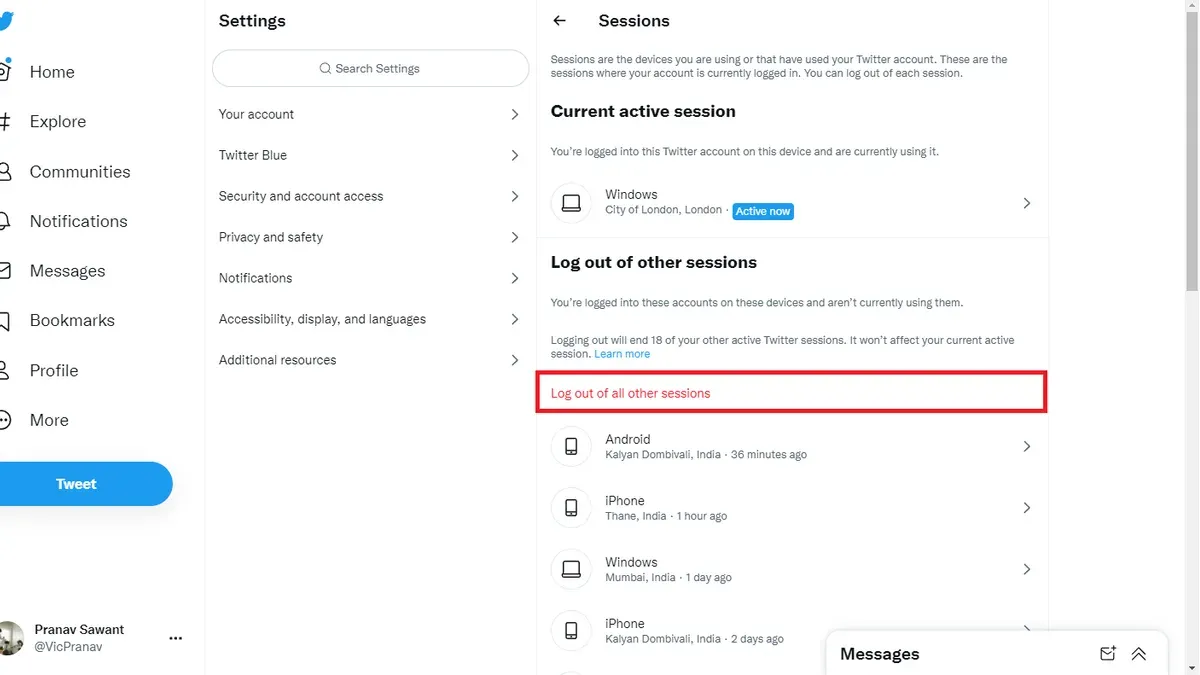
- Click Apps and sessions, then select Sessions. The session list shows all devices currently logged into the account, labeled by browser or app and device type, such as Chrome on Windows or iPhone app.
- To log out of the current desktop session, click the profile icon again and select Log out from the menu. This ends the active session on that browser.
- To log out remotely from all other sessions, locate the option Log out of all other sessions within the Sessions page and confirm. This revokes access tokens and ends all sessions except the current one.
Tip: After logging out remotely, changing the account password enhances security by invalidating any hijacked sessions.
How to log out of X on the mobile app
- Open the X app on the mobile device. Tap the profile icon or the navigation menu (three horizontal lines) in the top corner to access account options.
- Scroll down and select "Settings and privacy." This opens a menu with various account and app settings.
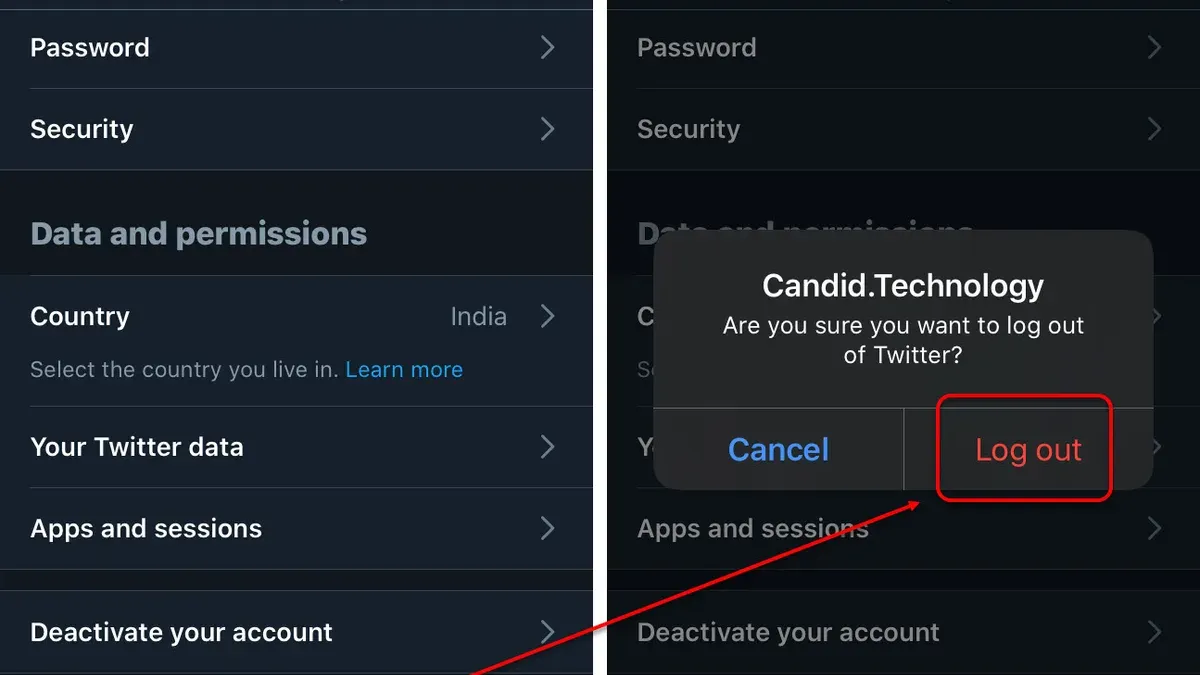
- Tap "Account," then select "Log out." Confirm the logout prompt to sign out of the X app on the current device. The app returns to the login screen, indicating a successful logout.
- To log out remotely from other devices, return to the "Settings and privacy" menu, then tap "Security and account access."
- Choose "Apps and sessions," then tap "Sessions." This screen lists all active sessions, including web and mobile logins on other devices.
- Tap "Log out of all other sessions" to remotely terminate all active sessions except the current one. A confirmation prompt appears; accept it to proceed.
- Note that the user interface may vary slightly between Android and iOS, but the menu structure and terminology remain consistent.
- Ensure the X app is updated to the latest version to access full session management features. Older versions may lack the option to log out remotely from other devices.
- After remote logout, sessions on other devices typically expire within a few minutes, requiring re-authentication to regain access.
Tip: Regularly review active sessions in the app to monitor and control account access across devices.
How to log out of X on all devices remotely
To log out from every device where the X account is active, including those inaccessible, use the remote session management feature. This process invalidates all active login tokens except for the current session, forcing re-authentication on all other devices. This is essential for securing the account if devices are lost, compromised, or shared.
- Open X and navigate to Settings and privacy.
- Go to Security and account access > Apps and sessions.
- Select Sessions to view all active login sessions, which typically range from a few to several devices depending on usage.
- Choose the option to Log out of all other sessions or Revoke access for all sessions except the current one. A confirmation prompt will appear.
- Confirm the action. After this, all other devices will be logged out immediately, and their session tokens invalidated.
Once remote logout is complete, any other device will require the account password or two-factor authentication to log back in. This method ensures the account is fully secured and prevents unauthorized access from forgotten or lost devices.
Tip: Regularly review active sessions, as users often have multiple sessions open on forgotten devices or browsers.
Troubleshooting: What to do if logging out of X on all devices doesn’t work
If sessions persist after following logout steps, clearing the browser or app cache can resolve display errors that make it seem like the logout failed. Cached data may cause old session states to appear active.
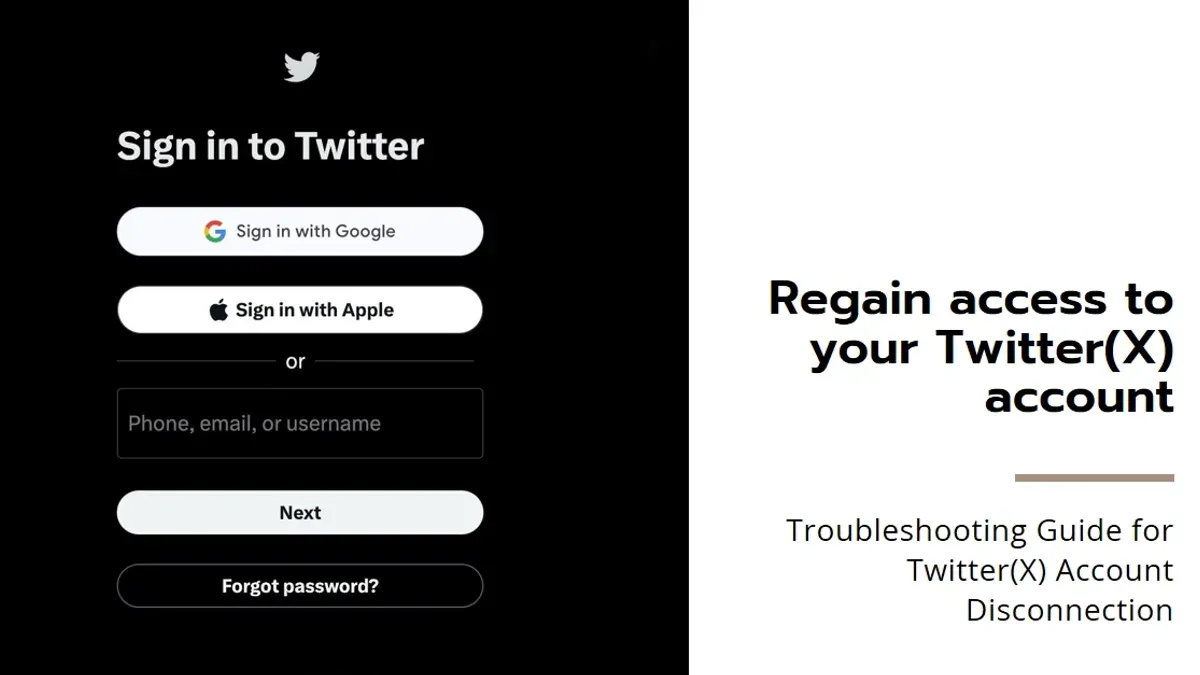
Changing the account password forces all sessions to re-authenticate. This is often the most effective way to terminate persistent sessions. After a password change, only the current session remains valid until it logs out or is refreshed.
Check for third-party apps connected to the X account under Settings > Security and account access > Apps and sessions. Revoking access for suspicious apps prevents them from maintaining sessions even after logout.
If suspicious sessions continue despite these steps, contacting X support is necessary. Provide details of the persistent sessions and logout attempts to get targeted help.
- Clear the browser or app cache and refresh the session list. Confirm that old sessions no longer show.
- Change the X account password via Settings > Password. Confirm receipt of password change confirmation and that active sessions are reset.
- Review connected third-party apps under Settings > Security and account access > Apps and sessions. Revoke any unknown or suspicious apps. Verify that active sessions reduce accordingly.
- Contact X support through the Help Center if suspicious sessions remain. Provide session details and logout history. Await support response confirming resolution.
Frequently asked questions
How to log out of twitter?
To log out of Twitter, access the main menu by clicking on the profile icon, then select "Log out" or "Log out of all sessions" for a remote logout. Confirm the choice if prompted. This ends the current session or all active sessions depending on the selection.
How to log out of twitter app?
In the Twitter app, tap the profile icon or navigation menu, go to "Settings and privacy," then select "Account." Scroll down and tap "Log out." Confirm to end the session on that device.
How to log out of twitter desktop?
On Twitter’s desktop site, click the "More" option in the sidebar, choose "Log out" from the dropdown menu, and confirm. To log out from all devices, navigate to "Settings and privacy," then "Security and account access," followed by "Apps and sessions," and select "Log out of all sessions."
How to log out from x app?
In the X app, tap the profile icon, access "Settings and privacy," then "Account." Select "Log out" to end the session on that device. For remote logout, use the "Apps and sessions" section under "Security and account access" to log out of all devices.
How to use x twitter?
X (formerly Twitter) is a social platform for posting short messages called tweets. Users can follow others, like and retweet posts, and engage in conversations. The interface includes a timeline, notifications, direct messaging, and search features to explore content.
What this guide does not cover and who should do something else
This article does not cover logging out of third-party apps connected to X. Users should review connected apps separately via Settings > Security and account access > Apps and sessions > Connected apps to revoke access where needed. Additionally, users without access to their account cannot remotely log out devices. In such cases, account recovery options must be pursued first, including password reset or contacting X support if necessary.
For those concerned about account security beyond session management, enabling two-factor authentication (2FA) is strongly recommended. This adds an extra layer of protection that cannot be achieved by logging out alone.
The single most useful next step after logging out of all devices is to immediately change the account password. This ensures that any active sessions that bypassed logout or were not fully terminated will be invalidated, securing the account from unauthorized access effectively.
See also: How to Log Out of WhatsApp on All Devices: Step-by-Step Guide · How to Log Out of TikTok on All Devices: Complete Step-by-Step Guide · How to Log Out of Telegram on All Devices: Clear Step-by-Step Guide · How to Log Out of Twitch on All Devices: Complete Step-by-Step Guide



