
How to Log Out of TikTok on All Devices: Complete Step-by-Step Guide
Learn how to log out of TikTok on all devices with step-by-step instructions to secure your account and manage active sessions effectively.


This article explains how to log out of TikTok on all devices, covering both local and remote session management to secure accounts effectively.
Logging out of TikTok on all devices is essential for users managing multiple sessions or concerned about unauthorized access. The process differs depending on whether the action is performed on a mobile app or a PC. TikTok does not offer a direct “log out on all devices” button within the app, so remote logout requires navigating account security settings through the web interface.
Understanding how to log out of TikTok on all devices helps prevent lingering active sessions that could compromise account security. This guide includes exact menu paths, step-by-step instructions for mobile and desktop, and tips for troubleshooting logout or login issues.
Before you start: What is needed to log out of TikTok on all devices
Logging out of TikTok on all devices requires specific information and access to ensure the process completes securely. First, an active TikTok account with valid login credentials—username and password—is essential. These credentials verify identity during remote logout and session management.
Access to either the TikTok mobile app or the TikTok web interface on a PC or laptop is necessary. The web version offers a broader view of active sessions, while the app provides convenient controls on mobile devices. Understanding TikTok’s session management and security settings helps navigate account options for logging out remotely or locally.
Note that logging out from all devices remotely demands entering the account password again as verification. This extra step prevents unauthorized logouts. Users should be prepared to enter the password when prompted during the logout process.
- Ensure possession of TikTok username and current password; successful input grants access to account settings.
- Open TikTok app or visit TikTok web on a PC/laptop; the account dashboard or profile page should load.
- Navigate to the Security or Account Management section; session controls should be visible.
- Be ready to enter the account password when prompted to confirm remote logout actions.
How to log out of TikTok on all devices on PC
- Open a web browser and go to TikTok.com. Log in using the account credentials.
- Click the profile icon at the top right corner, then select Settings from the dropdown menu. The Settings page will load.
- In the left sidebar, click Manage account. This opens account details and security options.
- Find and click the Security tab within Manage account.
- Scroll to the Devices or Manage Devices section, where a list of active login sessions appears. Each entry shows device type, location, and last active time.
- To log out from all devices, click the Log out of all devices button below the device list. A confirmation prompt appears.
- Enter the account password to confirm the logout request. After confirmation, all sessions except the current one will be terminated.
- Alternatively, select specific devices from the list and click Log out next to each device to remove access individually.
The device list provides clear details to identify unauthorized logins. Confirming with a password prevents accidental logouts.
How to log out of TikTok account on mobile app
- Open the TikTok app and tap the Profile icon at the bottom right; this opens the account page.
- Tap the three horizontal lines or the Menu icon at the top right to access settings.
- Select Settings and privacy, then tap Security and login from the menu; this section controls account access and sessions.
- Scroll to find Manage devices or Devices to view all logged-in devices and active sessions.
- To log out remotely from other devices, tap Log out of all devices, then confirm the action; this ends sessions on all devices except the current one.
- To log out locally from the current mobile device, return to Settings and privacy, scroll to the bottom, tap Log out, and confirm; this logs out only the current session without affecting others.
Local logout removes access on the current device only, while remote logout via Manage devices terminates sessions across all devices linked to the account. Remote logout is essential when suspecting unauthorized access or when devices are lost or shared.
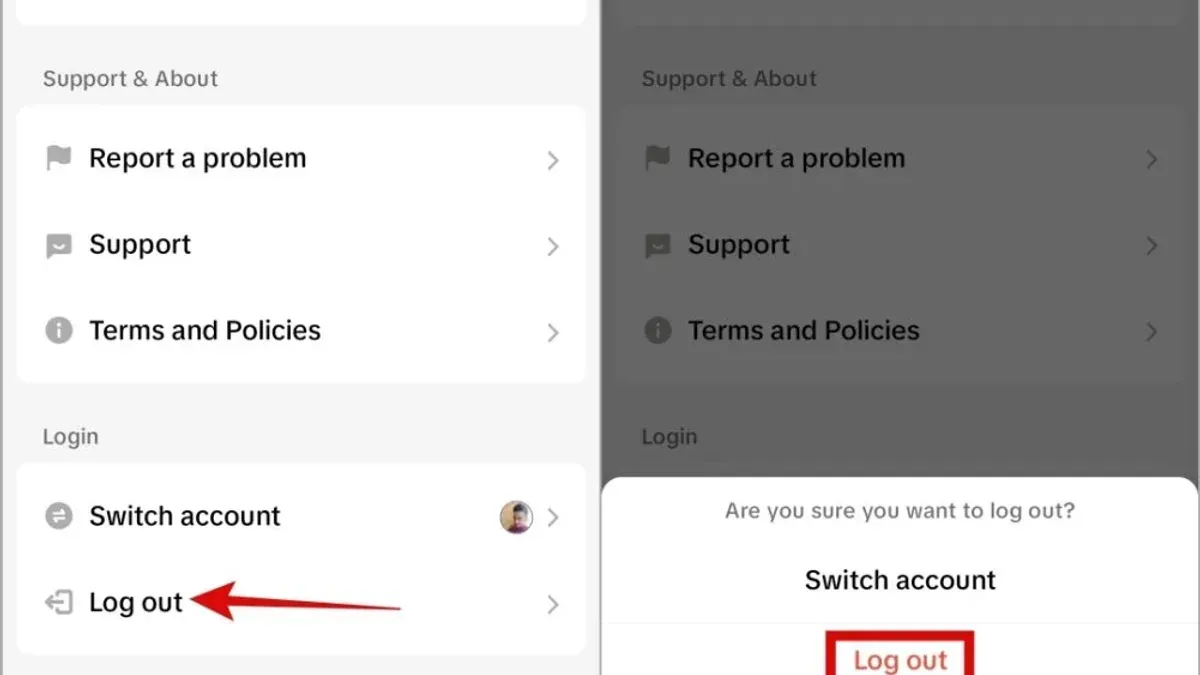
Tip: Use remote logout regularly to maintain account security, especially if TikTok is accessed on multiple devices.
How to log out of TikTok on laptop or PC locally
Logging out of TikTok locally on a laptop or PC means ending the active session only on the device currently in use. This action does not affect other devices where the account might be signed in. It is a straightforward way to quickly secure the device in front of you without changing sessions elsewhere.
- Open the TikTok website or the desktop app and ensure the account is logged in. The profile icon should be visible, usually in the top right corner.
- Click the profile icon to open the dropdown menu. Select the Log out option. Upon successful logout, the page redirects to the TikTok homepage or login screen, confirming the session has ended on this device.
- If TikTok still appears logged in after this step, clear the browser cache and cookies. This removes any persistent login data that might automatically re-authenticate the session.
Tip: Local logout only terminates the session on the current device; other logged-in devices remain connected until logged out remotely via security settings.
Unlike remote logout, which requires accessing account security settings to view and terminate sessions on all devices, local logout is faster but limited to the active device. For full account security, remote logout is necessary to revoke access from devices no longer in use.
How to log out of TikTok from other devices remotely
To log out of TikTok sessions on devices that are not physically available, use the Manage Devices feature in the TikTok account settings. This tool lists devices currently or recently logged into the account, showing details such as device type, approximate location, and last active date. For example, the list might display entries like "Samsung Galaxy S20 - New York - last active 3 days ago" or "Windows PC - Chicago - last active 1 week ago."
Identifying unknown or outdated devices is the first step. If a device is unfamiliar or no longer in use, select it and use the Log out or Remove device option to terminate its session. This action immediately revokes access from that device without affecting others.
As an additional layer of security, resetting the account password is recommended after logging out from multiple devices remotely. This ensures any active sessions that might not be visible in the device list are also invalidated. After changing the password, all devices will require the new credentials to log in again.
- Open TikTok and go to Profile > Settings and privacy > Security > Manage Devices. You will see a list of all devices with session details.
- Review the list for unfamiliar devices by checking device type, location, and last active date. Select any device that should no longer have access.
- Tap Log out or Remove device next to the chosen device. Confirm the action if prompted; the device will be immediately disconnected.
- To secure the account further, go to Security > Password and change the password. This invalidates all sessions requiring re-login.
- Verify that only trusted devices remain in the Manage Devices list after completing these steps.
Tip: Regularly checking the Manage Devices section helps detect unauthorized access early and maintain control over account security.
How to get TikTok without logging in: Viewing TikTok anonymously
TikTok videos can be accessed on the web without signing into an account. Visiting tiktok.com allows browsing of trending videos and popular content freely. No login credentials are required to watch videos, making it possible to view content anonymously.
However, viewing TikTok without logging in comes with limitations. Interaction features such as liking, commenting, sharing, or following creators are unavailable. The feed shown is generic and not personalized, so content recommendations do not adapt to viewing habits or preferences. Users also cannot upload videos or access private profiles.
Anonymous viewing is useful for casual browsing or checking content before deciding to create an account. It also serves users who want to maintain privacy or avoid linking personal data to TikTok. Despite the restricted functionality, the core video browsing experience remains accessible.
- Open a web browser and go to https://www.tiktok.com. The homepage with trending videos should load.
- Scroll through the videos to watch content. Videos play automatically as on the app.
- Attempt to interact with a video by clicking like, comment, or follow. A prompt to log in or sign up will appear indicating these features require an account.
- To view content from a specific creator, enter their username in the search bar and select their profile. Public videos will be visible, but private videos will be restricted.
Tip: Use incognito or private browsing mode to view TikTok anonymously without saving browsing history or cookies.
Troubleshooting common problems when logging out or logging in on TikTok
Login issues on TikTok often stem from unstable internet connections, outdated app versions, or incorrect credentials. For example, the error message "Unable to log in. Please check your username and password" usually indicates a credential mismatch. Refreshing the connection or resetting the password typically resolves this.

When logout does not work remotely, common causes include session synchronization delays or security settings blocking remote session termination. If a device remains listed after remote logout attempts, waiting a few minutes and refreshing the Manage Devices page often shows updated status.
Clearing the app cache can fix persistent login or logout glitches. On mobile, navigate to Settings > Apps > TikTok > Storage > Clear Cache. On PC browsers, clearing cookies and site data for TikTok can help. Reinstalling the app removes corrupted files that may cause errors.
Resetting the password is a reliable step to regain full session control if unauthorized devices remain logged in. Use the "Forgot password?" link on the login page and follow the verification process. This forces logout on all devices and refreshes security tokens.
If issues persist despite these steps, contacting TikTok Support through the app's Help Center or website is advisable. Provide screenshots of error messages and device details for faster resolution.
Security tips when managing TikTok sessions across devices
Regularly reviewing active sessions helps prevent unauthorized access. Navigate to Settings > Security > Devices to see where the account is logged in. Remove any unfamiliar or inactive devices immediately to reduce risk.
Enabling two-factor authentication (2FA) adds an essential layer of security. Access Settings > Security > Two-step verification to activate 2FA via SMS or an authenticator app. This measure significantly lowers chances of account hijacking even if the password is compromised.
After any suspicious activity, change the TikTok password promptly. Use a strong, unique password combining letters, numbers, and symbols. Avoid reusing passwords from other services to limit potential damage.
Avoid enabling automatic login on shared or public devices. Always log out manually and clear browser or app cache after use. This limits session persistence that could allow others to access the account without credentials.
Tip: Periodic account audits and cautious session management address common causes of account breaches related to session mismanagement.
Frequently asked questions
How to log out in tiktok pc?
To log out of TikTok on a PC, open the TikTok website and click the profile icon in the top-right corner. Select Log out from the dropdown menu. This action logs out the current session on that browser only and does not affect other devices.
How to log out tiktok on laptop?
Logging out on a laptop follows the same process as on a PC. Access the TikTok website, click the profile icon, then choose Log out. This logs out the TikTok account on that particular laptop browser session without impacting other logged-in devices.
How to logout tiktok from other devices?
To log out from other devices remotely, go to TikTok settings, then navigate to Security and login. Under Manage devices, users can see active sessions and select devices to log out from. This method forces logout on those devices without needing physical access.
How to log out of all devices on tiktok?
Logging out of all devices requires using the Manage devices feature in the Security and login section of TikTok settings. Select the option to log out of all sessions or individually log out from each device listed. This ensures the TikTok account is signed out everywhere remotely.
How to log out of tiktok on other devices?
Within TikTok app or website settings, under Security and login, the Manage devices panel lists all devices currently logged in. Select the devices to log out from to remotely end those sessions. This prevents unauthorized access without needing to change the password.
What this guide does not cover
This guide does not cover logging out of TikTok accounts that have been compromised beyond session management, such as accounts hacked with password changes or unauthorized email modifications. Those cases require contacting TikTok support directly to recover the account and reset credentials. Additionally, this guide does not address deleting TikTok accounts or removing app data from devices, which are separate processes.
For users facing suspicious activity that cannot be resolved by logging out devices remotely, changing the password, or enabling two-factor authentication, immediate contact with TikTok’s official support channels is necessary to protect the account and personal information.
The most useful next step for managing TikTok sessions securely is to regularly review active devices under the "Manage Devices" section in account settings and promptly remove any unfamiliar sessions. Combining this with strong passwords and two-factor authentication offers the best defense against unauthorized access.
See also: How to Log Out of Threads on All Devices: Clear Step-by-Step Guide · How to Log Out of Telegram on All Devices: Clear Step-by-Step Guide · How to Log Out of Snapchat on All Devices: Clear Step-by-Step Guide · How to Log Out of Signal on All Devices: Step-by-Step Guide



