
How to Log Out of Telegram on All Devices: Clear Step-by-Step Guide
This guide explains how to log out of Telegram on all devices with clear, step-by-step instructions to secure your account.

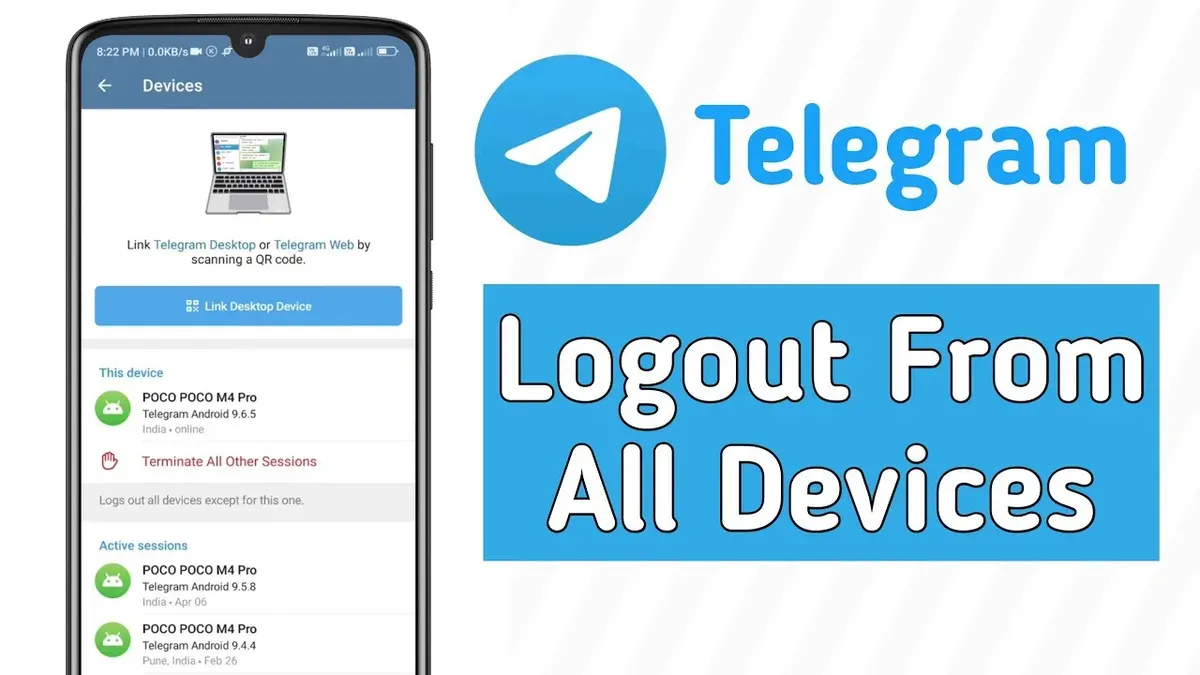
This article explains how to log out of Telegram on all devices with clear, platform-specific instructions. Managing active sessions correctly is key to securing Telegram accounts, especially when using multiple devices like desktops, laptops, and web browsers. Knowing how to access session management and logout options prevents unauthorized access and ensures control over logged-in devices.
Users often struggle with incomplete logout processes or confusion about why some sessions remain active. This guide covers how to log out on desktop apps, web versions, and mobile platforms, plus how to remotely terminate sessions. It also addresses common issues such as unexpected logouts and login difficulties following logout attempts.
Following the step-by-step instructions here will help users fully understand how to log out of Telegram on all devices and maintain account security effectively.
Before you start: What’s needed to log out of Telegram on all devices
Logging out of Telegram on all devices requires an active Telegram account accessible on the main device or app. Telegram operates on a session-based system, allowing multiple devices to stay logged in simultaneously. Unlike some messaging apps that automatically log out other sessions when signing out of one device, Telegram requires explicit commands to end sessions individually or all at once.
An uninterrupted internet connection is essential so that logout commands sync properly across devices. Without connectivity, logout requests might not reach other sessions, leaving them active. Users should understand that session persistence varies between platforms and that logging out on a single device does not guarantee immediate logout on all others.
- Confirm access to the primary Telegram account on any device or app. The interface should display chats and settings immediately upon login.
- Ensure a stable internet connection is active. Telegram should show "Connected" or display recent message activity.
- Familiarize with the "Active Sessions" or "Devices" option in Telegram settings, where all logged-in sessions can be reviewed and managed.
- Recognize that logout actions must target each session or use the "Terminate all other sessions" feature to log out everywhere except the current device.
Tip: Unlike some apps, Telegram treats sessions individually to enhance flexibility but requires deliberate logout commands to fully secure the account.
How do I log out of Telegram on laptop, desktop, and PC?
- Open the Telegram desktop app on the target computer. The main chat window should load, showing recent conversations.
- Click the three horizontal lines in the top-left corner to open the menu, then select Settings. The Settings window appears.
- Within Settings, click Devices. A list of all active Telegram sessions linked to the account will display, including device type, location, and last active time.
- To log out of a specific session, select it from the list and click Terminate Session. The session will be immediately ended and removed from the list.
- To log out from all devices except the current one, click Terminate All Other Sessions. A confirmation prompt will appear; confirm the action to end all other active sessions remotely.
Tip: Use the Devices section regularly to monitor active sessions and ensure account security.
These steps ensure that logout commands target the right sessions, preventing accidental loss of access on the current device. Terminating other sessions remotely is the fastest way to secure the account from unauthorized access on other computers.
How to log out of Telegram Web and sign out from all web sessions
Logging out of Telegram Web requires managing active web sessions through the Telegram interface, as simply closing browser tabs does not end the session. Each web login persists until explicitly signed out, which can leave multiple active sessions if logged in from different browsers or devices.
- Open Telegram Web and log into the account. The main chat interface should appear.
- Click on the hamburger menu (three horizontal lines) in the top-left corner, then select Settings.
- Inside Settings, choose Devices. This screen lists all active sessions, distinguishing between desktop apps, mobile devices, and web sessions.
- Locate the section labeled Web sessions. Each entry shows the browser type, approximate location, and last active time.
- To log out from an individual web session, click the Terminate or Log out button next to that session. The session disappears immediately from the list.
- To log out from all web sessions, select Terminate all other sessions or a similar option if available. This ends all web sessions except the current one.
Tip: Logging out remotely from web sessions requires an active internet connection; otherwise, session status updates may be delayed.
Unlike Telegram Desktop apps, which handle sessions differently, Telegram Web sessions remain active until explicitly ended. This means even if the browser window is closed, the session stays open on the Telegram servers until logged out.
For example, a user logged into Telegram Web on their work computer and home laptop can remotely log out from the work computer session by terminating it in the Devices menu accessed from the home laptop session.
How to logout Telegram from other devices remotely
Telegram allows users to manage active sessions from any device with account access. This capability is essential when physical access to devices is unavailable but a secure logout is necessary. The Devices section in the Telegram app lists all logged-in sessions, showing device type, approximate location, and the last active time—key details to identify unauthorized access.
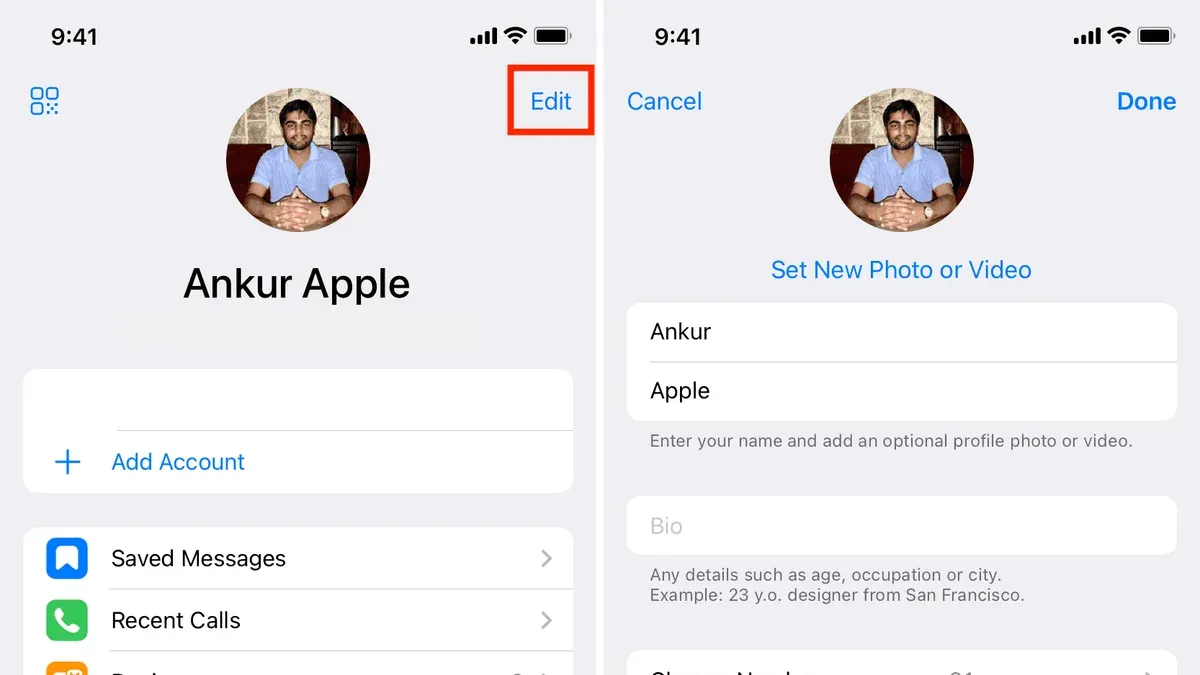
For example, a session labeled "Windows PC, New York, last active 3 hours ago" indicates recent use on that device. In contrast, a "MacBook, London, last active 2 weeks ago" session might be forgotten or unauthorized. Terminating suspicious or outdated sessions immediately reduces risk.
- Open the Telegram app on a mobile device or desktop.
- Navigate to Settings > Devices (or Privacy and Security > Active Sessions on some versions).
- Review the session list carefully, noting device names, locations, and last active timestamps.
- Select any session deemed unrecognized or no longer used.
- Tap or click "Terminate Session" to log out that device remotely; the session will disappear from the list.
After terminating unexpected sessions, change the account password or enable two-step verification to prevent unauthorized re-entry. This extra layer of security helps protect the account even if credentials were compromised.
Why is Telegram suddenly logged out or not logging in?
Telegram sessions can be invalidated server-side for several reasons, including password changes, account security updates, or policy enforcement. When a password is changed or two-step verification is updated, Telegram logs out all active sessions to protect the account. Such forced logouts are common security measures rather than errors.
Network connectivity issues or corrupted app cache can also prevent successful login. Telegram may fail to authenticate properly if the app’s stored data is corrupted or if the internet connection is unstable or restricted by firewalls. These conditions often cause unexpected logouts or repeated login failures.
Users frequently report that clearing the app cache or reinstalling the Telegram app resolves many login issues. Additionally, checking for stable internet connectivity and ensuring no VPN or firewall blocks Telegram’s servers can improve login success rates.
- Clear the Telegram app cache via device settings or app-specific options. The app should load faster and allow login without errors.
- If issues persist, uninstall and reinstall Telegram. After reinstall, the login screen should appear, ready for credential entry.
- Verify the internet connection by opening a webpage or another online service. If loading fails, troubleshoot the network before retrying Telegram login.
- Disable any VPN or firewall that might block Telegram. Once disabled, Telegram should connect without login errors.
Tip: Forced logouts often indicate successful security updates; repeated login failures usually stem from app or network issues.
How to secure Telegram account after logging out of all devices
Securing the Telegram account after logging out from all devices is essential to prevent unauthorized access. Enabling two-step verification adds a strong layer of protection by requiring a password in addition to the SMS code. Accounts with two-step verification enabled experience significantly fewer security breaches compared to those without.
- Open Telegram and go to Settings > Privacy and Security > Two-Step Verification. A prompt to set a password appears.
- Create a strong password and enter a recovery email address to enable password reset options. Confirmation of activation will show on screen.
- Return to Settings > Devices to review all active sessions. End any that are unfamiliar or no longer needed; these sessions will disappear from the list once terminated.
- Update the registered phone number and recovery email within Settings > Privacy and Security to ensure recovery options remain current.
- Never share authentication codes, passwords, or recovery emails with others. Telegram will never ask for these details outside the official app.
Tip: Regularly reviewing active sessions and updating recovery information reduces the risk of persistent unauthorized access.
How to log out of Telegram on mobile apps
- Open the Telegram app on the iOS or Android device. The main chat screen appears.
- Tap the hamburger menu (☰) on Android or the Settings tab at the bottom right on iOS. This opens the app settings.
- Navigate to Privacy and Security on Android or directly to Devices on iOS. On Android, select Devices under the Privacy and Security section to view active sessions.
- Review the list of active sessions. To terminate any session, tap the session and confirm Terminate Session. This logs out Telegram on that device remotely.
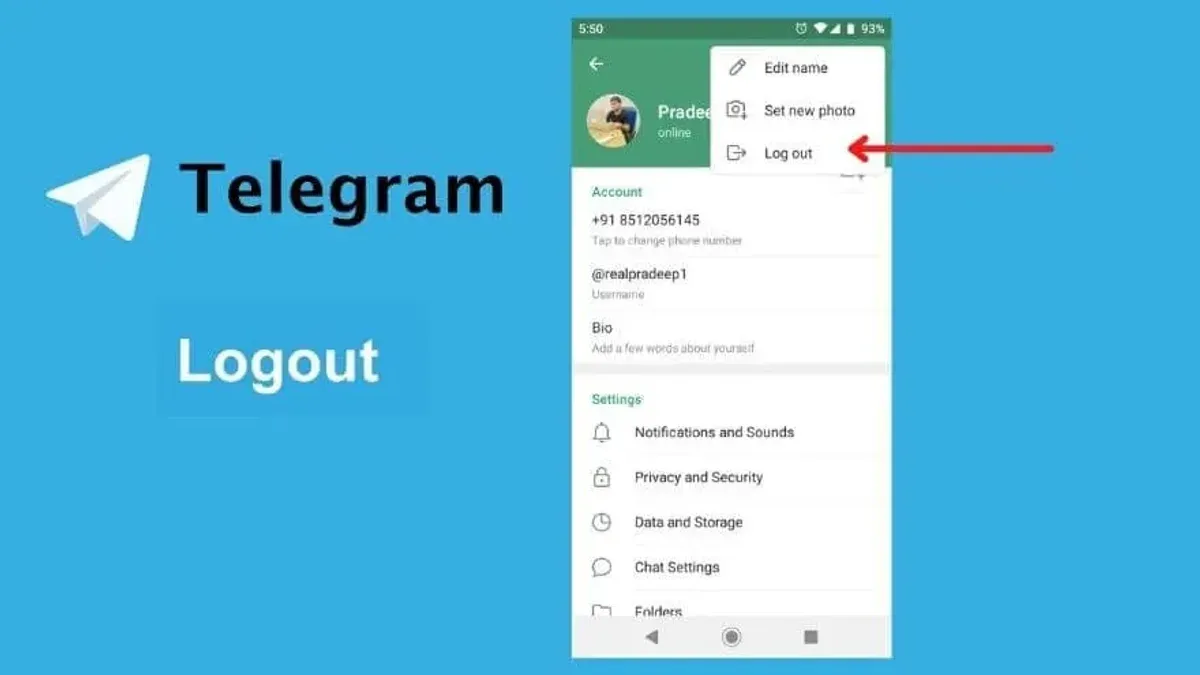
- To log out of the current mobile device, scroll down in Settings and tap Log Out. Confirm the logout prompt to remove the account from this app instance.
Logging out via the Log Out option on the mobile app ends the current session on that device only. Terminating sessions from the Devices menu remotely logs out other devices without affecting the current app login.
Tip: Use the Devices list regularly to monitor and close unknown sessions for better account security.
What to do if Telegram logout does not work on all devices?
Telegram logout commands may fail to propagate across devices due to outdated app versions, poor internet connectivity, or corrupted app data. Begin by checking for updates in the app store and install the latest Telegram version; updated apps resolve numerous session synchronization issues. Restart each device to refresh active sessions and network connections, which can often correct logout failures.
Clearing the app cache or reinstalling Telegram can resolve persistent session management glitches. Clearing cache is available under Settings > Data and Storage > Storage Usage > Clear Cache. After this, expect smoother session termination across devices.
Ensure every device logged into Telegram has an active internet connection during the logout process. Without it, session termination commands may not reach the server, causing devices to remain logged in.
- Update Telegram on all devices. Success is indicated by the availability of the latest app version and no update prompts.
- Restart each device. Success means device boots normally and Telegram sessions refresh.
- Clear Telegram app cache or reinstall the app. Success is smoother app performance and logout commands applying correctly.
- Confirm stable internet on all devices. Success means network-dependent actions complete without errors.
- If issues persist after all steps, contact Telegram support via the in-app Help section or official website. Success is receiving guidance or resolution from support.
Tip: Most logout failures resolve after updating Telegram and clearing cache, so start with these steps before deeper troubleshooting.
Frequently asked questions
How to log out telegram on laptop?
Open the Telegram desktop app on the laptop. Click the menu icon (three horizontal lines) in the top-left corner, select "Settings," then "Privacy and Security." Under "Active Sessions," choose the session for the laptop and click "Terminate Session" or use "Terminate All Other Sessions" to log out everywhere except the current device.
How to log out of telegram desktop?
In the Telegram desktop app, access the menu by clicking the three horizontal lines at the top-left. Go to "Settings," then "Privacy and Security," and select "Active Sessions." Identify the desktop session and click "Terminate Session" to log out from that device specifically.
How to log out telegram pc?
Logging out on a PC uses the same method as on a laptop or desktop. Open Telegram, navigate to "Settings" > "Privacy and Security" > "Active Sessions." From there, terminate the session associated with the PC or end all other sessions to log out remotely.
How can i log out my telegram from all devices?
Use the "Active Sessions" feature in Telegram settings under "Privacy and Security." Select "Terminate All Other Sessions" to log out from every device except the one in use. Alternatively, you can remotely log out individual sessions from the list to control specific devices.
How to log out my telegram account from other devices?
Open Telegram on any device and go to "Settings" > "Privacy and Security" > "Active Sessions." Review the list of logged-in devices and click "Terminate Session" next to each device to log out remotely. This ensures the account is signed out without needing access to those devices.
What this advice does not cover and who should do something else
This guide does not cover deleting the Telegram account, which permanently removes all data, chats, and active sessions. Logging out from Telegram does not delete chat backups or media stored locally on devices; these remain accessible unless manually removed. Session details like device location shown in Telegram can be approximate and should not be the sole basis for security decisions. Users facing account compromise or needing full data removal should consider Telegram’s account deletion process or contact Telegram support directly.
For the most secure control over active sessions, regularly review Telegram’s session management page and revoke access to devices not recognized or no longer in use. This prevents unauthorized access and helps maintain account security across all platforms.
See also: How to Log Out of Snapchat on All Devices: Clear Step-by-Step Guide · How to Log Out of Signal on All Devices: Step-by-Step Guide · How to Log Out of Discord on All Devices: Clear Step-by-Step Guide · How to Block Someone on Telegram: Step-by-Step Guide



