
How to Block Someone on Telegram: Step-by-Step Guide
This guide explains how to block someone on Telegram to protect your privacy and stop unwanted messages and calls quickly and easily.

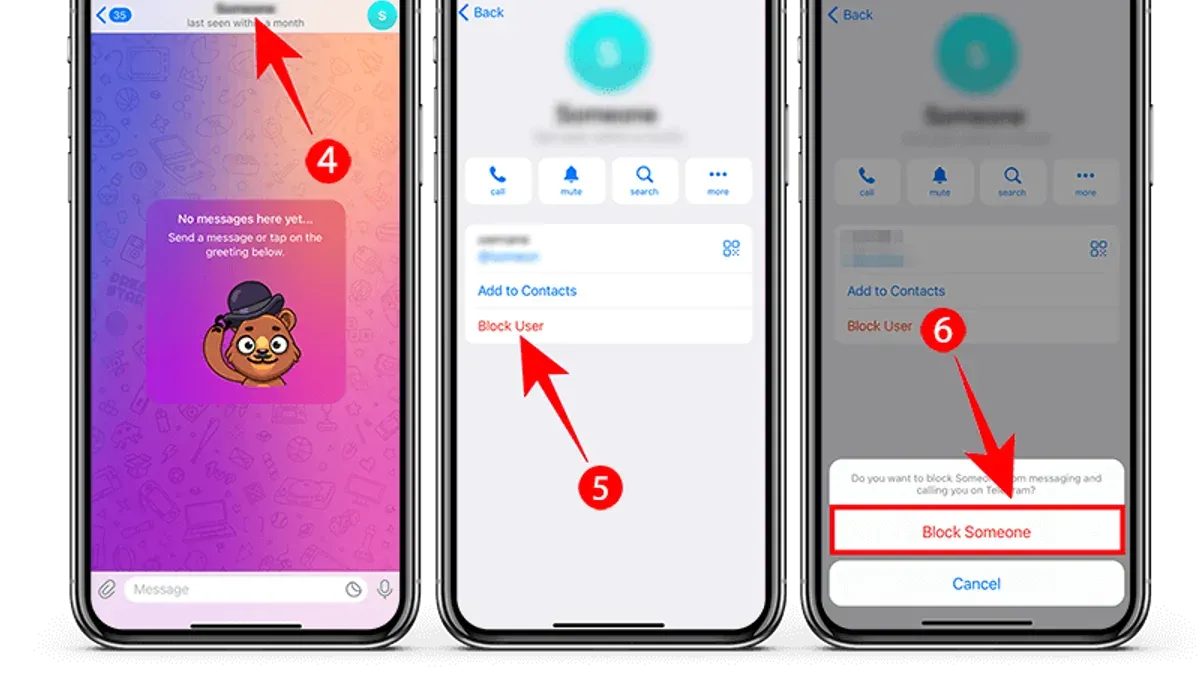
This article provides a detailed step-by-step guide on how to block someone on Telegram, covering both mobile and desktop platforms.
Blocking on Telegram is a straightforward process designed to enhance user privacy by preventing unwanted messages and calls. It involves navigating specific menu options within the app or desktop client to restrict a contact's ability to communicate. Understanding the full implications of blocking is crucial, as it affects not only messages and calls but also the visibility of profile information.
Beyond simple instructions, this guide explains how blocking influences interactions, how to recognize if a user has been blocked, and practical tips for managing contacts effectively. This comprehensive approach helps users make informed decisions about their privacy settings on Telegram.
Before you start: What is needed to block someone on Telegram
Blocking on Telegram requires the app to be installed and the user to be logged in on either a smartphone, desktop client, or the web version. To block someone, it is necessary to have some way of identifying them, such as their username, phone number, or an existing chat with that person.
Understanding what blocking entails is important before proceeding. When a user is blocked, they cannot send messages or call the blocker, and their ability to see the blocker’s online status or last seen is restricted. Telegram’s official support documentation clarifies that blocking is a private action; the person who is blocked does not receive a notification or alert indicating they have been blocked.
Preparing these prerequisites ensures a smooth blocking process and helps users manage their privacy expectations effectively.
How to block someone on Telegram app
- Open the Telegram app and navigate to the chat with the user to be blocked. The chat screen with message history will be displayed.
- Tap on the user’s profile picture or name at the top of the chat. This opens the contact’s profile page.
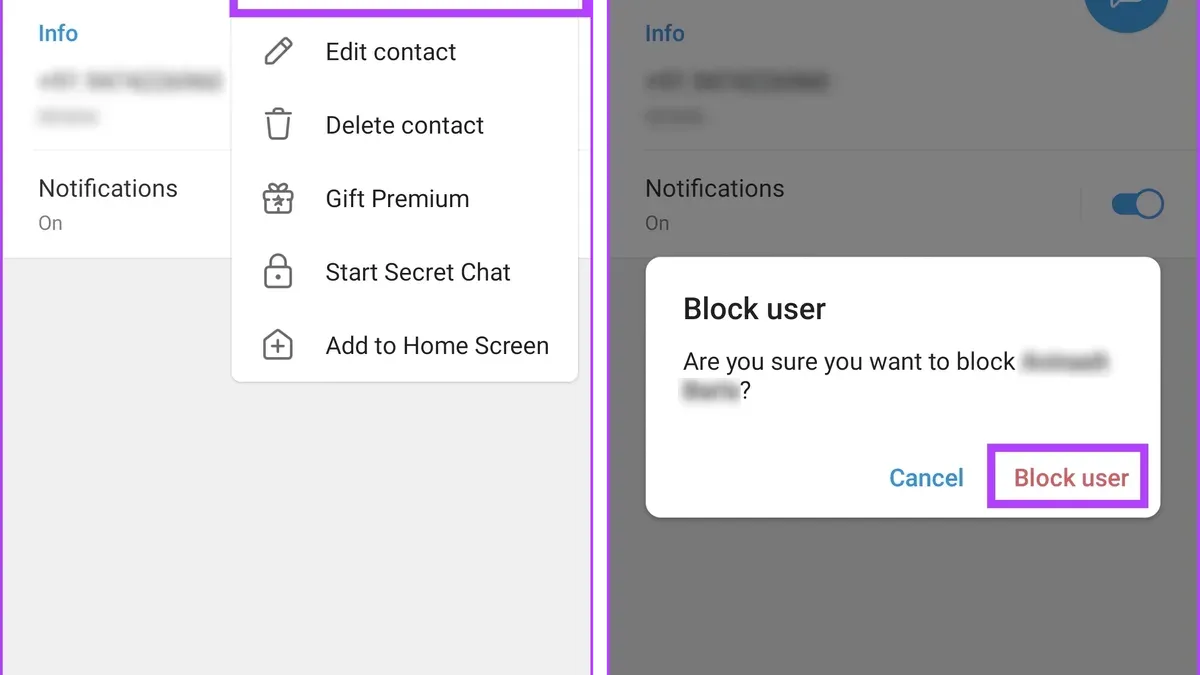
- On the profile page, locate the menu or settings icon, typically represented by three vertical dots in the upper right corner, and tap it.
- From the dropdown menu, select Block User. A confirmation prompt will appear asking to confirm blocking the user.
- Confirm the action by tapping Block. The user will be immediately blocked.
Once blocked, the contact can no longer send messages or call through Telegram, and the chat history with that user remains accessible but no new messages will be received from them. The blocked user is not notified of this change.
Tip: To unblock the user later, revisit their profile via search or chat list and select the Unblock option from the same menu.
How to block a contact on Telegram from the desktop app or web
- Open the Telegram desktop application or navigate to the Telegram web client and log in with the appropriate credentials. The main interface with chats and contacts will appear.
- Locate the contact or chat to block by scrolling through the chat list or using the search bar at the top left. Clicking on the contact will open the conversation window.
- In the conversation window, click on the contact's name or profile picture at the top center to open the contact info pane. This pane displays options such as shared media, notifications, and privacy settings related to the contact.
- Scroll down in the contact info pane until the option labeled Block User is visible. Click this option to initiate the blocking process.
- A confirmation prompt will appear asking to confirm blocking the contact. Confirm by clicking Block. The contact will then be blocked, preventing them from sending messages or calling. The chat window will update accordingly, often indicating the block status.
Blocking on desktop or web closely mirrors the mobile app process but requires navigating through the contact info pane rather than a long-press or menu within the chat. Screenshots typically show the Block User option at the bottom of the contact info pane, a step users sometimes overlook.
Tip: If the Block User option is not immediately visible, ensure the contact info pane is fully expanded by scrolling to the bottom.
How to unblock someone on Telegram
Unblocking a user on Telegram reverses the restrictions imposed by blocking, restoring the ability to send messages and make calls to that contact. The blocked person will not receive a notification about being unblocked, but communication can resume immediately after the process.
To manage blocked users and unblock a contact via the mobile app, follow these steps:
- Open Telegram and tap the three-line menu icon in the top-left corner to access the main menu.
- Select Settings, then scroll down and tap Privacy and Security.
- Tap Blocked Users to see the list of all blocked contacts.
- Find the contact to unblock and tap on their name to open their profile.
- Tap the Unblock button that appears at the bottom of the profile page. The contact will be removed from the blocked list immediately.
On Telegram's desktop app or web client, the process is similar:
- Click the three-line menu icon in the top-left corner and select Settings.
- Choose Privacy and Security, then click Blocked Users.
- Locate the contact to unblock and click their name.
- Press the Unblock User button that appears in the profile pane.
Once unblocked, the contact can send messages, view the user's online status according to privacy settings, and make voice or video calls. For example, if a user had blocked a friend to stop receiving messages temporarily, unblocking would immediately allow the friend’s messages and calls to come through again without additional setup.
How to block calls on Telegram specifically
Blocking a user on Telegram automatically blocks all communication from them, including calls. There is currently no separate feature to block only calls while allowing messages to come through. When a user is blocked, their calls will not ring on the recipient's device, and the caller will hear that the call cannot be completed or is declined.
Alternatives to blocking calls without blocking messages are limited. One option is to mute notifications for calls from specific contacts, but this does not prevent the call from coming through, only silences the alert. Another approach is to adjust privacy settings to restrict who can call, such as allowing calls only from contacts or specific user groups, though this applies broadly and not on a per-user basis.
Tip: Use the "Privacy and Security" settings under "Calls" to limit who can call, reducing unwanted calls without blocking the sender entirely.
What happens if someone blocks you on Telegram
When a user blocks another on Telegram, the blocked person receives no notification about this action. Messages sent to the blocker will show only one check mark, indicating the message has been sent but not delivered. This remains true indefinitely, as the message will never reach the blocked user.
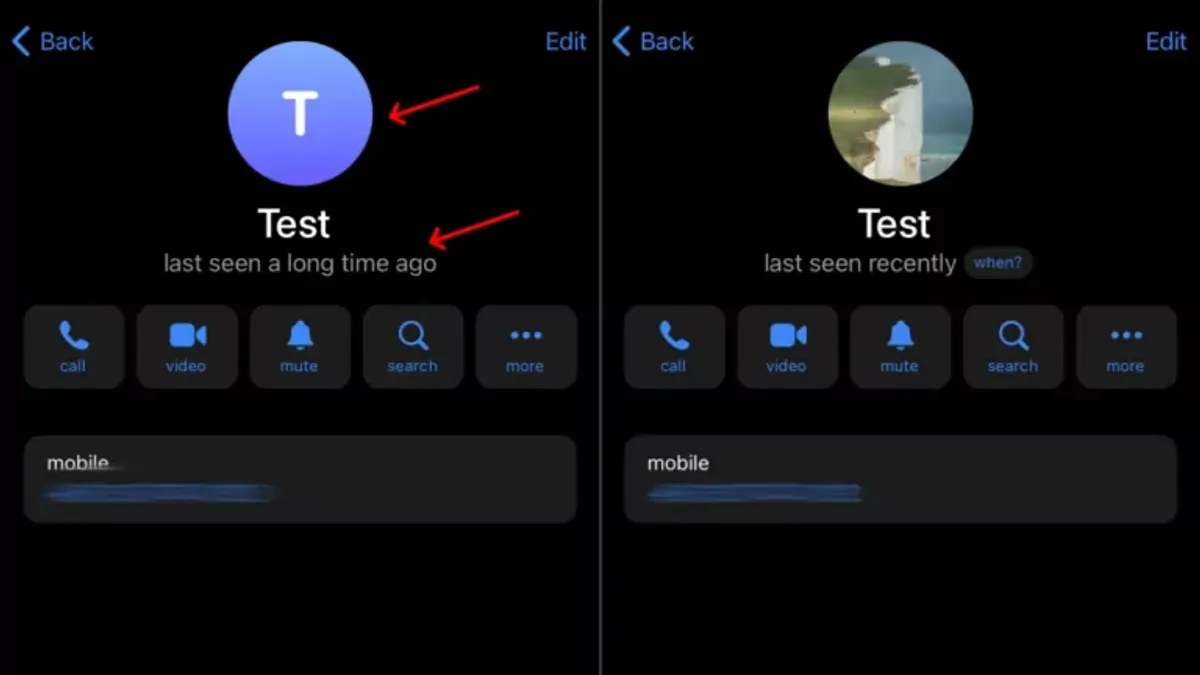
The blocker’s profile picture and last seen status become hidden from the blocked individual. Instead of a timestamp, the last seen information may display vague statuses like "last seen recently" or may be completely absent. Attempts to call the blocker will fail, as calls do not connect or ring.
To test if one is blocked, follow these steps:
- Send a message to the contact. If only one check mark appears and never changes to two, the message is not delivered.
- Check the contact’s profile picture and last seen status. If these are hidden or replaced with vague indicators, it suggests blocking.
- Attempt to place a voice or video call via Telegram. If the call does not ring or connect, this supports the possibility of being blocked.
None of these signs alone confirms blocking conclusively, but combined they strongly indicate it.
How to tell if you are blocked or if someone just deleted you
Distinguishing between being blocked on Telegram and having a contact simply delete you or adjust their privacy settings can be challenging due to Telegram's privacy design. Several indicators can help clarify the situation, but none are definitive on their own.
| Indicator | Blocked | Deleted Contact | Privacy Settings |
|---|---|---|---|
| Message delivery status | Messages show one check (sent) but never two (delivered) | Messages show two checks (delivered) but may not be read | Messages delivered normally |
| Last seen and online status | Not visible at all | Visible if privacy allows | May be hidden based on privacy settings |
| Profile photo visibility | Profile photo disappears or shows default | Profile photo remains visible unless removed | May be hidden by privacy settings |
| Calls behavior | Calls do not connect or ring | Calls connect normally | Calls connect normally |
| Chat behavior | New messages do not appear as read | Messages can be read or unread | Messages behave normally |
Because Telegram does not notify users of blocks, the best approach is a step-by-step check:
- Send a message: If it shows one check and never two, blocking is possible.
- Check last seen and profile photo: If both are missing or replaced with defaults, blocking is likely.
- Try calling: If calls fail to connect or ring, blocking is probable.
- Consider privacy settings: If the contact restricts visibility, changes may not indicate blocking.
- Recall if the contact deleted you: If messages are delivered and profile visible but communication is limited, deletion is more likely.
Tip: Combining multiple indicators provides a stronger inference than relying on any single sign.
Choosing the right people to block on Telegram
Blocking on Telegram is best reserved for contacts who cause harassment, send spam, or raise significant privacy concerns. These situations justify a firm response because blocking immediately cuts off communication and visibility.
Before blocking, consider alternatives such as muting conversations to avoid notifications, using the “Restrict” feature to limit interaction without full blocking, or reporting abusive users to Telegram support. These options can preserve communication channels while addressing unwanted behavior.
Blocking may have social consequences, especially if contacts share group chats or channels. Blocked users remain in shared groups, but direct messages and calls are prevented. This can lead to awkwardness or misunderstandings in group settings.
Anecdotal evidence from user discussions suggests that most Telegram users block others primarily to avoid spam or harassment rather than casual disagreements. Knowing when to block versus using softer controls helps maintain privacy without damaging social connections unnecessarily.
Troubleshooting common issues with blocking on Telegram
Some users report that blocked contacts can still send messages or calls, often due to sync delays or app glitches. Ensuring the app is updated and restarting it can resolve these issues. If unblocking does not restore chat history, it is because Telegram does not recover deleted messages after blocking, only communication resumes.
Blocked calls ringing can occur if the block was not properly applied or if there is a temporary sync problem between devices. Telegram blocks calls and messages simultaneously; separate call blocking is not available.
Sync issues across devices may cause inconsistencies in the block list. Checking that all devices run the latest Telegram version and logging out and back in can help synchronize privacy settings.
To ensure the block is effective, follow these steps:
- Open the contact's profile in Telegram.
- Tap the three-dot menu and select "Block User." A confirmation prompt appears.
- Confirm the block; the user is added to the blocked list in Settings > Privacy and Security > Blocked Users.
- Restart the app to enforce the block.
- Verify the contact's profile no longer shows last seen or online status, and messages show as unsent.
Tip: If problems persist, clearing the app cache or reinstalling Telegram often resolves blocking inconsistencies reported in Telegram forums and official FAQs.
Further reading
- How to Block Someone on Reddit: Step-by-Step Guide
- How to Block Someone on Discord: Step-by-Step Guide
- How to Block Someone on LinkedIn: Step-by-Step Privacy Control
Frequently asked questions
How do i block someone on telegram?
To block someone on Telegram, open their profile, tap the three-dot menu (or More on iOS), and select 'Block User.' Confirm the action to prevent them from sending messages or calling. This works on both mobile and desktop apps.
How do you block someone on telegram?
Blocking someone involves accessing their profile, choosing the block option from the menu, and confirming the block. This stops all messages and calls from that user and removes them from your contact list, ensuring privacy and control.
Can you block someone on telegram?
Yes, Telegram allows users to block others to manage their privacy. Blocking prevents the blocked person from messaging or calling, and they cannot see the blocker’s last seen or online status.
How to block user on telegram?
Find the user by searching or in your chat list, open their profile, tap the menu icon, and select 'Block User.' This method works consistently across Telegram’s apps and web interface.
What if someone block you on telegram?
If someone blocks you on Telegram, your messages to them will show as sent but never delivered. You will no longer see their profile photo, last seen, or online status, making it clear that communication is restricted.
What blocking on Telegram does not cover
Blocking on Telegram restricts direct communication and visibility between users but does not remove blocked contacts from mutual groups or channels. This means that indirect interaction can still occur within shared spaces, where messages from blocked users remain visible unless manually muted or reported. Additionally, blocking does not affect a user’s presence in public groups or their ability to view public content.
Users seeking to completely avoid interaction with someone across all Telegram features, including mutual groups, may need to consider additional measures such as leaving the group or adjusting privacy settings to limit who can add them to groups.
Tip: Regularly reviewing group memberships and privacy settings can help maintain desired boundaries beyond blocking.
The most practical next step after blocking is to monitor how it affects communication and adjust notifications or group memberships accordingly to ensure desired privacy and peace of mind.



