
How to Log Out of Threads on All Devices: Clear Step-by-Step Guide
This guide explains how to log out of Threads on all devices, helping you secure your account and manage active sessions effectively.

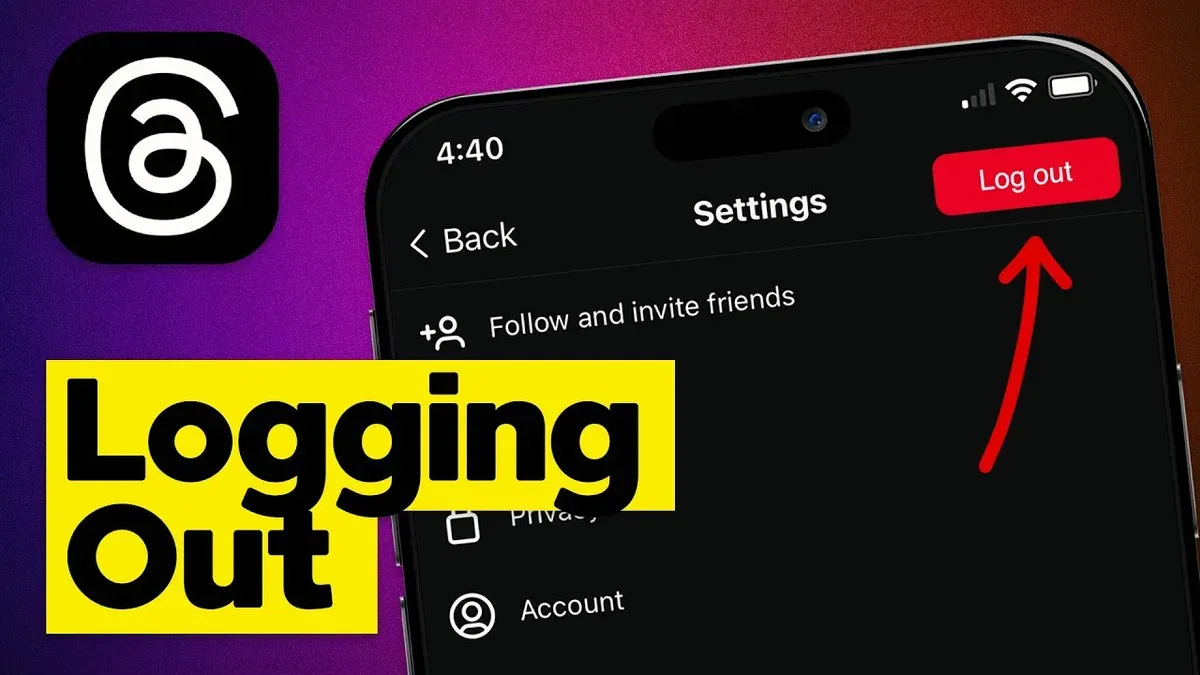
This article explains how to log out of Threads on all devices, providing clear instructions to secure the account from unauthorized access. Managing active sessions is essential for users who access Threads from multiple devices or shared environments. The guide covers steps within the Threads app and expands to related Microsoft Outlook and Microsoft account logout methods, addressing overlapping concerns for users employing both platforms.
Logging out of Threads remotely requires navigating specific settings to identify and terminate active sessions. This ensures complete control over where the account remains accessible. The following sections break down the necessary steps for logging out from other devices, account deactivation, and troubleshooting common logout issues.
Before you start: What is needed to log out of Threads on all devices
Logging out of Threads on all devices requires access to the active Threads account credentials or the Instagram login details linked to the Threads account. Threads uses Instagram’s authentication system, so managing sessions often involves the Instagram app or account settings. Because Threads is integrated with Instagram, logging out of Threads on one device may not automatically sign out sessions on other devices; managing sessions might require steps in Instagram’s security and login settings.
An active internet connection and access to the devices involved are essential to perform logout steps effectively. Without the correct passwords or linked Instagram login, it is impossible to log out remotely or manage active sessions across devices.
For example, if a user logs into Threads using Instagram credentials, the session tokens are shared. Logging out from Instagram on a device can invalidate the Threads session there, but other devices might remain logged in unless explicitly signed out from Instagram’s "Login Activity" section.
- Have the Instagram username and password or the Threads login credentials ready. This ensures access to both apps and account management settings.
- Ensure the Instagram app or Threads app is installed and accessible on the device performing the logout. This provides the interface needed to manage sessions.
- Verify a stable internet connection on the device to communicate with Instagram and Threads servers during logout processes.
- Understand that some logout controls may require navigating to Instagram’s "Settings > Security > Login Activity" to view and terminate active sessions on all devices.
How to log out Threads from other devices
To remotely log out of Threads sessions on devices other than the current one, use Instagram’s login activity feature. Since Threads accounts are linked to Instagram, managing active sessions through Instagram effectively controls Threads access.
- Open the Instagram app or website and navigate to Settings.
- Access the Security section and select Login Activity. This page lists all devices currently logged into the Instagram account, including location and device type.
- Identify any unfamiliar or no longer used devices. Tap or click the three-dot menu next to each session and select Log Out to terminate that session.
- Logging out from Instagram on these devices automatically logs out Threads sessions on the same devices because of their account integration.
- To further revoke access, go to Settings > Security > Apps and Websites and remove any suspicious or unnecessary connected apps or sessions to invalidate tokens.
- After logging out, verify success by checking the Login Activity list again; logged-out devices should no longer appear as active.
Tip: Regularly reviewing the login activity helps detect unauthorized access early and maintain account security.
How to log out of all devices on Threads directly (if supported)
The Threads app currently does not provide a built-in feature to log out from all devices simultaneously within its own interface. Session management and logout controls remain tied primarily to Instagram's account settings, reflecting Threads’ integration with Instagram accounts. Users seeking to terminate all active sessions on Threads must rely on Instagram’s session management tools.
Unlike Instagram, Threads lacks a dedicated “log out of all devices” option or session overview that allows users to remotely end active Threads sessions. The app focuses on single-device logout, which requires manual logout on each device individually.
Steps to log out on a single device via Threads app:
- Open the Threads app and tap the profile icon at the bottom right to access account settings. The account settings page appears.
- Tap the menu (three horizontal lines) in the top right corner and select "Settings." The settings menu opens.
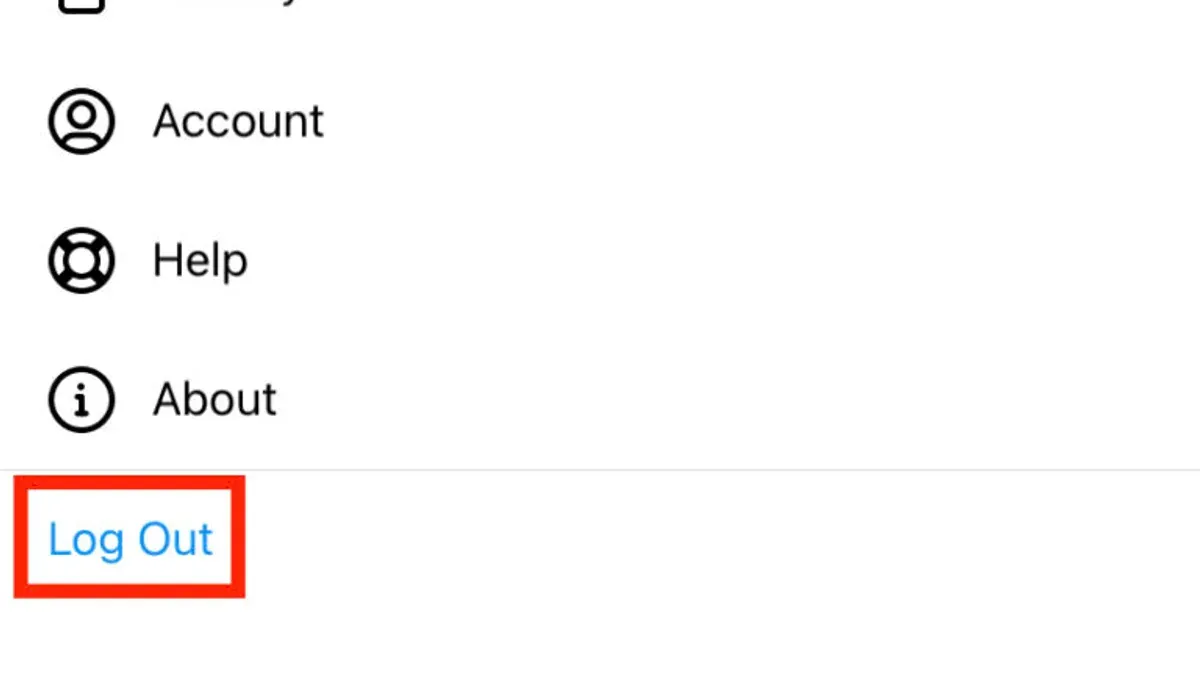
- Scroll to find "Log Out" and tap it. A confirmation prompt appears.
- Confirm logout to end the current session on that device. The app redirects to the login screen, indicating successful logout.
Since Threads lacks centralized session management, users must log out individually from devices or use Instagram’s Login Activity to log out across all devices. Instagram's session management effectively controls Threads access due to account linkage.
Tip: For complete logout across all devices, managing sessions via Instagram remains the only comprehensive method.
How to log into Threads
- Open the Threads app on the device. The welcome screen will prompt to log in using Instagram credentials.
- Tap "Log in with Instagram." This redirects to the Instagram login page within the app or browser.
- Enter the Instagram username and password associated with the Threads account. A successful login will proceed to the Threads home screen.
- If multi-factor authentication (MFA) is enabled on the Instagram account, a prompt will appear to enter the verification code sent via SMS or authenticator app. Enter the code accurately to continue.
- After MFA verification, the Threads app loads the user’s profile and timeline, confirming a successful login.
Common login issues include incorrect Instagram credentials, expired passwords, or MFA code errors. If the Instagram password is forgotten, users must reset it through Instagram’s "Forgot password?" option before accessing Threads.
Tip: Ensure the Instagram account is active and not locked or disabled, as Threads login depends on Instagram authentication.
How to deactivate or remove Threads account
Threads accounts are linked to Instagram profiles, so deactivation or removal is managed through Instagram settings. Deactivating the Instagram account effectively disables the Threads account, pausing all activity and hiding content without permanent deletion. Permanent removal deletes both Instagram and Threads data, subject to Instagram’s data retention policies.
To deactivate the Threads account via Instagram:
- Open the Instagram app and go to Profile.
- Tap the Menu icon (three horizontal lines) and select Settings.
- Choose Account, then tap Delete Your Account or Temporarily Disable Account.
- If disabling, select a reason and confirm; the account will be hidden but recoverable.
- If deleting, follow the prompts to permanently remove the account; this deletes Threads data as well.
Tip: Deactivation hides Threads and Instagram activity but retains data, while permanent deletion erases all data after a retention period and cannot be undone.
Logout ends the current session but leaves the account intact. Deactivation pauses the account without data loss. Deletion removes the account and its data permanently. Managing Threads accounts requires understanding these differences to select the appropriate action.
How to get rid of Threads account safely
Removing a Threads account requires careful steps to ensure data security and complete disconnection. Begin by backing up any important data, such as shared posts or messages, since account deletion is irreversible and erases all Threads activity permanently. Exporting Instagram data also helps retain linked content.
- Back up Threads content by downloading data via Instagram: Go to Instagram Settings > Privacy > Data Download > Request Download. Wait for the email with your data files.
- Delete the Threads app from all devices: On mobile devices, uninstall the app and clear cache and storage data via device settings to remove residual files.
- Log out of all active Threads sessions by terminating Instagram sessions under Instagram Settings > Security > Login Activity to ensure no device remains connected.
- Delete the Threads account through Instagram: Navigate to Instagram Settings > Account > Delete Account, then follow the prompts to remove Threads data linked to the Instagram account.
- Confirm account deletion by checking that Threads access is revoked and that login attempts to Threads with Instagram credentials fail.
Checklist for complete removal:
- Data backup confirmed
- Threads app uninstalled and data cleared on all devices
- All Instagram sessions terminated
- Account deletion confirmed via Instagram settings
How to log devices out of Outlook and Microsoft accounts remotely
Logging out devices from Microsoft and Outlook accounts remotely is done via the Microsoft account security dashboard, which provides a centralized view of all active sessions and devices. This differs from the Threads logout process, which requires session management through Instagram since Threads uses Instagram credentials for access. Microsoft’s dashboard allows direct control over sessions for email, cloud services, and other Microsoft apps.
- Go to https://account.microsoft.com/security and sign in with the Microsoft account credentials. Upon successful login, the Security dashboard will display.
- Select "Sign-in activity" to view a list of recent login sessions across all devices and locations. Confirm the sessions currently active.
- Click "Sign out everywhere" to remotely log out all devices except the one currently in use. A confirmation message will appear indicating the action processed.
- Optionally, change the account password immediately after to invalidate any lingering authentication tokens and enhance security.
This remote logout feature is especially useful if unauthorized access is suspected or when devices are lost or shared. Unlike Threads, which requires Instagram session termination, Microsoft provides a distinct, dedicated portal for comprehensive control over all connected devices and services.
| Feature | Microsoft Accounts / Outlook | Threads / Instagram |
|---|---|---|
| Session Management Location | Microsoft Security Dashboard | Instagram Login Activity |
| Remote Logout Capability | Sign out all devices remotely with one click | Logout must be done individually per device or via Instagram sessions |
| Multi-Service Coverage | Outlook, Office apps, OneDrive, etc. | Threads only via Instagram credentials |
| Password Change Impact | Invalidates all sessions except current | Requires Instagram password change to affect Threads sessions |
Tip: For email security alongside Threads logout, combine Microsoft account remote logout with a password reset to ensure all sessions are fully closed and protected.
Troubleshooting common issues when logging out of Threads on all devices
If sessions remain active after logout attempts, the first step is to clear the Threads app cache. On Android, go to Settings > Apps > Threads > Storage > Clear Cache; on iOS, uninstalling and reinstalling the app achieves this. This resolves glitches that prevent logout commands from processing.
If clearing cache does not work, changing the Instagram account password forces all linked sessions, including Threads, to log out. To do this, navigate to Instagram Settings > Security > Password and set a new password. Once updated, all active sessions should terminate automatically.
Sometimes logout fails due to server delays or sync issues. Waiting up to an hour after session termination in Instagram’s Login Activity can allow for proper synchronization. If sessions still persist, logging out manually from each device or reinstalling Threads may help.
If logout problems continue, contacting Instagram support through the Help Center is advised. Provide details about the issue and the troubleshooting steps already completed. Support can investigate account-specific problems beyond user control.
- Clear Threads app cache or reinstall the app – app should restart without active session.
- Change Instagram password via Instagram Settings > Security > Password – all sessions should disconnect.
- Verify session status in Instagram Login Activity after 30–60 minutes – active sessions list should update.
- If sessions persist, log out manually on each device or reinstall Threads – sessions should end.
- Contact Instagram support if problems remain – receive guidance or resolution.
Tip: Changing the Instagram password is the most reliable way to ensure all Threads sessions are logged out, especially when manual session termination fails.
Frequently asked questions
How to turn off threads?
Threads is an app and cannot be simply turned off like a device feature. To stop using Threads, log out of the account or uninstall the app from the device. This prevents notifications and access until the app is used again.
How to get off threads?
Getting off Threads means logging out or removing the app. Log out via the profile settings or uninstall Threads from the device. For complete account control, also consider logging out from all devices through account settings.
How to deactivate threads?
Deactivating Threads usually involves deactivating the associated account through the parent platform that manages Threads. Since Threads is linked to the main social media account, deactivate or delete that account to disable Threads access. There is no separate deactivation button solely for Threads.
How to remove threads?
Removing Threads involves uninstalling the app from all devices where it is installed. Additionally, log out from all active sessions to prevent further access. Deleting the connected account will also effectively remove Threads access.
How to log out email on other devices?
To log out email on other devices, access the email account's security or device activity settings, such as in Microsoft Outlook or Gmail. From there, review active sessions and choose to sign out or remove devices remotely. This ensures no unauthorized access to the email account.
What this advice does not cover
This guide does not cover Threads logout methods that may be introduced after the article’s publication, nor does it address enterprise or developer-level session management which may require specialized tools or administrative access. Users managing corporate or organizational accounts should consult their IT departments or platform-specific documentation for advanced session control. Additionally, this article does not cover recovery options for compromised accounts or multi-factor authentication setup beyond basic logout procedures.
The most useful next step is to review all active sessions regularly within the Threads app or associated Meta account settings. This ensures any unauthorized access is detected promptly and can be revoked as needed. Regularly updating passwords and enabling two-factor authentication adds an extra layer of security beyond logging out of devices.
See also: How to Log Out of Telegram on All Devices: Clear Step-by-Step Guide · How to Log Out of Snapchat on All Devices: Clear Step-by-Step Guide · How to Log Out of Signal on All Devices: Step-by-Step Guide · How to Log Out of Discord on All Devices: Clear Step-by-Step Guide



