
How to Log Out of WhatsApp on All Devices: Step-by-Step Guide
This guide explains how to log out of WhatsApp on all devices to protect your account and manage active sessions securely.

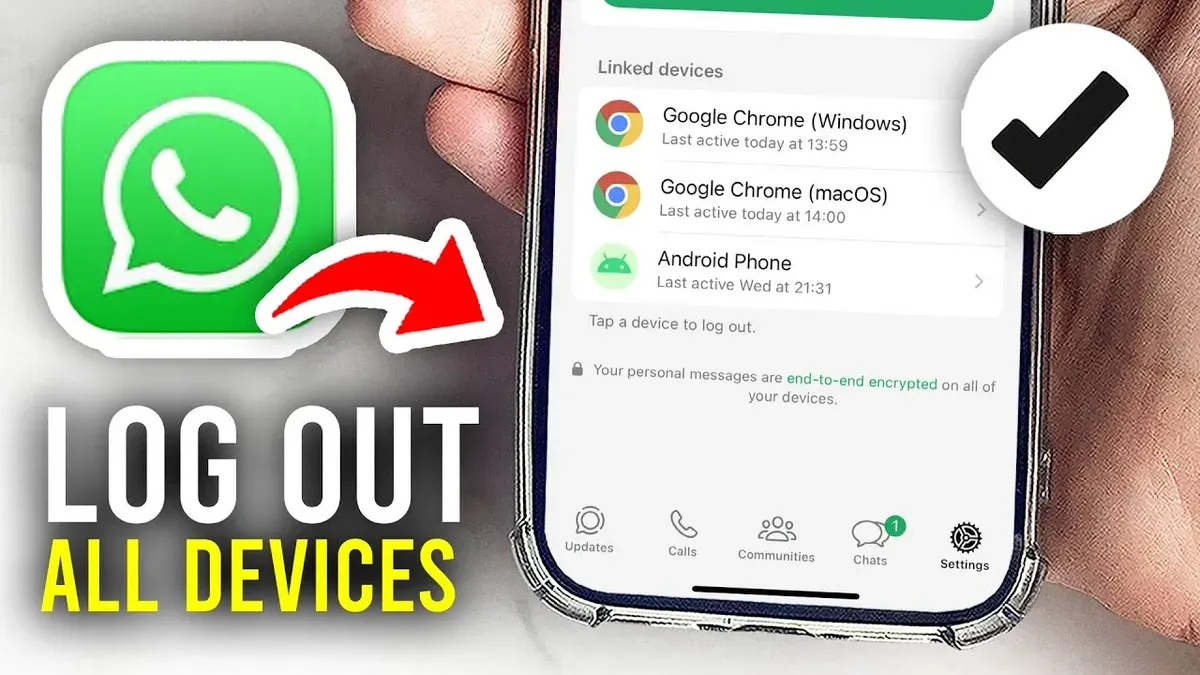
This article explains how to log out of WhatsApp on all devices, providing clear steps to manage active sessions effectively. WhatsApp’s account structure is unique, linking the phone as the primary device while other sessions, such as WhatsApp Web or desktop apps, rely on the phone’s connection. Understanding this setup is crucial for complete session control.
Knowing how to log out of WhatsApp on all devices protects the account from unauthorized access and resolves common session issues. The guide covers managing linked devices through WhatsApp Web, logging out on Android and iPhone apps, and handling simultaneous sessions across platforms. It also addresses common problems like unexpected logouts and offers ways to monitor device activity for security.
Before you start: What is needed to log out of WhatsApp on all devices
Logging out of WhatsApp on all devices requires a working WhatsApp account primarily accessed via the main phone. Unlike many messaging apps, WhatsApp's mobile applications do not offer a traditional 'log out' button. Instead, session management is handled through the 'Linked Devices' feature, which controls where WhatsApp is actively logged in beyond the primary phone. Understanding this distinction is essential before proceeding.
Internet access is necessary to manage devices remotely and confirm session termination. The WhatsApp Web or Desktop app sessions can be reviewed and revoked through the Linked Devices menu on the mobile app. This method differs from apps that allow a straightforward logout on mobile; WhatsApp ties the account strongly to the phone number and device, making the primary phone the hub for session control.
- Ensure the primary phone has an active WhatsApp account and is connected to the internet. The WhatsApp app should open normally.
- Open WhatsApp on the primary phone and navigate to Settings > Linked Devices. This screen shows all active WhatsApp Web/Desktop sessions.
- Confirm the ability to access this screen and see at least one linked session if multiple devices are logged in.
Only after these prerequisites are met can device sessions be logged out effectively, ensuring account security across all platforms.
How to log out of WhatsApp on other devices using WhatsApp Web’s linked devices feature
WhatsApp allows remote management of all active sessions on WhatsApp Web and desktop apps through the primary phone. This is the only method to log out from these sessions since the apps themselves lack a direct logout option.
- Open WhatsApp on the phone.
- Tap the three-dot menu (Android) or the Settings tab (iPhone).
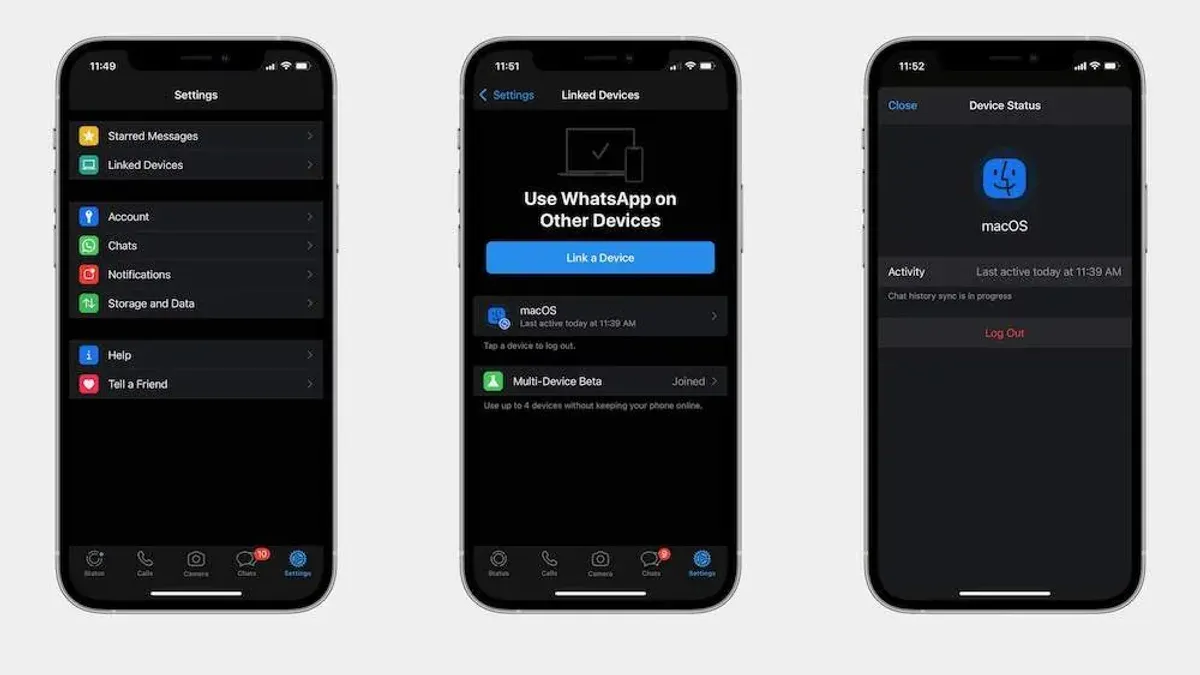
- Select Linked Devices. The screen will display all active sessions, listing device types, locations, and last active times.
- To log out of a specific session, tap the session name and then tap Log Out. The session will immediately disconnect.
- To log out of all sessions simultaneously, scroll to the bottom and tap Log Out From All Devices. Confirm the action when prompted.
This process instantly terminates the WhatsApp Web or desktop session(s), preventing further access without re-authorization.
Tip: Regularly review linked devices to detect unauthorized access early.
How to log out of WhatsApp on Android devices
WhatsApp on Android does not provide a direct log out button. To effectively log out, the app data must be cleared or the app uninstalled. Both methods remove your account session locally, simulating a log out.
- Open the Android device's Settings.
- Navigate to Apps or Apps & notifications.
- Find and select WhatsApp from the list of installed apps.
- Tap on Storage & cache.
- Select Clear storage or Clear data. A confirmation prompt will appear.
- Confirm clearing the data. This will erase all local WhatsApp data including messages not backed up, effectively logging out the account.
Alternatively, uninstalling WhatsApp removes all local session information. Reinstalling and setting up again will require verifying the phone number, which also logs out previous sessions on the device.
Note: Clearing app data or uninstalling deletes unsaved chats and media. It is essential to back up chats to Google Drive or local storage before proceeding to avoid data loss.
How to log out of WhatsApp on iPhone devices
WhatsApp on iPhone does not provide a direct logout option similar to Android. The only way to log out is by deleting the app, which removes all locally stored data. Reinstalling WhatsApp requires re-verifying the phone number, as the account is tied to that number rather than the device itself.
Before deleting the app, ensure an iCloud backup is current if chat history needs to be restored. Without a backup, all local messages and media will be lost. This limitation mirrors Android’s approach, where app data clearing or uninstalling is necessary to log out.
- Press and hold the WhatsApp icon on the home screen until a menu appears.
- Select Remove App, then tap Delete App to uninstall WhatsApp; the app and its data are removed from the device.
- Reinstall WhatsApp from the App Store when ready to log back in.
- Open WhatsApp and enter the phone number associated with the account to verify and restore access.
- If an iCloud backup exists, follow prompts to restore chat history after verification.
Tip: Regular iCloud backups prevent data loss when uninstalling WhatsApp to log out.
How to log out of WhatsApp Web on all devices at once
Logging out of all WhatsApp Web sessions remotely is the fastest way to ensure no browser or desktop sessions remain active. This is done through the primary phone by managing linked devices.
- Open WhatsApp on the phone and go to the settings menu (three dots on Android, bottom right on iPhone).
- Select Linked Devices. This shows all active WhatsApp Web and desktop sessions, including device names and last active times.
- Tap the Log out from all devices option at the bottom of the screen.
- Confirm the logout request when prompted.
- Wait a few seconds. The list of linked devices will clear, indicating all web and desktop sessions have been logged out.
For example, if there were five active linked sessions before, the list becomes empty after this procedure. All browsers and desktop apps will require scanning the QR code again to reconnect.
Why WhatsApp on PC keeps logging out and how to fix it
Repeated logouts on WhatsApp Desktop or Web are often caused by unstable internet connections, conflicting account sessions, or outdated app versions. Users frequently report error messages like “Session expired” or “Logged out due to inactivity,” which signal connectivity or synchronization problems. Network interruptions can disrupt the persistent connection WhatsApp requires, triggering automatic logouts.
To address this, first verify stable internet access by switching networks or restarting the router. Then, check for updates in the WhatsApp Desktop app or clear the browser cache if using WhatsApp Web; an outdated app version can cause session instability. If problems persist, log out from all devices using the Linked Devices feature on the primary phone and re-link the PC or browser session to refresh authentication tokens.
Repeated unexpected logouts can indicate unauthorized access attempts or account conflicts. Regularly monitoring linked devices and promptly removing unknown sessions strengthens security. If suspicious activity continues, changing the WhatsApp account password or enabling two-step verification is recommended.
How to handle WhatsApp logged in devices and monitor unauthorized access
Regularly checking linked devices helps maintain control over WhatsApp sessions and detect unauthorized access early. Access this by opening WhatsApp on the primary phone, tapping Settings > Linked Devices. Each active session shows device type, location, and last active time, enabling quick recognition of unfamiliar entries. Suspicious sessions often appear as unknown devices or locations.
Enabling two-step verification adds a layer of security by requiring a PIN when registering the phone number on a new device. This feature is found under Settings > Account > Two-step verification > Enable. It significantly reduces unauthorized access risk.
When unauthorized access is suspected, immediately log out from all devices via the linked devices screen, then change the WhatsApp PIN and phone lock code. Consider notifying contacts if sensitive information might be exposed. Regular monitoring and proactive security settings guard against common breaches caused by stolen credentials or session hijacking.
- Open WhatsApp on the primary phone and navigate to Settings > Linked Devices.
- Review the list of active sessions for unknown devices or locations.
- If suspicious sessions appear, tap the session and select Log Out to terminate it.
- Enable two-step verification under Settings > Account > Two-step verification > Enable, and set a PIN.
- Change the phone’s lock screen code and WhatsApp PIN if unauthorized access is confirmed.
Troubleshooting: What to do if WhatsApp keeps logging me out or won’t log out properly
If WhatsApp repeatedly logs out unexpectedly or fails to log out when requested, start by clearing the app cache and data. On Android, go to Settings > Apps > WhatsApp > Storage > Clear Cache and Clear Data. This removes temporary files that can interfere with session management. After clearing data, WhatsApp will require re-verification of the phone number.
Reinstalling the app often resolves persistent issues. Uninstall WhatsApp, then download the latest version from the official app store. Reinstallation ensures corrupted files or outdated versions are replaced.
Check for app updates regularly. Using an outdated WhatsApp version can cause session bugs, including error codes like 404 or 401, which indicate authentication or connection problems. Update the app via the Play Store or App Store to benefit from bug fixes and security patches.
If problems persist despite these steps, consult WhatsApp Support through the app (Settings > Help > Contact Us) or their official help website. Provide details such as error messages and device type to receive tailored assistance.
Frequently asked questions
How to log out of whatsapp android?
On an Android device, logging out of WhatsApp is done by managing active sessions rather than a traditional logout button. Open WhatsApp, tap the three dots in the top right corner, select Linked devices, and then tap on each device to log out individually. To clear all sessions, use the Log out from all devices option within the linked devices menu.
How to log out of whatsapp account?
WhatsApp does not have a direct logout feature on mobile apps. To effectively log out, users must remove all active sessions from the Linked devices section on the app or uninstall the app from the device. Logging out remotely from all linked devices is the primary method to prevent unauthorized access.
How to log out whatsapp in phone?
WhatsApp on phones relies on account unlinking rather than a logout function. To log out on a phone, go to Settings > Linked devices, then log out from each active device listed. Alternatively, uninstalling the app from the phone removes access but does not log out sessions on other devices.
How to logout whatsapp from all devices?
To log out from WhatsApp on all devices at once, open WhatsApp, navigate to Settings > Linked devices, and select the option Log out from all devices. This revokes access from all web and desktop sessions simultaneously, enhancing account security.
How to log out of whatsapp iphone?
On an iPhone, open WhatsApp and tap Settings at the bottom right. Select Linked Devices, then tap on any device and choose Log Out. To remove all sessions, use Log Out from All Devices to ensure no active sessions remain.
What this advice does not cover and who should do something else
This guide does not cover deleting or deactivating the WhatsApp account, which is a separate process with different consequences. WhatsApp’s design does not allow a traditional multi-device logout on mobile apps; the closest option is clearing app data on Android or uninstalling the app on iPhone. Users without access to their primary phone cannot remotely log out of WhatsApp sessions except by changing their account credentials or deleting the account entirely.
The single most useful next step is to regularly review the list of linked devices via WhatsApp Web’s "Linked Devices" menu. Removing unknown or unused sessions promptly helps maintain account security and prevents unauthorized access.
See also: How to Log Out of WeChat on All Devices: Step-by-Step Guide · How to Log Out of Telegram on All Devices: Clear Step-by-Step Guide · How to Log Out of Snapchat on All Devices: Clear Step-by-Step Guide · How to Log Out of Instagram on All Devices: Complete Step-by-Step Guide



