
How to Log Out of WeChat on All Devices: Step-by-Step Guide
This guide shows how to log out of WeChat on all devices with clear steps to secure your account across mobile, PC, and web platforms.

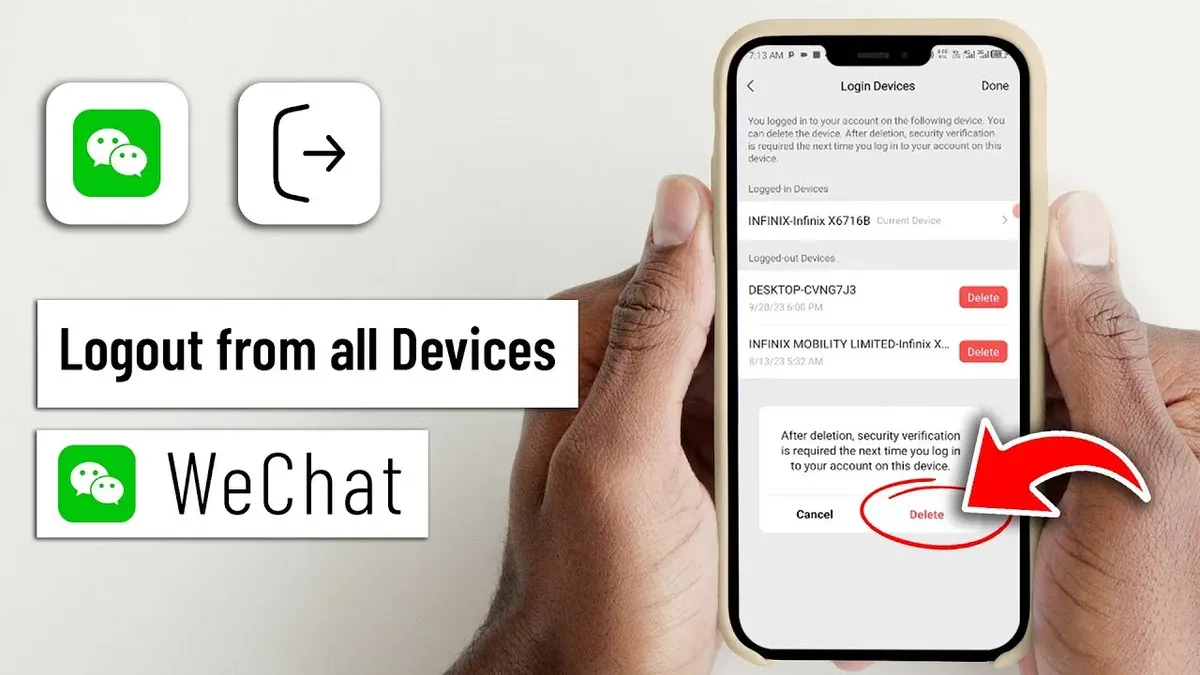
This guide explains how to log out of WeChat on all devices, covering mobile, PC, and web platforms with clear, step-by-step instructions. Managing active sessions is crucial for security and account control, especially when devices are lost or shared. The process is straightforward but varies slightly depending on the device and app version. Knowing exactly where to find session management options within the app saves time and prevents confusion.
WeChat users often ask how to log out of WeChat on all devices remotely to ensure no unauthorized access. This article also addresses common login issues, including password recovery and troubleshooting login failures on web and desktop versions. Practical tips and less-known steps are included to streamline account management and enhance security.
Before You Start: What Is Needed to Log Out of WeChat on All Devices
Logging out of WeChat on all devices requires access to the primary device where the account is currently active. This can be a mobile device with the WeChat app installed, a PC running WeChat for Windows or Mac, or access to WeChat Web through a supported browser. Without access to one of these, remote logout options are limited or unavailable.
Ensure the WeChat account credentials—username and password—are available for verification during the logout process, especially if re-login or security confirmation is necessary. Remote logout often triggers additional security steps such as SMS verification or captcha challenges to confirm the user’s identity.
Be aware that not all devices or platforms support remote logout fully. Older versions of the WeChat app or certain operating systems may lack this feature. Supported platforms include iOS and Android mobile devices running recent versions of the WeChat app, Windows and Mac desktop clients, and major browsers with WeChat Web access.
The official WeChat app version should be updated to the latest release to ensure all logout features are accessible. Devices with outdated apps might not show the option to log out remotely or may fail to sync logout commands across devices.
- Confirm access to the primary device logged into WeChat; opening the app should display the main chat interface if successful.
- Verify that the WeChat app or desktop client is updated to the latest version; the "About" or "Settings" page will show the current version number.
- Have the WeChat account login credentials ready for any verification prompts; the login screen will require these if re-authentication is needed.
- Check that the device’s operating system supports the current WeChat version and logout features; system settings or app store compatibility notes can confirm this.
- Prepare for possible two-factor authentication steps during logout, such as receiving a code via SMS or email; ensure access to these channels is available.
How to Log Out of WeChat on All Devices from the Mobile App
To remotely log out of WeChat on all devices using the mobile app, begin by opening the WeChat application on the primary device. Navigate to the Me tab at the bottom right, then tap Settings. Within Settings, select Security to access account security options.
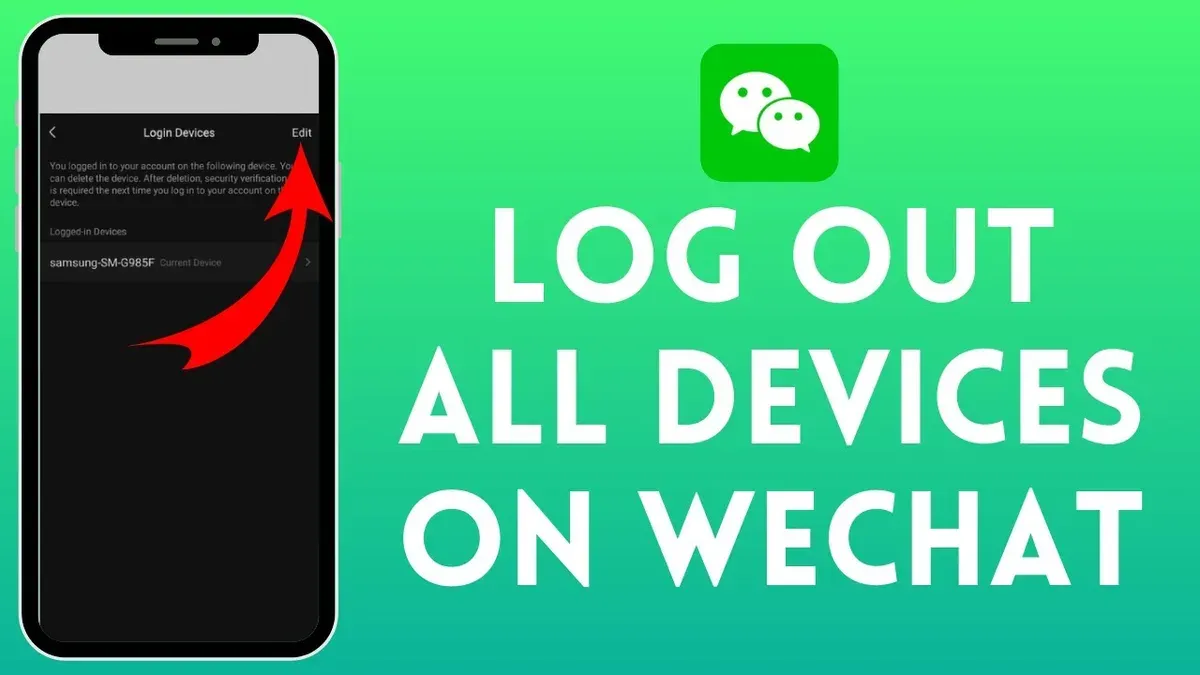
Next, tap Manage Devices or Login Devices to view all active sessions linked to the account. This list displays device names, locations, and last active times, allowing identification of sessions that need to be terminated.
- Open the WeChat app and go to Me > Settings > Security.
- Select Manage Devices to see all logged-in devices.
- Review the list of active devices; each entry shows device type and last login time.
- Tap the Logout button next to any device to terminate that session immediately.
- To log out of all devices at once, use the Log Out of All Devices option if available.
- If a device is offline or unresponsive, logging out remotely will take effect once it reconnects to the internet.
- Complete any security verification prompts, such as entering a verification code sent via SMS or email, to confirm identity during logout.
Once logout commands are issued, the app confirms successful session termination. If the app requests additional verification, complete these steps promptly to ensure all sessions end securely.
Tip: Regularly review active login devices to detect unauthorized access early and maintain account security.
How to Log Out of WeChat on PC and Windows Devices
Logging out of WeChat on PC requires using the desktop app interface or the mobile app for remote session management. The Windows and Mac clients differ slightly: the Windows app often provides a direct logout option, while the Mac version may require alternate approaches.
- Open the WeChat desktop app on the PC or Windows device. In the main window, click the profile picture or avatar in the lower-left corner to open the account menu.
- From the account menu, select "Log Out". A confirmation prompt will appear; confirm to log out. Successful logout returns the app to the login screen.
- If the “Log Out” option is missing or unresponsive, open the WeChat mobile app linked to the same account. Navigate to "Me" > "Settings" > "Security" > "Manage Devices" or "Login Devices".
- Within the device list, locate the PC or Windows device session. Select it and tap "Log Out" to remotely terminate the session. The PC app will be forced offline and require re-login.
- For unresponsive PC apps that do not log out normally, force closure via Task Manager (press Ctrl+Shift+Esc, find WeChat, click "End Task"). Then use the mobile app to revoke the session remotely to ensure logout.
Tip: The Windows client usually shows the logout option clearly in the profile menu, while Mac users might need to rely on the mobile app for remote logout.
How to Log Into WeChat Without Phone
WeChat’s login process typically requires scanning a QR code with the linked phone for verification, making phone absence a significant barrier. The web version enforces this for security, preventing direct login without the primary device. However, alternative methods exist if the phone is lost, inaccessible, or during logout/re-login scenarios.
One option is to use the linked email address or WeChat ID to initiate account recovery. This involves selecting "Forgot Password" on the login screen, then entering the registered email or ID to receive verification codes via email or SMS. This method bypasses the phone’s QR scanning step but requires access to the linked email or phone number for verification.
Another approach is using WeChat’s account recovery through trusted contacts. Users can assign friends as trusted contacts who can verify identity and help regain access without the original phone. This process is slower and requires prior setup in the security settings.
Security precautions include ensuring recovery contacts and linked emails are current and secure. Logging in without the primary phone increases risks such as unauthorized access if verification channels are compromised. Users should immediately update passwords and review active sessions once access is regained.
- Navigate to the WeChat login page on a browser or desktop app and select "Forgot Password." A password reset screen appears.
- Enter the registered email address or WeChat ID and submit. A verification code is sent to the linked email or phone number.
- Input the received verification code on the WeChat interface. Successful verification leads to password reset options.
- Set a new password and log in using the WeChat ID/email and new password. The account dashboard should load, confirming login without the phone.
- Immediately review security settings and active sessions to log out unknown devices and update recovery info.
Tip: Prior setup of trusted contacts or linked email simplifies recovery when the phone is unavailable.
How to Login to WeChat if Forgot Password
For users who cannot access their WeChat account due to a forgotten password, the password reset process is essential to regain control. The reset can be initiated via the WeChat mobile app or the PC desktop client, but requires verification to ensure account security.
- Open the WeChat app or desktop client and select "Log In." Tap or click on "Forgot Password?" to start the recovery process. A prompt to verify account ownership will appear.
- Choose a verification method: SMS verification via the linked phone number, email verification through the registered email address, or answering security questions if previously set up. The app will send a verification code or request answers accordingly.
- Enter the received verification code or answer the security questions correctly. Successful verification leads to a password reset screen where a new password can be created.
- Create a new, strong password using a mix of uppercase and lowercase letters, numbers, and symbols. Avoid common words or predictable sequences. Confirm the new password and submit to complete the reset.
- Once reset is successful, log in with the new password on the original device and update any linked devices to prevent login issues.
If verification methods fail or are unavailable, the user must contact WeChat support with proof of identity and account ownership for manual assistance. This process may take several days and requires patience.
Tip: Enabling two-factor authentication and regularly updating recovery information reduces risks of being locked out and eases password recovery.
Why WeChat Cannot Login on Web and How to Fix It
WeChat Web login requires scanning a QR code with the mobile app. Failure to complete this step results in an error message such as "Please scan the QR code with WeChat on your phone." Without scanning, web login cannot proceed.
Browser compatibility issues often cause login failures. WeChat Web works best on Chrome, Firefox, Edge, and Safari. Browsers with disabled cookies or corrupted cache may display errors like "Login failed" or show a blank QR code. Clearing cookies and cache from the browser settings usually resolves this.
Network restrictions or firewalls can block WeChat Web access, especially on public or corporate networks. Users might see timeout errors or inability to load the QR code. Switching to a different network or disabling VPNs and firewalls temporarily helps determine if these are the causes.
Account security flags may prevent web login due to suspicious activity or policy violations. In such cases, WeChat displays messages like "Account restricted" or "Web login disabled for security reasons." Resolving this requires reviewing security notifications on the mobile app and following instructions to lift restrictions.
- Open WeChat Web in a supported browser; confirm the QR code appears clearly.
- Scan the QR code using the WeChat mobile app's "Scan" feature; a prompt to confirm login should appear on the phone.
- Confirm the login on the mobile device; the browser should then log in successfully showing the chat interface.
- If login fails, clear browser cookies and cache via browser settings and reload the page.
- Switch to a different network or disable VPN/firewall temporarily; reload the QR code and repeat scanning.
- Check the mobile app for security alerts or restrictions under "Settings" > "Account Security." Follow prompts to resolve any issues.
Troubleshooting Common WeChat Login and Logout Problems
When encountering the message “This account is logged in on another device,” confirm that no unauthorized devices are accessing the account. Use the mobile app’s "Manage Devices" feature under "Security Center" to view active sessions and remotely log out from unknown devices. This action should clear the message and restore full access.

If WeChat fails to log in on a new device despite correct credentials, verify that the app version is up to date and that the network connection is stable. Disable VPNs or proxies that may interfere with login servers. Additionally, check if the account has any temporary restrictions by reviewing notifications in the mobile app.
Login or logout attempts blocked due to security or network issues often relate to IP restrictions, suspicious activity flags, or firewall settings. Temporarily switch to a different network or disable firewall rules that might block WeChat servers. If security verification prompts appear, complete all requested steps such as CAPTCHA, SMS verification, or trusted device confirmation.
To verify logout from all devices was successful, return to the "Manage Devices" section in the mobile app after completing the logout process. All devices except the current one should be absent from the list. If any remain, repeat the logout process or contact official support for persistent session issues.
Tip: Regularly monitoring the "Manage Devices" list helps detect unauthorized access early and maintains account security.
Frequently asked questions
How to log into wechat on pc?
Open the WeChat desktop application or visit the official WeChat Web page. Use the mobile app to scan the QR code displayed on the PC screen under the "Log In" section. After scanning, confirm the login on the phone to access the account on the PC.
How to login wechat on pc?
Start by launching WeChat on the computer. Select "Log In via QR Code," then open WeChat on the mobile device to scan the code shown on the PC. Confirm the login on the phone to complete the process.
How to login wechat if forgot password?
Use the "Forgot Password" feature available on the login screen of the mobile app or web version. Follow the prompts to verify identity via linked phone number or email, then reset the password. Alternatively, use WeChat's account recovery options if verification fails.
How to log in wechat on windows?
Download and install the official WeChat client for Windows from the WeChat website. Launch the app, choose "Log In with QR Code," and scan the code using the WeChat mobile app. Confirm the login request on the phone to access the account on Windows.
How to log in wechat?
Open the WeChat app on a mobile device or the desktop client. Enter the registered phone number or username and password, or use the QR code login method on desktop. For new devices, verify identity as prompted to complete the login.
What This Advice Does Not Cover and When to Seek Additional Help
Remote logout may not immediately disconnect all devices if they are offline or experiencing connectivity issues. This guide does not include instructions for account deletion or permanent suspension. Users who cannot access any logged-in device or recovery options such as linked email or phone number must contact WeChat support directly for assistance with account recovery or security concerns.
For the most reliable control over account access, regularly review active sessions within the WeChat security settings and update passwords promptly after suspicious activity. The single most useful next step is to enable two-factor authentication and keep recovery information current to prevent unauthorized access and simplify future login management.
See also: How to Log Out of Viber on All Devices: Step-by-Step Guide · How to Log Out of Telegram on All Devices: Clear Step-by-Step Guide · How to Log Out of Snapchat on All Devices: Clear Step-by-Step Guide · How to Block and Unblock Contacts on WeChat: Step-by-Step Guide



