How to Change Your Webull Password: Complete Step-by-Step Guide
This guide explains how to change your Webull password securely and manage your account settings efficiently.

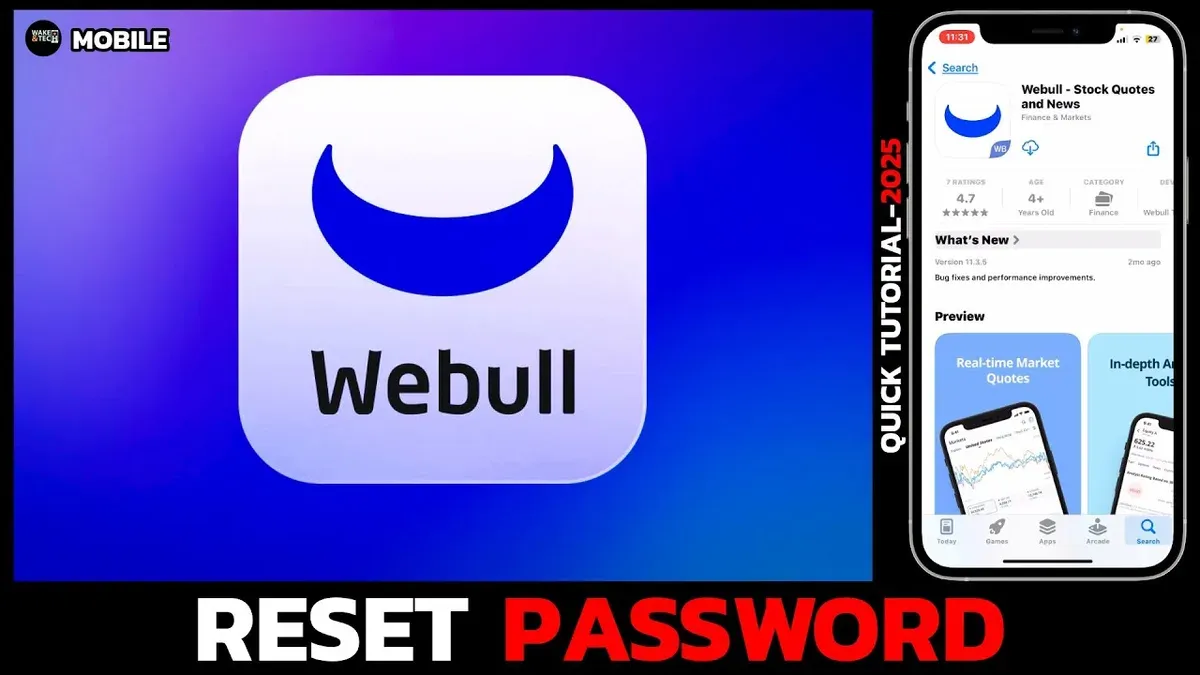
This guide explains how to change Webull password and manage related account settings efficiently.
Changing the Webull password requires access to the account’s security settings found within the app or website. The process involves verifying identity through email or phone number confirmation to ensure secure updates. Beyond password management, users often need to handle tasks like logging out, updating debit card information, or switching account types to maintain control and security. This article covers these steps clearly and directly, enabling users to keep their Webull accounts safe and up to date without confusion.
Before you start: What is needed to change a Webull password
Changing a Webull password requires preparation to avoid interruptions. Access to the Webull app on a mobile device or the desktop platform is essential, supported by a stable internet connection. The current Webull account login credentials, including username and password, must be available to initiate the change process.
The registered email address or phone number linked to the Webull account is necessary for verification. Webull often sends a verification code to these contacts to confirm identity before allowing a password update. Without accurate and up-to-date contact information, the process can fail or be delayed.
Understanding Webull’s security features, particularly two-factor authentication (2FA), is critical. If 2FA is enabled, a secondary verification step through an authentication app or SMS code is required. Many users encounter errors when they attempt to change passwords without having access to their 2FA method or when their contact details are outdated.
- Ensure the Webull app or desktop platform is installed and connected to the internet. Successful connection shows the login screen.
- Have the current login credentials ready. Entering these correctly grants access to account settings.
- Verify that the registered email or phone number is accessible. Receiving a verification code confirms this step.
- Confirm if two-factor authentication is enabled. Prepare the secondary device or app for code retrieval.
Tip: Before proceeding, update the registered contact details in Webull settings if they are outdated to prevent verification failures.
How to change Webull password step-by-step
- Log into the Webull app or website with current credentials. Upon successful login, the dashboard or home screen should appear.
- Navigate to the Account tab, usually located at the bottom menu on the app or in the top right corner on the website. This opens account settings options.
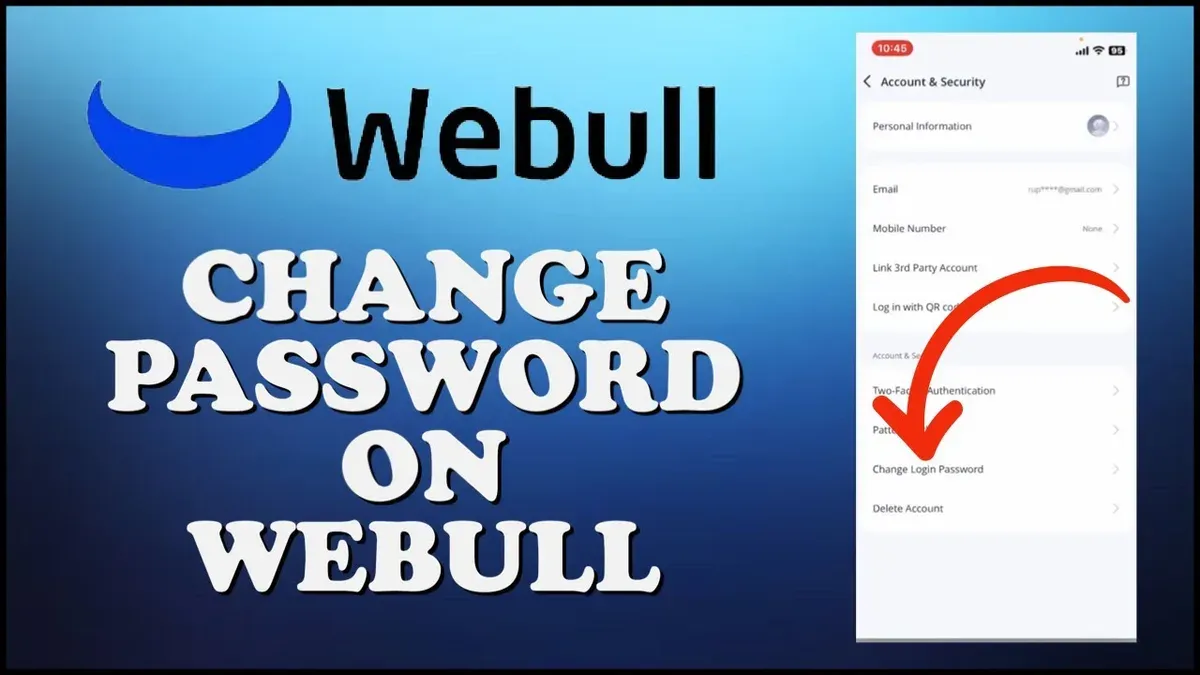
- Select Settings, then choose Security or Account Security from the list. This section manages login credentials and related security features.
- Tap or click the Change Password option. A password change form will appear, requesting current and new password details.
- Enter the current password exactly as used for login. Then, type the new password twice, following Webull’s rules: at least 8 characters, including uppercase and lowercase letters, numbers, and special characters.
- Complete any required verification step, such as entering a code sent via email or SMS to the registered contact information. This confirms identity before applying changes.
- Save the changes by tapping or clicking Confirm or Submit. A confirmation message or prompt will verify the password update was successful.
Tip: Use a password manager to generate and store strong, unique passwords complying with Webull’s requirements.
How to log out of Webull
Logging out of Webull after using the app or website is essential for maintaining account security, especially on shared or public devices. Staying logged in can expose the account to unauthorized access, risking financial loss or data breaches. For example, if someone else accesses a device left logged in to Webull, they could execute trades or view sensitive information without permission.
- Open the Webull app or website and navigate to the main menu by tapping the profile icon or the three horizontal lines, usually located at the top left or right corner of the screen. The menu provides access to account settings and options.
- Scroll to find the Settings option and select it to open account management features. The settings page displays various options including logout.
- Locate and tap the Log Out button at the bottom of the settings menu. A confirmation prompt should appear asking to confirm the logout action.
- Confirm the logout by selecting Yes or Confirm on the prompt. The app or website will close the session and return to the login screen, indicating a successful logout.
Tip: Always log out after changing your password or using Webull on a device others can access to prevent unauthorized account activity.
How to set up and open a Webull account
Starting a Webull account begins with downloading the Webull app from the Apple App Store or Google Play Store, or by visiting the official Webull website. After launching the app or opening the site, the registration prompt appears, inviting the user to create a new account.
- Tap or click "Sign Up" to begin the process. The screen will request basic personal information including full name, email address, and phone number.
- Enter the required details accurately. Upon submission, a verification code is sent to the provided email or phone number to confirm ownership.
- Input the verification code received. Successful verification leads to setting up initial login credentials, specifically choosing a strong password.
- Create a password that meets Webull’s criteria—typically a mix of uppercase and lowercase letters, numbers, and special characters. Confirmation of password creation directs to the identity verification stage.
- Complete identity verification by uploading a government-issued ID and submitting other personal information such as Social Security number or tax ID, depending on jurisdiction. This step enables access to full trading features.
Common pitfalls include mistyping personal information or failing to complete the verification code step promptly, which can halt the registration process. Additionally, neglecting to meet password complexity requirements will prevent account creation.
Tip: Keep a government-issued ID and tax documents handy before starting to speed up the verification process.
How to change debit card on Webull
Updating the debit card linked to a Webull account is essential for seamless deposits and withdrawals. The process involves accessing the Funding or Linked Accounts section within the app or website, where current payment methods can be reviewed and managed.
- Log in to the Webull app or website and navigate to the Account tab located at the bottom of the screen or main menu.
- Select Funding or Linked Accounts to access the payment methods associated with the account.
- Locate the current debit card listed. Choose the option to Remove or Edit the card details. Removing the card will disconnect it from the account.
- To add a new debit card, click Add Payment Method or a similar button. Enter the new card number, expiration date, CVV, and billing address accurately.
- Submit the new card information. Webull may prompt for verification, such as a small temporary charge or a confirmation code sent via email or SMS.
- Once verified, the new debit card will appear as the linked payment method. Confirm that it is set as the default for transactions if multiple cards are present.
Security best practices: Always ensure the device used for updating payment information is secure and connected via a trusted network. Avoid saving payment details on shared or public devices. Regularly review linked cards to detect unauthorized changes early.
How to switch to cash account on Webull
Switching to a cash account on Webull changes the trading permissions and risk profile of the account. Unlike margin accounts, cash accounts do not allow borrowing funds to trade, reducing potential losses but limiting buying power and eliminating margin-related risks.
| Feature | Cash Account | Margin Account |
|---|---|---|
| Borrowing Funds | No | Yes |
| Buying Power | Limited to account balance | Increased with margin |
| Risk Level | Lower | Higher |
| Interest Charges | None | Possible on borrowed funds |
- Log into the Webull app or website and navigate to the profile icon at the bottom right corner. The profile page should load.
- Tap or click on Settings. This opens the account settings menu.
- Find and select Account Type or Switch to Cash Account under the account preferences section. A page describing account types appears.
- Review the information comparing cash and margin accounts carefully, noting the impact on trading capabilities and risks.
- Choose Switch to Cash Account and confirm the selection by tapping or clicking Confirm. A verification step may require entering a code sent via email or SMS.
- After verification, the account type updates to cash account. A confirmation message or updated account summary should appear reflecting this change.
Tip: Switching to a cash account disables margin trading immediately, so ensure all margin positions are closed before switching to avoid forced liquidation.
How to delete or cancel a Webull account
Deleting or canceling a Webull account is a permanent action that removes access to all account features and data. Before initiating deletion, all funds must be fully withdrawn and any open positions closed to prevent complications. Webull’s policy states that account deletion requests must be submitted through official channels and that some data may be retained for a limited period to comply with legal and regulatory requirements.
To delete a Webull account, follow these steps:
- Log in to the Webull app or website and navigate to the Account Settings section; the interface should display personal and security options.
- Locate and select the Account Management or Support menu, then find the option for Account Closure or Delete Account—a prompt or form should appear requesting confirmation.
- Submit a formal request for account deletion, providing any required verification such as password confirmation or two-factor authentication codes; a confirmation message should indicate the request is received.
- Contact Webull customer support directly if the option is not visible or to expedite the process. Support can be reached through in-app chat or official website contact forms.
- Ensure all funds have been withdrawn and positions closed before submitting the deletion request to avoid account lock issues.
Important: Once the account is deleted, access is permanently lost and cannot be restored. Webull retains certain data for a short retention period as mandated, but account activity and personal information will no longer be accessible.
Troubleshooting common issues when changing Webull password
When the current password is forgotten, use the "Forgot Password" link on the login page to initiate recovery. This process sends a verification code to the registered email or phone number. If the code does not arrive promptly, check spam folders and ensure the contact info is up to date in account settings.
If verification codes are delayed or fail repeatedly, switching from Wi-Fi to mobile data or restarting the device can resolve connectivity issues. Contacting Webull Support is advisable if problems persist beyond a few attempts.
Passwords must meet specific security criteria: at least eight characters, including uppercase and lowercase letters, numbers, and symbols. If the new password is rejected, verify these requirements are met exactly. Using common or previously used passwords will also cause rejection.
Account lockouts occur after multiple failed password attempts. To resolve this, wait for the lockout period to expire—usually 30 minutes—and then use the password recovery option. Persistent lockouts require contacting Webull Support with identity verification for manual unlocking.
Tip: Keep contact information current and enable two-factor authentication to reduce recovery delays and improve account security.
Frequently asked questions
How to set up a webull account?
To set up a Webull account, download the Webull app or visit the Webull website. Select "Sign Up" and provide a valid email address or phone number, create a password, and verify the contact method. After initial registration, complete personal information including Social Security number and employment details to comply with regulatory requirements.
How to open a webull account?
Opening a Webull account involves registering via the app or website, verifying identity through KYC (Know Your Customer) processes, and linking a funding source such as a bank account. Approval typically takes a few minutes to a couple of days depending on verification speed. Once approved, the account can be funded to begin trading.
How to create a webull account?
Creating a Webull account starts by selecting "Sign Up" on the Webull platform and entering an email or phone number. Set a secure password and complete the identity verification steps. Confirm the account through a verification code sent to the chosen contact method to finalize creation.
How to delete webull account?
To delete a Webull account, contact Webull customer support directly as the option is not available in the app settings. Ensure all positions are closed and funds withdrawn before requesting account closure. Account deletion may take several business days to process.
How to set up webull?
Setting up Webull involves downloading the app or accessing the website, signing up with a valid contact method, and completing identity verification. After account approval, link a bank account to fund trading. Customize account settings such as notifications and security options for optimal use.
What this advice does not cover
This guide does not cover recovering accounts compromised by hacking or unauthorized access; users should contact Webull support immediately in such cases. Changing the password alone does not guarantee full account security if two-factor authentication is not enabled—activating 2FA is critical for enhanced protection. Instructions may vary slightly depending on the app version or platform updates, so some menu names or paths might differ.
For maintaining account security, enabling two-factor authentication after changing the password is the single most effective next step. This adds an additional verification layer that significantly reduces the risk of unauthorized access even if the password is known or leaked.
See also: How to Change Your Robinhood Password: Step-by-Step Guide · How to Change Your Coinbase Password: Clear Step-by-Step Instructions · How to Change Your Chime Password: Clear Step-by-Step Guide · How to Change Your Cash App Password: Clear Step-by-Step Guide