How to Change Your Walmart Password: Step-by-Step Instructions
This guide explains how to change your Walmart password across platforms with clear steps for customers, employees, and Walmart Plus members.

Someone signs in to Walmart and realizes the password no longer works, or wants to replace an old one before it causes trouble. Here is how to change Walmart password without wasting time on the wrong menu or the wrong recovery path.
The quickest route is the account settings page on the Walmart website. If sign-in still works, that is the cleanest way to update the password; if it does not, the reset flow takes over. For anyone who wants to skip passwords altogether on supported devices, Walmart also offers passkeys as a sign-in alternative.
Every limit and setting name below comes from Walmart, as of November 2026.
Change it from the account settings page
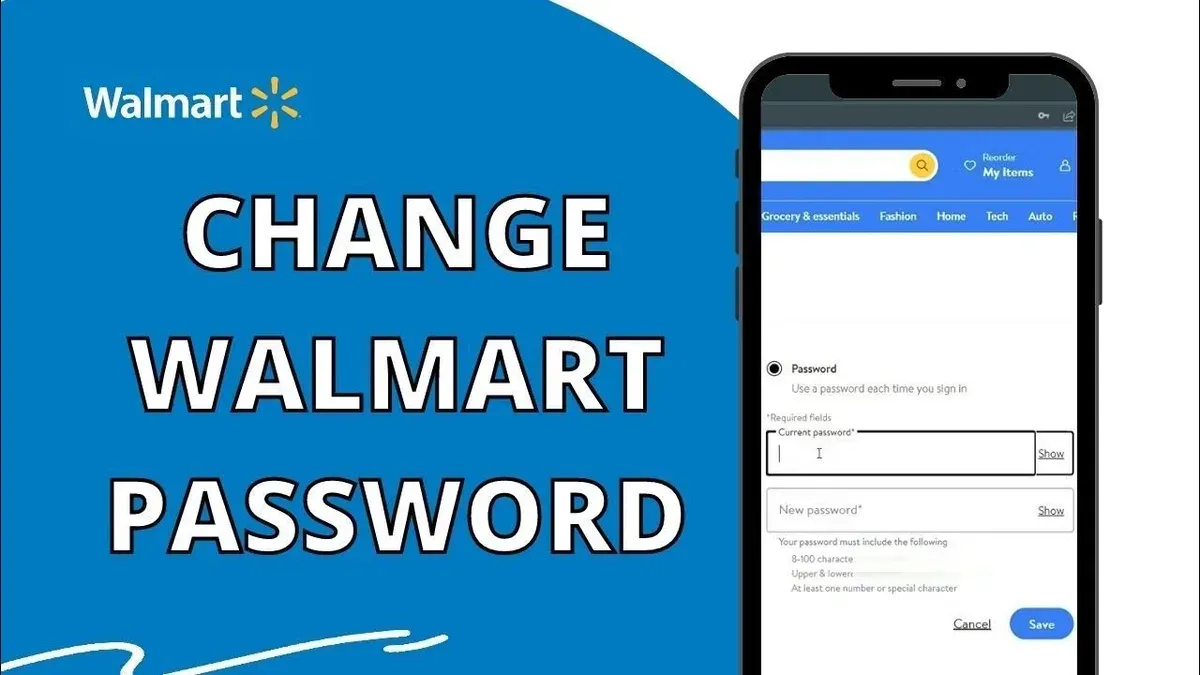
This is the fastest option when the account is already open. It keeps the change inside the main Walmart account and does not depend on a reset message. The website path Walmart lists is Account → Personal info → Password → Edit.
- Sign in to the Walmart website.
- Open Account.
- Go to Personal info.
- Select Password.
- Choose Edit.
- Follow the prompts to update the password.
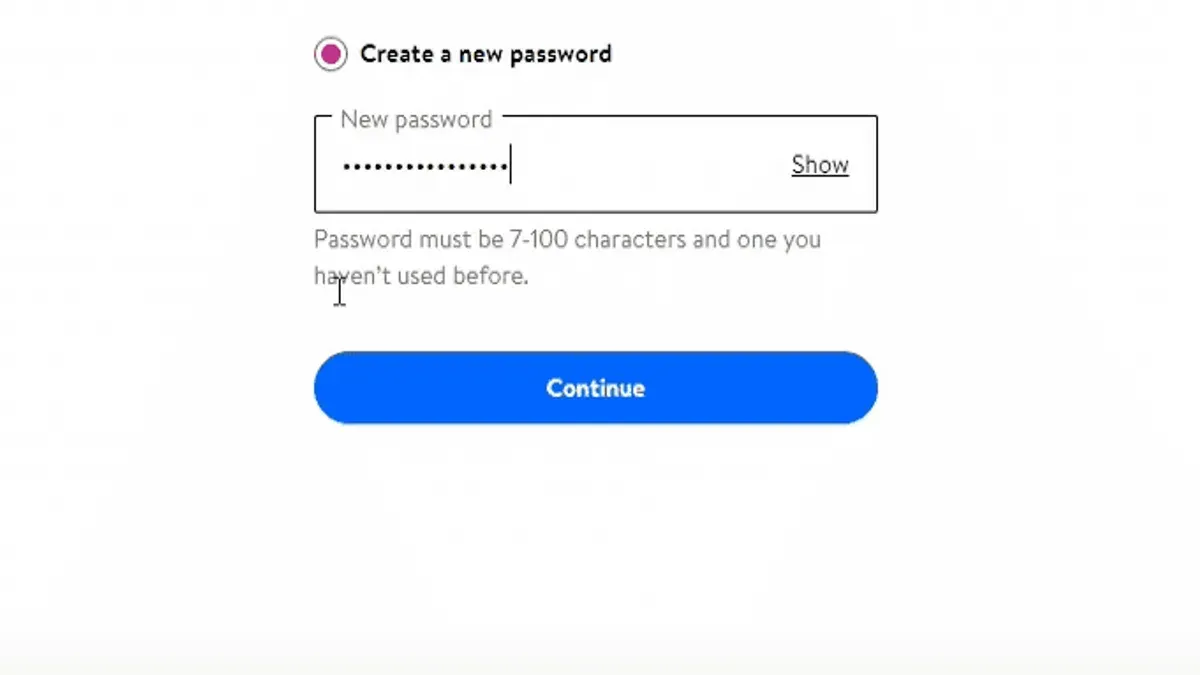
Walmart requires passwords to be at least eight characters long and to include uppercase and lowercase letters plus at least one number or special character. A password that misses any of those requirements will be rejected. The same page is the right place to use when the account holder still has access and simply wants to rotate the password.
Tip: Use a password that is not reused on other accounts. Walmart specifically warns against using the same password across multiple accounts.
Reset it when sign-in no longer works
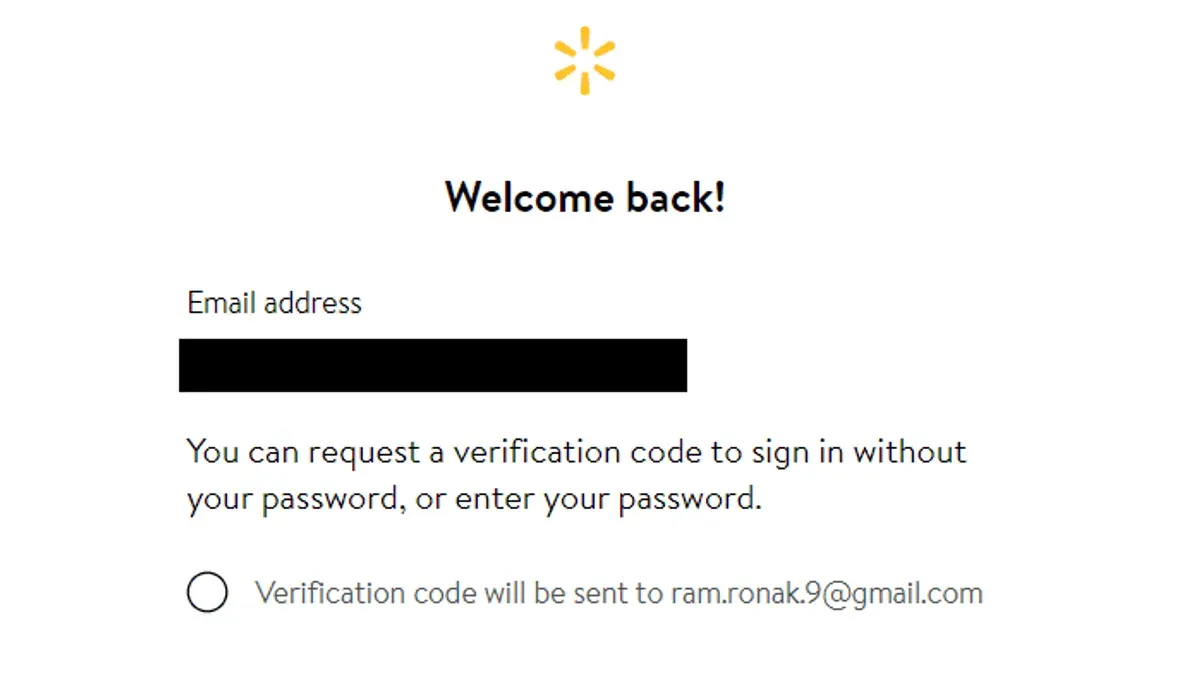
If the password is forgotten or the account cannot be opened, the reset flow is the fallback. This path depends on a verification code sent to the contact method on file, so it is only useful when that message can be received. During the reset process, the verification email can land in spam or junk, and missing it is a common reason the reset stalls.
- Open the Walmart sign-in page and choose the password reset option.
- Enter the account’s email address or phone number.
- Check for the verification code message.
- Open the reset page, enter the code, and proceed to the password form.
- Set the new password so it meets Walmart’s rules.
- Finish the reset and sign in again with the updated password.
That flow is the right choice when the account owner does not know the current password. It is also the only practical path when the account is locked out of normal sign-in. If the code never appears, the first place to look is spam or junk, then the account’s contact details.
Tip: If the code does not arrive, wait a moment and check spam or junk before trying again. Missing the message there is one of the most common reasons the reset fails.
Use Walmart’s password rules without getting blocked
Walmart’s password rules are strict enough to stop weak choices, but simple enough to meet if the format is planned first. The password must be at least eight characters long. It must include uppercase and lowercase letters, and it must include at least one number or special character. A password that lacks any one of those parts will not pass validation.
| Requirement | What Walmart expects | What fails |
|---|---|---|
| Length | At least eight characters | Anything shorter |
| Letter case | Uppercase and lowercase letters | Only one case |
| Extra character type | At least one number or special character | Letters only |
Those rules apply whether the password is being changed from account settings or recreated during a reset. They are the most common reason a new password gets rejected right away. A password that meets the length rule but skips one of the character-type requirements still fails.
Walmart also advises against reusing the same password on multiple accounts. That matters because one weak or exposed password can create a wider problem if it is recycled elsewhere.
Choose between password change and passkey setup
Walmart does not only support passwords. It also supports passkeys, which are a password alternative for secure sign-in. Passkeys can be saved in a cloud service account, such as an Apple or Google account, and then used across all devices associated with that account.
| If the goal is… | Use this option | Why it fits |
|---|---|---|
| Changing an existing Walmart password | Password update in account settings | It updates the current sign-in method |
| Regaining access after forgetting the password | Password reset | It uses a verification code to recover access |
| Signing in without a password | Passkeys | It gives secure, convenient access without a password |
If the reader wants passwordless sign-in, Walmart points to passkeys. If the reader wants to keep using a password, the account settings page is the right place to edit it. If the password is gone entirely, the reset flow is the only route that starts from the sign-in screen.
Create a passkey instead of changing the password
Passkeys are not the same thing as a password change, but they are relevant when the goal is easier sign-in. Walmart says passkeys help secure sign-in and can be stored in a cloud service account. That makes them available across devices tied to the same Apple or Google account, which is useful when the same Walmart login is used on more than one device.
The menu paths differ by device. On Android, the path is Account → Manage Account → Passkeys → Create passkey. On iOS, the path is Account → Manage Account → Face ID & passkeys → Create passkey. Those paths are the ones Walmart documents for the app.
- Open the Walmart app.
- Go to Account.
- On Android, open Manage Account and then Passkeys.
- On iOS, open Manage Account and then Face ID & passkeys.
- Select Create passkey.
If the aim is a passwordless experience, passkeys are the better fit than another password update. If the goal is simply to change the existing password, this is the wrong path.
Where the Walmart app fits in
Walmart’s app path is useful for passkeys, but the account-settings password edit path is the one documented for changing the password on the website. That matters because app menus are not always laid out the same way as the web account page, and following the wrong path wastes time. The app paths that Walmart documents here are for passkeys, not for a normal password edit.
Tip: If the account is already signed in on a phone and the goal is simpler future sign-in, setting up a passkey is often the cleaner move than changing the password again.
This is an important limit. The app instructions in Walmart’s help pages are for creating passkeys, while the standard password edit path is listed for the website account area. If the reader is looking for a password change and not a passkey, the website route is the one to use.
What to do when the reset email does not show up
The reset process depends on a verification code message, so a missing message stops the process cold. The first place to check is the spam or junk folder, because that is where verification mail is often filtered. If the account holder entered the wrong contact information, the message will go to the wrong place or not arrive at all.
- Check inbox, spam, and junk folders.
- Confirm the entered contact details were correct.
- Request the code again if needed.
- Try the reset flow once the message is found.
This is one of the few places where the problem is usually not Walmart’s password policy but message delivery. A verification code cannot help if it is buried in junk mail. That is why the spam check belongs early, not after several failed attempts.
Shared devices and other practical limits
Shared devices change the risk, not the procedure. If the password is changed on a shared phone, tablet, or computer, the old sign-in should be removed from the browser or app afterward. Otherwise, the next person who opens the device may still see a signed-in session or saved credentials.
Passkeys also introduce a device and account relationship that matters. Because Walmart says passkeys can live in a cloud service account and work across associated devices, they are convenient on a personal device set. They are less useful where devices are shared or where the same cloud account is used by more than one person.
Managed accounts are a separate issue. If an account is controlled by an employer, school, or other administrator, the normal consumer steps may not apply in the same way. In that case, the account manager or support channel for that managed environment controls the next step, not the standard consumer password path.
When the account keeps rejecting the new password
A rejected password usually means one of two things: the string does not meet Walmart’s rules, or the entry was mistyped. The fix is straightforward. Recheck length, case mix, and whether at least one number or special character is included. If the password still fails, simplify the formatting and try again carefully.
Repeated failed attempts are a bad idea because they can make access harder rather than easier. If the reset path is already in use, the safer move is to pause, verify the code delivery, and return with a compliant password. For an account that has gone out of reach, the reset process is more reliable than guessing at the old password.
What usually works best
If sign-in still works, changing the password from the Walmart website is the shortest route. If sign-in does not work, the reset flow is the practical fallback, provided the verification message can be received. If the goal is to move away from passwords altogether, passkeys are the better choice and Walmart supports them on the app paths listed above.
In short, use the website to edit an existing password, use the reset flow when the current one is lost, and use passkeys when passwordless access is the real objective. Each option solves a different problem, and choosing the right one avoids the usual dead ends.
Change your Walmart password
Documentation used
- Manage Password - Walmart.com — Walmart
- Passkeys - Walmart.com — Walmart
See also: How to Change Your Call of Duty Password and Account Details Safely · How to Log Out of LinkedIn on All Devices: Clear Step-by-Step Instructions · How to See Where You're Logged Into YouTube: Step-by-Step Guide