How to Change Your Venmo Password: Complete Step-by-Step Guide
This guide explains how to change your Venmo password on any device and recover your account even without phone or email access.

This guide explains how to change Venmo password across all devices and situations, including account recovery without phone or email access.
To change a Venmo password, access the Settings menu within the app or website, then select Security. From there, users can update their password by entering the current one and choosing a new, strong password. The process varies slightly between desktop and mobile platforms but follows the same basic steps.
If the password is forgotten, the guide covers resetting it through linked email or phone number, plus alternative verification methods when those are unavailable. Troubleshooting tips address common issues such as reset emails not arriving or app errors during the password change process.
Before you start: What is needed to change a Venmo password
Changing a Venmo password requires preparation to ensure the process completes without interruption. The first prerequisite is access to the Venmo account credentials, including the current password if the intention is to change an existing password rather than reset a forgotten one. For verification and security purposes, access to the registered email address or phone number linked to the account is necessary.
A device with internet connectivity is essential. This can be a smartphone or computer capable of running the Venmo app or accessing the Venmo website through a browser. The device must be ready to receive verification codes sent via email or SMS during the password change process.
Venmo enforces specific password requirements to maintain account security. Passwords must be at least 8 characters long and include a combination of uppercase and lowercase letters, numbers, and special characters. Simple or commonly used passwords are not accepted. Understanding these requirements helps prevent repeated entry errors.
Familiarity with Venmo’s security protocols is important. Venmo may request multi-factor authentication or ask security questions during the password change. This ensures the account owner’s identity is confirmed, reducing the risk of unauthorized access.
- Confirm possession of the current Venmo password if changing it (not resetting). Successful confirmation allows access to account settings.
- Verify access to the registered email or phone number. This enables receipt of security codes for verification.
- Prepare a compatible device with a stable internet connection to access the Venmo app or website.
- Review Venmo’s password criteria: minimum 8 characters, mixed case letters, numbers, and symbols.
- Understand that additional verification steps, such as multi-factor authentication, may be required.
How to change Venmo password on computer or desktop
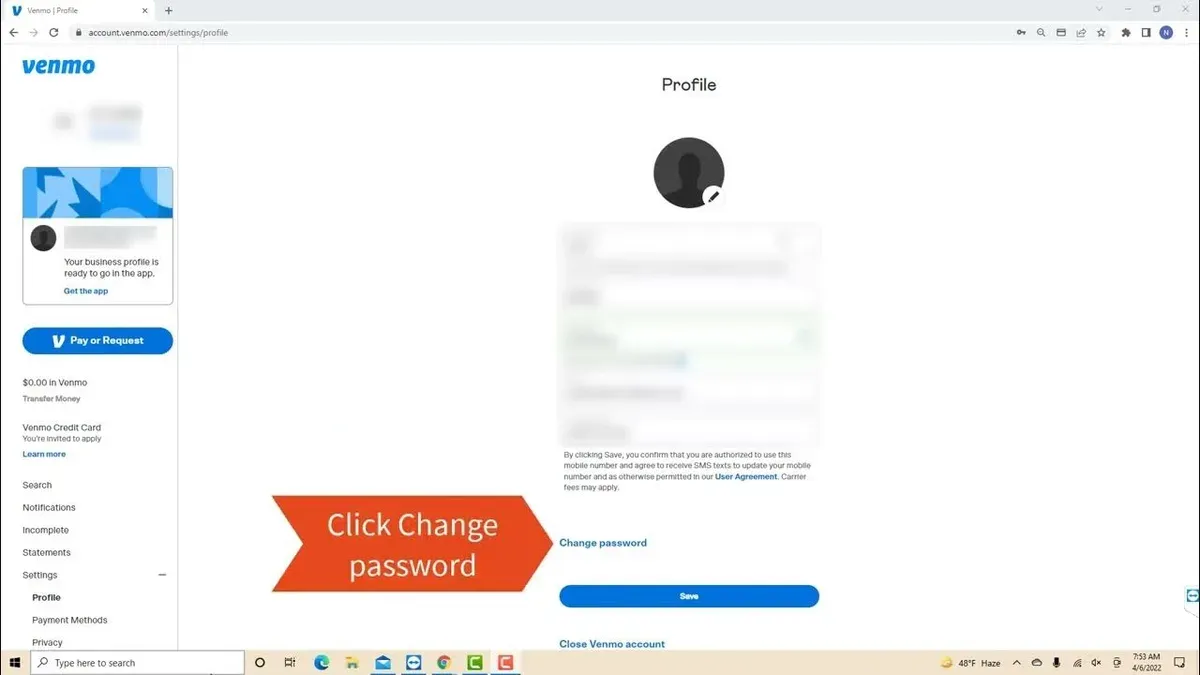
- Open a web browser and go to venmo.com. Log in using the current username and password. Successful login directs to the Venmo homepage displaying the user’s balance and recent transactions.
- Click the profile icon located in the upper-right corner of the page. This opens a dropdown menu with account options.
- Select Settings from the dropdown. The Settings page appears, showing various account management options on the left sidebar.
- Click on Security & Privacy in the sidebar. The security settings page loads with options related to password, two-factor authentication, and connected devices.
- Find the Password section and click the Change Password button. A prompt appears requesting the current password for verification purposes.
- Enter the current password and submit. If correct, fields to enter a new password and confirm it become active.
- Type a new password that meets Venmo’s requirements: at least 8 characters, including uppercase, lowercase, numbers, and symbols. Avoid common phrases or easily guessable sequences.
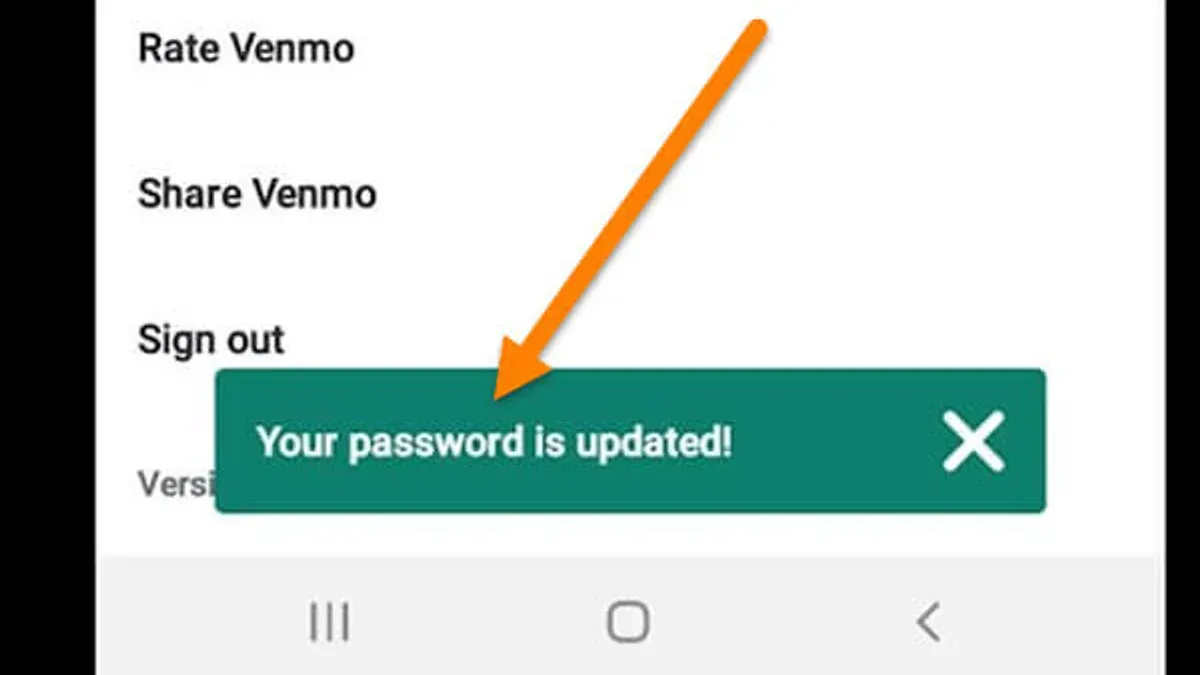
- Re-enter the new password for confirmation and click Save. A confirmation message appears indicating the password has been updated successfully.
- Log out and attempt logging back in with the new password to verify the change took effect.
Tip: Use a password manager to generate and store a complex password securely.
How to change Venmo password on iPhone or mobile app
- Open the Venmo app on the iPhone and tap the single person icon at the top left corner to access the main menu. This opens the account settings section.
- Scroll down and select "Settings" from the menu list. The Settings screen appears with various account management options.
- Tap "Security" within Settings. This section contains password and login options.
- Choose "Change Password." The app prompts for the current password to verify identity.
- Enter the current password correctly and tap "Next." The screen then requests the new password and confirmation.
- Type the new password following Venmo’s requirements (at least 6 characters, including letters and numbers) in both fields and tap "Save." A confirmation message indicates the password was successfully updated.
- The app may log out automatically or require re-login with the new password. Enter the new password to regain account access.
Tip: Ensure the new password is unique and not reused from other accounts to improve security.
How to reset Venmo password if forgotten
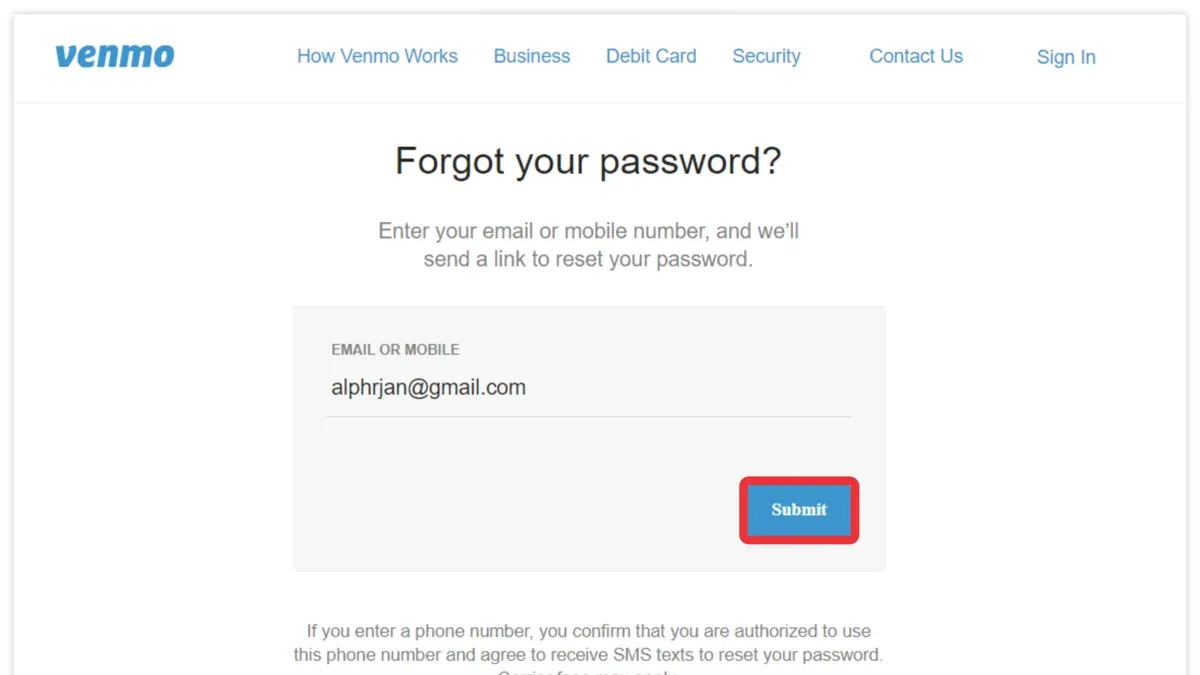
Resetting a forgotten Venmo password starts at the login page. Users must provide the registered email address or phone number linked to their account. Venmo then sends a reset link or code via the chosen method, which must be used promptly as these expire after a short time.
- Go to the Venmo login screen and select "Forgot Password?" A prompt to enter the registered email address or phone number will appear.
- Submit the email or phone number. A reset link will be sent via email, or a reset code via SMS. If neither is received within a few minutes, check spam folders or verify the contact details entered.
- For email users: open the reset email and click the provided link. This directs to a secure Venmo page to create a new password. For phone users: enter the received SMS code on the Venmo reset page, then proceed to set a new password.
- Create a new password following Venmo’s password rules, then confirm it. Successful submission returns the user to the login screen with confirmation of the change.
- Log in using the new password to confirm access has been restored.
Tip: Email reset links tend to be more reliable and less prone to delivery delays compared to SMS codes, which can be affected by carrier issues.
Common issues include not receiving reset codes or links due to incorrect registered information or delayed messaging. Users without access to their registered email or phone number should refer to Venmo’s support for alternative verification methods.
How to change Venmo passcode
The Venmo passcode is a 4-digit or biometric lock used for quick access to the Venmo app on a mobile device. It differs from the Venmo password, which secures the account itself for login and account changes. The passcode provides convenience but is less secure than the full password, as it can be bypassed if device-level security is weak or compromised.
To change or disable the Venmo passcode, follow these steps:
- Open the Venmo app on a mobile device and tap the menu icon (three horizontal lines) in the upper-left corner.
- Select Settings from the menu.
- Tap Privacy & Security.
- Choose App Passcode. Here, the current passcode settings appear.
- To change the passcode, select Change Passcode, then enter the current passcode when prompted.
- Enter the new 4-digit passcode and confirm it. A confirmation message will indicate the passcode has been updated.
- To disable the passcode, toggle off the Require Passcode option and verify with the current passcode.
Security note: The passcode protects against casual unauthorized access if the phone is unlocked or unattended. However, unlike the Venmo password, it does not secure the account against remote login or password changes. For full security, use a strong password and enable two-factor authentication.
For example, if a phone is stolen but locked with a passcode, the thief cannot quickly open the Venmo app. However, if the device is rooted or compromised, the passcode alone will not prevent account access. The password remains the primary security layer.
How to change Venmo password without phone number or email
Venmo requires access to a registered phone number or email to reset or change a password for security reasons. Without access to these recovery contacts, automated password reset options are unavailable. This limitation helps prevent unauthorized account access but complicates password changes when contact information is outdated or lost.
If a user cannot access their phone number or email on file, the primary alternative is contacting Venmo customer support directly. Venmo support may request identity verification through other means, such as providing a government-issued ID or answering security questions linked to the account. This process can take several days and is not guaranteed to restore access if the identity cannot be adequately verified.
To initiate support contact, use Venmo’s official help center on their website or app and select the option for account access issues. Explain the situation clearly and provide any requested documentation promptly. Avoid third-party services claiming to recover Venmo accounts, as these are often scams.
Tip: Regularly update recovery phone numbers and emails in Venmo settings to avoid losing access. Adding multiple contact methods reduces the risk of being locked out.
Troubleshooting common issues when changing or resetting Venmo password
Reset emails not arriving is a frequent issue. First, check the spam or junk folder in the email account. Many reset emails get filtered incorrectly. Also, verify that the email or phone number entered matches the one registered with Venmo exactly. A common error is a typo or the use of an outdated contact detail.
Reset links may sometimes fail to work. This can happen if the link expires or the browser blocks content. Clear browser cache or try opening the link in a different browser or device. Ensure the internet connection is stable and the Venmo app is updated to the latest version if using mobile.
Errors during password updates, such as “Venmo can’t change password,” often result from server issues or temporary account locks after multiple failed attempts. Waiting 15-30 minutes before retrying usually resolves this. If the problem persists, log out and log back in, then retry the process.
If reset password emails do not work despite these steps, contact Venmo support directly. Be prepared to verify identity through linked account details or recent transactions. Support escalation is necessary when automated methods fail or account security flags are triggered.
- Check spam/junk folder for the reset email. The email should appear in the inbox or spam folder within a few minutes.
- Confirm the exact email or phone number registered with Venmo is entered. The reset link will be sent only to this contact.
- Ensure the device has a stable internet connection and the Venmo app is updated. The reset link should open without errors.
- Try opening the reset link in a different browser or device if it does not work initially. The password reset page should load successfully.
- Wait 15-30 minutes and retry if the app shows a password change error. The system may temporarily block password changes after multiple failed attempts.
- If none of these steps work, contact Venmo support with proof of identity. Support will assist in securely regaining access.
Frequently asked questions
How to change venmo password if i forgot it?
Use the "Forgot Password?" link on the Venmo login screen. Enter the email address or phone number linked to the account to receive a password reset link. Follow the instructions in the email or SMS to create a new password.
How to change Venmo password on app
Open the Venmo app and tap the menu icon (three horizontal lines). Select "Settings," then "Privacy & Security," followed by "Change Password." Enter the current password, then the new password twice to confirm and save.
How to change Venmo password on website
Log in at venmo.com, click the profile icon, and go to "Settings." Under the "Security" tab, select "Change Password." Provide the current password and enter the new password twice, then confirm the change.
How to change Venmo password if I forgot it
On the Venmo login page, click "Forgot Password?" Input the registered email or phone number to get a reset link. Use that link to set a new password without needing the old one.
Venmo reset password not working
If the reset link fails, check the spam or junk folder of the email account. Ensure the email or phone number used matches the Venmo account. If problems persist, contact Venmo support for direct assistance with account recovery.
What this guide does not cover
This guide does not cover account recovery for users who have lost access to both their registered email and phone number without Venmo support intervention. In such cases, direct identity verification with Venmo is necessary to regain account access. Users facing this level of account lockout should contact Venmo customer support for assistance, as automated password reset options will not be sufficient.
Tip: Keep your contact information up to date in Venmo settings to avoid complex recovery scenarios.
For the most secure and efficient password update, it is best to use the Venmo app or website while logged in and navigate to Settings > Security > Change Password. This method ensures immediate confirmation and minimizes the risk of lockout. If the password is forgotten, initiating a reset with the registered email or phone number remains the quickest recovery step.