How to Change Your Chime Password: Clear Step-by-Step Guide
This guide provides clear, step-by-step instructions to change your Chime password securely, including solutions if you lose phone or email access.

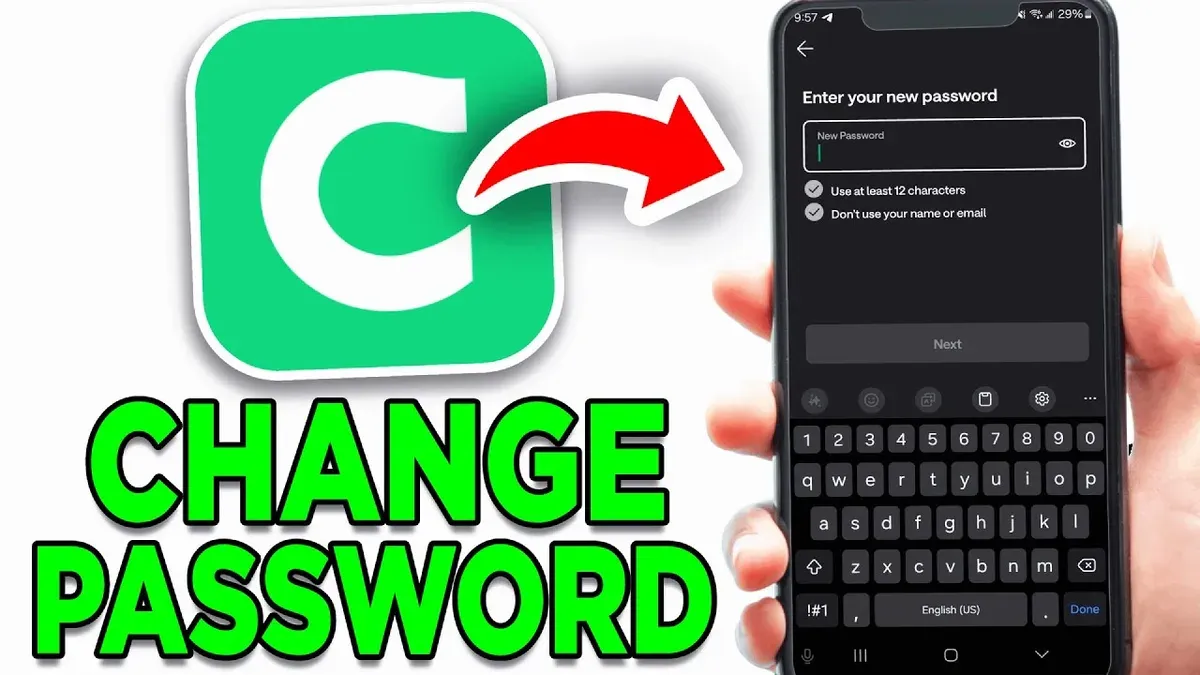
This article explains how to change Chime password with clear, step-by-step instructions for every situation, including being locked out without phone or email access.
Changing a Chime password typically requires access to the account’s registered email or phone number. When logged in, the password can be changed directly in the app or on the website via Settings > Security > Password. If the current password is forgotten, resetting it involves verification through email or SMS codes.
For users without access to their phone or email, additional steps are necessary to verify identity and regain account control. This guide covers all these scenarios to ensure secure and reliable password management for all Chime account holders.
Before you start: What is needed to change or reset a Chime password
Changing or resetting a Chime password requires specific items and information to ensure security and smooth processing. First, if changing the password directly while logged in, access to the current Chime login credentials is necessary. For password resets, verification through a registered email address or phone number linked to the account is mandatory. These verification methods comply with Chime’s official security protocols.
A device with internet access is essential. This device can be a smartphone, tablet, or computer with either the Chime app installed or a web browser capable of accessing the Chime website securely. Without internet connectivity, the steps to change or reset the password cannot be completed.
Password reset processes involve identity verification to protect the account from unauthorized access. This means users should be ready to receive verification codes via their registered email or phone number. If access to these is unavailable, additional recovery methods may be required.
- Confirm possession of current Chime login credentials if planning to change the password while logged in. Successful login confirms this step.
- Ensure the registered email address or phone number linked to the Chime account is accessible for receiving verification codes. Receiving a test code confirms this.
- Use a device with stable internet access and either the Chime app or a compatible web browser. Opening the Chime app or website without error confirms readiness.
- Understand that resetting the password mandates identity verification through linked contact methods. Being prepared to enter received verification codes confirms this.
How to change my Chime password when logged in
- Open the Chime app or visit the Chime website and log into the account. The dashboard or home screen should appear.
- Tap or click on the profile icon or menu button, usually located at the top right corner. A dropdown or sidebar menu will appear.
- Select Settings or Account Settings from the menu. This opens the settings page with various account options.
- Find and choose the Security section. Here, options related to password and account protection are displayed.
- Click or tap on Change Password. A form will appear requesting the current password and new password details.
- Enter the current password exactly as used to verify identity. This step prevents unauthorized changes.
- Create a new password that meets Chime’s criteria (usually a mix of letters, numbers, and symbols). Confirm the new password by typing it again.
- Submit the change by selecting Save or Update Password. A confirmation message or success screen will appear indicating the password was changed.
- Log out and log back in using the new password to ensure the update was successful.
Tip: Use a unique, strong password not used on other sites to enhance security.
How to reset Chime password if the current password is forgotten
Users who cannot log in because they have forgotten their password must use the password reset process on the Chime login page. This involves verifying identity through a registered email or phone number to securely regain account access.
- Go to the Chime login page and click the Forgot Password link below the password field. The password reset page will appear.
- Enter the registered email address or phone number associated with the Chime account. After submitting, a verification code will be sent via email or SMS depending on the contact method chosen.
- Check the email inbox or SMS messages for a 6-digit verification code from Chime. This code is time-sensitive and typically expires within a few minutes.
- Enter the received verification code into the provided field on the Chime password reset page. Upon successful verification, the option to set a new password will become available.
- Create a new password following Chime’s security requirements, such as a combination of letters, numbers, and special characters. Confirm the new password by entering it again in the confirmation field.
- Submit the new password. A confirmation message will display indicating the password has been successfully changed, and the user can now log in with the new password.
Worked example: After clicking "Forgot Password," the user enters their email. Within moments, they receive a text message with the code "483729." Entering this code correctly unlocks the new password fields. After setting a strong password and confirming it, the user sees a success message and can log into their account immediately.
How to reset Chime password without a phone number
If access to the registered phone number is lost, the primary alternative for resetting a Chime password is the registered email address. This method typically has a high success rate, as email verification is a common and secure alternative. However, if the email is also inaccessible, contacting Chime live support is necessary to verify identity through other means.
- Go to the Chime login page and select the “Forgot Password?” option. The reset prompt will ask for the registered email address.
- Enter the registered email address and submit the form. A password reset email should arrive shortly in the inbox.
- Open the email from Chime and click the password reset link. This link directs to a secure page for setting a new password.
- Follow the instructions on the password reset page to create and confirm a new password. A confirmation message will appear once the reset is successful.
- If the email is inaccessible or the reset link does not arrive, contact Chime live support through the app or website chat feature. Prepare to verify identity by providing personal information such as date of birth, social security number, and recent transaction details.
Tip: Keep recovery information up-to-date to avoid lockouts, as email reset is more reliable than phone verification when the phone is lost.
How to reset Chime password without email access
If access to the registered email is unavailable, users should first attempt a password reset using their registered phone number. This method sends a verification code via SMS, allowing password reset without email. If the phone number is not accessible either, contacting Chime live support is necessary.
Reset using registered phone number:
- Go to Chime’s login page and select “Forgot Password.” A prompt to enter either email or phone number appears.
- Enter the registered phone number and submit. A verification code will be sent via SMS.
- Input the received code in the provided field. Upon verification, the option to set a new password will appear.
- Create and confirm a new secure password. A confirmation message indicates successful reset.
Contacting Chime live support when both email and phone are inaccessible:
- Access Chime’s support page via the app or website and select “Contact Us” or “Live Chat.”
- Explain the inability to access both registered email and phone number.
- Prepare to verify identity by providing personal information such as full name, date of birth, Social Security number (last four digits), and recent transaction details.
- Submit any requested identity documents, such as a government-issued ID or utility bill, as instructed by support.
- Once identity is confirmed, the support agent will guide through resetting the password or manually restoring account access.
- Follow any additional instructions provided by the agent to complete the process and regain account control.
Tip: Keep identity documents readily accessible before contacting support to expedite verification.
How to change Chime password on the app
Changing the Chime password using the mobile app is straightforward and can be completed within minutes. The app interface organizes security settings clearly, allowing users to update their password while logged in.
- Open the Chime app on the mobile device and log in with the current credentials. Successful login leads to the app’s main dashboard.
- Tap the profile icon or menu button, usually located in the top right corner of the screen, to access account settings.
- From the menu, select Settings, then navigate to the Security section. This section contains options related to password and login security.
- Tap Change Password. The app will prompt to enter the current password to verify identity.
- Enter the current password, then type the new password twice to confirm it. Make sure the new password meets the app’s security requirements, typically including a mix of letters, numbers, and symbols.
- After confirming the new password, tap Save or Update. A confirmation message or screen should appear indicating the password change was successful.
Tip: If the new password does not meet strength criteria, the app will display an error message specifying what to fix.
Troubleshooting common issues when changing or resetting Chime password
Verification codes not arriving is a frequent hurdle for users. First, check the email spam or junk folder, as codes sometimes get filtered. If using SMS, ensure the phone has adequate network coverage and is not set to block unknown senders.
If a verification code is marked expired or invalid, immediately request a new one. Codes typically expire within minutes for security reasons, so prompt action is necessary. Avoid multiple rapid requests to prevent temporary lockouts.
Accounts may get locked after several failed password attempts to protect user security. If locked out, contacting Chime live support is the recommended step. Support agents verify identity and can restore access, often within a short time frame.
When phone and email access are unavailable for identity verification, alternative proofs such as a government-issued ID or recent transaction details may be required. Preparing these documents in advance facilitates a quicker resolution with support.
- Verify email spam/junk folders or phone network status to find missing verification codes; successful retrieval allows code entry.
- If the code is invalid or expired, promptly request a new code; receiving a fresh code enables continuation of the reset process.
- If the account locks after failed attempts, contact Chime live support; successful verification opens account access.
- If unable to verify identity via phone or email, prepare alternate ID proofs for support; providing these leads to account recovery.
Tip: Keep alternate contact methods updated in Chime settings to reduce recovery difficulties.
Frequently asked questions
How do i change my chime password?
To change a Chime password when logged in, go to the Chime app or website and navigate to Settings > Security > Password. Enter the current password, then create and confirm a new password. Save changes to update the password immediately.
How to change chime password with email?
If logged out, initiate the password reset on Chime’s login page by selecting “Forgot Password.” Enter the registered email address to receive a password reset link. Follow the link to set a new password securely.
How to change chime password without phone number?
Without access to the phone number, use the email associated with the account to request a password reset. If the phone number is the only verification option and is inaccessible, contact Chime support directly for alternative identity verification methods.
How to change chime password when you forgot it?
On the login screen, select “Forgot Password” and provide the registered email or phone number to receive reset instructions. Follow the instructions in the email or SMS to create a new password. If neither contact method is accessible, reach out to Chime support for further assistance.
How to change chime password without email?
If the email on file is not accessible, use the linked phone number to receive a password reset code via SMS. In cases where both email and phone are unavailable, Chime support must be contacted to verify identity and reset the password manually.
What This Guide Does Not Cover
This guide focuses on changing and resetting Chime passwords under normal circumstances, including scenarios without phone or email access. It does not cover password recovery for accounts suspected of being compromised by unauthorized third parties. In cases where there is suspicion of hacking, fraudulent activity, or account takeover, immediate contact with Chime support is essential to secure the account and prevent further damage.
For issues related to account suspension, identity verification failures, or permanent lockouts, this guide does not provide resolution steps. These situations require direct intervention from Chime’s customer service team, which can be reached through the official support channels on the Chime website or app.
Next Step
After completing the password change or reset process, verify that the new password works by logging out and back into the account on both the app and desktop site. This ensures the update was successful and prevents unexpected lockouts. Updating saved passwords in browsers and password managers immediately afterward is recommended to maintain seamless access.
See also: How to Change Your Charles Schwab Password: Clear Step-by-Step Guide · How to Change Your Bybit Password: Clear Step-by-Step Guide · How to Change Your Binance Password: Clear Step-by-Step Guide · How to Change Your Amazon Password: Clear Step-by-Step Guide