How to Change Your Charles Schwab Password: Clear Step-by-Step Guide
Step-by-step guide on how to change your Charles Schwab password efficiently and securely to protect your account.

This article provides a clear, step-by-step guide on how to change Charles Schwab password efficiently and securely. Managing online account credentials properly is essential for maintaining account safety and smooth access. The instructions focus on specific Charles Schwab platform features rather than generic password reset advice, ensuring practical relevance.
Before initiating a password change, account holders need their current login information, including username and password, and access to the registered email or phone number for verification purposes. Understanding where to find the password settings on both the website and the mobile app simplifies the process and reduces errors.
Whether updating the password for security reasons or after a forgotten password, this guide covers all necessary steps, including initial account access and troubleshooting common issues related to password changes on the Charles Schwab platform.
Before you start: What is needed to change a Charles Schwab password
Changing a Charles Schwab password requires a few key elements to ensure the process is smooth and secure. First, an active internet connection is necessary to access the Schwab website or mobile app. Users must have their current Schwab login credentials ready if they intend to change the password while logged in. Additionally, access to the registered email address or phone number linked to the account is essential for receiving verification codes during the process.
Schwab enforces specific password complexity rules to maintain account security. Passwords must be 8 to 20 characters long and include at least one uppercase letter, one lowercase letter, one number, and one special character such as!, @, #, or $. For example, a valid password could be "SecurePass1!". Avoid simple sequences or common words to prevent easy guessing or hacking.
Verification methods commonly used include receiving a one-time code via email or SMS, or authenticating through a two-factor authentication (2FA) app if previously set up. Having immediate access to these verification channels is critical to complete the password change without delays.
- Confirm internet connection and access to either the Charles Schwab website or mobile app; successful access means the homepage or login screen is visible.
- Gather current login credentials; entering these on the login page should grant access to the account dashboard.
- Ensure the registered email or phone is accessible; checking for recent Schwab messages verifies this connection.
- Review Schwab’s password rules and prepare a new password meeting those criteria; testing it in a password strength checker can help.
- Have any two-factor authentication devices or apps ready if enabled; opening the app should display current verification codes.
Tip: Prepare the new password in advance and keep verification devices nearby to avoid interruptions during the change process.
How do I change my Charles Schwab password online?
- Log into the Charles Schwab website using the current username and password. The account dashboard appears upon successful login.
- Navigate to the top-right corner and select the profile icon or username to open the dropdown menu. Click on Settings or Security Settings. A page listing account management options should load.
- Locate and click the Change Password link or button within the Security or Profile section. This opens the password update form.
- Enter the current password in the designated field. Then type the new password twice, following Schwab’s complexity requirements displayed on the page. A password strength indicator may appear to confirm validity.
- Submit the form by clicking Save or Update Password. Schwab may prompt for verification via email, text, or authenticator app depending on account settings.
- After successful password update confirmation, log out of the account completely.
- Log back in using the new password to verify the change. The dashboard should load without error, confirming the new password is active.
Tip: Allow about 3 to 5 minutes to complete this process, including verification steps.
| Step | Expected Result |
|---|---|
| Login | Account dashboard loads |
| Navigate to Security Settings | Security page displays password options |
| Access Change Password form | Password fields appear with instructions |
| Submit new password | Confirmation message and verification prompt (if enabled) |
| Logout and relogin | Successful login with new password |
How to change password on Charles Schwab app
Changing the password via the Charles Schwab mobile app follows a streamlined process similar to the website but is optimized for mobile navigation. The app provides quick access to security settings with added convenience, though some options may be consolidated compared to the web interface.
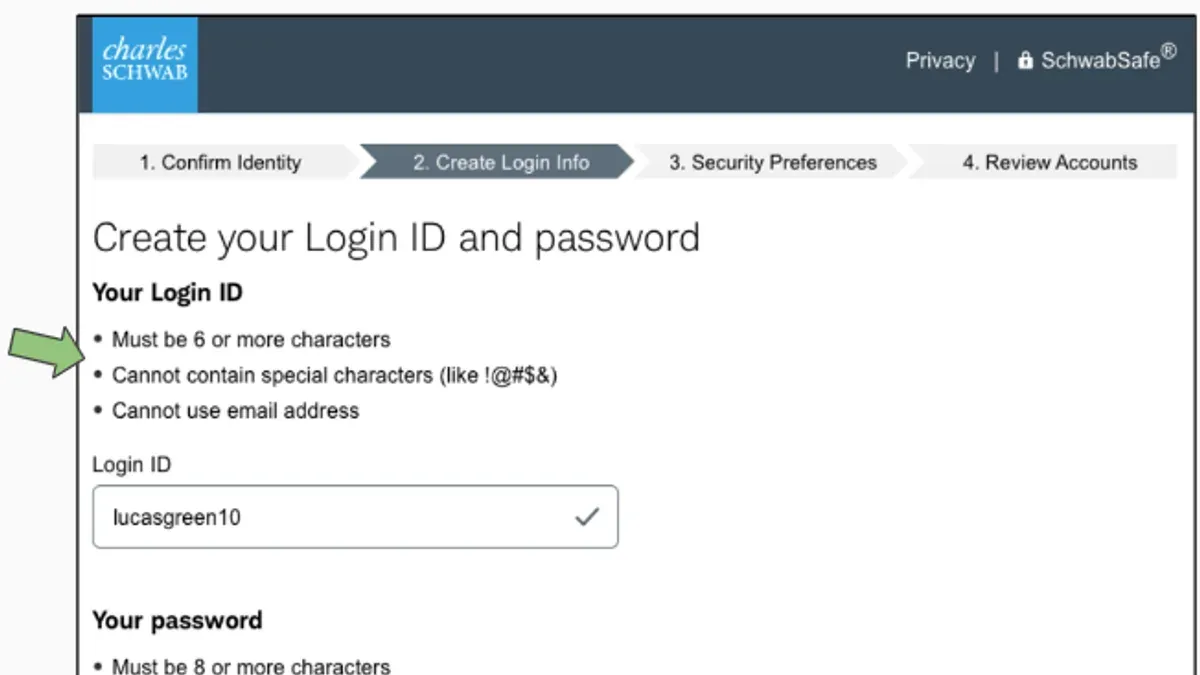
- Open the Charles Schwab app and log in using the current username and password; successful login leads to the main dashboard.
- Tap the menu icon (usually three horizontal lines) in the top corner to access the navigation panel.
- Select "Settings" from the menu, then choose "Security" or "Account Security" to reach password management options.
- Tap "Change Password" to start the process; the app will prompt for identity verification, such as entering the current password or a security code sent via SMS or email.
- Enter the new password following Schwab's complexity requirements, then confirm it by typing it again in the provided field.
- Submit the change and wait for confirmation that the password has been updated successfully.
- Log out and attempt to log back in using the new password to verify the change took effect.
Tip: The app may offer biometric login options (fingerprint or face recognition) which can be enabled once the password is changed to streamline future access.
How to reset Charles Schwab password if forgotten
If the Charles Schwab password is forgotten, access to the account can be restored by completing the password reset process on the login page. This involves identity verification to ensure security before setting a new password.
- Navigate to the Charles Schwab login page and click the "Forgot Password" link. The password recovery page will load.
- Enter the username or email address associated with the Schwab account. Once submitted, the system will prompt for identity verification.
- Complete the identity verification by selecting one of the available methods: receiving a code via registered email, a text message to the phone number on file, or answering security questions. Successful verification advances to the next step.
- Create a new password that complies with Schwab’s password rules, usually requiring a mix of uppercase, lowercase, numbers, and special characters. Confirm the new password by entering it again.
- Submit the new password. A confirmation message will indicate the reset was successful, and the user can now log in using the new password.
Account holders occasionally encounter issues during identity verification, especially if contact information is outdated or security questions are forgotten. In such cases, contacting Schwab customer support may be necessary. The entire reset process generally completes within minutes, provided verification details are accurate.
Tip: Keep recovery contact details updated in the account profile to ensure smooth password resets when needed.
How to access Charles Schwab account for the first time
After opening a Charles Schwab account, new users receive account credentials via email or postal mail. These credentials typically include a temporary username and a one-time password or activation code needed for the initial login. Before starting, ensure the credentials are at hand and the device is connected to a secure internet network.
- Go to the Charles Schwab official website or download and open the Schwab mobile app. The homepage will display a login or activation prompt.
- Click or tap on the “Activate Account” or “First Time Login” link, usually located below the standard login fields. This action opens the activation page.
- Enter the temporary username and the one-time password or activation code exactly as provided by Schwab. Upon successful entry, the system prompts creation of a new password.
- Create a strong password following Schwab’s security guidelines, which generally require a mix of uppercase and lowercase letters, numbers, and special characters. Confirm the new password by re-entering it.
- Set up security preferences such as security questions or biometric options if offered. This step enhances account protection and assists in future password recovery.
- Enroll in two-factor authentication (2FA) if available. This usually involves linking a mobile device to receive verification codes and adds an additional security layer.
- Complete the setup by logging in with the newly created credentials. A successful login directs to the account dashboard, confirming activation.
Tip: Activation via the website may offer a more detailed setup experience, while the mobile app provides a faster, streamlined process for mobile users.
Typical first-time setup takes around 5 to 10 minutes. Common pitfalls include mistyping the temporary password, not following password composition rules, or skipping 2FA enrollment, which can delay access.
How do I change my name on my Charles Schwab account?
Charles Schwab requires legal documentation to process name changes on accounts. Acceptable documents include a marriage certificate, court order, divorce decree, or government-issued ID reflecting the new name. Typically, the process takes several business days after submission of all required documents.
- Gather legal proof of the name change, such as a certified marriage certificate or court order. This document must clearly show the previous and new names.
- Contact Charles Schwab customer service via phone or secure message through the online account portal to initiate the name change request. The representative will provide instructions on submitting the documentation.Successful contact is indicated by receiving confirmation of the request and submission guidelines.
- Submit the legal documents through the recommended method, either by uploading them securely online or mailing certified copies to the address provided by Schwab.
- Update the account profile once Schwab confirms the name change. This can be done in the account settings section under "Personal Information" where the new name should appear.
- Verify the updated name on all account statements and login screens to ensure accuracy. Check that login credentials remain secure and unchanged unless otherwise instructed by Schwab.
Tip: Keep copies of all submissions and correspondence until the name change is fully processed and reflected in the account.
Troubleshooting common Charles Schwab password issues
Verification codes sent during password changes or resets may be delayed or not received due to network issues or incorrect contact information. Check the registered phone number or email address in the security settings and ensure the device has signal or internet access. If a code still does not arrive within a few minutes, request a new one or try an alternate contact method if available.
Passwords may fail to change if they do not meet Schwab's complexity requirements or if the session times out. Confirm the new password includes a mix of uppercase and lowercase letters, numbers, and special characters, and is at least eight characters long. Refresh the page and re-enter credentials if the system rejects the password change without clear error messages.
Accounts may lock after multiple failed login or password attempts, typically after five tries. If locked, the account remains inaccessible for a temporary period or until verified through Schwab’s support channels. Avoid repeated attempts to prevent extended lockouts.
Contacting Charles Schwab support is recommended for unresolved issues. Have the Schwab account number, Social Security number, and recent transaction details ready for identity verification. Schwab’s customer service aims to respond promptly, often within minutes during business hours.
Security tips include verifying Schwab URLs before entering credentials to avoid phishing. Schwab occasionally sends alerts about suspicious account activity; promptly review such notifications through official channels without clicking unsolicited links.
- Verify registered contact info in account settings. A successful check shows correct phone/email listed.
- Request a new verification code after waiting 5 minutes. A new code should arrive by SMS or email.
- Ensure the new password meets all complexity rules before submitting. Acceptance results in a confirmation message.
- If the account locks, contact Schwab support with identification details. Support confirms unlocking once verified.
- Review any security alerts from Schwab on the official website or app. Alerts should provide clear instructions or options to report suspicious activity.
Frequently asked questions
How to change schwab password?
To change the Schwab password, log in to the Charles Schwab website and go to the "Settings" menu. Select "Security" and then "Password" to enter a new password. Follow the prompts to save the changes securely.
How to change password on schwab account?
Access the account via the Schwab website or mobile app, navigate to the "Settings" or "Profile" section, and find the "Change Password" option under security settings. Input the current password, then create and confirm a new password following Schwab’s requirements.
How to get a charles schwab account?
Visit the Charles Schwab website and click on "Open an Account." Choose the type of account needed, such as brokerage or retirement, and complete the online application by providing personal and financial information. Verification steps will follow before account activation.
How to change my schwab password?
After signing into the Schwab platform, select "Settings," then "Security," and choose the "Change Password" option. Enter the existing password and create a new one that meets the platform’s criteria, then confirm to finalize the update.
How to open charles schwab account?
Start on the Charles Schwab homepage by clicking "Open an Account." Select the preferred account type, fill out the required personal details and financial information, and submit the application. Review and complete any identity verification steps to activate the account.
What this guide does not cover and who should do something else
This guide does not cover password recovery for corporate or institutional Schwab accounts, which follow different procedures and security protocols. Users managing business or trust accounts should contact Charles Schwab’s dedicated support channels or their account representative directly. Additionally, this article does not address multi-factor authentication setup beyond its role in the password change process, nor does it cover broader account security measures such as device management or fraud alerts.
For individual account holders, the single most useful next step is to complete the password change through the official Schwab website or mobile app as described. Ensuring the new password is unique, complex, and securely stored prevents unauthorized access. After updating the password, verify account access immediately and review account recovery options to maintain uninterrupted control over the Schwab account.
See also: How to Change Your Bybit Password: Clear Step-by-Step Guide · How to Change Your Binance Password: Clear Step-by-Step Guide · What to Do If Your Wells Fargo Account Is Hacked: Clear Recovery Steps